How to Copy Text From a Screenshot on Any Device

Yes, you can copy text from a screenshot. The quickest method is to use the text-recognition feature already built into Windows, macOS, ChromeOS, iOS, or Android. If your device does not show a text-selection option, upload the screenshot to an online OCR tool and copy the extracted result.
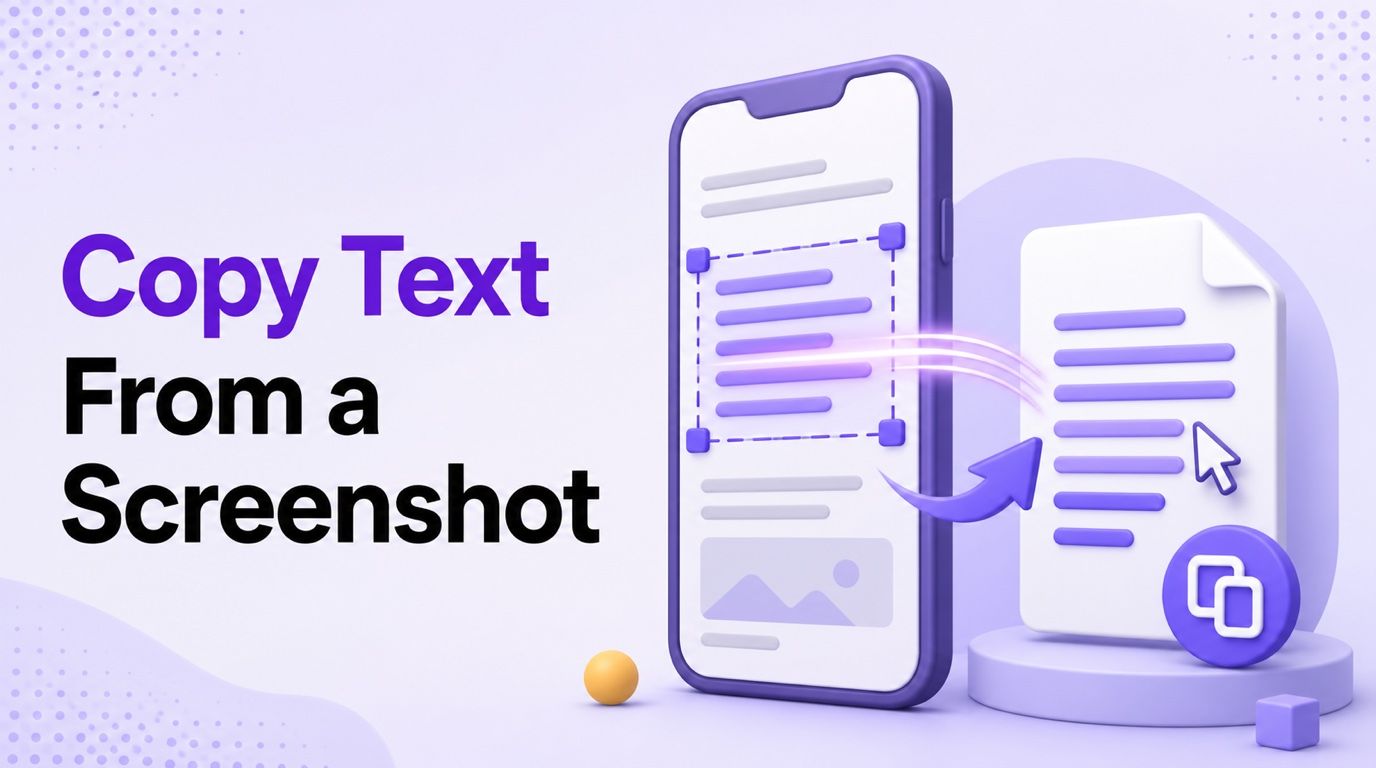
The important distinction is that copying the screenshot itself only copies an image. To copy the words inside it, your device or an online tool must first recognize those pixels as editable text. Here are six practical ways to do that.
| Device or situation | Fastest method | Basic action |
|---|---|---|
| Any device with a browser | Lynote Screenshot to Text | Upload, convert, and copy |
| Windows 11 | Snipping Tool Text actions | Open a snip, choose Text actions, then copy |
| Mac | Live Text | Select recognized text and press Command-C |
| Chromebook | Google Lens | Select the screenshot region and choose Copy text |
| iPhone | Live Text in Photos | Touch and hold the text, then tap Copy |
| Android | Google Lens in Google Photos | Scan the screenshot, select text, and tap Copy text |
1. Copy Text From a Screenshot Online With Lynote
An online converter is useful when you move between devices, cannot find the native OCR control, or want to do more than place the result on the clipboard. The Lynote Screenshot to Text Converter runs in a browser, so the workflow is consistent on Windows, Mac, Chromebook, iPhone, and Android.
This method works well for screenshots of lecture slides, chat messages, app screens, websites, captions, error messages, and document viewers. It extracts usable text rather than recreating the screenshot's exact layout, so you should still review columns, tables, code, and unusual typography.
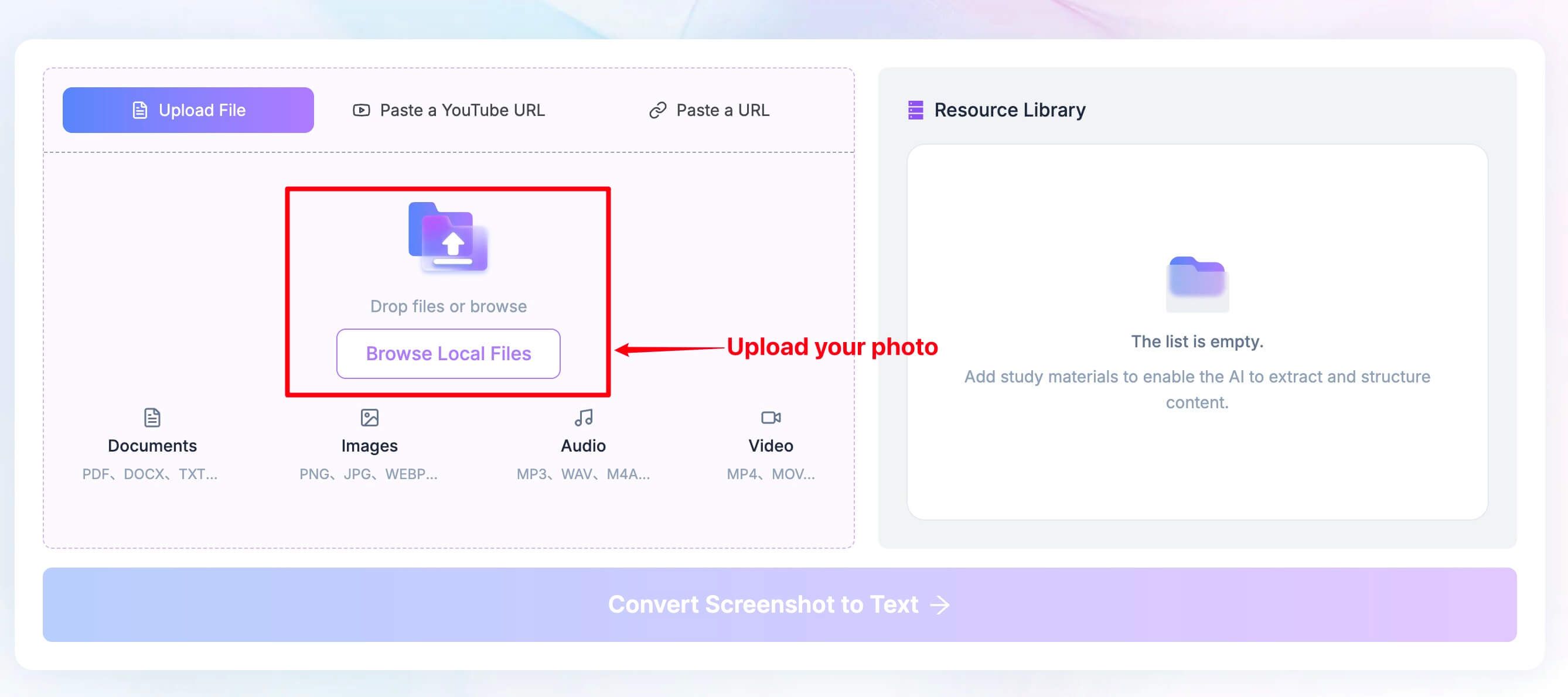
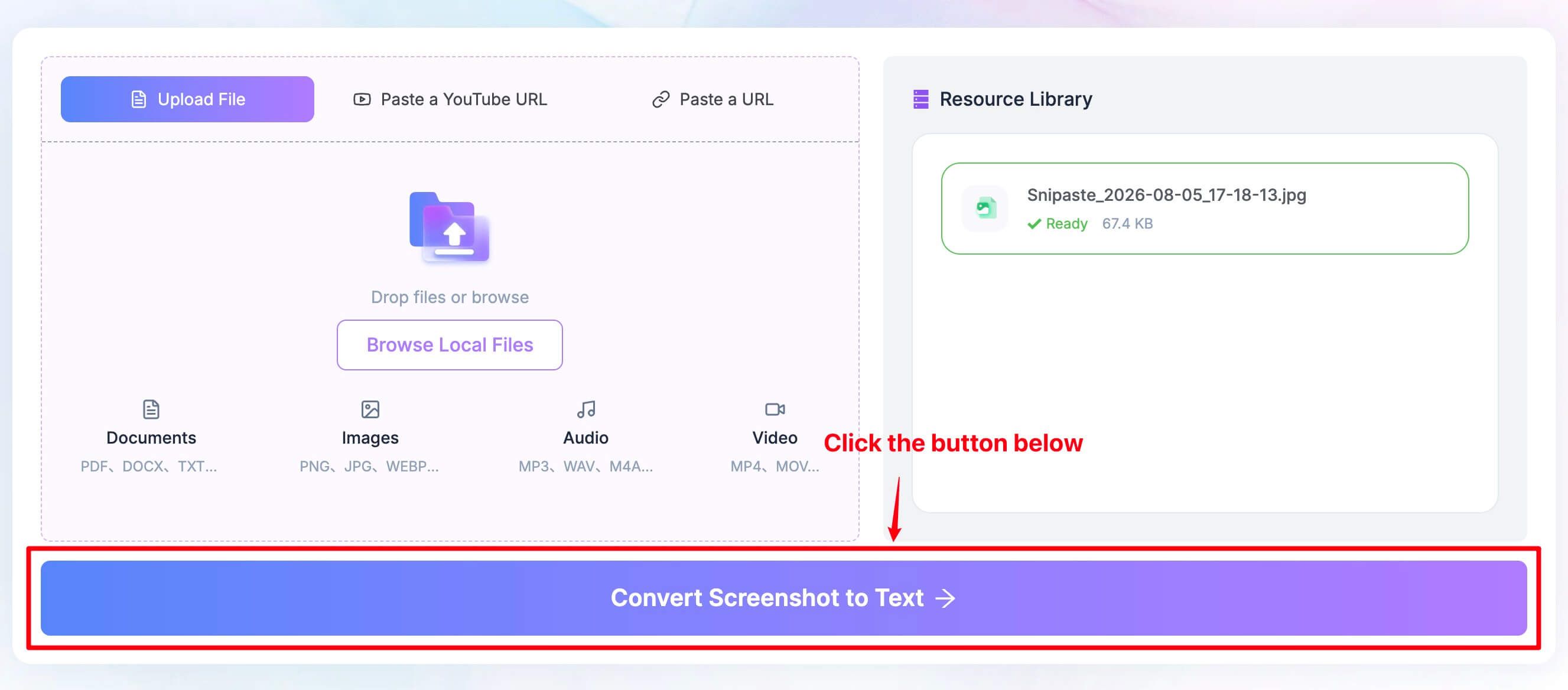
Step 1: Upload Your Screenshot
Open the tool and choose the screenshot from your phone or computer. Use the original image when possible instead of a copy that has been repeatedly shared or compressed.
A tightly cropped, upright screenshot with sharp, high-contrast lettering gives OCR less irrelevant material to interpret. Before uploading, crop out passwords, payment information, private messages, account details, and unrelated personal information.
Step 2: Convert the Screenshot to Text
Click Convert Screenshot to Text. Lynote analyzes the visible lettering and returns an editable text result.
If the screenshot has multiple panels or columns, read the output once before copying it. OCR may recognize every word correctly but arrange those words in a different reading order from the original screen.
Step 3: Copy, Translate, or Download
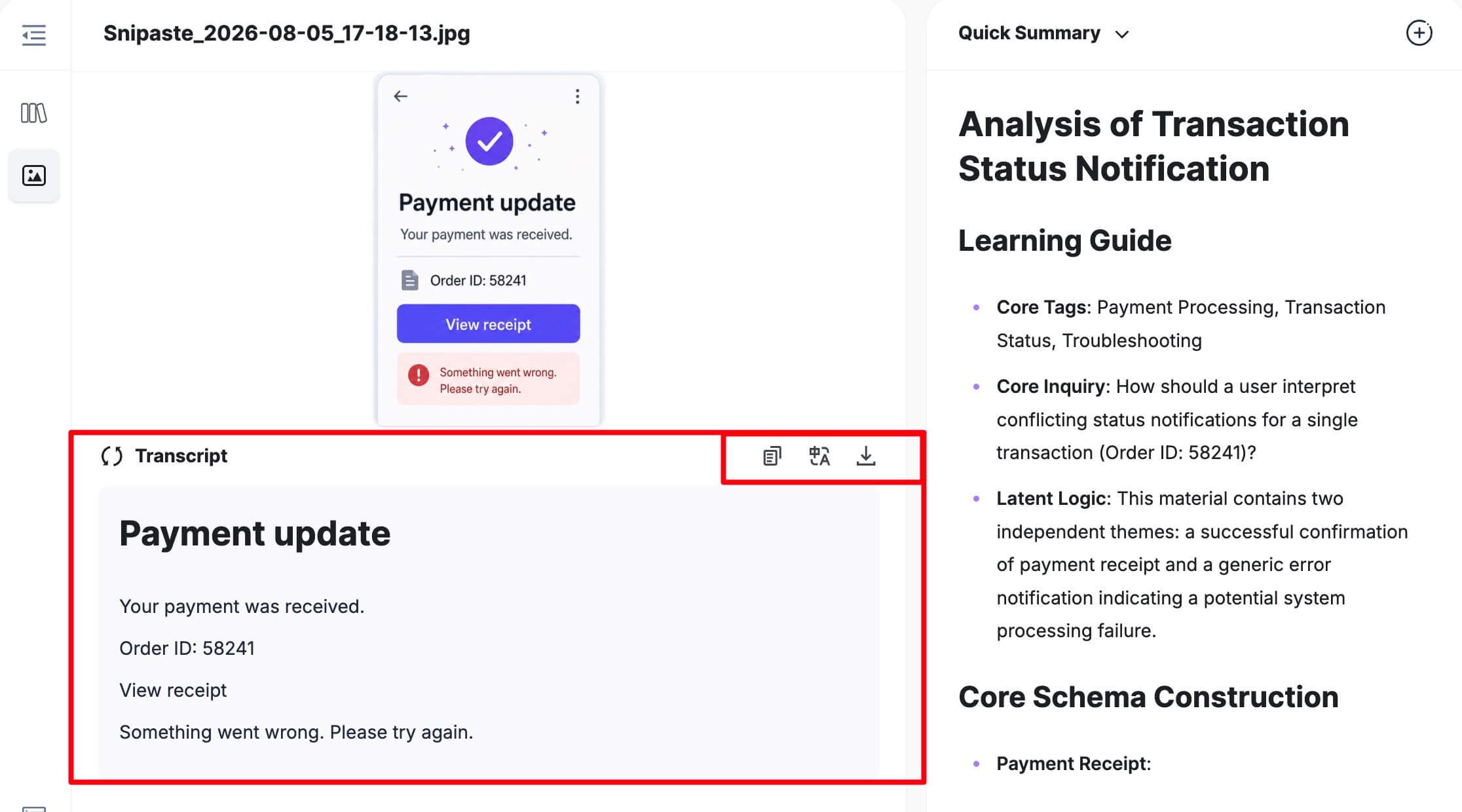
Review the extracted result, then copy, translate, or download it according to what you need next. Copy is the fastest choice for a short message or quote, while download is more convenient when you want to keep a longer result as a separate file.
Check names, dates, links, serial numbers, formulas, and code character by character. A single mistaken 0, O, 1, l, dash, or quotation mark can change the meaning even when the rest of the extraction looks clean.
2. Copy Text From a Screenshot on Windows
Windows 11 includes text recognition in Snipping Tool. This is usually the best first choice because it does not require uploading the screenshot to a website, and the recognized text can be copied directly from the snip.
Use Snipping Tool Text Actions
-
Open Snipping Tool and take a new screenshot, or open an existing capture in the app.
-
Select Text actions in the toolbar.
-
Wait for Windows to identify the text regions.
-
Drag across the words you need and copy them, or choose Copy all text.
-
Paste the result into Word, Notepad, an email, or another destination.
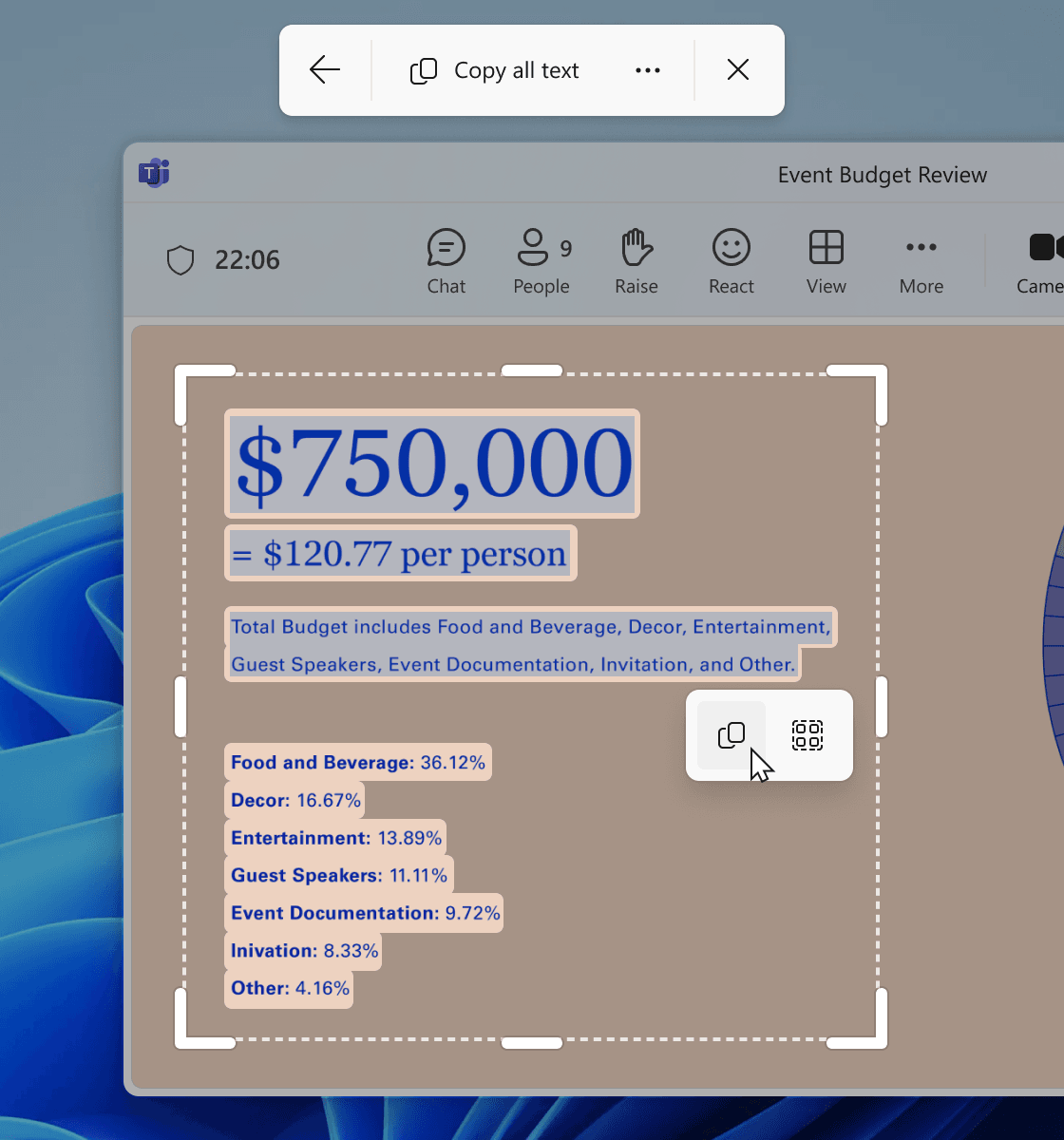
Microsoft says the text-recognition process used by Snipping Tool runs locally on the device. That makes it a sensible option for screenshots you do not want to upload, although you should still handle copied confidential text carefully after it reaches the clipboard.
Snipping Tool can also quickly redact detected email addresses and phone numbers. Treat automatic redaction as a convenience rather than a final privacy review: inspect the image yourself before sharing it.
Use PowerToys Text Extractor for Repeated Work
If you frequently copy text from apps, videos, remote desktops, or areas that are awkward to save as image files, Microsoft PowerToys Text Extractor offers a faster screen-region workflow.
Install PowerToys, enable Text Extractor, activate its shortcut, and drag over the region containing the text. The recognized result is sent to the clipboard, ready to paste. This is especially convenient when the words are visible on screen but the app does not allow normal selection.
PowerToys is better suited to repeated desktop capture, while Snipping Tool is simpler for an existing screenshot. If neither option appears on your Windows version, use the online Lynote method instead.
Why Text Actions May Be Missing
Update Snipping Tool through Microsoft Store and install current Windows updates. Then reopen the screenshot inside Snipping Tool rather than viewing it only in a browser or a third-party image viewer.
On a managed school or work computer, software versions and optional utilities may be controlled by an administrator. In that case, a permitted browser-based converter may be more practical, provided the screenshot is appropriate to upload.
3. Copy Text From a Screenshot on Mac
On a supported Mac, Live Text can identify words in screenshots and photos. You can often select the text as naturally as you would select a sentence on a webpage.
-
Open the screenshot in Photos or Preview.
-
Move the pointer over the visible text.
-
Drag to select the words you want.
-
Press Command-C, or Control-click and choose Copy Text.
-
Paste the result with Command-V.
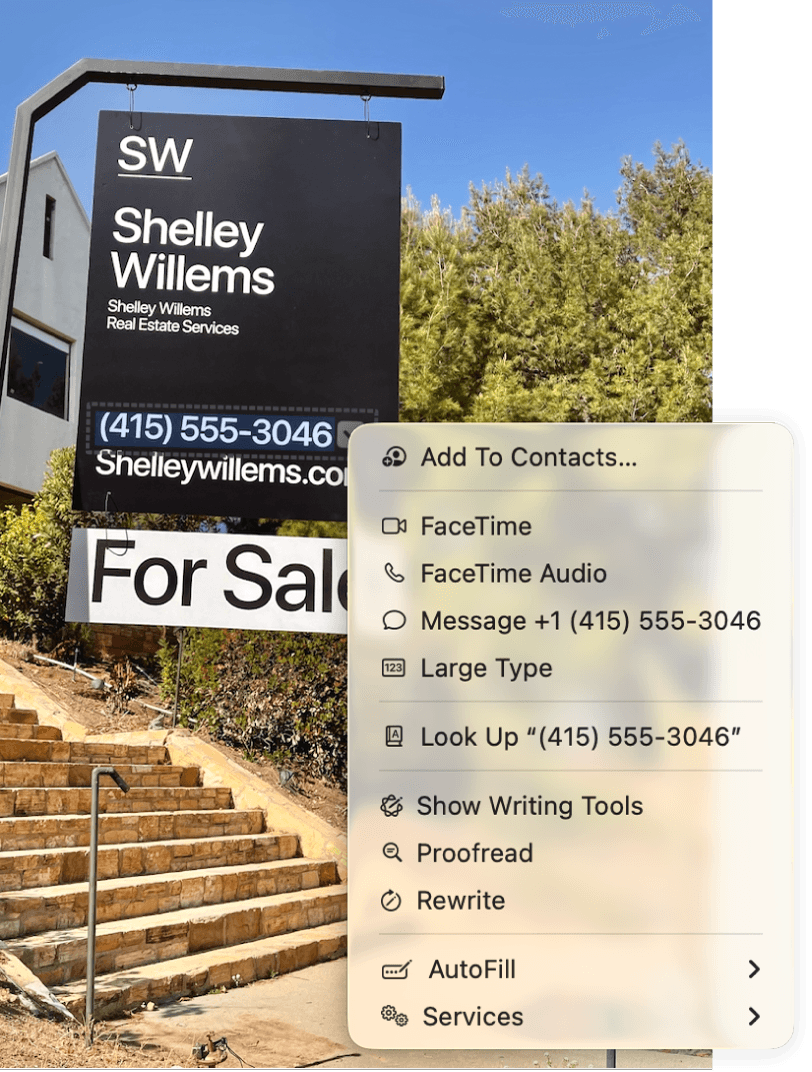
For a short quotation, address, tracking number, or error message, this is usually faster than uploading the image elsewhere. You also retain more control because you can select only the exact line you need.
If the pointer does not change into a text-selection cursor, confirm that your Mac and macOS version support Live Text. Try opening the file in Photos or Preview, enlarging the screenshot, and checking whether the text is clear enough to read at normal zoom.
Live Text availability can also vary by language and application context. When the screenshot contains mixed writing systems, stylized lettering, or a dense multi-column interface, an online OCR result may be easier to review as one editable block.
4. Copy Text From a Screenshot on Chromebook
Chromebooks can use Google Lens to recognize text from a selected area of the screen. This method is useful for copying words from a screenshot, video frame, image, or app interface.
-
Open the screenshot or display the area containing the text.
-
Launch Screen Capture or Search my screen with Google Lens.
-
Drag around the relevant region.
-
Choose Search with Google when prompted.
-
Select the recognized words and choose Copy text.
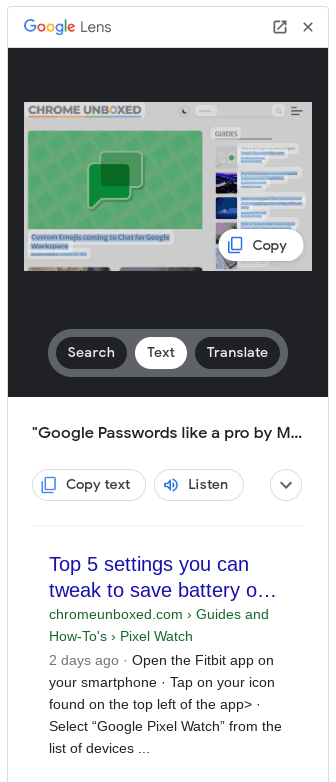
The documented screen-search workflow requires Google to be set as the default search engine. Chromebook labels may differ slightly as ChromeOS changes, and some Chromebook Plus models may show additional capture or Lens options.
If Lens finds the image but does not offer Copy text, make the selection smaller and focus it on one paragraph. A capture containing navigation, chat bubbles, icons, and multiple cards can make reading order harder to infer.
For school-managed Chromebooks, Lens or search settings may be restricted. Lynote's browser tool is a useful alternative when your administrator permits the site and the screenshot does not contain protected or private material.
5. Copy Text From a Screenshot on iPhone
Live Text lets you copy words from a screenshot without installing a separate OCR app. Apple supports Live Text on iPhone XS, iPhone XR, and later models running iOS 15 or later, although language and region availability can vary.
-
Open Photos and select the screenshot.
-
Touch and hold a recognized word.
-
Move the selection handles to cover the text you need.
-
Tap Copy, or use Select All when the available selection matches the screenshot text.
-
Open the destination app, touch and hold, and tap Paste.
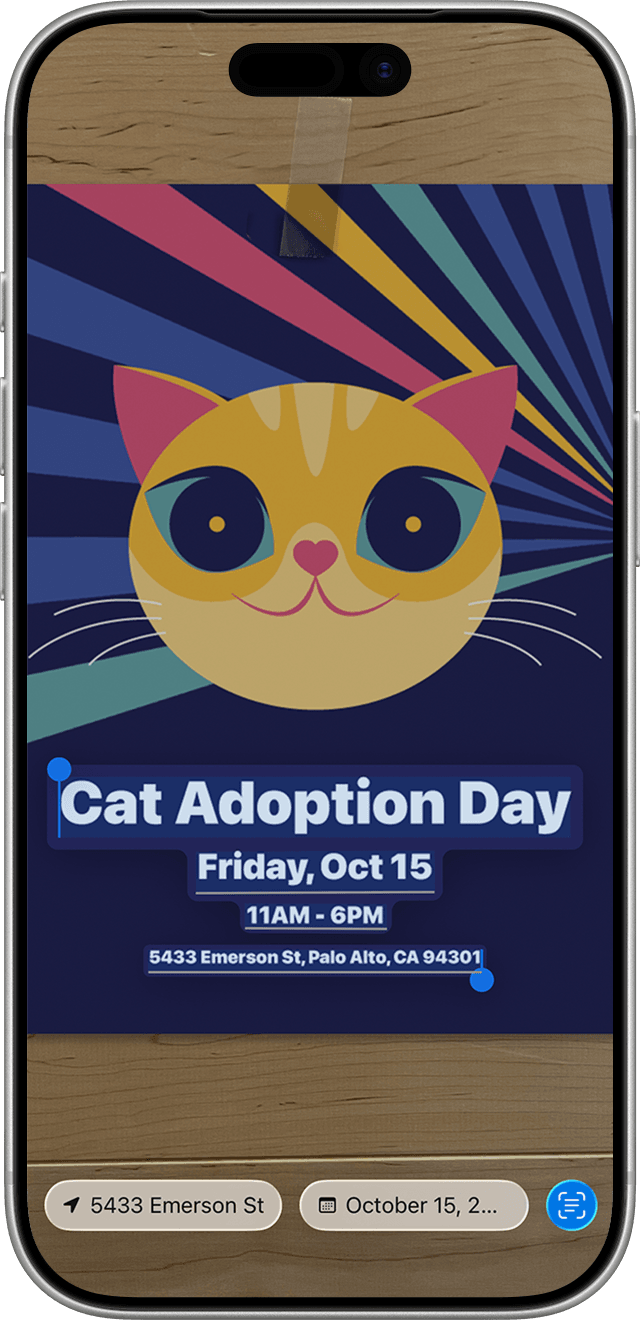
You may also see the Live Text icon when iOS recognizes text in the image. Selecting it can make all detected text regions easier to access.
If text selection does not appear, open Settings, go to General > Language & Region, and check that Live Text is enabled. Then return to Photos and try again with the screenshot enlarged.
For screenshots of chats or social posts, Select All may include timestamps, button labels, and other interface text. Selecting one message at a time often produces a cleaner result than copying everything in the image.
6. Copy Text From a Screenshot on Android
The most consistent Android method is Google Lens inside Google Photos. The exact labels can vary among Pixel, Samsung, and other Android phones, but the workflow is similar.
-
Open the screenshot in Google Photos.
-
Tap Lens.
-
Wait for Lens to recognize the image.
-
Select the relevant words, or choose a text mode if it appears.
-
Tap Copy text and paste the result into another app.
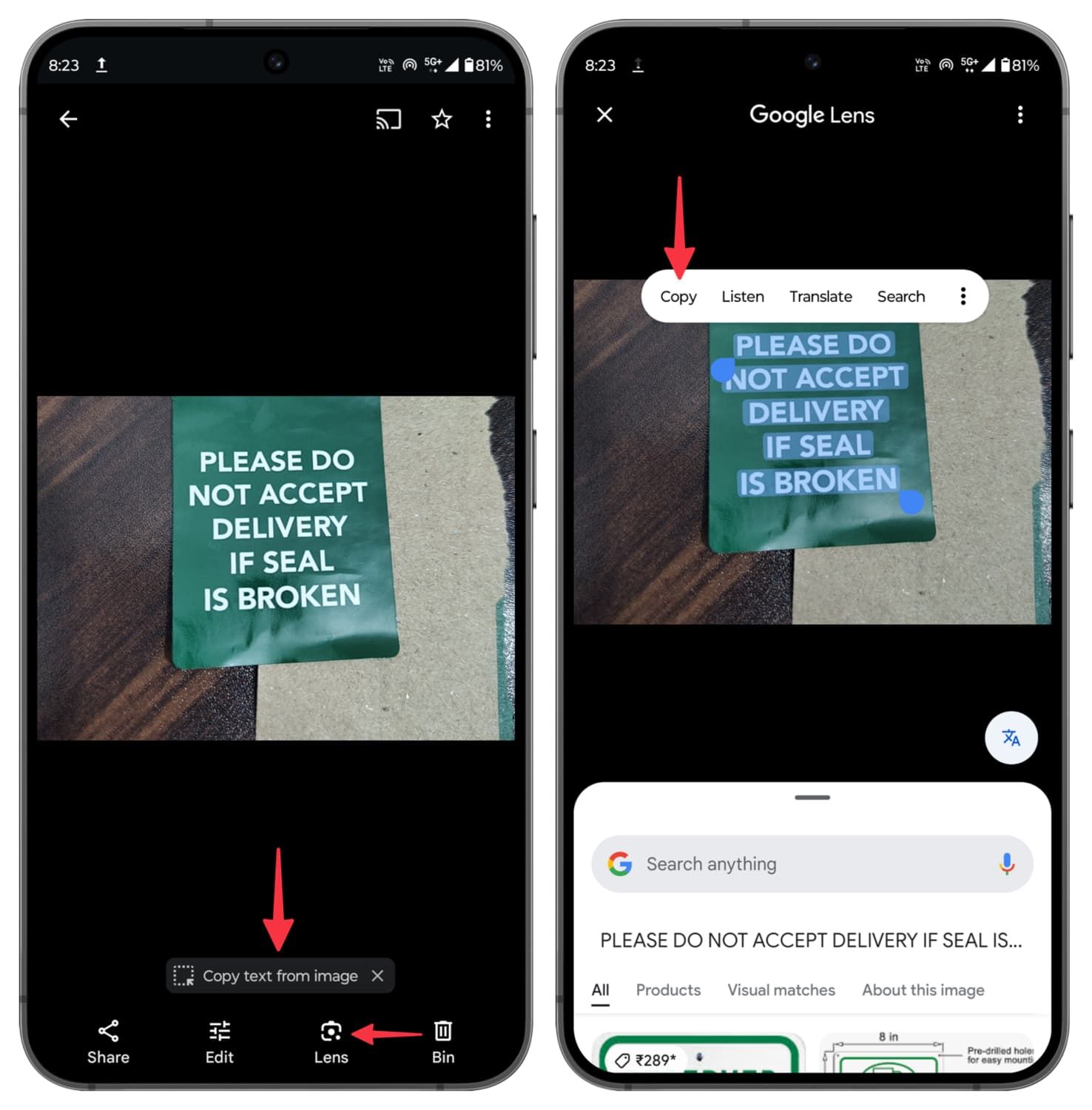
Some Android devices also expose text selection from the recent-apps screen, Gallery, Circle to Search, or a manufacturer-specific smart selection tool. These shortcuts are convenient, but Google Lens remains a useful fallback because its steps are broadly recognizable across devices.
If Lens selects the wrong content, crop the screenshot first or drag the selection over a smaller block. When text is very small, zooming before taking a new screenshot can improve the source image more than enlarging a blurry capture afterward.
Use Lynote when Lens is unavailable, when you are already working in a browser, or when you want to translate or download the extracted result after reviewing it.
Which Screenshot Text Method Should You Use?
The best method depends on where the screenshot is stored, how sensitive it is, and what you plan to do with the extracted words.
| Need | Recommended method | Why |
|---|---|---|
| Copy one short line on the current device | Built-in Live Text, Lens, or Text actions | Fast and requires fewer steps |
| Keep a sensitive screenshot on the device | A supported native OCR feature | Avoids uploading the image to an online converter |
| Work across several operating systems | Lynote Screenshot to Text | Provides one browser-based workflow |
| Translate or download the result | Lynote Screenshot to Text | Offers follow-up actions after conversion |
| Copy text repeatedly from desktop regions | PowerToys Text Extractor | Designed for fast screen-area capture |
| Extract a complex table or code block | Use OCR, then manually verify | No general OCR workflow should be trusted blindly for exact structure |
Native tools are the best starting point for speed and local processing. An online tool is more useful when the device lacks a compatible feature, the native control is difficult to locate, or you need a consistent result workflow across multiple devices.
For a scanned page, handwritten note, or camera photo rather than a screenshot, see the broader guide to extracting text from an image. The underlying OCR principle is similar, but photos introduce additional problems such as glare, perspective, shadows, and focus.
Why Screenshot Text Sometimes Copies Incorrectly
Screenshots usually provide cleaner OCR input than camera photos because they are flat, evenly lit, and free from perspective distortion. They can still be difficult to interpret when the interface was not designed like a simple document.
The Text Is Too Small or Compressed
A high-resolution display can place a lot of tiny text into one screenshot. Messaging apps and social platforms may then compress the image when it is sent, removing edge detail that helped distinguish similar characters.
Return to the original screen, increase the text size or zoom level, and capture only the relevant region. Do not repeatedly save and reshare the same JPEG when the original PNG is available.
The Reading Order Is Ambiguous
OCR must decide which text comes first. A screenshot with a sidebar, two columns, floating labels, notifications, or several chat bubbles may produce accurate individual words in an illogical sequence.
Crop and process one region at a time. If the visual relationship matters, reconstruct the structure manually instead of assuming that plain extracted text preserves it.
The Screenshot Contains Stylized Text
Decorative fonts, outlines, shadows, low contrast, curved baselines, and text placed over a busy image can reduce recognition quality. Similar-looking characters are particularly easy to confuse.
If possible, switch the source app to a simpler theme, improve contrast, or capture the underlying text from a different view. Otherwise, compare the OCR result directly against the screenshot before reuse.
Code, Formulas, and IDs Need Exact Review
General OCR tools are optimized for ordinary language, not necessarily for meaningful whitespace and symbols. Code indentation can disappear, smart quotation marks can replace straight quotes, and mathematical operators may be misread.
Never run copied code, use an extracted recovery key, or submit a formula without checking every character. For code, paste into a plain-text editor first so hidden formatting does not create another layer of errors.
Multiple Languages Are Mixed Together
Text recognition can be less predictable when a screenshot switches between writing systems, includes transliterated names, or uses a language unsupported by the device's current OCR feature.
Extract smaller language-specific regions and review proper nouns carefully. Translation should happen after recognition, because an OCR mistake in the original text can become a confident but incorrect translation.
How to Get Cleaner Text From Any Screenshot
Most OCR improvements happen before conversion. A cleaner input reduces both recognition errors and the time you spend fixing the result.
-
Use the original screenshot. Avoid a compressed image copied from a chat or social feed.
-
Crop tightly. Remove toolbars, avatars, ads, and unrelated panels.
-
Increase the source zoom. Make the text larger before taking the screenshot.
-
Keep the screenshot upright. Rotate sideways captures before processing.
-
Process one region at a time. Separate columns, chat messages, table sections, or code panels.
-
Paste into a plain-text editor first. This reveals unwanted line breaks and strips confusing visual formatting.
-
Compare before reuse. Verify names, numbers, punctuation, URLs, formulas, and dates against the image.
For long passages, proofread in two passes. First check whether every line is present and in the correct order. Then inspect characters that carry exact meaning, such as decimal points, minus signs, quotation marks, slashes, and capitalization.
Privacy: Check the Screenshot Before You Upload It
A screenshot can contain more private information than the text you intend to copy. Status bars, browser tabs, account names, notifications, message previews, location clues, and document metadata may all be visible around the target paragraph.
Use on-device OCR for sensitive material when a suitable native feature is available. If you choose an online converter, crop the image first and confirm that you are permitted to upload its contents. Do not upload passwords, authentication codes, confidential work documents, protected student information, financial details, or private conversations merely to avoid retyping a few lines.
After extraction, remember that clipboard contents can also be exposed to other apps or pasted into the wrong destination. Clear or replace highly sensitive copied text when you are finished with it.
FAQs About Copying Text From Screenshots
Can you copy and paste text directly from a screenshot?
Yes, but the screenshot must first be processed by OCR. Windows Text actions, Apple Live Text, Google Lens, and online screenshot-to-text tools can recognize the words and make them selectable. Copying the image alone does not copy the words as editable text.
How do I copy all the text from a screenshot at once?
On Windows, Snipping Tool offers Copy all text after you choose Text actions. Other platforms may offer Select All when they recognize a coherent text region. For a busy interface, copying one section at a time often preserves the intended reading order better.
Can I copy screenshot text without installing an app?
Yes. Use the OCR feature built into your operating system or open Lynote Screenshot to Text in a browser. Windows 11, supported Apple devices, Chromebooks, and many Android phones already include a native text-recognition path.
Why can I select text in some screenshots but not others?
Recognition depends on image clarity, text size, contrast, language support, device compatibility, and the app used to view the screenshot. Try opening the image in the platform's default Photos or screenshot app, enlarging it, or processing a tighter crop.
Can OCR copy code from a screenshot?
It can recover code-like text, but you must verify punctuation, capitalization, indentation, and visually similar characters. Treat the output as a draft, not as code that is automatically safe to run.
Can I copy text in another language from a screenshot?
Often, yes, but supported languages vary by platform and tool. Recognition and translation are separate steps: first verify that the original text was extracted correctly, then translate it.
Is an online screenshot-to-text converter safe for private images?
No online upload should be assumed appropriate for every private image. Crop sensitive information, check whether you are authorized to upload the screenshot, and prefer an on-device method for confidential material.
Final Takeaway
To copy text from a screenshot, use the OCR feature closest to where the image already lives: Snipping Tool on Windows, Live Text on Mac or iPhone, Google Lens on Chromebook or Android, or Lynote for a consistent online workflow.
Native recognition is usually the fastest and most private route for a short selection. Lynote is useful when you want one browser-based method across devices or need to copy, translate, or download the extracted text. Whichever method you choose, verify technical, sensitive, and layout-dependent content before using it.

Written by Janet L. Harris
AI Writing Specialist
Janet reviews AI detectors and humanization tools, with a focus on accuracy, limitations, and responsible use. View all articles →