

Screenshot to Text Converter
Drop files or browse
Add study materials to enable the AI to extract and structure content.



Why Choose Our Screenshot to Text Converter?

No More Retyping
Avoid retyping long passages by hand. Recover words from screenshots even when the original text cannot be selected.

Editable Text Output
Get editable text output you can correct before reuse, whether you need to fix a name, restore a line break, or clean up punctuation.

Unselectable Text, Solved
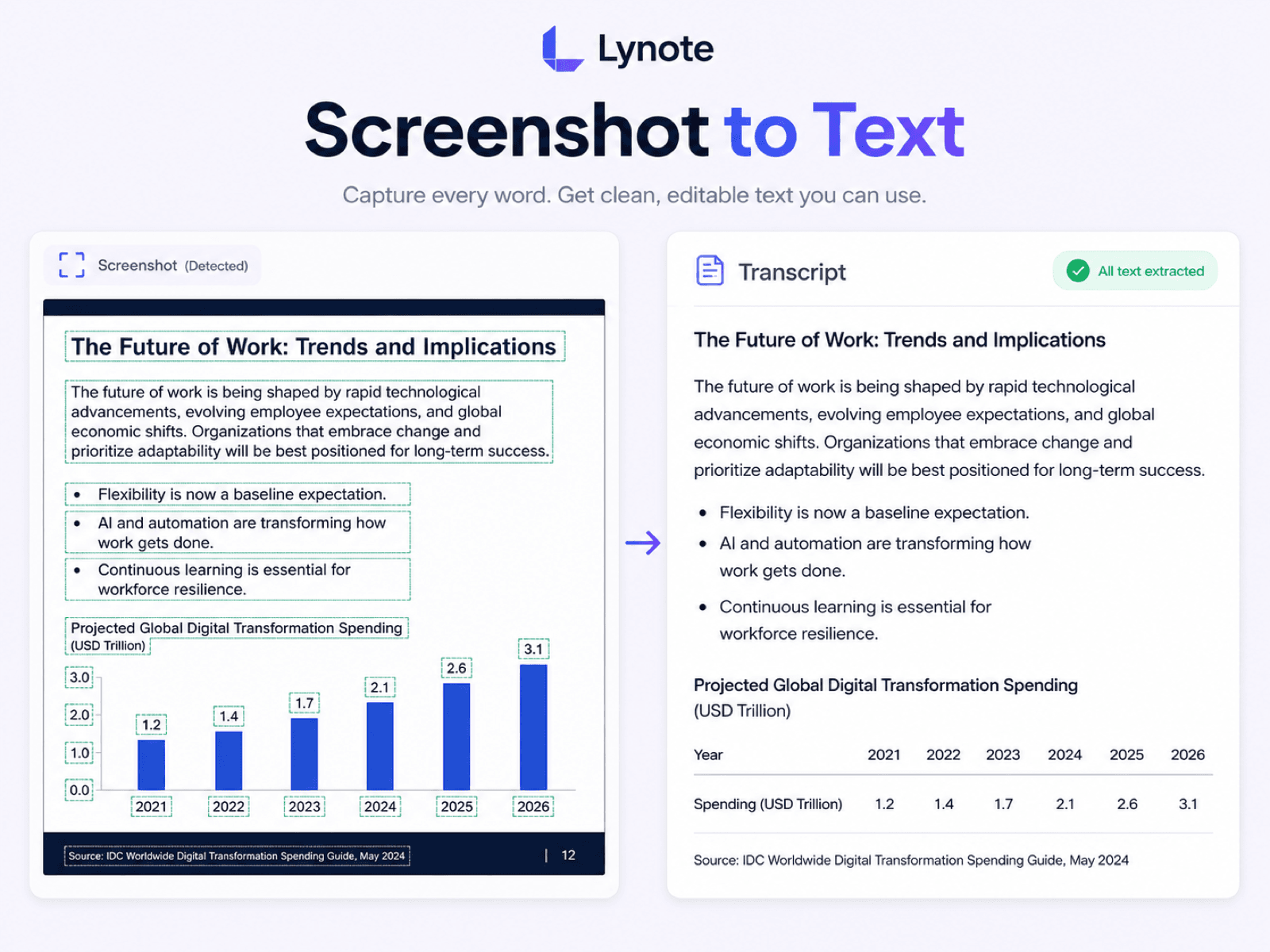
Turn unselectable text from app screens, websites, slides, and document viewers into words you can copy and edit.

Capture Error Messages
Capture error messages from alerts, terminal windows, or support screenshots, then paste the text into a ticket or search.

Save Lecture Slides
Save lecture slides as editable text for study notes, summaries, or later review without pausing to type every line.

Ready for Translation
Pull foreign-language text from a screenshot first, then copy the result into your preferred translation workflow.

Works Across Devices
Work across devices by uploading a saved screenshot from your phone, tablet, or computer whenever text is stuck inside an image.

Secure Processing
Screenshots can contain private conversations or account details, so Lynote uses secure processing throughout the conversion.
Convert Screenshots to Editable Text
Extract Text That Cannot Be Selected
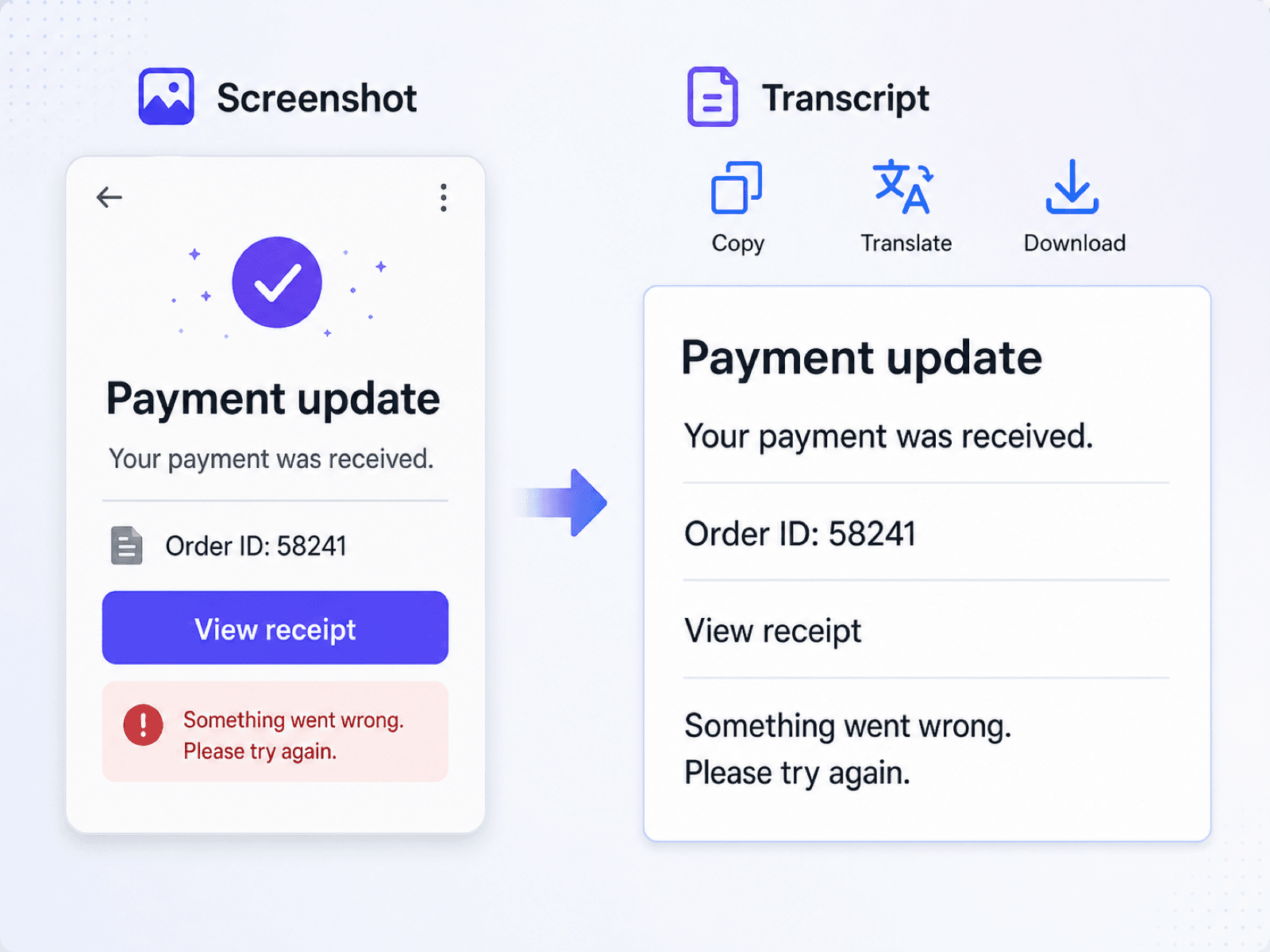
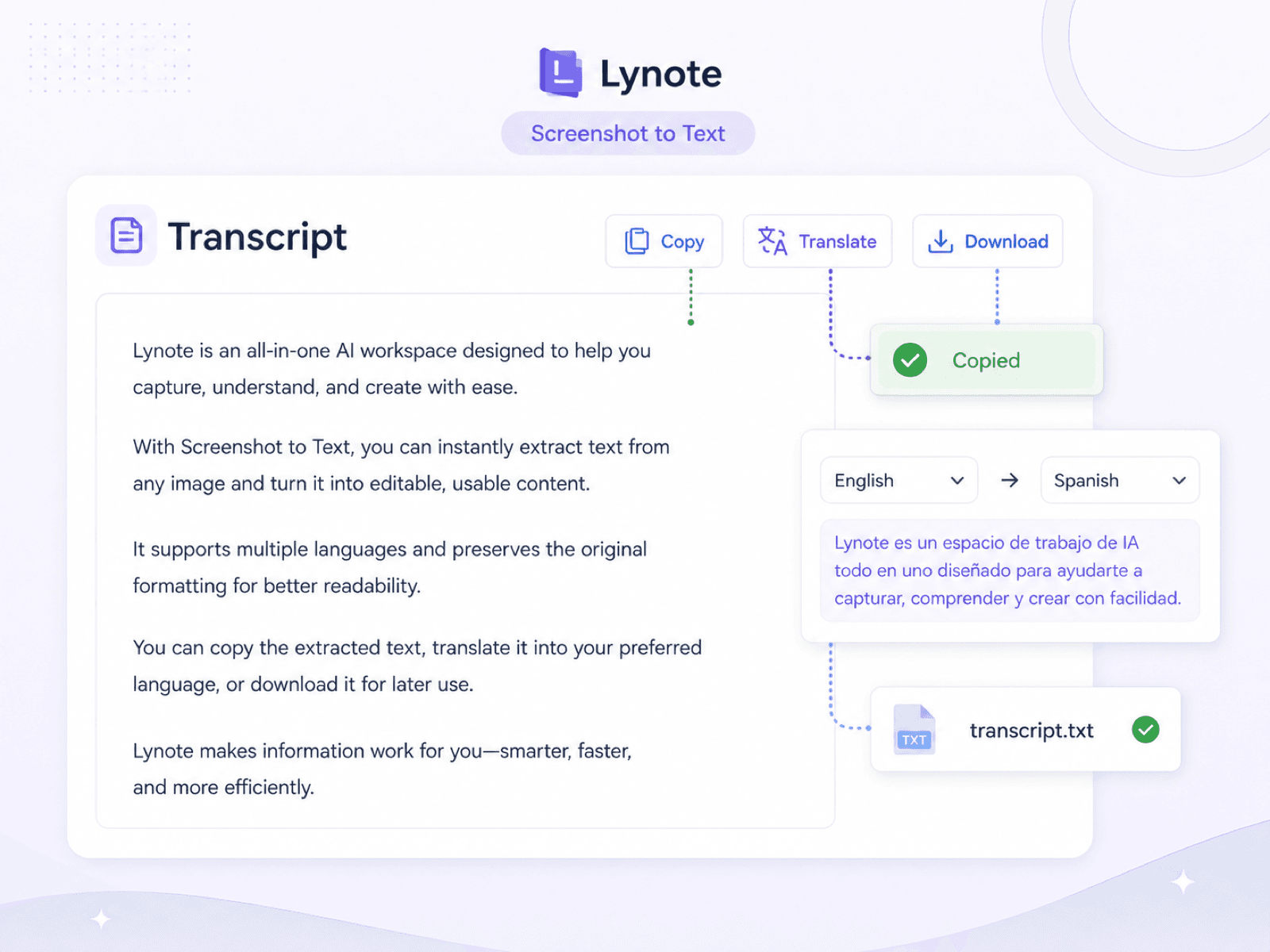
Copy, Translate, or Download Screenshot Text
How Does Screenshot OCR Work?
Screenshot OCR finds text inside an image, reads it in context, and turns it into editable words you can review and reuse.
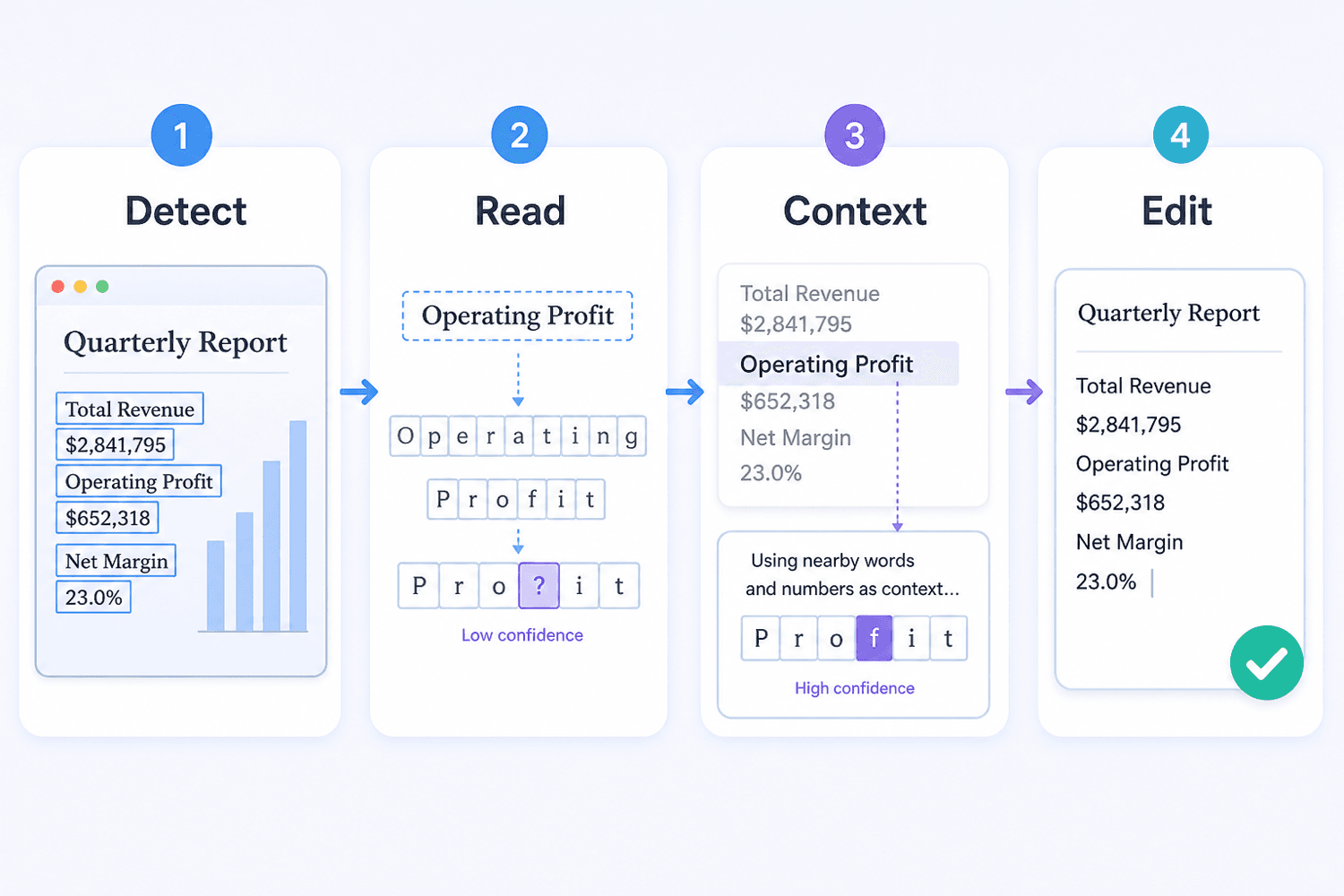
The conversion happens in a few practical stages:
- Find text regions: The system separates words from buttons, icons, photos, and other interface elements.
- Read lines and characters: It follows each line and recognizes letters, numbers, punctuation, and common symbols.
- Use nearby context: Surrounding words help resolve characters that look similar in small or compressed screenshots.
- Return editable text: The result is arranged as copyable text for notes, search, translation, or support tickets.
- Review important details: Check names, codes, URLs, dates, and unusual formatting against the original screenshot.
How to Convert a Screenshot to Text
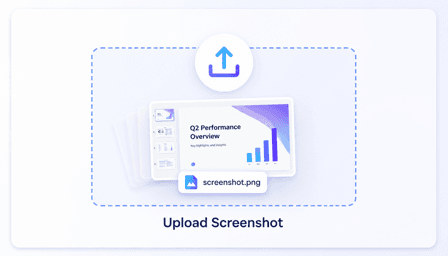
Step 1. Upload Your Screenshot
Choose a clear screenshot from your phone or computer. Text that is sharp, upright, and high contrast gives the converter the best source to read.
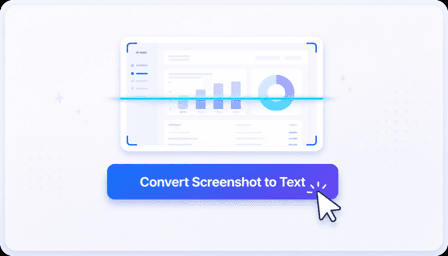
Step 2. Convert Screenshot to Text
Once the screenshot is uploaded, click "Convert Screenshot to Text" to start the analysis. You will get editable text in seconds.
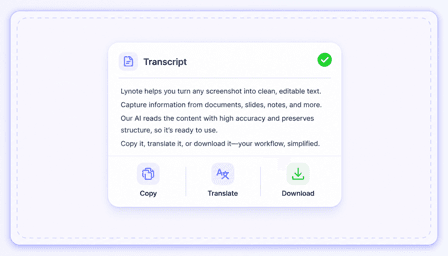
Step 3. Copy, Translate, or Download
Review the extracted text, then copy it, translate it into another language, or download the transcript for later use.
Who Should Use This Screenshot to Text Converter?

Students
Turn captured lecture slides and presentation screens into editable study material instead of typing every line.

Customer Support Agents
Copy error messages, chat details, and account confirmations from customer screenshots into support tickets.

Developers
Extract stack traces, terminal output, and UI errors from screenshots for debugging or issue documentation.

Researchers
Recover quotes and labels from archived screenshots so they can be searched, cited, and organized with source notes.

Translators
Pull foreign-language text from an app or website screenshot before translating and checking the final wording.
Content Editors
Move captions, interface copy, and text shown in visual drafts into an editable document for review.
What Our Users Say

Customer Support Specialist

"Customers often send screenshots instead of copying the error. I can pull the message into the ticket, search it, and keep the conversation moving."

University Student
"I use it after lectures when a slide has more text than I can write down. The result still needs a quick check, but it saves me from retyping the whole screen."

Research Assistant
"A lot of my source material arrives as old screenshots. Turning the visible labels and quotes into searchable text makes the archive much easier to work with."

Frontend Developer
"When someone posts a terminal screenshot in chat, I extract the command and error instead of trying to read tiny characters from the image."

Translator
"Screenshots from mobile apps are common in localization requests. Extracting the source text first gives me something editable to translate and proofread."

Content Editor
"I use it for captions and interface copy shown in visual drafts. I can move the wording into our review document without asking the designer to type it out again."
Frequently Asked Questions
Common questions about turning screenshots into editable text.
A screenshot to text converter uses optical character recognition to read words shown inside a screen capture. To extract text from screenshot files, upload the image and review the editable result before you copy, search, or reuse it.
You can use clear captures of slides, chats, app screens, websites, error messages, captions, and document pages. Results depend on how legible the text is in the saved image.
The converter focuses on recovering usable text, not recreating the exact fonts, colors, spacing, or visual layout. Review headings, columns, tables, and line breaks against the screenshot.
Clear, high-resolution screenshots with upright, high-contrast text usually produce the strongest results. Tiny type, blur, compression, decorative fonts, overlapping elements, and complex layouts can require manual correction.
It can recover visible code, commands, and error messages, but technical punctuation and indentation deserve extra attention. Always compare symbols, numbers, and line breaks with the original image before running the code.
Yes. Extracting the words first makes text from app screens, signs, or foreign-language websites easier to move into a translation workflow. Check names and specialized terms before finalizing the translation.
Crop out passwords, payment details, private messages, and unrelated personal information whenever possible. Only upload screenshots you are authorized to process and review the final text before sharing it.


