10 Best Speech-to-Text Tools for Mac in 2026
You finish a meeting with an audio file on your Mac and want a transcript. You search for a Mac speech-to-text tool, install a dictation app, and discover it only types what you say now. That is the problem with many "best" lists: they put voice typing, recording transcription, and meeting notes in the same bucket.
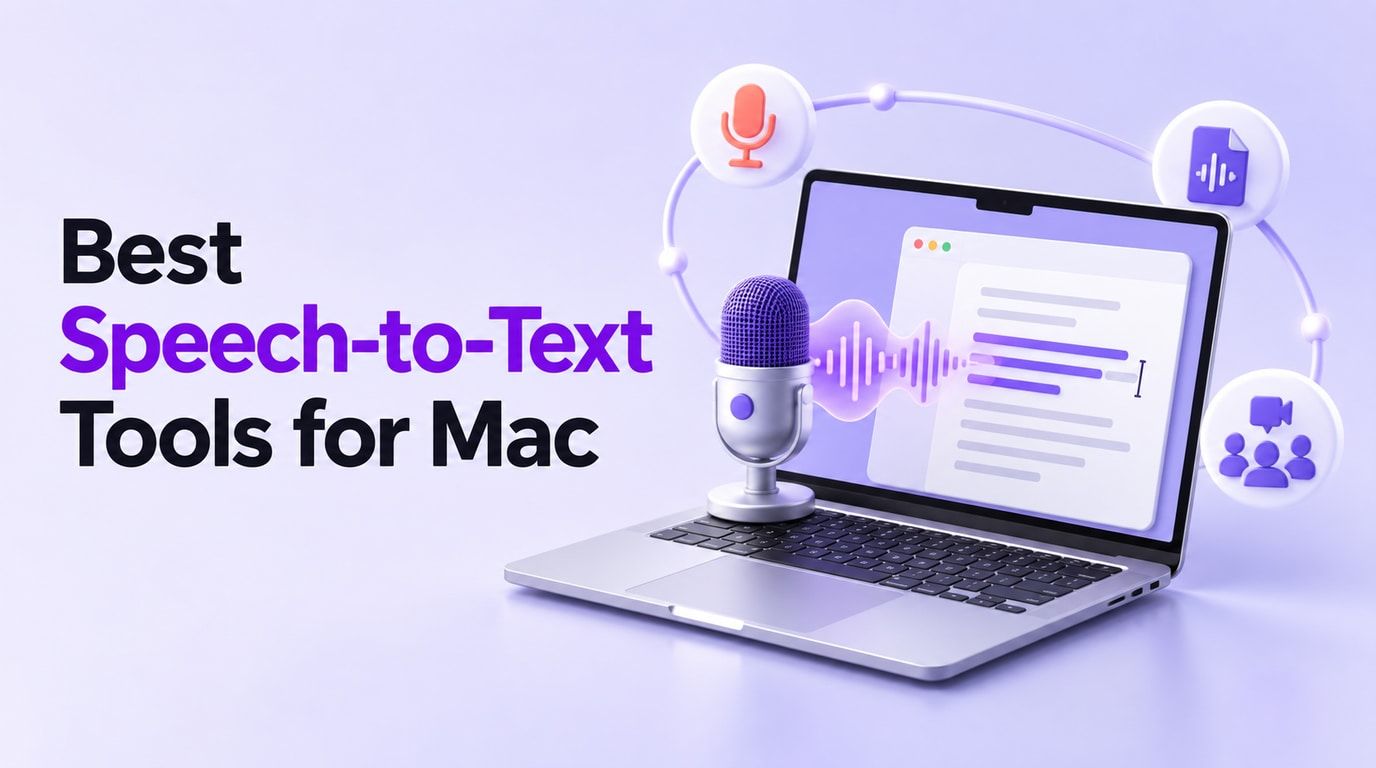
This guide separates those jobs before comparing ten tools you can use on a Mac. It includes built-in macOS Dictation, dedicated Mac apps, and browser options, with a clear reason to choose each one and a reason you might not.
Quick Verdict: Which Mac Speech-to-Text Tool Should You Choose?
Need words to appear where your cursor is? Try Apple Dictation before installing anything. If you dictate all day and spend too much time cleaning up the result, Wispr Flow, Superwhisper, and VoiceInk give you more control over the output.
Already have a recording? MacWhisper is the Mac-native choice when local processing matters; Lynote handles uploaded media and supported links in a browser. Otter and Notta are built around meetings, while Descript makes more sense when the transcript is part of editing a podcast or video.
| Your immediate task | Start with | Why |
|---|---|---|
| Speak into Mail, Notes, or another text field | Apple Dictation; Wispr Flow for AI cleanup | Text goes where you are typing |
| Dictate inside a Google document | Google Docs Voice Typing | Browser-based writing inside Docs |
| Transcribe an existing lecture or interview | MacWhisper or Lynote | Work from a saved audio or video source |
| Capture a meeting as it happens | Otter.ai or Notta | Meeting-specific capture and review |
| Edit a podcast or video through its transcript | Descript | Transcript and media timeline stay connected |
Before You Pick: Dictation, File Transcription, or Meeting Notes?
Live dictation listens to your microphone and inserts text at a cursor. Apple's built-in feature and dedicated apps such as Wispr Flow fit this task. The questions to ask are whether dictation works across your usual apps, how it handles punctuation and corrections, and whether processing happens locally or through a service.
File transcription starts with a recording that already exists. Here you care about supported audio and video formats, how you review uncertain words, whether you can identify speakers, and which transcript or subtitle formats you can export. A Mac-native transcriber and a browser-based uploader can both fit, but they make different tradeoffs around installation and processing.
Meeting transcription captures a live conversation, sometimes through a desktop recorder and sometimes through a meeting assistant. Check what happens when you wear headphones, whether a bot appears as a participant, and whether the product stores audio for later verification. Always establish the required permission to record; a bot-free interface does not remove that responsibility.
Google Docs Voice Typing sits in a narrower fourth category: live browser dictation inside a document. It is useful when that document is your destination, but it does not provide system-wide input or automatically transcribe a saved MP3.
How We Compared These Mac Speech-to-Text Tools
For this shortlist, I checked each product's current site or support documentation for a working Mac route, the kind of audio it accepts, and where the resulting text appears. I also looked for the details that tend to decide the purchase: offline options, editing and export, free-plan boundaries, and Mac permissions.
I did not run the same audio through all ten products, so this is not an accuracy leaderboard. Microphones, noise, accents, overlapping speakers, and technical vocabulary can change the result substantially. Treat this as a guide to the right workflow, then test your own material before paying for a plan.
The 10 Best Speech-to-Text Tools for Mac
1. Apple Dictation: Best Built-In Mac Option
Apple Dictation is the obvious first stop for a quick email or note: it is already on your Mac. Turn it on under System Settings > Keyboard > Dictation, click into a text field, then use the microphone key, your chosen shortcut, or Edit > Start Dictation. There is no new workspace to learn.
That simplicity has a clear limit. Dictation enters what you say now; it will not take an interview file and give you a speaker-labeled transcript. On-device availability varies with language, region, and Mac settings, so confirm your setup before relying on it offline.
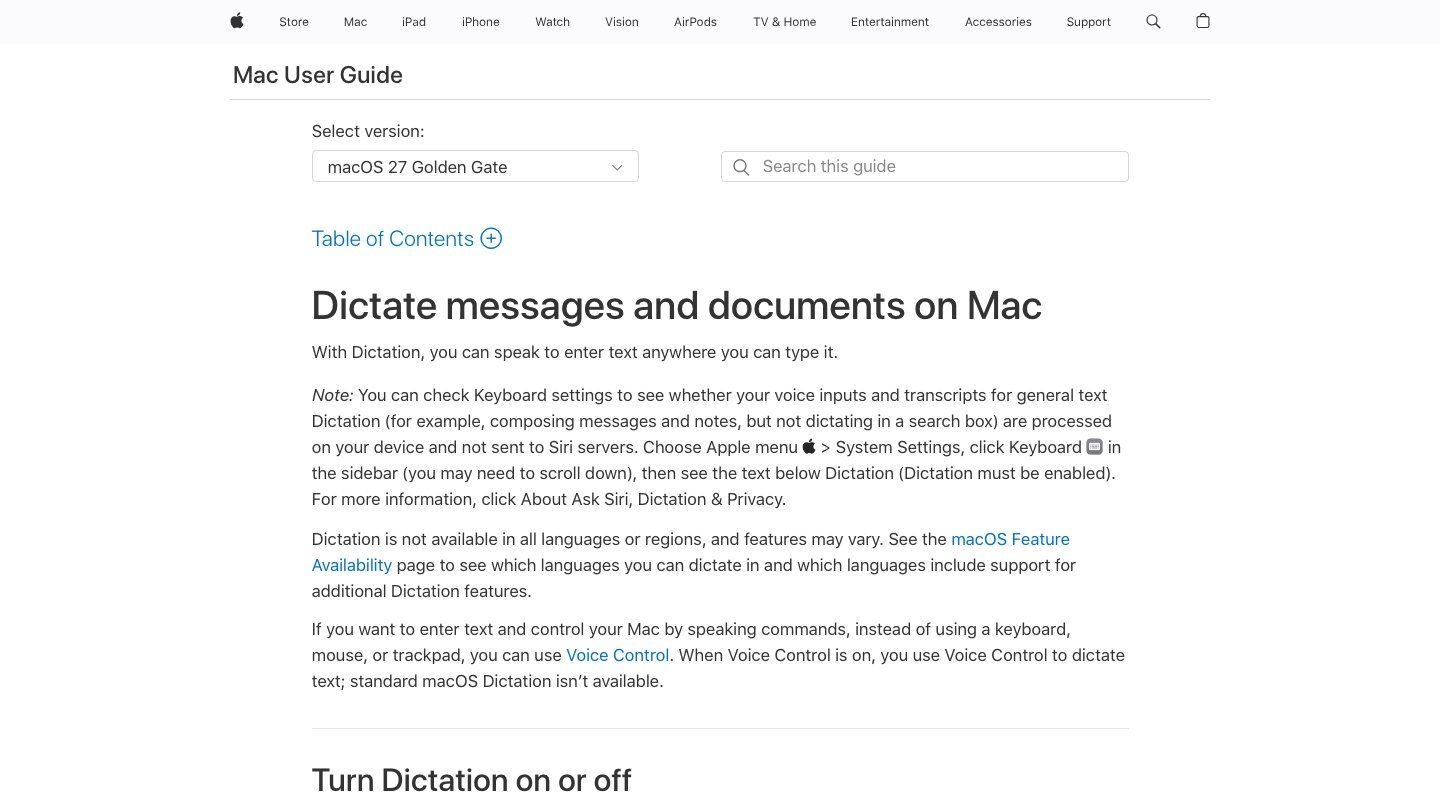
- Features: Built-in text entry, keyboard activation, language selection, and app-level cursor placement.
- Pros: No additional app to install; immediate access in supported text fields; suitable for occasional voice input.
- Cons: No saved-file transcription workflow; fewer transcript-review tools than dedicated products.
- Best for: Mac users who want to replace short bursts of typing without changing their writing setup.
2. Wispr Flow: Best for Polished Dictation Across Apps
Wispr Flow is for the person who drafts an email, answers a chat, and then writes in a document without wanting to change how they dictate. It cleans up filler words, punctuation, and phrasing as you speak across apps. The result is closer to a polished draft than a word-for-word record, which is useful for writing but less suitable for preserving an exact quote.
If you regularly dictate long messages, fewer manual corrections could matter more than a long feature list. The free plan has a word allowance, and this is not an exclusively on-device workflow. Check the current limit and your organization's audio policy before using it for sensitive material.
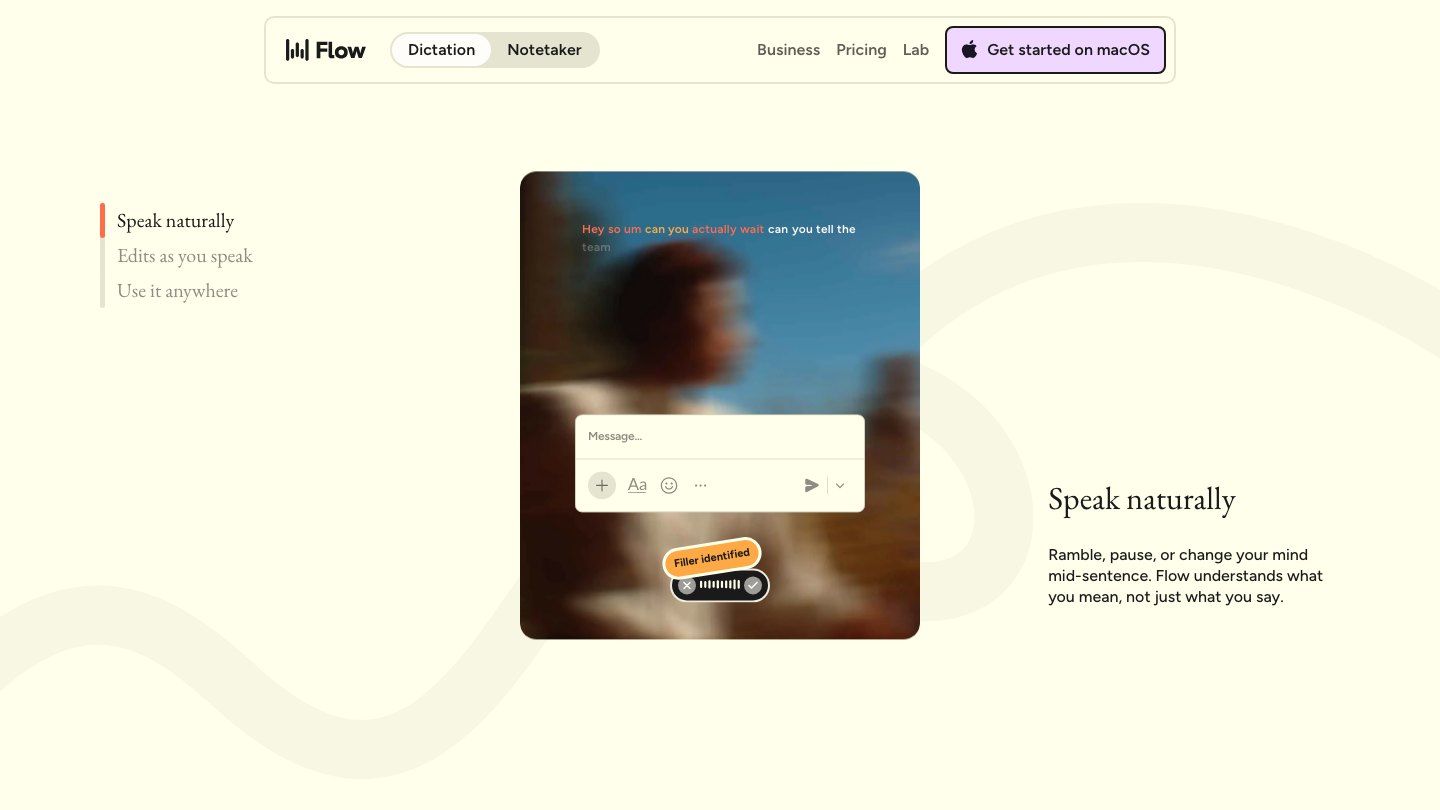
- Features: Cross-app dictation, automatic text cleanup, personal vocabulary, and writing-style adaptation.
- Pros: Text lands in the app you are using; useful for people who speak more naturally than they type.
- Cons: Free usage is capped; not the first pick when you require exclusively local processing or a verbatim archive.
- Best for: Professionals who want polished emails, messages, and drafts from spoken ideas.
3. Superwhisper: Best for Configurable Voice Input
Superwhisper lets you use different modes for different kinds of writing. You might want a plain transcript for notes but a neatly formatted email when you speak into Mail. The Mac app also offers meeting recording and transcription, so it reaches beyond a simple dictation shortcut.
That flexibility brings setup decisions. Model choices, file transcription, and advanced features vary by plan; local models also use your Mac's hardware. If you have an older Intel Mac or need a particular offline workflow, verify that exact combination before subscribing.
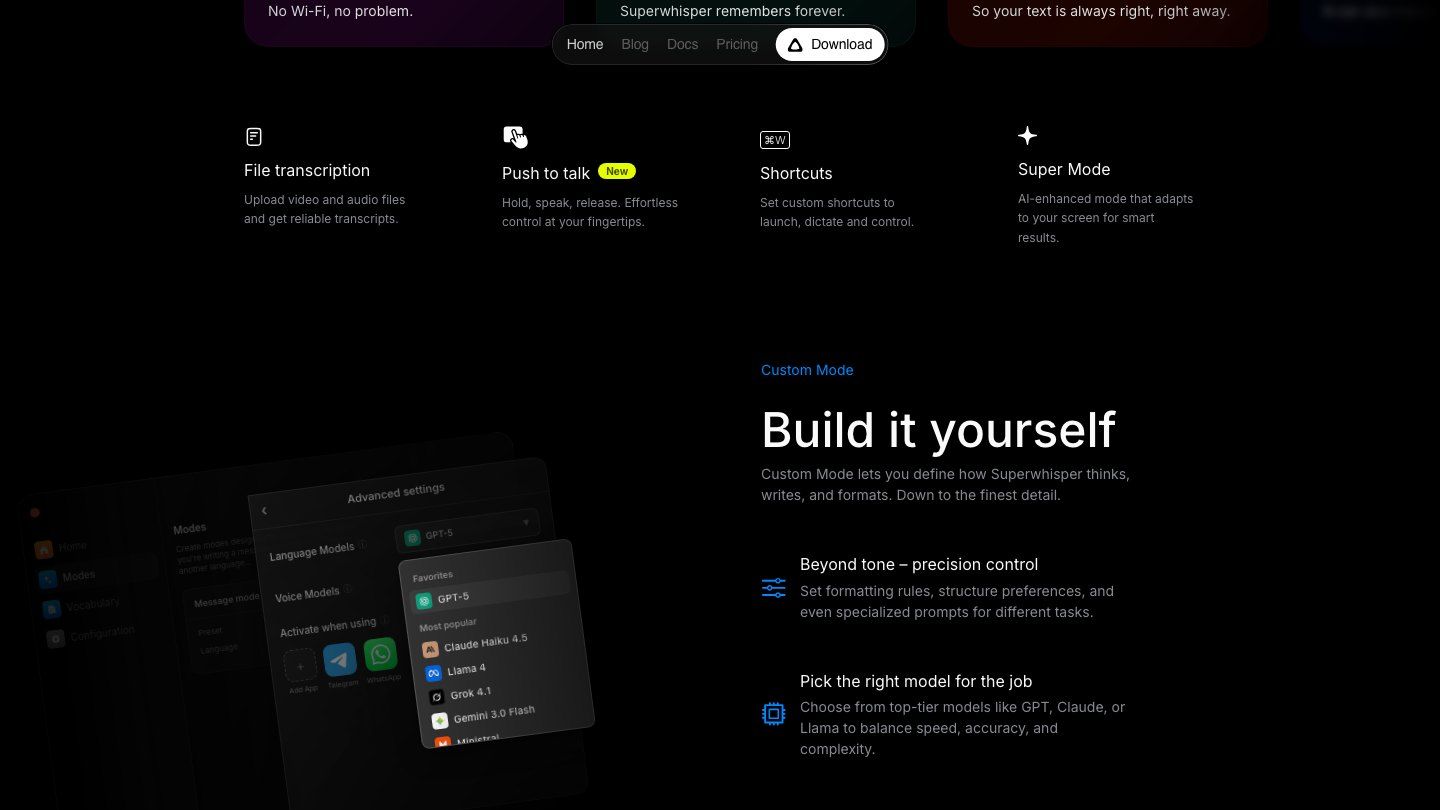
- Features: App-wide dictation, configurable modes, model selection, and meeting capture.
- Pros: Flexible output styles; local-model path for privacy-conscious workflows; broad use beyond one text editor.
- Cons: Capabilities differ by plan and model; configuration can take more effort than built-in Dictation.
- Best for: Mac users who want control over how speech is transcribed and formatted.
4. VoiceInk: Best Native Mac Dictation Alternative
VoiceInk keeps the experience close to the Mac: use a shortcut, speak, and put text into the app you are already using. Its modes and personal dictionary are worth a look if generic dictation repeatedly mangles names, jargon, or the way you format messages.
Its local-model route is a meaningful distinction for privacy-conscious users, but do not assume every optional enhancement runs on-device. Check the mode you plan to use, along with current Mac requirements and licensing, before setting it up on an older machine.
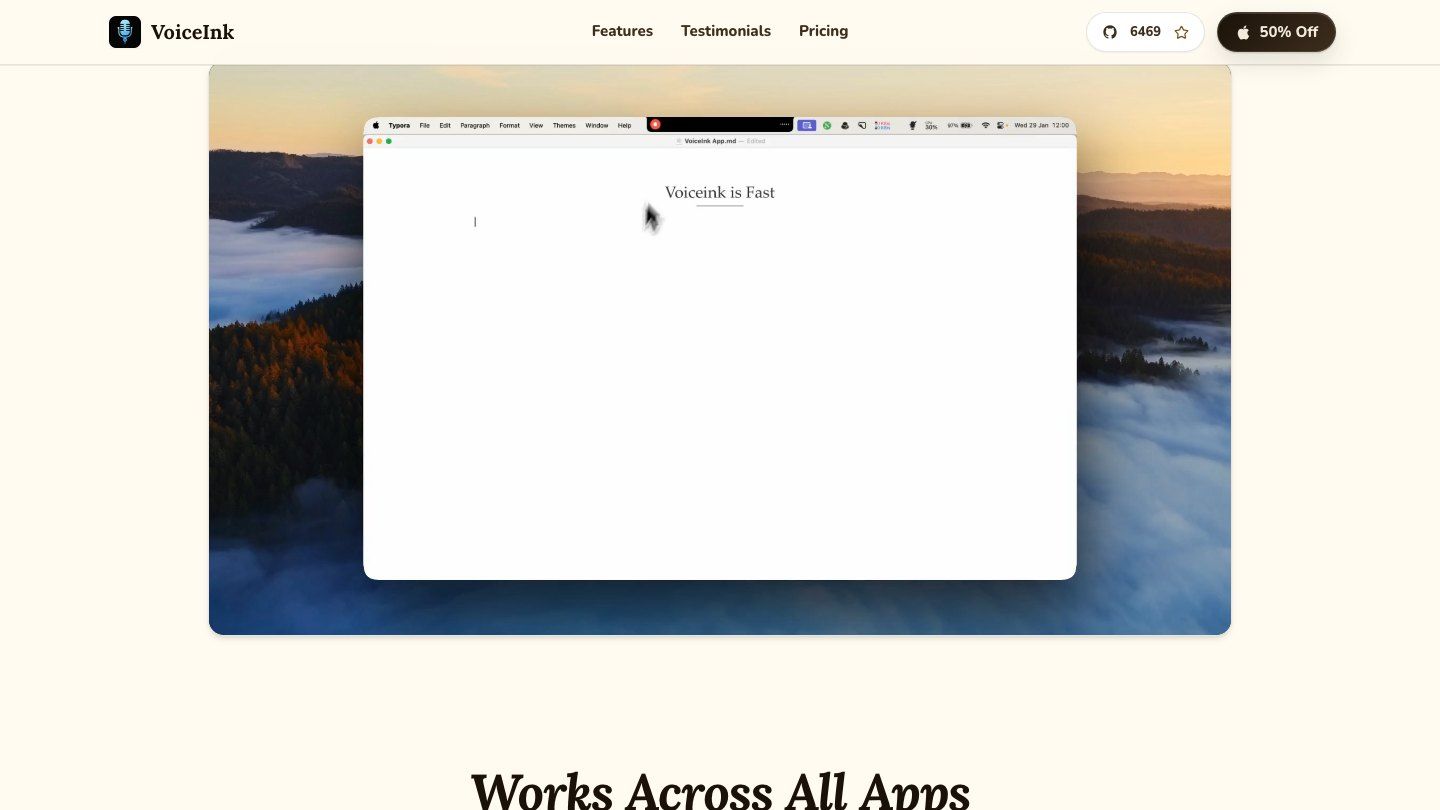
- Features: Native Mac dictation, local-model options, shortcuts, app-aware modes, and vocabulary tools.
- Pros: Works in a familiar Mac workflow; useful privacy and customization choices.
- Cons: Initial permissions and model setup take time; cloud-based options have different data implications.
- Best for: Mac users who want customizable dictation with an on-device route.
5. MacWhisper: Best for Transcribing Saved Files Locally
MacWhisper solves a different problem from live dictation: the interview, lecture, or podcast is already saved, and you need text you can work with. Import the file, choose an available model, and review the transcript. Depending on your plan, you can also work with subtitles, speakers, or batches of recordings.
The local-model option is the reason to consider it when uploading recordings is not acceptable. There is a free version, although some exports and production features require Pro. MacWhisper can also dictate, but its deeper saved-file workflow is what earns it a place here.
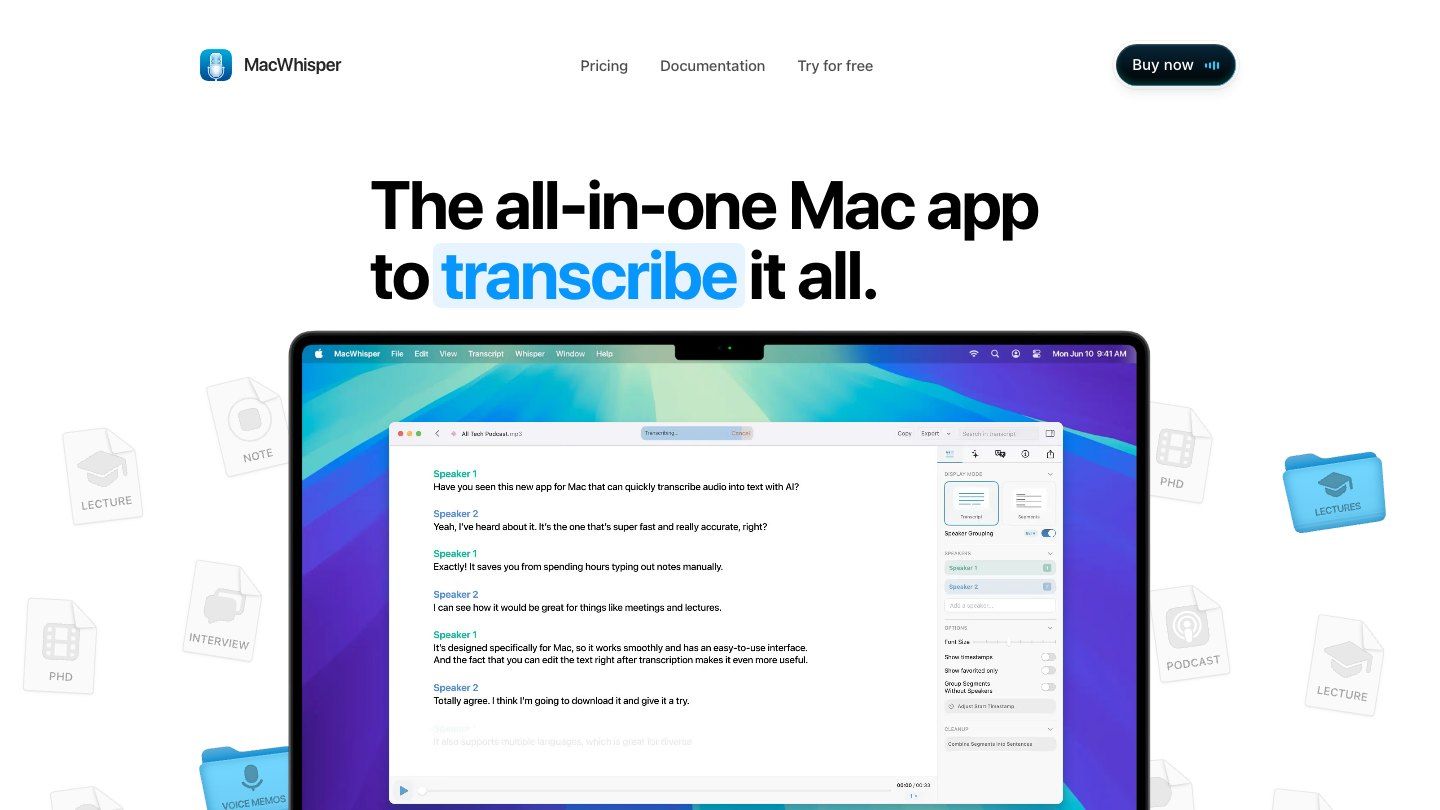
- Features: Audio and video import, local model options, text export, subtitle workflows, and optional dictation.
- Pros: Strong fit for existing recordings; local processing is available; useful for repeat file work.
- Cons: Advanced features vary by plan; downloading models and processing long files use Mac resources.
- Best for: Researchers, journalists, and creators with a library of recordings to transcribe.
6. Google Docs Voice Typing: Best Free Browser-Based Dictation
If your final draft is going to live in Google Docs anyway, its Voice Typing feature may be all you need. Open a document in a supported browser, choose Tools > Voice typing, allow microphone access, and start speaking. Google's current help page lists Chrome, Edge, and Safari among supported browsers.
The catch is the destination: your words go into Docs, not every Mac app. There is also no recorded-file import workflow. If you have an MP3 to transcribe, opening a document and pressing the microphone button is the wrong starting point.
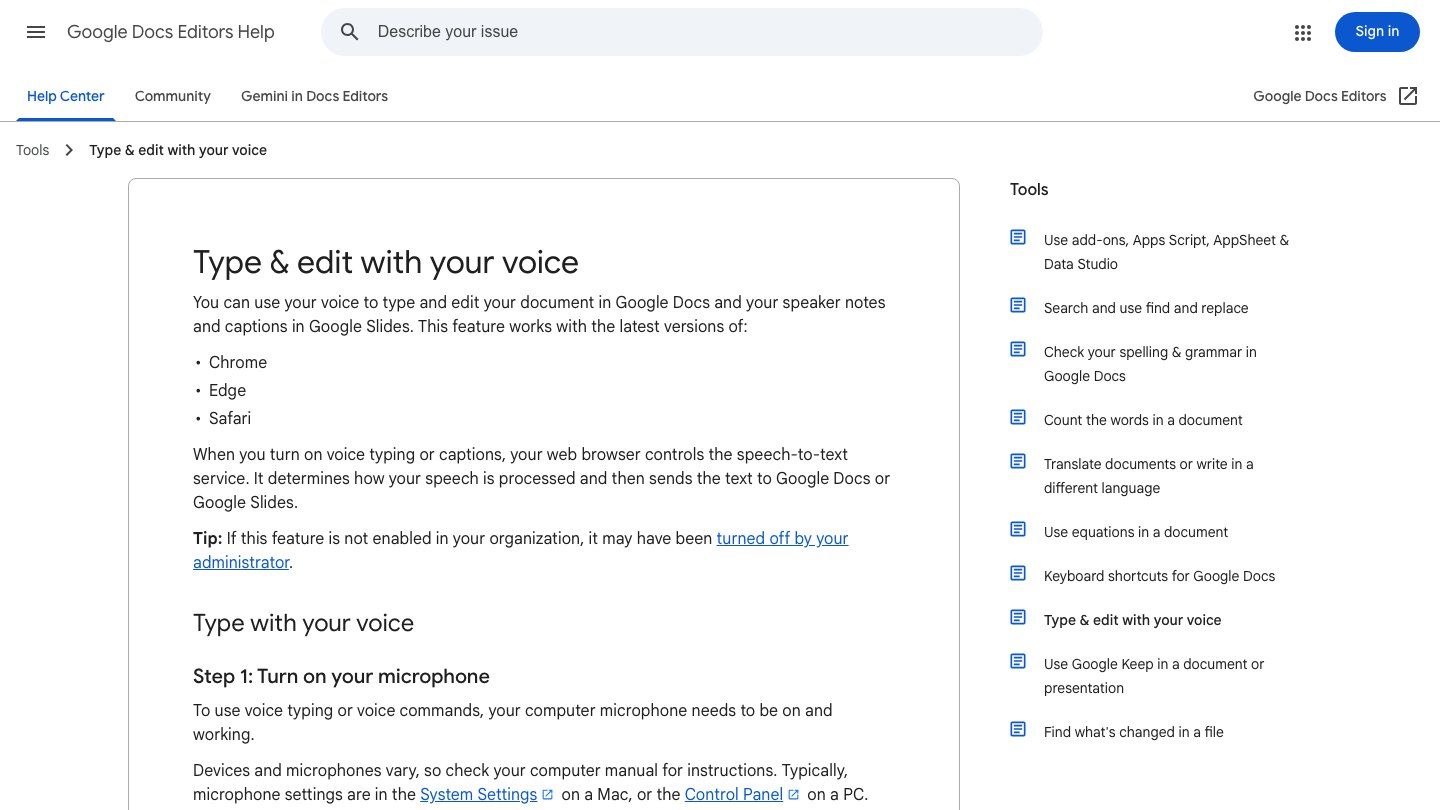
- Features: In-document voice typing, microphone control, spoken punctuation, and document editing.
- Pros: Easy to try in an existing Docs workflow; no separate Mac installation.
- Cons: Limited to supported browser and Docs contexts; no dedicated file-transcription workspace.
- Best for: Students and writers who draft directly in Google Docs.
7. Lynote Speech to Text: Best for Browser-Based Recording Transcription
Lynote Speech to Text is useful when you have a lecture, interview, or voice memo but do not want another Mac app. Open it in a browser, upload an audio file such as MP3, WAV, or M4A, add a supported video file such as MP4 or MOV, or use a supported link. It is a good fit for recordings you already have, not for typing into Mail while you speak.
Add the source, click Create Note, and review the resulting text before reusing it. If you need system-wide live dictation or automatic meeting attendance, look elsewhere: this is an upload-and-review workflow.
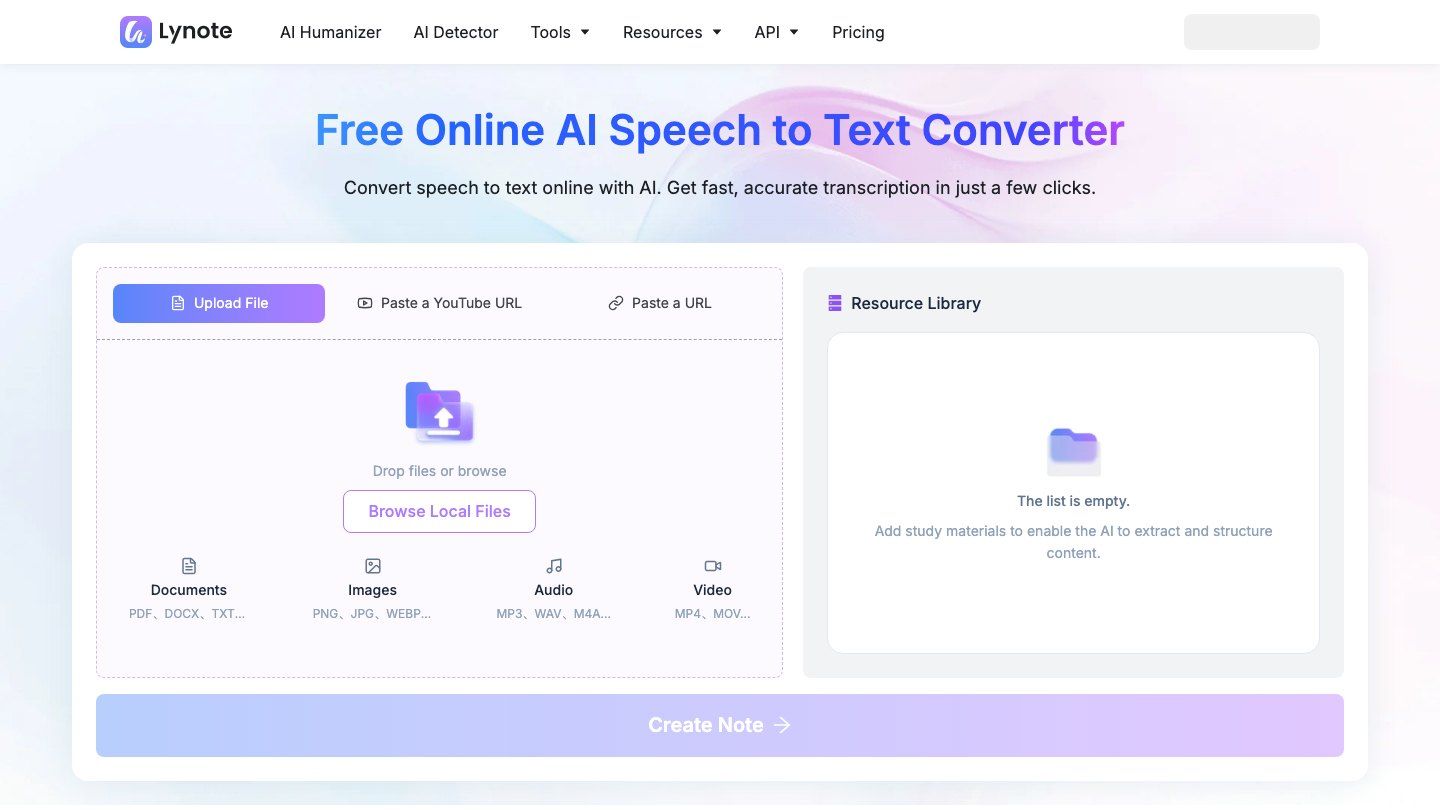
- Features: Browser-based media input, file and link workflows, editable transcripts, and downstream text reuse.
- Pros: No dedicated Mac installation; good match for material you have already captured; audio and video inputs in one place.
- Cons: Requires an online upload workflow; not a system-wide live dictation tool.
- Best for: Mac users turning saved classes, interviews, and recordings into text for study or work.
8. Otter.ai: Best for Live Meeting Transcripts
Otter.ai makes more sense after someone says, "Can you send me the meeting notes?" than when you want to dictate an email. Its Mac app and browser workspace are built for recording, transcribing, and revisiting conversations. Depending on how you set it up, you can capture audio from the desktop or use a meeting assistant that joins supported calls.
Those capture methods have different consent and permission implications. A desktop recording can be bot-free, but that does not mean the other participants know it is running. Otter's searchable record is valuable for recurring meetings; it is unnecessary overhead for a two-sentence message.
- Features: Live meeting transcription, Mac desktop capture, meeting-assistant options, and searchable notes.
- Pros: Built around reviewable conversations; useful for recurring meetings and follow-up questions.
- Cons: Recording setup and permissions need attention; free-plan time and feature limits should be checked.
- Best for: Teams and individuals who want transcripts of meetings while they happen.
9. Descript: Best for Podcasters and Video Editors
In Descript, the transcript is not just a document to copy out: it is a way to edit the recording. Import or record an interview, podcast, or video, then navigate and cut the underlying media through its text. That can save a creator from repeatedly scrubbing a timeline to find one sentence.
It also means opening a full editing project, which is excessive for an ordinary voice memo or quick note. Descript belongs on your shortlist when the finished product is audio or video, not just a transcript.
- Features: Media transcription, text-based editing, recording, and creator-oriented export.
- Pros: Keeps transcript and production work together; well suited to spoken-media editing.
- Cons: More setup than a dictation tool; not designed as system-wide voice input.
- Best for: Podcasters, video editors, and teams publishing recorded conversations.
10. Notta: Best for Multilingual and Bot-Free Mac Meetings
Notta is another meeting-first choice, particularly when your calls cross languages. Its desktop app can capture a meeting directly from a Mac without a bot in the participant list; the browser product offers a separate route. You then review the transcript, summary, and follow-up material in a meeting workspace.
Mac version matters here. Notta's guidance says bot-free system-audio capture requires macOS 13 or later, with permission steps that vary by release. Check your recording setup and free-plan duration before a long call, not when the meeting is already underway.
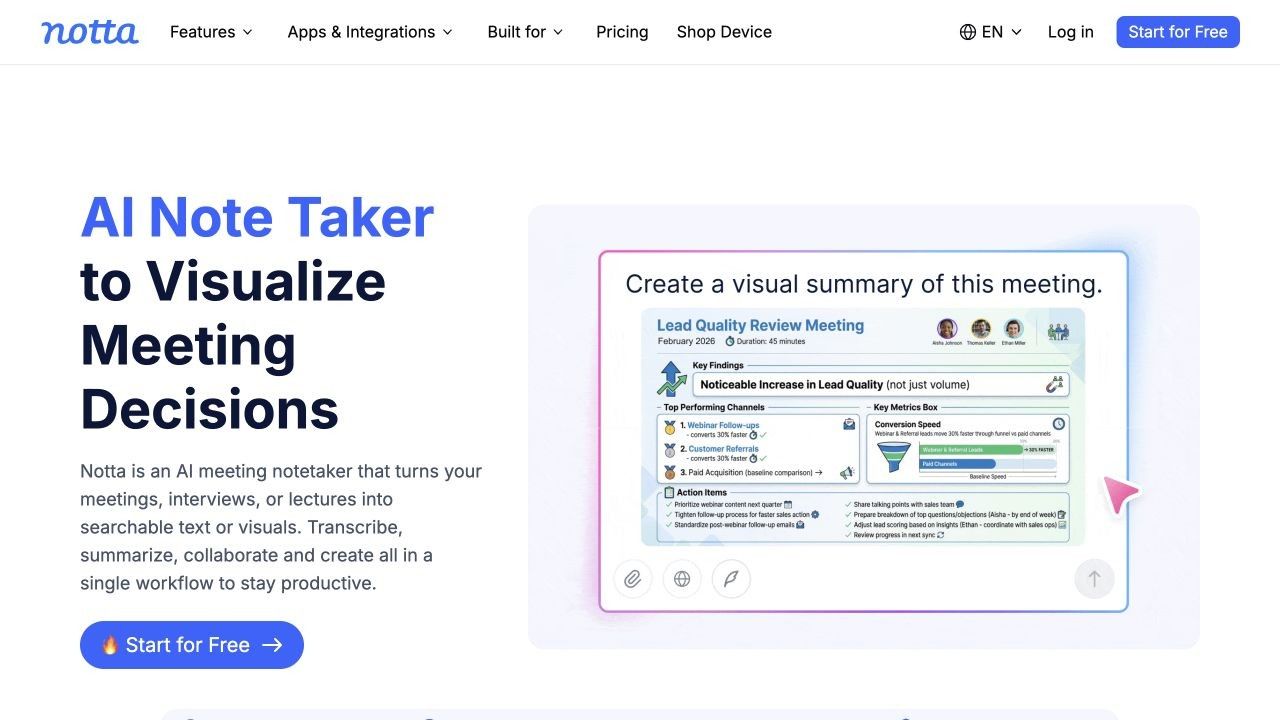
- Features: Desktop meeting capture, bot-free option, multilingual transcription, and meeting summaries.
- Pros: Mac and browser routes; direct meeting capture without a visible bot when supported.
- Cons: System-audio capture depends on OS and permissions; free-plan limits can constrain long calls.
- Best for: Multilingual teams that need meeting records from a Mac.
Mac Speech-to-Text Apps Compared
The table separates where speech originates from where text appears. "Offline option" means a documented local processing route, not a promise that every feature in that product works without a network connection.
| Tool | Mac access | Main input | Live text at cursor? | Saved files? | Offline option? | Main limitation |
|---|---|---|---|---|---|---|
| Apple Dictation | Built into macOS | Microphone | Yes | No dedicated import | Varies by settings/language | No file transcript workspace |
| Wispr Flow | Mac app | Microphone | Yes | Not its core use | Do not assume | Free word allowance |
| Superwhisper | Mac app | Microphone; some media workflows | Yes | Plan-dependent | Yes, with suitable models | Features vary by plan/model |
| VoiceInk | Mac app | Microphone | Yes | Check current workflow | Yes, with local models | Setup and Mac requirements |
| MacWhisper | Mac app | Existing audio/video | Also offers dictation | Yes | Yes, with local models | Pro gates some advanced features |
| Google Docs Voice Typing | Mac browser | Microphone | Inside Docs only | No import workflow | Browser-controlled | Not system-wide |
| Lynote Speech to Text | Mac browser | Audio/video file or supported link | No | Yes | No | Upload-first, not live dictation |
| Otter.ai | Mac app or browser | Live meeting or recording | Meeting transcript, not general cursor | Meeting/file workflows | Do not assume | Meeting-oriented limits |
| Descript | Mac app or browser | Recorded or imported media | No | Yes | Do not assume | Full editor is heavier |
| Notta | Mac app or browser | Live meeting or recording | Meeting transcript, not general cursor | Supported workflows | Check mode/plan | System-audio OS requirements |
"Free" means different things across this list. One app may limit dictated words, another transcription minutes, and another exports or model choices. Estimate a normal week's use before comparing plans; the cheapest option on paper can be a poor fit for your actual recordings.
How to Choose the Right Speech-to-Text Workflow on Mac
If You Want to Write Without Typing
Write a short email with Apple Dictation before paying for another app. If you spend more time deleting filler words than you save by speaking, try Wispr Flow, Superwhisper, or VoiceInk in the same email client. A shortcut that works reliably in your daily apps matters more than an impressive demo.
If You Already Have a Lecture, Interview, or Voice Memo
Start with the recording, not your microphone. MacWhisper suits a local Mac workflow; Lynote lets you upload a file or use a supported link in your browser. Whichever you choose, keep the original audio and check names, figures, and quotations before relying on the text.
If You Need Meeting Notes
Otter and Notta are worth comparing if you need text while the meeting happens. Pay attention to whether a bot joins, what the Mac captures, and who can access the recording. If someone else has already recorded the call, a simpler file transcriber may do the job.
If You Publish Audio or Video
Descript pays off when you will cut the recording, make clips, or publish the result. When you only need the words, its editing workspace is extra machinery.
If Privacy or Offline Work Is the Deciding Factor
Look for an explicitly supported on-device mode, not a vague "private" label. Apple Dictation's processing depends on your device and settings; MacWhisper, Superwhisper, and VoiceInk offer local paths with different hardware demands. One offline mode does not make every feature of an app offline.
FAQs About Speech to Text on Mac
Does Mac Have Built-In Speech to Text?
Yes. macOS includes Dictation for entering text where you can type. Enable it in System Settings > Keyboard > Dictation, then activate it from a text field using the available microphone key, shortcut, or app menu.
What Is the Difference Between Mac Dictation and Transcription?
Dictation converts your current microphone speech into text as you write. Transcription often takes an existing recording or a live meeting and creates a text record to review later. Some products support both, but the setup and outputs are not interchangeable.
Can I Transcribe an Existing Audio File on a Mac?
Yes. Use a file-focused Mac app or an online tool that accepts your recording format. Check whether you need speaker labels, timestamps, subtitles, editing, or only plain text before choosing.
Which Mac Speech-to-Text Tools Work Offline?
MacWhisper, Superwhisper, and VoiceInk offer local processing paths, while Apple Dictation's on-device behavior depends on your Mac, language, and settings. Verify the exact model and feature you intend to use; cloud enhancements may still require a connection.
Can I Use an Online Speech-to-Text Tool on a Mac Without Installing an App?
Yes. Google Docs Voice Typing handles live microphone input inside a document, while Lynote can transcribe an uploaded recording or supported link in a browser. The two serve different starting points, so choose based on whether the words are being spoken now or already saved.
What Should I Check Before Recording and Transcribing a Meeting?
Check whether the tool captures only your microphone or also other participants, whether a bot joins, which permissions the Mac requests, and how long the recording is retained. Obtain the consent required by your organization's rules and applicable law, then verify important quotes against the audio.
Final Verdict
The best Mac speech-to-text tool depends on the job in front of you. Apple Dictation handles quick input. A dedicated voice-writing app earns its place if you dictate regularly; MacWhisper or Lynote tackles saved recordings, Otter or Notta handles meetings, and Descript connects a transcript to media editing.
Try one ordinary task rather than a polished demo: a real email, a typical lecture, or a meeting with overlapping voices. Keep the tool that gives you usable text with a cleanup cost and privacy setup you can live with.
Written by Lynote Team
Lynote Team writes practical guides for Lynote.