10 Best Speech-to-Text Apps for iPhone and iPad

iPhone speech to text can mean two different things: speaking into a text field as you write, or turning a recording into a transcript afterward. For the first job, start with Apple Dictation. For a Voice Memos recording, try Apple's built-in transcription if your device supports it; for an audio file you want to upload, edit, and reuse, choose a file-transcription tool. Meetings and offline recordings call for different picks again.
Below are 10 practical options for iPhone and iPad. Before comparing subscriptions or accuracy claims, decide whether you are speaking now or working with audio you have already recorded. That one question rules out half the wrong apps.
Quick Picks: Which iPhone Speech-to-Text Tool Should You Use?
| Your task | Start with | Why |
|---|---|---|
| Speak into a message, email, or search field | Apple Dictation | It is built into the iPhone and iPad keyboard. |
| Transcribe a supported Voice Memos recording | Apple Voice Memos | No additional app is needed on eligible devices. |
| Turn an existing audio file into editable text in Safari | Lynote Speech to Text | Upload a recording from Files without installing a transcription app. |
| Capture a meeting and organize the conversation | Otter.ai | Meeting-focused transcripts, search, and sharing. |
| Keep recorded audio on your device | Whisper Notes | Its mobile transcription runs locally, subject to device requirements. |
| Request a human-produced transcript | Rev | Human transcription is available alongside AI options. |
The important distinction: A dictation keyboard inserts words where your cursor is. A transcription tool processes a recording or meeting and gives you a transcript to review. Neither is automatically a substitute for the other.
10 Best Speech-to-Text Apps for iPhone and iPad
These are recommendations by use case, not an accuracy ranking. I checked device support and core workflows against product documentation and App Store listings, but did not run the same recording through all 10 tools. Treat any blanket claim that one is "most accurate" with caution.
1. Lynote Speech to Text: Best for Existing Audio in Safari
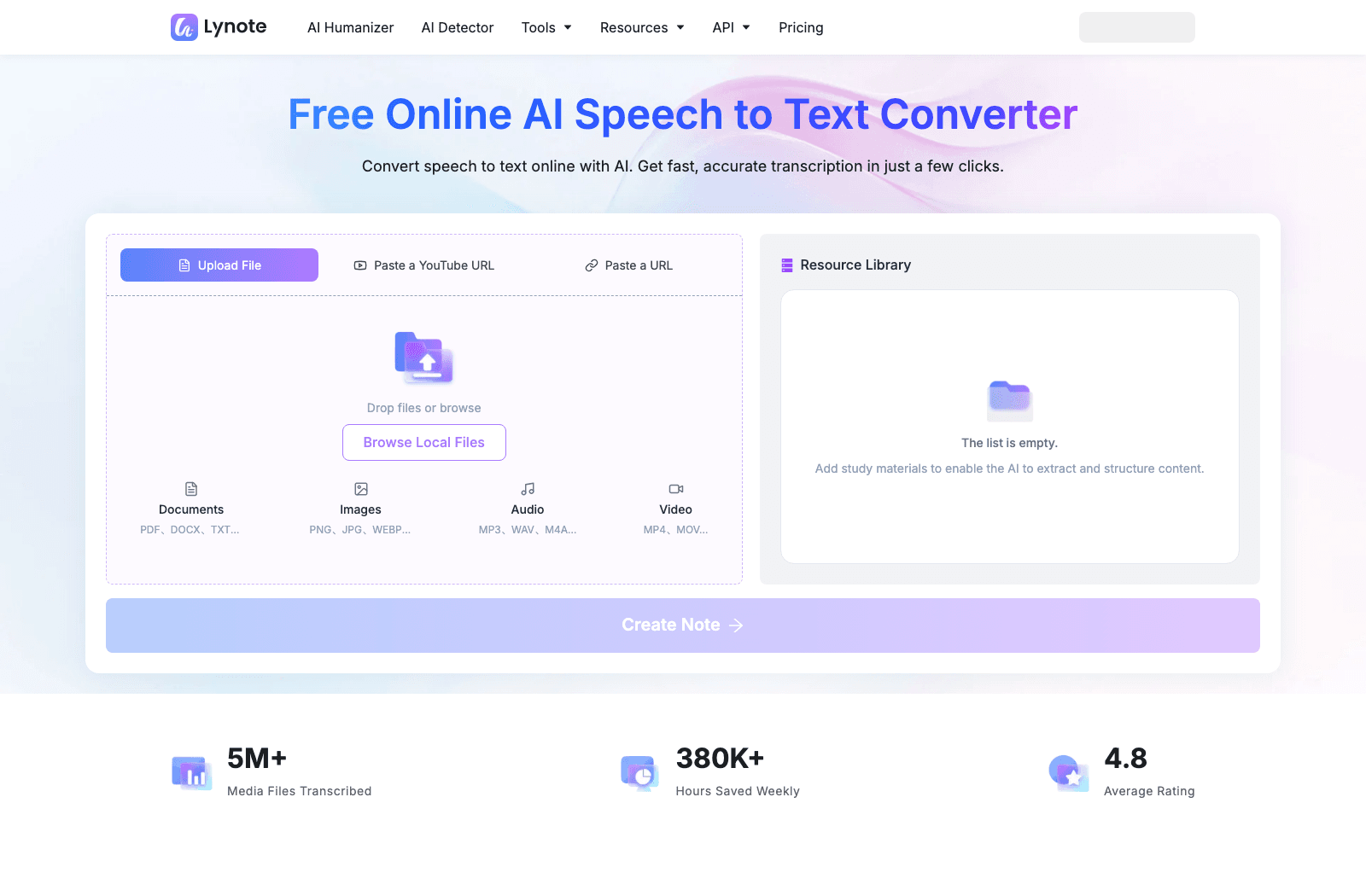
Have a lecture, interview, or voice memo sitting in Files? Lynote lets you upload it through Safari and work from the transcript without installing another iOS app. Its current page lists MP3, WAV, and M4A audio, plus MP4 and MOV video.
The distinction is simple: Lynote starts with a saved file. It will not put a microphone on the Messages keyboard, so use Apple Dictation when you need words to appear as you speak.
- Features: Browser-based file upload, editable transcript, follow-up text tools.
- Pros: No iOS installation for the browser workflow; handles common recorded-audio formats.
- Cons: Does not replace system-wide, live keyboard dictation.
- Best for: People with audio or video already saved on their iPhone or iPad.
- Access: Online tool with a free starting option; check current limits on the tool page.
2. Apple Dictation: Best Free Built-In Voice Typing
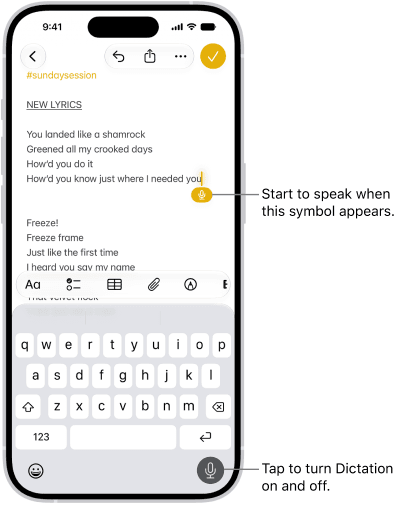
For the everyday "I want to say this instead of type it" problem, try the microphone on Apple's keyboard before downloading anything. Tap a text field and speak; the words appear at your cursor in Messages, Mail, Notes, and many other apps on iPhone or iPad.
Last week's Voice Memo is a different problem. Dictation has no file-import step, and you cannot use it to search a long conversation afterward. If offline processing matters, check your device and language settings rather than assuming every Dictation session stays on the phone.
- Features: Built-in keyboard speech input and automatic punctuation where supported.
- Pros: Already on the device; useful across many text fields.
- Cons: Not designed to process an existing audio file or label speakers.
- Best for: Messages, emails, notes, and short drafts spoken live.
- Access: Included with compatible iPhone and iPad devices.
3. Apple Voice Memos: Best Built-In Recording Transcription
If you recorded something in Voice Memos, open that recording before shopping for a transcription app. On eligible iPhones and iPads, Apple can display the spoken words during or after recording, and you can copy the text elsewhere. For a single memo, that may be all you need.
The catch is eligibility. Apple lists iPhone 12 or later for iPhone transcription and supported iPads running iPadOS 18 or later; language and region matter too. If the transcript control is missing on your device, that is a compatibility issue, not a setting every user can simply turn on.
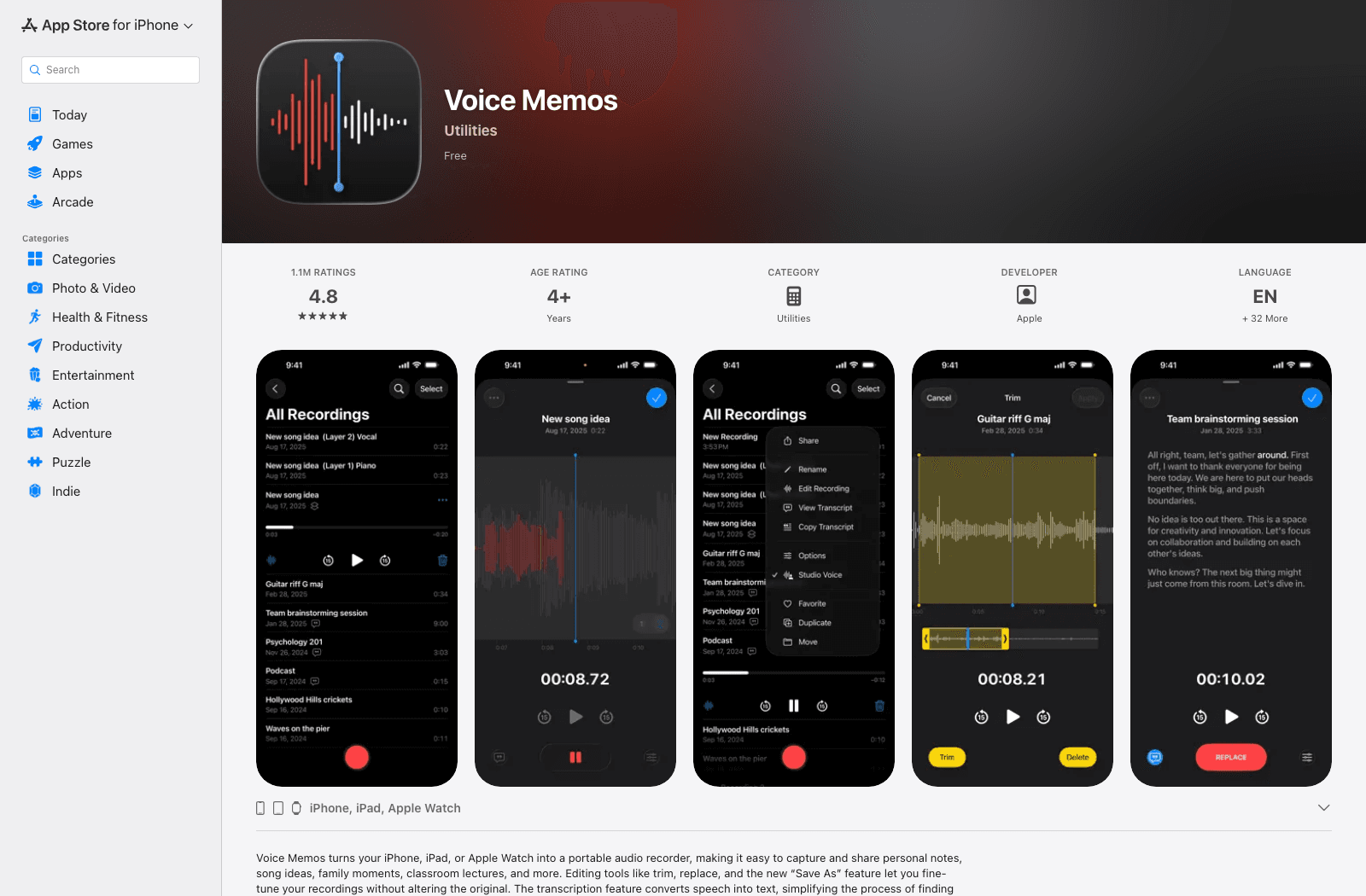
- Features: Record, view a transcript, search spoken content, copy text on supported devices.
- Pros: Built into Apple's recording app; quick for a single Voice Memo.
- Cons: Eligibility varies, and it is not a general-purpose importer for arbitrary audio files.
- Best for: Personal recordings made in Voice Memos.
- Access: Included on supported Apple devices.
4. Otter.ai: Best for Meetings and Shared Notes
Otter starts to earn its place when a recording is longer than a personal memo and more than one person needs to find something in it later. The iPhone and iPad app records and transcribes conversations, then gives you ways to search and share the result.
For a quick idea on the walk home, it is more workspace than you need. For a recurring meeting or a class where you revisit decisions and quotes, that extra structure is useful. Check the current recording allowance before making it your default for every meeting.
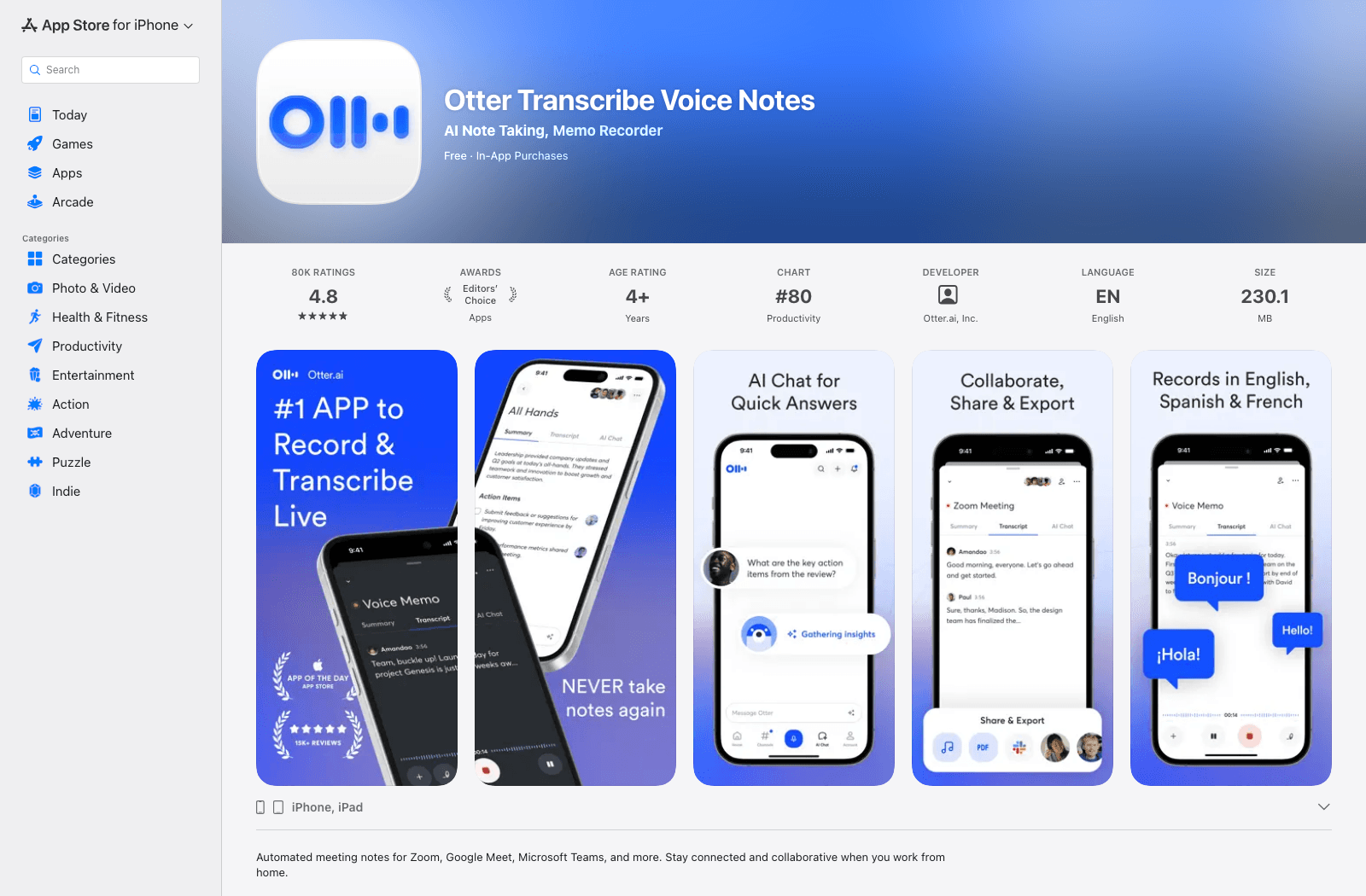
- Features: Live meeting transcription, searchable notes, speaker-oriented review, sharing.
- Pros: Designed for collaborative, repeatable conversation workflows.
- Cons: More setup and account management than a built-in recorder.
- Best for: Teams, meetings, interviews, and classes.
- Access: Free-to-start service with paid plans and changing usage allowances.
5. Notta: Best for Multilingual Conversations
Notta covers two situations that often happen in the same week: recording a conversation now and importing one you captured earlier. You can review transcripts on iPhone or iPad, which is handy if a longer interview is uncomfortable to edit on a small screen.
For multilingual work, do not stop at a headline language count. Check your particular language pair and whether your plan includes the translation or export you need. Basic transcription and bilingual output are not necessarily the same entitlement.
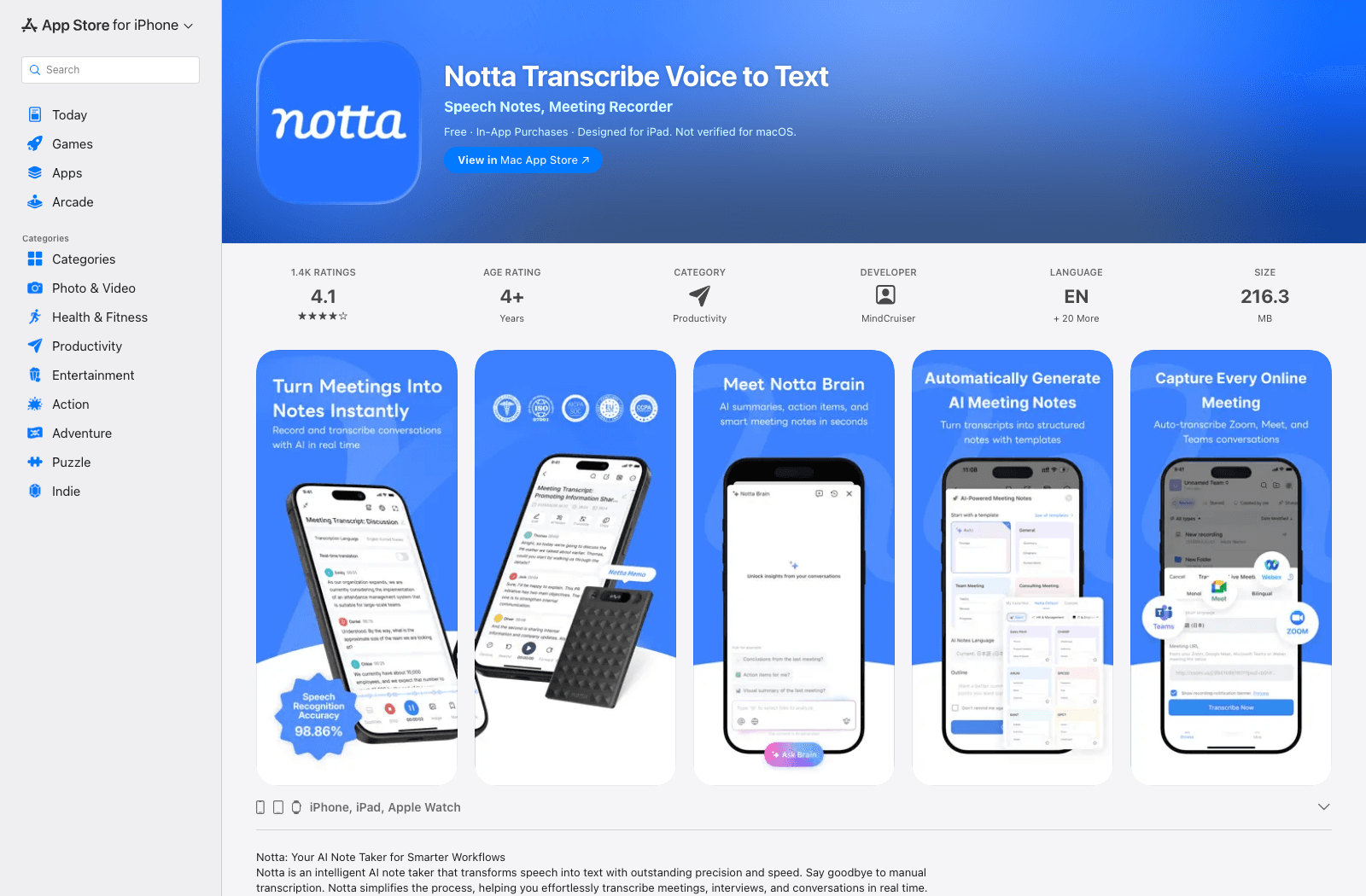
- Features: Mobile recording, imported audio/video, transcript review and export.
- Pros: Flexible across live speech and saved media; available on iPad.
- Cons: Advanced language and export needs may depend on the plan.
- Best for: Multilingual interviews, lectures, and meetings.
- Access: App and web options; verify current free allowance and paid features.
6. Rev: Best When Human Review Matters
Rev is the option to consider when a rough transcript will create more work than it saves. Record in its iPhone or iPad app, then choose a faster AI transcript or order a human-produced one. The latter can make sense for an interview you plan to quote, rather than a personal reminder you will read once.
That human route costs more and takes time; it is not a free upgrade to the recorder. Review names, numbers, and quotations against the audio yourself, even when another person transcribed it.
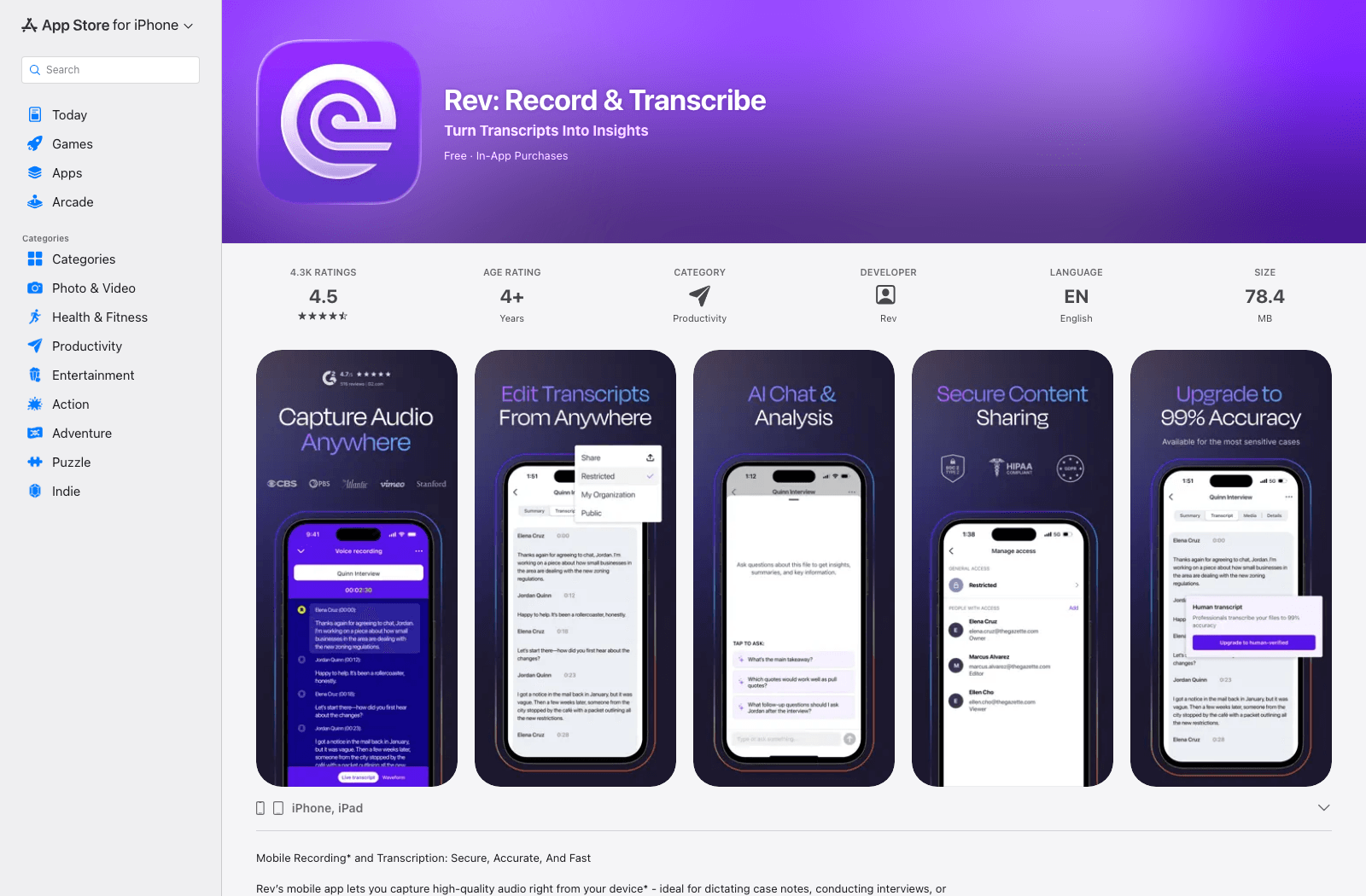
- Features: In-app recording, AI transcription, optional human transcription, transcript review.
- Pros: A human-transcription route exists when automated text is insufficient.
- Cons: Human service adds cost and turnaround time.
- Best for: Journalists, researchers, and professional interview workflows.
- Access: App download is free; transcription services and plan terms vary.
7. Just Press Record: Best for One-Tap Voice Notes
Just Press Record is appealing because there is little between having an idea and saving it: tap, speak, and return to the transcript later. It syncs across Apple devices, including iPhone and iPad, so a note captured while you are out can be edited on a larger screen.
One boundary is easy to miss: the App Store description says it cannot record phone calls or audio playing in other apps. If the conversation happens in a call, confirm your capture method before paying for this app.
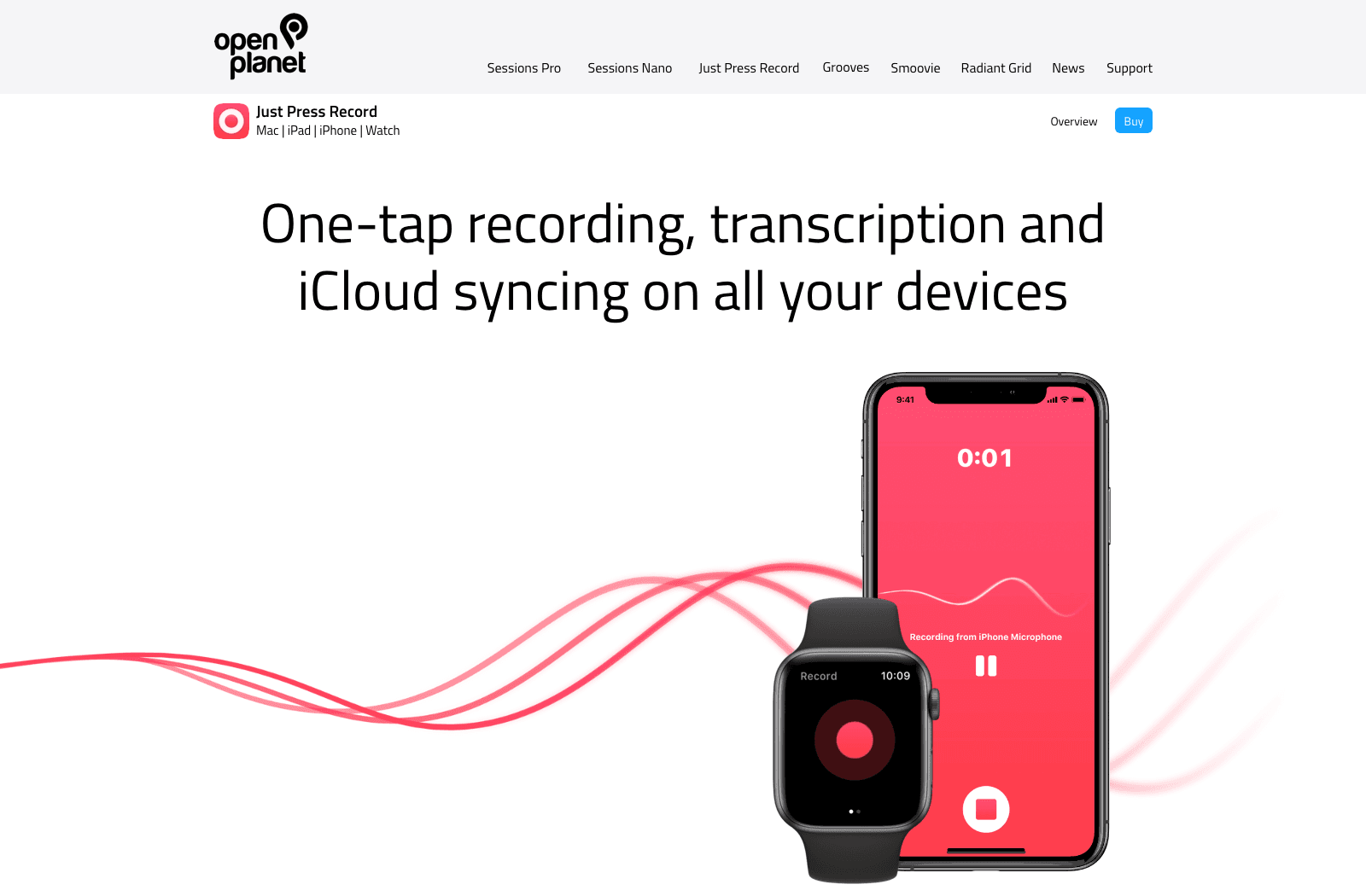
- Features: One-tap recording, transcription, transcript editing, Apple-device sync.
- Pros: Fast capture and a focused workflow without a large meeting dashboard.
- Cons: Does not record calls or another app's audio.
- Best for: Ideas, personal voice notes, and simple on-the-go recordings.
- Access: Paid App Store download; verify the current local price.
8. Transkriptor: Best for Audio and Video File Workflows
Transkriptor is aimed at the pile of recordings you already have: lectures, interviews, or video clips that need text you can edit or turn into captions. Importing a file on iPhone or iPad is more useful here than a live keyboard microphone.
Before sending it an hour-long class, look at the minutes available on your plan and the format in which you can export the result. Those limits matter more than whether the app itself is free to install.
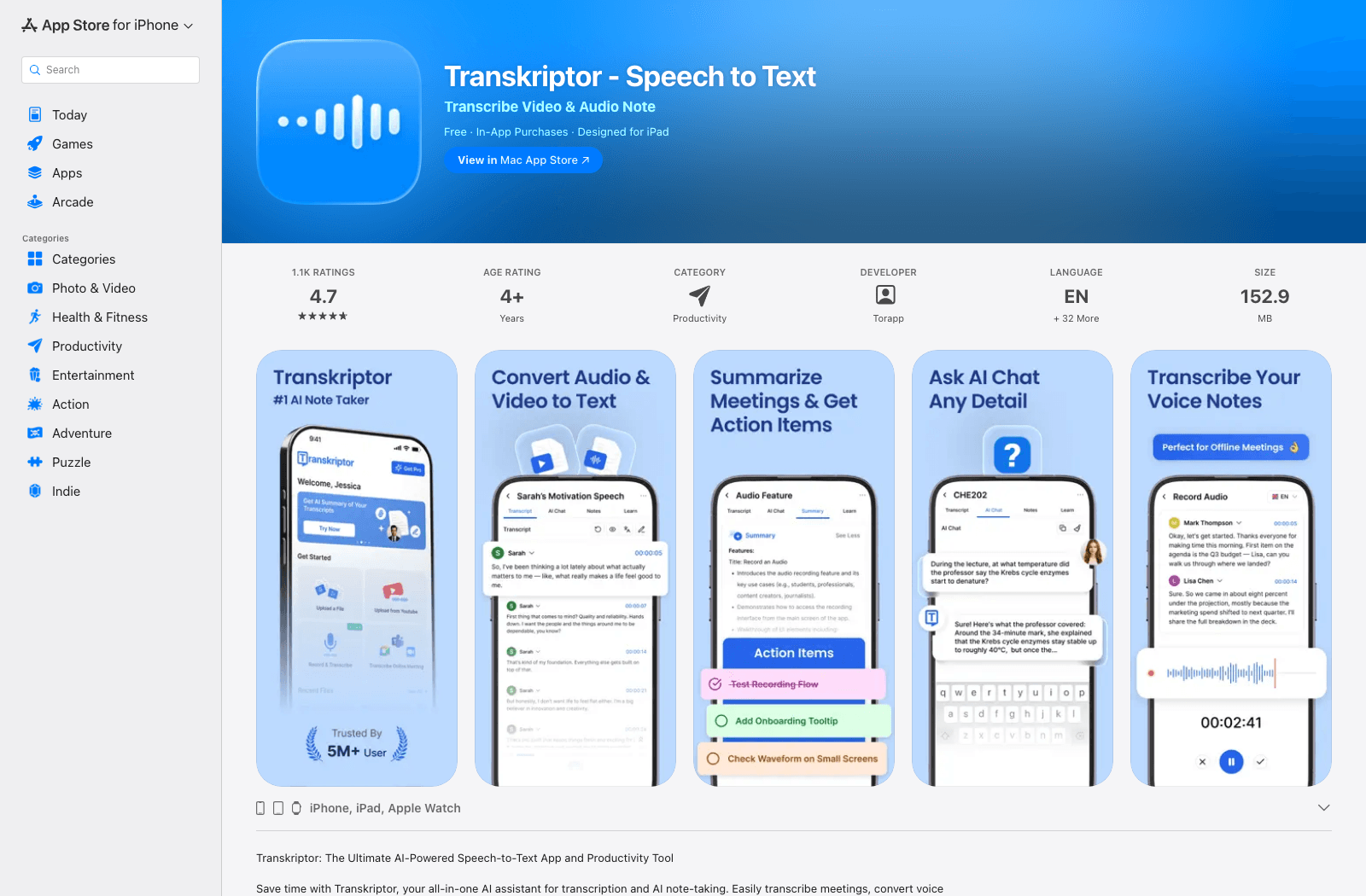
- Features: Audio/video import, transcript review, export options, speaker-oriented tools.
- Pros: Better fit for saved media and reusable transcripts than a keyboard tool.
- Cons: Ongoing use may require a paid allowance.
- Best for: Recorded lectures, interviews, and video-to-text projects.
- Access: Free-to-start app with in-app purchases.
9. Whisper Notes: Best for Offline Transcription
Whisper Notes deserves a look when uploading the recording is the problem. On supported iPhones and iPads, it can transcribe recorded or imported audio on the device. That is useful for travel without a connection or material you prefer not to send to a cloud service.
Its Mac product also offers system-wide voice typing, but that is not what the iPhone/iPad app does. On mobile, think recording and file transcription. Check device and OS requirements before buying, particularly if you have an older iPhone.
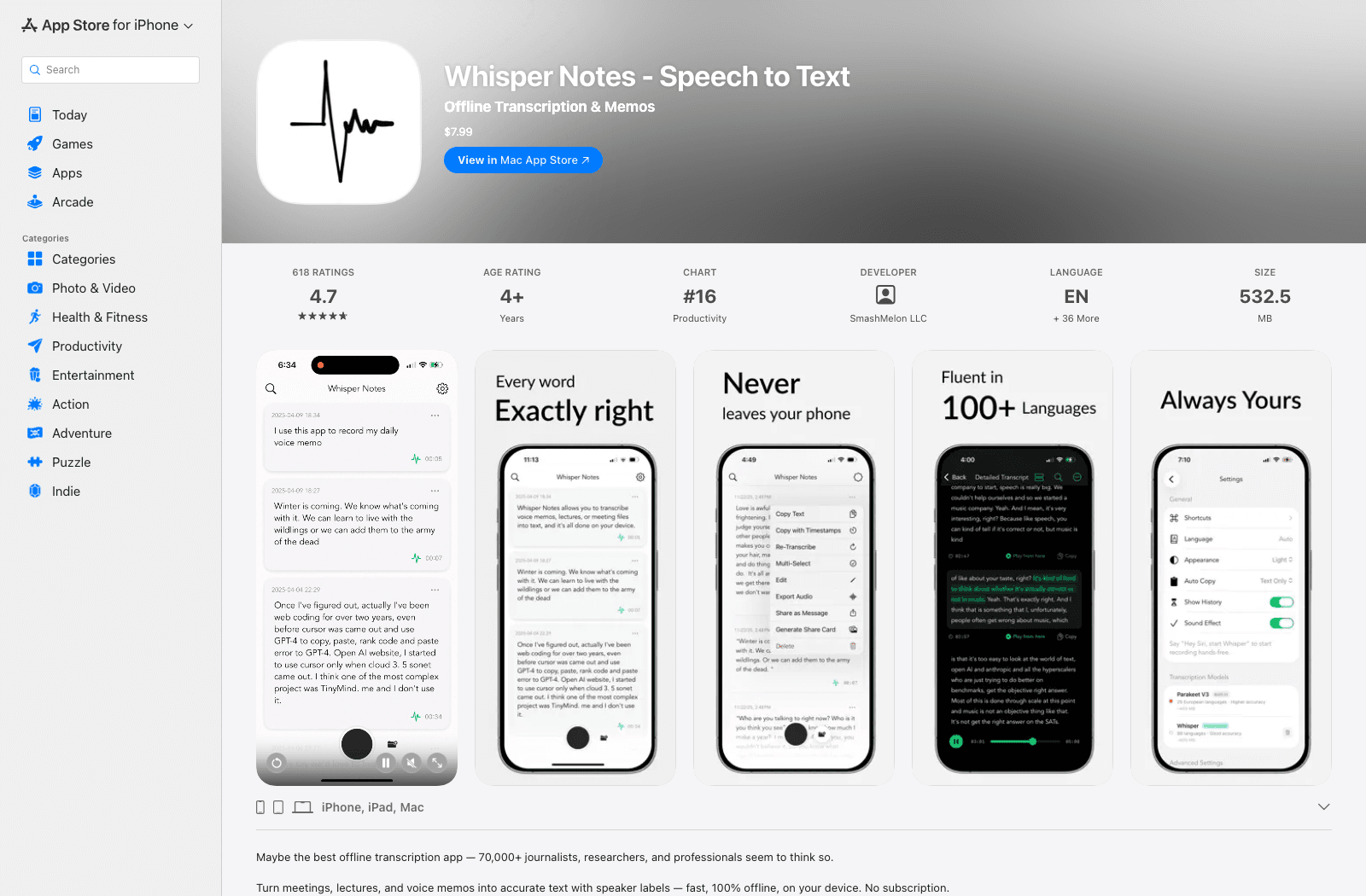
- Features: On-device audio transcription, recording and file import, transcript review.
- Pros: Works offline after setup; recorded audio remains on the device during processing.
- Cons: Upfront purchase and device requirements; not a mobile system-wide dictation keyboard.
- Best for: Privacy-conscious users and offline recording transcription.
- Access: One-time mobile app purchase; check current App Store compatibility.
10. Microsoft Word Dictate: Best for Writing Documents by Voice
If the finished text belongs in a Word document, say it there. Microsoft's mobile Dictate feature lets eligible iPhone and iPad users speak into the document they are already editing, which saves a round trip through a separate transcript app.
Do not buy Microsoft 365 solely on the assumption that this will transcribe an existing meeting file; that is not this workflow. Check your account's Dictate access, and try Apple's keyboard microphone first if you only need to speak a few paragraphs.
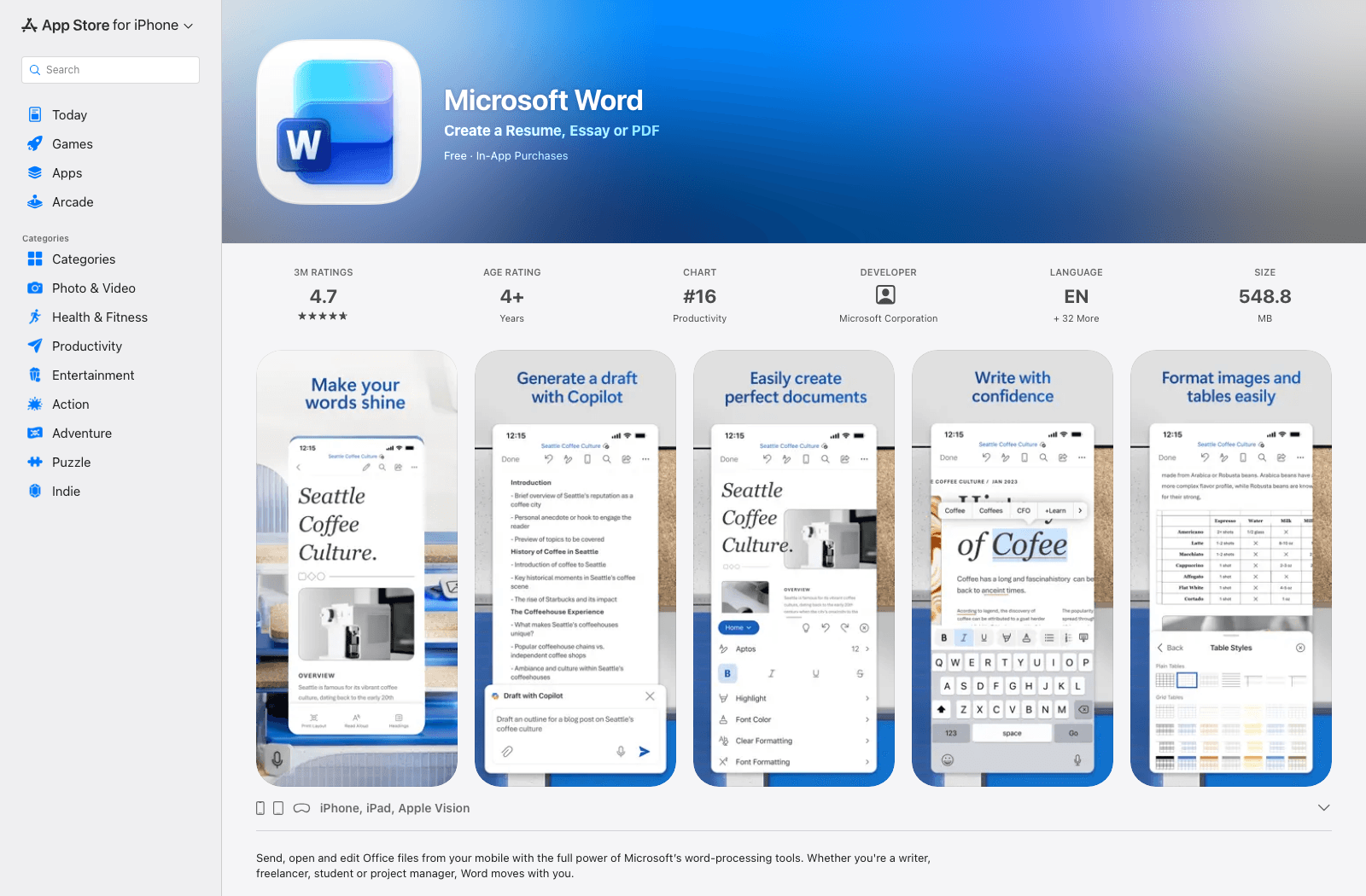
- Features: Voice drafting inside Word documents and subsequent document editing.
- Pros: Keeps spoken writing inside the document where it belongs.
- Cons: Feature eligibility may require Microsoft 365; no general audio-file import workflow.
- Best for: People who already write and edit in Word on iPhone or iPad.
- Access: Word app is free to download; verify Dictate entitlement for your account.
iPhone and iPad Speech-to-Text Apps Compared
In this table, "file import" means converting audio you already saved, not recording something new. "Offline" refers to the transcription step, not merely whether the app can store a recording without a connection.
| Tool | iPhone/iPad access | Speak into text | Existing audio | Meetings | Offline transcription | Cost model |
|---|---|---|---|---|---|---|
| Lynote | Safari browser | No | Yes | Recorded meetings | No | Free start; verify limits |
| Apple Dictation | Built in | Yes | No | No | Varies by language/settings | Included |
| Apple Voice Memos | Built in on eligible devices | No | Voice Memos recordings | Basic recording | Device-dependent | Included |
| Otter.ai | iOS app | No keyboard | Yes | Strong fit | No | Free start; paid tiers |
| Notta | iOS/iPad app and web | In-app live speech | Yes | Strong fit | Check current mode | Free start; paid tiers |
| Rev | iOS/iPad app | In-app recording | Yes | Interviews/meetings | No for transcription | AI and human-service pricing |
| Just Press Record | Apple app | No keyboard | Recordings in app | Simple capture | Check current processing mode | Paid app |
| Transkriptor | iOS/iPad app and web | In-app recording | Yes | Strong fit | No | Free start; paid tiers |
| Whisper Notes | Apple app | No mobile keyboard | Yes | Recorded meetings | Yes | One-time purchase |
| Microsoft Word Dictate | Word app | In Word | No | No | No | Microsoft 365 may be required |
Avoid treating "free download" as "free unlimited transcription." A useful comparison checks what you can do before paying, whether your recording is accepted, and whether the finished transcript can leave the app in the format you need.
How to Choose Without Paying for the Wrong Workflow
If the words need to appear where you are typing, use dictation. Start with Apple Dictation for messages and general text fields. If you draft primarily in Word and already have the right subscription, Word Dictate is worth checking.
If the speech already happened, use transcription. For a supported Voice Memo, first see whether Apple's transcript control is available. If you have an M4A, MP3, WAV, or video file in Files, choose a service that accepts that file rather than trying to play it aloud into a keyboard microphone.
If several people are talking, look beyond raw text. Search, speaker labels, shared notes, and export are often more important than getting text onto the screen quickly. Otter, Notta, and Transkriptor address different parts of that workflow; Rev adds a human-transcription path.
If your recording cannot leave the device, make that a first-pass filter. An offline transcription app is more appropriate than a browser upload. Also check your organization's recording rules and obtain consent where required before recording other people.
How to Transcribe an iPhone Voice Memo With Lynote
Use this route when you have a Voice Memo but want to work with its audio file in a browser-based transcription workspace. It also applies to a compatible recording already saved in Files on an iPad.
-
In Voice Memos, open the recording, choose Share, and save a copy to Files if needed.
-
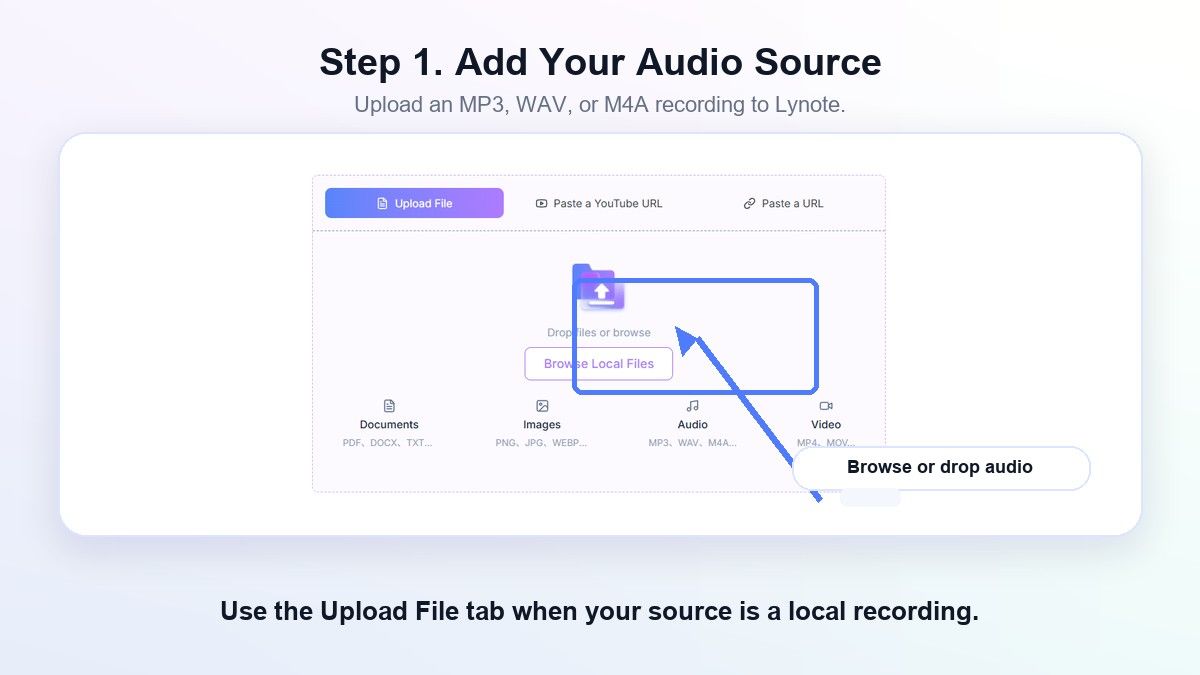
Open Lynote Speech to Text in Safari, choose Upload File and Browse Local Files, then select the recording from Files.
-
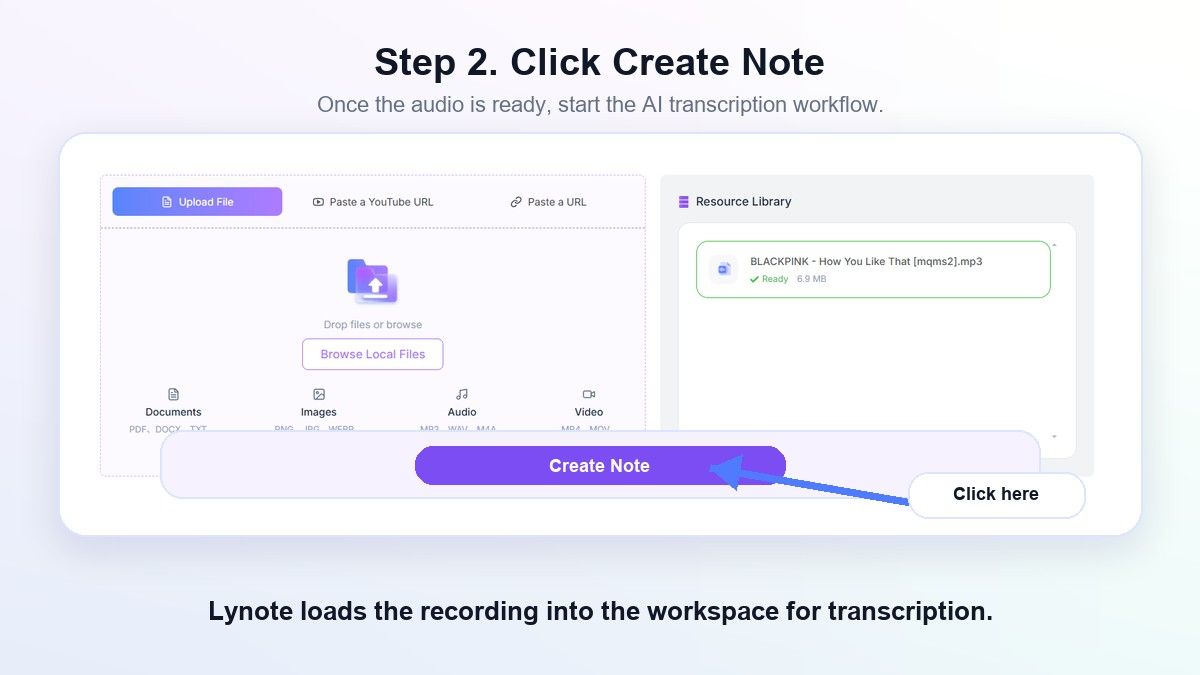
Add the file to the workspace, use Create Note, and follow the transcription action shown for your upload.
-
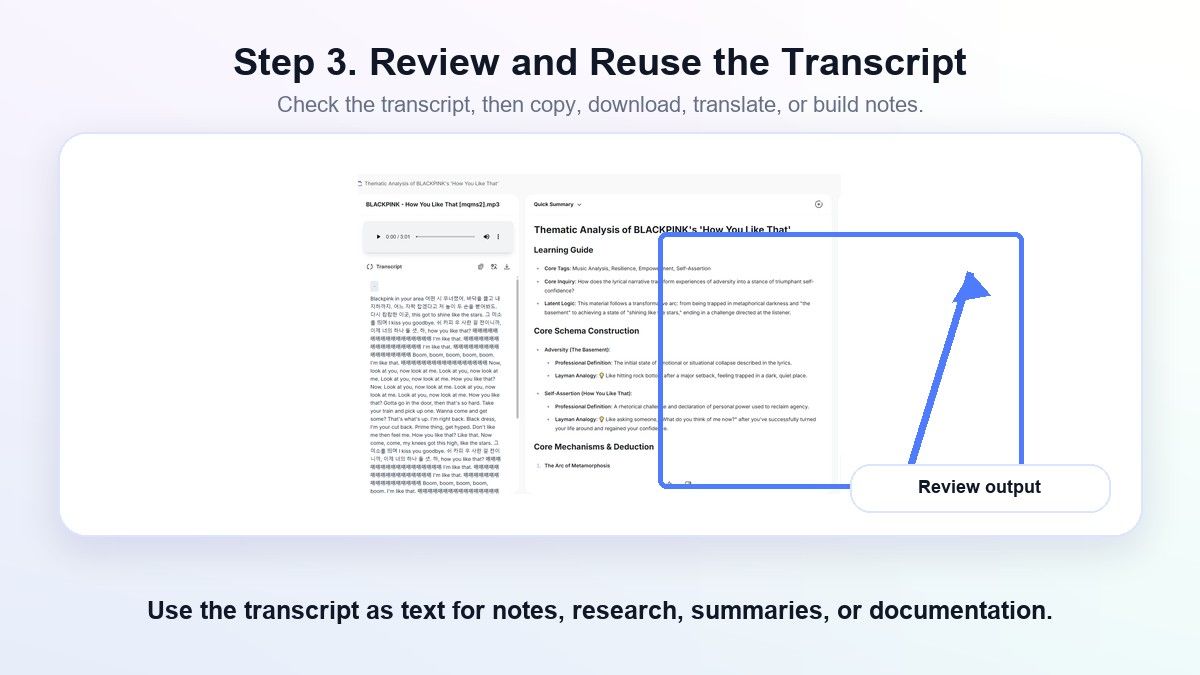
Read the transcript while replaying unclear passages. Correct names, numbers, and specialist terms before you copy or export the text.
This is a file-upload workflow, not a way to dictate directly into another iPhone app. If your eligible Voice Memos app already shows a transcript and you only need to copy a sentence, the built-in route may be faster.
FAQs About iPhone Speech to Text
Is speech to text free on iPhone?
Apple Dictation is included for live voice typing. Voice Memos transcription is also available on supported devices and languages, while third-party apps vary: some offer a limited free start, others require an app purchase or subscription. Always check what the free tier permits for recording length, file imports, and exports.
Can an iPad do speech to text too?
Yes. iPad supports keyboard Dictation, and supported iPad models can show Voice Memos transcripts. All 10 options in this guide offer an iPad path, whether through an app or a mobile browser, though a particular feature may depend on software, account, or device model.
Can I turn an existing iPhone Voice Memo into text?
On an eligible device, open the recording in Voice Memos and check for its transcript. Otherwise, export or share the audio to a file-transcription tool that accepts its format. Dictating into the keyboard is not the same as importing the saved recording.
Which iPhone speech-to-text tools work offline?
Whisper Notes offers on-device transcription on supported hardware. Some Apple speech features also process locally under particular conditions, but do not assume every language, device, and workflow is offline. Check the specific feature you intend to use before relying on it without connectivity.
Can these apps record phone calls?
Do not assume so. Call recording is separate from recording speech through the microphone, and app capabilities and laws vary by location. Just Press Record specifically says it does not record phone calls or audio from other apps; confirm any call-recording feature and consent requirements before using it.
Final Verdict
For typing by voice, use Apple's built-in Dictation first. For a supported recording already inside Voice Memos, check its transcript before installing anything else. For an existing file you want to process on an iPhone or iPad browser, Lynote is the straightforward upload-based choice; Otter is better suited to ongoing meetings, and Whisper Notes is worth considering when offline processing is the deciding factor.
Start with the free tool already on your device, then add a specialist only when it solves a real gap: file import, meetings, human transcription, or offline processing. That is usually a better purchase decision than choosing by a long feature list.

Written by Danny
Product Marketing Manager
Danny explains how Lynote features fit real workflows, from everyday productivity to product-led writing use cases. View all articles →