10 Best Speech-to-Text Apps for Android in 2026

The best speech-to-text tool for Android depends on what you need to capture. Use Gboard to dictate into a message, Google Live Transcribe to read a nearby conversation, and a supported Pixel or Galaxy recorder to transcribe audio captured on your phone. If you already have an audio or video file, Lynote Speech to Text gives you a browser-based route to an editable transcript. Otter.ai is a stronger fit when the recording is part of a collaborative meeting workflow.
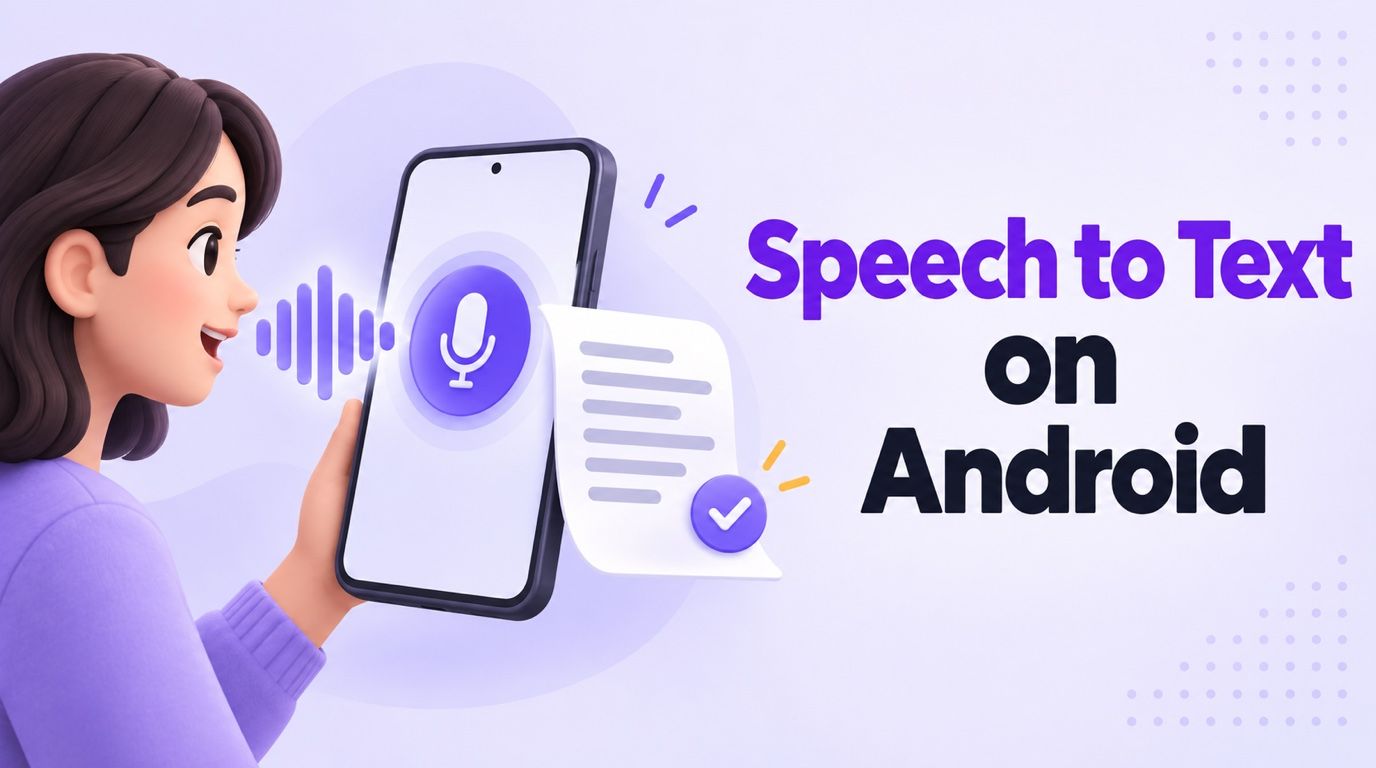
These tools do not do the same job. A microphone on your keyboard cannot import yesterday's interview, while a file-transcription website is not a replacement for voice typing into WhatsApp. The ten options below are organized around the task you actually have.
Quick Answer: The Best Android Speech-to-Text Tool by Task
| What you need to do | Best pick | How it runs on Android | Key boundary |
|---|---|---|---|
| Convert an existing audio or video file | Lynote | Mobile browser | Upload-first, not keyboard dictation |
| Speak into a message or search field | Gboard | Android keyboard | Does not import recordings |
| Read an in-person conversation as it happens | Google Live Transcribe | Android accessibility app | Built for live text, not a recording archive |
| Record and transcribe on a Pixel | Google Recorder | Supported Pixel phone | Not available across all Android brands |
| Transcribe a Galaxy voice memo | Samsung Voice Recorder | Supported Galaxy phone or tablet | Transcript Assist requires eligible software and device |
| Dictate a longer personal note | Speechnotes | Android app | Not the same workflow as meeting-file transcription |
| Capture and share meeting notes | Otter.ai | Android app | Free conversation and import limits |
| Work across languages and devices | Notta | Android app | Free recordings are limited to three minutes each |
| Draft a Word document by speaking | Microsoft Word Dictate | Android app | Writes into Word; does not import an audio file |
| Record or upload an interview | Transkriptor | Android app | Usage allowance depends on the current plan |
If you are comparing free options, look past the monthly-minute headline. A per-recording cap, device requirement, or inability to save the transcript can matter more than the total number of minutes advertised.
Speech to Text on Android Means Three Different Jobs
Voice typing places words wherever your cursor is. Gboard and Word Dictate are useful when you are composing a message, email, or document right now; they are poor choices for a recording already saved on your phone.
Live transcription displays speech as someone talks. Google Live Transcribe is designed for following a nearby conversation, while meeting tools may also save and organize the result. Check whether the app retains the audio or only the displayed text if you will need to verify an exact quote later.
File transcription starts with existing media, such as a phone recording, interview, lecture, or video. Lynote, Notta, Otter, and Transkriptor can address parts of this workflow, but input formats, free allowances, editing, and exports differ.
There is also an Android availability distinction: some choices are phone apps, some are restricted to Pixel or Galaxy hardware, and Lynote is an online tool opened in a phone browser. Calling all ten "apps" is convenient shorthand, but the access method is stated for every entry below.
10 Best Speech-to-Text Tools for Android
These recommendations are based on each provider's current product and support information, not a controlled accuracy test using the same recording. No tool should be treated as automatically correct with names, accents, overlapping voices, or noisy audio.
1. Lynote Speech to Text: Best for Recordings Already on Your Phone
Lynote Speech to Text fits the situation that Android's keyboard microphone cannot solve: you already have a voice memo, lecture, interview, meeting recording, or video and want the spoken content as editable text. Open it in your Android browser, select the saved media from your device, and process it online.
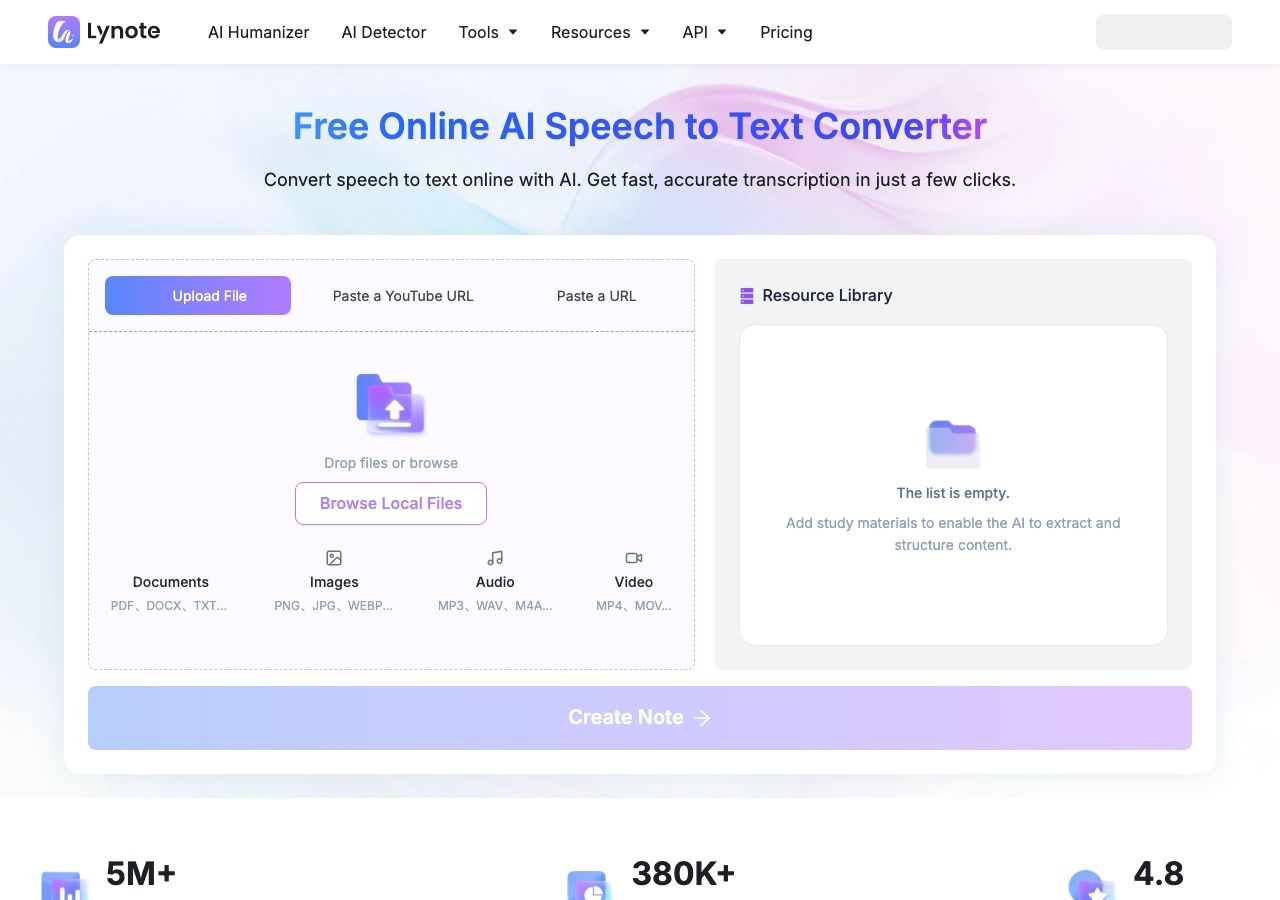
The page accepts common audio formats such as MP3, WAV, and M4A and video formats such as MP4 and MOV. It also provides a link-input route, which is useful when the source is online rather than stored in Android's Files app. After processing, you can review and edit the text, then copy, translate, or export it for another project.
Best for: Students, interviewers, creators, and professionals with existing files who want a transcript they can work on rather than live subtitles alone.
Free-use reality: The tool offers a free starting workflow. Check the live interface for the current file, size, and usage allowances before planning a batch of long recordings.
Limit: Lynote does not turn into the Android keyboard and should not be described as a tool that directly records your phone calls. You must supply a recording or supported link first.
2. Gboard Voice Typing: Best Free Android Dictation
Gboard is the quickest route when the goal is to speak into a text field. Open a message, note, or search box, bring up the keyboard, tap the microphone, and speak. On some Pixel devices, advanced voice-typing features can make punctuation and editing more flexible, but availability varies by phone and language.
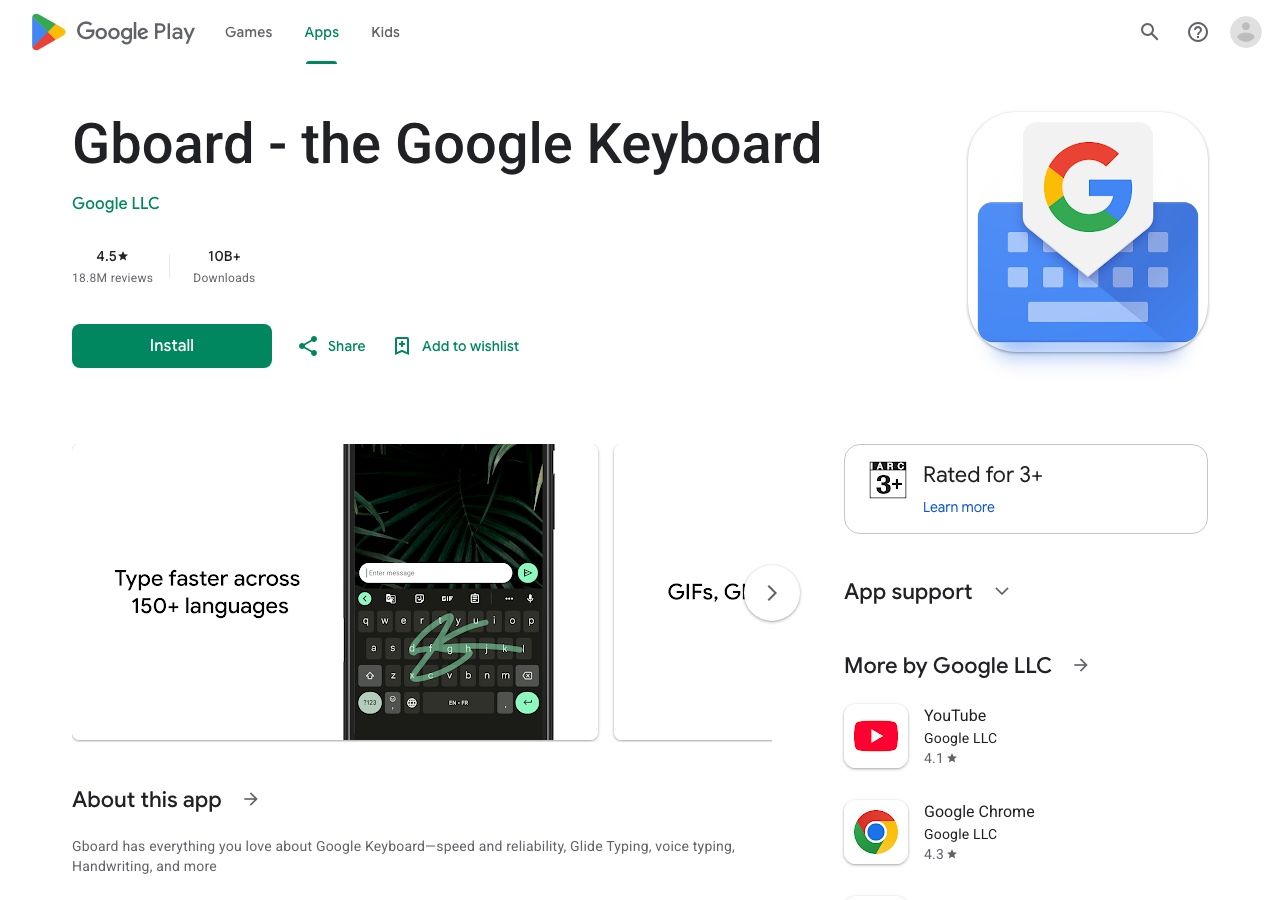
Its greatest advantage is scope: you can use the same keyboard across many Android apps instead of moving your words through a separate transcription workspace. That makes it the sensible default for short messages, reminders, and rough paragraphs.
Best for: Everyday voice input into apps you already use.
Free-use reality: The core keyboard voice-typing path is available without buying a separate transcription subscription, though recognition features and language support vary.
Limit: Gboard types what it hears now. It is not a tool for importing a saved interview or producing a speaker-labeled meeting record.
3. Google Live Transcribe: Best for Nearby Conversations
Google Live Transcribe turns nearby speech into on-screen text. It is especially useful when you need to follow a conversation while it happens, rather than create a polished document afterward. You can access it through Android accessibility settings or install it where available.
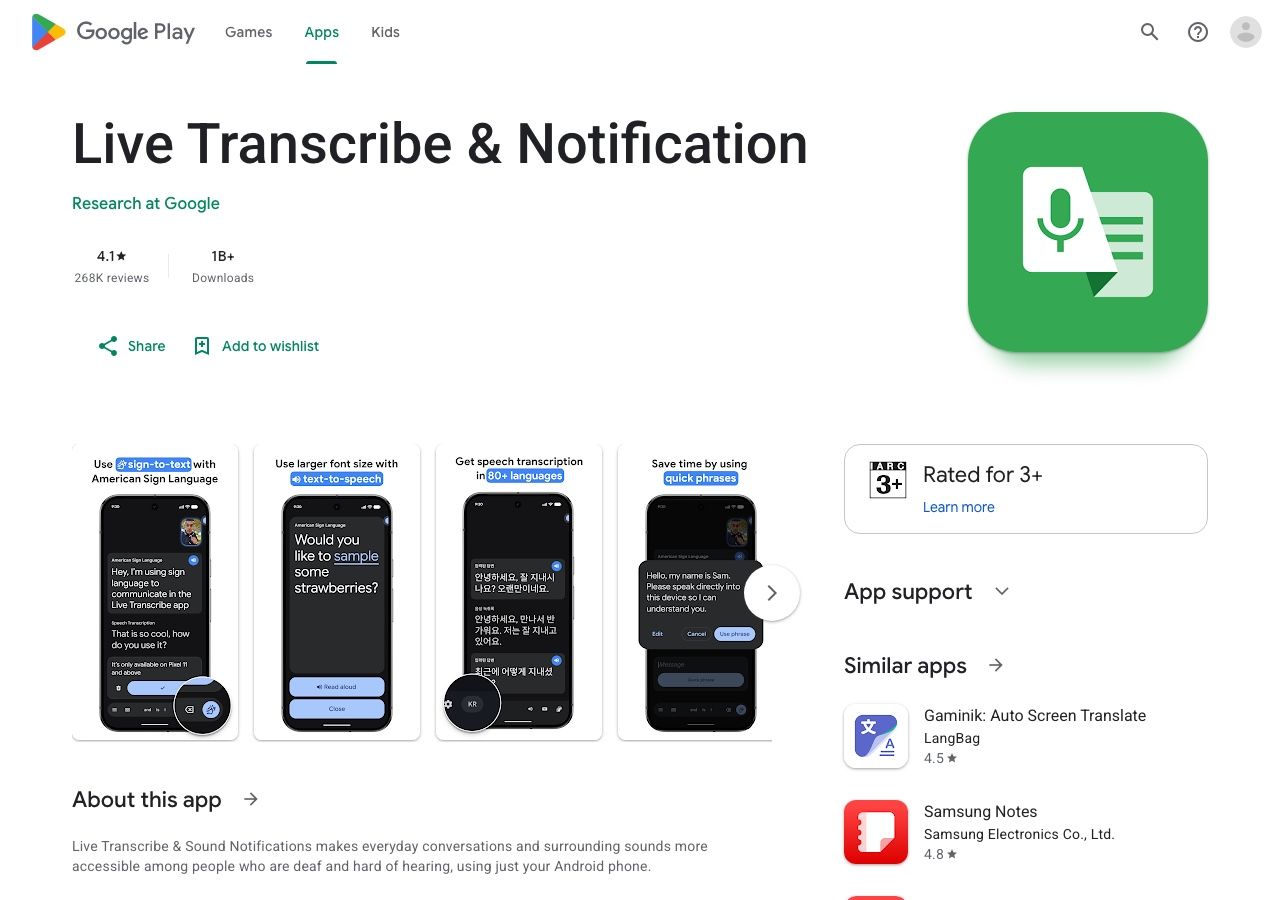
The distinction from Gboard is important. Live Transcribe shows a conversation for reading; Gboard puts your own dictated words at the cursor. History and sharing settings may help with text reuse, but you should not assume the app is keeping a replayable audio recording.
Best for: Real-time conversation captions and accessibility.
Free-use reality: It is a Google accessibility tool, not a metered commercial meeting subscription.
Limit: If you need an audio file, permanent meeting library, speaker verification, or a polished export, test another recording-focused option.
4. Google Recorder: Best Built-In Route for Pixel Owners
Google Recorder can capture audio and show a transcript inside the recording on supported Pixel phones. You can search, edit words, and review the speech alongside the original audio. This makes it more useful than keyboard dictation for a lecture or interview you need to revisit.
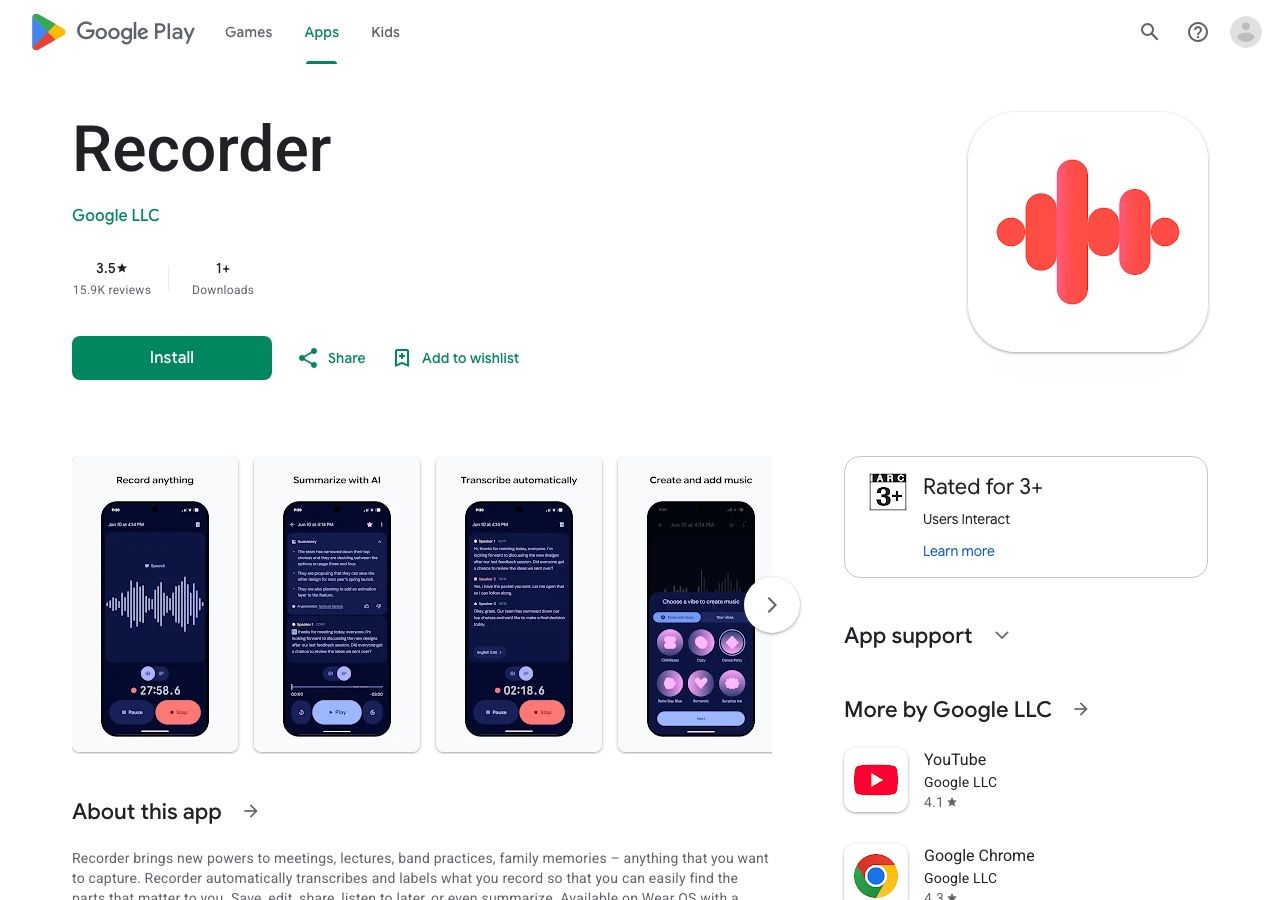
Pixel support is not one universal feature set. Real-time transcription languages, automatic language detection, and AI summaries differ by model; some re-transcription actions may process audio on Google servers. Check the options visible on your own phone before assuming a feature is local or available in your language.
Best for: Pixel owners who want to record first and revisit the exact audio later.
Free-use reality: It is a first-party phone feature on eligible Pixel devices, not a separate per-minute subscription for ordinary recording and transcript access.
Limit: It is not the recommendation for every Android handset. A Samsung or other Android owner needs a different route.
5. Samsung Voice Recorder With Transcript Assist: Best for Eligible Galaxy Phones
Samsung Voice Recorder can turn a saved recording into text with Transcript Assist on supported Galaxy phones and tablets. The workflow begins with recording in Voice Recorder; after saving, open that recording and choose the transcription action. Depending on the device and language, you can also review or summarize the result.
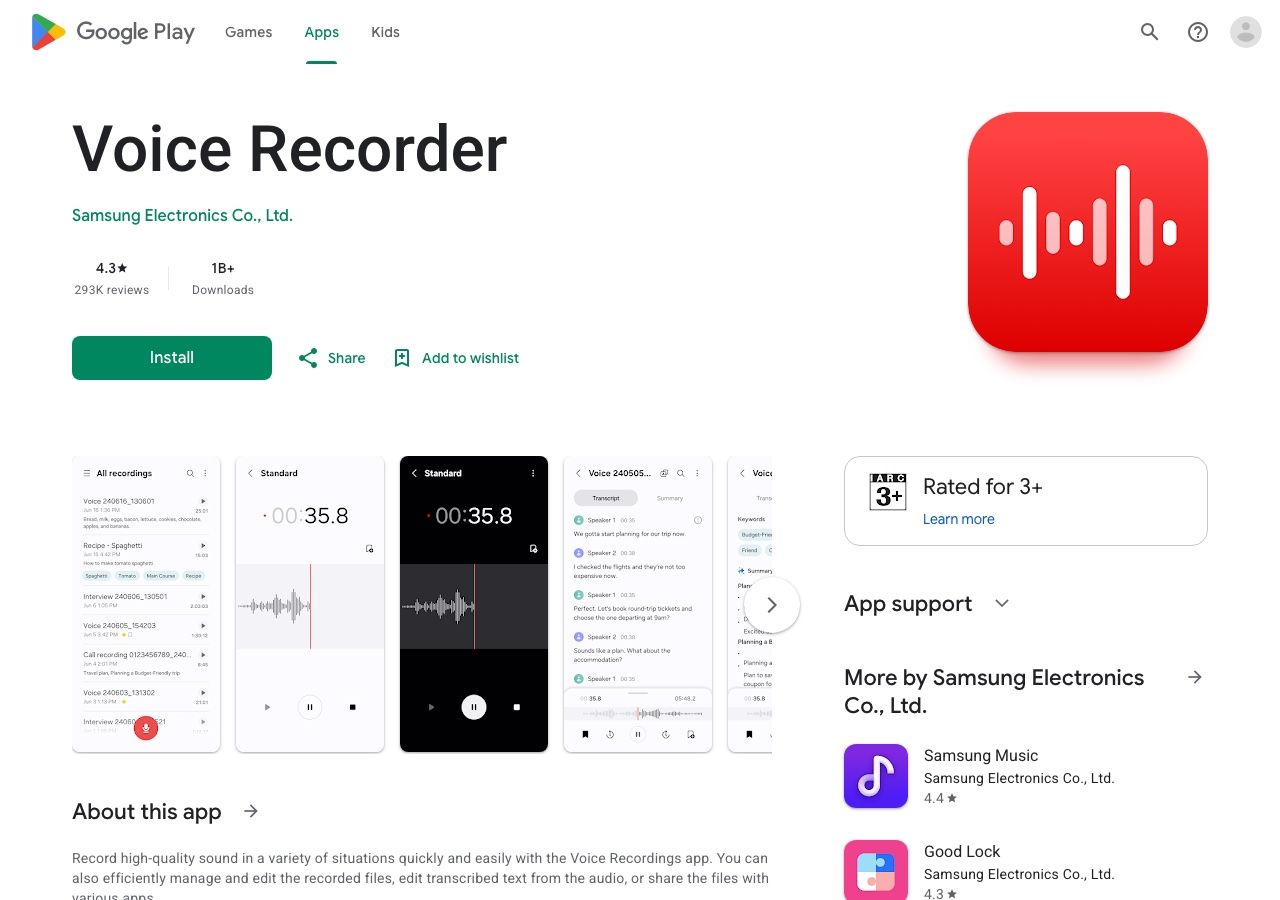
This is appealing if you already record voice memos on a Galaxy phone because the audio and transcript stay within a familiar Samsung workflow. It is still device-specific: Samsung says Transcript Assist is available on select models and software versions, not on every Android device or every Galaxy phone.
Best for: Owners of an eligible Galaxy device who want to transcribe their own voice recordings.
Free-use reality: Basic eligible Galaxy AI features are currently described by Samsung as free, while enhanced or third-party features may have different terms.
Limit: Verify your phone model, One UI version, region, and language before relying on it for an important recording.
6. Speechnotes: Best for Long-Form Personal Dictation
Speechnotes offers an Android dictation notepad for people who would rather speak a draft than tap it out. Its purpose is different from Gboard's field-by-field typing: you open a dedicated note, dictate for longer, make corrections, and then share or move the text.
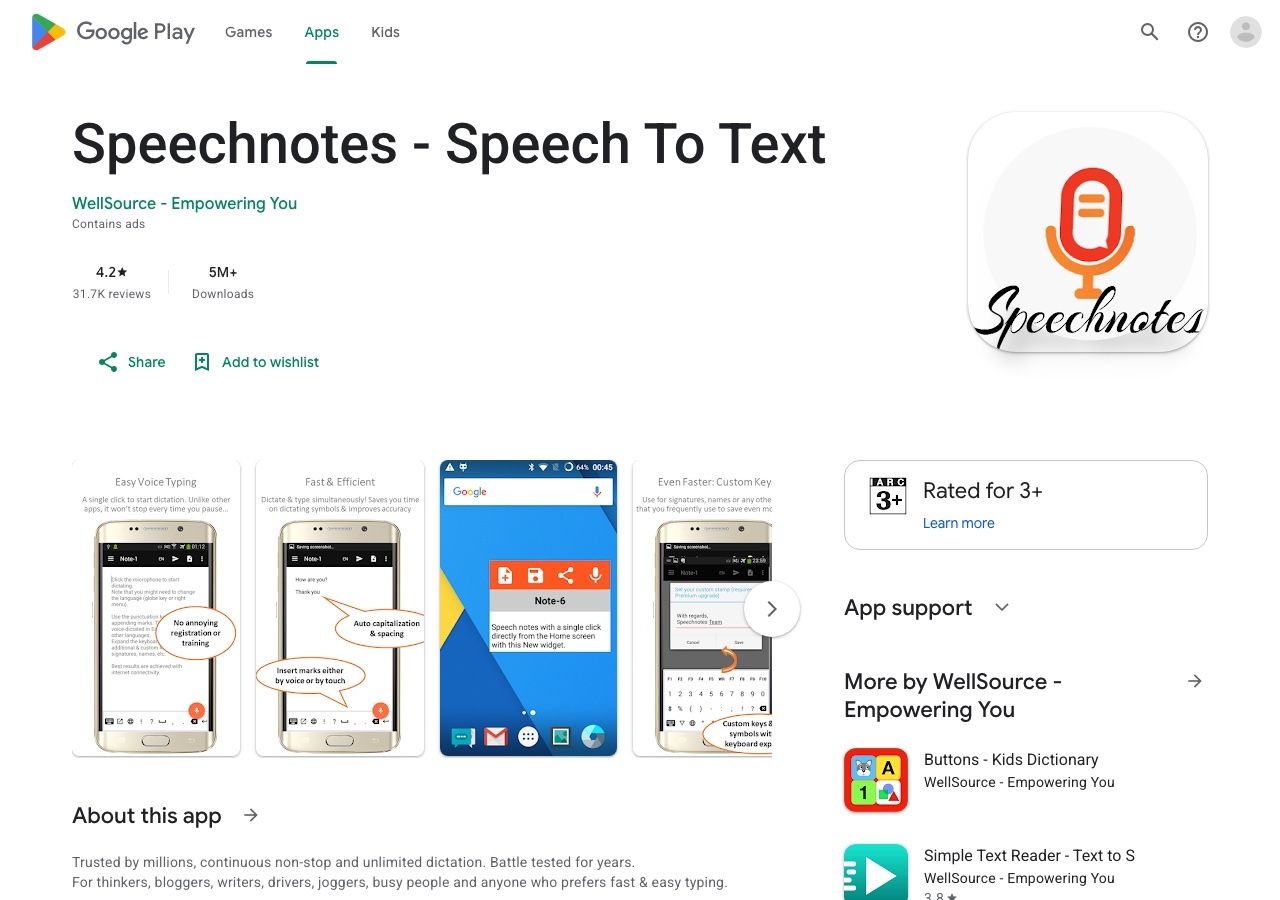
It is a useful middle ground for journal entries, story ideas, or first drafts when a full meeting platform would feel heavy. The provider also offers other transcription products, but do not assume every web or file-transcription feature is included in the same Android app plan.
Best for: Personal notes and longer voice-drafted writing.
Free-use reality: The Android app can be tried without committing to a team transcription platform; check current in-app ads, purchases, and export terms.
Limit: Choose a file-transcription product instead if your input is an existing recording with multiple speakers.
7. Otter.ai: Best for Collaborative Meeting Transcripts
Otter's Android app can record and transcribe conversations, then give you a searchable record to review and share. It is better suited to meetings, interviews, and group follow-up than a keyboard dictation tool because the transcript lives inside a broader conversation workspace.
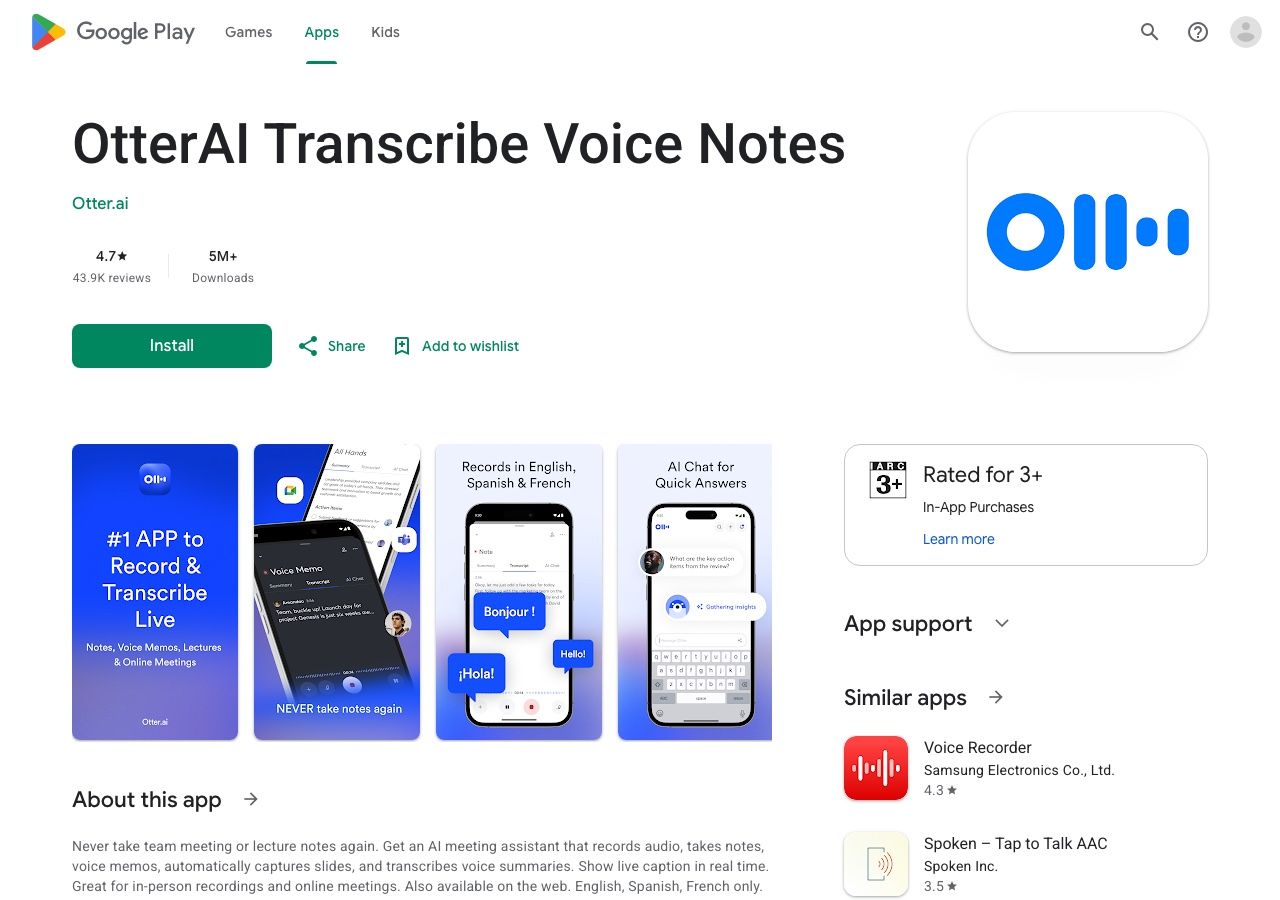
The free Basic plan currently lists 300 transcription minutes per month, but that number alone is misleading. Each conversation or imported file exposes up to 30 minutes of transcription, and the account gets three lifetime file imports. If you routinely record hour-long meetings, those limits arrive before the monthly total does.
Best for: People who need meeting transcripts, review, and collaboration across devices.
Free-use reality: Good for short recurring meetings; less generous for long interviews or regular file imports.
Limit: Check the 30-minute per-conversation cap and import count before moving a recording archive into the app.
8. Notta: Best for Multilingual Mobile Transcription
Notta's Android app supports recording and turning speech into text on the phone, with a cross-device workspace for reviewing the result. It is a stronger candidate when language choice and moving between devices matter as much as the initial transcript.
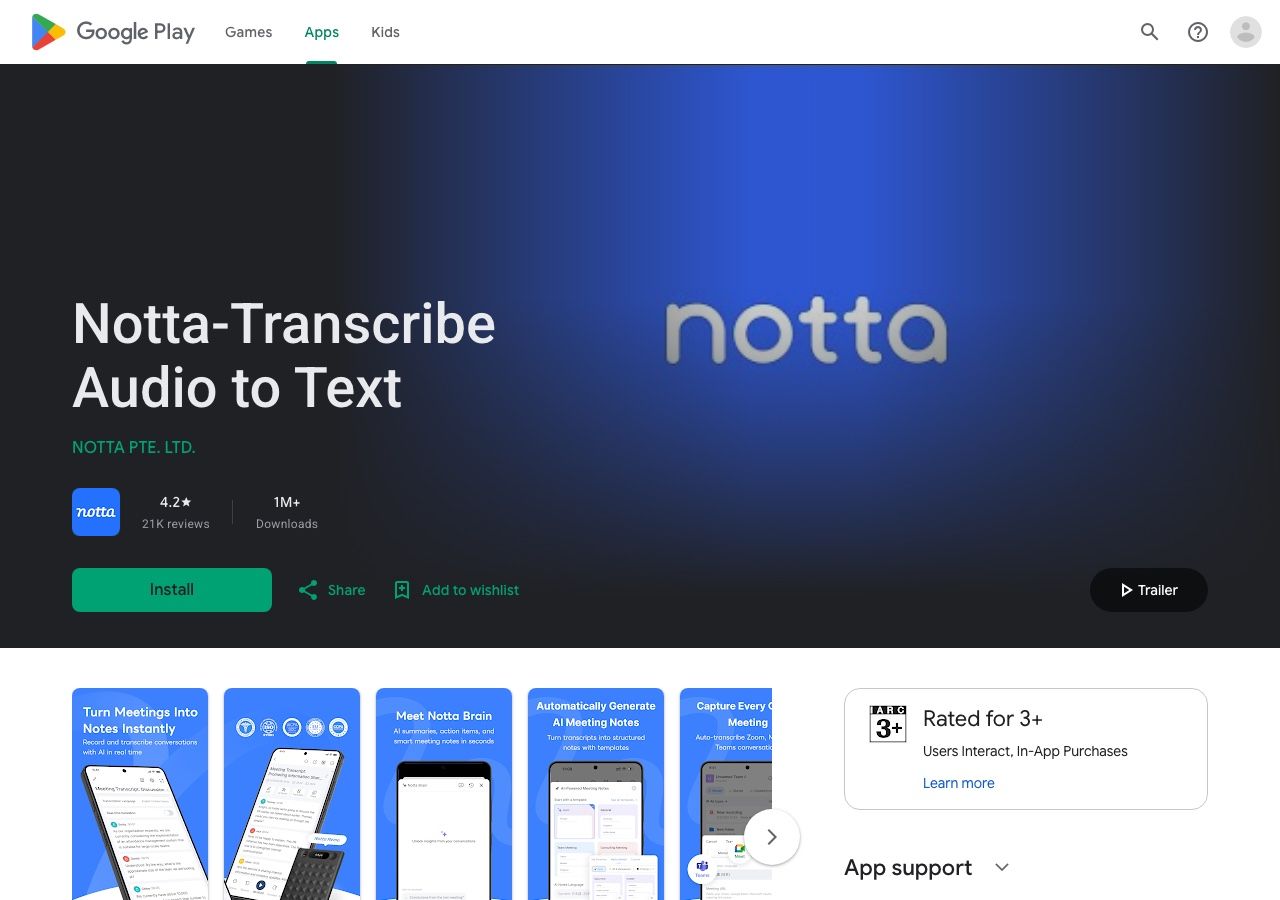
The free tier currently allows up to 120 transcription minutes per month, but only three minutes per transcription. A large monthly total therefore does not mean that a full lecture or meeting fits on Free. Longer sessions call for a paid plan or a different tool.
Best for: Short multilingual recordings and users comparing mobile and desktop transcription workflows.
Free-use reality: Useful for evaluating the interface and brief clips, not a realistic hour-long meeting allowance.
Limit: Read the per-recording duration before judging the plan by its monthly minutes.
9. Microsoft Word Dictate: Best for Speaking Into a Document
Word's Android dictation is useful when the desired output is already a Word document. Open a document, activate its microphone or dictation control where available, and speak your draft into the page. This is an authoring workflow, not an interview recorder.
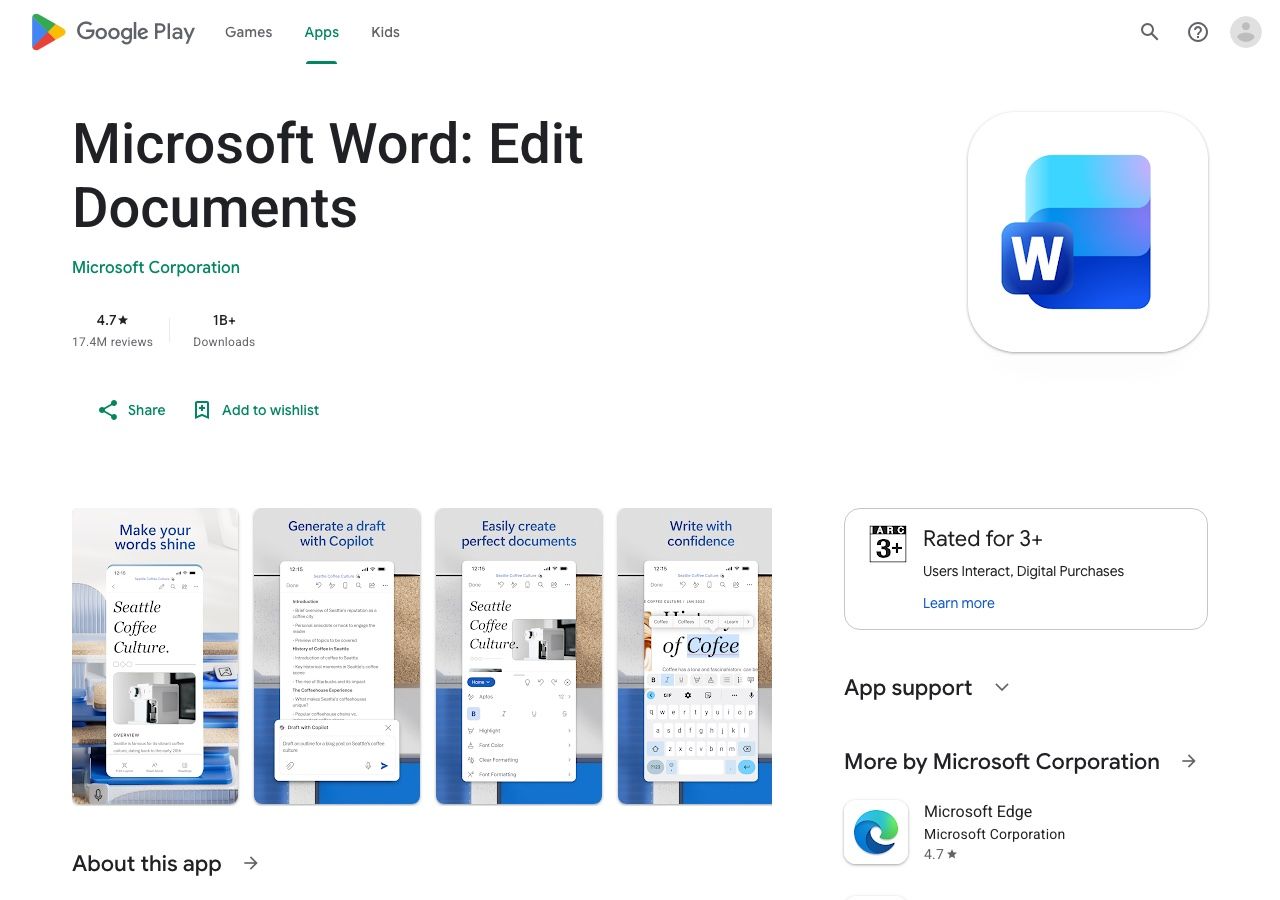
It makes particular sense for people already writing in Microsoft 365 who want to avoid copying text between apps. Microsoft notes that mobile feature availability can differ from desktop and that dictation needs a reliable internet connection, so check the control and account eligibility in your installed app.
Best for: Drafting reports, class notes, or documents by voice in Word.
Free-use reality: Access to the feature may depend on your Microsoft account and subscription; do not assume the same controls are available to every free user.
Limit: It will not turn an old phone recording into a transcript simply because Word supports dictation.
10. Transkriptor: Best for Interviews and Lecture Files
Transkriptor provides an Android app for recording speech or uploading an existing audio file and converting it to editable text. Its file-first and meeting-oriented options make it relevant when a simple dictation pad is too limited but you still want to work from your phone.
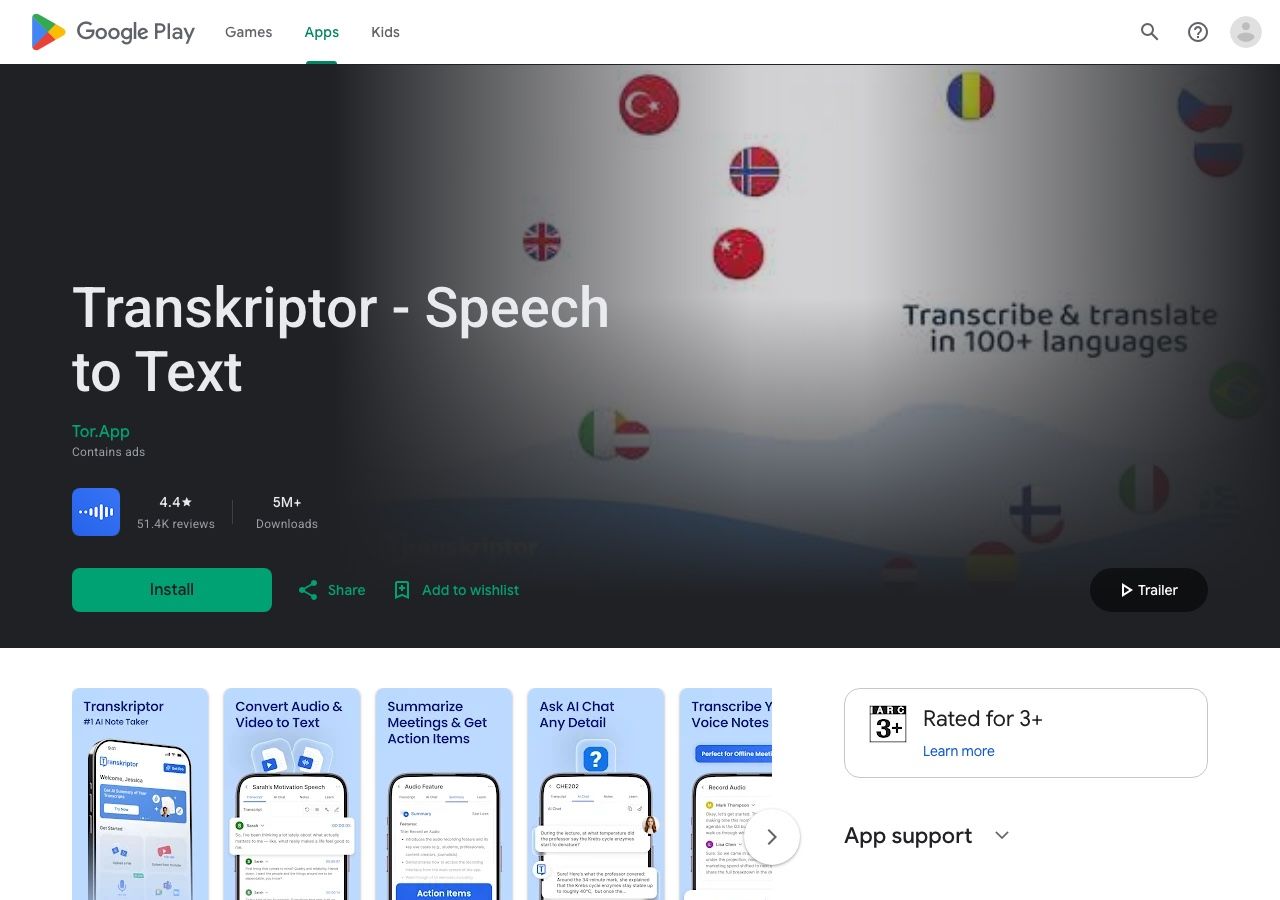
It also supports transcript review and export. As with other subscription-based transcription apps, the practical question is how much usable recording time the current plan allows and whether your file type, language, and export format are included.
Best for: Interviews, lectures, and existing audio files handled inside a native Android app.
Free-use reality: A free starting route is advertised, but verify the current allowance and checkout terms in the app before depending on it for a large project.
Limit: It is more involved than Gboard if all you need is one dictated text message.
How to Turn an Android Recording Into Text With Lynote
If the speech is already saved as a file, the browser route avoids the awkward workaround of replaying it into a keyboard microphone. Keep the original recording on your phone so you can verify names, figures, and quotations after transcription.
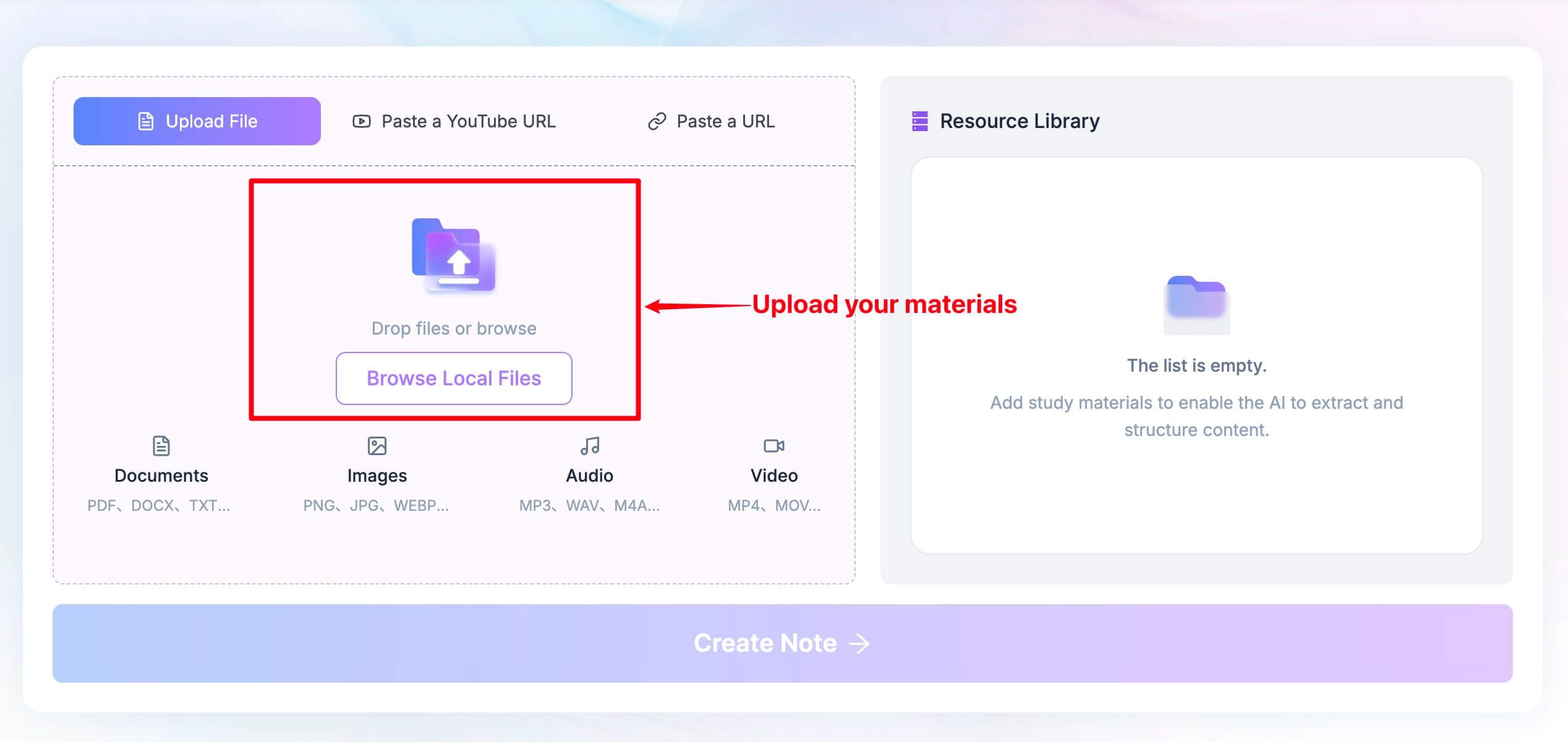
- Open the tool and add your source. In an Android browser, open Lynote Speech to Text. Choose Upload File and browse to your audio or video recording, or use the available URL input for a supported online source.
-
Process the source. For a direct upload, continue into the Lynote workspace with Create Note, then run the transcription action. For a pasted URL, parse the link first when prompted, then continue to the workspace.
-
Review the words against the audio. Correct names, technical terms, and overlapping speech. Copy, edit, translate, or export the resulting text for notes, articles, captions, or a meeting record.
This workflow is most valuable when the source already exists. For a live conversation you need to read right now, use Live Transcribe; for a sentence you are composing in another app, use Gboard.

Android Speech-to-Text Comparison: What Each Tool Actually Does
| Tool | Android access | Voice typing | Live conversation text | Existing file | Main constraint |
|---|---|---|---|---|---|
| Lynote | Mobile browser | No | No | Yes | Upload or link required |
| Gboard | Keyboard app | Yes | No | No | Text-field workflow only |
| Live Transcribe | Accessibility app | No | Yes | No | Not a full recording workspace |
| Google Recorder | Supported Pixel app | No | Transcript while recording | Own recordings | Pixel and language eligibility |
| Samsung Voice Recorder | Supported Galaxy app | No | Recording first | Own recordings | Galaxy AI eligibility |
| Speechnotes | Android app | Dedicated dictation | No | Separate product/workflow | Check app-specific plan |
| Otter.ai | Android app | No | Meeting transcript | Limited imports | Basic caps each transcript at 30 minutes |
| Notta | Android app | No | Recording transcript | Plan-dependent | Free cap of three minutes per transcription |
| Word Dictate | Android app | Yes, in Word | No | No | Account and feature availability |
| Transkriptor | Android app | Recording-focused | Recording workflow | Yes | Plan allowance varies |
Do not read "Yes" in the file column as equivalent to unlimited uploads. Check duration, file type, export access, and whether the app retains the original audio. Those differences often decide whether a tool works for a real class or interview.
How to Enable Speech to Text on Android Without Another Subscription
For everyday dictation, open any app with a text field, bring up Gboard, and tap the microphone. If it is missing, check Gboard's voice-typing setting, microphone permission, and selected language. On supported Pixel phones, look for advanced voice-typing controls separately.
For live captions of someone nearby, open Google Live Transcribe through your phone's accessibility settings or its app icon. Give it microphone access and place the phone near the speaker. This is for following a conversation, not importing a recording.
For a saved phone recording, use Recorder on an eligible Pixel or Voice Recorder with Transcript Assist on an eligible Galaxy device. Record normally, open the saved item, and switch to its transcript or transcribe action. If those device features are unavailable, an Android app or browser tool that accepts your recording is the more practical path.
What to Check Before Transcribing a Long Recording
Check the audio before choosing the app. Put the phone where voices are audible, reduce background noise, and test the first minute. Automatic transcription can lose names and numbers when people overlap or speak far from the microphone.
Check the smallest plan limit. Monthly minutes, single-recording length, number of file imports, stored-history access, and export availability are different constraints. Otter's 300 monthly minutes do not remove its Basic 30-minute transcript cap; Notta's 120 minutes do not remove its three-minute Free cap.
Keep a verification path. If the transcript will support a quote, medical note, academic record, or business decision, retain the original audio where permitted and review uncertain passages yourself. A transcript is an aid to review, not proof that every word was captured correctly.
Respect privacy and consent. A phone can record people without adding an obvious meeting bot. That does not remove the need to follow your organization's policy and applicable notice or consent requirements before capturing a conversation or uploading it to a cloud service.
Plan for connection and battery. Browser uploads and cloud transcription need network access; long recordings also need enough device storage and power. Offline behavior differs by phone, downloaded language, and feature, so test it before going somewhere without service.
Frequently Asked Questions About Android Speech to Text
Does Android have speech to text built in?
Yes. Gboard supports voice typing in text fields on Android. Some devices also include or support Live Transcribe for nearby speech, while eligible Pixel and Galaxy models offer recording-to-transcript features.
What is the best free speech-to-text app for Android?
For messages and notes you are composing now, start with Gboard. For live conversation captions, try Google Live Transcribe. For existing recordings, compare the free starting allowances of a file-transcription tool with the length and format of your actual source.
Can Android transcribe an existing audio file?
Yes, but a keyboard microphone is not the right method. Use a compatible recorder app if the audio was captured there, or supply the saved file to an upload-based tool such as Lynote, Otter, Notta, or Transkriptor, subject to each tool's limits.
Does speech to text work offline on Android?
It depends on the feature, device, language pack, and processing step. Some phone features can recognize speech on-device, while cloud file transcription requires a connection. Do not assume an app's basic offline recording means offline transcription is also available.
Can these apps transcribe a phone call?
Not automatically. Android call recording and access to call audio vary by phone, region, app permissions, and service. If you have a lawfully saved recording, a file-transcription tool may be able to process it; check format, consent, and your local requirements first.
What is the difference between Gboard and Live Transcribe?
Gboard types your speech into the active text field. Live Transcribe displays nearby speech so you can read a conversation as it happens. Neither should be mistaken for a full-featured archive for importing and reviewing past recordings.
Final Verdict
There is no single best Android speech-to-text choice because the inputs are different. Gboard wins for quick dictation, Live Transcribe for immediate conversation text, and supported Pixel or Galaxy recording tools for phone-native capture.
When the recording already exists, choose a tool that accepts the file and gives you an editable result. Lynote is the browser-based option here; Otter, Notta, and Transkriptor offer app-based workflows with different caps and collaboration features. Start with the source you have, then compare the limit you are most likely to hit.

Written by Danny
Product Marketing Manager
Danny explains how Lynote features fit real workflows, from everyday productivity to product-led writing use cases. View all articles →