How to Transcribe a YouTube Video into Text

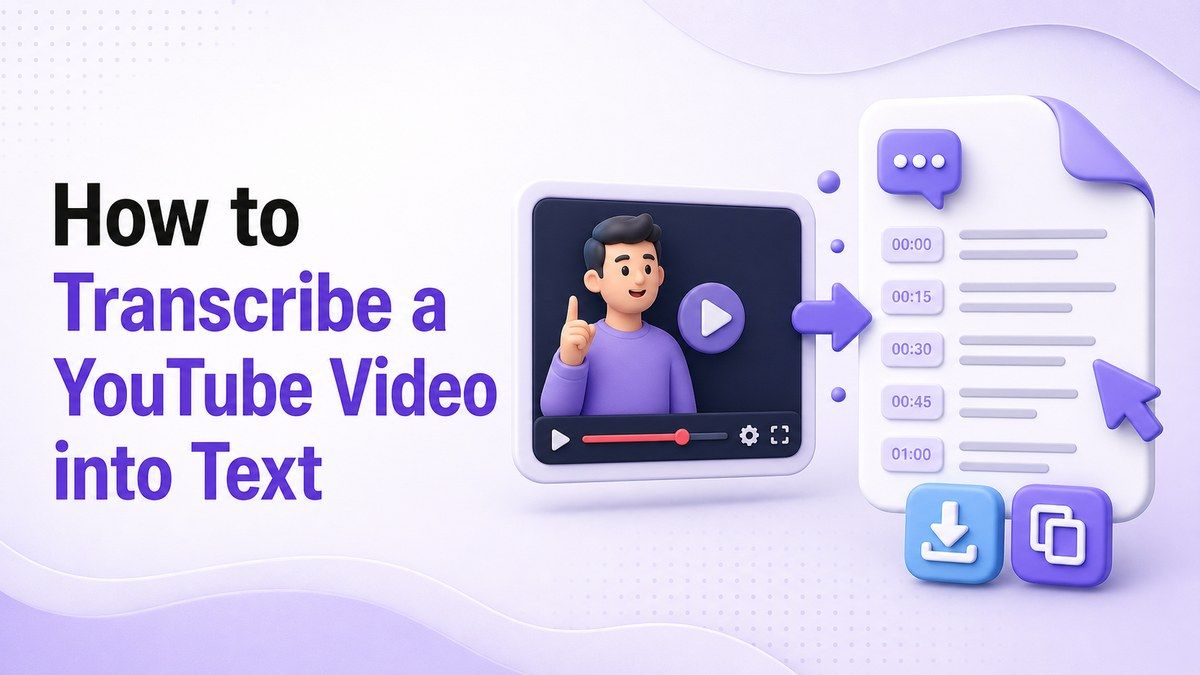
How to transcribe youtube video to text is simple when you use the right workflow: paste the YouTube link, generate the transcript, then review and export the text. A transcript helps you study faster, quote accurately, repurpose video content, and make long videos searchable. With Lynote YouTube Transcript, you can turn YouTube videos into timestamped text without downloading the video first.
Why Transcribe YouTube Videos to Text?
A YouTube video can contain useful ideas, but watching the whole video is not always efficient. A transcript turns spoken content into searchable text, so you can scan, copy, translate, summarize, and reuse the information.
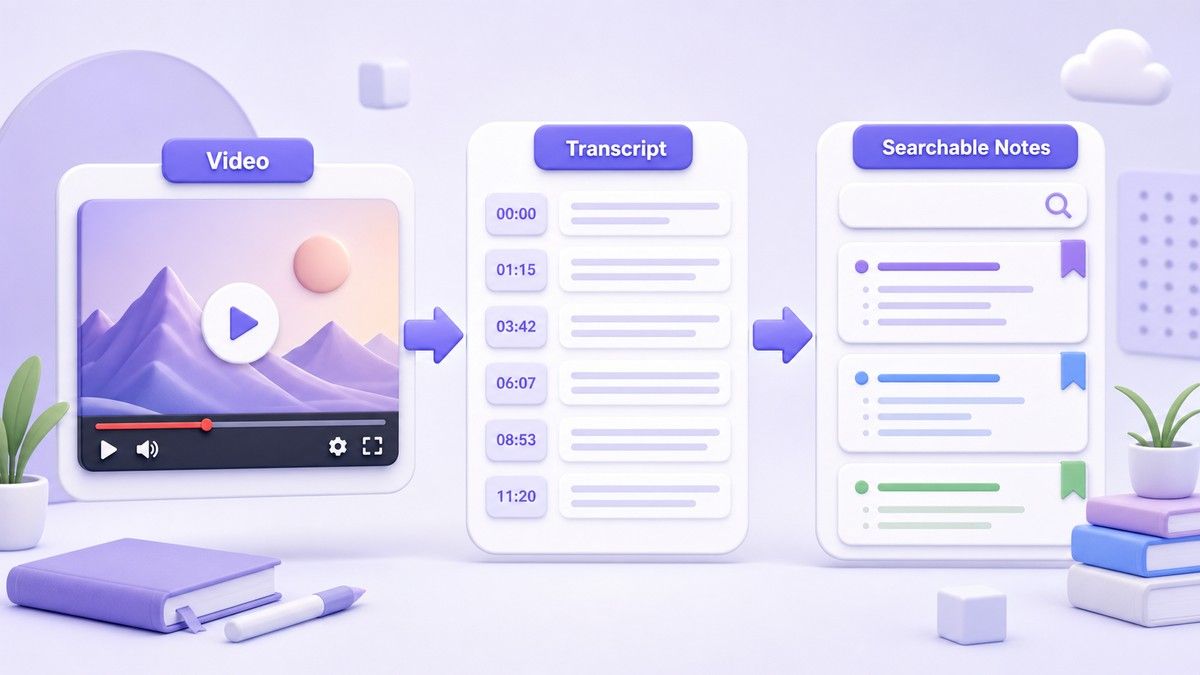
This is especially helpful for lectures, tutorials, interviews, webinars, podcasts, and long explainers.
If you are wondering how to turn a YouTube video into a transcript, the main goal is usually speed and accuracy. You want the key words, timestamps, and quotes without manually typing everything. A good YouTube transcript workflow should also make the text easy to export.
What You Can Do with a YouTube Transcript
Make Video Content Easier to Search
When you transcribe YouTube video to text, you can search for names, terms, timestamps, definitions, and action items. This is much faster than dragging the progress bar back and forth. It also helps when the video is long or when you only need one section.
A transcript is useful for students reviewing lectures and creators checking their own content. Researchers can scan interviews for themes, while marketers can pull product quotes from demos. If your goal is to get YouTube video text quickly, a transcript is the most practical format.
Repurpose Videos into Notes, Blogs, and Social Posts
A transcript gives you raw material for summaries, outlines, articles, email newsletters, and social media captions. Instead of starting from a blank page, you can turn YouTube video to text and reuse the best ideas. This saves time while keeping the content grounded in the original video.
For example, a creator can transcribe a tutorial and convert the main steps into a blog post. A student can turn a lecture into study notes. A team can turn a webinar transcript into a meeting-style recap.
Improve Accessibility and Translation
Text makes video content easier to understand for people who prefer reading or need language support. If you transcribe YouTube audio to text, you can translate the transcript into another language or review difficult vocabulary at your own pace. This is helpful for international students and multilingual teams.
Lynote supports transcript translation modes after generation. You can use Full Translation when you want the entire transcript in another language. You can also use Paragraph-by-Paragraph translation when you want to compare the original and translated text more carefully.
How to Transcribe YouTube Video to Text with Lynote
The cleanest way to learn how to transcribe a YouTube video to text is to use a link-based workflow. You do not need to download the video, install editing software, or manually copy captions from YouTube. Lynote is designed for users who want transcript text they can review, copy, translate, or export.
Quick answer: paste the YouTube URL into Lynote, click Get Video, then copy or download the timestamped transcript.
Step 1. Open Lynote YouTube Transcript
Go to Lynote YouTube Transcript in your browser. Paste the full YouTube video URL into the input field.
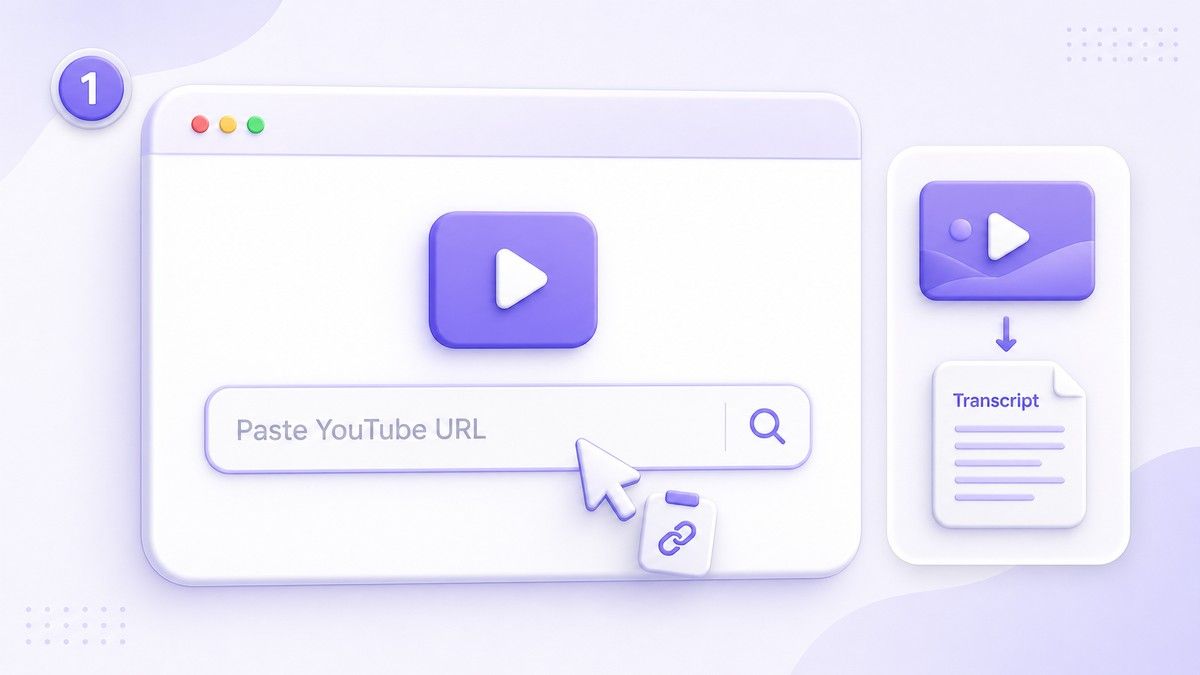
You can also use the built-in keyword search on the page if you want to find a video before generating the transcript.
This step is useful when you need to know how to transcribe from YouTube without downloading a file. Lynote works from the video link, so the workflow is faster than using a full video editor. It is a good fit for lectures, tutorials, podcasts, creator videos, and educational content.
Step 2. Click Get Video
After pasting the URL, click the Get Video button.
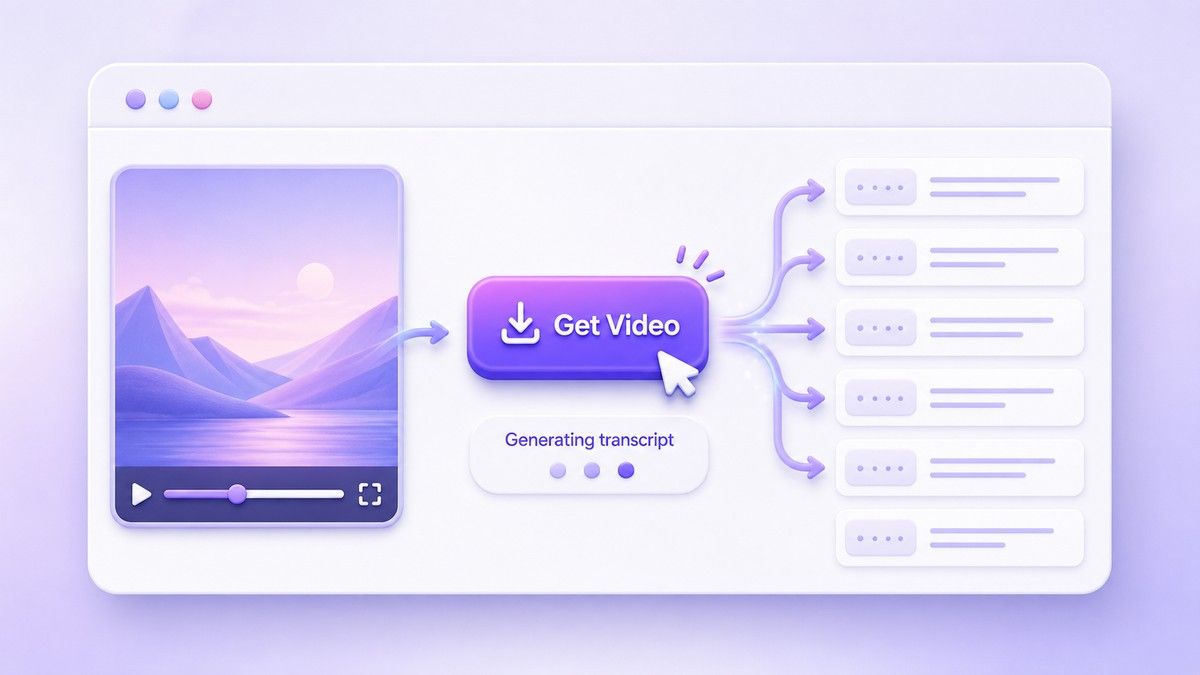
Lynote processes the video captions and prepares a full transcript with timestamps when captions are available. The timestamped format helps you jump back to the original moment if you need to verify a quote.
This is the core step in how to transcribe youtube video to text free. Instead of manually opening YouTube captions and copying them piece by piece, Lynote organizes the transcript for review. If the video does not provide captions or caption data, transcript generation may be limited.
Step 3. Review the Transcript
Once the transcript appears, read through the text and check important sections.
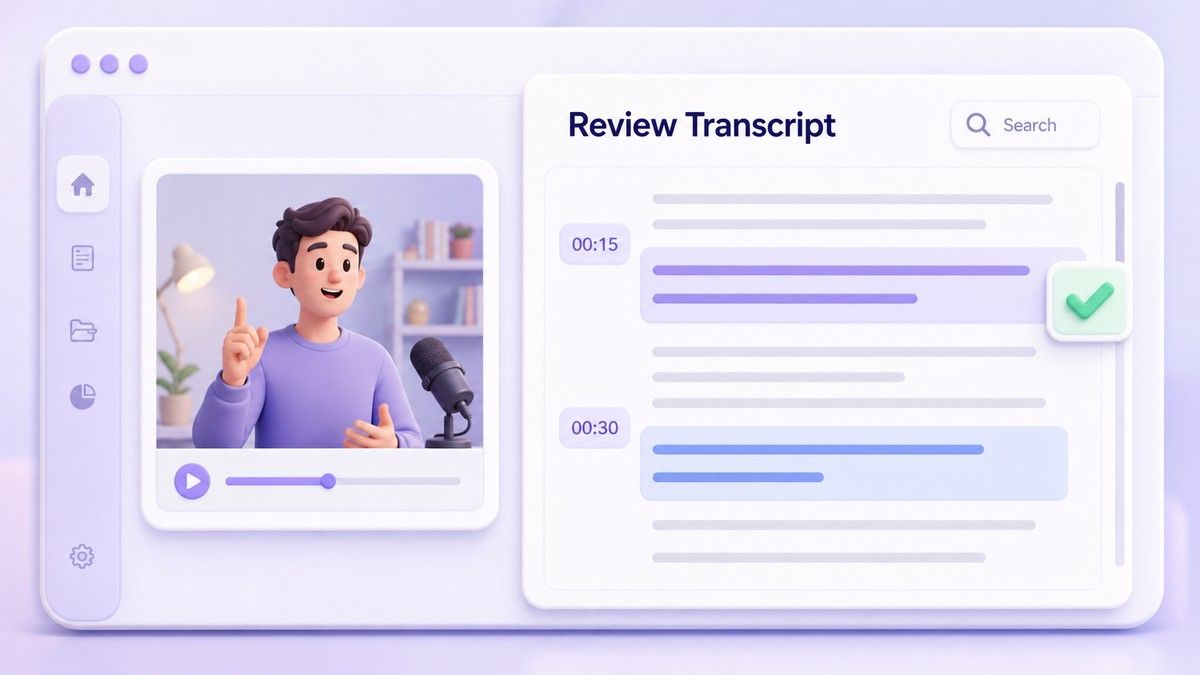
You can search for keywords, scan timestamps, and compare the wording with the video when needed. This is important because transcription quality often depends on the original captions, audio clarity, speaker speed, and background noise.
If you are asking how do I transcribe a YouTube video into text for school or work, review is the step that protects quality. Do not treat any transcript as final without checking names, numbers, technical terms, and quotes. A quick pass can prevent small errors from becoming confusing notes.
Step 4. Translate, Copy, or Download the Text
After review, you can copy the transcript or download it as a TXT file.
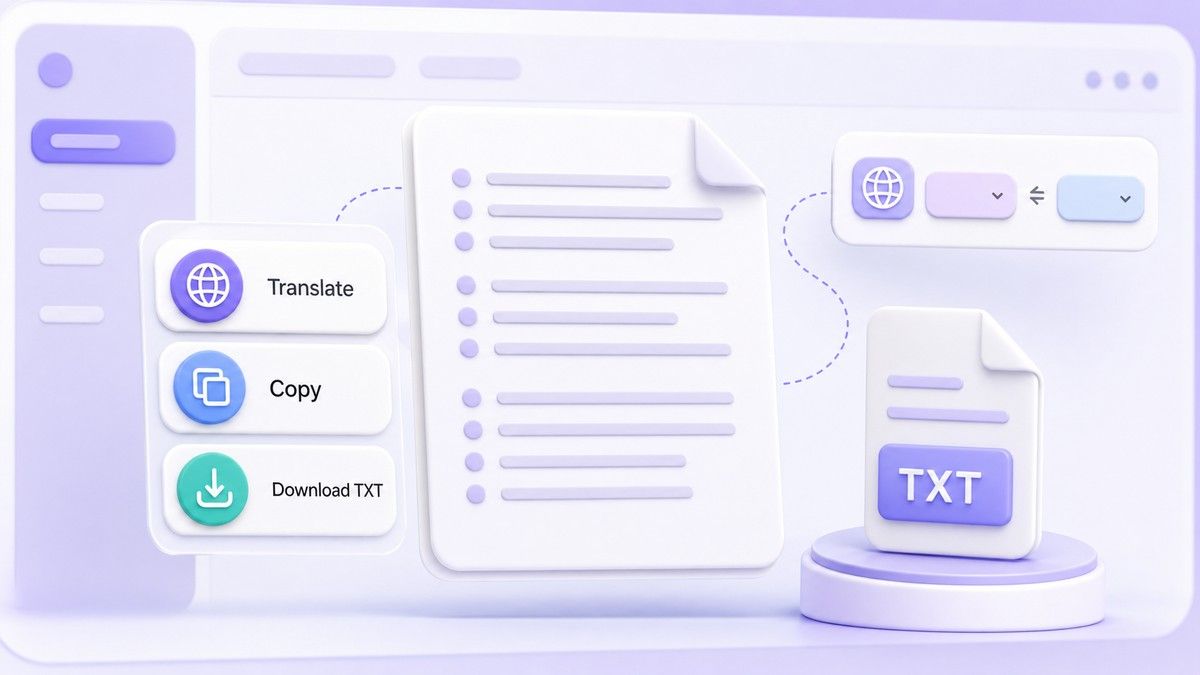
If you need another language, use Lynote's translation options, including Full Translation or Paragraph-by-Paragraph mode. This makes the transcript easier to reuse in notes, documents, research files, or content drafts.
This step answers several related searches at once: how to turn YouTube video into transcript, how to get YouTube video text, and how to transcribe YouTube audio to text. The output is no longer trapped inside the video. It becomes editable text you can use in your own workflow.
Lynote vs Summary-First YouTube Tools
Some tools focus mainly on summarizing YouTube videos. For example, NoteGPT highlights YouTube summaries and AI-assisted video understanding. That can be useful when you want quick takeaways, but it is not always enough when you need the actual text.
Lynote is helpful when your first priority is the transcript itself. You can get timestamped text, review the wording, translate the transcript, copy it, or export it as TXT. This makes Lynote a better fit when you need source-level text rather than only a compressed summary.
| Need | Better Workflow |
|---|---|
| Quick overview of a video | Summary-first tool |
| Exact quotes and timestamps | YouTube transcript tool |
| Study notes from a lecture | Transcript first, then summarize |
| Translation review | Transcript with translation mode |
| Blog or content repurposing | Editable transcript text |
Best Practices for Better YouTube Transcripts
Choose Videos with Clear Speech
Transcription works best when the speaker is clear and background noise is low. Videos with heavy music, overlapping voices, or poor audio may create rougher text. If you need a reliable transcript, choose the cleanest version of the video when possible.
This matters whether you use Lynote or another tool. Learning how to transcribe in YouTube is not only about the software. The source video quality affects the final text.
Check Names, Numbers, and Technical Terms
YouTube transcripts can misread names, acronyms, product labels, and specialized terms. Always check details before using the transcript in research, schoolwork, or published content. A transcript is a strong starting point, but careful review makes it usable.
If you are learning how to transcribe a YouTube video into text for a class or article, this step is essential. Correcting key terms improves readability and trust. It also makes later summaries more accurate.
Keep Timestamps When You Need Evidence
Timestamps help you trace each idea back to the video. They are useful for quote checks, lecture review, interview analysis, and tutorial navigation. If you plan to cite or verify a point, keep the timestamps in your working copy.
A plain transcript can be enough for casual reading. But timestamped text is better when you need context. That is why a YouTube transcript with timestamps is more useful than a loose block of copied captions.
Turn the Transcript into Notes
After you transcribe for YouTube, do not stop at the raw text if your goal is learning. Use the transcript to create headings, bullets, definitions, and action steps. This turns passive video watching into active review.
For example, a 45-minute lecture can become a topic outline. A product tutorial can become a checklist. A podcast interview can become a quote bank and summary.
Common Ways to Use a YouTube Transcript
Students often use transcripts to review lectures and create study guides. Instead of replaying the same section several times, they can search the transcript for keywords. This makes revision faster before exams or assignments.
Creators use transcripts to turn videos into blog posts, newsletters, and short-form captions. Researchers use them to analyze interviews, talks, and panel discussions. Teams use them to capture webinar insights and training material.
If your search is how to transcript YouTube video to text, your real need may be more than transcription. You may want cleaner notes, faster review, translation, or content reuse. Starting with the transcript gives you the most flexible base.
FAQs About Transcribing YouTube Videos to Text
How do I transcribe a YouTube video into text?
Paste the YouTube URL into a transcript tool like Lynote, click Get Video, then review the generated transcript. You can copy the text or download it as a TXT file. This is the fastest way to transcribe a YouTube video to text without manually typing it.
Can I transcribe a YouTube video to text free?
Yes, you can use Lynote YouTube Transcript for a free, no-sign-up transcript workflow. Paste a YouTube link, generate the transcript, then copy or export the result. Availability may depend on whether the video has captions or transcript data.
How do I turn a YouTube video into a transcript?
Use a YouTube transcript generator that accepts video URLs. Lynote lets you paste the link, click Get Video, and view a timestamped transcript. You can then translate, copy, or download the text.
Can I transcribe YouTube audio to text?
Yes, if the video has accessible caption or transcript data, Lynote can help convert the YouTube audio content into readable text. Clear speech and available captions usually improve the result. Always review the transcript before using it as a final source.
What is the difference between a transcript and a summary?
A transcript is the full spoken text, often with timestamps.
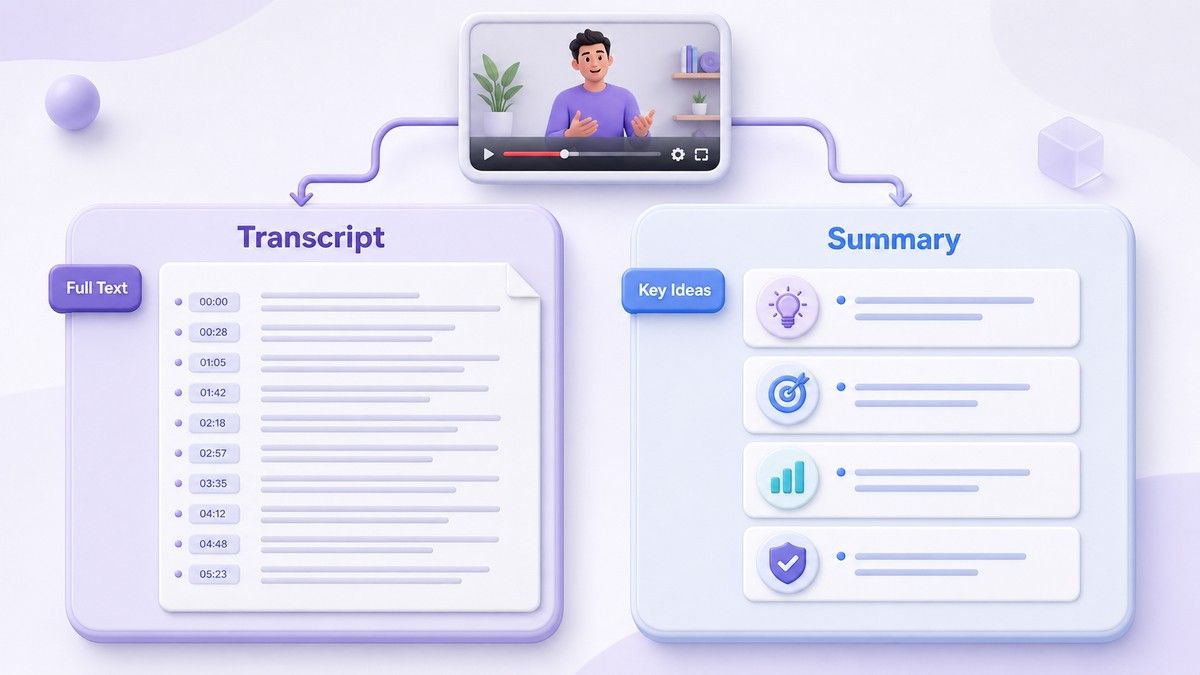
A summary is a shorter version that captures the main ideas. If you need exact quotes or detailed review, start with the transcript; if you need quick takeaways, a summary can help afterward.
Is a YouTube transcript good for SEO?
A transcript can help you repurpose video content into searchable text assets like blog posts, show notes, and captions. It can also help creators identify keywords and structure long videos into written sections. The transcript itself is most useful when edited into clear, readable content.
Final Thoughts
Learning how to transcribe youtube video to text gives you more control over video content. With Lynote, you can paste a YouTube URL, generate a timestamped transcript, translate it, copy it, or download it as TXT. For study, research, accessibility, and content repurposing, a clean transcript is often the fastest way to turn a video into usable text.

Written by Danny
Product Marketing Manager
Danny explains how Lynote features fit real workflows, from everyday productivity to product-led writing use cases. View all articles →