10 Best Free Read AI Alternatives for Better Meeting Notes

Looking for a free Read AI alternative that covers more meetings, skips the participant bot, or works with recordings you already have? The tricky part is finding one whose free limits fit your actual calls.
I compared ten Read AI alternatives using their official plans and documented workflows. Below, you'll find the useful differences, the catches behind "free," and which options make sense for different kinds of meetings.
Quick Answer: The Best Free Read AI Alternatives
If your main complaint is running out of Read AI meeting reports, start by comparing recording allowances. If your complaint is the way meetings are captured, start with the browser, desktop, mobile, or upload workflow instead.
| Tool | Best For | Main Workflow | Free-Plan Catch |
|---|---|---|---|
| Fathom | Frequent online meetings | Recording, transcript, and summary | Advanced AI outputs require an upgrade; bot-free capture is in beta |
| Lynote | Notes from saved meeting recordings | Upload a recording or related files | Check account limits; the meeting page does not specify a quota |
| Tactiq | Browser-based live transcripts | Browser extension | Ten transcripts and five AI credits per month |
| Granola | Personal notes with AI help | Bot-free device capture | Basic meeting history is limited to 30 days |
| Fireflies.ai | Searchable team conversations | Meeting capture and conversation search | Limited summaries and 400 minutes of team storage |
| tl;dv | Video review and short clips | Recording and timestamped review | Full automatic AI notes become restricted after the first ten meetings |
| MeetGeek | Flexible capture and follow-up | Bot, bot-free capture, or uploads | Three transcription hours per month |
| Otter.ai | Live transcripts and in-person conversations | Live and mobile transcription | 30 minutes per conversation on Basic |
| Jamie | Bot-free notes for shorter meetings | Device-based capture | Ten notes per month, with a 30-minute meeting cap |
| Notta | Trying multilingual transcription | Web, mobile, and imported recordings | Only three minutes per conversation on Free |
My first shortlist would be Fathom, Tactiq, and Granola for live meetings, with Lynote added when the source recording already exists. Notta stays on the list because its workflow may suit multilingual users, but its free tier is much better for evaluation than for full-length meetings.
The comparisons below reflect the official plans and documentation reviewed for this guide. They are an editorial assessment of workflows and limits, rather than a controlled transcription-accuracy test.
The 10 Best Free Read AI Alternatives
1. Fathom: Best Overall Free Read AI Alternative for Frequent Meetings
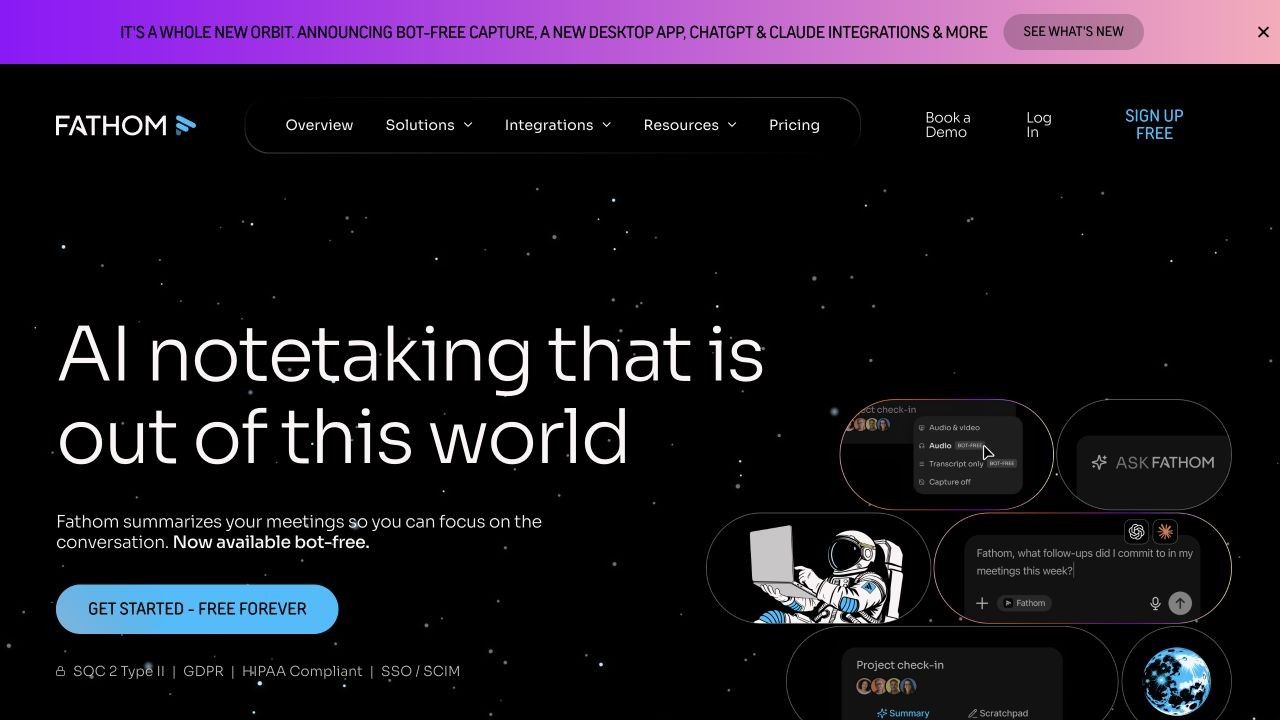
Running out of meeting reports halfway through the month is a good reason to look at Fathom. Its individual Free plan lists unlimited recordings and transcriptions, standard call summaries, clips, and search, so routine calls don't have to compete for a handful of monthly slots.
The catch is what happens after capture. Advanced summaries, generated action items, and the conversational assistant sit in Premium; if you need those for every follow-up, unlimited recording alone won't remove the need to pay.
Features
- Meeting recordings, transcripts, and standard summaries.
- Clips and search across calls.
- Bot capture and a bot-free option currently labeled beta.
Pros
- A practical starting point for frequent individual meeting capture.
- Keeps the original conversation available alongside the summary.
Cons
- Advanced AI follow-up features require a paid tier.
- Beta capture should be checked on your own device and meeting setup.
Best for: People whose priority is capturing frequent online meetings without a small monthly meeting allowance.
Free plan: Unlimited recordings and transcriptions with standard summaries; advanced AI functions have paid boundaries.
2. Lynote: Best for Notes From Saved Meeting Recordings
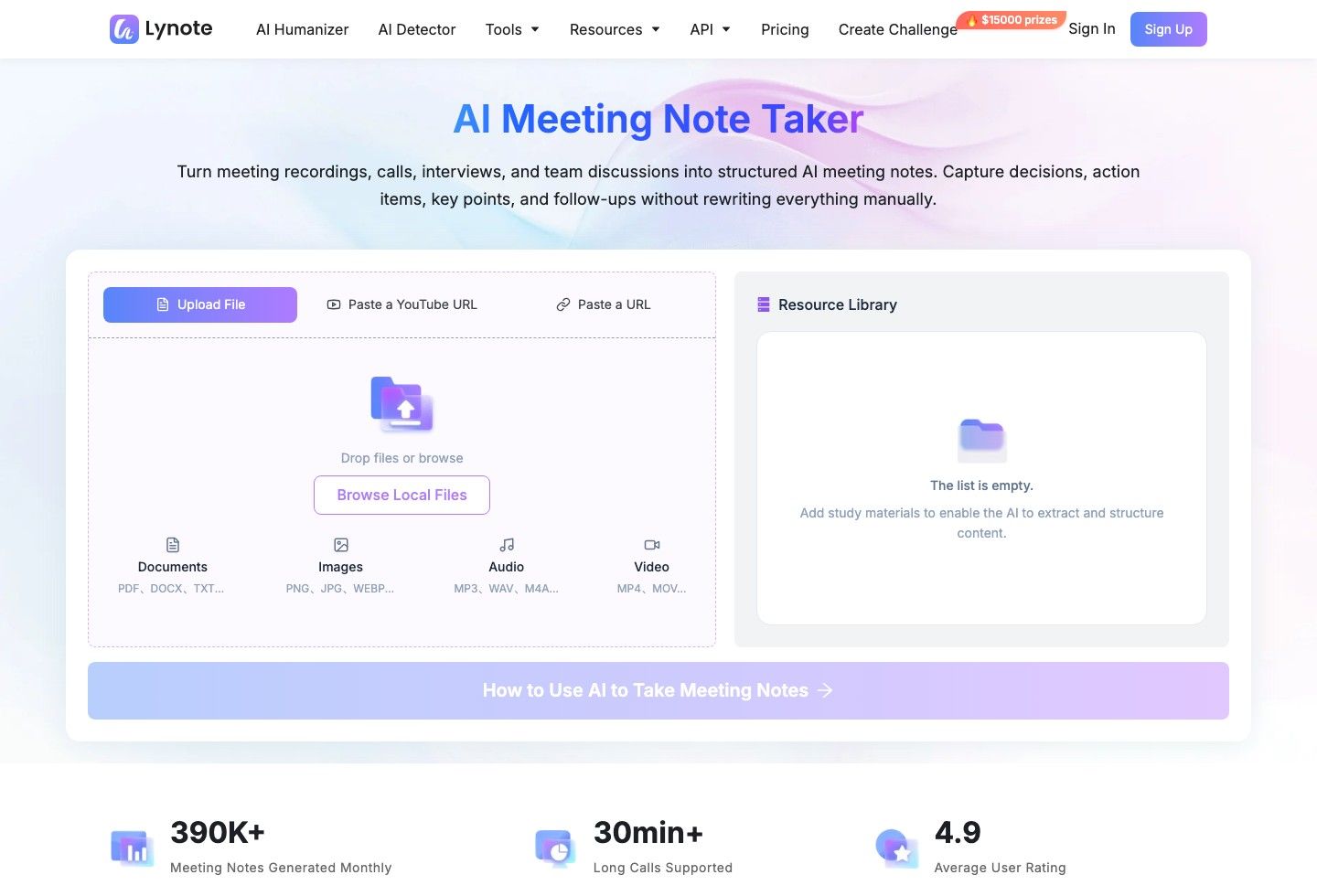
Already have the recording but still need to turn it into useful notes? Lynote AI Meeting Note Taker works from supplied material, turning supported recordings or documents into notes you can review, edit, and ask questions about.
This also gives you a deliberate selection point: you choose which source to process after the meeting. Lynote's role here is organizing supplied material, so use a separate approved recording method when you need to capture the live conversation.
Features
- Notes from supported audio, video, transcripts, and documents.
- Structured summaries and follow-up points.
- Editable notes and questions about the supplied content.
Pros
- Useful when a recording already exists and does not need another live assistant.
- Fits meeting notes into a broader source-based note workflow.
Cons
- You'll need to have your recording or source file ready before creating notes.
Best for: Students, researchers, and professionals turning saved discussions into usable notes afterward.
Free access: The meeting page does not specify a numerical free quota. Check the current account allowance before relying on it for recurring meeting volume.
3. Tactiq: Best Bot-Free Browser Alternative
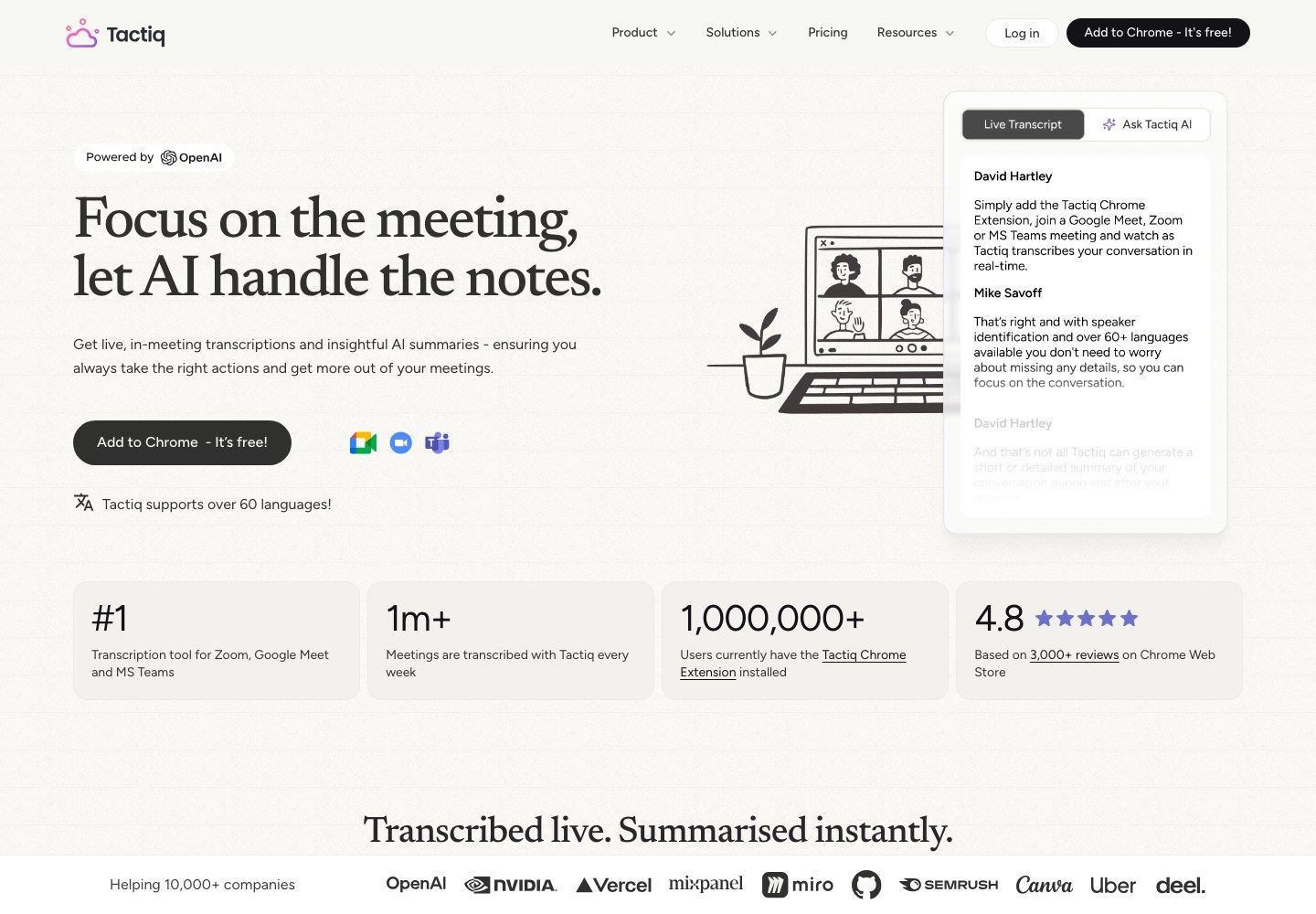
Tactiq suits people who spend most of their meeting time in a supported browser workflow and want a transcript as the conversation happens. Its extension-based approach is worth considering when an additional meeting participant feels unnecessary and a readable text record matters more than replaying video.
The free plan separates capture from AI processing: ten transcripts and five AI credits each month. That means you should decide which meetings need a generated follow-up or analysis, rather than assuming every transcript comes with unlimited AI work.
Features
- Browser-based live transcription for supported meeting services.
- AI-generated insights within the available credit allowance.
- Transcript sharing and export.
Pros
- Fits naturally into a browser-centered workday.
- Makes it easy to focus on text capture rather than maintaining a video archive.
Cons
- A browser extension is less suitable for workflows outside its supported environment.
- The small AI-credit allocation needs to be considered separately from transcript count.
Best for: Individuals using supported browser meetings who want a straightforward transcript and occasional AI assistance.
Free plan: Ten transcripts and five AI credits per month.
4. Granola: Best Bot-Free AI Notepad for Personal Notes
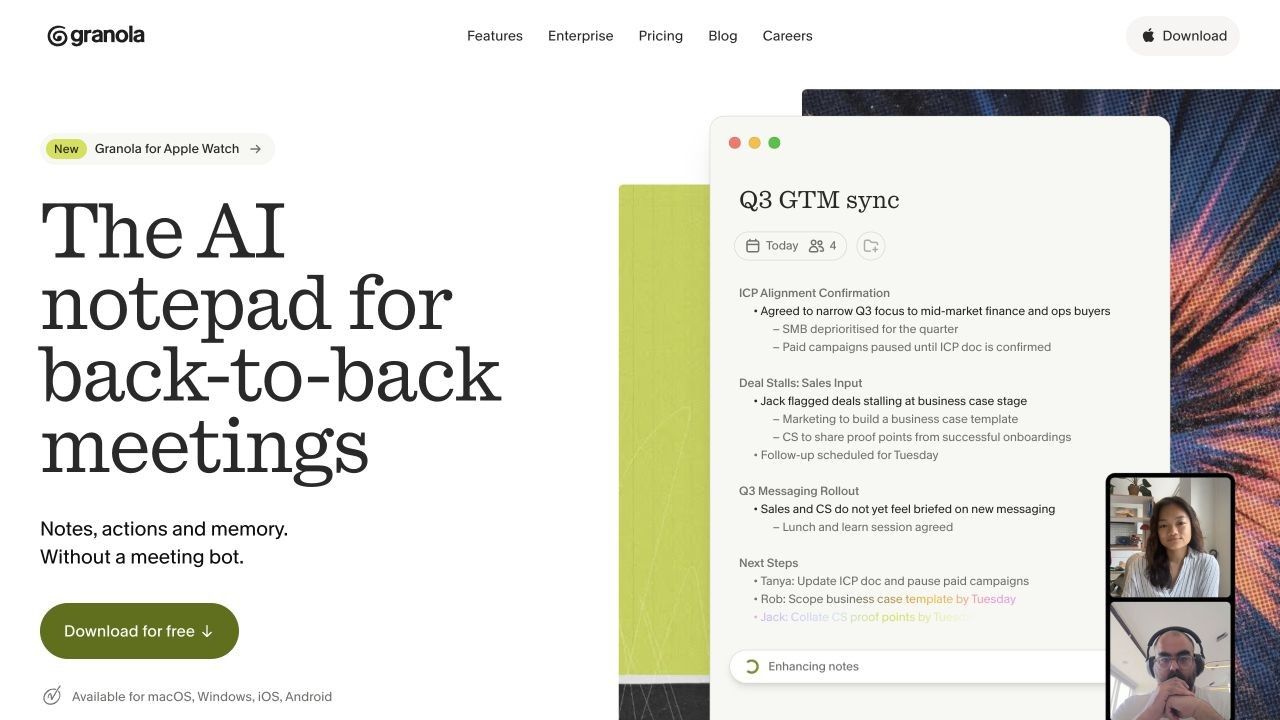
Granola fits a different note-taking habit: you write the few things that matter to you, and AI uses the conversation to help expand the record. That can be useful when your own observations are the important part, such as why a customer hesitated or which research question needs another interview.
Its Basic plan includes bot-free device capture, templates, and AI chat, but the meeting history is limited to 30 days. That boundary matters more for longitudinal research or quarterly planning than for someone who finishes their follow-up within a week.
Features
- Device-audio capture without a meeting participant bot.
- AI-enhanced notes and customizable templates.
- AI chat within and across meetings.
Pros
- Leaves room for your own judgment and observations.
- Suits people who prefer a notepad to a meeting-report dashboard.
Cons
- The free history window restricts long-term reference.
- Advanced integrations and broader business controls belong to paid plans.
Best for: Researchers, founders, managers, and individual contributors who want AI to support their own notes.
Free plan: Basic includes meeting notes and chat with a 30-day history window; do not assume unlimited free usage from the paid-plan wording.
5. Fireflies.ai: Best for Integrations and Searchable Meeting Memory
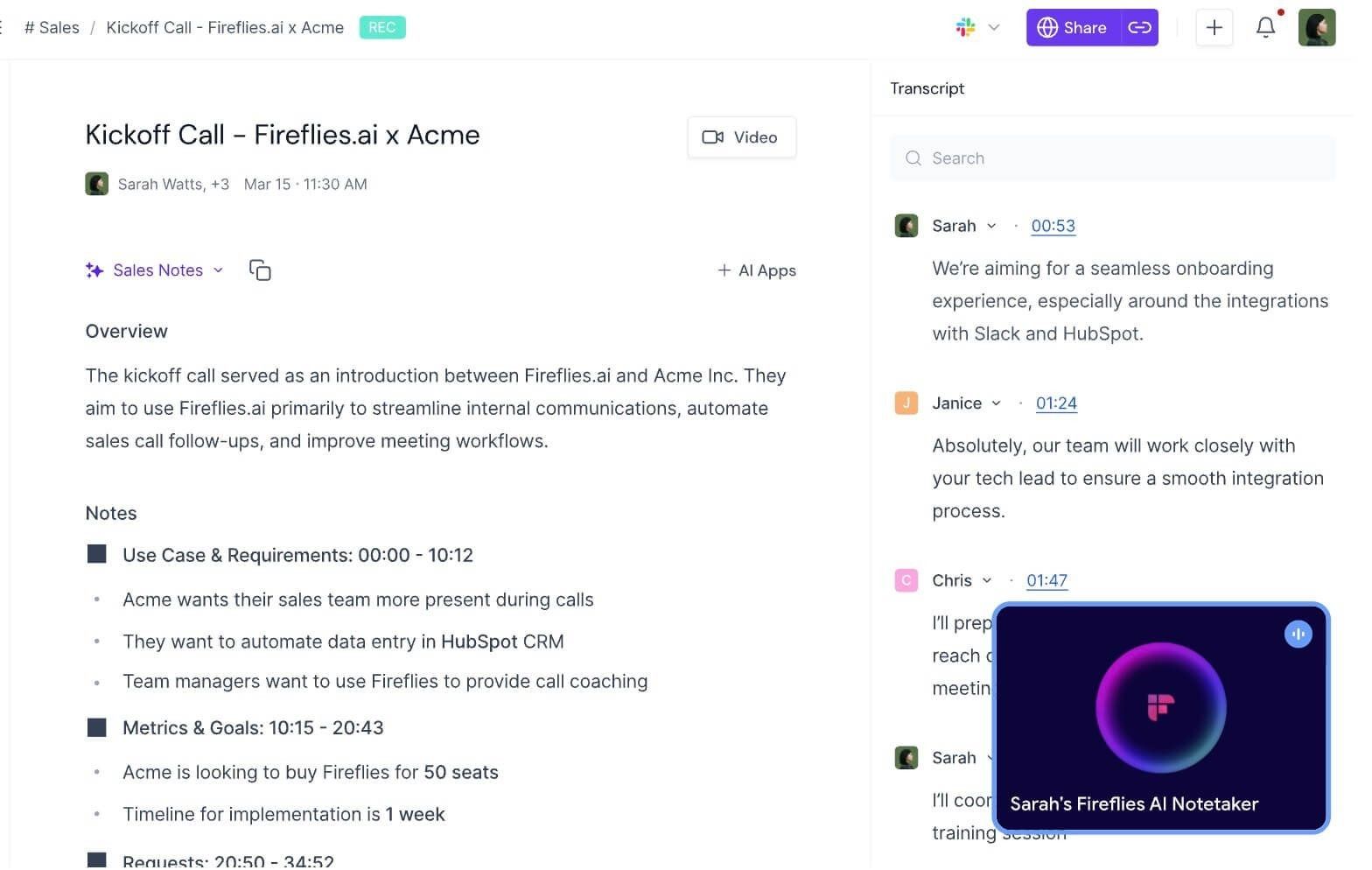
Fireflies is worth exploring when meeting information needs to be found and reused across a team. Its search and AskFred assistant make the conversation archive central to the product, rather than treating the summary as the last step of the workflow.
Watch the gap between what Fireflies offers and what it includes for free. Free accounts get limited summaries and 400 minutes of team storage, while downloads and unlimited integrations sit on paid plans; that matters if your next step is sending the notes somewhere else.
Features
- Meeting search and AskFred assistance.
- Meeting capture through supported apps and services.
- Audio and video file upload support, subject to applicable limits.
Pros
- Useful for people who revisit earlier conversations regularly.
- Offers a route toward broader team workflows as needs grow.
Cons
- Free storage and AI-summary limits can become the practical bottleneck.
- Some important ways to move information out require payment.
Best for: Teams evaluating a searchable conversation archive and future integrations.
Free plan: Limited AI summaries, 400 minutes of team storage, and limited AI credits. Its unlimited-transcription headline is qualified; it should not be read as unlimited access across every upload and capture scenario.
6. tl;dv: Best for Video Replay, Clips, and Timestamped Review
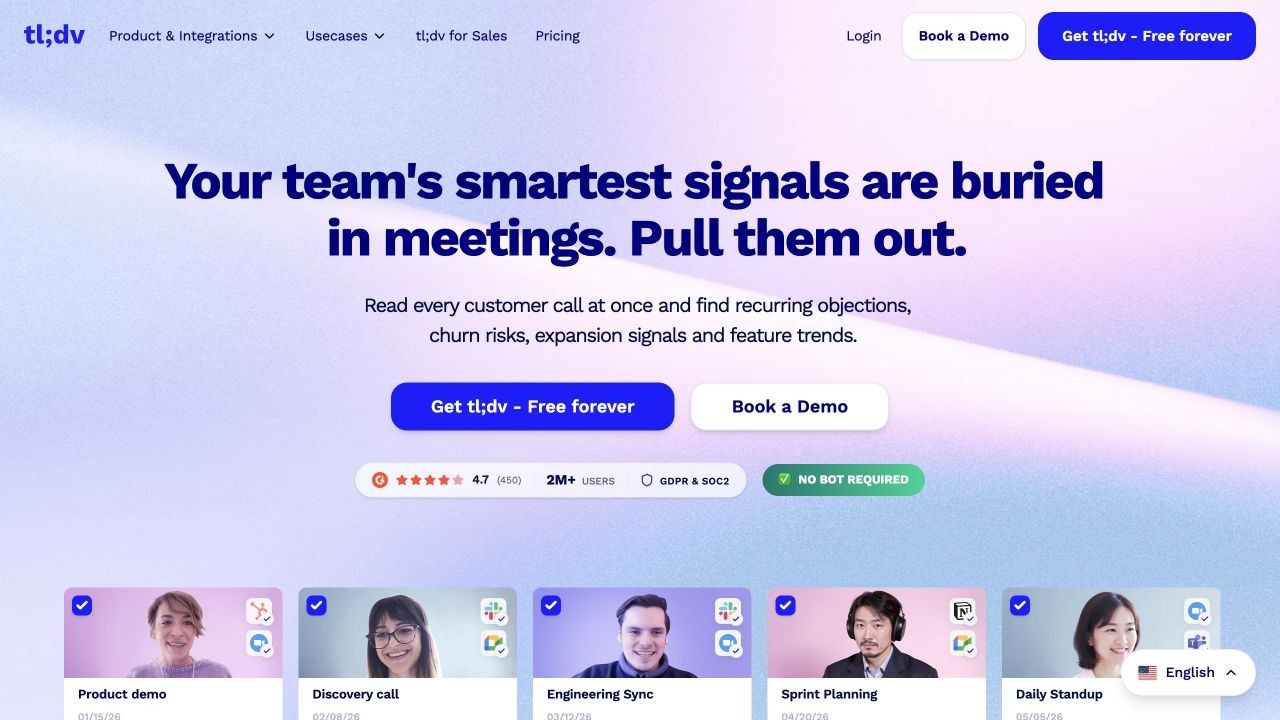
tl;dv is a useful candidate when you want to revisit the actual meeting, especially a demonstration or a short exchange that loses meaning in a summary. Timestamped review can make it easier to share the relevant moment instead of asking a colleague to search a long transcript.
Its free recording offer is broader than its free AI-note allowance. The official help page says full automatic notes cover the first ten meetings, then only the opening ten minutes of later meetings; that makes it a stronger free recording option than an unlimited full-meeting-summary option.
Features
- Meeting recordings and transcripts.
- Timestamped notes and limited free clips.
- Limited imported files and AI functions.
Pros
- Useful when seeing or hearing the original exchange matters.
- Supports reviewing moments rather than reading only a recap.
Cons
- The free automatic-note limit becomes restrictive for recurring long meetings.
- Recordings have retention and archive-access rules, rather than permanent instant availability.
Best for: People who value replay and selective sharing more than unlimited AI-generated follow-up.
Free plan: Unlimited recordings and transcripts, with limited AI notes, clips, and imports. The official free-plan documentation lists three-month recording retention.
7. MeetGeek: Best for Flexible Capture and Automated Follow-Up
Not every conversation starts with a calendar invitation. MeetGeek offers meeting bots, bot-free capture, and file uploads, making it worth a look when your week mixes online calls with recordings from elsewhere.
Its free allowance is best understood as an occasional-use budget: three transcription hours per month. Before choosing it for automation, check that the specific follow-up action you want is available on your plan and that the storage window covers how long you need to revisit the meeting.
Features
- Multiple capture routes and meeting summaries.
- Transcript storage and audio records.
- Follow-up workflows within the product's plan limits.
Pros
- Offers flexibility when one capture method does not fit every meeting.
- Provides a useful starting point for evaluating a more automated workflow.
Cons
- Three free hours will not cover a busy weekly meeting schedule.
- Transcript and audio retention windows differ.
Best for: Occasional meeting users who want to evaluate several capture routes in one product.
Free plan: Three transcription hours per month, three months of transcript storage, and one month of audio storage.
8. Otter.ai: Best for Live Transcription and In-Person Conversations
Otter is a practical option when following the transcript during a conversation matters as much as reviewing a summary afterward. Its live transcription and mobile apps suit a mixture of online meetings and in-person discussions, rather than only calendar-based video calls.
The free plan's 300 monthly minutes can look comfortable until you notice the 30-minute conversation cap. If your normal interview lasts an hour, evaluate the per-conversation restriction before treating the monthly allowance as usable coverage.
Features
- Live transcription and speaker identification.
- Audio playback and AI chat.
- Mobile apps and supported online-meeting capture.
Pros
- Useful for reading along and checking what has been captured.
- Supports a practical mix of desk and mobile use.
Cons
- The free conversation cap is short for many interviews and planning sessions.
- Three lifetime imports are unsuitable for recurring file-upload work.
Best for: People with shorter conversations who want live text and mobile access.
Free plan: 300 transcription minutes per month, 30 minutes per conversation, and three lifetime audio/video imports. Basic also limits accessible conversation history.
9. Jamie: Best Bot-Free Alternative for Shorter Meetings
Jamie focuses on meeting notes without adding a bot to the participant list. Its device-based approach is relevant when you want one note-taking habit across online and in-person conversations, with less emphasis on maintaining a video recording library.
I would compare it with Granola based on the final note and follow-up workflow rather than the shared bot-free label. Jamie's Free plan makes the initial usage boundary clear: ten AI notes per month, with a 30-minute meeting limit and access to Ask Jamie.
Features
- Bot-free meeting capture.
- Notes, task detection, and questions through Ask Jamie.
- Support for online and in-person conversations.
Pros
- A focused option for shorter meetings without a participant bot.
- Clear free meeting-count and duration limits.
Cons
- The 30-minute cap is restrictive for longer discussions.
- Team administration and broader integrations require closer paid-plan comparison.
Best for: Individuals with shorter meetings who prefer device-based capture.
Free plan: Ten AI notes per month, a 30-minute meeting limit, and Ask Jamie access. Bot-free capture does not, by itself, mean processing stays entirely on your device.
10. Notta: Best for Trying Multilingual Transcription Across Devices
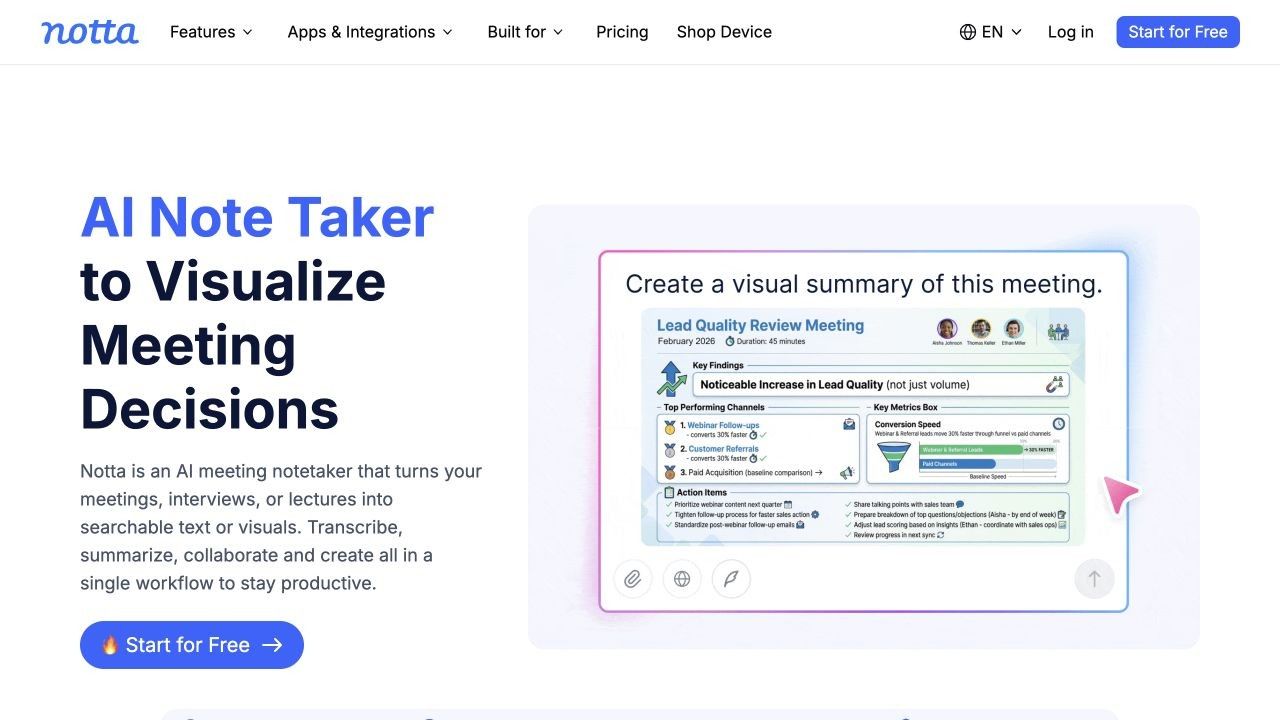
Notta is worth a trial when language coverage and moving between web and mobile are central to your workflow. Its transcription tools make it relevant to multilingual meetings, but transcription, translation, and bilingual processing should be checked as separate capabilities with separate allowances.
The main reservation is straightforward: the Free plan allows only three minutes per conversation. That is enough to inspect how a short sample is handled, but it does not make Notta a practical free replacement for recording ordinary full-length meetings.
Features
- Transcription across web and mobile workflows.
- Speaker identification and supported meeting services.
- File uploads and a limited AI-summary allowance.
Pros
- Useful for evaluating a language-specific transcription workflow.
- Offers several ways to supply source audio.
Cons
- The three-minute conversation cap severely limits free meeting use.
- Translation and export requirements need separate plan checks.
Best for: People evaluating multilingual transcription before deciding whether to upgrade.
Free plan: 120 transcription minutes per month, up to three minutes per conversation, 50 file uploads, and ten AI summaries per month.
Read AI Review: What the Meeting Note Taker Does Well
How Read AI Captures and Organizes Meetings
Read AI combines meeting records with summaries, follow-up information, and search across connected workplace content. Its appeal is the ability to revisit a discussion alongside relevant email or messaging context instead of treating every transcript as an isolated document.
The familiar Read meeting notetaker can attend supported online meetings, while its desktop application also offers direct audio recording. This matters if you are considering a switch solely because you do not want a visible assistant joining calls: Read already provides another capture route.
Those routes do not produce identical records. Read's help documentation says direct desktop recordings currently lack video, coaching, and deep-dive metrics, so decide which output you need before changing how you record.
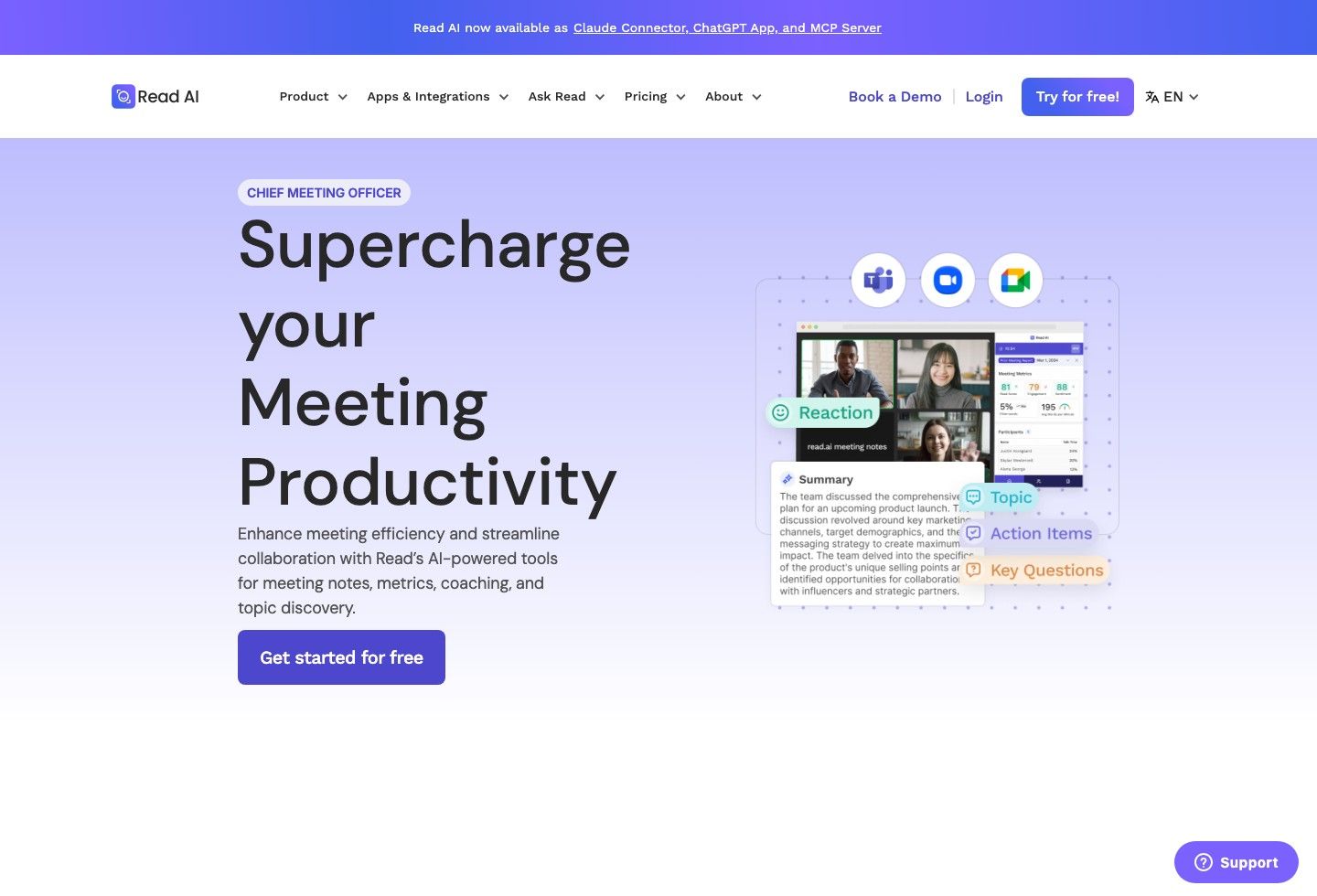
For a recurring project meeting, the useful question is whether the report helps you recover a decision later. A summary saying "the team discussed launch timing" is less useful than a record showing what was agreed, what remained open, and where to check the discussion.
Read AI Free Plan, Pricing Boundaries, and Practical Limits
Read AI's Free plan includes five meeting transcripts per month, with a one-hour maximum meeting length. Basic integrations and search are included, but meeting-file uploads are excluded; audio and video playback sit above both Free and Pro, in Enterprise.
That makes Free plausible for occasional meetings, but a poor fit for someone who needs a record of several calls each day. Someone with one weekly call may fit the allowance, while adding interviews or customer conversations can quickly change the calculation.
The playback boundary is also worth checking before paying. A transcript can answer what was said, but reviewing a demonstration or the context around a disputed sentence may require the recording itself.
Read AI Pros and Cons
Pros
- Combines meeting information with wider workplace search.
- Offers assistant attendance and direct desktop audio capture.
- Adds reporting and coaching beyond a basic transcript.
Cons
- The free allowance is small for frequent meeting users.
- Playback and uploaded-recording workflows have meaningful plan restrictions.
- Some teams may get little value from coaching or engagement metrics.
Best for: People who want meeting information connected to their broader work context and can justify the plan required for their usage.
Keep Read AI if its search and reports already solve your problem at an acceptable cost. An alternative needs to improve a specific part of your working day; a different summary layout alone may not justify moving your history.
Why Look for a Free Read AI Alternative?
The clearest reason is volume. A free plan that covers occasional interviews can feel generous until you try using it for every stand-up, planning session, and client call.
The next reason is access to the original material. If you regularly need to replay demonstrations, extract a short clip, or process an existing recording, compare those capabilities separately from transcription.
Another reason is the way you take notes. Some people want the assistant to produce the whole record, while others prefer to jot down a few observations and have AI fill in the missing context afterward.
Use the following questions to identify the actual reason for switching:
- Do I miss meetings because of a monthly quota? Compare usable recording volume first.
- Do I need the whole conversation summarized? Check whether AI summaries have a separate allowance.
- Do I dislike a participant bot? Compare device or browser capture, including Read's own desktop option.
- Do I already have the recording? Compare file imports and post-meeting tools.
- Do I need old conversations months later? Check history, retention, playback, and export rules.
- Do I keep copying information into another app? Inspect the exact integration and its plan requirement.
A good replacement should reduce the friction you actually experience. Otherwise, you can end up with a second meeting archive and the same unfinished follow-up tasks.
What Does "Free" Mean for an AI Meeting Note Taker?
Free recording, free transcription, and free AI summaries are different promises. A product can offer the first two generously while limiting the feature that turns a long conversation into something you can quickly use.
There are six limits worth checking before comparing prices. The first one you reach determines whether the free plan works for your schedule.
| Limit | What It Controls | What to Check |
|---|---|---|
| Monthly meeting count | How many sessions you can process | Whether short calls count as a full meeting |
| Monthly minutes | Total processing time | Whether imports and live recordings share the quota |
| Per-meeting duration | How much of one conversation is covered | Whether your usual meeting fits from beginning to end |
| AI allowance | Summaries, questions, or reports | Whether credits renew or are a one-time introduction |
| History and storage | How much remains accessible | Whether older notes, transcripts, and recordings have different rules |
| Export and sharing | How you move the output elsewhere | Whether downloads or integrations require payment |
Consider a hypothetical schedule of eight 45-minute meetings in a month. That is 360 minutes, but a tool with a 30-minute conversation cap can still be unsuitable even if you have enough monthly minutes left.
Short-session limits deserve particular attention because decisions often happen near the end. A transcript that captures the discussion but misses the final agreement leaves you with exactly the part you still have to reconstruct.
One-time allowances also need different treatment from monthly quotas. Three lifetime imports are useful for testing a workflow, but they do not support a continuing habit of uploading recordings every week.
Finally, a trial of a paid plan can conceal the restrictions you will encounter later. Evaluate the free tier you intend to keep, including what happens to older records after the trial ends.
How I Compared These Read AI Alternatives
I prioritized the parts of the workflow that determine whether a meeting record is useful the next day. The order reflects different use cases, with frequent free online meetings first; it is not a numerical ranking of transcript accuracy.
The comparison considers:
- Whether there is an ongoing free option and how clearly its limits are stated.
- How the tool captures online, in-person, or already-recorded conversations.
- Whether the output helps separate decisions, actions, and unresolved questions.
- Whether you can search, revisit, share, or export what you need.
- Which useful features belong to paid plans.
- How much setup and review your normal workflow will require.
For your own trial, use one non-sensitive meeting with clear audio and a known outcome. Compare each tool against the same conversation, rather than judging one on a quiet interview and another on an overlapping group discussion.
The most useful evaluation is often simple: can someone who missed the meeting understand what changed and what happens next? A polished paragraph that fails that test is less valuable than a plain note with the right details.
Read AI vs. the Best Free Alternatives: Detailed Comparison
Here is where the differences become easier to spot. First check whether the tool handles your kind of meeting, then check whether its free allowance covers it.
Legend: ✅ = supported in the stated scope; ❌ = not included; ◐ = restricted or conditional; ? = not confirmed in the documentation reviewed.
A question mark does not mean a feature is missing. Product capabilities in the first table are not necessarily free.
Feature Comparison: Capture, Summaries, and Existing Files
| Tool | Live Meeting Capture | Capture Without a Participant Bot | Existing Recording Uploads | AI Notes or Summaries | Distinctive Workflow |
|---|---|---|---|---|---|
| Read AI | ✅ | ✅ Desktop audio | ◐ Not on Free | ✅ | Meeting reports plus connected workplace search |
| Fathom | ✅ | ◐ Beta | ? | ✅ | Recording replay, clips, and standard recaps |
| Lynote | ❌ Supplied-source workflow | ✅ No joining bot needed | ✅ | ✅ | Turn saved files into editable notes and questions |
| Tactiq | ✅ Browser transcripts | ✅ Browser extension | ? | ✅ Credit-based | Read along with the live conversation |
| Granola | ✅ Device audio | ✅ | ? | ✅ | Expand your own notes with conversation context |
| Fireflies.ai | ✅ | ✅ Supported capture routes | ✅ | ✅ | Search and revisit a team conversation archive |
| tl;dv | ✅ | ✅ Supported desktop capture | ✅ | ✅ | Replay and share specific meeting moments |
| MeetGeek | ✅ | ✅ | ✅ | ✅ | Mix capture routes and follow-up workflows |
| Otter.ai | ✅ | ✅ Direct/mobile recording | ✅ | ✅ | Live text alongside audio playback |
| Jamie | ✅ Device audio | ✅ | ? | ✅ | Bot-free notes for online and in-person discussions |
| Notta | ✅ | ✅ Direct recording | ✅ | ✅ | Transcription across web and mobile |
Bot-free is not one identical feature across these tools. Browser captions, device audio, mobile recording, and processing an existing file solve different problems; Lynote's checkmark means it processes supplied files without joining a call, not that it records live meetings.
Free Plans and Recording Limits
| Tool | Published Ongoing Free Tier | Free AI Notes | Monthly Capture Allowance | Per-Session or History Catch |
|---|---|---|---|---|
| Read AI | ✅ | ◐ Within report quota | Five meetings | One-hour meeting cap; ❌ free playback and file uploads |
| Fathom | ✅ | ✅ Standard; ❌ advanced | Unlimited recordings and transcripts | ◐ Advanced follow-up requires Premium |
| Lynote | ? Check account access | ? Check account allowance | ? Not stated on meeting page | Supplied files only; verify processing limits |
| Tactiq | ✅ | ◐ Five AI credits | Ten transcripts | Transcript count and AI credits are separate |
| Granola | ✅ Basic | ✅ Basic notes and chat | ? Numerical allowance not established here | ◐ 30-day meeting history |
| Fireflies.ai | ✅ | ◐ Limited | ◐ Unlimited-transcription headline has conditions | 400 minutes of storage per team |
| tl;dv | ✅ | ◐ First ten full summaries; then opening ten minutes | Unlimited recordings and transcripts | Three-month recording retention; archive rules apply |
| MeetGeek | ✅ Basic | ✅ Within Basic limits | Three transcription hours | Two-hour session cap; one-month audio retention |
| Otter.ai | ✅ Basic | ◐ Within Basic limits | 300 minutes | 30-minute session cap; three lifetime imports |
| Jamie | ✅ | ◐ Ten AI notes | Ten meetings | 30-minute session cap |
| Notta | ✅ | ◐ Ten summaries | 120 transcription minutes | Three-minute session cap |
For a 45-minute meeting, the duration caps alone rule out Otter Basic, Jamie Free, and Notta Free for full-session coverage. Read AI's one-hour cap accommodates it, but five meetings per month may still be too few. That is why a large monthly-minute number is not enough to make a free plan useful.
Capture Methods and Follow-Up Workflows
| Tool | Capture Route to Evaluate | Most Relevant Output | Main Workflow Question |
|---|---|---|---|
| Read AI | Meeting assistant or direct desktop audio | Reports and connected workplace search | Do you need search across work content, coaching, or just the notes? |
| Fathom | Bot or bot-free beta | Recording, transcript, and summary | Is the standard summary enough for your follow-up? |
| Lynote | Uploaded recordings and related files | Structured notes and source-based questions | Is the meeting already recorded? |
| Tactiq | Browser extension | Live transcript and AI insights | Does your working day stay inside supported browser meetings? |
| Granola | Device audio plus your notes | Enhanced notes and meeting chat | Do you want your own observations to shape the record? |
| Fireflies.ai | Supported meeting, app, or upload route | Searchable conversations | Can your plan connect the archive to the workflow you need? |
| tl;dv | Supported meeting recording | Replay and timestamped moments | Do you need the original exchange more than unlimited AI summaries? |
| MeetGeek | Bot, bot-free capture, or upload | Summaries and follow-up workflows | Do you need flexibility across meeting types? |
| Otter.ai | Live recording and mobile capture | Live text, playback, and chat | Are your conversations short enough for Basic? |
| Jamie | Device-based recording | Notes and follow-up questions | Do you prefer a focused bot-free note workflow? |
| Notta | Web, mobile, and file import | Multilingual transcription | Does the required language workflow fit the paid or free allowance? |
Treat "supports Zoom" as the beginning of the comparison, not the conclusion. Joining a call, reading browser captions, capturing device audio, and processing an exported recording are different ways of working with a Zoom conversation.
The same applies to integrations. Being able to copy a summary into a CRM is different from automatically updating a specific field after every call, and a logo on an integrations page does not establish that the latter is free.
Which Read AI Feature Are You Actually Replacing?
You Need More Free Meeting Coverage
Start with Fathom if your main requirement is a usable record of frequent online meetings. Compare the standard summary against one of your actual follow-ups before assuming you need every advanced AI feature.
Count the calls you expect to capture in an ordinary month, including the unscheduled ones. A tool that fits only your recurring calendar events can still leave interviews and impromptu discussions uncovered.
You Want a Different Bot-Free Experience
Compare Tactiq for browser-based transcripts, Granola for a personal notepad workflow, and Jamie for device-based meeting notes. Also check Read AI's desktop recording option before moving your existing records elsewhere.
The useful comparison is how the capture works with your device, headphones, browser, and organization settings. Two tools can both be described as bot-free while having different setup requirements and different output.
You Need Video Evidence or a Shareable Moment
Evaluate tl;dv and Fathom if a short replay is often more useful than a written recap. This can matter for software demonstrations, design feedback, or training sessions where the screen contains information the transcript does not.
Check clip limits, recording retention, and playback access together. A replay workflow is less useful if the recording has expired by the time you need it.
You Need a Searchable Team Record
Compare Fireflies and MeetGeek if the main difficulty is finding earlier conversations or moving follow-up information into team tools. Include Read itself in that evaluation because its connected search may already cover part of the need.
Test a real retrieval question, such as which meeting changed a delivery date and whether the change was confirmed. Finding a keyword is useful, but finding the correct decision and its context is the more demanding task.
You Already Have Meeting Recordings
Consider Lynote when the recording comes from your meeting platform or another approved source. An upload-based workflow can be simpler than introducing another live recorder, especially when you process only selected conversations.
Before committing to any upload tool, check file support and allowances using a representative source. A short voice memo does not tell you how the account will handle a long interview or a large video file.
How to Turn a Saved Meeting Recording Into Notes With Lynote
This workflow fits a saved interview, a training session, or a meeting recording you are authorized to process. The shared Lynote AI Note Generator workspace lets you bring source material into a note you can edit and question afterward.
The screenshots below show the shared upload, note-creation, and review interface using sample files. Your meeting source and the resulting notes will differ from the examples shown.
Step 1: Upload the Meeting Recording or Related Source Files
Open the workspace and use Upload File or Browse Local Files to add the supported recording or transcript. Choose a source that contains the complete discussion, particularly the part where decisions and next steps were confirmed.
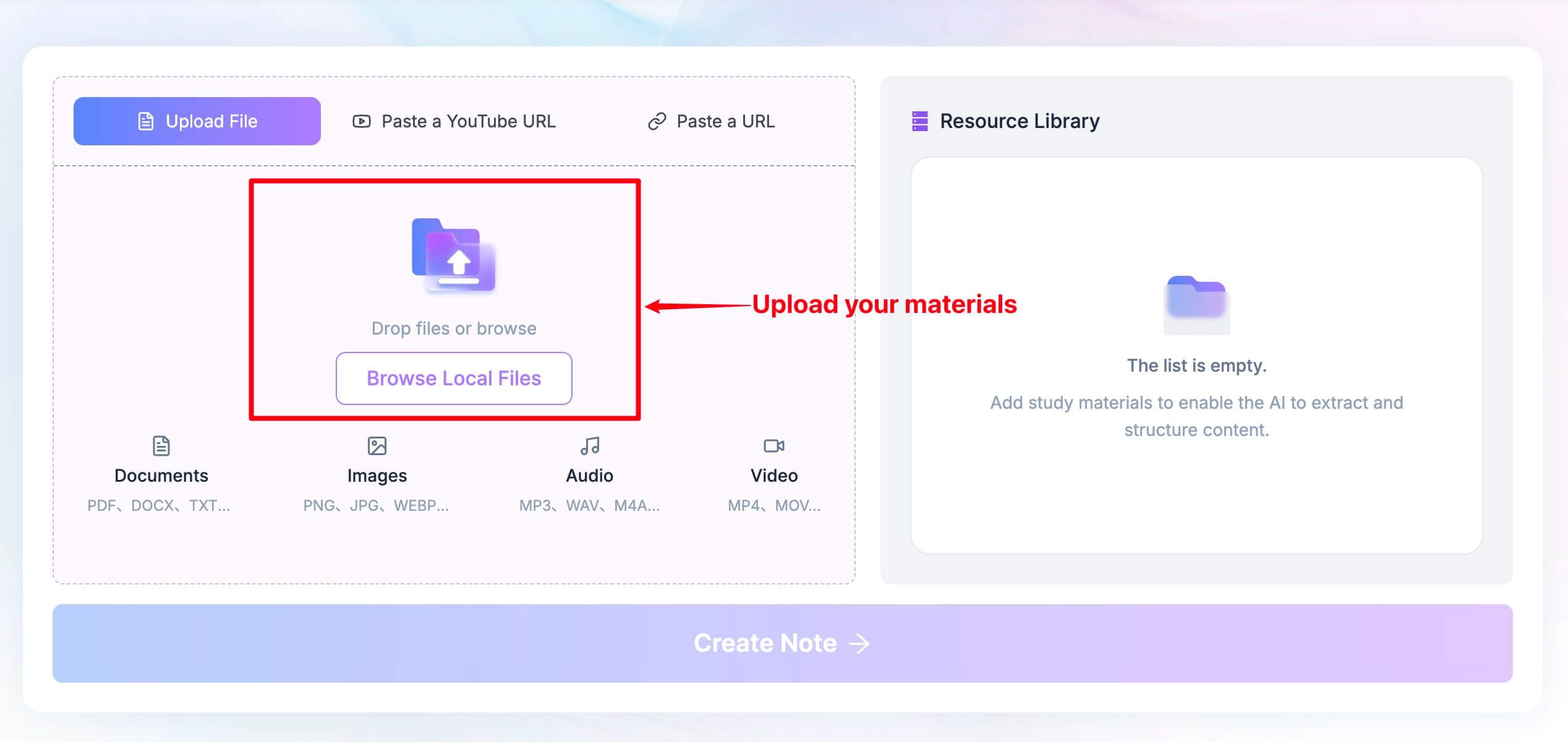
Give the file a meaningful name before uploading, such as the project and meeting date. If you include related material, distinguish the agenda or background document from the actual meeting record so you can check where a claim originated.
An agenda says what people intended to discuss; it does not establish what they agreed. Keep that distinction in mind when reviewing any note created from several sources.
Step 2: Create the Structured Meeting Note
Once the source is ready in the Resource Library, click Create Note. Review the resulting structure and check whether it separates discussion points from outcomes and unresolved questions.
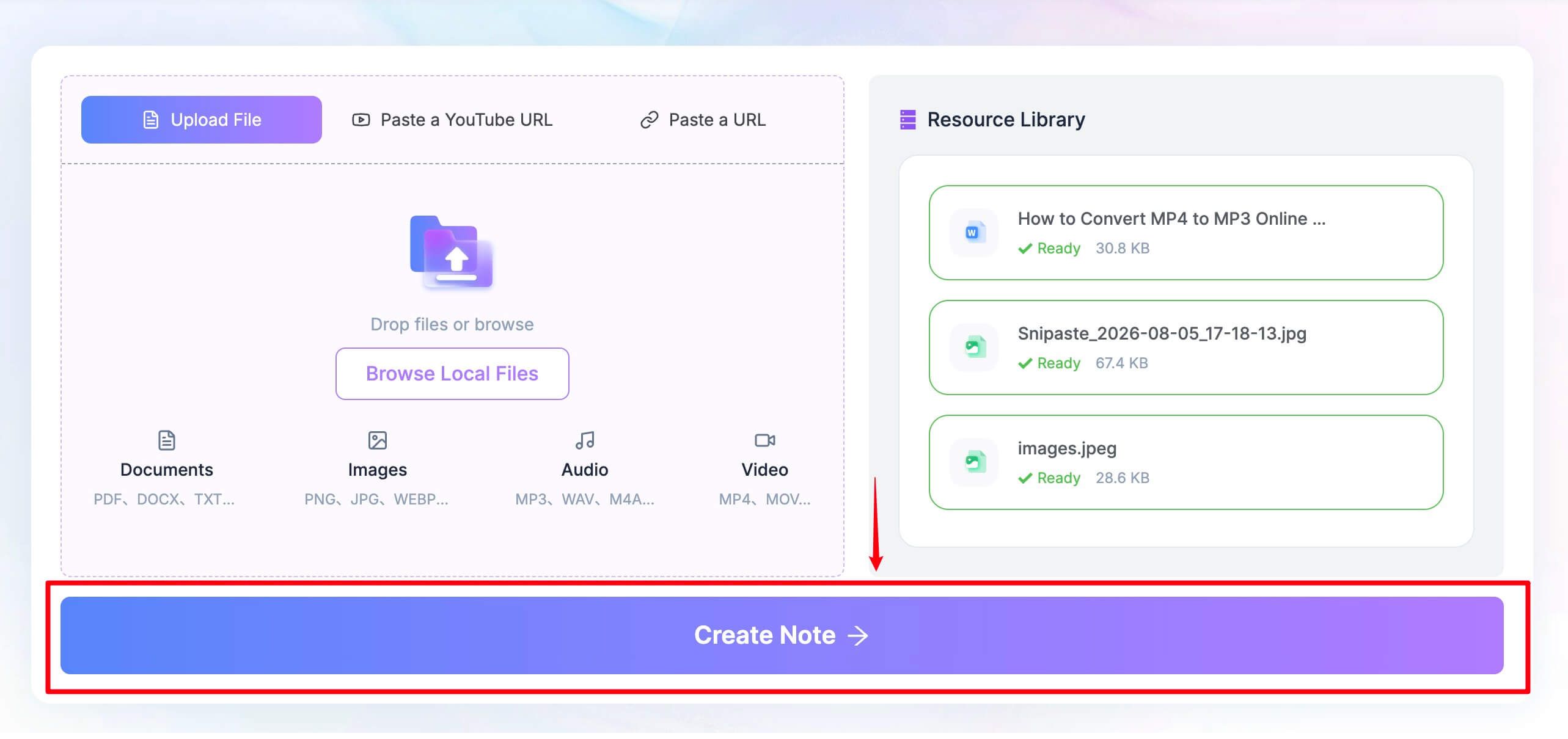
For a project meeting, a useful final structure might include the purpose, decisions, action items, blockers, and items to revisit. Treat that as an editing target rather than assuming the first generated version will use your exact preferred headings.
You can ask a focused question about the supplied content, such as: "Which next steps were explicitly assigned, and which still need an owner?" Specific questions are easier to check than a request for every possible insight from the meeting.
Step 3: Review Decisions, Action Items, and Follow-Up Questions
Check the details that could change what someone does next: names, amounts, dates, commitments, and ownership. Where the discussion was tentative, retain that uncertainty instead of turning a suggestion into a final decision.
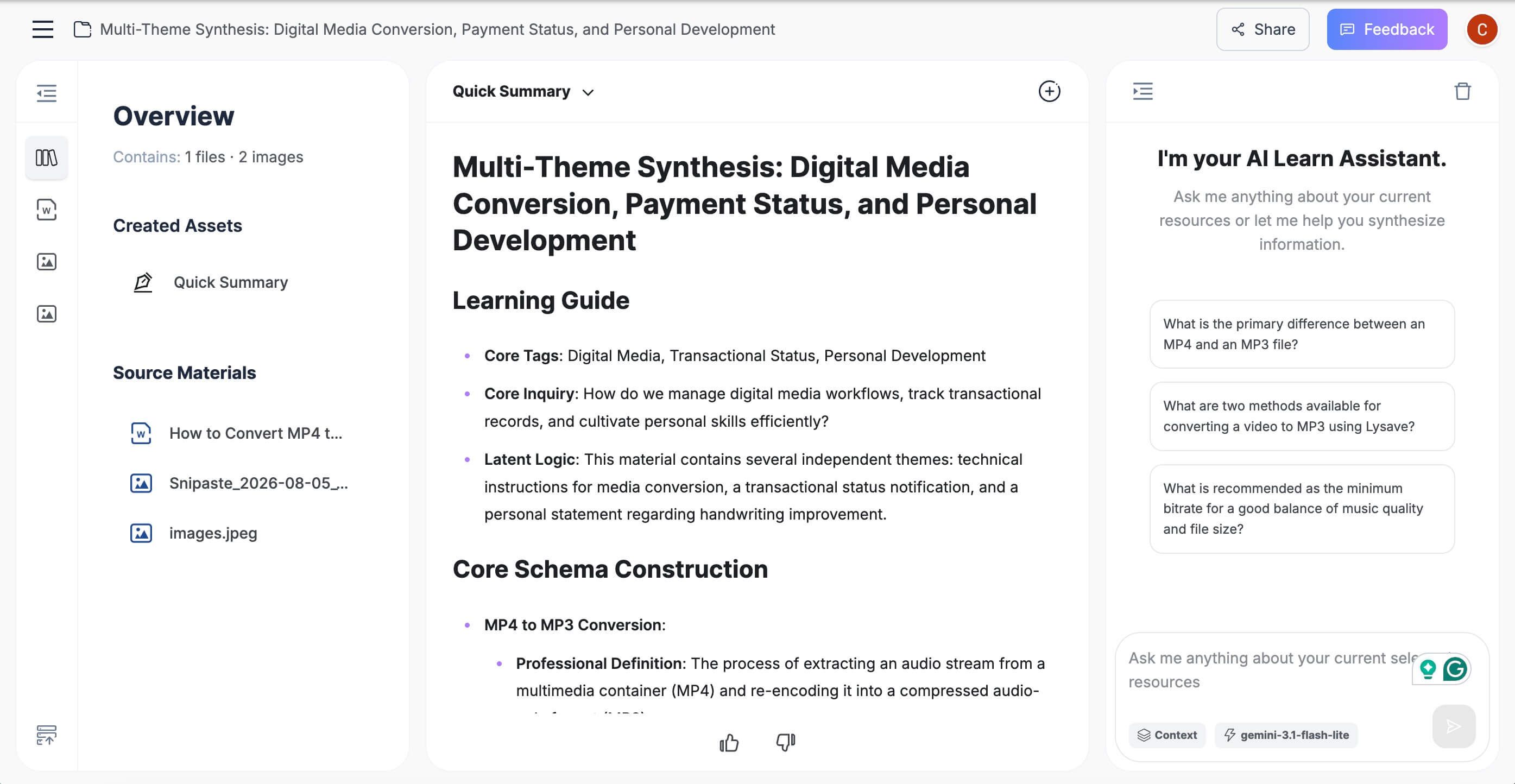
For example, "we could aim for Friday if testing finishes" should not become "release on Friday." A useful note would preserve the condition and identify what still needs confirmation.
Use a small action table when several people have follow-up work:
| Action | Owner | Due Date | Confirmation Needed |
|---|---|---|---|
| Confirm whether testing is complete | Named owner, if assigned | Stated date, if given | Check the recording for the exact commitment |
| Choose the release date | Unassigned if no owner was named | Not specified if absent | Confirm after the testing update |
This is an illustrative editing example, not a transcript of a real meeting. Its purpose is to show why an empty field can be more accurate than an AI-generated guess.
Once the note is checked, edit it into the format your team uses and copy or share the relevant output. Put confirmed actions into the task system where they will be tracked, rather than leaving them only in the meeting summary.
How to Switch From Read AI Without Losing Your Meeting Workflow
Switching is easier when you know which parts of the old workflow must survive. Start with the notes and actions you use regularly, then test whether the alternative can reproduce that routine with acceptable effort.
Step 1: Identify What You Actually Use
Review a few recent Read AI records and list the outputs you opened afterward. You may find that you use transcripts and search but rarely inspect coaching, or that playback is essential even though you originally signed up for summaries.
That list becomes your migration requirement. It also helps you avoid paying for a more elaborate replacement just because its feature list is longer.
Step 2: Preserve the Records You Need
Check the export options available on your current plan and retain the records you are permitted to keep. Include meeting dates, titles, and any links between a summary and its source, since a folder of anonymous text files is difficult to use later.
Do not assume a new tool can import another service's entire archive. Confirm the supported format with one sample before spending time preparing every record.
Step 3: Compare One Complete Meeting
Use a low-risk meeting and review the beginning, middle, and end of the output. A good opening summary can hide a duration cap or an incomplete final section.
Ask whether the record captured the outcome and whether you can find the supporting passage. Then check how much work it takes to turn that record into your normal follow-up message.
Step 4: Check the Output After Some Time Has Passed
Open an older record before declaring the migration finished. Confirm that the transcript, note, and recording remain accessible in the way you expect, including any archive retrieval delay or history restriction.
This is especially relevant when a tool has different retention rules for text and audio. Being able to find a summary does not necessarily mean you can still replay its source.
Step 5: Connect the Workflow and Remove Redundant Capture
Once the trial works, configure only the calendar and sharing connections you need. Check automatic attendance and distribution settings so the old and new assistants do not both join calls or send duplicate notes.
Keep the process understandable for the people receiving the output. They should know where the final note lives and which task list is the record of follow-up work.
Recording Consent, Privacy, and Accuracy Still Matter
Use your organization's approved recording process and tell participants when transcription or recording is active. A tool's absence from the participant list does not establish permission to process the conversation.
Also distinguish bot-free capture from local-only processing. If keeping audio on the device is a requirement, verify the service's processing, retention, and access policies rather than inferring them from the interface.
For accuracy, review the claims that affect decisions before distributing the note. You do not need to polish every sentence equally; a wrong date, owner, or amount deserves attention before a slightly awkward heading.
| Review Question | Why It Matters |
|---|---|
| Was this agreed or merely suggested? | Prevents a tentative idea from becoming a false commitment |
| Was an owner explicitly named? | Prevents an action from being assigned to the wrong person |
| Is the date conditional? | Preserves dependencies instead of inventing a firm deadline |
| Are names, amounts, and technical terms correct? | Protects the details most likely to affect follow-up |
| Can a reader locate the supporting discussion? | Makes disagreements easier to resolve |
For an important meeting, ask the relevant owners to confirm the action list. A concise, reviewed note is more useful than a long report nobody has checked.
FAQs About Free Read AI Alternatives
What Is the Best Free Read AI Alternative?
Fathom is a strong starting point for frequent online meetings because its Free plan includes unlimited recordings and transcriptions. Tactiq or Granola may fit better if you prefer browser transcripts or an AI-assisted personal notepad, while Lynote suits notes made from existing recordings.
Is Read AI Free to Use?
Yes, Read AI has a Free plan with five meeting transcripts per month and a one-hour meeting limit. Features such as playback and file uploads have separate plan requirements, so a free transcript allowance does not mean every meeting workflow is included.
How Many Meetings Can Read AI Record for Free?
The advertised Free allowance is five meetings per month. If you need a playable audio or video recording rather than a transcript and report, check the playback entitlement separately because it is not included in Free.
Which Read AI Alternatives Work Without a Meeting Bot?
Tactiq, Granola, and Jamie offer workflows that do not add a meeting participant bot. Several other products also provide bot-free capture options, and Read AI itself supports direct desktop recording; availability and output depend on the capture route.
Which Alternative Works With Zoom, Google Meet, and Microsoft Teams?
Several options on this list support those services, including Fathom, Tactiq, Fireflies, MeetGeek, and Otter. Check whether support means joining the meeting, capturing it through a browser or device, or processing an exported file, since those workflows are not interchangeable.
Can I Use an AI Note Taker for In-Person Meetings?
Yes, tools with mobile or device-based capture can support in-person conversations. Check the chosen app and plan, then use a short permitted recording to assess whether the microphone captures everyone clearly enough for useful notes.
Can Lynote Replace Read AI?
Lynote can cover the post-meeting note workflow when you already have a supported recording, transcript, or related file to process. It should not be treated as a replacement for automatic live attendance or Read AI's broader connected workplace search.
Are AI Meeting Notes Accurate Enough to Share Without Review?
Review them before treating them as the final record, especially for decisions, figures, deadlines, and task ownership. Transcription errors can affect the summary, and summarization can also remove a condition or qualification even when the underlying words were transcribed correctly.
Final Verdict: Choose the Alternative That Fits How You Meet
Start with the limitation you are trying to remove. Fathom is a practical first comparison for frequent free capture, Tactiq suits browser transcripts, and Granola fits a more personal note-taking style.
For existing recordings, Lynote offers a different route: process the source afterward and turn it into editable notes. For replay, team search, mobile capture, or multilingual evaluation, use the specific tradeoffs above to narrow the remaining options.
Before moving your workflow, run one complete meeting through the free plan you intend to keep. Choose the tool that leaves you with an accurate record, an accessible source, and a clear next action.

Written by Janet L. Harris
AI Writing Specialist
Janet reviews AI detectors and humanization tools, with a focus on accuracy, limitations, and responsible use. View all articles →