10 Best Free Notability Alternatives for Handwriting, PDFs, and AI Notes

Looking for a free Notability alternative for handwritten notes, PDFs, or lecture recordings? I compared the features, free-plan limits, and switching options to narrow the list to 10.
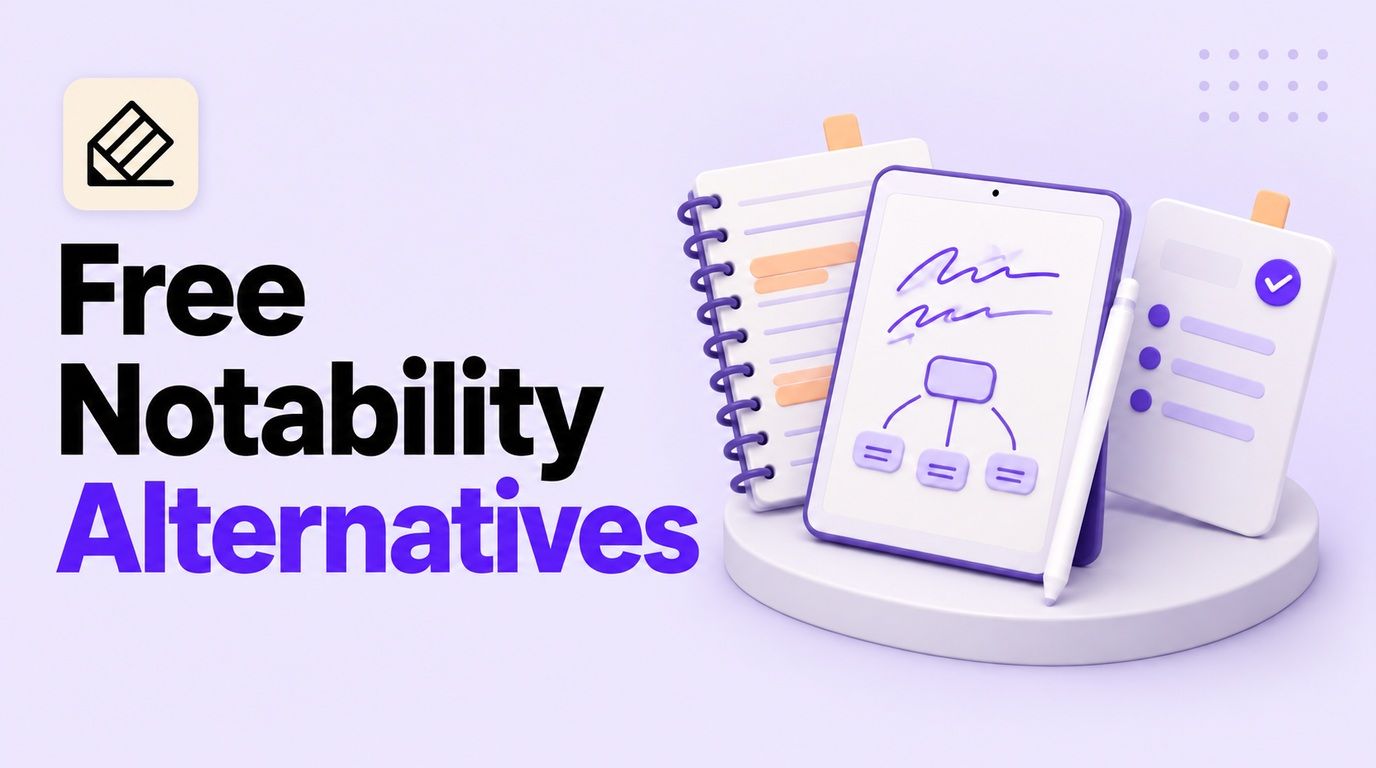
Some replace the notebook you write in; others help you organize material after class. Here's what each does well, where the free version stops, and which is worth trying for your needs.
Part 1: Top 10 Free Notability Alternatives
For a familiar pen-and-paper setup, I'd shortlist Goodnotes, Noteful, and CollaNote. For free mixed-device notebooks, OneNote is a practical starting point; for turning existing files and recordings into structured notes, Lynote serves a different need.
These are comparisons of documented features and plans, not a claim that I ran the same hands-on test on all 10 apps. I've kept the free-plan restrictions separate so you can see what the software does and what you can use without paying.
Notability Alternatives: Feature Comparison
✅ = built-in support; ❌ = not a built-in workflow; ◐ = partial support, a different workflow, or device restrictions; ? = not verified in this comparison.
A checkmark does not mean the feature is included in the free plan; the free-access table below covers that separately.
| Tool | Handwritten notes | Writing on PDFs | Typed notes | Audio workflow | Where it fits best |
|---|---|---|---|---|---|
| Lynote | ❌ No pen canvas | ❌ Reads sources rather than marking them up | ✅ Editable generated notes | ✅ Uploaded recordings to notes | Reviewing existing course material |
| Goodnotes | ✅ | ✅ | ✅ | ✅ Recording; plan limits apply | Familiar digital notebooks |
| OneNote | ✅ Supported apps | ◐ Ink over PDF printouts | ✅ | ◐ Recording varies by app | Mixed-device course notebooks |
| Apple Notes | ✅ iPad and iPhone | ✅ Markup | ✅ | ◐ Recording and transcripts on supported devices | Everyday Apple-device notes |
| CollaNote | ✅ | ✅ | ✅ | ✅ Audio-linked notes | Visual iPad study notes |
| Noteful | ✅ | ✅ | ✅ Text boxes | ✅ Audio synced with notes | PDF markup and layers |
| Noteshelf | ✅ | ✅ | ✅ | ✅ Recording on supported editions | Paper-style notes with audio |
| MyScript Notes | ✅ | ✅ | ✅ Handwriting conversion | ? Audio recording and synchronized replay not verified here | Turning handwriting into text |
| Flexcil | ✅ | ✅ | ✅ Text annotations | ✅ Audio recording and note replay on supported apps | Reading and annotating textbooks |
| Obsidian | ❌ Requires an add-on | ❌ Requires an add-on | ✅ Markdown | ◐ Audio files and recorder; no native ink timeline | A linked personal knowledge base |
I wouldn't count PDF reading as PDF annotation, or audio upload as live recording. Those differences matter more than an extra checkmark when you're trying to replace a specific Notability habit.
Devices and Free Access at a Glance
Here, ✅ means a continuing free option exists, not unlimited use. Device entries describe access, not identical features or automatic sync between editions.
| Tool | Continuing free option | iPad access | Android access | Windows access | First limit to check |
|---|---|---|---|---|---|
| Lynote | ✅ Usage allowance | ✅ Browser | ✅ Browser | ✅ Browser | AI usage; sign-in for saving and sync |
| Goodnotes | ✅ Limited tier | ✅ App | ✅ App | ✅ App | File allowance, import size, and exports |
| OneNote | ✅ Core app | ✅ App | ✅ App | ✅ App | Shared cloud storage and premium tools |
| Apple Notes | ✅ Included app | ✅ App | ◐ Limited browser route | ◐ iCloud browser access | Apple-only advanced tools and iCloud storage |
| CollaNote | ✅ Freemium | ✅ App | ❌ No native app | ❌ No native app | Premium pens, tools, and AI features |
| Noteful | ✅ Basic tier | ✅ App | ❌ No native app | ❌ No native app | Pro layers and iCloud sync |
| Noteshelf | ✅ Edition-specific | ✅ App | ✅ App | ✅ Separate edition | Notebook caps and separate purchases |
| MyScript Notes | ✅ Limited after trial | ✅ App | ✅ App | ◐ Nebo edition | Five pages per free notebook; no free AI or sync |
| Flexcil | ✅ Basic tier | ✅ App | ✅ App | ◐ Web offering | Edition-specific tools and export limits |
| Obsidian | ✅ Core app | ✅ App | ✅ App | ✅ App | Official Sync and Publish cost extra |
Plans were checked in October 2026. If you use two devices, check both versions before paying: an iPad purchase doesn't necessarily unlock an Android or Windows edition.
1. Lynote AI Notes: Best for Turning Source Material Into Structured Notes
Sometimes the problem isn't taking more notes. It's the pile of recordings, slides, and reading you've already collected but haven't had time to organize. That's where I'd put Lynote AI Notes on the shortlist.
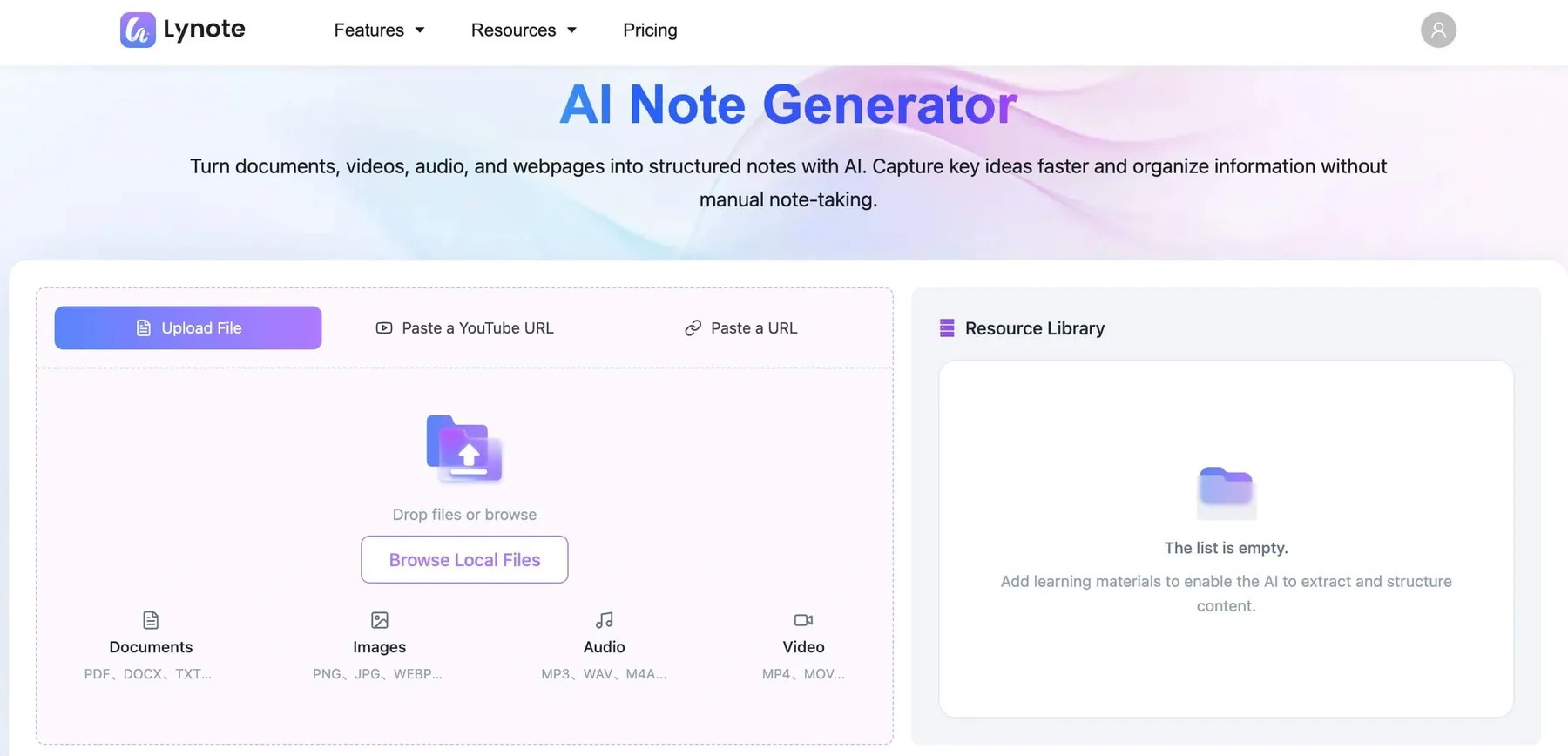
Add your source material, generate a structured note, then edit it and ask follow-up questions. It won't replace an Apple Pencil notebook, but it can handle the after-class work of turning scattered material into something you can review.
Features
- Upload documents, audio, video, and images.
- Add supported webpage or YouTube links.
- Generate editable notes with headings and key points.
- Ask questions about the source material.
- Turn suitable notes into flashcards.
Pros
- Useful when a course mixes PDFs, recordings, and online lessons.
- Gives you a structure to revise instead of a blank page.
- Keeps notes and follow-up questions in the same workspace.
Cons
- You can get started for free, but continued use beyond the free allowance requires a paid plan.
Free-plan reality: You can start at no cost with a free AI allowance. Sign in to store and sync notes, and check the account allowance before processing a large backlog.
Best for: Students and professionals who want usable notes from existing material.
A compact workflow for your next lecture or reading assignment:
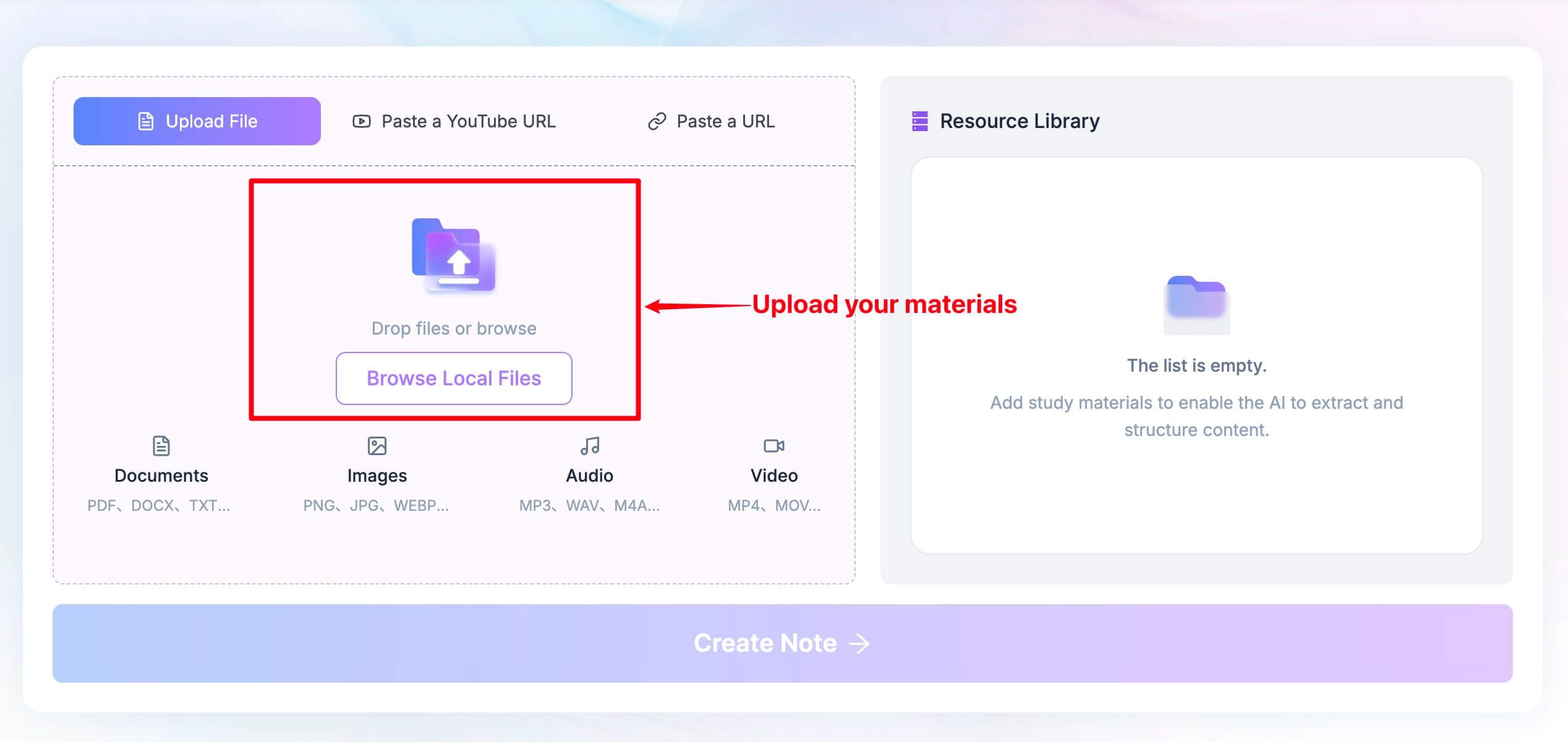
-
Add the material: choose Upload File and Browse Local Files for a document or recording. For a supported webpage or YouTube source, paste its URL and use Parse when prompted.
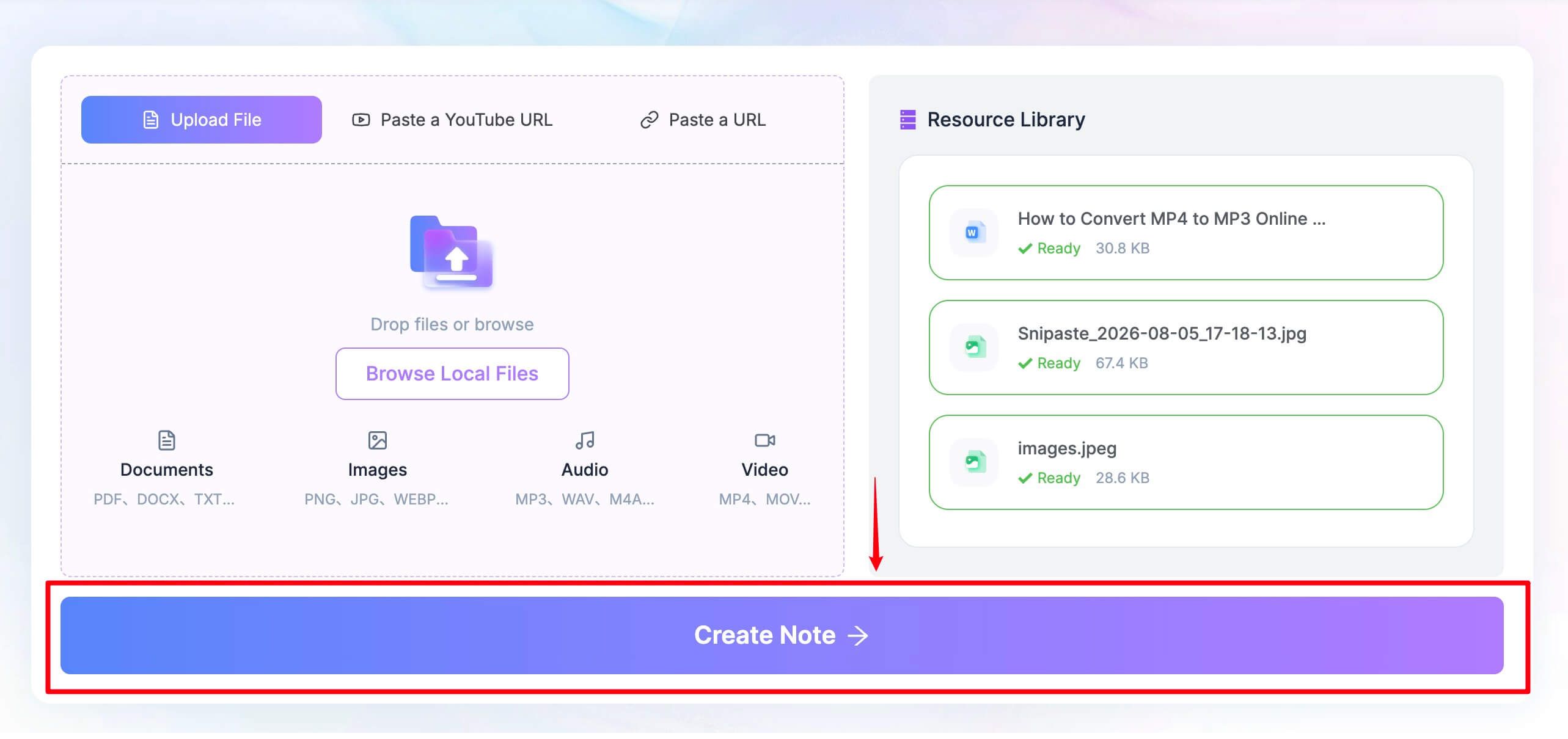
-
Build the note: select Create Note once the source is ready. Read the headings and key points before treating the output as a finished study guide.
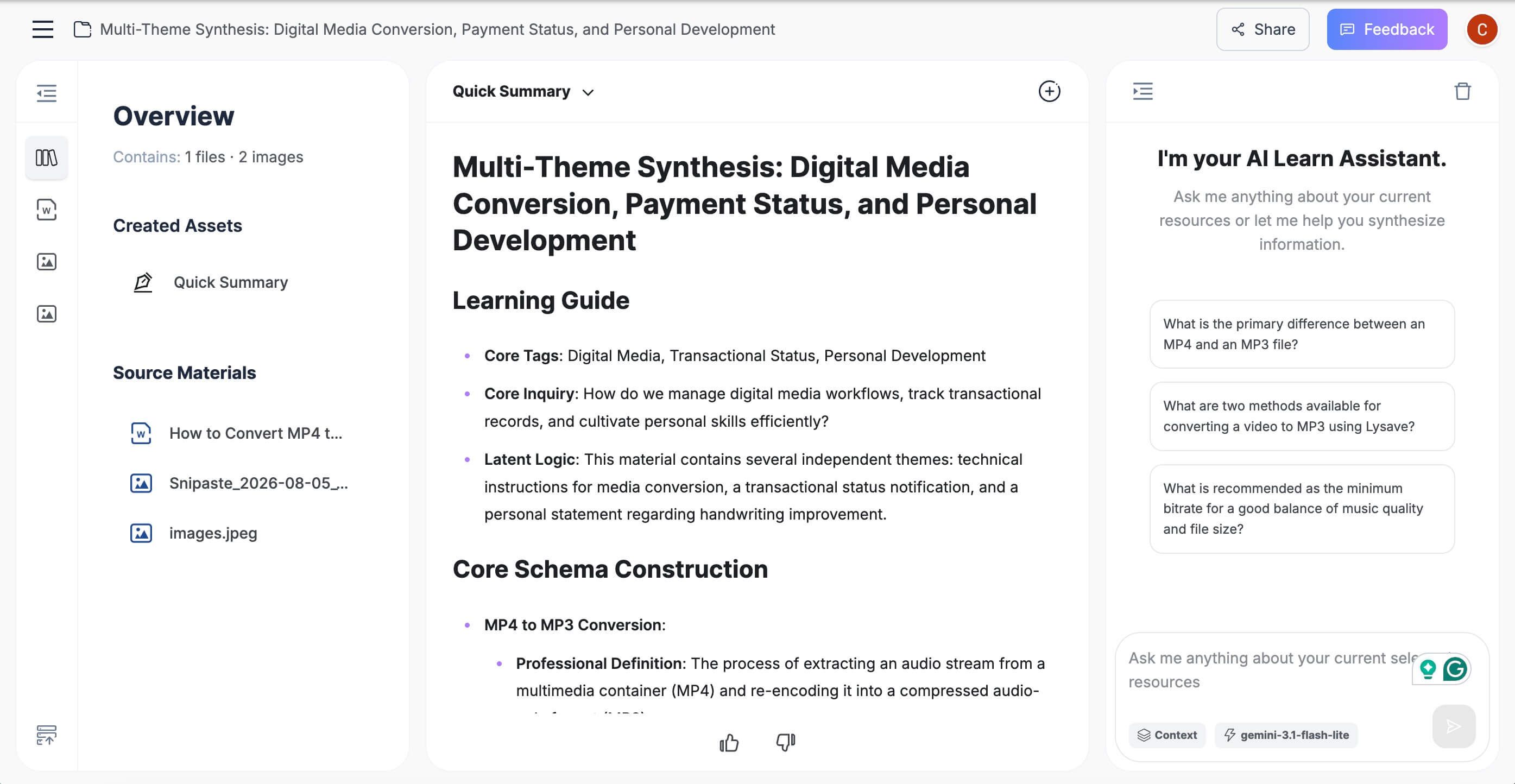
-
Make it useful. Correct names and technical details, add your own explanation, ask follow-up questions, and export or convert appropriate material into flashcards.

2. Goodnotes: Best Like-for-Like Handwriting Alternative
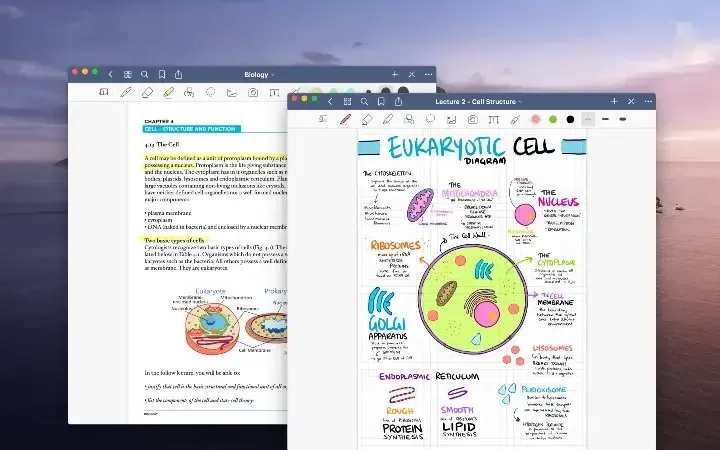
If you like Notability's basic idea and mainly want a different notebook app, Goodnotes is an obvious place to start. Handwriting, PDFs, and notebook organization stay at the center, so you aren't changing your entire study routine.
The catch is the free tier. I'd try it with an actual slide deck before spending time setting up covers and folders: file limits and exports are likely to matter sooner than customization.
Features
- Handwritten notebooks and drawing tools.
- Import PDFs and annotate their pages.
- Typed content alongside handwriting.
- Audio recording with plan-specific limits.
- AI tools whose availability depends on the plan.
Pros
- A familiar starting point for someone leaving Notability.
- Keeps handwriting and reading material together.
- Has options across Apple, Android, Windows, and the web.
Cons
- The free plan is better for trying a small setup than storing a large course library.
- Features and sync are not identical across platforms.
Free-plan reality: Free access includes limited notebooks/files, a 5 MB import cap, limited audio, and watermarked exports. Essential is listed at $11.99 per year in the U.S.; Pro adds more advanced capabilities at $35.99 per year.
Best for: People willing to test a close handwriting alternative before deciding whether its paid plan is worthwhile.
Goodnotes is a credible alternative to Notability, but its free tier deserves its own evaluation. Replacing one restrictive free notebook allowance with another may leave your original problem unsolved.
3. Microsoft OneNote: Best Free Cross-Platform Alternative
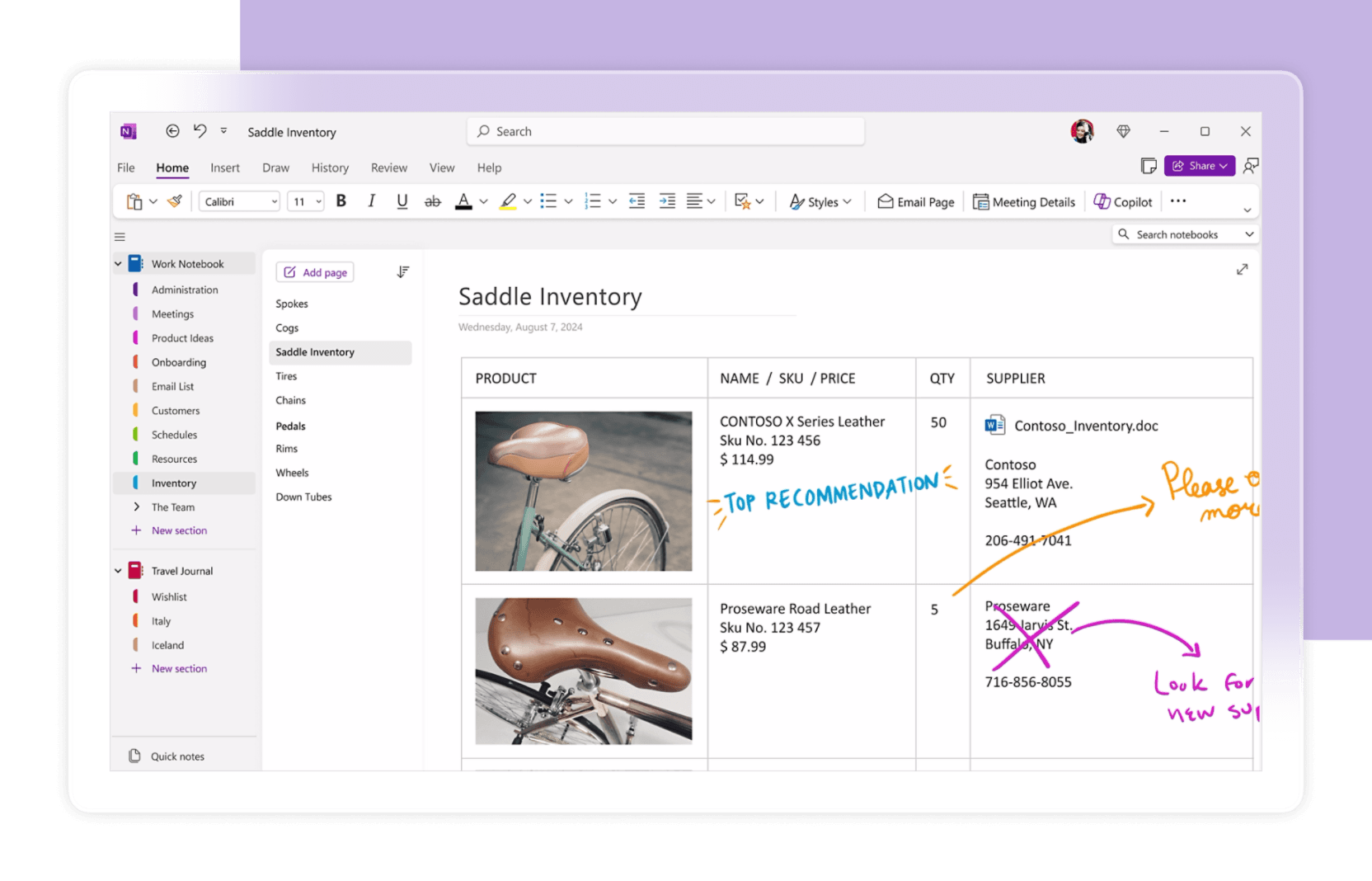
Need your notes on a Windows laptop, an iPad, and an Android phone? OneNote is one of the first options I'd compare. You can put typed explanations, handwriting, pictures, and attachments in the same notebook without buying a separate app for each device.
Its open-ended pages are either a benefit or an annoyance, depending on how you work. They give you room to think, but a sprawling page can be awkward to print or turn into a tidy PDF.
Features
- Notebooks divided into sections and pages.
- Typed notes and handwriting on supported apps.
- Pictures, attachments, and PDF printouts.
- Sharing and access across major operating systems.
- Recording tools that vary by app and device.
Pros
- The core app is free across major platforms.
- Good for courses that mix several kinds of material.
- Easy to organize by class, project, or topic.
Cons
- Some tools are missing or work differently on certain devices.
- Large, freeform pages need checking before export.
Free-plan reality: Core OneNote apps are free. A free Microsoft account includes 5 GB of shared cloud storage, while additional storage and some premium features require separate entitlements.
Best for: Students using several operating systems and people already organizing work around Microsoft accounts.
Do not assume that free OneNote includes every Copilot or transcription capability shown in a Microsoft 365 demonstration. Check the exact feature on the device where you expect to use it.
4. Apple Notes: Best Built-In Option for Apple Users
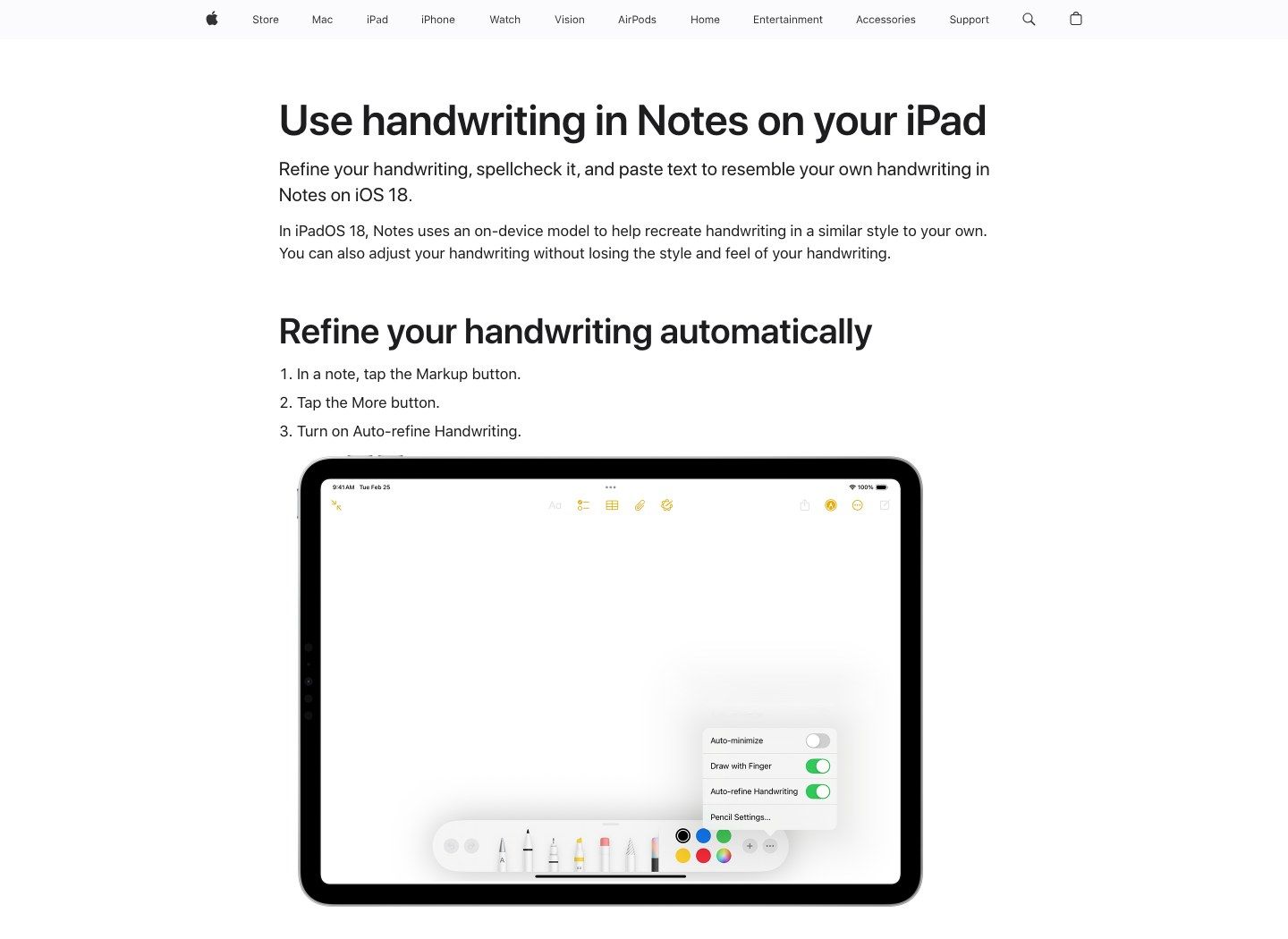
Before paying for another iPad notebook, I'd give Apple Notes a fair chance. If your routine is quick handwritten notes, a few folders, and occasional PDF markup, you may already have enough in the app that came with your device.
Where it becomes less convincing is elaborate notebook customization or a workflow built around non-Apple devices. It's a practical option for a modest setup, not a promise to reproduce every Notability feature.
Features
- Typed notes and handwriting.
- Folders for organizing classes or projects.
- Document scanning and PDF markup.
- Audio recording and transcripts on supported devices.
- Selected intelligent features with additional hardware and language requirements.
Pros
- No separate app subscription for ordinary note-taking.
- Convenient for quick capture and longer notes.
- Worth trying before adding another paid tool.
Cons
- Advanced features depend on Apple hardware and software.
- Less specialized notebook customization than dedicated handwriting apps.
Free-plan reality: The app has no separate subscription. iCloud storage is shared with other data, and Apple Intelligence summaries require compatible hardware and software.
Best for: Apple users who need practical notes more than specialized notebook customization.
Check exports carefully if a note contains a multipage PDF. Exporting a note and exporting its original attachment can produce different results, so preserve the document itself as well as your surrounding comments.
5. CollaNote: Best Free iPad Handwriting Alternative
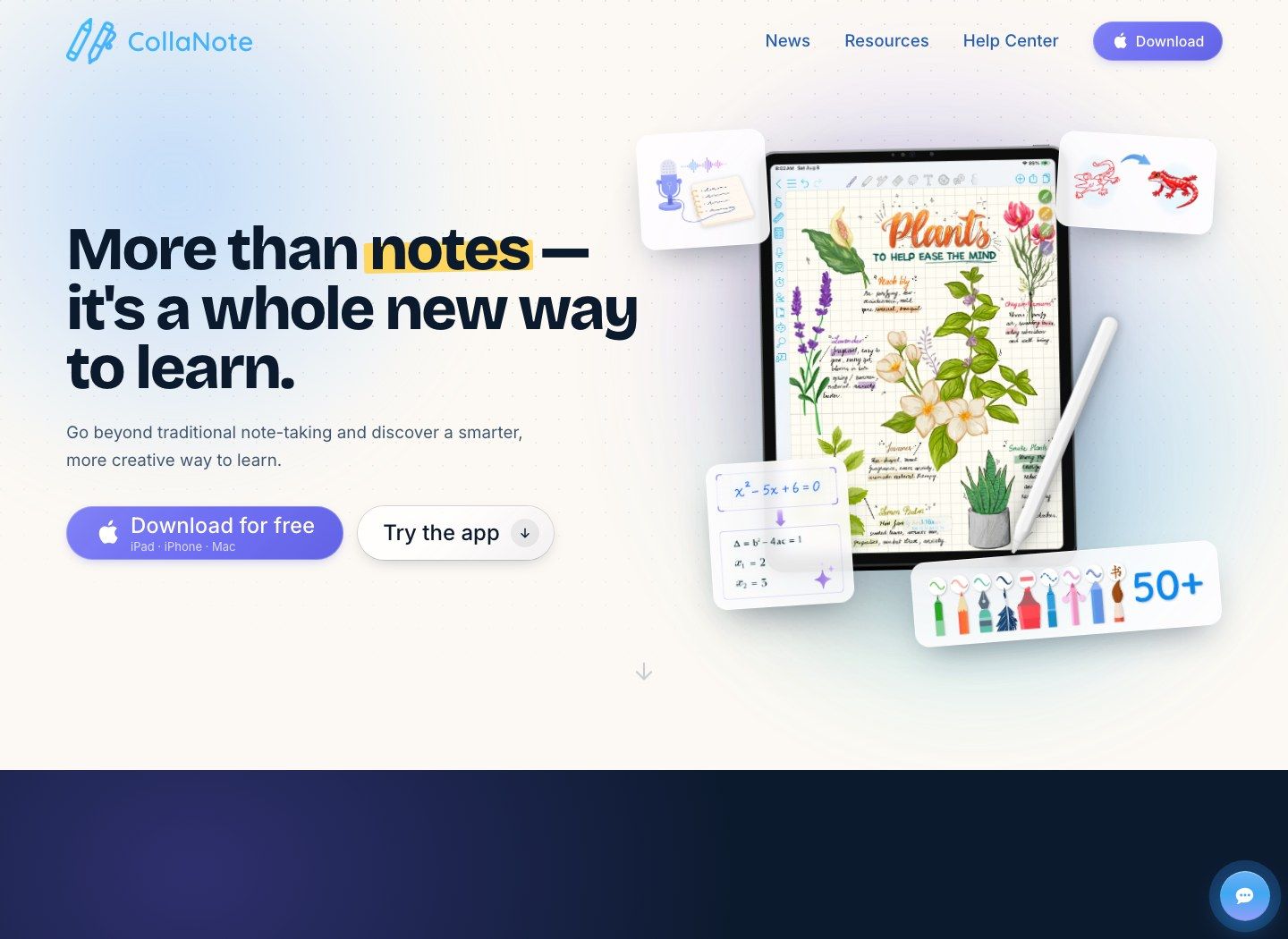
CollaNote belongs on your list if you actually enjoy building a page: handwriting, diagrams, highlights, and a planner alongside your notes. Its emphasis on pens and visual study material makes it a closer match to that habit than a text-first app.
I'd judge it by one ordinary class session, not by the most decorative sample notebook. The useful question is whether the tools you use every day are easy to reach and available on the plan you want.
Features
- Handwriting pens and brushes.
- PDF import, markup, and export.
- Audio-linked notes.
- Paper templates and planner workflows.
- Flashcard and collaboration features.
Pros
- Has an ongoing free entry point.
- Fits visual and handwritten study habits.
- Combines several classroom tasks in one notebook app.
Cons
- Some tools and AI features need premium access.
- Primarily an Apple-device choice.
Free-plan reality: It is a freemium app, not a promise that every advertised feature is free. Premium purchases coexist with free access; inspect the current upgrade screen for the tools you need.
Best for: iPad users prioritizing handwritten notes, planners, and visual organization.
The presence of AI drawing or calculation features should not be read as proof of unlimited lecture summaries or transcription. Compare the specific AI action you need rather than the label on the feature list.
6. Noteful: Best for Layered Handwritten Notes
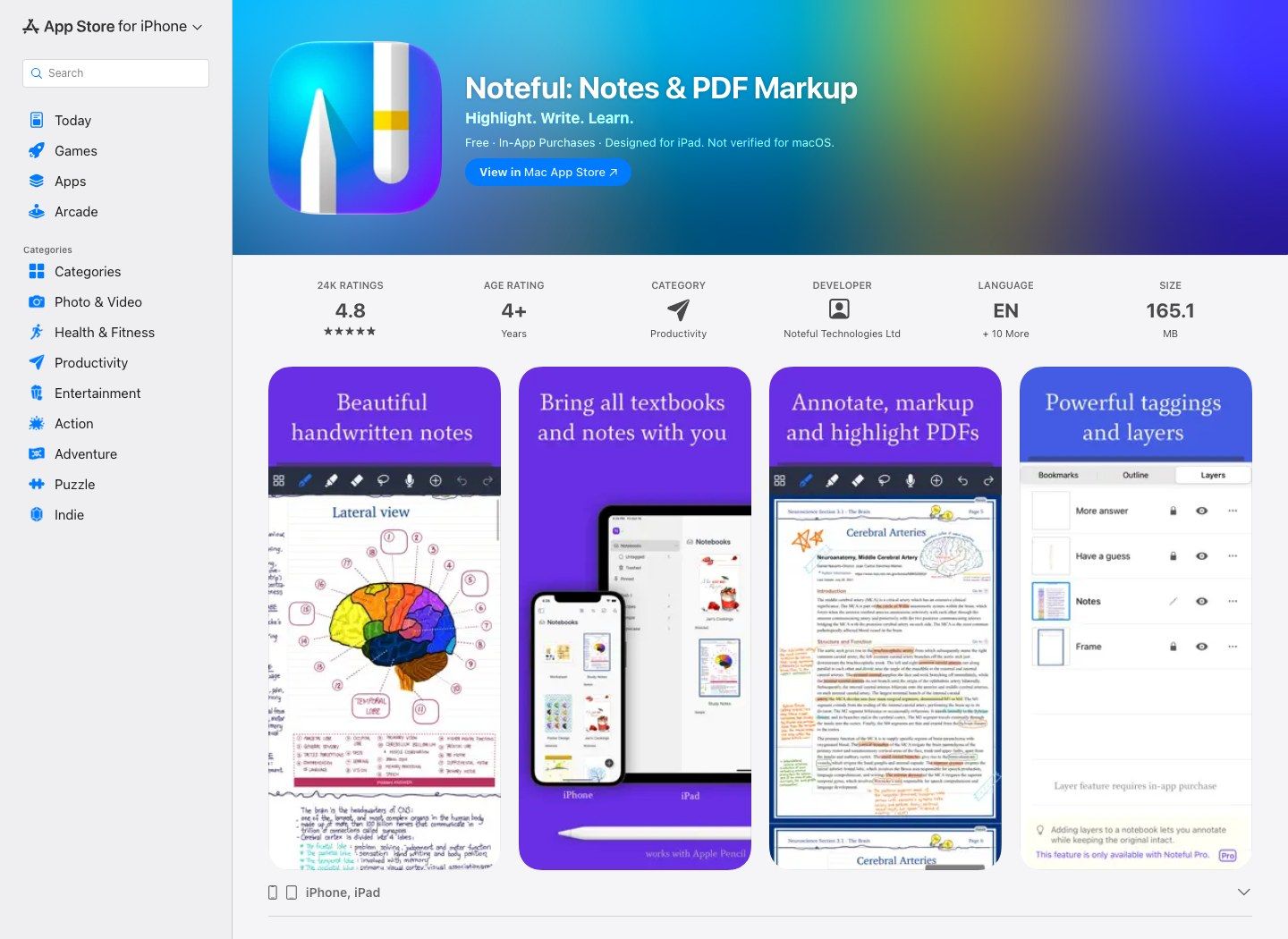
Noteful is the one I'd look at for a focused handwriting setup with layers and tags. Instead of putting every annotation on the same surface, you can keep parts of a page separate when the relevant layer features are available.
Think of a diagram you want to label, then quiz yourself on later. Separating the labels from the drawing can be more useful than another decorative notebook template.
Features
- Apple Pencil handwriting and drawing.
- PDF and Office document imports.
- Tags and nested tags.
- Layer-based annotation tools, with some functions in Pro.
- PDF export and audio synchronized with notes.
Pros
- A relatively focused notebook interface.
- Tags can connect topics across notebooks.
- Offers a one-time Pro upgrade rather than requiring a subscription.
Cons
- Some layer functions and iCloud sync require Pro.
- Not a native Android or Windows solution.
Free-plan reality: Free use has no time limit, but specific features are paid. The U.S. App Store currently lists lifetime Pro at $6.99; local pricing may differ.
Best for: Handwriting-focused users who value layers and prefer a modest one-time upgrade over a subscription.
Do not choose Noteful solely on the assumption that every layer feature is free. Its appeal is the combination of useful basic access and a straightforward upgrade model.
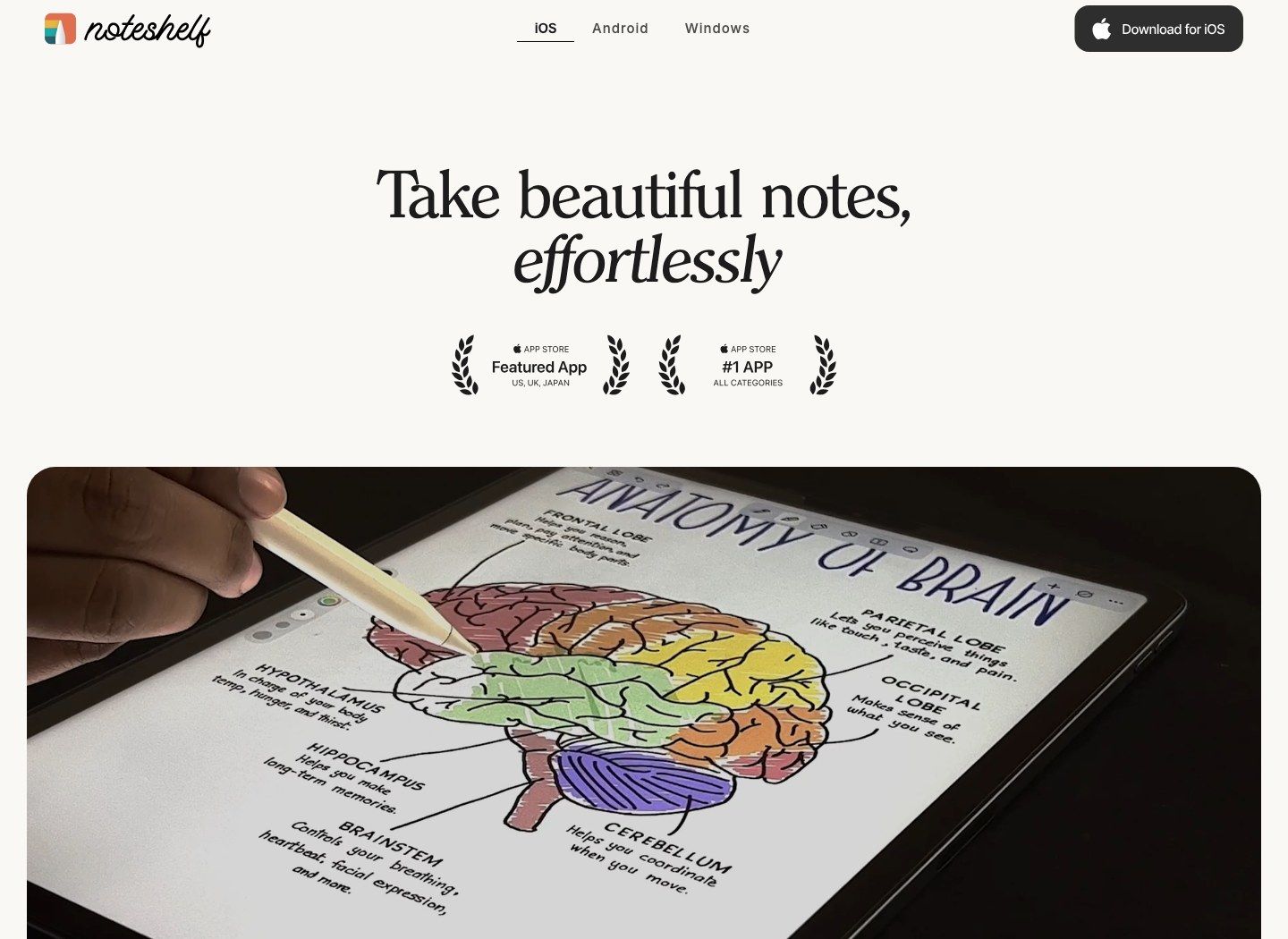
7. Noteshelf: Best for Handwriting Plus Audio on More Platforms
Noteshelf is worth a look if you want paper-style notebooks but also record explanations as you write. It covers that familiar combination of handwriting, PDFs, and audio without making typed notes the main event.
I'd be careful about which edition you're comparing, though. An Android offer isn't automatically an iPad offer, and having a Windows version doesn't mean every purchase or notebook syncs across all three.
Features
- Handwritten notebooks and paper templates.
- PDF markup and image annotation.
- Audio recording.
- Typed notes and handwriting conversion.
- AI assistance that varies by edition and plan.
Pros
- Brings handwriting, PDFs, and audio into one app.
- Offers editions outside the Apple ecosystem.
- Lets you compare notebook and AI needs together.
Cons
- Free allowances and purchases differ by platform.
- Check cross-device sync before building a large library.
Free-plan reality: The official Android offer lists three free notebooks with unlimited pages and 30 monthly text AI credits. It lists a $9.99 one-time Premium upgrade; do not apply those terms to every edition.
Best for: Tablet users comparing handwriting, audio, and some AI help within one notebook app.
The distinction between notebooks and pages matters here. Three notebooks may be workable for a small set of courses if pages remain available, but less convenient if your organization depends on many separate notebooks.
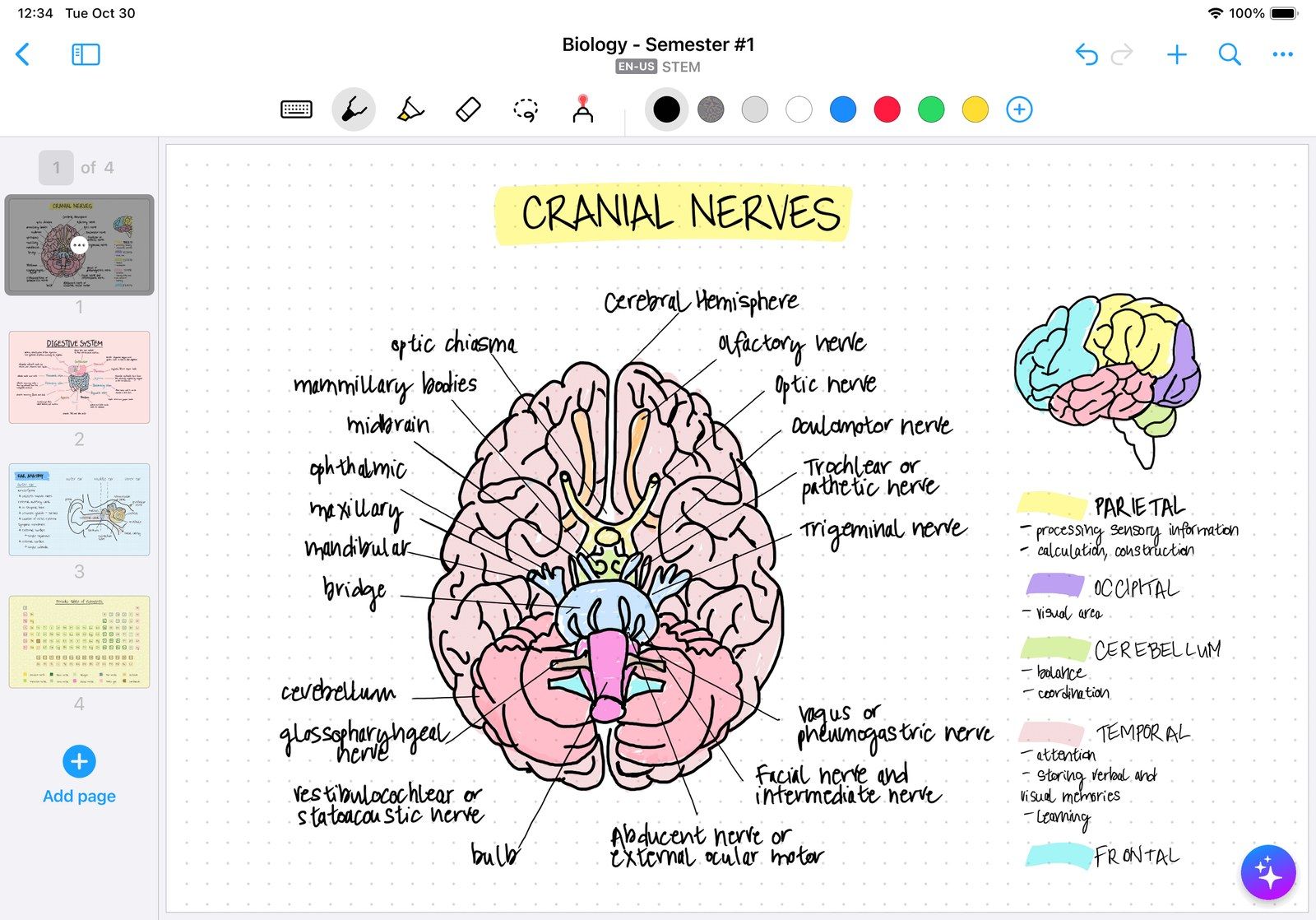
8. MyScript Notes (Formerly Nebo): Best for Handwriting Recognition
MyScript Notes stands out if your recurring thought is, "I wish I could turn this handwriting into a document." Handwriting recognition and pen gestures are central to the product, rather than just another item on the feature list.
You may know it as Nebo. The mobile apps now use the MyScript Notes name, while Windows retains Nebo, so check the right edition when looking at price and features.
Features
- Convert handwriting into editable text.
- Edit with pen gestures.
- Work with notebooks, documents, boards, and PDFs.
- Annotate imported PDFs.
- Paid AI study features after the trial.
Pros
- A clear fit for people who regularly reuse handwritten material as text.
- Offers more than one type of note canvas.
- Makes handwriting conversion part of the main workflow.
Cons
- The continuing free version excludes AI and cloud sync.
- Free notebooks have a five-page limit; platform purchases need checking.
Free-plan reality: A seven-day full trial is followed by optional paid access or a limited free version. Free notebooks allow up to five pages each, without AI or cloud sync.
Best for: Users who regularly convert handwritten explanations into typed documents.
Evaluate recognition with your own symbols and vocabulary. Successfully converting a neat shopping list says little about your physics notation or densely annotated lecture notes.
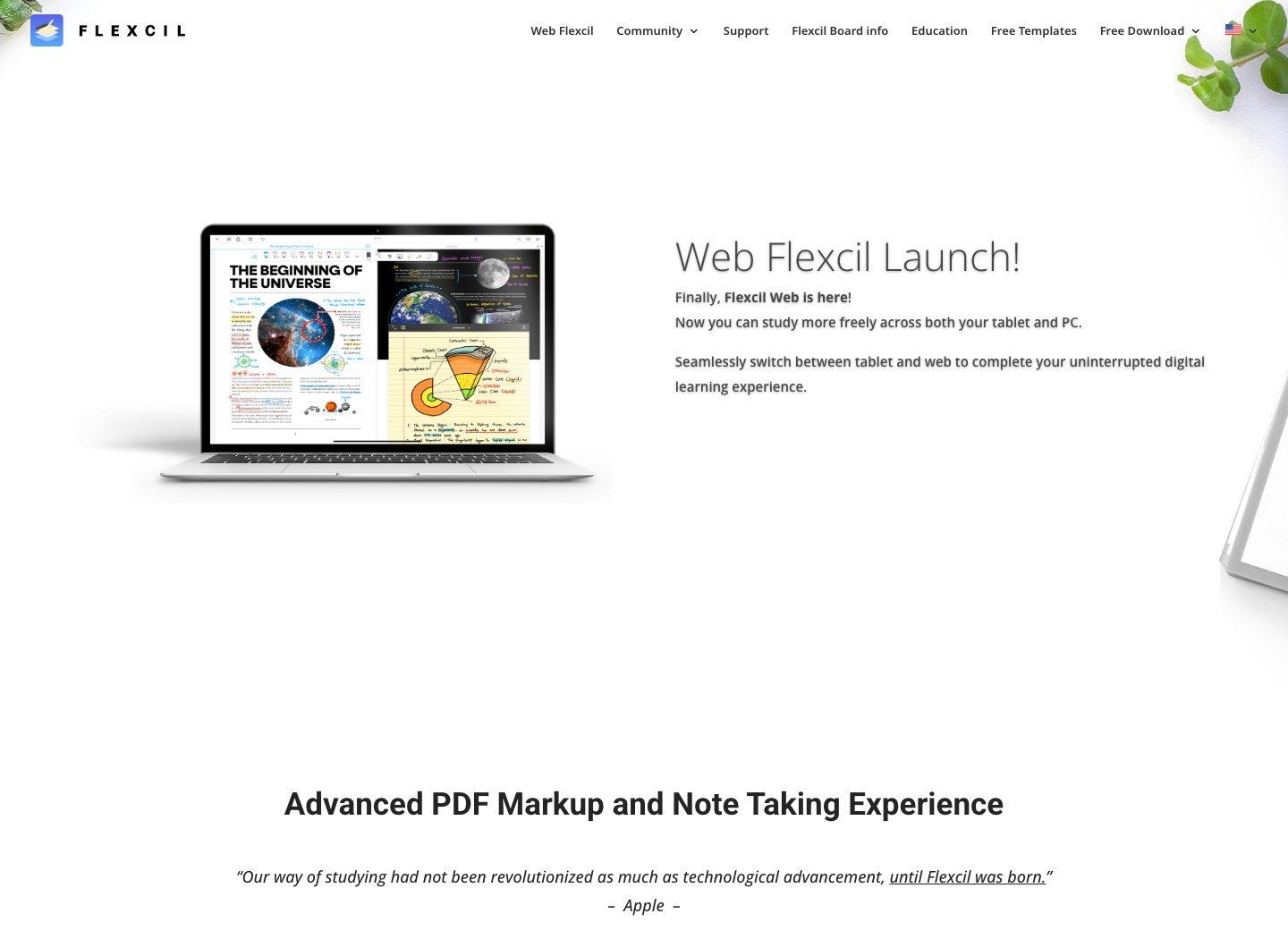
9. Flexcil: Best for PDF-Heavy Studying
If most of your studying starts with a textbook PDF, I'd give Flexcil more attention than its position in a general notebook list suggests. Reading, marking up a passage, and keeping related notes nearby are the point of the product.
For that kind of course, I'd rather have an easy route back to the original paragraph than another set of notebook covers. Just include exporting in your trial: a good reading workflow still needs a useful way to take your work out.
Features
- PDF reading and annotation.
- Handwritten notes alongside documents.
- Reference links between material and notes.
- Document editing and organization tools.
- Audio recording and note replay on supported apps.
Pros
- Well suited to reading-heavy classes.
- Keeps study notes connected to the source document.
- Offers tablet apps and a web option.
Cons
- Some document tools and export options require an upgrade.
- Older version comparisons may not describe the limits you see today.
Free-plan reality: Basic free access is available. Check the current version for note, folder, and export restrictions; older Flexcil 1 and Flexcil 2 comparisons describe different caps.
Best for: Students whose study routine revolves around PDFs and source-linked excerpts.
Include an export in your evaluation. A workflow can feel excellent inside the app but become less useful if sharing your annotated reading requires a feature you do not intend to buy.
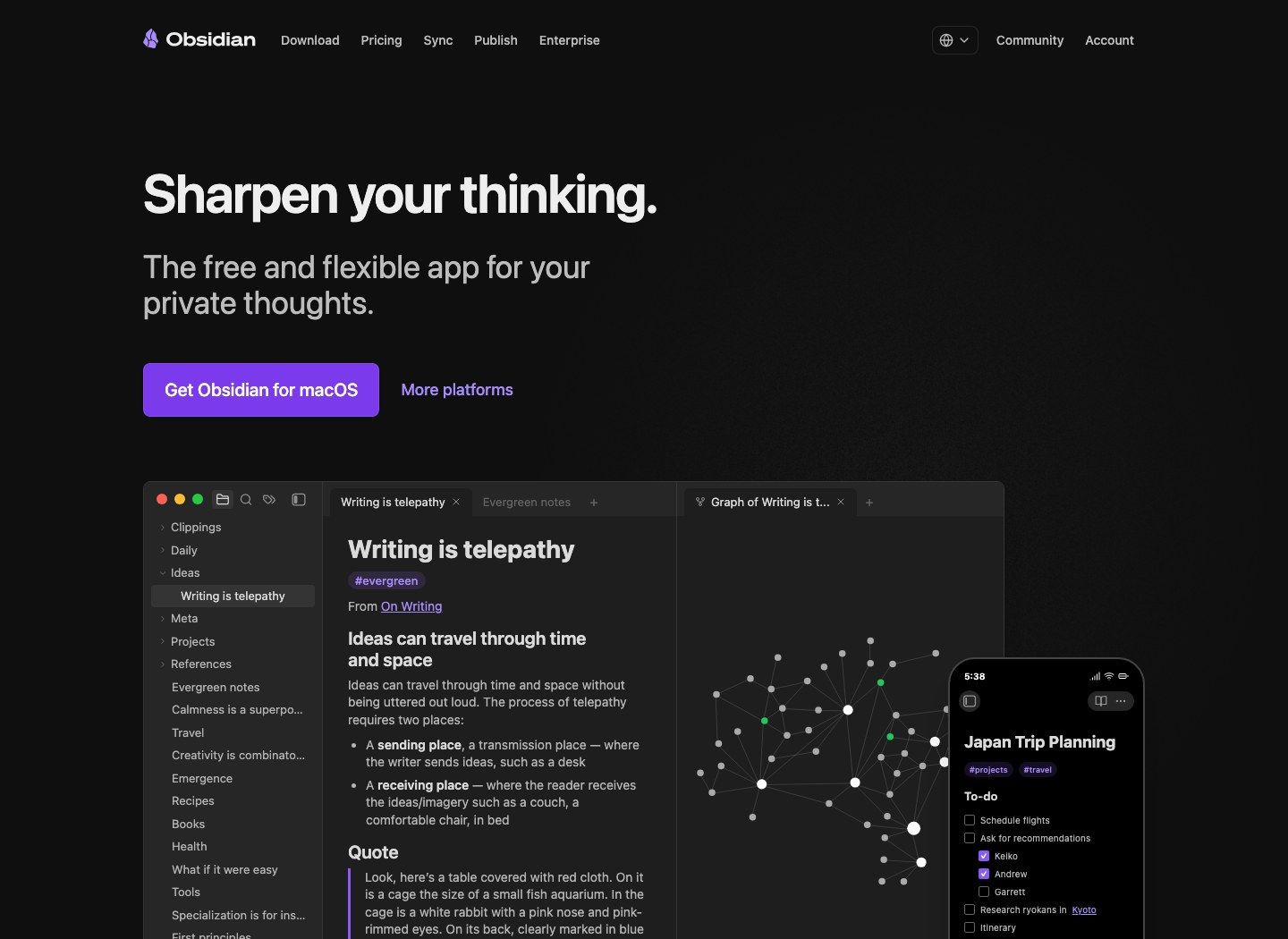
10. Obsidian: Best for Linked, Local Knowledge Notes
Obsidian is a different kind of move. I'd consider it if you're less interested in recreating a digital notebook and more interested in finding and connecting what you've learned months later.
Your notes live as local Markdown files, and you can link ideas across classes or projects. That's useful for a long-term reference collection, but it won't give you a Notability-style handwriting experience out of the box.
Features
- Local Markdown text files.
- Links, backlinks, and graph views.
- Canvas for arranging ideas visually.
- Optional community plugins.
- Desktop and mobile apps.
Pros
- The core app is free for personal and commercial use.
- Ordinary text files give you control over your notes.
- Good for connecting ideas beyond a single course.
Cons
- Handwriting and PDF markup require add-ons rather than a native notebook workflow.
- Plugins and cross-device setup can take extra maintenance.
Free-plan reality: The core app is free. Official Sync starts at $4 per month billed annually, while Publish is a separate paid service.
Best for: People moving from course notebooks to a long-term reference system.
Obsidian is a poor match if the only thing you want to change about Notability is its price. It becomes compelling when you also want to change how you organize and retrieve ideas.
Is Switching From Notability Actually Worth It?
Before switching, I'd pin down what's bothering you. Is the free allowance too small, are you paying for tools you never open, or does your current setup make a simple job harder than it should be?
Notability's Starter plan currently allows five free notes. That's a meaningful limit if you create a new note for every class, but it isn't the same problem as wanting better PDF markup or help reviewing recordings.
There's also an outdated reason to cross it off: assuming it's still Apple-only. Notability now lists Android, Windows, Apple devices, and web access, so compare the version you actually need rather than relying on an old platform comparison.
My rule would be simple: the replacement should fix a recurring problem, not just look cheaper on a pricing page. Years of annotations and linked recordings can take real work to move, and that time belongs in the comparison too.
Which Part of Notability Are You Actually Replacing?
Handwriting and Apple Pencil Feel
If you spend most of a lecture writing with a stylus, start with Goodnotes, CollaNote, Noteful, Noteshelf, or MyScript Notes. Apple Notes is worth a try when your needs are simpler.
Here's the test I'd use: write a few small lines, draw an arrow, erase half a word, and move a diagram. A lovely sample page tells you very little about how the app behaves when you're trying to keep up with a lecturer.
Pay attention to the number of interruptions. A lasso tool that takes several extra taps matters more during a fast lecture than an additional brush you rarely use.
PDF Annotation and Textbook Study
Two apps can both say "PDF support" and do quite different things. One might keep editable PDF annotations; another might place the document on a notebook page or insert it as a printout.
Flexcil belongs on the shortlist for frequent movement between reading and notes. Goodnotes, Noteful, and Noteshelf are also relevant when most of your work consists of writing directly on slides or handouts.
I'd check the whole trip: import a PDF, mark it up, export it, then open that export somewhere else. Are all the pages there, can you still select the text, and did your highlights survive?
Audio-Linked Lecture Notes and Transcription
Recording, transcription, and synchronized note playback are three separate capabilities. A tool may save audio without producing text, or produce a transcript without letting you tap a handwritten word to hear the matching moment.
If synchronized playback is essential, test that specific interaction. If you mainly want a readable recap after class, a recording-to-notes workflow may solve the problem without recreating the handwritten timeline.
Think about the last explanation you missed. Did you want to hear that exact moment again, find a phrase in the transcript, or just get a clear recap? That answer tells you which audio feature to compare.
Organization and Long-Term Retrieval
OneNote's notebooks and sections suit mixed course material, while Noteful's tags allow topics to cross notebook boundaries. Obsidian is more relevant when your goal is building connections between separate ideas over time.
Try finding a definition from last month's class without remembering its date. That exercise exposes whether your proposed folder, tag, or link structure actually helps you retrieve information.
What Free Really Means Across These Notability Competitors
The free plan needs to work on an ordinary study week, not just on the day you sign up. Free download, free handwriting, free cloud sync, and free AI are separate claims.
| Tool | What remains useful for free | Main restriction to check | Upgrade model |
|---|---|---|---|
| Lynote | AI notes from supported sources within the allowance | AI usage and account needs for saving | Higher usage depends on the current account plan |
| Goodnotes | A small set of notebooks/files and core markup | File count, import size, audio, watermark | Annual plans; Apple one-time option where available |
| OneNote | Core notebooks and supported apps | Shared cloud storage; premium functions | Optional storage or Microsoft subscriptions |
| Apple Notes | Core notes, handwriting, and markup | Storage and supported hardware for advanced features | Optional iCloud storage; hardware requirements |
| CollaNote | Basic ongoing note-taking | Premium tools and specific AI access | In-app premium purchases |
| Noteful | Ongoing basic note-taking without a time limit | Pro layers and synchronization | One-time Pro purchase |
| Noteshelf | Limited notebook access; Android includes a small AI allowance | Platform-specific notebook and AI limits | Platform-specific premium purchase |
| MyScript Notes | Notebooks with up to five pages each | No free AI or cloud sync | Monthly, annual, or lifetime options on mobile |
| Flexcil | Basic PDF and note workflows | Current note, folder, export, and tool restrictions | Paid feature upgrades |
| Obsidian | Local notes and core application | Official synchronization and publishing are separate | Optional Sync and Publish subscriptions |
Count Your Workload, Not Just the Features
Suppose you take four courses and create one new lecture note for each course every week. That's 48 notes in 12 weeks, but it might be only four notebooks if you keep adding pages to each one.
That's why I'd count pages, notes, and notebooks separately. A generous-looking limit can still be the wrong one for the way you organize a semester.
AI limits deserve a separate calculation. Count how often you expect to upload recordings, generate summaries, and ask follow-up questions; those may consume different allowances even within the same product.
Export and Storage Can Change the Free-Plan Decision
A free writing tool is less useful when the final PDF carries an unwanted watermark or the cloud account fills with recordings. Include your normal export format and one realistic audio file in the test.
Before paying, check what happens if you later cancel. Being able to read old notes doesn't necessarily mean you can edit them or create new ones, so keep your own copies.
Free Notability AI Alternatives: Which AI Features Do You Actually Get?
"AI notes" can mean several things. Converting handwriting to text, transcribing a lecture, and summarizing a chapter solve different problems, so I'd start with the output you want rather than the AI label.
| Product | AI or recognition workflow worth considering | Free-access reality | Key qualification |
|---|---|---|---|
| Lynote | Structured notes and questions from source files or links | Limited free AI allowance | Review the generated notes against the source |
| Goodnotes | Handwriting help and selected study functions | Limited and plan-dependent | Advanced AI access is separate from basic notebooks |
| Apple Notes | Supported audio transcription and transcript summaries | Device-dependent | Apple Intelligence has additional hardware, language, and region requirements |
| CollaNote | Writing assistance, calculation, and document-oriented AI tools | Check the specific feature | Do not assume every AI feature is included in free access |
| Noteshelf | AI help with text and, on eligible paid plans, handwriting | Limited; Android lists 30 monthly text AI credits | Allowances and capabilities vary by platform |
| MyScript Notes | Handwriting conversion and paid AI study features | AI is paid after the trial | Free notebook access excludes AI and cloud sync |
Ask Whether the AI Can Read Your Actual Material
A clean text PDF, a scanned page, a handwritten equation, and a noisy recording pose different challenges. Before relying on an AI summary, check whether the tool interpreted the source correctly at the point where your important detail appears.
For example, a summary of a science lecture can preserve the main topic while dropping the condition under which a formula applies. The note may look organized but still be incomplete for solving an exam problem.
Compare one definition, one exception, one number, and one example against the original. It's a small check you can repeat whenever the material matters; it isn't a scientific accuracy test.
Separate Better Capture From Better Understanding
A transcript helps you recover what was said; an organized note helps you see how the ideas relate. Flashcards can then help you practice selected facts, but they do not replace the explanation behind those facts.
For dense subjects, retain the original diagram or worked example beside your shortened note. A useful AI workflow should reduce preparation time while leaving you a way to inspect the reasoning.
How to Move From Notability Without Losing the Parts That Matter
I wouldn't move a whole semester's notes in one go. A PDF can look fine even after it has lost editable handwriting, audio links, or the tags you rely on to find things.
1. Choose Three Representative Notes
Select one handwritten notebook, one annotated PDF, and one note with a recording. Include a large or complicated item if those are common in your library, rather than testing only a blank page with a sentence on it.
Try searching for a handwritten word and replaying a linked recording, too. A page that looks right isn't necessarily a page that still works the same way.
2. Keep Originals and Portable Copies
Retain a native Notability backup where available, plus a PDF copy for visual access. Save recordings separately when the export options allow it, and keep filenames that make it easy to match each recording with its note.
Use a simple naming pattern such as Course-Topic-Date. You should be able to tell what a file is even if the new app drops everything into one folder.
3. Check What the New App Preserves
| Original element | Check in the destination | Why it matters |
|---|---|---|
| Handwritten strokes | Can you select and erase individual strokes? | A flattened page preserves appearance but not ink editing |
| Typed text | Can you select, search, and copy it? | A visual match may conceal an image-only import |
| PDF pages | Do page count, order, and orientation match? | Missing or rearranged pages can break study references |
| Annotations | Are highlights, comments, and links intact? | Export formats may handle annotation types differently |
| Audio | Does it play, and does note synchronization survive? | A separate audio file does not preserve a handwritten timeline |
| Organization | Are folders, tags, and note relationships retained? | You may need to rebuild the navigation |
A flattened PDF is still a useful backup. Just don't expect to erase one old pen stroke as if you were editing the original notebook.
4. Complete One Real Session
Use the imported material for an actual lecture review or reading assignment. Add a new page, reopen it on your second device, find an older passage, and export the finished result.
If that feels comfortable, move the rest in smaller batches. Keep the originals until you've used the new setup long enough to trust it.
Can One Free App Fully Replace Notability?
For basic handwriting, PDF annotation, or typed notebooks, a free alternative may cover everything you use regularly. Apple Notes, OneNote, and the continuing free tiers of dedicated notebook apps are worth evaluating against those focused needs.
It gets harder if you want linked audio, handwriting, advanced organization, and AI study tools in the same free app. That's where I'd consider using two tools, or decide that keeping Notability costs less effort.
When a Two-Tool Setup Makes Sense
A handwriting app can remain your place for diagrams and live class notes, while an AI notes tool processes the recording or reading material afterward. This works especially well when you already keep the original PDF or audio file separately.
For example, you might write equations during class, then use the recording to prepare a structured recap for review. Keep each output beside its original source and use consistent filenames so the extra tool does not create another organization problem.
When Keeping Notability Is Reasonable
I wouldn't switch just to save a small amount if your school already provides access or your best notes depend on linked recordings. Buying two upgrades and spending a weekend rebuilding folders may not be much of a saving.
You can also change only how you handle new material. Archive older notebooks in their existing format and test an alternative on one new course before committing your entire history to it.
FAQs About Free Notability Alternatives
What Is the Best Free Alternative to Notability?
OneNote is a strong starting point for free notebooks across devices, while Apple Notes is practical for Apple users. Lynote fits source-to-AI-notes work, and CollaNote is worth trying for iPad handwriting; the best choice depends on which Notability feature matters most.
Which App Is Most Similar to Notability?
Goodnotes is one of the closest options for handwritten notebooks and PDF markup. Noteful, Noteshelf, and CollaNote also belong on the shortlist, particularly when audio, layers, or page customization matter.
Is There a Free Notability Alternative for iPad?
Yes. Apple Notes, OneNote, and continuing free versions of CollaNote, Noteful, Goodnotes, and other notebook apps provide different starting points, but their note limits and paid tools are not interchangeable.
Which Notability Alternatives Work on Android and Windows?
OneNote and Goodnotes have Android and Windows options, while Lynote works through a browser. Obsidian covers both platforms for text-based knowledge notes; check handwriting and synchronization needs separately before choosing.
Which Alternative Is Best for Handwritten Notes and PDFs?
Start by comparing Goodnotes, Noteful, Noteshelf, CollaNote, and MyScript Notes with one of your own documents. Flexcil is particularly relevant when you spend much of your time moving between a PDF and separate study notes.
Are There Free Notability AI Alternatives?
Yes, but AI access is usually limited or tied to a particular device or feature. Lynote offers a free AI allowance, Noteshelf lists a limited Android AI allowance, and compatible Apple devices support selected intelligent note functions; a free notebook plan does not automatically include unlimited AI.
Can I Transfer My Notability Notes to Another App?
Often you can move readable copies through formats such as PDF, but editable ink, linked audio, tags, and folders may not transfer together. Test a handwritten note, a PDF, and a recorded note before migrating the full library.
Is Notability Still Free to Use?
Yes. Its current Starter plan includes five free notes and basic editing capabilities, while paid tiers expand note capacity and other features; compare the plan with your workload before deciding you need to switch.
Final Verdict
I'd start with the part of your current setup that annoys you most. For a familiar handwritten notebook, compare Goodnotes, Noteful, and CollaNote; for free mixed-device notes, try OneNote; for a straightforward Apple setup, don't overlook Apple Notes.
If the real problem is getting through recordings and reading after class, an AI notes tool such as Lynote may be more useful than another pen toolbar. You don't have to replace every part of Notability to improve that one task.
Pick two options, give each the same real document, and take it all the way through editing, finding a passage, and exporting. The app that makes your ordinary week easier is the one worth keeping.

Written by Danny
Product Marketing Manager
Danny explains how Lynote features fit real workflows, from everyday productivity to product-led writing use cases. View all articles →