9 Best Note Taking Apps for Windows in 2026 Compared

Finding the best note taking apps for Windows can make a real difference in how you capture ideas, organize information, and review what matters. Whether you're a student managing lectures, a professional tracking projects, or someone building a personal knowledge library, the right app can simplify your daily workflow. But not every note-taking tool works the same way.
Some focus on handwritten notes, others offer powerful organization features, and newer AI-powered tools can turn existing materials into structured notes automatically. In this guide, we compare nine popular note-taking applications for Windows in 2026, covering features, strengths, limitations, and pricing to help you find the right fit.
9 Best Note Taking Apps for Windows at a Glance
If you're looking for the best notes app for Windows, start with this comparison. Each tool serves a different purpose, from AI-assisted studying to simple reminders and private knowledge management.
| App | Best For | Key Features | Free Plan |
|---|---|---|---|
| Lynote | AI study notes and learning | AI Notes, Flashcards, AI Chat, multiple source formats | Free access available |
| Microsoft OneNote | Everyday note-taking | Digital notebooks, handwriting, Microsoft integration | Yes |
| Notion | Notes and project management | Databases, templates, collaboration | Yes |
| Obsidian | Connected knowledge management | Markdown, backlinks, graph view | Yes |
| Evernote | Information capture | Web clipping, search, tasks | Limited free plan |
| Joplin | Open-source offline notes | Markdown, encryption, local storage | Yes |
| Goodnotes | Handwritten digital notes | Stylus input, PDF annotation, templates | Limited free plan |
| Google Keep | Quick notes and reminders | Checklists, reminders, Google integration | Yes |
| Standard Notes | Private notes | End-to-end encryption, offline editing, synchronization | Yes |
For students working with PDFs, recorded lectures, and educational videos, Lynote offers a useful AI-powered workflow. OneNote is a strong general-purpose choice, while Obsidian and Joplin appeal to people who want greater control over their notes.
How We Evaluated These Windows Note-Taking Apps
The best note taking software for Windows should do more than store text. It should fit the way people collect information, organize knowledge, and retrieve notes when needed. We compared publicly documented features rather than claiming to have run controlled hands-on tests.
- Ease of use: How straightforward it is to create, edit, and organize notes.
- Note-taking capabilities: Support for typed notes, handwriting, documents, and multimedia.
- Organization and search: Notebooks, tags, backlinks, databases, and search tools.
- AI capabilities: Assistance with note generation, summaries, and review.
- Windows accessibility: Native Windows apps or browser-based access.
- Pricing: Free availability, common restrictions, and paid upgrades.
This is a feature-based editorial comparison, not a performance benchmark. Each recommendation focuses on which workflow a product suits best rather than claiming that one app is universally superior.
9 Best Note Taking Apps for Windows in 2026
1. Lynote: Best for AI-Powered Study Notes and Learning
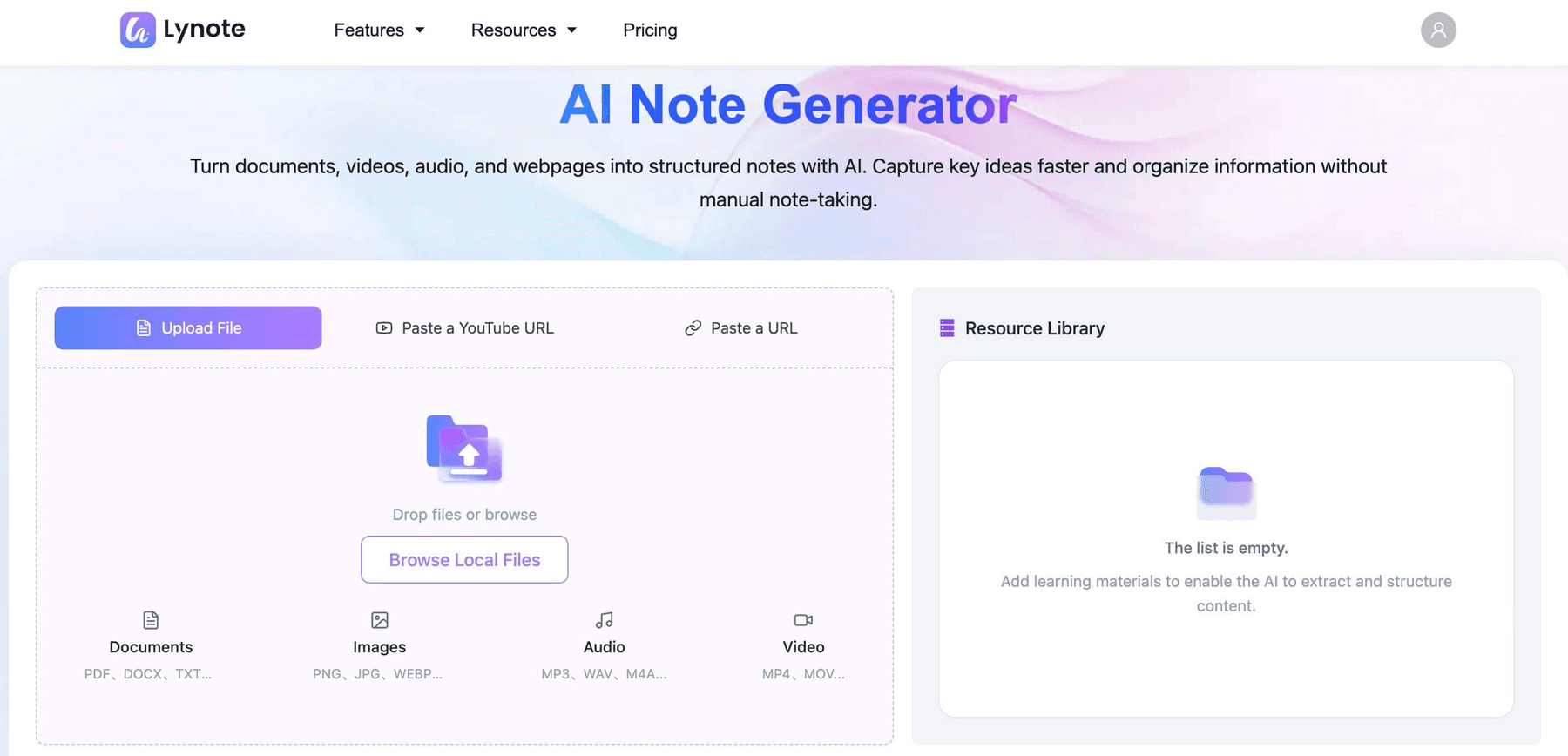
Best for: Students, online learners, researchers, and anyone who wants to turn existing learning materials into organized notes.
Lynote is an AI-powered learning platform designed to simplify how users capture, organize, and review information. Unlike traditional note taking programs for Windows that primarily depend on manual typing, Lynote can generate structured notes from supported documents, videos, audio recordings, and webpages. It works through a browser, so Windows users do not need a dedicated desktop installation.
Why We Picked Lynote
Lynote stands out for connecting several stages of the study process. Students often switch between PDF textbooks, recorded classes, YouTube tutorials, and online articles, making it difficult to keep notes consistent. Lynote lets users turn supported source material into editable AI notes, then revisit the content through AI Chat and Flashcards.
This approach is helpful when the main challenge is processing a large amount of material rather than simply finding a place to type. AI Chat answers should still be checked against the uploaded sources, particularly for technical information or important conclusions.
Key Features
- AI Note Generator: Turn supported PDFs, documents, audio, videos, and URLs into structured notes.
- Editable Notes: Correct, expand, and personalize generated notes.
- Multiple Source Types: Bring different learning materials into a consistent workflow.
- AI Chat: Ask questions about information contained in the materials.
- AI Flashcards: Create study cards for review and active recall.
- Multilingual Support: Work with learning content in different languages.
Pros
- Reduces manual transcription and note organization for supported materials.
- Connects note generation with questions and flashcard review.
- Supports different types of study content.
- Accessible from a Windows web browser.
Cons
- Not designed primarily for pen-based handwriting or stylus sketches.
- Generated notes may omit details and need human review.
- AI answers are limited by the information available in the source content.
- AI processing needs an internet connection.
Pricing: Free access is available; verify current usage limits and paid plans on the official website.
Who should choose it? Choose Lynote if you study from lectures, PDFs, videos, or articles and want a repeatable process from source materials to editable notes and review. If you primarily want handwritten notebooks or a fully offline editor, consider Goodnotes, OneNote, Joplin, or Obsidian instead.
2. Microsoft OneNote: Best for Everyday Windows Note-Taking
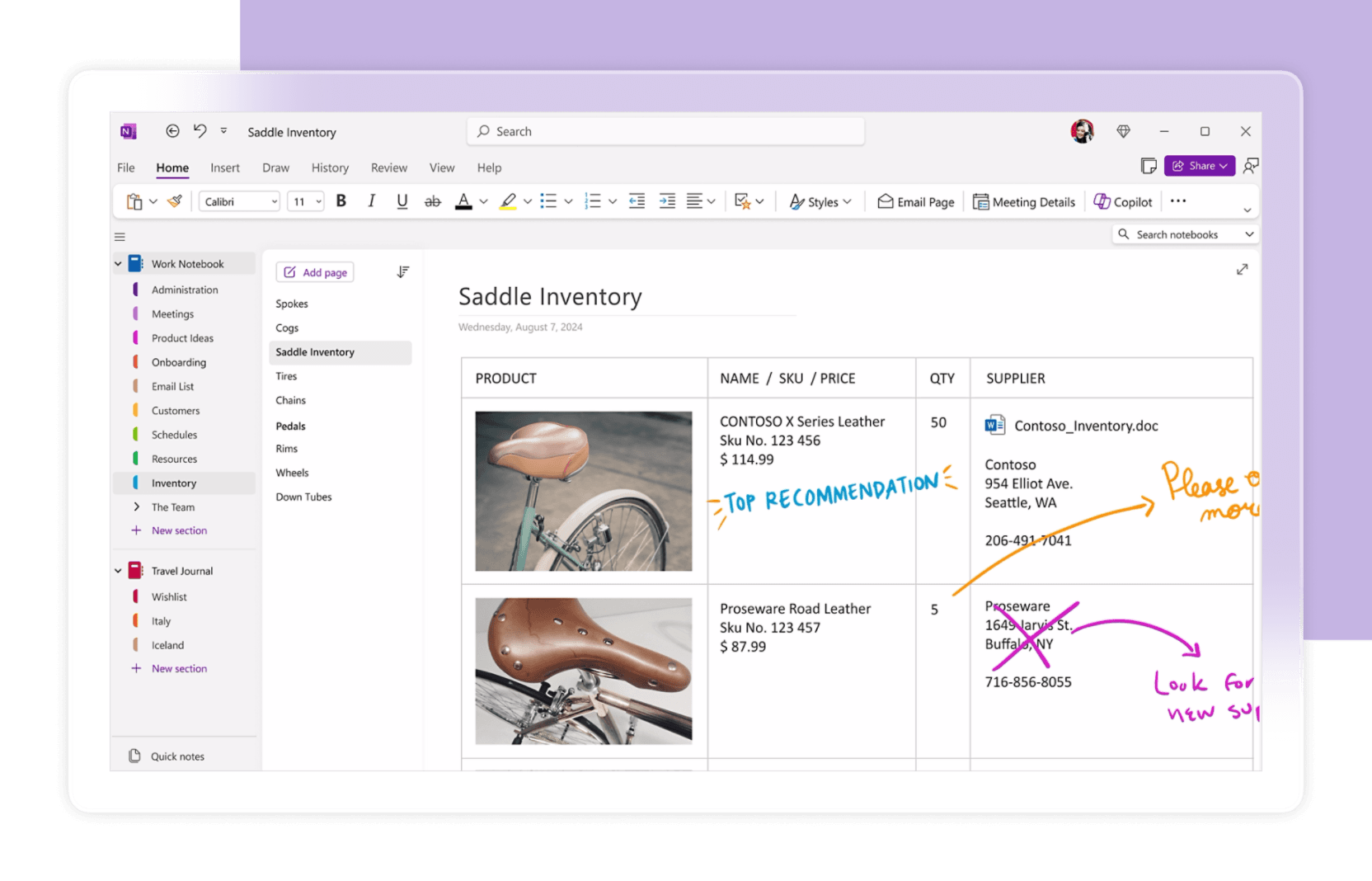
Best for: Students, professionals, and Microsoft users who need a flexible digital notebook.
Microsoft OneNote is one of the most versatile note taking applications for Windows. Its notebook structure lets users organize material into sections and pages while mixing typed notes, images, drawings, and attachments. OneNote is especially convenient for people already using Microsoft products.
Why We Picked OneNote
OneNote feels familiar to anyone who has organized paper notebooks by topic. Its flexible canvas accommodates text, diagrams, and handwritten annotations without enforcing a rigid page layout. For a general-purpose Windows note application, that versatility is hard to beat.
Key Features
- Notebooks, sections, and pages.
- Handwriting and drawing with compatible hardware.
- Search and note organization.
- Images, links, and attachments.
- Integration with the Microsoft ecosystem.
Pros: Flexible desktop experience; useful free core functions; typing and handwriting in one workspace.
Cons: Large notebooks require consistent organization; some advanced AI functionality may involve additional subscriptions; less focused on flashcard-centered study workflows.
Pricing: OneNote has a free version; certain premium functions are associated with Microsoft 365. Check the official OneNote site for current details.
Who should choose it? Choose OneNote for general class notes, meetings, and mixed handwriting and typing. Users searching for a dependable notes app for Windows will appreciate its mature desktop features.
3. Notion: Best for Organized Notes and Project Management
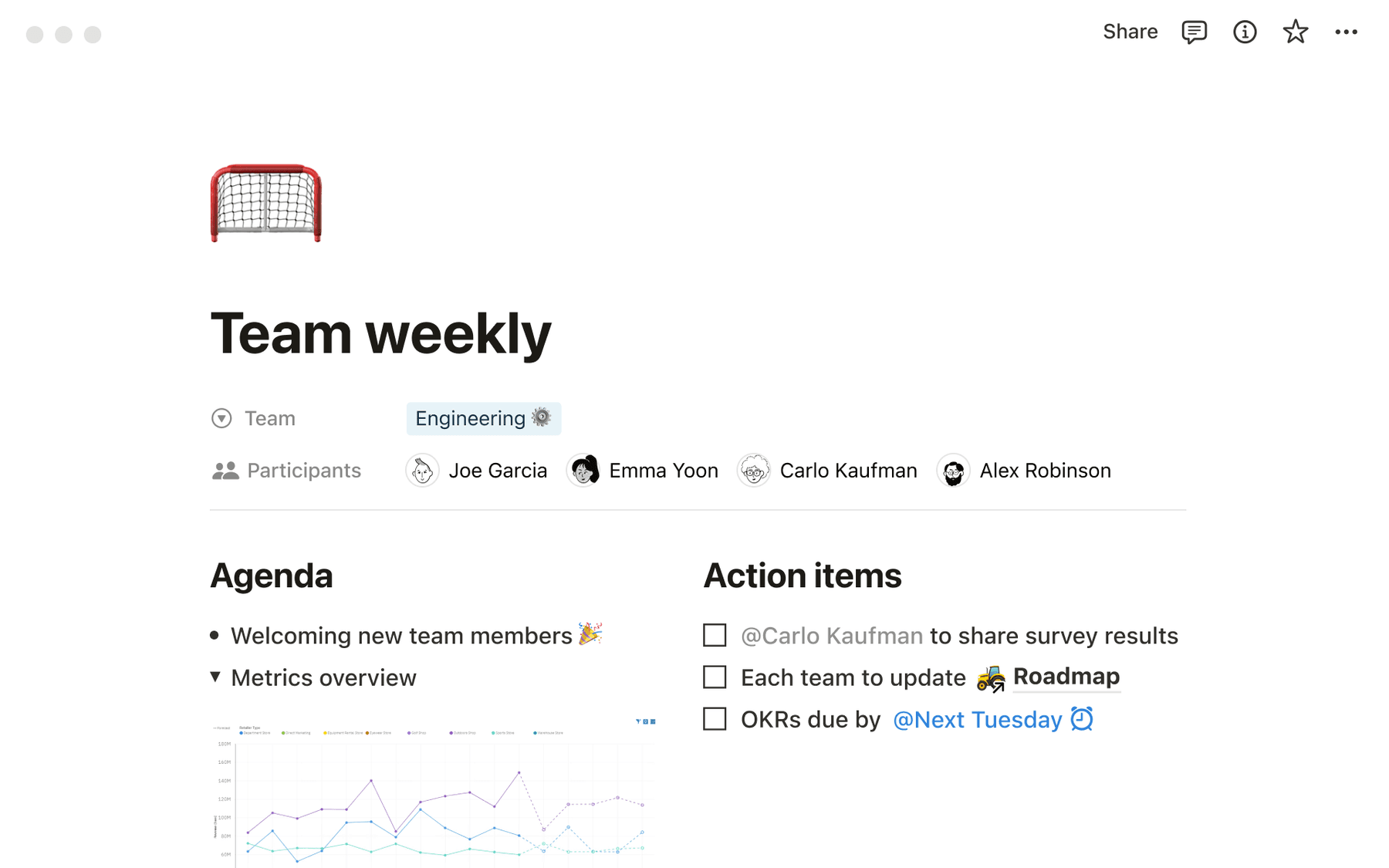
Best for: Students, teams, and professionals who want notes, tasks, and databases in one workspace.
Notion combines documents, databases, project tracking, and collaborative workspaces. Users can design course dashboards, content calendars, research libraries, or team knowledge bases. It is a flexible alternative to a basic note taking application for Windows, especially when notes are part of a larger project.
Why We Picked Notion
Notion is effective when information needs to be structured and shared. Instead of keeping every note in an isolated notebook, users can connect pages to tasks, schedules, and database entries. A student might organize class notes alongside reading lists and revision plans in one workspace.
Key Features
- Customizable pages and templates.
- Databases with multiple views.
- Collaborative editing and sharing.
- Task and project organization.
- AI features on eligible plans.
Pros: Highly customizable; useful for teams; combines notes with operational planning; Windows desktop and browser access.
Cons: Setup can become complex; customization can distract from note-taking; some features require paid plans.
Pricing: Free plan available, with paid subscriptions for additional features and team needs. Verify current prices on Notion's website.
Who should choose it? Choose Notion if you want your notes connected to projects and structured databases. For quickly generating notes from video or audio materials, a specialized tool such as Lynote may be more direct.
4. Obsidian: Best for Personal Knowledge Management
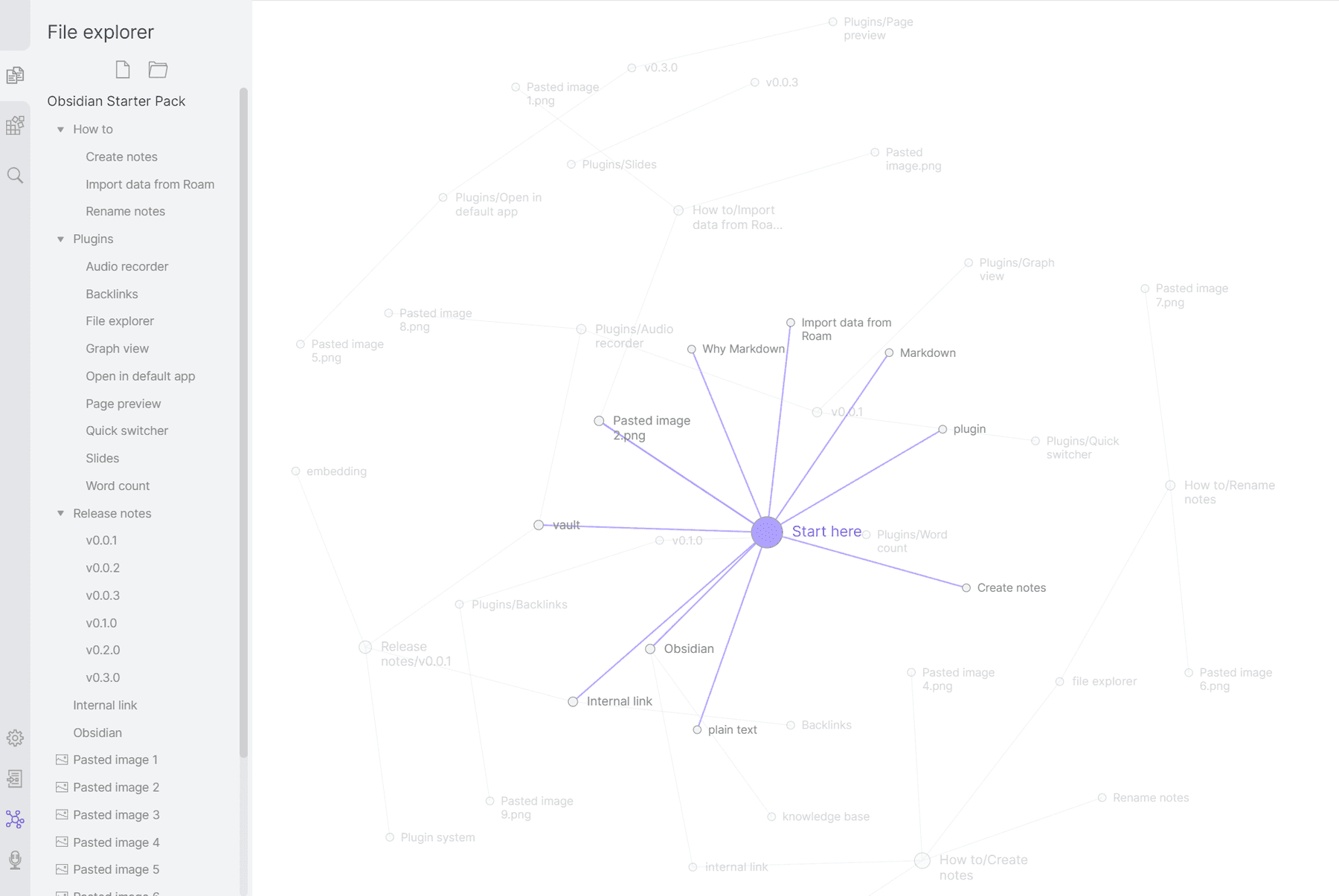
Best for: Researchers, writers, developers, and people building connected knowledge libraries.
Obsidian is a Markdown-based note-taking app built around local files and linked ideas. Rather than treating each note as an isolated page, it encourages users to connect concepts through links and backlinks. Its graph view helps visualize those connections across a growing knowledge base.
Why We Picked Obsidian
Obsidian offers meaningful control over note storage and organization. Local Markdown files remain usable outside the app, which can appeal to users who care about portability. For long-term research and writing, connections between notes can become as useful as the individual notes themselves.
Key Features
- Local Markdown note files.
- Internal links and backlinks.
- Interactive graph view.
- Plugins and themes.
- Optional synchronization service.
Pros: Free core application; offline-first; portable files; powerful linking and customization.
Cons: Learning curve for Markdown and advanced workflows; collaboration is not its strongest use case; official sync is an optional paid service.
Pricing: The core app is free, with optional paid services. Check Obsidian's official pricing for current rates.
Who should choose it? Choose Obsidian if you prefer building a personal knowledge system with your own files. It can be the best note taking program for Windows for users who think in interconnected concepts rather than fixed notebooks.
5. Evernote: Best for Capturing and Organizing Information
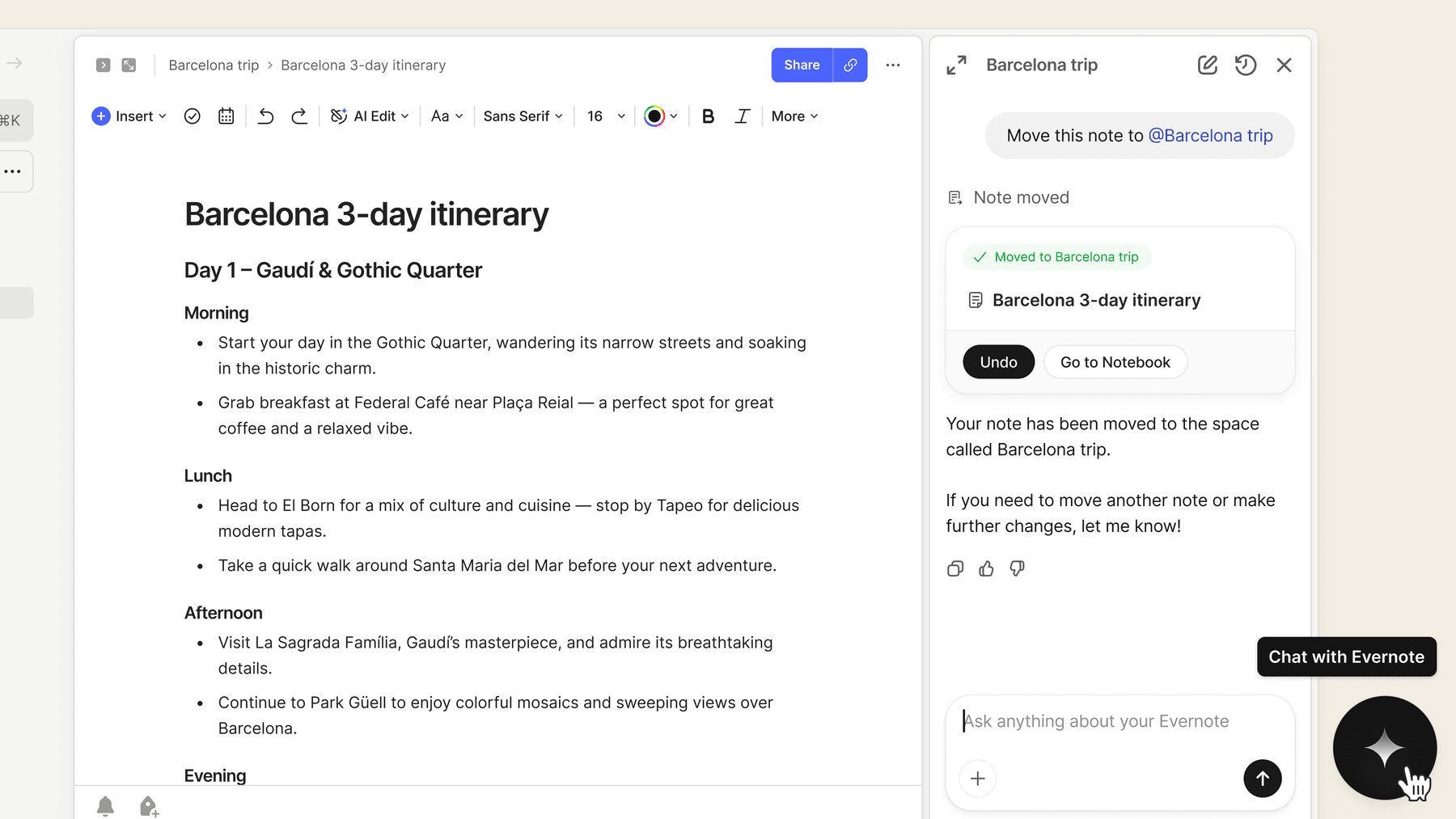
Best for: Professionals and researchers who gather information from websites and documents.
Evernote focuses on collecting, organizing, and finding information later. Users can save notes, attach documents, and clip useful content from webpages. Its notebooks and search tools suit people who maintain reference collections over time.
Why We Picked Evernote
Evernote remains useful when note-taking begins with capturing existing information. Web clipping helps users preserve articles and reference material without repeatedly copying content into separate files. That makes it a natural fit for research archives and professional resource libraries.
Key Features
- Web Clipper for webpages.
- Notes, notebooks, and attachments.
- Search and content retrieval.
- Task and productivity features.
- Cross-device synchronization.
Pros: Convenient web capture; organized reference collections; multi-device access.
Cons: Free-plan restrictions; paid plans may be expensive for basic use; not primarily designed for study-note generation and flashcard review.
Pricing: Limited free plan with paid subscriptions available. Confirm current limits and prices at Evernote.
Who should choose it? Choose Evernote when saving, searching, and reusing collected reference material is your main priority. For simple free notes app for Windows needs, other tools may provide more generous entry-level options.
6. Joplin: Best Free Open-Source Note-Taking App
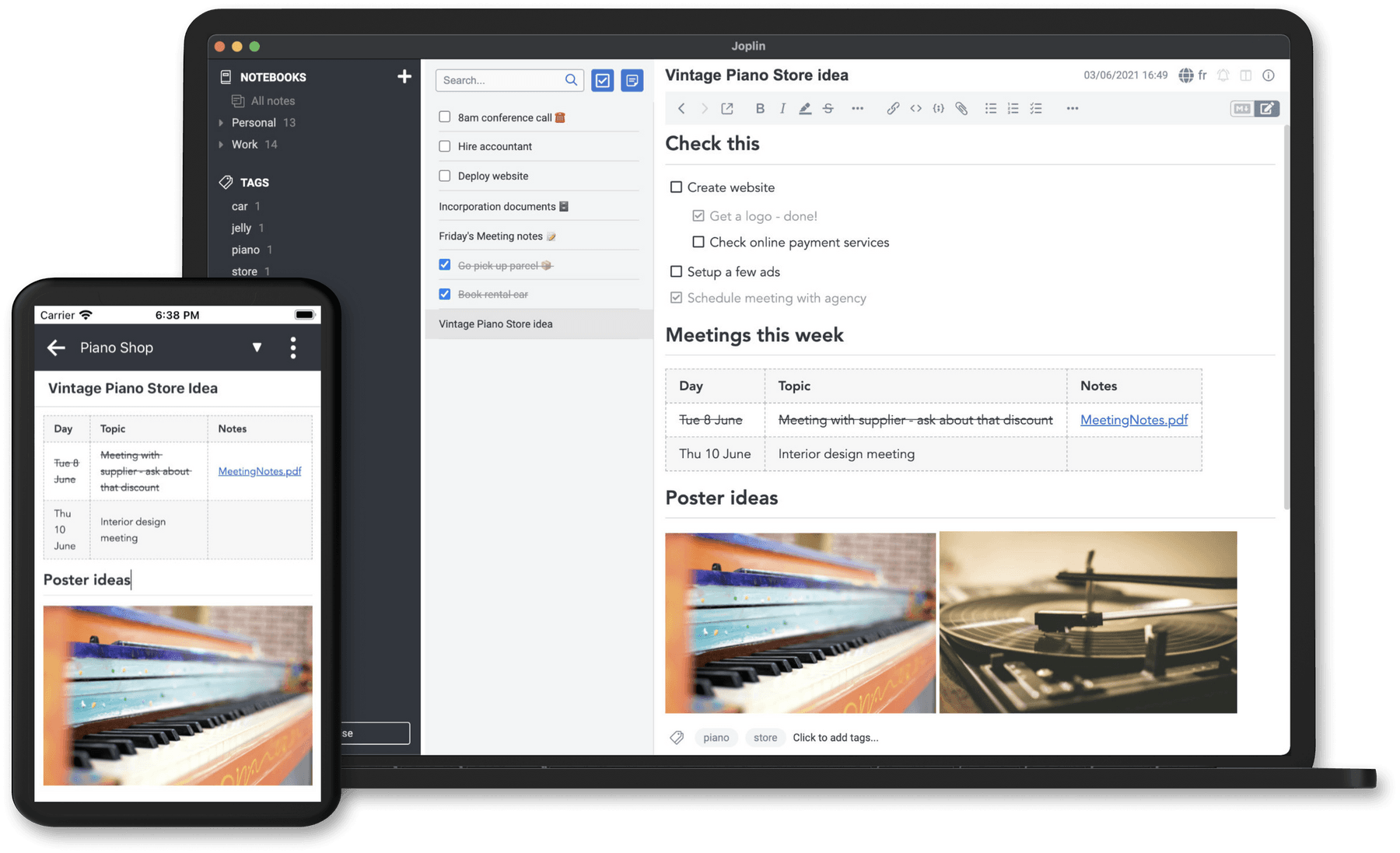
Best for: Privacy-conscious users and people seeking open-source, offline notes.
Joplin is a free, open-source tool with Markdown editing, notebooks, tags, and offline storage. Notes can remain local, while users who want synchronization can configure supported services or Joplin Cloud. It offers a practical alternative to cloud-centric note taking software for Windows.
Why We Picked Joplin
Joplin combines accessible organization with control over where notes are stored. It supports encrypted synchronization and multiple ways to organize material. Users who prefer functionality and flexibility over visual polish may find it an appealing everyday notebook.
Key Features
- Markdown editing and notebooks.
- Local and offline note access.
- End-to-end encryption for supported sync workflows.
- Tags, search, and to-do lists.
- Web Clipper and plugins.
Pros: Free and open source; offline-first; multiple synchronization options; strong data control.
Cons: Less polished interface than some paid competitors; synchronization may require setup; AI note generation is not a core feature.
Pricing: Free desktop app; optional paid Joplin Cloud subscriptions.
Who should choose it? Joplin may be the best free note taking app for Windows if offline access, open-source software, and control of your notes are your main concerns.
7. Goodnotes: Best for Handwritten Notes on Windows
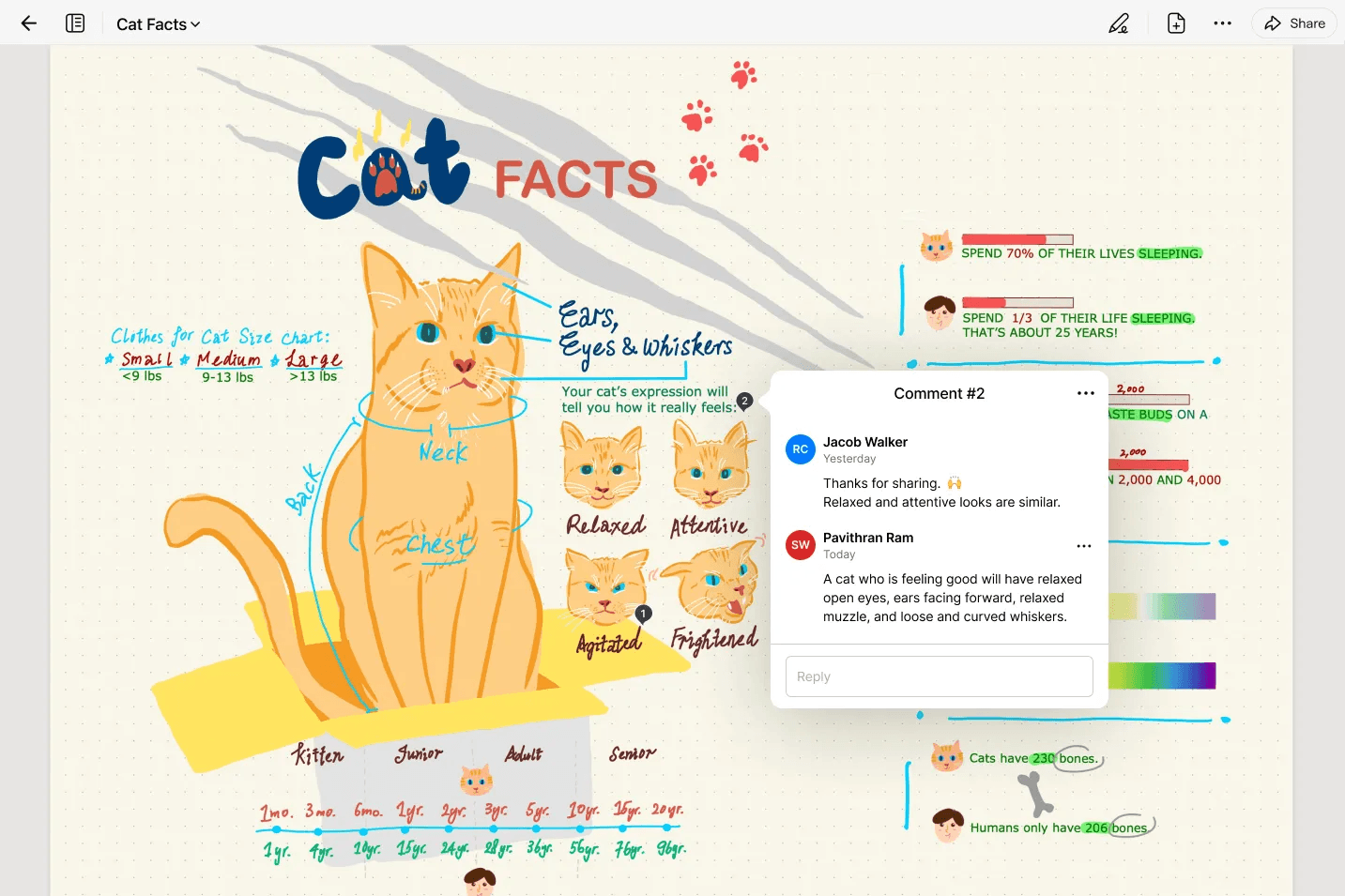
Best for: Students, teachers, and touchscreen users who prefer writing by hand.
Goodnotes focuses on handwriting, sketching, and document annotation. It is useful on stylus-enabled Windows devices where freeform writing matters as much as typed text. Users can work with digital notebooks and annotate learning materials in a more paper-like environment.
Why We Picked Goodnotes
Handwriting is important in subjects that involve equations, diagrams, and visual explanation. Goodnotes offers a notebook experience designed around that type of work. It is therefore a more natural choice than a text-first editor for some tablet-based learning routines.
Key Features
- Handwriting and pen tools.
- Notebook templates and page layouts.
- PDF annotation.
- Search and editing features on supported plans and platforms.
- Sharing and collaboration features.
Pros: Strong stylus-centered workflow; useful for diagrams and equations; paper-like page experience.
Cons: Less compelling without stylus hardware; features vary by platform and subscription; not focused primarily on converting mixed source materials into AI notes.
Pricing: Free and paid options are available. Confirm Windows-specific features and prices on Goodnotes.
Who should choose it? Choose Goodnotes if you take handwritten lecture notes or annotate PDFs on a Windows tablet. It is one of the strongest options for people who want handwriting rather than automated note creation.
8. Google Keep: Best for Quick Notes and Reminders
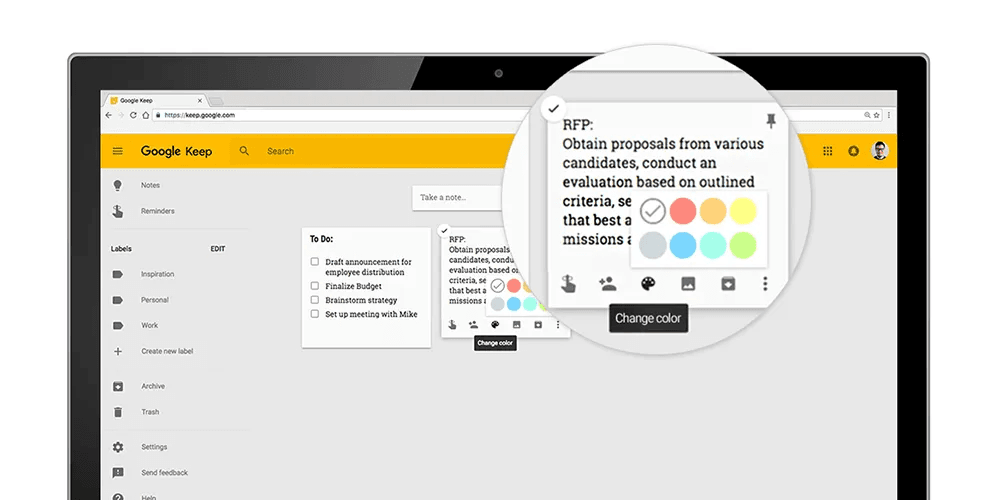
Best for: Quick ideas, checklists, short notes, and everyday reminders.
Google Keep offers a lightweight place to capture information without elaborate organization. Users can add short notes, lists, and reminders, then access them through their Google account. On Windows, it works conveniently in a web browser.
Why We Picked Google Keep
Google Keep is designed for speed and simplicity. Users can record an idea or task without configuring notebooks or databases. Its minimal structure is a strength for everyday reminders but becomes limiting for complex academic notes or extensive research.
Key Features
- Quick notes and checklists.
- Labels and color-coded organization.
- Reminders and pinned notes.
- Sharing features.
- Google account integration.
Pros: Free with a Google account; easy to learn; convenient for short notes; browser access on Windows.
Cons: Basic formatting; limited complex note hierarchies; not designed for extensive study material or AI-generated study notes.
Pricing: Free with a Google account.
Who should choose it? Google Keep is a practical answer if you want a notes app for Windows free of complex setup. It works best for simple reminders, not as a replacement for a full academic knowledge base.
9. Standard Notes: Best for Secure and Private Note-Taking
Best for: People who prioritize encryption and private note storage.
Standard Notes is a privacy-focused note app with end-to-end encryption at the center of its design. Its straightforward interface helps users write and synchronize notes without making complicated project management the main goal. It is available across several platforms, including Windows.
Why We Picked Standard Notes
Standard Notes appeals to users who put security before extensive visual customization. It supports a simple encrypted writing workflow and adds more advanced editing tools on paid plans. That makes it relevant for personal notes and information that users want to keep private.
Key Features
- End-to-end encryption.
- Offline note access.
- Cross-device synchronization.
- Tags and organization.
- Additional editing capabilities on paid plans.
Pros: Encryption-focused; usable free plan; offline access; cross-platform support.
Cons: Advanced editing and organization may require payment; not centered on AI learning workflows; less flexible than project-focused tools for team collaboration.
Pricing: Free plan and paid upgrades available. Check Standard Notes pricing for current details.
Who should choose it? Standard Notes is a good fit if encrypted personal note storage is your biggest concern. For users who prioritize AI study assistance or rich visual notebooks, other applications may be more suitable.
How to Choose the Best Note Taking App for Windows
The best note taking application for Windows depends on your information sources and how you prefer to work. A student reviewing recorded classes has different needs from a researcher maintaining connected notes or a professional organizing shared projects. Consider these five factors before deciding.
1. Match the App to Your Workflow
Start by identifying how you create most of your notes. If you study from PDFs, audio, videos, and webpages, Lynote can help turn source material into structured notes. If you mostly type or handwrite your own content, OneNote and Goodnotes offer more direct writing workflows.
2. Consider Organization and Search
Useful note taking for Windows includes retrieving information after it is saved. Notion emphasizes structured databases, Obsidian emphasizes connections between ideas, and Evernote emphasizes collected reference material. Choose the organizational style you will actually maintain.
3. Decide Whether You Need AI Features
Traditional notes software for Windows helps users write and organize information manually. AI-powered tools can help summarize or structure content, but their output still requires verification. Lynote is particularly useful when the goal is to generate editable notes from supported learning material and review them with Flashcards or AI Chat.
4. Check Offline Access and Device Support
A digital note taking app for Windows may be a native desktop app or a browser-based service. Obsidian and Joplin are useful when local file access and offline work matter most. Lynote and Google Keep emphasize easy browser access, though their cloud-dependent features require connectivity.
5. Compare Free Plans Carefully
Many free note taking apps for Windows cover everyday needs, but feature limits vary. Google Keep and OneNote are approachable general-purpose choices, while Joplin and Obsidian offer capable free desktop software. Lynote is worth considering when AI-assisted study notes are the main priority.
Which Windows Note-Taking App Should You Choose?
No single best note program for Windows suits everyone. Instead of comparing feature counts alone, choose the application that matches the task you repeat most often.
| Your Main Need | Recommended App | Reason |
|---|---|---|
| Generate notes from PDFs and videos | Lynote | Source-to-notes and review workflow |
| Take general-purpose typed and handwritten notes | OneNote | Flexible Windows notebook |
| Combine notes with projects | Notion | Pages, tasks, and databases |
| Build a connected knowledge library | Obsidian | Markdown and backlinks |
| Capture web articles and references | Evernote | Clipping and search |
| Use open-source offline software | Joplin | Local-first notes |
| Write with a stylus | Goodnotes | Handwriting and annotation |
| Record quick reminders | Google Keep | Simple lists and note cards |
| Keep notes encrypted | Standard Notes | Encryption-first approach |
For someone searching for the best note software for Windows, the most useful decision is often between a manual notebook, an organizational workspace, and an AI-assisted learning tool. Each category solves a different problem.
Final Verdict: What Is the Best Notes App for Windows in 2026?
Choosing among the best note taking apps for Windows depends on whether you prioritize handwriting, collaboration, offline control, privacy, or AI assistance. OneNote is versatile for everyday notes, Notion is powerful for structured workspaces, and Obsidian is well suited to connected personal knowledge. For students who learn from multiple source formats, Lynote offers a focused way to turn study materials into editable notes, ask source-grounded questions, and create flashcards for review.
Frequently Asked Questions
What is the best free note taking app for Windows?
OneNote is a strong general-purpose choice, while Joplin and Obsidian are capable free desktop alternatives. Google Keep is suited to fast notes and reminders. The best free note taking app for Windows depends on whether you need handwriting, offline storage, advanced organization, or AI-assisted study tools.
Are there free note taking apps for Windows 11?
Yes. OneNote, Joplin, Obsidian, and several other tools offer free features on Windows 11. Browser-based services such as Google Keep and Lynote can also be accessed on Windows devices. Check each product's current free-plan limitations before adopting it.
What is the best note taking software for Windows students?
Lynote, OneNote, Notion, and Goodnotes serve different student needs. Lynote helps generate notes from supported learning materials, OneNote supports flexible typed and handwritten notes, Notion helps structure courses and tasks, and Goodnotes emphasizes handwriting. Match your choice to your actual study routine.
Can I download a notes app for Windows for free?
Yes. If you want to download notes app for Windows, official downloads are available for tools such as OneNote, Obsidian, and Joplin. Some other tools, including Lynote and Google Keep, can be used in a web browser without installing a dedicated desktop app.
Which Windows note application works best offline?
Obsidian and Joplin are strong offline options because they support locally stored notes. Other applications may provide some offline functionality, but synchronization can depend on an internet connection. Check the exact Windows plan and configuration if offline access is essential.
What is the difference between traditional note-taking and AI note-taking?
Traditional note-taking apps primarily help users capture and organize information manually. AI note-taking tools can help convert supported documents, recordings, and webpages into structured notes or summaries. For example, Lynote can generate editable notes from source materials, but important content should still be checked against the originals.
Which is the best note taking application for Windows with handwriting support?
Goodnotes and Microsoft OneNote are useful options for handwriting on Windows. Goodnotes focuses on a paper-like notebook experience, while OneNote combines handwriting with a broader note organization system. A stylus-enabled device can make either workflow more effective.

Written by Hamza Razzaq
Technical Writer
Hamza creates hands-on explainers and technical guides that make AI writing tools easier to understand and use. View all articles →