Google Compress PDF: Drive, Docs, Chrome, and an Easier Online Option

Google compress PDF is a common search when a PDF is stored in Google Drive, opened in Google Docs, or viewed in Chrome, but the file is still too large to upload, email, or share. The short answer is that Google tools can help you manage, view, export, or re-save files, but they do not give you a dedicated PDF compression workflow. If you need to reduce PDF file size directly, Lynote Compress PDF is usually the simpler route.
Can Google Compress PDF Files?
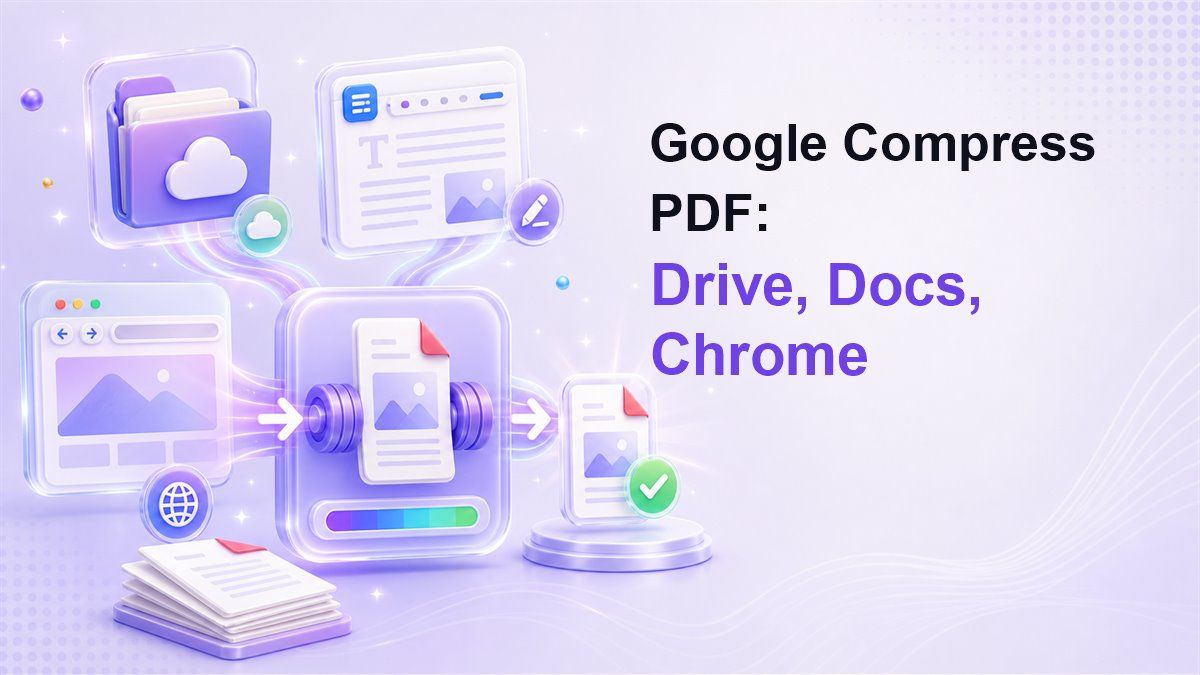
Google Drive is excellent for storing, syncing, previewing, and sharing PDF files. Google Docs can open some PDF content through conversion, and Chrome can save web pages or printable files as PDFs. But if your goal is a true google compress PDF workflow with target size, compression, preview, and download, Google does not provide that as a dedicated Drive or Docs button.
That distinction matters because many users ask "can Google Drive compress PDF?" when they actually need a smaller attachment or portal-ready file. Drive can store the file, but storage is not compression. Docs can create a new PDF from editable content, but that is not the same as compressing the original PDF.
Chrome can print or save content as PDF, but that mainly creates a PDF from a page or printable view. It is useful for exporting, not for controlled PDF file-size reduction. For a direct compress PDF online workflow, Lynote is more focused.
Compress PDF from Google Drive with Lynote
If your PDF is already in Google Drive, the easiest path is to download it first, then compress it with Lynote. This avoids the trial-and-error of opening the PDF in Docs, changing layout, exporting again, and checking the file size manually.
Step 1. Download the PDF from Google Drive
Open Google Drive and find the PDF you want to reduce. Download the file to your device so you can upload the exact original PDF into a compressor.
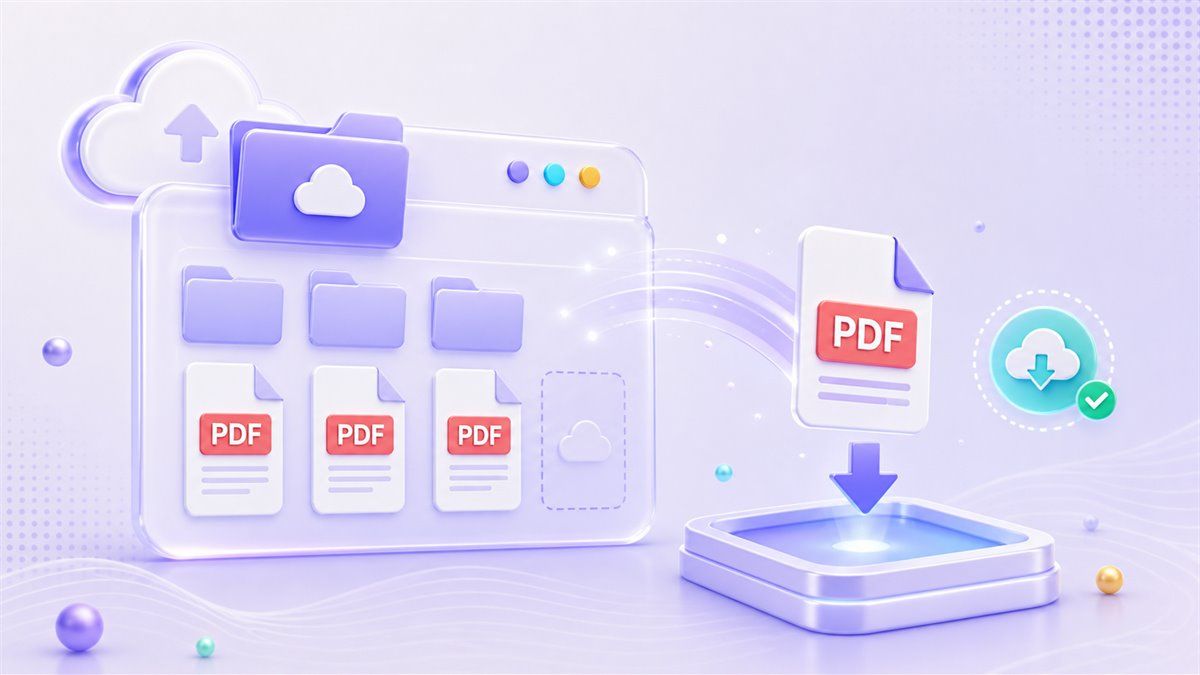
This method is useful when you need to compress PDF from Google Drive without changing the document content. It also helps preserve the original file in Drive as a backup. After compression, you can upload the smaller version back to Drive and share that copy.
Step 2. Open Lynote Compress PDF
Go to Lynote Compress PDF. Choose a target size before uploading when you need the PDF to fit a specific email, form, school portal, or file-sharing limit.
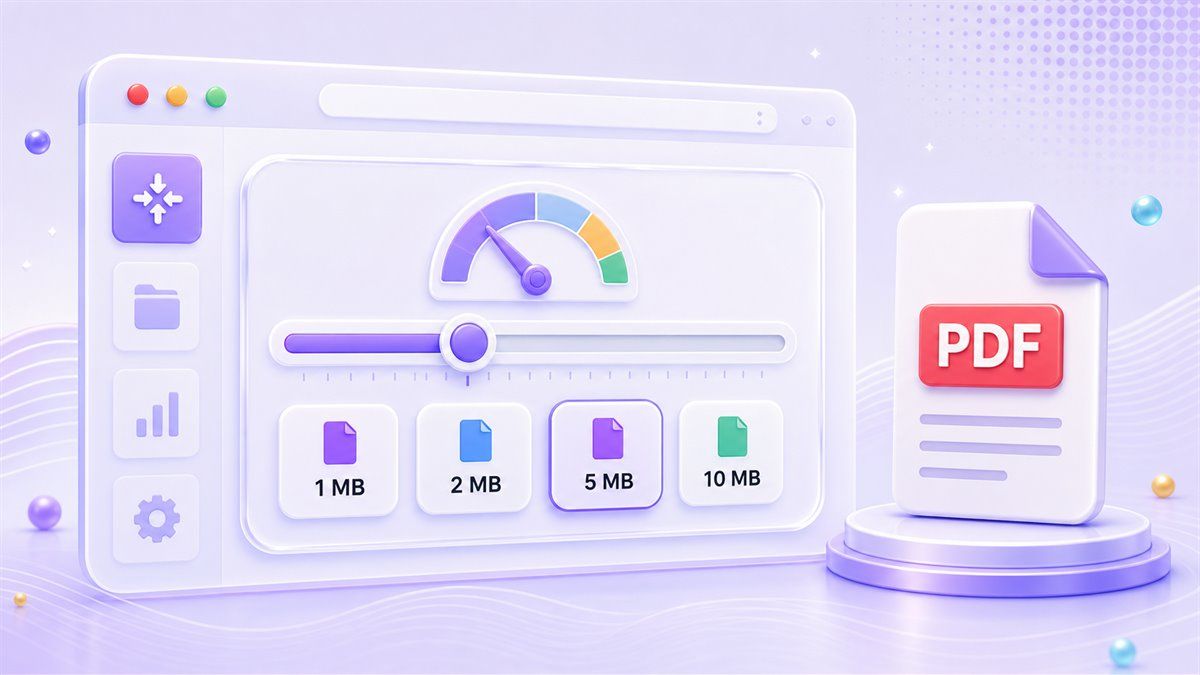
This is where Lynote differs from a basic Google compress PDF workaround. Instead of guessing how small the file might become, you can start with a target. That is helpful when a form accepts only 1 MB, 2 MB, 5 MB, or another strict limit.
Step 3. Upload the PDF and Let Compression Run
Drag the PDF into Lynote or choose it from your device. After upload, compression starts automatically, so you do not need to adjust technical settings.
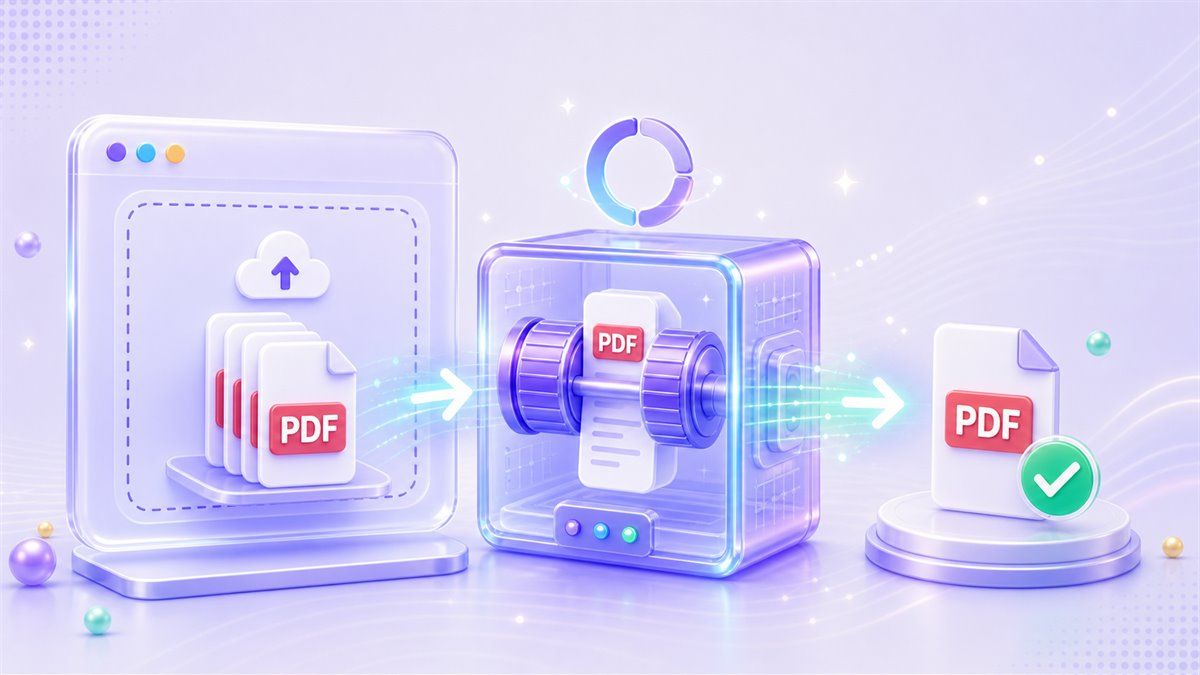
This works for one file or multiple PDFs. If you searched for compress PDF file size in Google Drive because you have several large Drive files, you can download the files and process them in a batch-style workflow. Then you can keep the smaller versions in Drive for easier sharing.
Step 4. Preview the Original and Compressed PDF
Before downloading, preview the compressed result. Compare the original PDF and compressed PDF to make sure the text, charts, images, and layout still look usable.
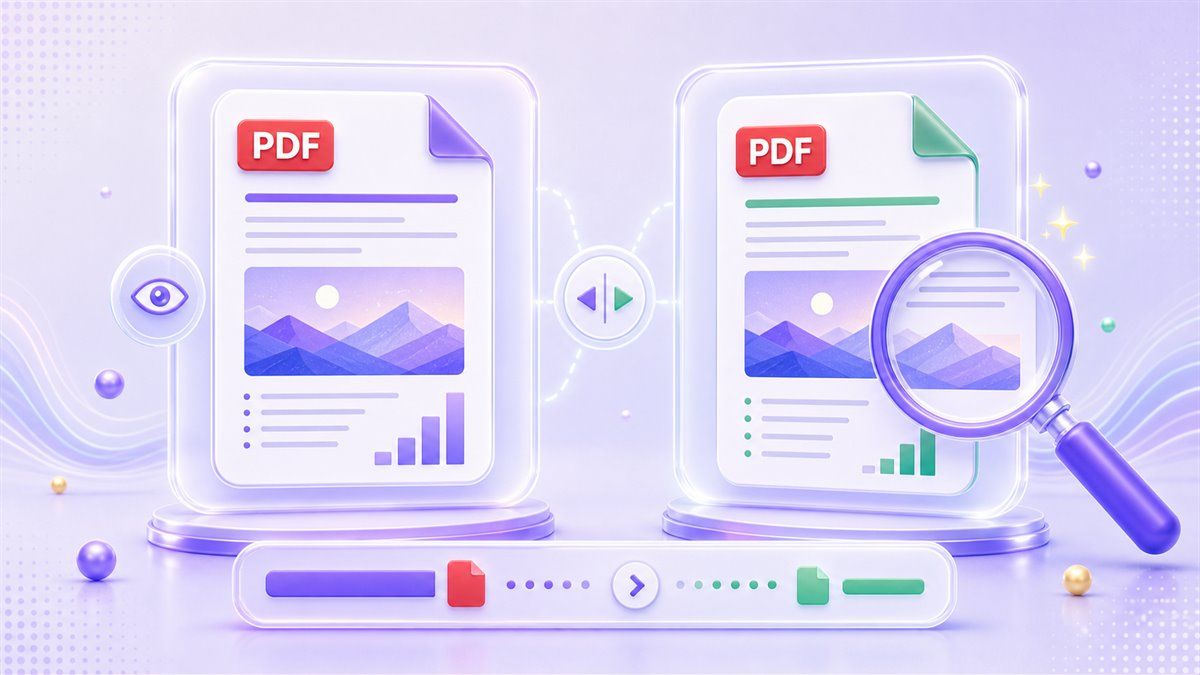
This preview step is important because a smaller file is not automatically a better file. If the PDF contains scanned pages, screenshots, or design images, quality review matters. Lynote lets you check the result before you use it.
Step 5. Download and Re-Upload to Google Drive
After previewing, download the compressed PDF. You can then upload it back to Google Drive, replace the older large version if appropriate, or keep both versions.
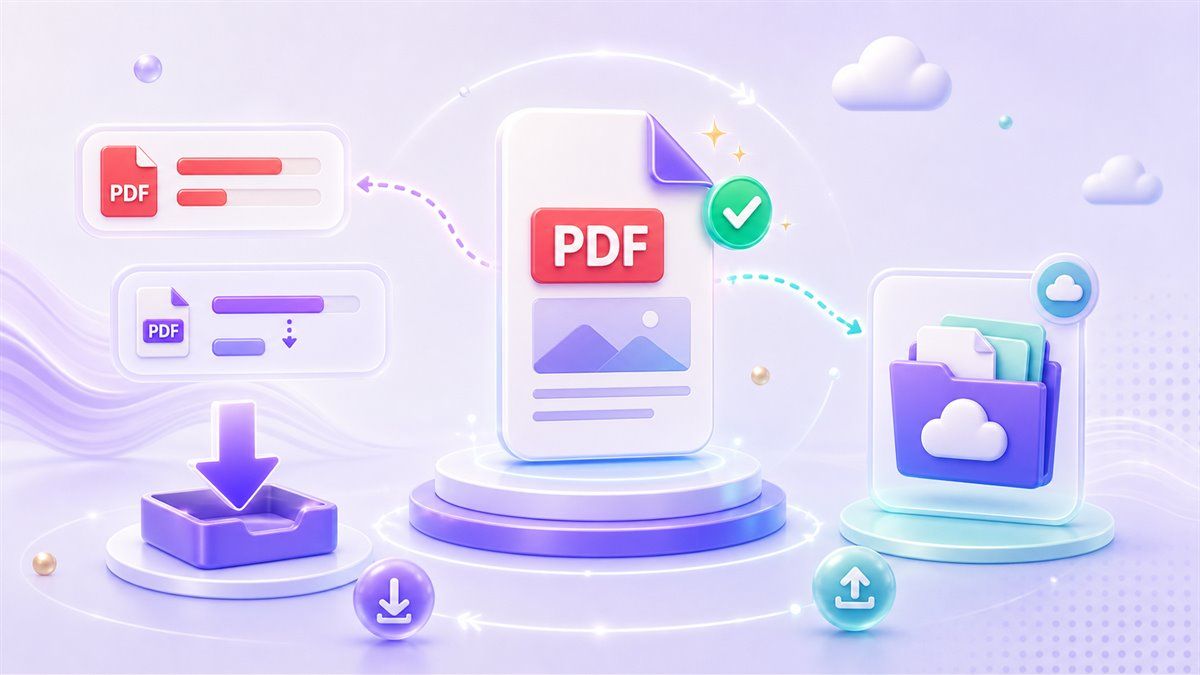
This gives you the best of both workflows. Google Drive remains your storage and sharing hub, while Lynote handles the actual PDF compression. That is the cleanest answer for users searching how to compress a PDF in Google Drive.
Google Drive Compress PDF: What Works and What Does Not
Google Drive can preview PDFs, organize files, and share links. It can also connect to third-party apps, depending on your account and workspace settings. But Drive itself is not built around target-size PDF compression.
If you search compress PDF Google Drive, you may find suggestions to download the file, use another tool, and upload it again. That is because Drive does not offer a native "compress PDF" action for existing PDF files. The file stays the same size unless you process it somewhere else.
Here is the practical comparison:
| Workflow | What It Does | Best For | Limitation |
|---|---|---|---|
| Google Drive | Stores, previews, and shares PDFs | File access and collaboration | No native target-size PDF compression |
| Google Docs | Converts some PDF content into editable text | Editing simple text-based files | Layout and images may change |
| Chrome | Saves printable pages as PDF | Creating PDFs from web pages | Not a direct compressor for existing PDFs |
| Lynote Compress PDF | Reduces PDF file size and previews results | Smaller PDFs for upload, email, or sharing | Compression result depends on original PDF content |
For most users, the fastest method is not to force Google Drive to compress PDF files. Use Drive for storage and Lynote for compression.
Google Docs Compress PDF: When It Can Help
Google Docs can sometimes open a PDF as an editable document. You may then download that document as a PDF again. In some cases, the new export may be smaller than the original file.
However, this is not a reliable google docs compress PDF method. When a PDF is converted into Docs, formatting can shift, images may move, and scanned content may not convert cleanly. If your PDF has tables, signatures, branded layout, or design-heavy pages, this workaround can create more cleanup work.
Use Google Docs only when your main goal is editing text. If your main goal is to compress PDF file size, use a purpose-built compressor instead. Lynote is more direct because it keeps the task focused on reducing the PDF while letting you preview the result.
Chrome Compress PDF: What Chrome Can Actually Do
Chrome is useful for opening PDFs and saving web pages as PDFs. You can also use the print dialog to create a PDF from printable content. This is why many people search compress PDF Google Search or Google Chrome PDF compression.
But Chrome is not the same as a dedicated compressor. It does not give you a simple target-size control for an existing PDF. It also does not provide a before-and-after PDF preview focused on file-size reduction.
Chrome works well when you are creating a new PDF from a web page or printable document. If you already have a large PDF and need a smaller version, open Lynote instead. That keeps the workflow short and avoids confusing print settings.
Best Way to Compress PDF Online After Google Search
If you find yourself typing google compress PDF online, the real question is usually this: "What is the fastest safe way to make this PDF smaller?" The best answer is to use a tool built specifically for PDF compression.
Lynote gives you a clear sequence. Choose a target size, upload your PDF, let the compression run, preview the result, and download the smaller file. You can then store it in Google Drive, attach it to Gmail, submit it to a portal, or share it with a client.
This workflow also helps when you need google compress PDF free alternatives. You do not have to install a desktop app or use a developer workflow. You can work in the browser and keep Drive as your file hub.
When Google Tools Are Still Useful
Google tools are still valuable around the compression workflow. Drive is useful for storing the original PDF, sharing the compressed copy, and keeping a cloud backup. Docs is useful when you need to edit text content before making a new PDF.
Chrome is useful when the source content is a web page, an online receipt, or a printable view. In that case, saving as PDF can be enough. But for an existing large PDF, Chrome is not the most direct answer.
Think of Google as the workspace and Lynote as the compression step. That gives you a cleaner workflow than trying to make Drive, Docs, or Chrome do a job they were not primarily designed for.
Common Use Cases
School and College Uploads
Students often need to upload PDFs to portals with strict file limits. If the file is in Google Drive, download it, compress it with Lynote, and upload the smaller version.
This is better than repeatedly exporting from Google Docs and hoping the file becomes smaller. You can choose a target size and preview the result before submitting it.
Business and Client Sharing
Large PDFs can slow down email, client review, and file sharing. A compressed PDF is easier to attach and faster to open.
If your team already uses Google Drive, keep the original file there. Use Lynote to create a smaller version for delivery. Then upload that compressed version back into the same project folder.
Forms, Applications, and Portals
Many government, job, and service portals set strict upload limits. Users often search how to compress PDF file size in Google Drive because the file is already stored there.
The better workflow is simple. Download from Drive, compress in Lynote, preview the file, and submit the smaller PDF. Keep the original Drive version in case you need the full-quality file later.
FAQs About Google Compress PDF
Can Google Drive compress PDF files?
No, Google Drive does not provide a dedicated native button to compress PDF files by target size. Drive is best for storing, previewing, and sharing PDFs. To reduce file size, download the PDF and use a tool like Lynote Compress PDF.
How do I compress a PDF in Google Drive?
The practical method is to download the PDF from Google Drive, compress it with Lynote, then upload the smaller file back to Drive. This keeps the original available while giving you a compressed version for sharing or uploading.
Can Google Docs compress PDF files?
Google Docs can open and export some files as PDFs, but it is not a dedicated PDF compressor. Converting a PDF through Docs may change layout, images, and formatting. Use it for editing text, not for reliable compression.
Can Chrome compress a PDF?
Chrome can save printable content as a PDF and open PDF files in the browser. It does not offer a dedicated target-size PDF compression workflow for existing PDFs. For compression, use Lynote after downloading the file.
Is there a Google compress PDF free option?
Google tools can help you store, view, or export files, but they do not provide a direct free PDF compressor inside Drive. Lynote offers a browser-based compress PDF workflow where you can choose a target size, upload PDFs, preview results, and download the smaller file.
Conclusion
If you searched google compress PDF, the key takeaway is simple: Google Drive, Google Docs, and Chrome can help around the PDF workflow, but they are not dedicated PDF compressors. Use Google Drive for storage, Docs for editing simple content, and Chrome for printable PDF creation. For actual file-size reduction, use Lynote Compress PDF, then save the smaller PDF back to Google Drive when you are done.

Written by Janet L. Harris
AI Writing Specialist
Janet reviews AI detectors and humanization tools, with a focus on accuracy, limitations, and responsible use. View all articles →