Vizard Video to Text Converter Alternative for Transcripts

If you are comparing the vizard video to text converter with a simpler transcript-first workflow, the main question is not only whether a tool can transcribe video. It is whether the final text is easy to review, reuse, copy, download, and turn into notes. Vizard is useful for creators who want transcription inside a video editing and repurposing workflow, while Lynote focuses on turning video into searchable, editable text.
For students, researchers, marketers, and teams, that difference matters. A video editor can be powerful, but it may feel heavier than needed when your goal is just to get clean text from a video or YouTube link. This guide compares the Vizard AI video to text converter with Lynote Video to Text so you can choose the better fit.
Key Facts About the Vizard Video to Text Converter
The vizard video to text converter is part of Vizard's broader AI video creation platform. Vizard positions its video-to-text workflow around uploading a video, generating a transcript, and using that text for subtitles, captions, or editing.
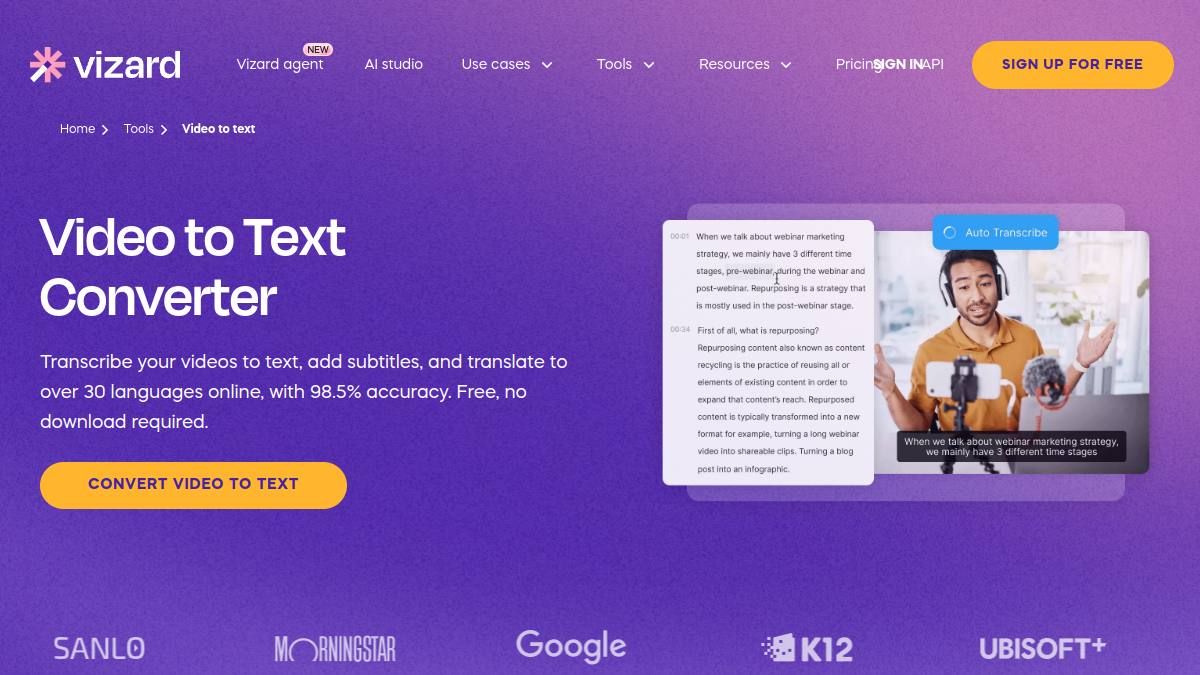
Vizard also connects transcription with video editing, subtitles, clipping, and repurposing. That makes it attractive for content creators who want to turn long videos into clips, subtitles, and social content. If your main goal is editing video content after transcription, that broader toolset can be useful.
The tradeoff is that not every user needs a full video editing suite. Many users searching for a vizard video to transcript option simply want text they can read, quote, summarize, or paste into study notes. For that workflow, Lynote is a more focused alternative.
How the Vizard AI Video to Text Converter Works
Step 1. Upload a Video
Vizard's workflow starts by uploading a video or using a supported video source. The user selects the language and prepares the content for AI transcription.
This is a familiar process for creators who already work with video editors. It is useful when your source is a webinar, podcast clip, interview, tutorial, or social video. The workflow is built around the video project, not only the transcript.
Step 2. Transcribe with AI
After upload, the Vizard AI video to text converter generates a transcript. Users can then edit the transcript and use the text as captions or subtitles inside the video workflow.
This is helpful if your next task is caption styling, subtitle export, or video trimming. It can also support repurposing workflows where transcript text becomes a source for clips, descriptions, or hashtags.
Step 3. Export or Share
Vizard allows users to export or reuse transcript-related outputs depending on the selected workflow. For creators, this can support subtitles, captions, short clips, or downloadable text assets.
That export path is useful, but it still sits inside a creator-oriented video platform. If you mostly need a clean transcript for notes, research, class review, or documentation, the extra editing environment may not be necessary.
Where Vizard Is Strong
Vizard is strongest when transcription is part of a video production workflow. It is designed for creators who need subtitles, clips, short-form repurposing, and video editing tools in the same product.
For example, a marketer may upload a webinar, generate captions, pull short clips, and reuse the transcript for social posts. A creator may transcribe a podcast video, edit the transcript, and produce captioned clips for TikTok or YouTube Shorts. In those cases, the vizard video to text converter fits naturally into the broader content workflow.
Vizard also promotes AI workflows for video editing and creator productivity. For creators testing short videos, that can make the tool easy to evaluate before committing to a larger workflow.
Where Vizard May Feel Too Heavy
The vizard video to text converter may feel heavier if you do not need video editing. Students, researchers, and knowledge workers often need the transcript itself, not a subtitle project or clip editor.
A lecture transcript, interview transcript, meeting recording, or YouTube research video usually needs a different workflow. You want to paste a link or upload a file, generate text, review the transcript, and reuse it in notes or documents. A full editing workspace can add extra steps when the goal is text extraction.
This is where Lynote becomes useful. It keeps the workflow centered on the transcript and what you can do with it after generation.
Lynote as a Vizard Video to Text Converter Alternative
Lynote Video to Text is built for users who want to turn video files and YouTube links into searchable, editable transcripts. It supports local video uploads such as MP4 and MOV, as well as YouTube link input.
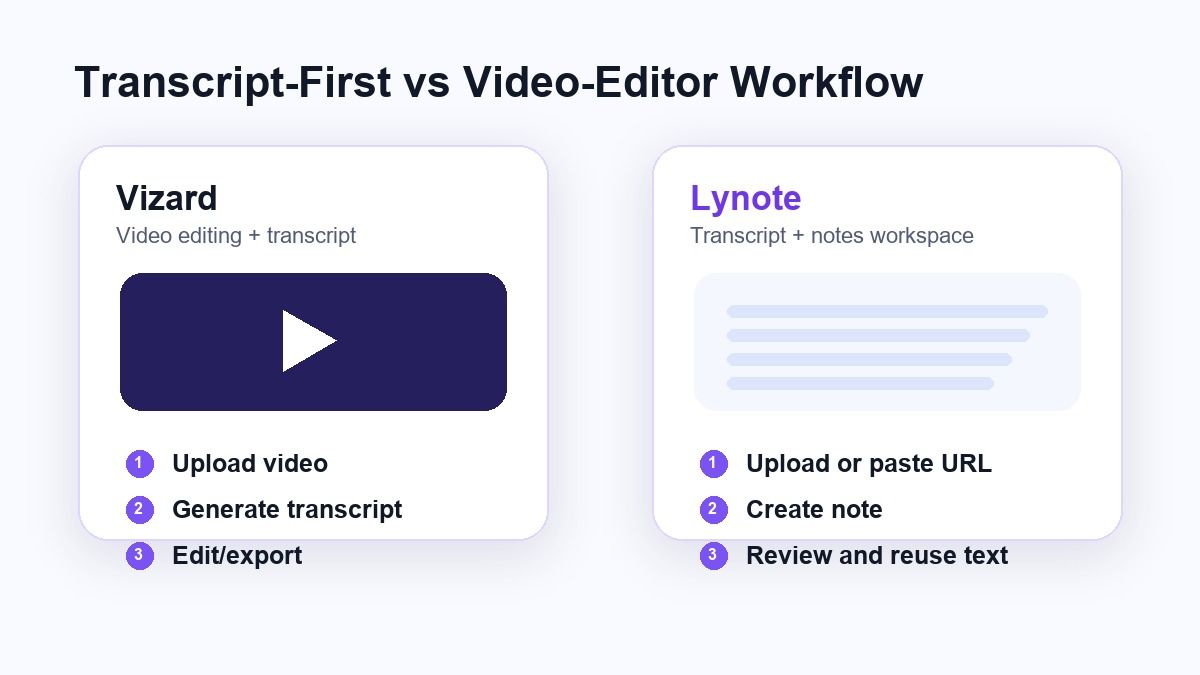
Instead of pushing users toward video editing first, Lynote focuses on a transcript workspace. You can add the video source, create the note, review the generated text, and reuse the output for study, research, writing, translation, or documentation.
That makes Lynote a strong vizard video to text converter alternative for people who want the transcript to become usable written material. It is especially practical for long-form videos, tutorials, recorded lessons, interviews, and research clips.
How to Convert Video to Text with Lynote
Step 1. Add Your Video Source
Open Lynote Video to Text and choose the source you want to process. You can upload a local video file or paste a YouTube URL if the video is online.
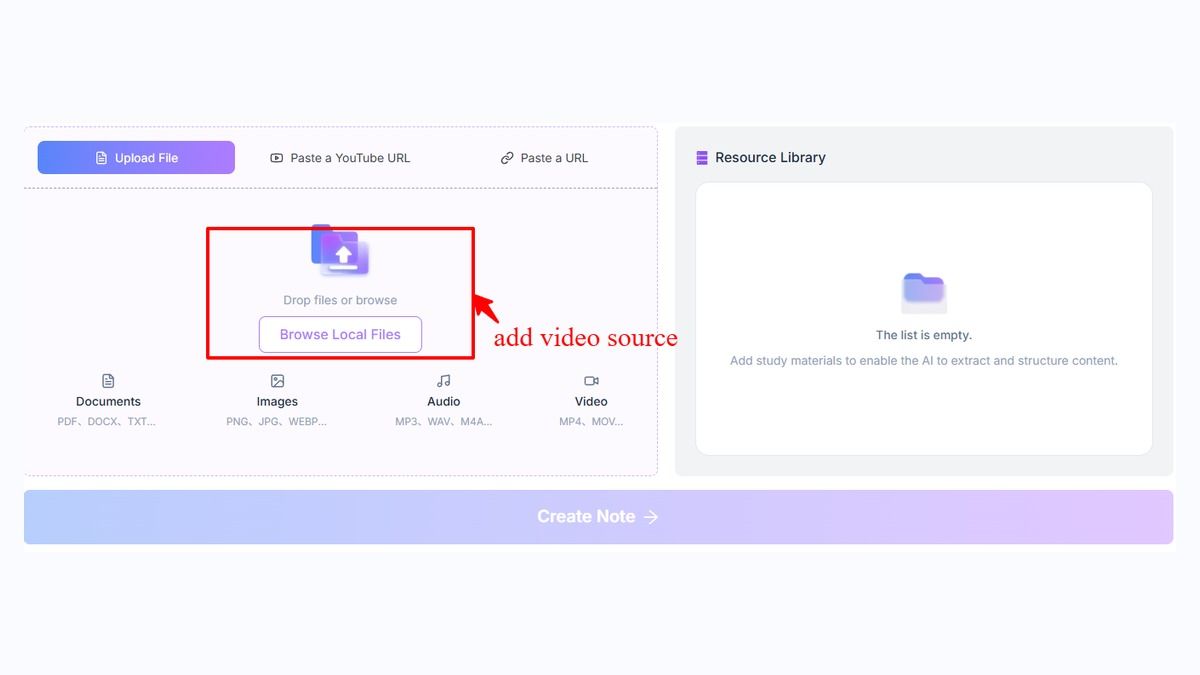
If you use a YouTube URL, Lynote can parse the video source before creating the transcript. If you upload a local file, you can move directly into the note creation workflow. This keeps the process clear for users who do not want to download extra software.
Step 2. Create the Transcript
After the video source is ready, click Create Note. Lynote loads the video into the workspace and turns the spoken content into editable transcript text.
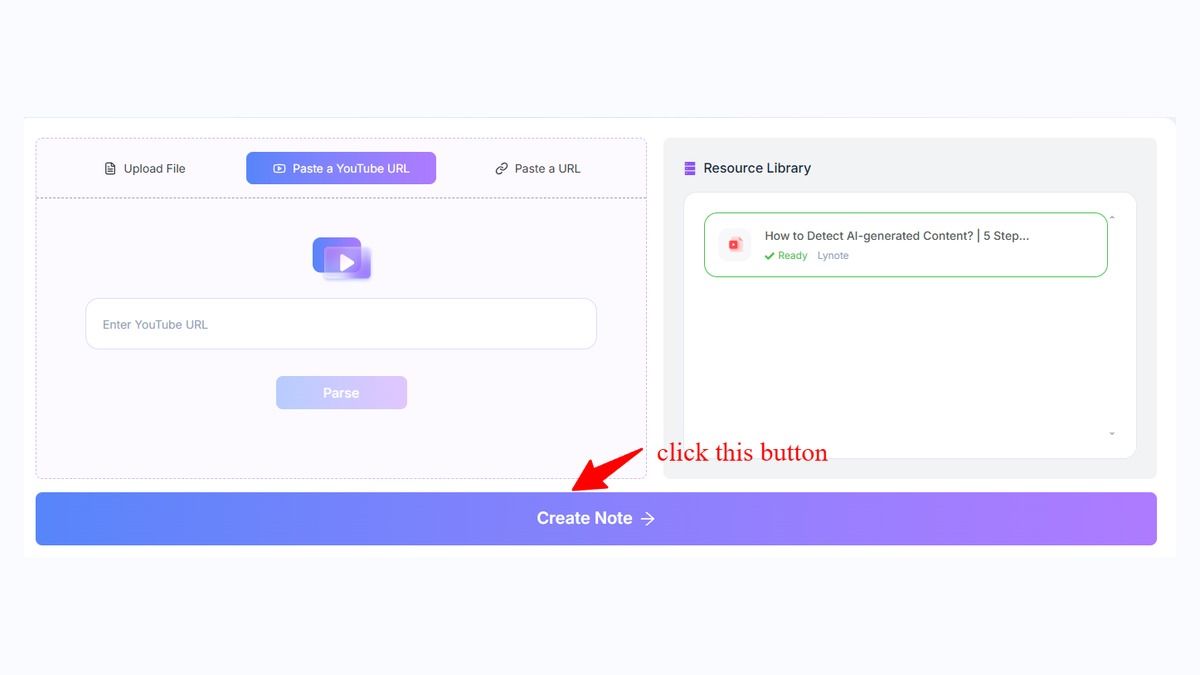
This is useful when you need the text from a lecture, tutorial, meeting recording, training video, or YouTube source. You can scan the output, locate important parts, and decide what needs review. The workflow is direct because the transcript is the center of the page.
Step 3. Review and Reuse the Text
After generation, review names, technical terms, timestamps, and unclear sections. AI transcription is useful, but important transcripts should still be checked before quoting or publishing.
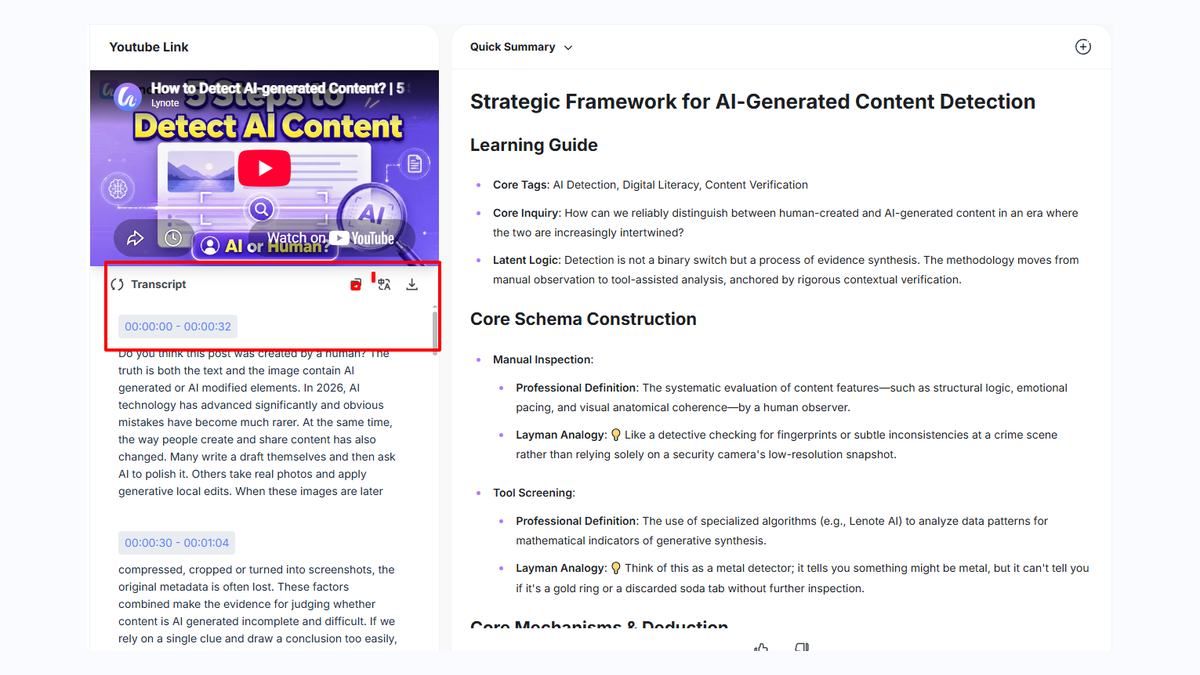
Once reviewed, you can reuse the transcript in notes, study guides, articles, documentation, or content drafts. This makes Lynote more than a basic converter because the text can move into other learning and work tasks.
Vizard vs Lynote: Which Workflow Fits Better?
The best choice depends on what you want after transcription. If you want to edit the original video, create subtitles, or clip content for social media, Vizard is a strong option.
If you want a transcript you can read, copy, download, and reuse as text, Lynote is the cleaner alternative. It avoids the feeling of opening a full editing suite when you only need video-to-text output. That makes it easier for students, researchers, writers, and teams who work from transcripts.
The vizard video to transcript workflow is creator-friendly, while Lynote is transcript-first. That difference should guide the decision.
Feature Comparison
| Feature | Vizard Video to Text Converter | Lynote Video to Text |
|---|---|---|
| Main focus | Video editing, subtitles, clips, repurposing | Searchable, editable transcript output |
| Best for | Creators and social video workflows | Students, researchers, writers, teams |
| Input workflow | Upload video, transcribe, edit or export | Upload video or paste YouTube URL, create note |
| Transcript reuse | Captions, subtitles, clips, text export | Notes, study guides, research, documents |
| Output style | Editor-centered | Text workspace-centered |
| Learning curve | Better for users comfortable with video tools | Simpler for transcript-first tasks |
When to Choose Vizard
Choose Vizard if the transcript is part of a larger video project. It makes sense when you want to add subtitles, cut clips, edit video by transcript, or repurpose long video content into social posts.
It is also useful when your team already works in a creator workflow. If captions and video exports matter as much as the transcript, Vizard's broader feature set may be worth using. The vizard ai video to text converter is not just about text; it is part of a video production environment.
When to Choose Lynote
Choose Lynote when the transcript itself is the final working material. If you need to study a recorded lecture, review a YouTube tutorial, quote an interview, or turn a video into research notes, Lynote is more direct.
Lynote is also better when you want a lightweight workflow without opening a video editor. You can focus on the written output, clean up the transcript, and move it into your next task. This is useful for everyday video-to-text work where speed and reuse matter.
Common Use Cases for Lynote Video to Text
Students can use Lynote to convert class recordings and YouTube explainers into readable transcripts. This helps them review ideas without replaying the full video.
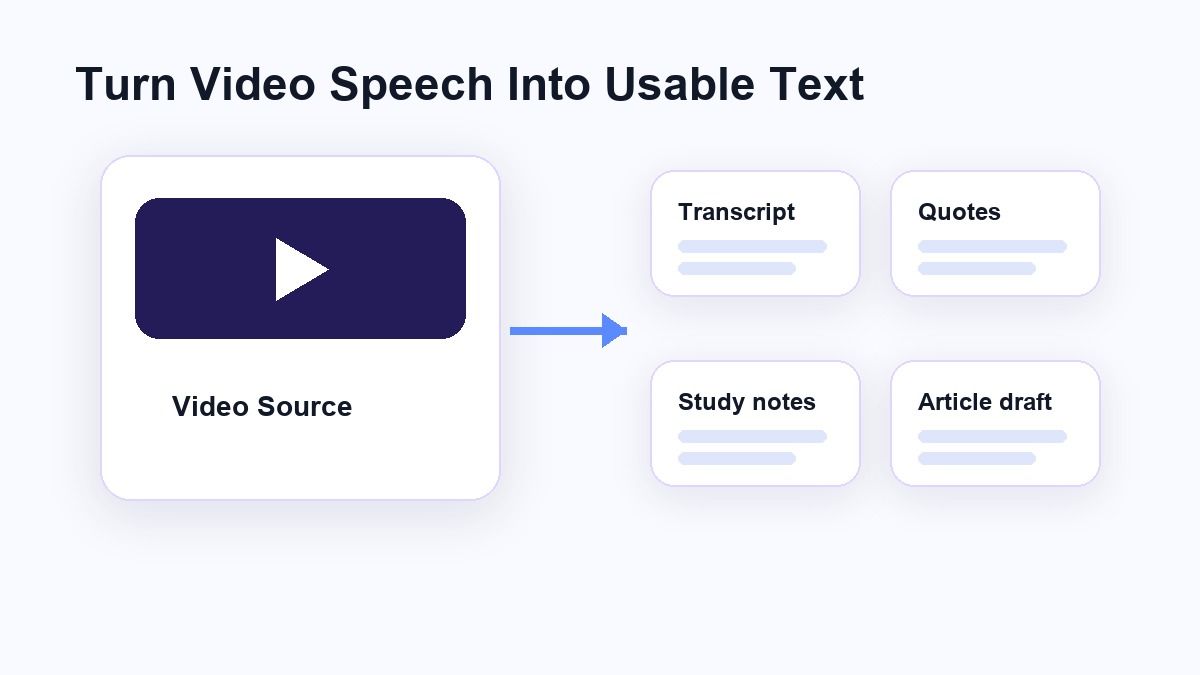
Researchers can use it for interviews, conference talks, and source videos. A transcript makes it easier to search for quotes, compare arguments, and build notes from spoken material.
Creators can also use Lynote when they need the text before writing a script, blog post, newsletter, or summary. Even if they later edit the video elsewhere, having a clean transcript first can speed up planning.
Is Lynote Better Than Vizard for Video Transcription?
Lynote is better if your main goal is text. It is designed around the transcript, not around video editing, so the workflow is easier for users who want to convert video into written material.
Vizard may be better if you want transcription plus social video editing. Its creator tools make sense when captions, clips, and video exports are part of the same project. The best choice is less about which product has more features and more about which workflow matches your actual task.
For a vizard video to text converter alternative, Lynote is strongest when you want less editing overhead and more usable text output.
FAQs
What is the vizard video to text converter?
The vizard video to text converter is an AI transcription workflow from Vizard that helps users turn video speech into text. It is part of a broader platform for subtitles, video editing, clipping, and content repurposing.
Is there a Vizard AI video to text converter alternative?
Yes. Lynote Video to Text is an alternative for users who want a transcript-first workflow. It lets you upload a video or paste a YouTube link, create a transcript, and reuse the text for notes, research, or content drafts.
Can Vizard create video transcripts?
Yes. Vizard offers video-to-text and transcript-related workflows for video projects. It is especially useful when transcripts are needed for subtitles, captions, and video repurposing.
Can Lynote transcribe YouTube videos?
Yes. Lynote Video to Text supports YouTube link input as part of its video-to-text workflow. You can paste a YouTube URL, create a note, and review the generated transcript.
Which is better for students, Vizard or Lynote?
Lynote is usually the better fit for students who need lecture transcripts, study notes, or research text. Vizard is better when the student or creator also needs video editing, captions, and social clips.
Conclusion
The vizard video to text converter is useful when transcription is part of a bigger video editing and repurposing workflow. But if you mainly need clean, editable text from a video or YouTube link, Lynote Video to Text is a simpler alternative. It keeps the process focused on upload, transcript generation, review, and reuse, which is exactly what many video-to-text users need.

Written by Hamza Razzaq
Technical Writer
Hamza creates hands-on explainers and technical guides that make AI writing tools easier to understand and use. View all articles →