Flixier Video to Text Alternative for Clean Transcripts

If you are comparing flixier video to text with a simpler transcript-first workflow, the real question is what you need after transcription. Flixier is useful when you want to extract text and keep editing the video in the same timeline. Lynote is better when you want a searchable, editable transcript that you can review, copy, download, and reuse for notes, research, study, or documentation.
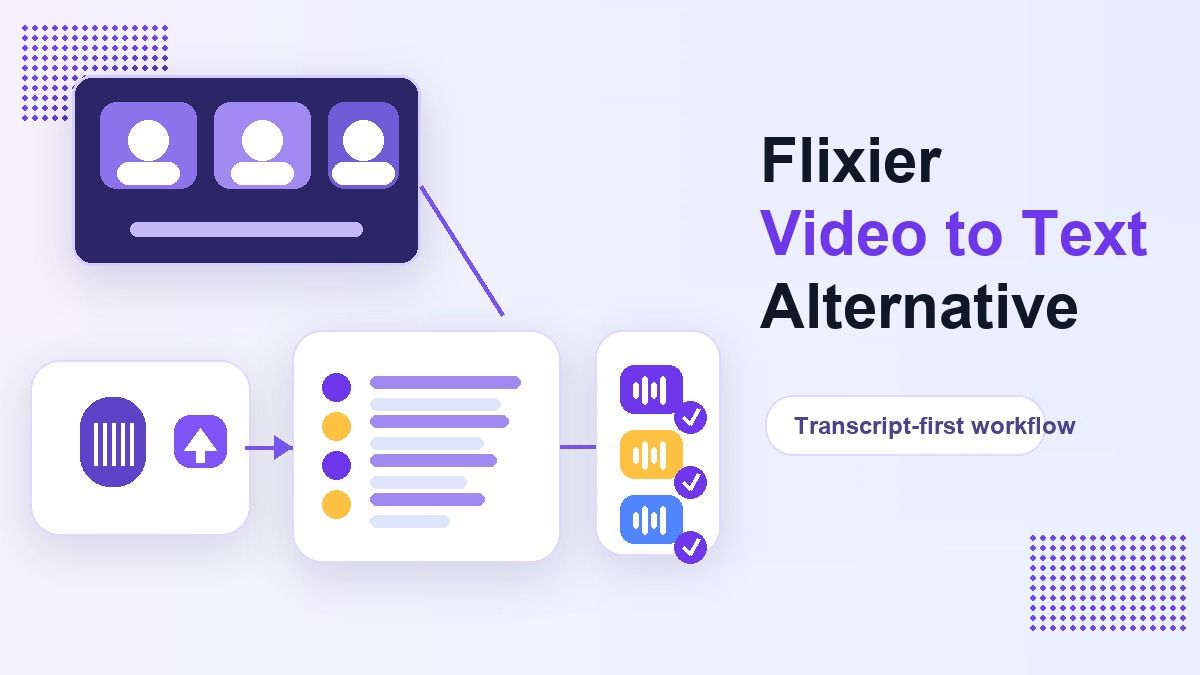
Many users search for a Flixier video to text converter because they need fast text from a video. Some are creators who want subtitles and short clips. Others are students, researchers, marketers, and teams who just need the spoken content turned into usable written material.
Key Facts About Flixier Video to Text
Flixier describes its video-to-text tool as an AI transcription workflow that works in the browser. The tool can turn spoken video content into editable text, subtitles, or translations without requiring downloads or installs.
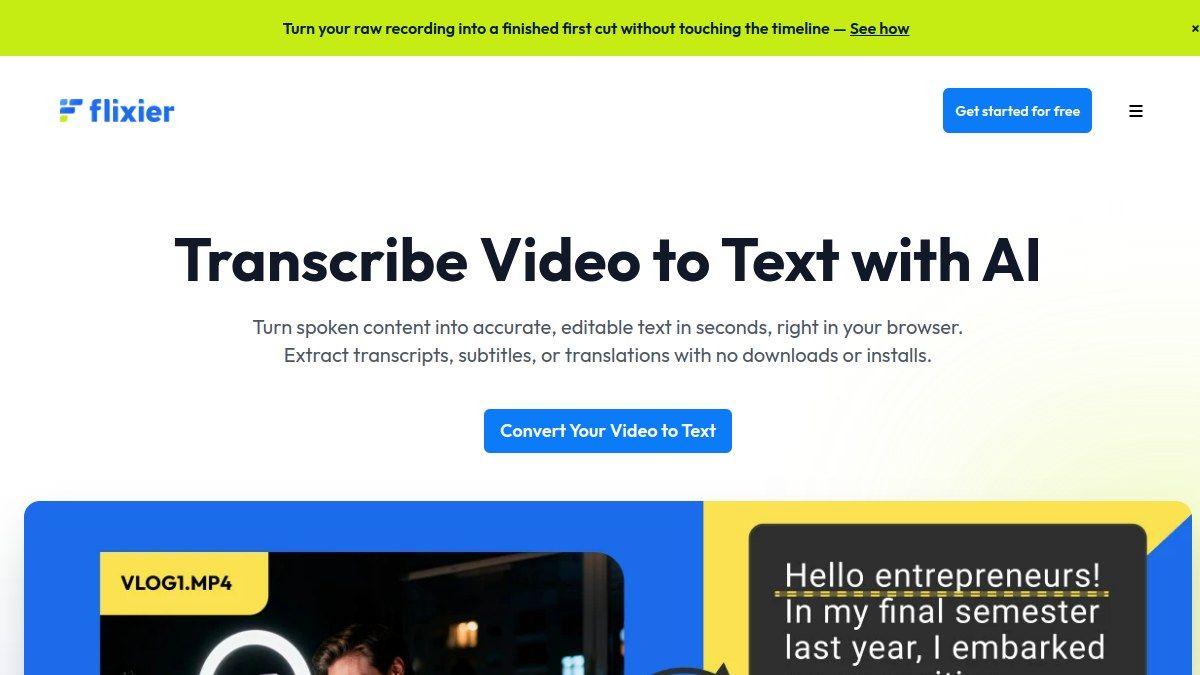
The Flixier video to text workflow is closely connected to Flixier's online video editor. After transcription, users can continue editing the video, add subtitles, translate captions, or export transcript files. This makes it useful for people who need both video editing and transcript output.
Flixier also highlights support for many languages and export formats such as TXT, SRT, and VTT. That matters if you are preparing captions or subtitle files for publishing. If your final goal is a text document or study note, though, a full editor may feel like more workflow than you need.
How the Flixier Video to Text Converter Works
Step 1. Upload Your Video
Flixier starts with uploading a video from your device or cloud storage. According to its tool page, users can upload from places such as Google Drive, Dropbox, or OneDrive.
This is helpful for creators who keep source videos in cloud folders. It also works for webinars, interviews, tutorials, video ads, class recordings, and social media footage. The workflow is designed around bringing video into an editing environment.
Step 2. Generate the Transcript
After upload, users generate the transcript from the video audio. Flixier says the tool can extract the audio and turn it into editable text.
This is where the flixier ai video to text workflow becomes useful for captions and subtitles. You can use the transcript to support viewers who watch without sound. You can also use the generated text as the basis for translations or subtitle files.
Step 3. Download or Continue Editing
Once the transcript is generated, Flixier lets users save the transcript or subtitle output. The tool page mentions TXT, SRT, and VTT as possible output formats.
Flixier also encourages users to continue editing the video after conversion. That can include subtitles, translations, removing pauses, or creating clips. This is powerful for video creators, but it may be unnecessary when you only need a transcript.
Where Flixier Is Strong
Flixier is strongest when transcription is part of a video publishing workflow. If you want to add captions, translate subtitles, or continue editing the video after transcript generation, Flixier makes sense.
For marketers, the flixier video to text converter can help repurpose webinars and ads into copy. For educators, it can help turn recorded lessons into captions or text-based resources. For social creators, it can make videos easier to caption and share.
Flixier is also useful when you need transcript files in subtitle formats. If SRT or VTT export is part of your publishing process, the editor-centered workflow may be a good fit. The main strength is that transcription and editing live together.
Where Flixier May Not Be the Best Fit
Flixier may feel too heavy if your main goal is text extraction. A student transcribing a lecture, a researcher reviewing an interview, or a team documenting a meeting may not need a full video editor.
In those cases, the extra editing timeline can become friction. You may just want to upload a file or paste a video link, generate the transcript, review it, and move the text into notes. That is where Lynote gives a cleaner workflow.
The phrase video to text Flixier often points to a creator use case. But not every video-to-text user is creating videos. Many people are simply turning spoken content into readable text.
Lynote as a Flixier Video to Text Alternative
Lynote Video to Text is a transcript-first alternative for people who want the text more than the video editor. It supports local video uploads such as MP4 and MOV, and it also supports YouTube link input.
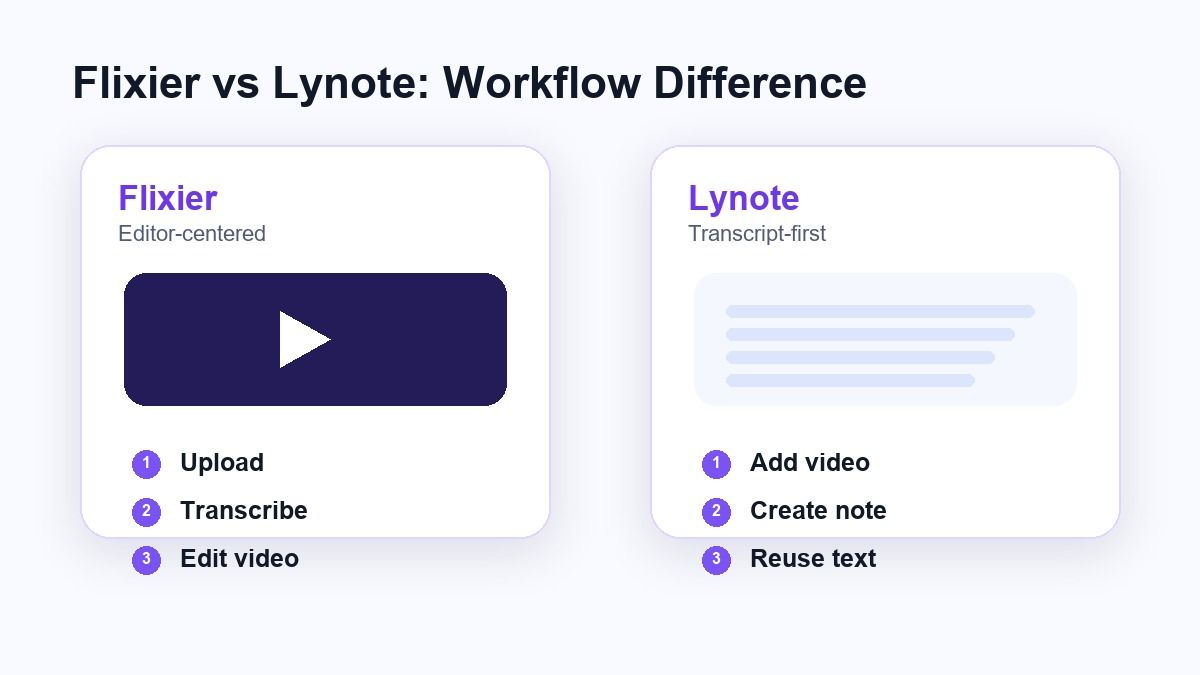
Instead of starting with a full editing timeline, Lynote keeps the workflow focused on the transcript. You add the video source, create a note, review the text, then reuse it for study, writing, research, documentation, or content planning.
This makes Lynote a strong flixier video to text alternative for users who need clean written output. It is especially useful for long-form videos, tutorials, recorded classes, interviews, and YouTube research clips.
How to Use Lynote to Convert Video to Text
Step 1. Add Your Video Source
Open Lynote Video to Text and add the video you want to process. You can upload a local video file or paste a YouTube URL if the source is online.
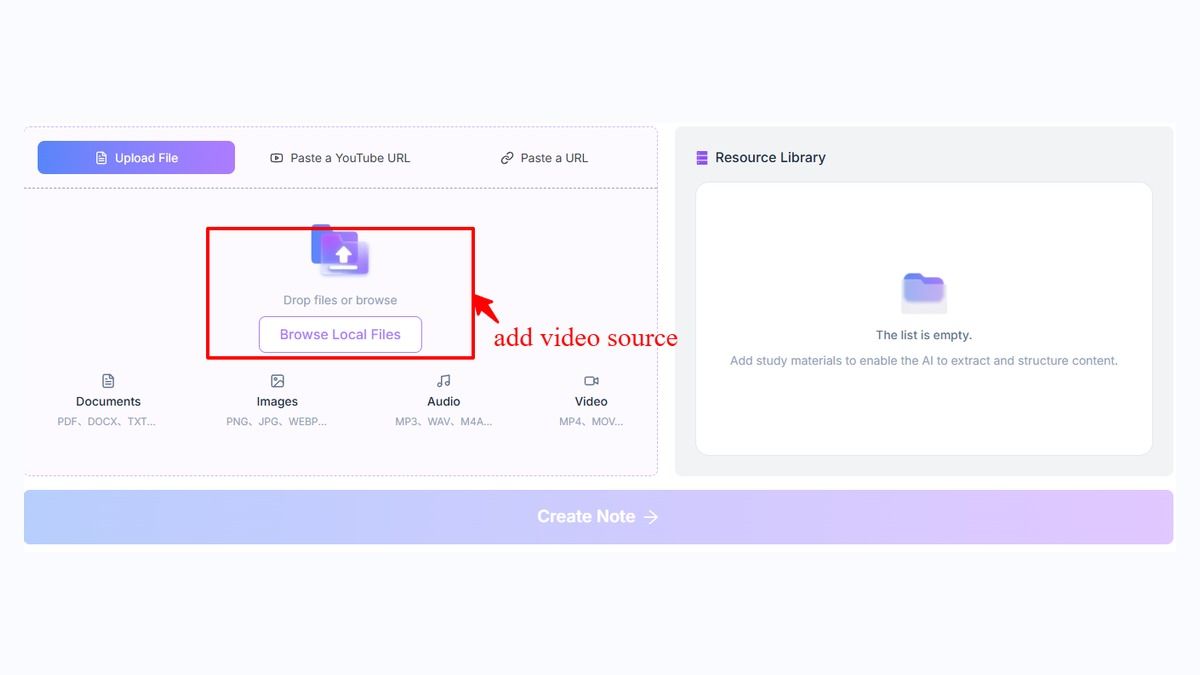
This is useful when you want to avoid downloading a YouTube video before transcription. If you paste a YouTube URL, Lynote can parse the source before creating the note. If you upload a local file, you can move directly into the transcript workflow.
Step 2. Create the Transcript
After your video source is ready, click Create Note. Lynote loads the source into the workspace and turns the spoken content into editable transcript text.
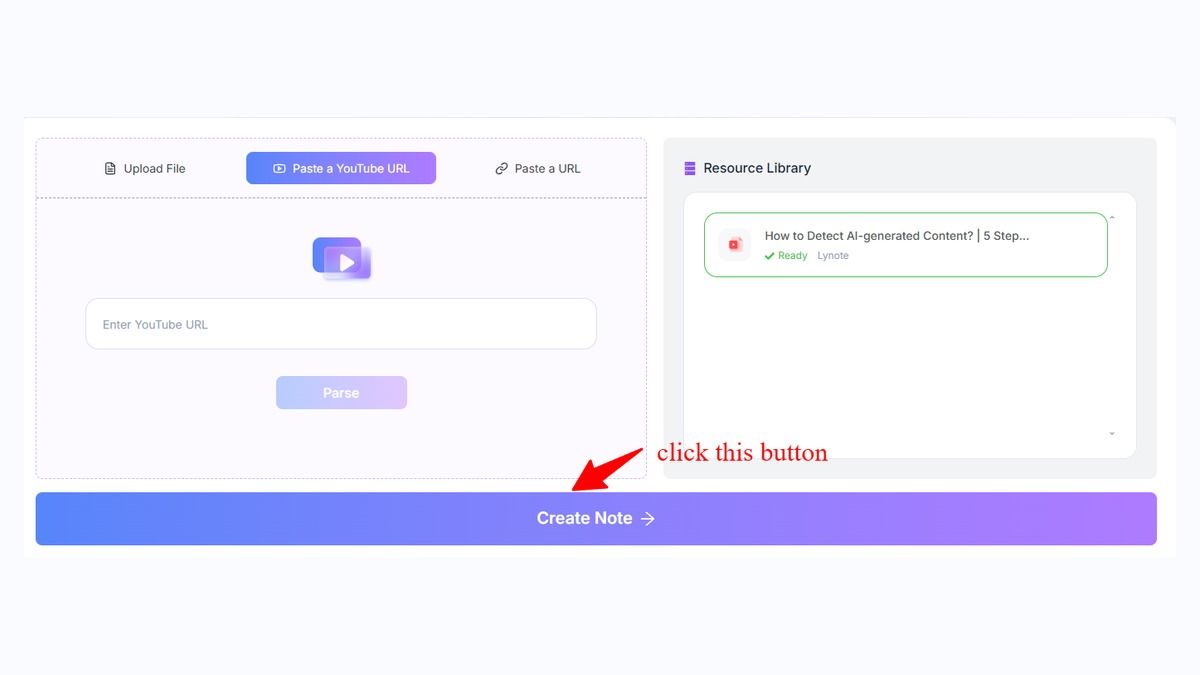
This step is designed for people who want the transcript as the primary output. You can scan the text, find key sections, and check important wording. The transcript becomes easier to work with than replaying the video again and again.
Step 3. Review and Reuse the Text
After generation, review the transcript for names, terms, timestamps, and unclear phrases. AI transcription is helpful, but important text should still be checked before quoting or publishing.
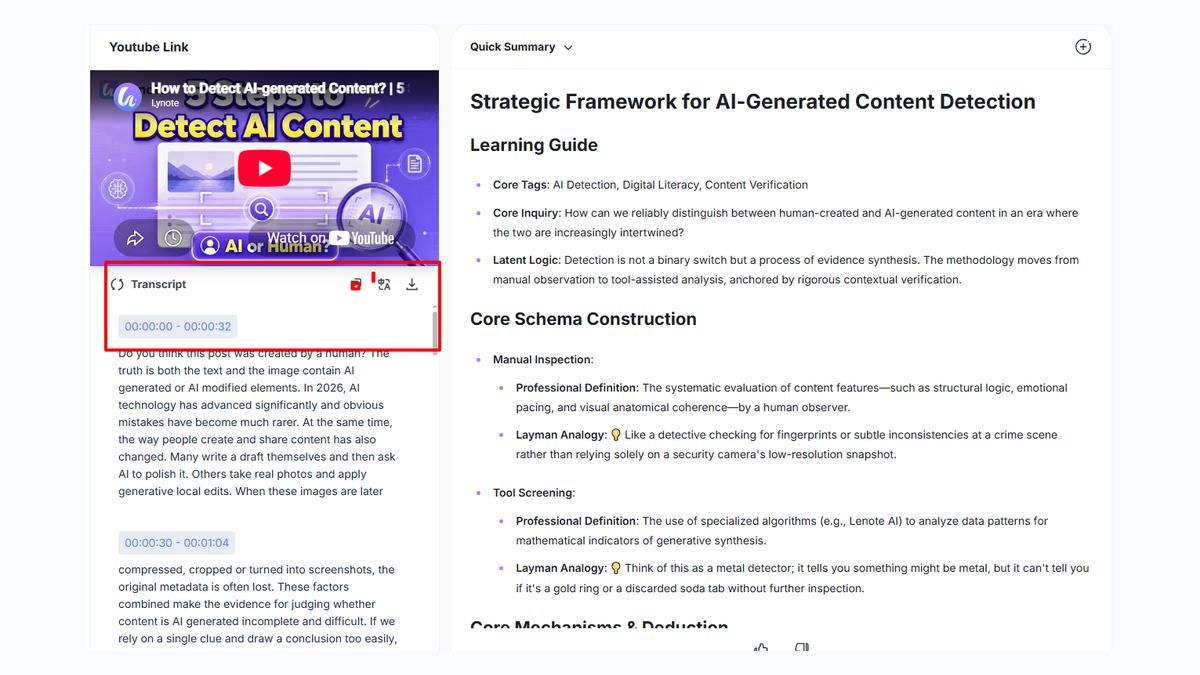
Once reviewed, you can copy or reuse the output in notes, study guides, research files, documentation, or writing drafts. This is where Lynote differs from a video editor. The goal is not just to transcribe, but to make the transcript useful.
Flixier vs Lynote: Which One Should You Choose?
Choose Flixier if your transcript is part of a video editing project. It is a good fit when you need captions, subtitles, translations, clips, or social media video repurposing.
Choose Lynote if your transcript is the final working material. It is better for students, researchers, writers, teams, and knowledge workers who need clean text from video. You can focus on reading, editing, copying, and reusing the transcript.
The flixier video to text free workflow may be useful for testing creator features. Lynote is more direct when you want a transcript-first process without extra editing steps. The better choice depends on whether your next task is video editing or text reuse.
Feature Comparison
| Feature | Flixier Video to Text | Lynote Video to Text |
|---|---|---|
| Main focus | Video editing, subtitles, translations | Searchable, editable transcript output |
| Best for | Creators, marketers, video publishers | Students, researchers, writers, teams |
| Input workflow | Upload video into editor | Upload video or paste YouTube URL |
| Transcript use | Captions, subtitles, export files | Notes, study guides, research, documentation |
| Output formats | TXT, SRT, VTT options | Editable transcript text for reuse |
| Workflow style | Editor-centered | Transcript-first |
| Best when | You still need to edit the video | You mainly need clean text |
When to Use Flixier
Use Flixier when video publishing is part of the job. If you need subtitles on the final video, subtitle translation, or timeline editing, Flixier can keep those tasks in one place.
It is also useful for creators who want to turn a long video into social media clips. The flixier transcribe video to text workflow supports the text side of that process. Then the editor can help with visual polish and repurposing.
Flixier is less ideal when you do not plan to edit the video. If the transcript is enough, a lighter text-focused workflow may save time.
When to Use Lynote
Use Lynote when you need the transcript for learning, research, writing, or documentation. It keeps the video-to-text process focused on the written output.
For example, a student can turn a recorded lecture into notes. A researcher can turn an interview into searchable text. A marketer can turn a product video into copy ideas without opening a video timeline.
Lynote is also useful when the source is a YouTube video. You can paste a link, create the transcript, and reuse the text. That makes it practical for everyday video-to-text work.
Common Use Cases for Lynote Video to Text
Lynote works well for lecture recordings, class videos, webinars, interviews, meetings, tutorials, and YouTube explainers. These sources often contain useful information, but watching them repeatedly takes time.
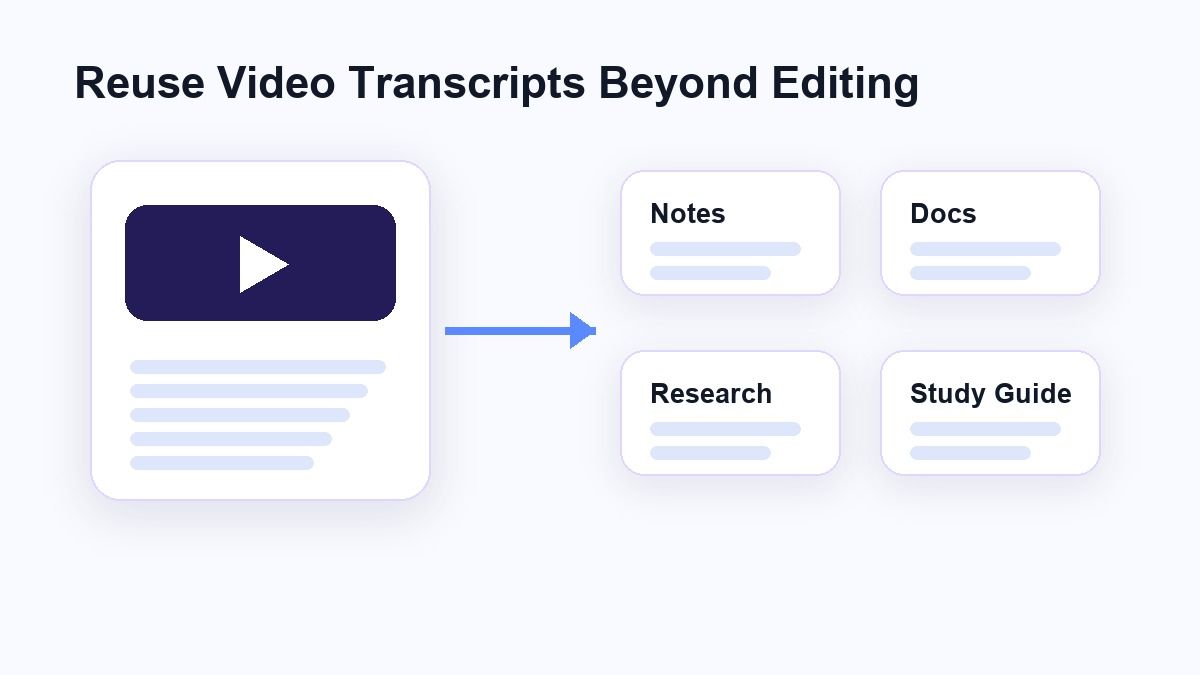
A transcript lets you search, highlight, quote, summarize, and turn the content into notes. It is also useful for accessibility because text is easier to scan than video audio.
For creators, Lynote can still be useful before editing begins. You can generate the text first, outline the key ideas, then decide whether you need a separate editing tool.
Is Lynote Better Than Flixier for Transcription?
Lynote is better if your priority is transcript reuse. It is built around readable text, not around a video editing timeline.
Flixier is better if transcription is one step inside a broader editing workflow. It can help with subtitles, translations, and video repurposing. That makes it strong for creators but less direct for text-first users.
If you are looking for a flixier video to text converter alternative, Lynote is the better fit when you want a simpler transcript workflow. It helps you get from video to usable text with fewer distractions.
FAQs
What is Flixier video to text?
Flixier video to text is an AI transcription workflow that turns spoken video content into editable text. It is part of Flixier's browser-based video editing platform.
How to use Flixier to convert video to text?
Upload your video to Flixier, generate the transcript, then download or reuse the transcript output. Flixier also lets users continue editing the video after transcription.
Is Flixier video to text free?
Flixier offers browser-based video-to-text access, but available limits and plan details can change. Check Flixier's current pricing and account limits before relying on it for long or frequent projects.
What is a good Flixier video to text alternative?
Lynote Video to Text is a good alternative if you want a transcript-first workflow. It supports video uploads and YouTube links, then gives you editable text you can review and reuse.
Can Lynote transcribe YouTube videos?
Yes. Lynote Video to Text supports YouTube link input. You can paste a YouTube URL, create a note, and review the generated transcript.
Conclusion
The flixier video to text workflow is strong when transcription is tied to video editing, subtitles, and repurposing. But if your main goal is clean, editable text from a video or YouTube link, Lynote Video to Text is a simpler alternative. It keeps the workflow focused on adding a source, creating a transcript, reviewing the text, and reusing it where the work actually happens.

Written by Janet L. Harris
AI Writing Specialist
Janet reviews AI detectors and humanization tools, with a focus on accuracy, limitations, and responsible use. View all articles →