How to Convert Audio to Text When Google Translate Falls Short

Google translate audio to text is a common search when you want spoken words turned into readable text fast. Google Translate can help with live speech translation, especially when someone is speaking into a microphone. But if you need editable transcripts from recordings, long audio, YouTube links, or reusable study and work notes, a dedicated tool like Lynote Audio to Text is often a better fit.
Introduction: Why Audio-to-Text Needs More Than Translation
Audio content is everywhere: lectures, interviews, meetings, podcasts, training videos, and online lessons. When people search for google translate audio to text, they often want a simple way to capture spoken words and reuse them. The problem is that translation and transcription are related, but they are not the same job.
Google Translate is useful for quick speech translation. It listens through a microphone and translates spoken words into another language when the feature is supported. However, many users need a cleaner transcript they can edit, search, export, summarize, or use in downstream work.
Key Facts About Google Translate Audio to Text
Google Translate supports speech input on the web and in the app. Microphone translation lets users speak words or phrases, and supported languages may vary by browser. Chrome usually offers the smoothest browser path for speech input.
Google Translate also has mobile speech and transcribe-style workflows for live speech. These features are useful when someone is speaking in the moment and you need quick understanding. That makes google translate audio to text online useful for live situations, but less ideal for stored audio files.
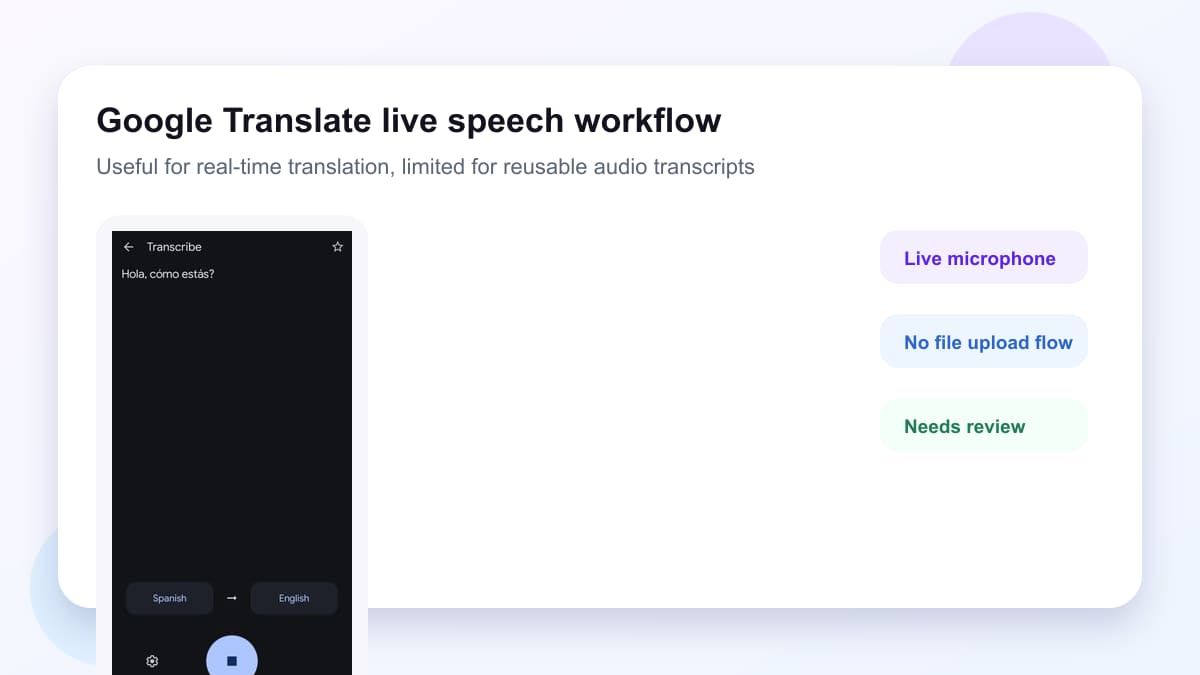
The key difference is workflow. Google Translate is mainly built to translate speech as it happens. A transcription workflow is built to turn an audio source into editable text that you can review, copy, download, share, or reuse.
How to Use Google Translate Audio to Text
If your goal is live speech translation, Google Translate can be a quick starting point. The process is simple when your browser, language, and microphone permissions are supported. It works best when the speaker is clear and the room is quiet.
Method 1. Use Google Translate with a Microphone
Open Google Translate in your browser and choose the source and target languages. Allow microphone access, then click the microphone button and speak. When you stop speaking, Google Translate shows translated text in the output area.
This method is useful for short phrases, travel conversations, and quick spoken translation. It is not designed for uploading an MP3, WAV, M4A, or recorded meeting file. If you need google translate from audio to text for saved recordings, this method becomes limited.
Method 2. Use the Google Translate App Transcribe Feature
On supported mobile devices, the Google Translate app can transcribe and translate live speech. Open the app, use the speech or transcribe option, and choose the speaker language and translation language. The app can show translated text while the person is speaking.
This can help in a classroom, speech, or live conversation. Still, it is mainly a live translation feature rather than a full audio transcription workspace. If you need a searchable transcript for later editing, you may want a dedicated alternative.
Method 3. Try Video Audio Manually
Some users search for google translate video audio to text because they want captions or transcripts from a video. Google Translate does not work like a full video-to-transcript converter. You may be able to play the video aloud near a microphone, but the result depends heavily on speaker clarity, background noise, and device audio quality.
That workaround is fragile for long videos. It may miss words, confuse speakers, or stop being useful when the audio includes music, overlapping speech, or technical terms. For video lessons, interviews, or recorded webinars, a tool built for audio and YouTube workflows is usually more practical.
Why Google Translate May Not Be Enough
Google Translate is strong when the task is translation. It is less specialized when the goal is turning audio files into polished text. The gap becomes obvious when you need to work with longer recordings.
For example, you may need to upload a local audio file, transcribe a YouTube lecture, edit the transcript, copy sections into notes, or export the result. That is not the same as speaking into a microphone for live translation. In that case, searching for audio to text google translate may lead you to a tool that is useful, but not built for the whole job.
The limitation is not that Google Translate is bad. It simply solves a different problem. It helps you understand speech across languages, while a transcription tool helps you convert audio into text you can manage.
A Better Google Translate Audio to Text Alternative: Lynote
If your real goal is transcription, Lynote Audio to Text is designed for that workflow. It transcribes audio files such as MP3, WAV, and M4A, and it can also work with YouTube links through the Lynote workspace. The output is editable and searchable, which makes it easier to reuse in notes, reports, captions, summaries, or study materials.
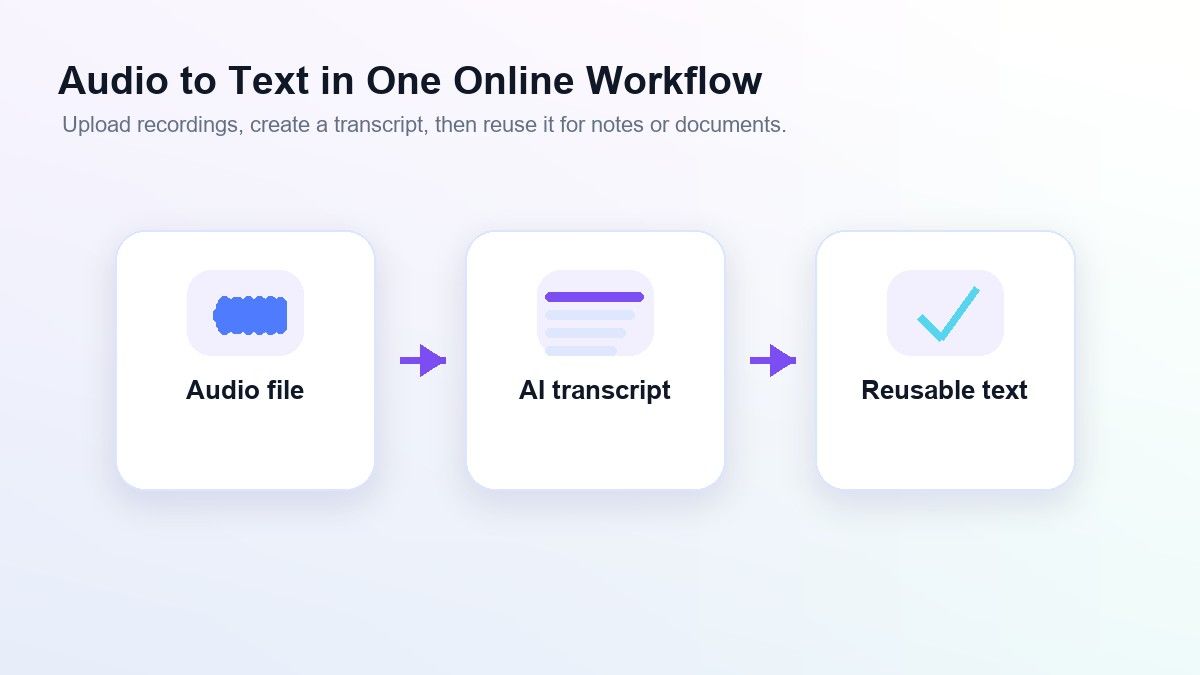
Lynote is especially helpful when your audio is not just a short phrase. Students can use it for lecture recordings, researchers can use it for interviews, and creators can use it for spoken content drafts. For users looking for google translate audio to text free, Lynote gives a practical way to try a more transcription-focused workflow.
Google Translate vs Lynote: Which Should You Use?
The right choice depends on what you want to do after the audio is captured. If you only need quick live translation, Google Translate may be enough. If you need an editable transcript from audio or YouTube, Lynote is the stronger option.
| Need | Google Translate | Lynote Audio to Text |
|---|---|---|
| Live spoken translation | Good fit for supported languages and devices | Not the main use case |
| Upload audio files | Limited for transcription workflows | Supports audio uploads such as MP3, WAV, and M4A |
| YouTube audio workflow | Not a full transcript workflow | Supports YouTube links in the workspace |
| Editable transcript | Limited for long-form transcript work | Built for editable, searchable text |
| Speaker-aware formatting | Not the focus | Useful for meetings and interviews |
| Downstream reuse | Basic copy options | Copy, download, share, translate, or chat with transcript |
This is why google translate audio to text can be a useful starting query, but not always the final answer. Translation is only one layer. A real transcript workflow should help you capture, review, edit, and reuse the spoken content.
How to Convert Audio to Text with Lynote
Lynote follows a simple three-step workflow. It is closer to what users expect when they search for google translate audio to text online, but need more control over the result. You bring in the audio source, generate the transcript, and then reuse the text.
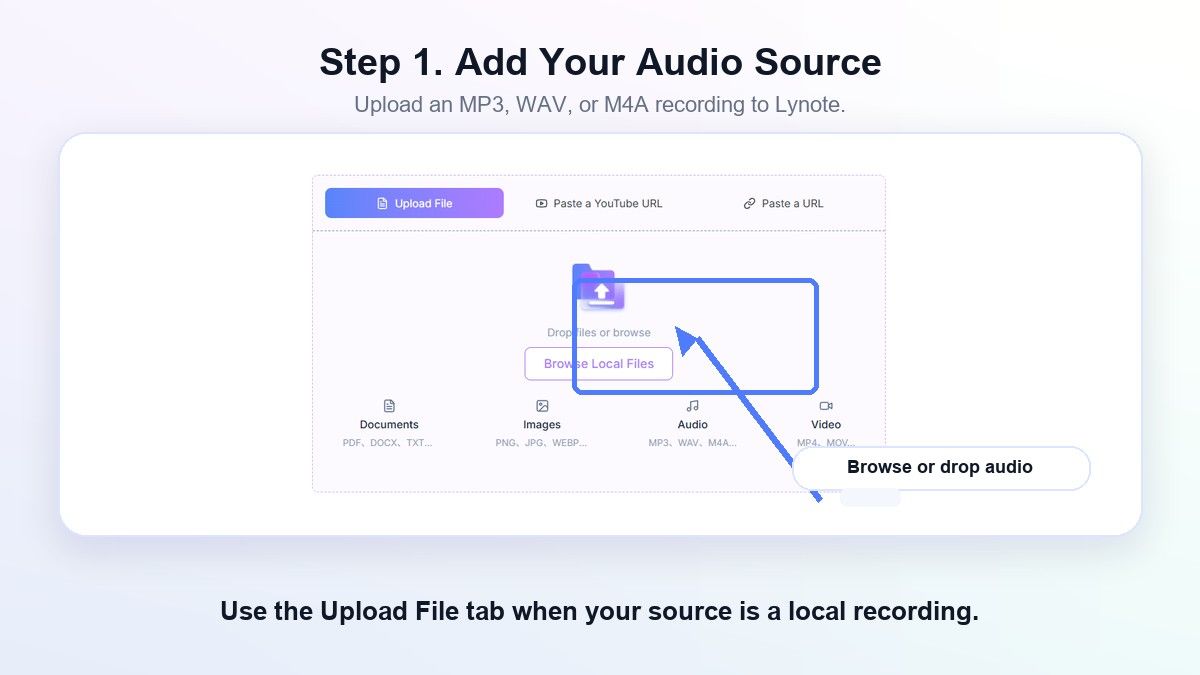
Step 1. Add Your Audio Source
Open Lynote Audio to Text and add your source. You can upload a supported audio file, such as MP3, WAV, or M4A. If the audio comes from YouTube, paste the YouTube URL and use Parse so Lynote can pull in the source.
This step is more flexible than a microphone-only workflow. You do not have to replay a recording into another device. You can work from the actual source file or link, which is cleaner for long-form audio.
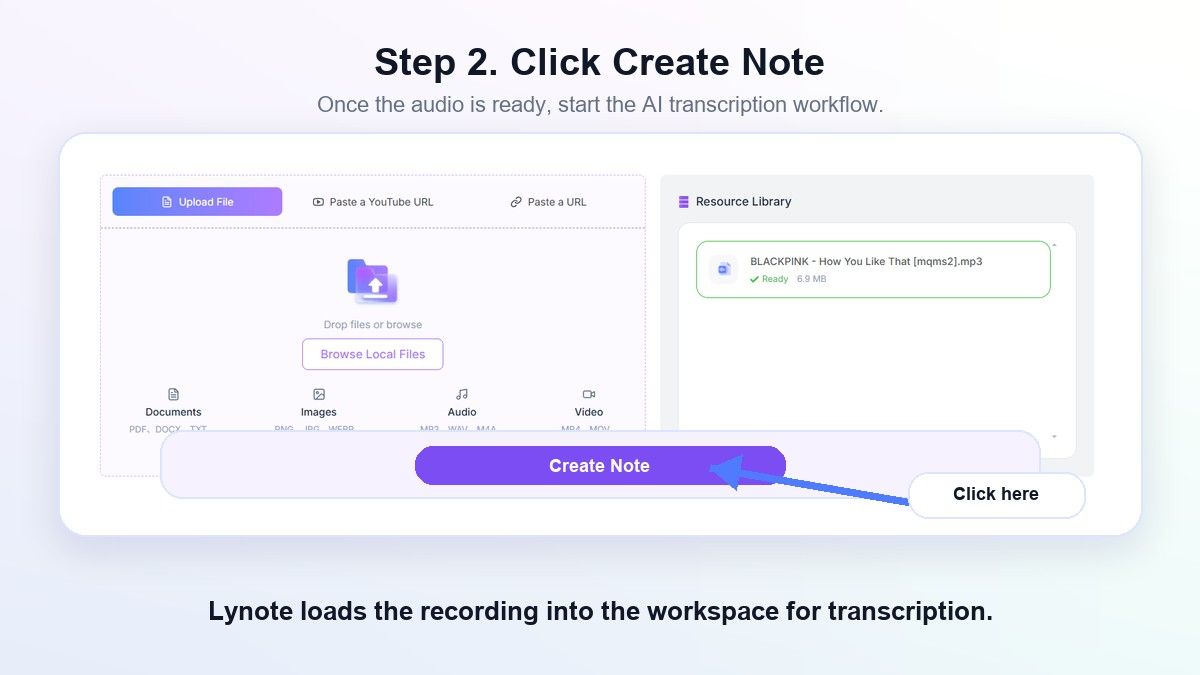
Step 2. Run the Transcription
After your source is ready, create the note in the Lynote workspace and run the transcription action. Lynote converts the speech into editable text. For meetings and interviews, speaker-aware formatting can make the transcript easier to read than a flat block of text.
This is where Lynote becomes a better fit than audio to text google translate searches for long recordings. You are not just getting a live translation screen. You are building a transcript that can become part of a larger work or study process.
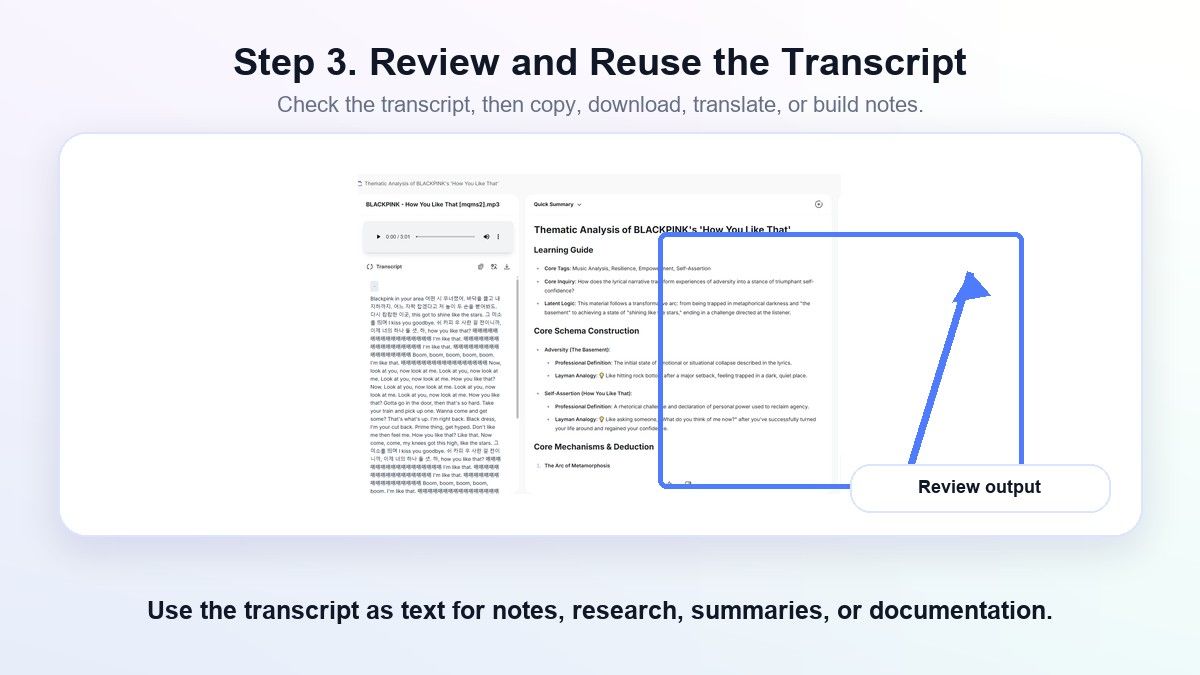
Step 3. Review, Edit, and Export
Once the transcript appears, review it for names, technical terms, timestamps, and unclear sections. You can polish the wording inline, then copy, download, share, translate, or send the text into chat for follow-up work. This makes the transcript useful beyond the first conversion.
Review is still important because transcription quality can depend on audio clarity, background noise, accents, and overlapping speech. Lynote helps create the editable base, but the final transcript should still be checked when accuracy matters. That is a realistic workflow, especially for academic or professional use.
When Google Translate Is Still Useful
Google Translate is still useful when you need fast language support. If someone is speaking in another language and you want to understand the general meaning in real time, it can help. It is also convenient because many people already know the interface.
It is a good fit for short conversations, simple phrases, and live translation moments. The mobile speech workflow can also help when someone is speaking continuously and you need near real-time understanding. For those scenarios, google translate from audio to text may be close enough.
However, it is less convenient when the audio already exists as a file. It is also less helpful when you need a transcript that can be cleaned, searched, shared, or reused in a content workflow. That is where Lynote is the better alternative.
When Lynote Is the Better Choice
Choose Lynote when the audio has value beyond the moment. A lecture recording, interview, podcast, research call, or training video usually needs more than live translation. You need text that you can review, organize, and use again.
Lynote is also a better fit when the source is a YouTube link. Instead of trying a manual google translate video audio to text workaround, you can use a workflow designed for media sources. That saves time and reduces the friction of replaying audio through a microphone.
The best use cases include students turning lectures into study notes, creators turning spoken ideas into drafts, and teams turning meetings into searchable records. In those cases, google translate audio to text is the question, but Lynote is often the more complete answer.
Practical Tips for Better Audio Transcripts
Start with the cleanest audio source you have. A direct file or clear YouTube source is usually better than playing sound through speakers into a microphone. Background noise, echo, and overlapping speech can reduce transcript quality.
Use the right workflow for the job. For live translation, Google Translate can be convenient. For saved audio, long recordings, or editable transcripts, Lynote gives you a more focused path.
Always review important transcripts before sharing or submitting them. Check names, numbers, technical terms, and quotes. AI can speed up the process, but human review keeps the final text reliable.
FAQs About Google Translate Audio to Text
Can Google Translate convert audio to text?
Google Translate can translate spoken words through a microphone and can support live speech workflows in the mobile app. It is best for live speech translation, not full uploaded audio transcription. If you need editable transcripts from files, Lynote is usually a better fit.
Is google translate audio to text free?
Google Translate is free for many everyday translation tasks. However, free does not always mean it supports the exact workflow you need. If your goal is google translate audio to text free for long recordings or YouTube audio, compare whether the tool can handle files, editing, and export.
Can Google Translate transcribe video audio to text?
Google Translate is not built as a full video audio transcription tool. A manual workaround may involve playing video audio into a microphone, but that can be unreliable. For google translate video audio to text needs, Lynote's audio and YouTube workflow is more practical.
What is the best alternative to Google Translate for audio to text?
For editable transcripts, Lynote Audio to Text is a strong alternative. It supports audio uploads and YouTube links through a workspace built for transcription and reuse. It is especially useful when you need to copy, download, share, translate, or chat with the transcript.
Is audio to text the same as translation?
No. Audio to text means converting speech into written text, usually in the same language. Translation means converting meaning from one language into another. Some tools do both, but a dedicated transcript workflow gives you more control over the text.
Conclusion
Google translate audio to text is helpful when you need quick live speech translation, but it is not always enough for recorded audio, YouTube content, or editable transcripts. If your goal is to turn audio into searchable text you can review and reuse, try Lynote Audio to Text. It gives you a more complete workflow for audio files, YouTube links, editing, export, translation, and follow-up work.

Written by Danny
Product Marketing Manager
Danny explains how Lynote features fit real workflows, from everyday productivity to product-led writing use cases. View all articles →