How to Transcribe Video to Text Online for Free

How to transcribe video to text is simple when you use a tool that accepts video files or YouTube links directly. Instead of replaying a video and typing every sentence by hand, you can use Lynote Video to Text to create an editable transcript, review the result, and reuse the text for notes, captions, research, summaries, or content drafts.
Video transcription is useful for students, creators, researchers, marketers, journalists, and teams. A transcript makes video searchable, easier to quote, and faster to repurpose. It also helps when you need to convert video audio to text for study, accessibility, documentation, or publishing.
What Does It Mean to Transcribe Video to Text?
To transcribe video to text means turning spoken words from a video into written text. The source can be a local video file, a screen recording, a lecture, a webinar, a meeting recording, or a YouTube video.
A good transcript is more than a wall of words. It should be readable, editable, and easy to copy into notes, documents, captions, or summaries. That is why the best workflow is not only about extraction, but also about review and reuse.
Best Way to Convert Video to Text
The fastest way to convert video to text is to use an online tool that can process the video audio directly. With Lynote, you can upload a local video or paste a YouTube URL, then create a searchable transcript in the same workspace.
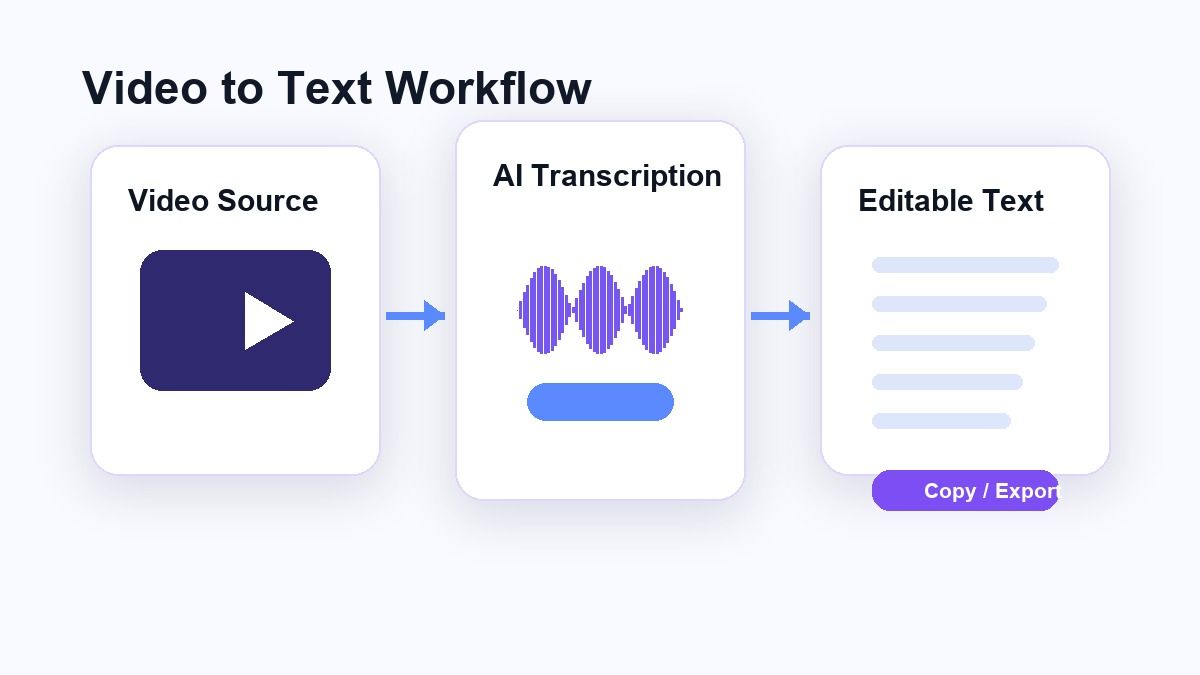
This is easier than using manual dictation, video editing software, or a separate audio extractor. You do not need to download a YouTube video first if the workflow supports YouTube links. You can start with the source you already have.
How to Transcribe Video to Text with Lynote
Step 1. Add Your Video Source
Open Lynote Video to Text and add the video you want to transcribe. You can upload a local video file such as MP4 or MOV, or paste a YouTube URL when the video is online.
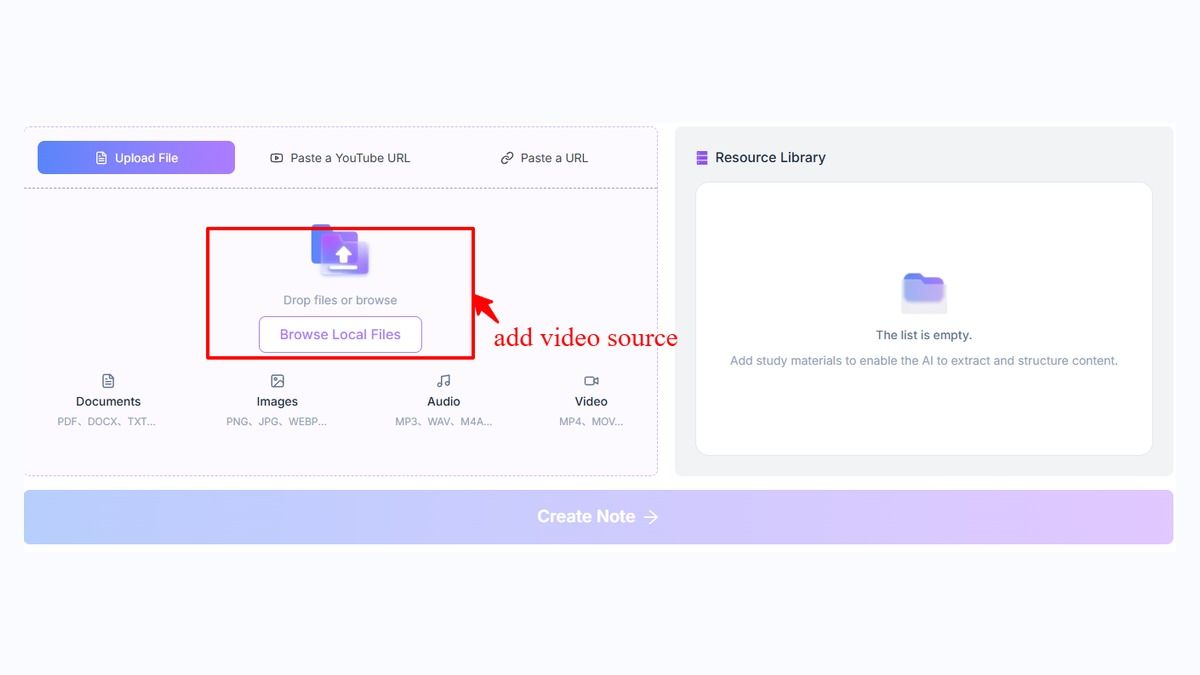
If you paste a YouTube link, use the parse step so Lynote can fetch the video source before text extraction. If you upload a direct video file, you can move straight into the creation workflow. This helps when you want to transcribe video to text without switching between several apps.
Step 2. Create the Transcript
After your source is ready, click Create Note to load the video into the Lynote workspace. Lynote processes the spoken content and turns the video audio into editable text.
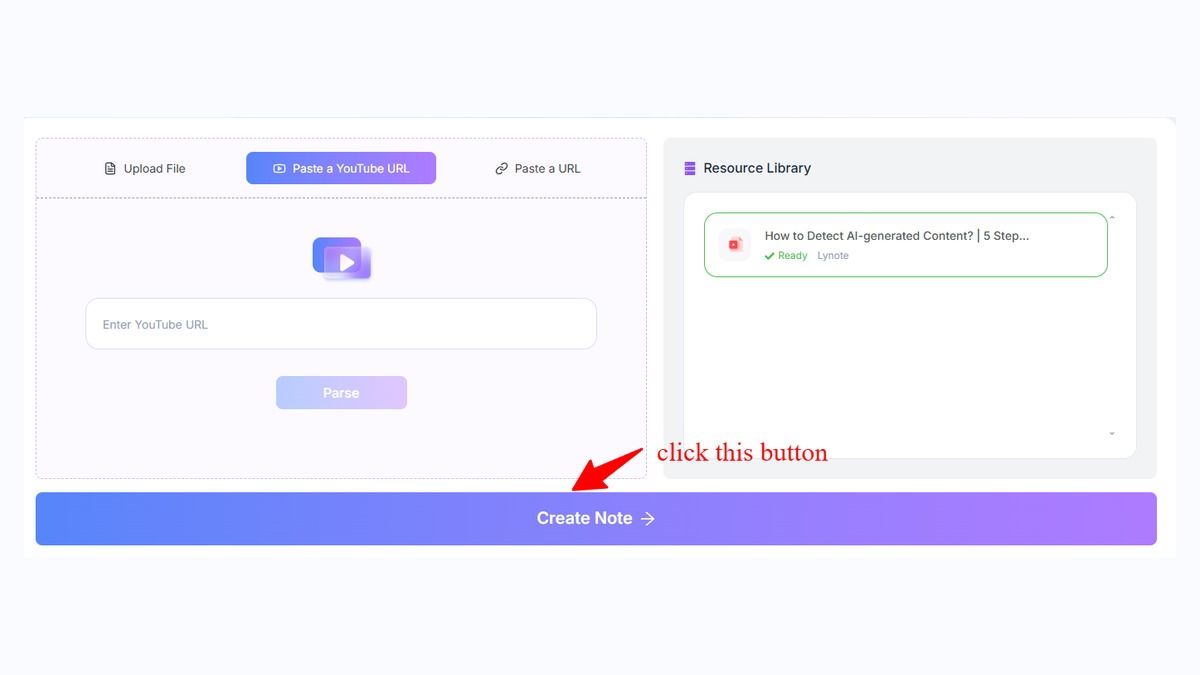
This is useful when you need to convert video speech to text from lectures, tutorials, interviews, webinars, or recorded presentations. The result gives you a transcript you can scan and refine instead of typing from scratch.
Step 3. Review the Text
Once the transcript is ready, review it for names, technical terms, timestamps, and unclear speech. AI transcription can save time, but every video transcript should still be checked before you quote or publish it.
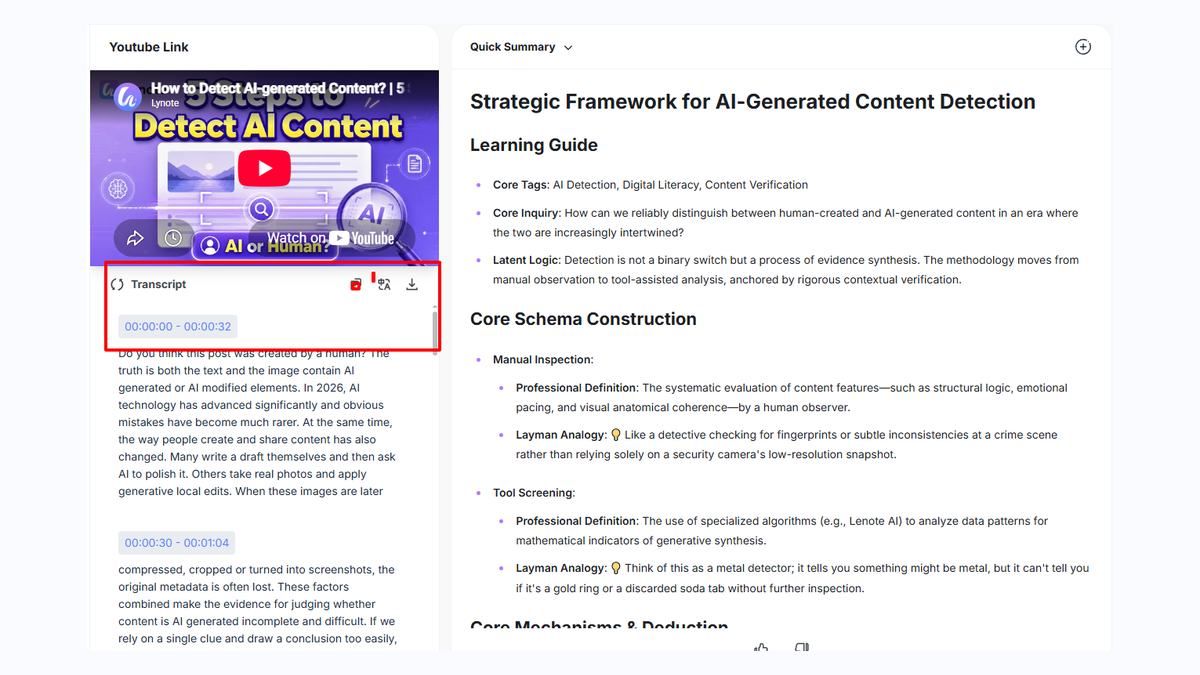
This step is especially important if the video has background noise, accents, fast speech, overlapping speakers, or specialized vocabulary. Clean audio usually produces better text, while noisy recordings may need more human review.
Step 4. Copy, Download, or Reuse the Transcript
After review, you can copy the transcript into a document, notes app, article draft, subtitle workflow, or study guide. You can also reuse the text for summaries, research notes, translation, or content planning.
This is where Lynote becomes more useful than a basic converter. Instead of only answering how to transcribe video to text, it gives you a workspace where the transcript can become something practical.
How to Transcribe a YouTube Video to Text
To transcribe a YouTube video to text, copy the YouTube URL and paste it into Lynote Video to Text. After parsing the link, create the note and review the generated transcript.
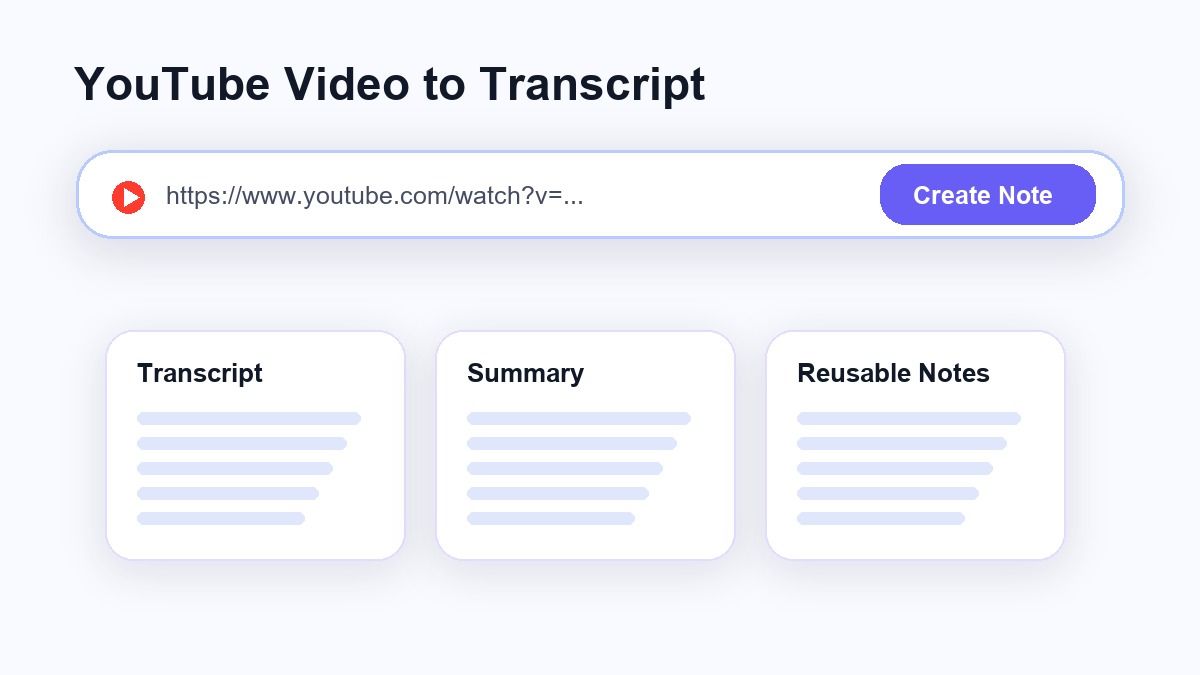
This is helpful when you need to turn a YouTube video into a transcript for class notes, video research, podcast-style content, or creator planning. It also avoids the extra step of downloading the video file first.
If the YouTube video already has clear speech, the transcript is usually easier to review. If the video has music, multiple speakers, or poor audio, you should spend more time checking the text before using it.
How to Convert Video Audio to Text
If you have a video file, the main task is extracting the speech from the video audio. Lynote handles this inside the video-to-text workflow, so you do not need to manually separate the audio track.
This is useful for MP4 lectures, Zoom recordings, screen recordings, interviews, and training videos. You upload the video, run the transcript workflow, and then review the text output.
You can use this method when you want to convert video audio into text for searchable notes. It is faster than replaying each section and typing by hand.
Manual Video Transcription vs AI Video Transcription
Manual transcription gives you maximum control, but it takes a lot of time. A one-hour video can take several hours to transcribe by hand, especially if you pause, rewind, and correct every sentence.
AI video transcription is faster and better for first drafts. It can help you turn video into transcript text quickly, then you only need to review and correct the output.
For most workflows, the best approach is a hybrid one. Use AI to convert video to text, then manually check important sections for accuracy.
When Should You Use Video Transcription?
Use video transcription when you need to search, quote, summarize, translate, or repurpose video content. A transcript makes long video easier to work with because you can scan text instead of replaying the whole file.
Students can use transcripts to review lectures. Creators can use transcripts to write captions, blogs, newsletters, and social posts. Teams can use transcripts to document meetings, training videos, and product demos.
Video-to-text conversion is also useful for accessibility. Written text helps people review content when they cannot listen to the audio or need a readable reference.
How to Transcribe Video to Text for Free
If you are asking how to transcribe a video to text for free, start with a browser-based workflow. Lynote lets you try the video-to-text process online, which is useful when you want a quick transcript without installing editing software.
Free workflows are best for testing, short videos, and occasional transcription. For long recordings or repeated use, you may need to consider file size, processing limits, and review time.
The key is to choose a tool that matches your source. If you have a YouTube video, use a YouTube link workflow. If you have a local recording, upload the video file directly.
Video Transcription Tool Alternatives
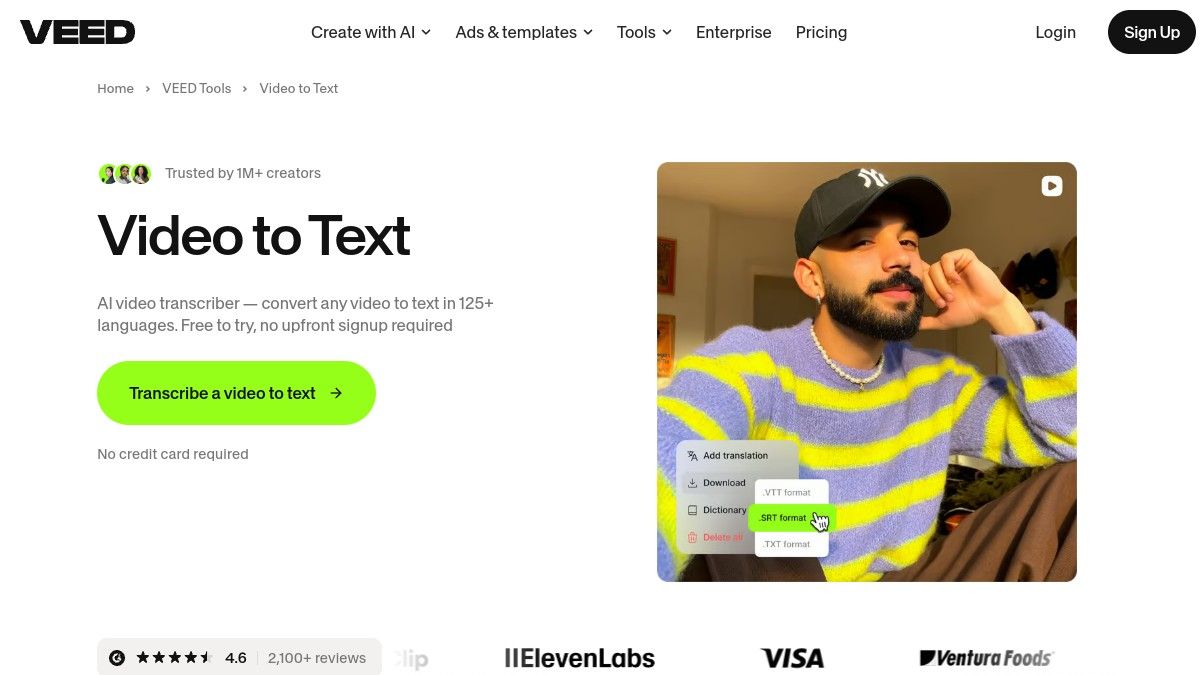
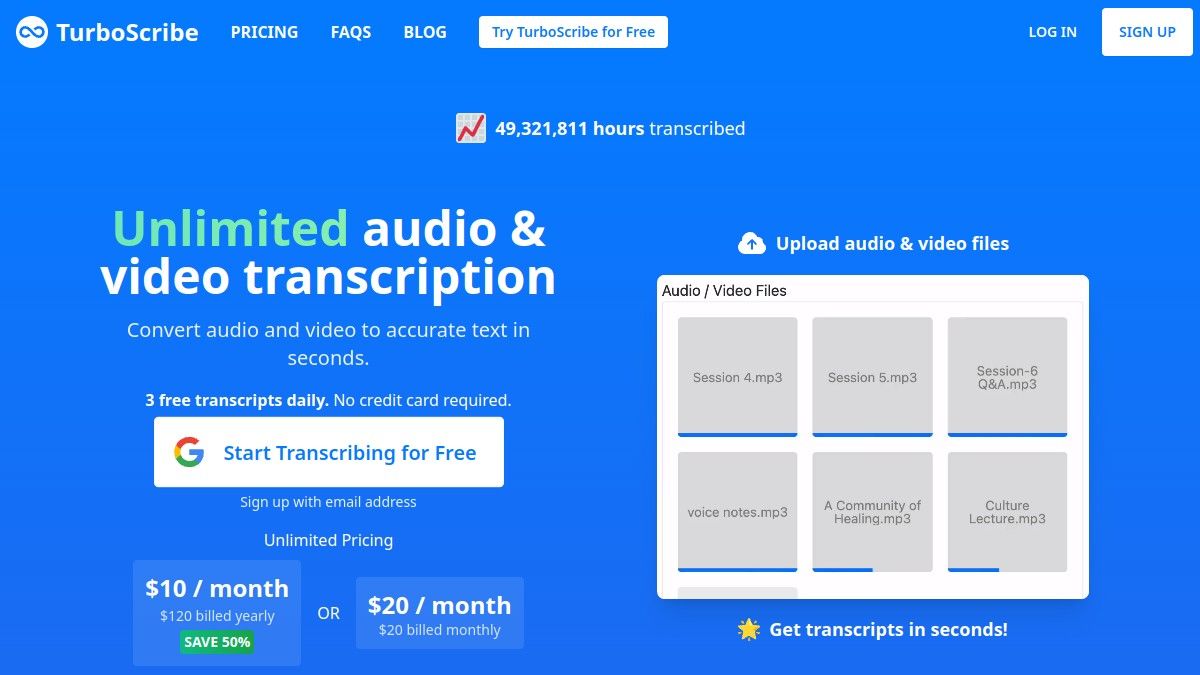
Some users compare Lynote with dedicated transcription tools such as VEED or TurboScribe. Those tools can be useful when you only need a transcript, while Lynote is designed for turning video text into notes, summaries, and reusable study or work material in the same workspace.
Can You Transcribe Video in Premiere Pro?
Adobe Premiere Pro includes transcription features for video editing workflows. It can be useful if your main goal is subtitles, captions, or editing a video timeline.
However, Premiere Pro may be more than you need if you only want to convert video to text. For a simpler workflow, Lynote is easier because it focuses on extracting and reusing the transcript, not editing the video.
If you are already editing in Premiere, its transcription tools may fit your process. If you only need text from video, an online video-to-text tool is usually faster.
Can You Transcribe Video in YouTube?
YouTube can show captions and transcripts for some videos when captions are available. This can help when you need to transcribe YouTube video to text quickly.
The limitation is that transcripts depend on video settings, available captions, and the quality of YouTube's generated text. You may also need to copy and clean the transcript manually.
A dedicated workflow is better when you need editable text you can reuse. Lynote helps you move from video source to transcript inside one workspace.
Tips for Better Video Transcripts
Start with the clearest video file available. Loud background music, echo, low microphone volume, and overlapping speakers can reduce transcript quality.
Use the full video when possible, not a low-quality screen recording of the original. If the video includes names, acronyms, or technical terms, review those sections carefully.
After you transcribe video to text, read the first few paragraphs before using the transcript. This helps you spot formatting issues, speaker confusion, or repeated words early.
Common Uses for Video-to-Text Transcripts
Video transcripts are useful for turning tutorials into written guides. They also help creators repurpose webinars, interviews, and YouTube videos into blog posts or newsletters.
Students can convert lecture videos into study notes. Researchers can scan interviews faster. Teams can turn training videos into internal documentation.
The biggest value is speed. Instead of watching the same video again and again, you can search the transcript and jump to the parts that matter.
FAQs About How to Transcribe Video to Text
How do I convert video to text for free?
You can use an online video-to-text tool that supports your source format. With Lynote, upload a local video or paste a YouTube URL, create the transcript, and review the text before reuse.
How do I transcribe a YouTube video to text?
Copy the YouTube video URL and paste it into a video transcription tool such as Lynote Video to Text. After the video is parsed, generate the transcript and review the result for accuracy.
Can I convert video audio to text?
Yes. A video-to-text tool extracts the spoken audio from the video and converts it into written text. This works best when the audio is clear and the speakers are easy to hear.
Is AI video transcription accurate?
AI video transcription can be helpful, but it is not perfect. Accuracy depends on audio quality, speaker clarity, background noise, accents, and vocabulary. Always review the transcript before using it in important work.
What is the easiest way to turn video into a transcript?
The easiest way is to use an online workflow that accepts either local video files or YouTube links. Lynote is useful because it lets you generate, review, copy, and reuse the transcript in one place.
Final Thoughts
Learning how to transcribe video to text is mostly about choosing the right workflow for your source. If you want to convert video into editable transcript text without juggling downloads, audio extractors, or video editors, Lynote Video to Text gives you a direct way to upload, transcribe, review, and reuse your video content.

Written by Hamza Razzaq
Technical Writer
Hamza creates hands-on explainers and technical guides that make AI writing tools easier to understand and use. View all articles →