How to Reduce PDF Size in Preview on Mac or Online
Need to send a PDF that is too large for email, school upload, or a client portal? This guide shows you how to reduce pdf size in preview on Mac, what to do when Preview makes files blurry, and when Lynote Compress PDF is the cleaner online option.
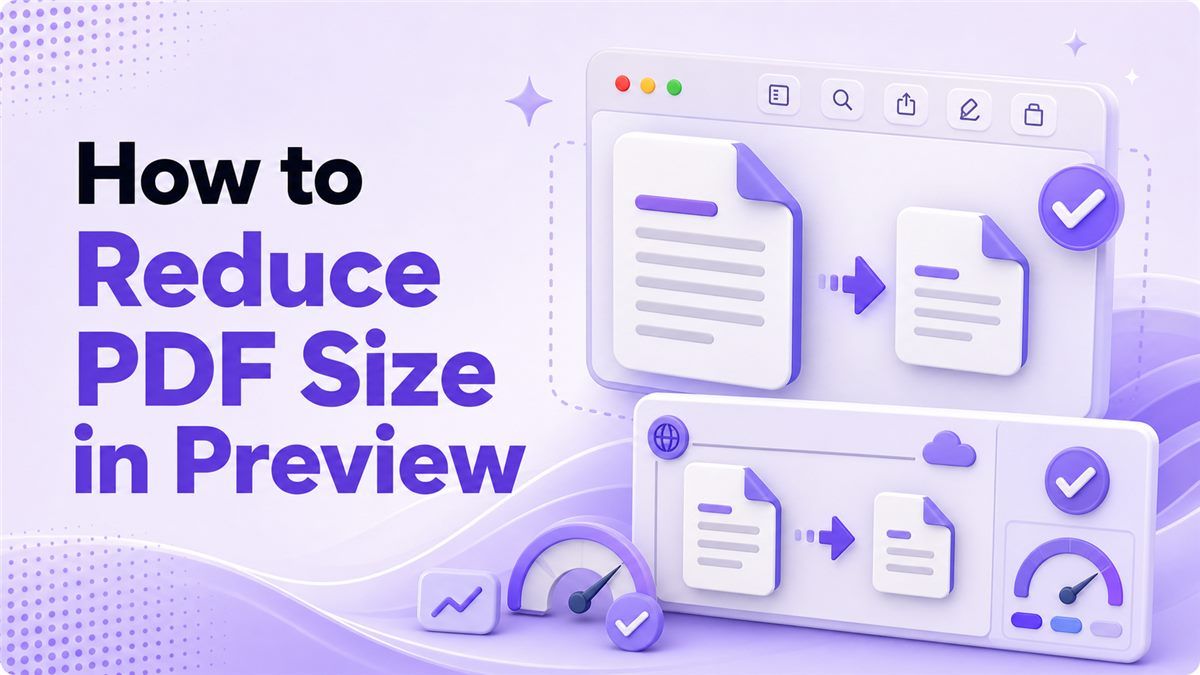
Mac Preview is useful because it is already installed and works offline. But its compression tool is basic, and it does not let you choose a target size or quality level. If you need a smaller PDF that still looks polished, it helps to understand both the Preview method and a faster browser-based workflow.
Table of Contents
- How to Reduce PDF Size in Preview: Quick Steps
- How to Reduce PDF File Size in Preview on Mac
- Fix Common Preview Compression Problems
- Reduce PDF Size Online With Lynote
- Preview vs Lynote: Which Method Should You Use?
- Final Tips for Smaller PDFs
- FAQs
How to Reduce PDF Size in Preview: Quick Steps
If you only need the fast version, use these steps to reduce pdf size with Preview. This works best for simple PDFs, internal documents, and files that are only slightly too large. Always keep the original file before saving a compressed copy.
- Open your PDF in Preview.
- Click File > Export.
- Set Format to PDF.
- Choose Reduce File Size under Quartz Filter.
- Rename the file and click Save.
That is the quickest way to use Preview to reduce PDF file size. The trade-off is that Preview can reduce image quality too much. For visual documents, proposals, scanned pages, and presentation decks, check the compressed PDF carefully.
How to Reduce PDF File Size in Preview on Mac
Preview is the first tool many Mac users try because it is free and built into macOS. The workflow is simple, but a few details matter. If you choose the wrong export option, the compression filter may not appear.
Step 1: Open Your PDF in Preview
Double-click your PDF if Preview is your default PDF viewer. If another app opens it, right-click the file and choose Open With > Preview. Before you start, check whether the document includes photos, charts, diagrams, signatures, or small text.
This matters because mac preview reduce pdf size compression can change image clarity. A text-only PDF may shrink cleanly, while a scanned PDF may become fuzzy. Keeping the original file gives you a safe backup.
Step 2: Export the PDF
In the top menu, click File and choose Export. Do not choose Export as PDF if you want the Quartz Filter options. In the export window, make sure the format is set to PDF.
This is where many users get stuck when trying to reduce file size of PDF in Preview. The compression setting lives under Quartz Filter, not in a separate compression menu. If you do not see it, reopen the file and try the normal Export command.
Step 3: Choose Reduce File Size
Open the Quartz Filter dropdown and select Reduce File Size. This built-in macOS filter compresses the PDF by reducing image data and simplifying the file. Then choose a new file name, such as report-compressed.pdf.
This is the standard preview reduce pdf file size method. It is convenient, but it is not very flexible. You cannot choose "medium quality," "strong compression," or a specific upload limit.
Step 4: Check the New PDF
Open the compressed file and review it at normal zoom and 150% zoom. Look closely at photos, logos, screenshots, small fonts, tables, and charts. If the document still looks clear, the Preview version may be good enough.
If the output looks washed out or blocky, do not send it yet. The preview pdf reduce file size filter can be too aggressive for image-heavy documents. In that case, use Lynote Compress PDF to get a smoother balance between size and readability.
Fix Common Preview Compression Problems
Preview is helpful, but it is not a full compression workspace. The same one-click filter is applied to very different PDF types. That is why the result can vary so much from one file to another.
Blurry Images or Fuzzy Text
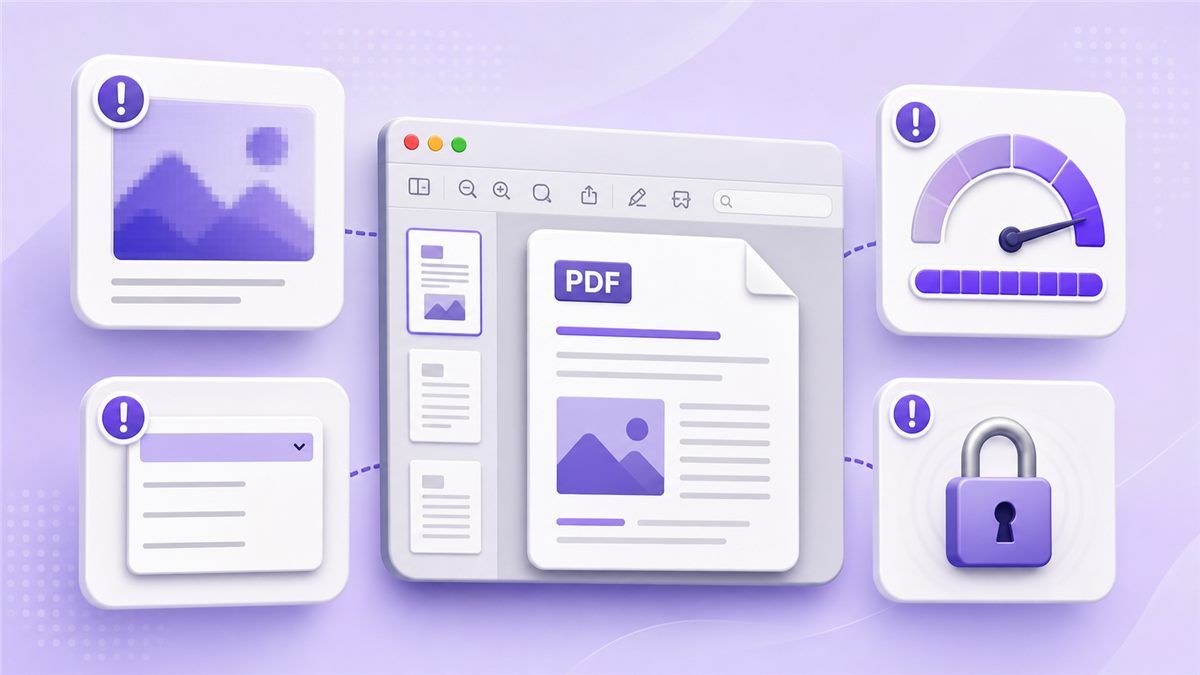
This is the most common issue when people reduce PDF file size Mac Preview files. Preview may lower image resolution enough that screenshots, scans, and graphics no longer look professional. It can be fine for quick internal sharing, but risky for client-facing files.
The fix is simple: compare the compressed copy with the original. If the difference is obvious, do not keep compressing in Preview. Upload the original to Lynote Compress PDF and create a cleaner smaller version online.
File Size Is Still Too Large
Sometimes Preview Mac reduce PDF size barely changes the file. This can happen when the PDF is mostly text, already optimized, or built from unusual embedded assets. You may still be above a portal limit even after using Reduce File Size.
Try removing unnecessary pages first, then compress again. If that still does not work, use Lynote to reduce the file in your browser. It is designed for people who need a smaller PDF without testing multiple Mac workarounds.
Reduce File Size Is Missing
If the option is missing, check the export path again. You need File > Export, with the format set to PDF. If you use a different menu option, the Quartz Filter dropdown may not show.
This issue often appears when users search for apple preview reduce file size and expect a visible compression button. Preview hides the feature inside the export workflow. Once you know where it is, the process is quick.
Encrypted or Locked PDFs
Preview may not compress locked or restricted PDFs correctly. If you own the file and have permission, unlock it first and save a fresh copy. Then try File > Export > Quartz Filter > Reduce File Size.
If the PDF still fails, use a clean copy or recreate the file from the source document. Locked PDFs can behave differently depending on how they were created. For important documents, always keep the original before attempting to decrease PDF size Preview output.
Reduce PDF Size Online With Lynote
Preview is useful for a quick offline attempt, but Lynote is better when you want a simpler online workflow. It helps you reduce large PDFs without hunting through Mac menus. You can open it here: https://lynote.ai/compress-pdf.
Step 1: Open Lynote Compress PDF
Go to Lynote Compress PDF in your browser. You do not need to install a Mac app or search for hidden export filters. Upload the PDF you want to make smaller.
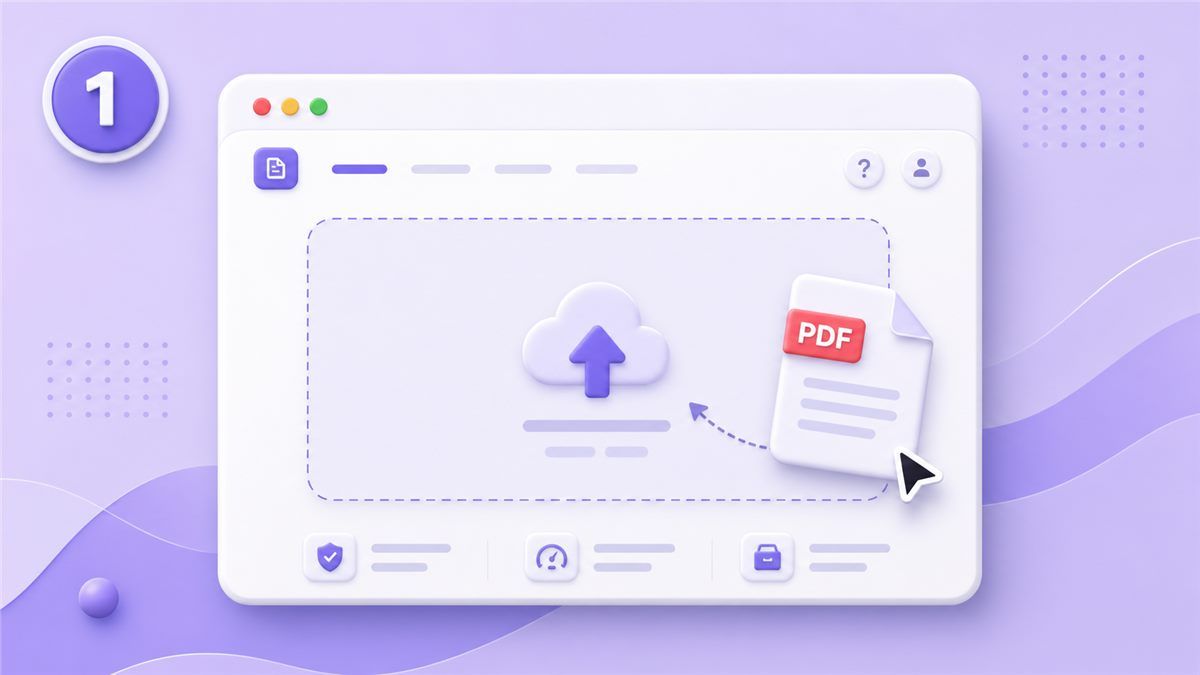
This is especially helpful when reduce file size PDF Preview results are inconsistent. Instead of repeating the same Preview export, you start from the original file. That gives you a better chance of preserving readability.
Step 2: Upload and Compress
Drag your PDF into Lynote or choose it from your Mac. Lynote processes the file online and prepares a smaller version. The goal is to make the PDF easier to upload, email, store, or share.
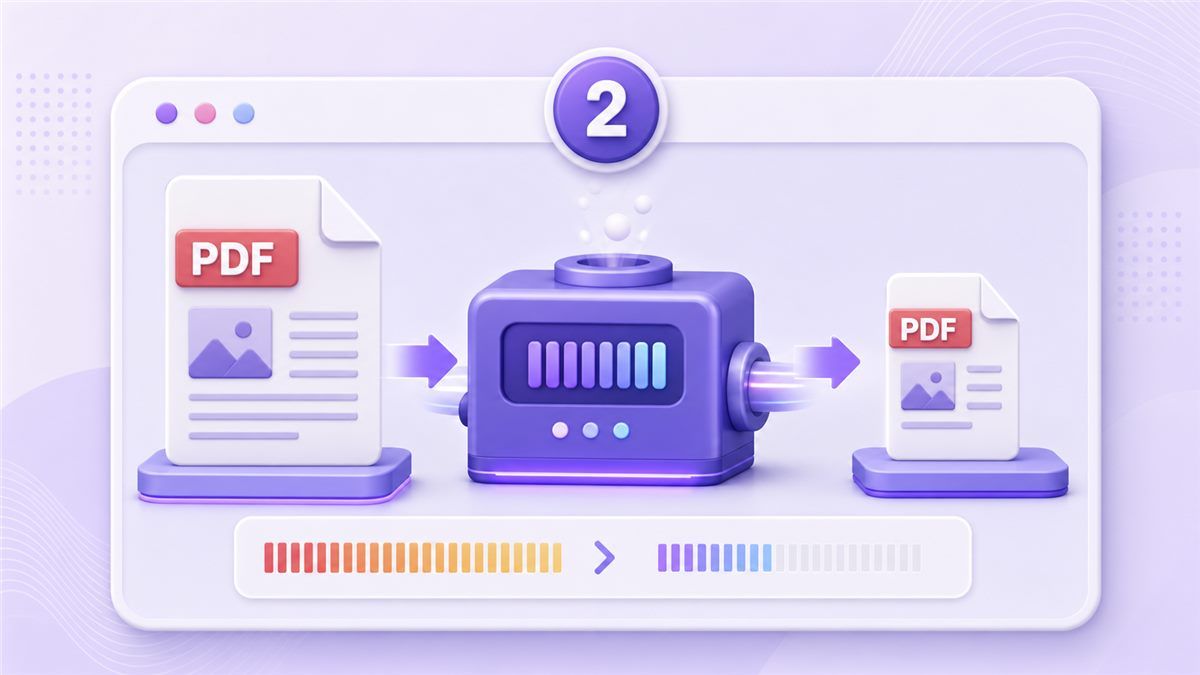
This is a good option when you need to reduce size PDF Preview alternatives quickly. It is also useful for resumes, applications, reports, product sheets, classroom documents, and scanned PDFs. You can stay focused on the document instead of the compression settings.
Step 3: Download and Review
Download the compressed PDF and open it on your Mac. Check the same areas you would check after using Preview: images, charts, signatures, and small text. If it looks good, you now have a smaller share-ready file.
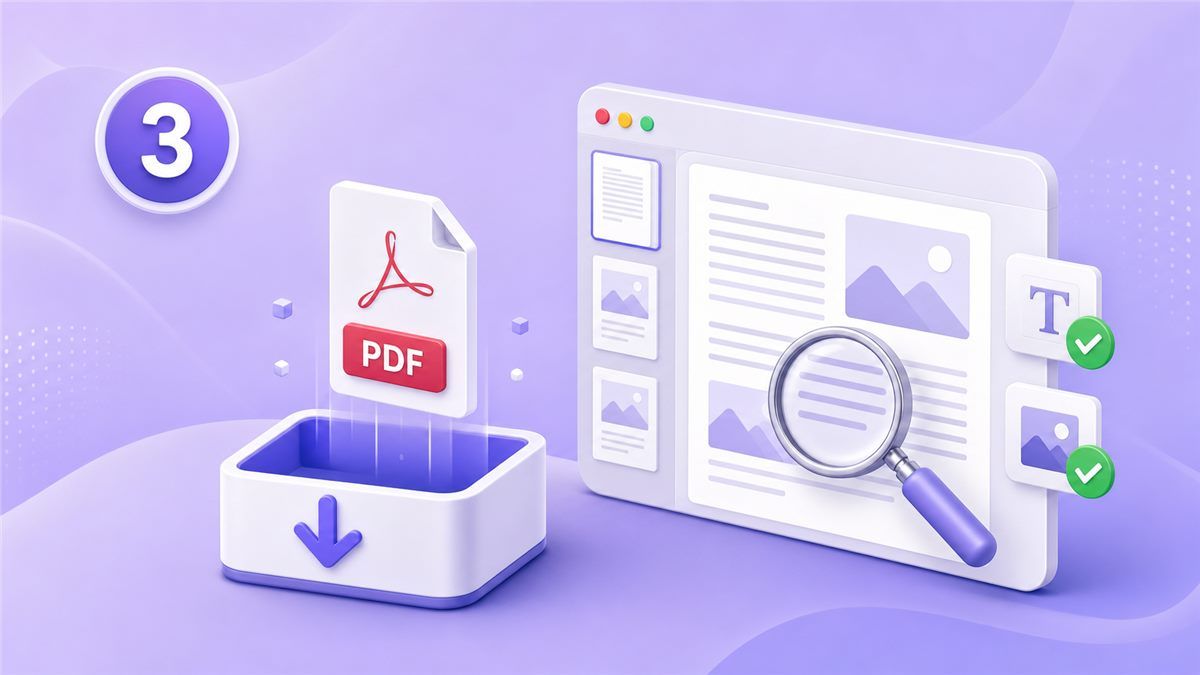
This workflow is faster when you need a polished result. Preview gives you a basic filter, while Lynote gives you a purpose-built PDF compression page. For many users, that is the easiest way to reduce size of PDF in Preview when Preview itself is not enough.
Preview vs Lynote: Which Method Should You Use?
Both methods can help, but they fit different situations. Preview is best when you want a free offline tool for a simple file. Lynote is better when quality, speed, and consistency matter.
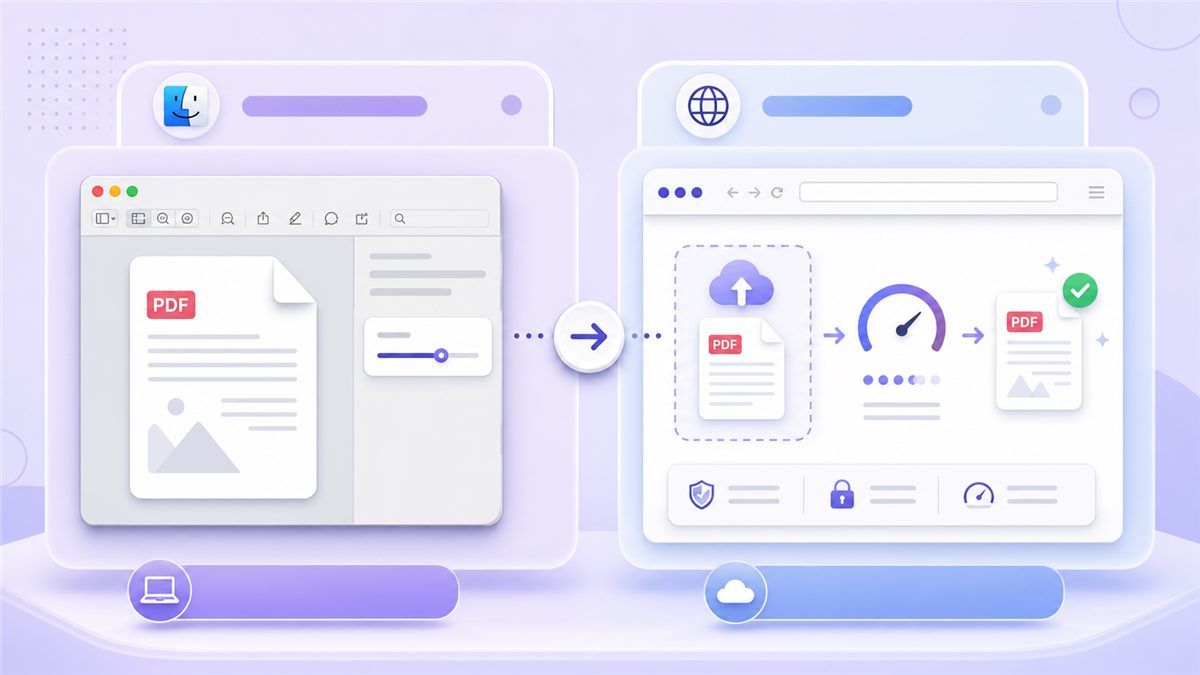
| Feature or Scenario | Preview on Mac | Lynote Compress PDF |
|---|---|---|
| Cost | Free with macOS | Browser-based tool |
| Setup | Already installed | No app install needed |
| Main workflow | File > Export | Upload > Compress > Download |
| Quality control | One Quartz Filter | Built for PDF compression |
| Best for | Quick internal sharing | Clean, share-ready PDFs |
| Image-heavy PDFs | Can become blurry | Better for readable output |
| Upload limits | No target size control | Easier for file-size goals |
| Learning curve | Hidden menu setting | Simple web workflow |
If you only need to preview reduce PDF size for a casual email, Preview may be enough. If you are submitting a resume, sending a proposal, or uploading a document that must look clean, Lynote is the stronger choice. The time saved is small once, but valuable when you handle PDFs often.
Final Tips for Smaller PDFs
Start with the original PDF whenever possible. Recompressing an already compressed PDF can make the quality worse without saving much space. If you test multiple methods, compare each result against the original.
Use Preview when the document is simple and quality is not critical. Use Lynote when you need a more reliable way to reduce file size of PDF in Preview workflows that did not work well. A smaller file should still be readable, professional, and easy to share.
FAQs
How do I reduce PDF size in Preview on Mac?
Open the PDF in Preview, then click File > Export. Set the format to PDF, choose Reduce File Size from the Quartz Filter dropdown, rename the file, and click Save. That is the built-in way to reduce PDF size in Preview Mac.
Why does Preview make my PDF blurry?
Preview uses a basic compression filter that can lower image resolution aggressively. This is why scanned pages, graphics, and screenshots may look soft after compression. If that happens, use Lynote Compress PDF for a better balance.
Can I reduce PDF file size with Preview for free?
Yes. Preview is included with macOS, so you can reduce PDF file size with Preview without paying or installing anything. The limitation is that you cannot choose detailed compression settings.
What is the best way to reduce PDF size on Mac?
For a quick offline fix, use Preview. For a cleaner online workflow, use Lynote Compress PDF. Lynote is especially useful when reduce PDF file size Preview Mac results are too blurry or still too large.
Can I reduce size of PDF Preview files without losing quality?
All compression involves trade-offs, but you can reduce visible quality loss by keeping the original and checking the compressed result. If Preview damages image clarity, compress the original file with Lynote instead. This gives you a more practical way to reduce size of PDF Preview output.
Conclusion
The reduce pdf size in preview method is a useful Mac shortcut, but it is not always precise. When Preview makes files blurry or still too large, use Lynote Compress PDF to create a smaller, cleaner PDF online.