Microsoft Word Audio to Text vs. Lynote Workflow

Are you looking for microsoft word audio to text? Maybe you want to take an audio recording and make it into text so you can read it. Whether that audio is from a meeting, lecture, interview, or voice memo, Microsoft Word has a way to turn audio into text. Microsoft Word has a Transcribe feature, but if you are on Microsoft 365, you may have to check whether you are eligible. Lynote Audio to Text is designed to let you transcribe audio, see the transcript, and use it to create useful notes for studying, work, and research.
Transcribing audio to text is not the end of the process. Once the text appears, you still need to remove filler, organize ideas, extract key points, and reuse the transcript elsewhere. This guide explains what Microsoft Word transcribe audio to text does, where it fits, and where it might feel limited. It also looks at when Lynote makes more sense.
TL;DR: Can I Transcribe Audio to Text in Microsoft Word?
Microsoft Word can transcribe audio to text if you have the right Microsoft 365 setup and Word version. The Microsoft Support guide says Word's Transcribe feature lets you record audio directly in Word or upload audio files such as WAV, MP4, M4A, and MP3. It also separates the transcript by speaker and lets you review the result before adding text to a document.
But Word audio to text is not really a general-purpose transcription workspace. It is mainly useful when you want the transcript inside a Word document. If you need a simpler way to turn audio into text for notes, summaries, study materials, or research reviews, Lynote may be the cleaner workflow.
What Is Microsoft Word Audio to Text?
Microsoft Word audio to text usually refers to Word's Transcribe feature. It turns speech from a recording into text, organizes the transcript by speaker, and adds timestamps. You can listen to the recording, edit transcript sections, change speaker labels, and insert part or all of the transcript into your Word document.

This is different from Dictate in Word, which turns what you say into text as you speak. Transcribe is for recorded audio or uploaded files, and it returns the transcript after processing. If you already work in Word, this can be convenient for interviews, lectures, or meeting notes.
How Microsoft Word Transcribe Audio to Text Works
Word's Transcribe feature works by letting you either record audio in the app or upload a file. After you choose one of those options, Word processes the audio and creates a transcript in the Transcribe pane. For uploaded files, Microsoft lists WAV, MP4, M4A, and MP3 as supported formats.
There are also limits to consider. Microsoft says users with a Microsoft 365 subscription can transcribe a limited number of uploaded audio minutes per month, while Copilot license users may get a higher upload limit. These details can change, so check the current Microsoft Support page before relying on Word for high-volume transcription.
When Microsoft Word Audio to Text Is Useful
Microsoft Word audio to text is useful when your end goal is a Word document. A writer might transcribe an interview and pull important quotes into a report. A student might transcribe a lecture and save the result as a document for later review.
It also fits users who already work in Microsoft 365 and OneDrive. Microsoft stores uploaded or recorded audio in a Transcribed Files folder in OneDrive. That can be helpful if your files and documents already live inside the Microsoft ecosystem.
The common use case is simple: your workflow starts and ends in a document. If you want to transcribe audio file to text Microsoft Word style, then drop transcript snippets into a document, Word is a good option. It is less ideal when the transcript needs to become notes, summaries, flashcards, or content outlines.
Where Word Can Feel Limited
The main limitation is workflow fit. Microsoft Word convert audio to text tools are convenient, but the transcript still centers around a document interface. If you are trying to study, summarize, compare sources, or create reusable notes, you may need extra steps after transcription.
Account and platform restrictions can also matter. Microsoft's support page lists eligibility requirements for Word for Microsoft 365 and mentions upload limits. This means the feature may not work the same way in every Word version or account.
Word is a document tool first. It is not a dedicated space for turning audio into notes. If you need to convert audio to text Microsoft Word can help, but it may not be the quickest route to structured study or work material.
Lynote as a Microsoft Word Audio to Text Alternative
Lynote Audio to Text is designed for people who want to transcribe audio and then use the text for notes, summaries, research, study, or content creation. It works well for lectures, interviews, meetings, voice memos, podcasts, and other recordings. The focus is audio review, not document formatting.
That difference matters because many users do not just want a transcript. They want a transcript they can read, edit, reuse, and apply to their work. Lynote helps streamline that next step.
If you are comparing audio to text in Microsoft Word with Lynote, ask what you need after transcription. If you need a Word document, Microsoft Word may be enough. If you want notes, summaries, research materials, or study content, Lynote is the stronger fit.
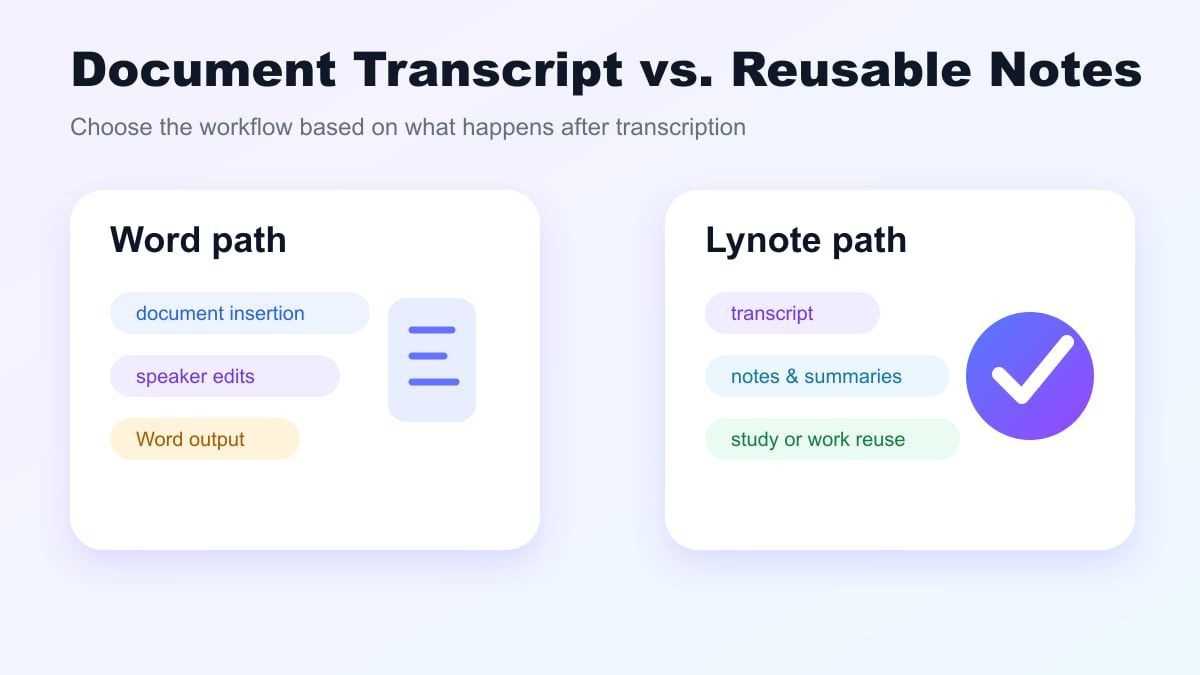
Microsoft Word vs. Lynote: Feature Comparison
| Feature | Microsoft Word | Lynote Audio to Text |
|---|---|---|
| Main workflow | Transcribe audio to a Word document | Transform audio into editable text for note-taking and reuse |
| Best for | Word users, document drafts, interview inserts | Students, researchers, creators, teams, note workflows |
| Input style | Record in Word or upload supported audio files | Add an audio source and generate editable transcript text |
| Output focus | Transcript pane and Word document insertion | Transcript review, notes, summaries, study, and content |
| Account dependency | Depends on Microsoft 365 access and availability | Web-based Lynote workflow |
| Review style | Edit transcript sections and speaker labels | Review transcript and reuse it in broader note workflows |
| Main limitation | Less note-centered after transcription | Still requires human review for important details |
Both options can be useful. Microsoft Word audio to text is a strong option if you primarily work in Word anyway. Lynote is better when you want the transcript to become a usable knowledge base.
How to Transcribe Audio to Text with Microsoft Word
To use Microsoft Word audio to text, open Word and go to the Dictate menu. Select Transcribe if the option is available in your edition and account. Then choose whether to record audio or upload a file.
For uploaded audio, Word can work with MP3, WAV, M4A, and MP4 files according to Microsoft Support. Word processes the audio and returns a transcript in the Transcribe pane. Processing time depends on file length and network speed.
Once the transcription finishes, review the transcript carefully. Adjust speaker labels, fix important words, and insert the sections or full transcript into your document. That covers the basic process for how to convert audio to text in Microsoft Word.
How to Use Lynote Audio to Text
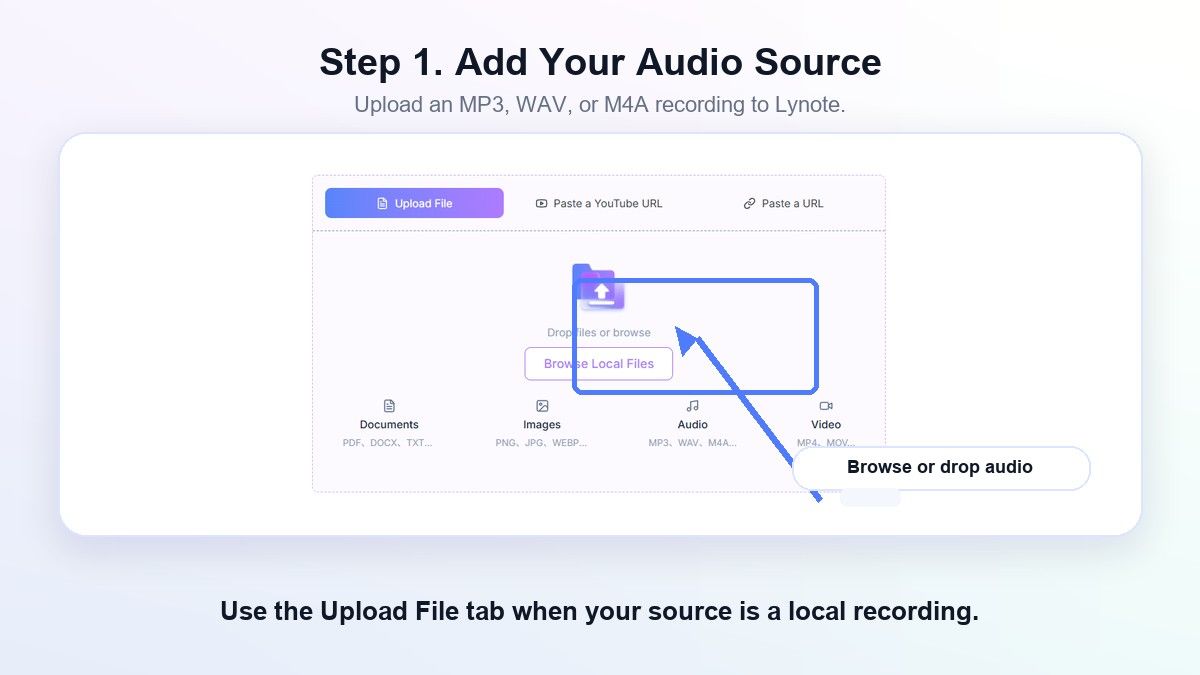
Step 1. Add Your Audio Source
In Lynote Audio to Text, add the audio file you want to transcribe. The audio could be from a lecture, interview, voice memo, podcast, meeting, or class. Use the clearest version you have for the best output.
Before generating text, check whether the audio has background noise or multiple speakers. This matters for all audio to text converters, including Microsoft Word and Lynote. A clean audio file produces a cleaner transcript.
Step 2. Create the Transcript
The transcription process lets Lynote transform your recording into a text draft. The goal is to generate a usable first version of the spoken content. Then you can review the transcript without listening to the entire audio file again.
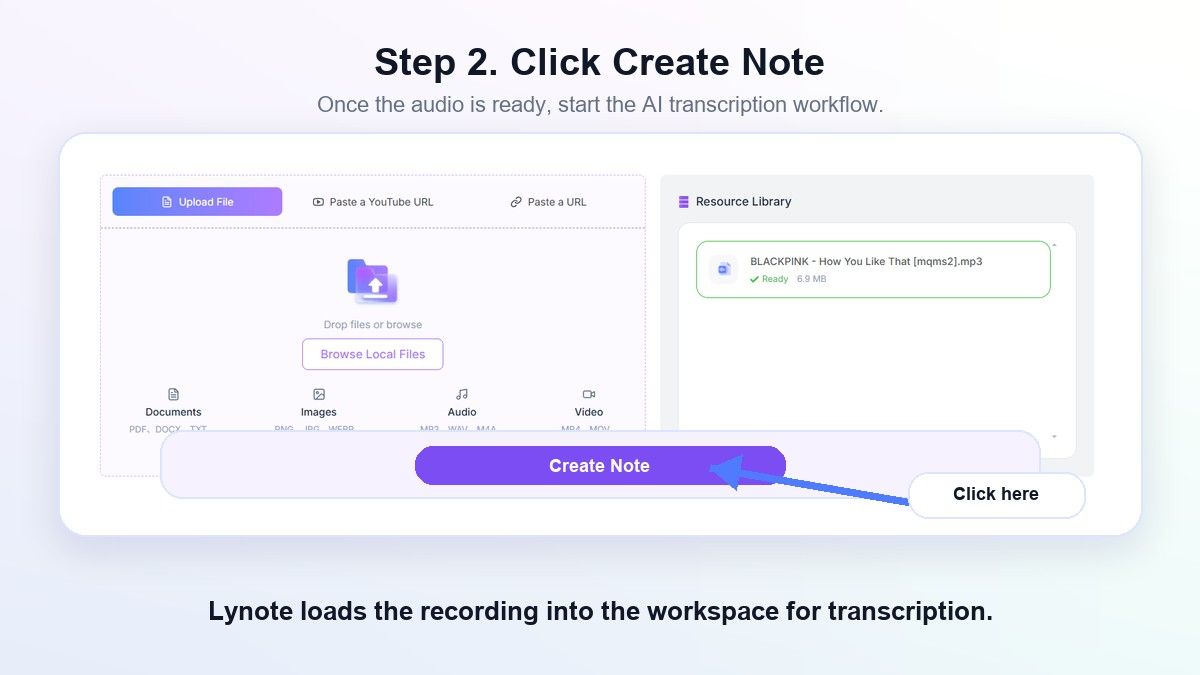
This is especially useful for long recordings. Instead of moving through a timeline, you can scan the transcript and find key segments. That makes Lynote practical for studying, research, and content editing.
Step 3. Edit the Transcript and Make It Useful
After the transcript is produced, edit the key parts. Verify names, statistics, terminology, and ambiguous phrases. Transcription saves effort, but you should always review important details before relying on the result.
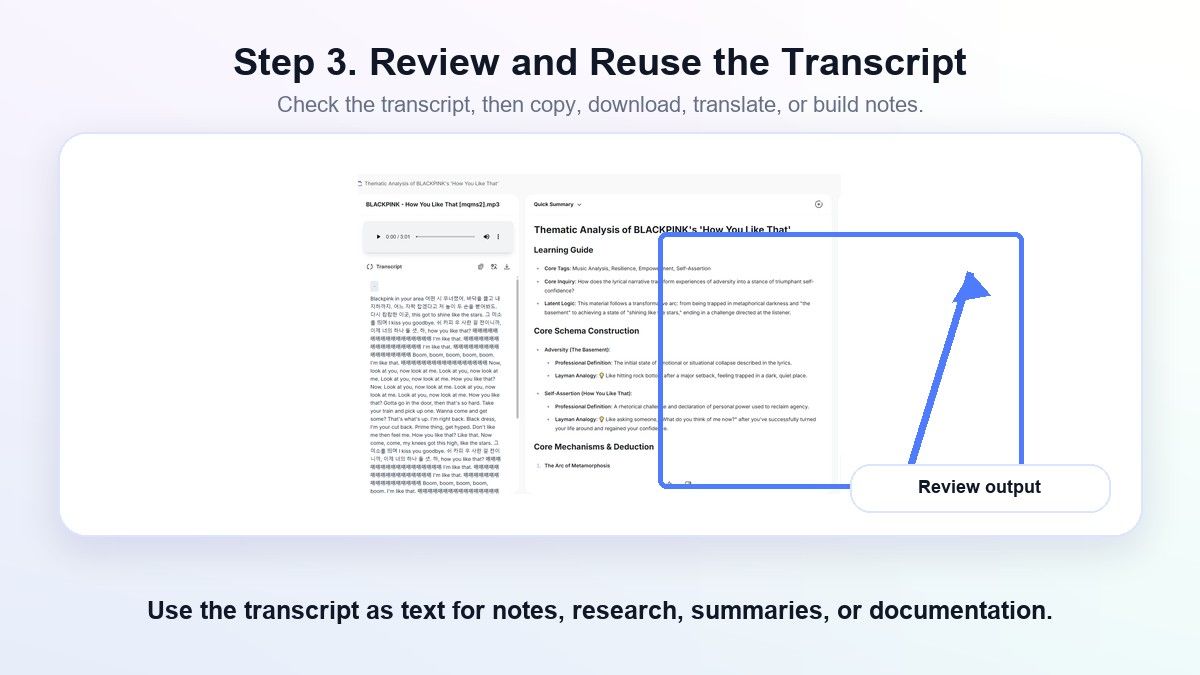
Then decide what to do with the transcript. It can become notes, a study guide, an outline, a quote list, or a summary. This is where Lynote gives you more flexibility than a Word-only approach.
Best Use Cases for Lynote
Lynote is useful for students who record lectures and want readable study notes. Instead of listening to the same class again, they can transcribe the audio and review the main points. This works well for exam preparation, online courses, and recorded workshops.
Researchers can use Lynote for interviews and field notes. A transcript makes it easier to search for themes, quotes, names, and examples. Important quotes should still be checked against the original audio before publication or submission.
Professionals can use Lynote for meetings, webinars, and voice memos. The text can become follow-up notes, action items, or project documentation. If your workflow extends beyond Word, Lynote gives you more room to reuse the transcript.
When Microsoft Word Might Still Be a Good Option
If you ultimately plan to deliver a Word document, Word may still be the best choice. If you are writing a report and only want to paste a few transcript sections into Word, the built-in Transcribe tool is convenient. The transcript lives alongside your document draft.
If your workplace already uses Microsoft 365 and OneDrive, storage may also be simpler inside that system. Your audio and document files can stay in a familiar environment. That may be enough for one-off transcription tasks.
Many people already know Word. If you do not expect to reuse the transcript beyond a document, Word's Transcribe feature may be sufficient. The decision depends on whether transcription is the final task or only part of a larger workflow.
Tips for Better Audio Transcription
Start with the clearest audio possible. A close microphone, a quiet space, and consistent speaker volume all help. This applies whether you use transcribe audio to text Microsoft Word tools or Lynote.
Try to avoid overlapping speakers. Speaker separation becomes harder when people interrupt each other or talk at the same time. For meetings, ask speakers to pause between turns when possible.
Always proofread the result. Proper nouns, acronyms, brand names, numbers, and industry-specific terms often need manual review. Treat the transcript as a strong draft, not as a final official record.
FAQs About Microsoft Word Audio to Text
Can Microsoft Word Convert Audio to Text?
Yes. When available for your account and platform, Microsoft Word's Transcribe tool can convert audio to text. You can either record live or upload a supported audio file. Check Microsoft's official documentation for current availability and limits.
Can Microsoft Word Transcribe Audio to Text for Free?
Availability depends on your Microsoft account and subscription plan. The Microsoft Transcribe feature depends on eligibility for Microsoft 365 features and includes monthly upload restrictions. If you want an easy web-based workflow, try Lynote Audio to Text.
How Do I Convert an Audio File to Text in Microsoft Word?
In Word, go to Home, click Dictate, and select Transcribe if available. Upload a supported audio file, wait for processing, and review the transcript in the Transcribe pane. Then copy sections or the full transcript into your document.
Which Audio Formats Does Microsoft Word Support for Transcription?
Microsoft Support says Word Transcribe currently supports WAV, MP4, M4A, and MP3 file uploads. Format support and upload limits may change over time. Verify the latest Microsoft instructions before starting a large project.
Which Is Better, Lynote or Microsoft Word, for Audio Transcription?
Lynote is better if you want the transcript to become notes, summaries, study material, or reusable content. Microsoft Word is better if your main goal is inserting transcript snippets into a Word document. The best choice depends on what you need after transcription.
What Is the Best Microsoft Word Alternative for Audio to Text Conversion?
If you want an alternative that combines transcript editing with a note-centered workflow, Lynote is a strong option. It works well for lectures, meetings, interviews, podcasts, and voice memos. You should still review the transcript for critical information.
Conclusion
Microsoft Word audio to text is handy when you already work in Word and want to add transcript parts into a document. But if you need a more versatile option for transcribing, reviewing, summarizing, and reusing audio, Lynote is a better fit. Try Lynote Audio to Text the next time microsoft word audio to text feels too focused on documents for your needs.

Written by Hamza Razzaq
Technical Writer
Hamza creates hands-on explainers and technical guides that make AI writing tools easier to understand and use. View all articles →