Canva Audio to Text Converter vs. Lynote Workflow

If you are looking for a canva audio to text converter alternative, chances are you are after more than just a transcript in a design tool. While Canva can certainly help you convert audio to text, captions, and other content that is ready for design, it is not ideal for those whose primary intent is to transcribe audio and review it for notes or summaries. For those, Lynote Audio to Text might be a better fit.
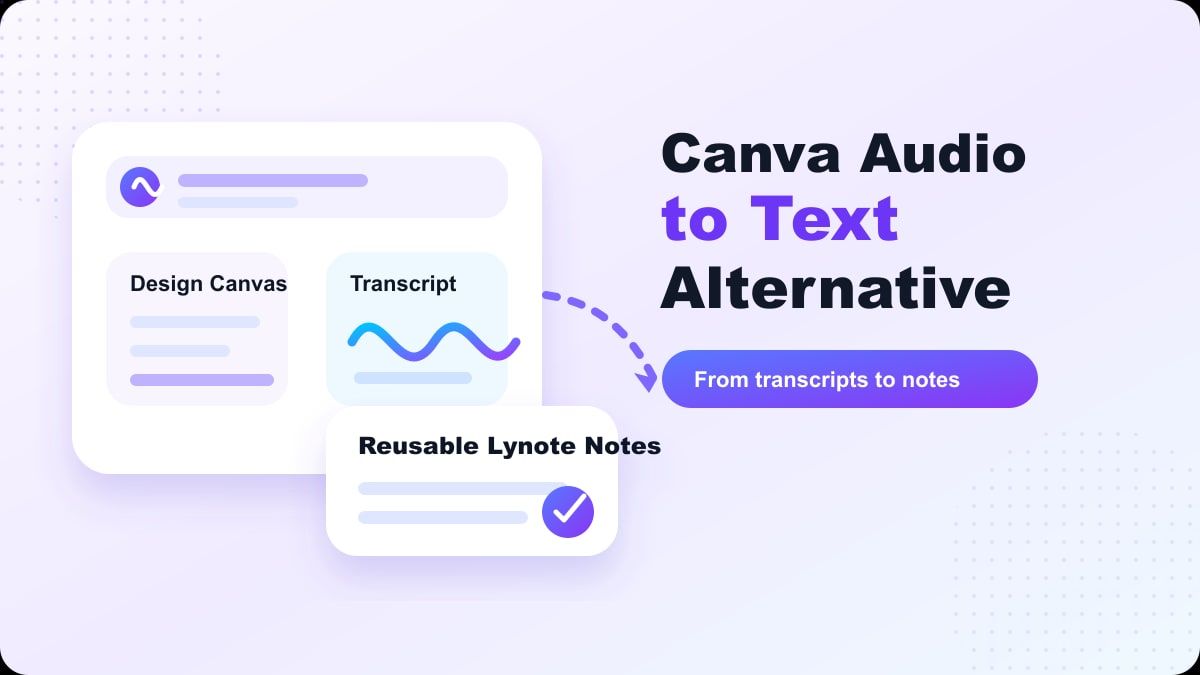
Canva excels when transcription supports a design or video project, while Lynote is best suited for transcription that supports study, research, documentation, interviews, meetings, and reusable written notes. Below is a review of both tools and guidance on when to use which.
Quick Verdict
Canva is a good option if you need audio transcription in the context of a broader design or video editing workflow. On its official audio to text pages, Canva explains that users can upload audio, generate transcripts, add text to designs, create captions, and use other tools for translating or making videos. This means Canva is a solid tool for marketers, social media creators, and other teams working on visual content.
However, Lynote is a better option if you prefer a straightforward path from audio to usable text. Rather than treating the transcript as part of a design canvas, Lynote is focused on audio review, editable transcription, and easy-to-reuse notes. If your end game is to "transcribe, review, and use the text," then Lynote is a viable Canva audio to text converter alternative.
What Does Canva Audio to Text Do?
Canva audio to text turns audio files and recordings into written text. On its feature page, Canva describes use cases for transcription, captions, documents, designs, and auto-translation. It also mentions that the Canva audio to text app accepts common file types like MP3, WAV, M4A, and OGG, with file-size details listed on its feature page.
In short, Canva audio to text is designed for people who are already operating within Canva. You can open a design, select the Transcribe Audio app, upload your audio file, edit the resulting transcript, and then paste it into a design or document. This is helpful when the transcript is going to serve as captions, a social media post, or other types of visual content.
But rather than asking "does Canva have audio to text converter?", we should ask whether Canva is the optimal environment for your transcript once it has been created.
When Canva Audio to Text Makes Sense
Canva is a good option when your final product is visual. If you are creating a video, captioned clip, presentation, branded document, or other social media asset, using Canva's built-in transcription is convenient because the transcript can become captions or design elements without needing to be exported to another tool.
It is also a good choice if you already use Canva regularly. If you begin and end your process within Canva, the Canva audio to text converter may feel seamless. You upload the file, check the transcript, style the text, and keep creating.
Canva may also make sense when the transcript is short. A short clip, interview quote, or simple voiceover may not require a separate note-taking system. Then the Canva audio to text workflow may suffice.
When Canva Feels Like Overhead
Canva is not primarily a note-taking or research environment. If you are transcribing a lecture, interview, voice memo, podcast, meeting, or study recording, you might not want your transcript in a design editor. You might want it in a more readable format that is simpler to review, copy, organize, and repurpose.
This is where Canva can feel like overhead. A student looking for lecture notes may not need templates, video arrangements, or design options. A researcher may prefer searchable text, quotes, and summaries, instead of visual styling.
Some users also look for "canva audio to text converter free" because they want a quick option for transcription. Canva's free or credit-based plans may vary, so review Canva's current pricing and limits before depending on it for long recordings. If you need to listen back to the audio and reuse the transcript as notes, Lynote may feel more appropriate.
Lynote as a Canva Audio to Text Converter Alternative
Lynote Audio to Text is designed to convert audio to text that can be reviewed and reused. It is suitable for lectures, interviews, meetings, podcasts, webinars, voice memos, and more. The focus of the workflow is on the transcript itself, not on putting the transcript in a visual design.
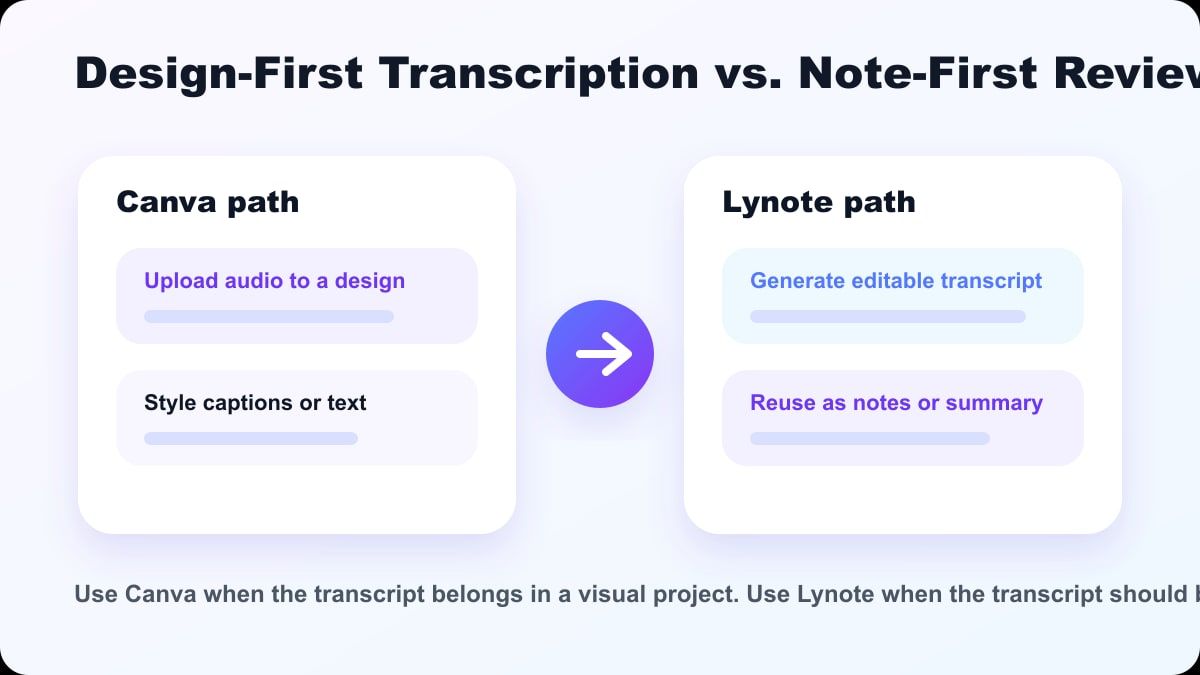
This distinction is important. A transcript is typically just the beginning. Once the audio has been converted to text, you may want to edit the wording, identify main points, summarize parts, copy quotes, or convert the material into study notes.
For that type of work, Lynote is a more streamlined Canva audio to text converter alternative. It allows you to concentrate on what was said and what you want to do with the information.
Canva vs. Lynote: Feature Comparison
| Feature | Canva Audio to Text | Lynote Audio to Text |
|---|---|---|
| Primary use | Transcription for designs, captions, and multimedia projects | Transcription for notes, summaries, and reuse |
| Ideal for | Social media videos, captions, design files, visual assets | Students, researchers, content creators, professionals, note takers |
| Process type | Canva editor and design platform | Audio-to-text workflow |
| Focus of result | Transcript for design or caption use | Editable text for notes, study, research, and writing |
| Appropriate when | The transcript is part of a Canva project | The transcript is reusable text |
| Major drawback | Can be too design-oriented for transcription purposes | Still requires some manual editing for accuracy |
Both tools have value. Canva is better when the transcript is being placed in a visual project. Lynote is better when the transcript is being transformed into readable notes, summaries, references, or working text.
How to Use the Canva Audio to Text Converter
Step 1. Open Canva
To use Canva audio to text, open Canva and start a new project or open an existing one. This makes sense if you plan to use the transcript in a design, video, or document. However, if you are not making visual content, this first step already feels less direct than using a transcription tool specifically for this purpose.
Step 2. Access the Audio to Text App
Canva's official workflow suggests going to Apps in the editor side panel, then searching for Transcribe Audio. From there, you can use the app to process your uploaded audio file. This answers the question: how to use Canva audio to text converter?
Step 3. Upload and Transcribe the Audio
Upload the audio file and begin the transcription process. According to Canva's page, the transcript will appear in the side panel and design. Afterward, you can proofread the transcript and modify its visual appearance.
Step 4. Edit and Export
Once the transcript is complete, you can edit the text and style it however you like, adding it to your design. While this might work for captions or design elements, you will likely want to take the text somewhere else if you are looking for study notes, meeting notes, or research summaries.
How to Use Lynote Audio to Text
Step 1. Add Your Audio Source
Open Lynote Audio to Text and add the audio you want to transcribe. This could be a meeting recording, lecture audio, interview, podcast clip, webinar, voice memo, or class recording. If possible, choose the most clearly recorded version for the best initial transcript.
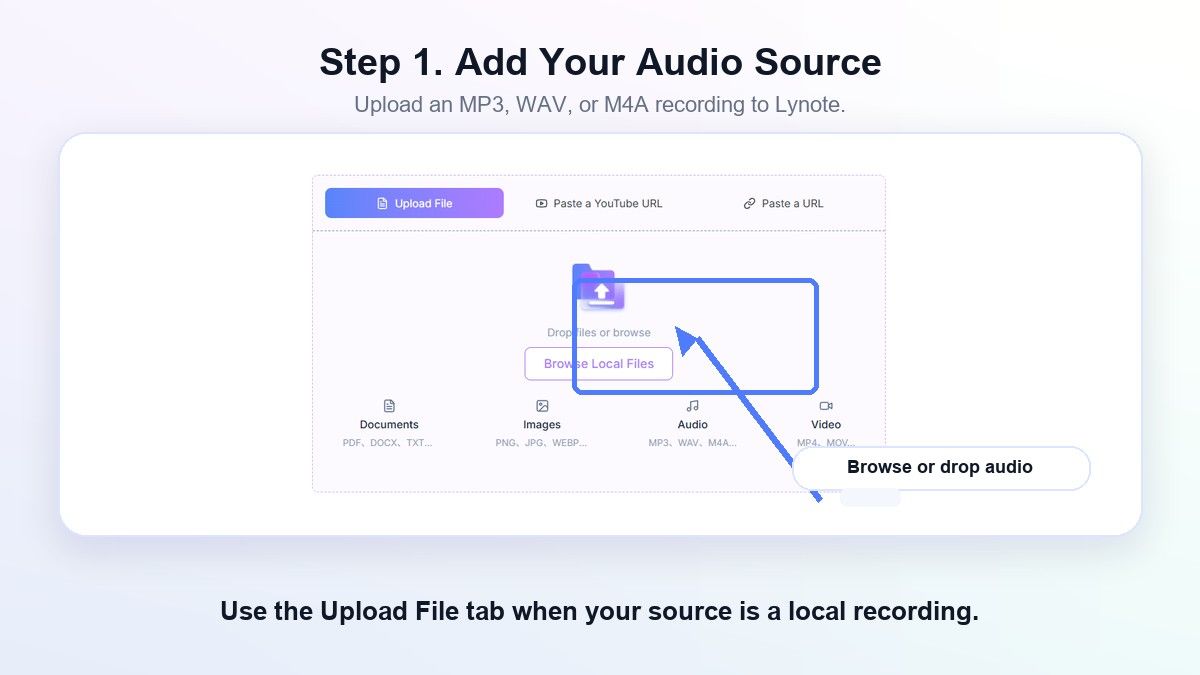
If the audio contains background noise, multiple speakers, or low volume, expect to spend more time reviewing the resulting transcript. This applies to Canva audio to text, Lynote, and any other AI transcription tool. Generally, the clearer the audio, the better the transcript.
Step 2. Generate the Transcript
Run the audio to text process. Lynote converts audio to text, which you can then read to get the information you need from the recording. This is particularly useful for longer audio clips.
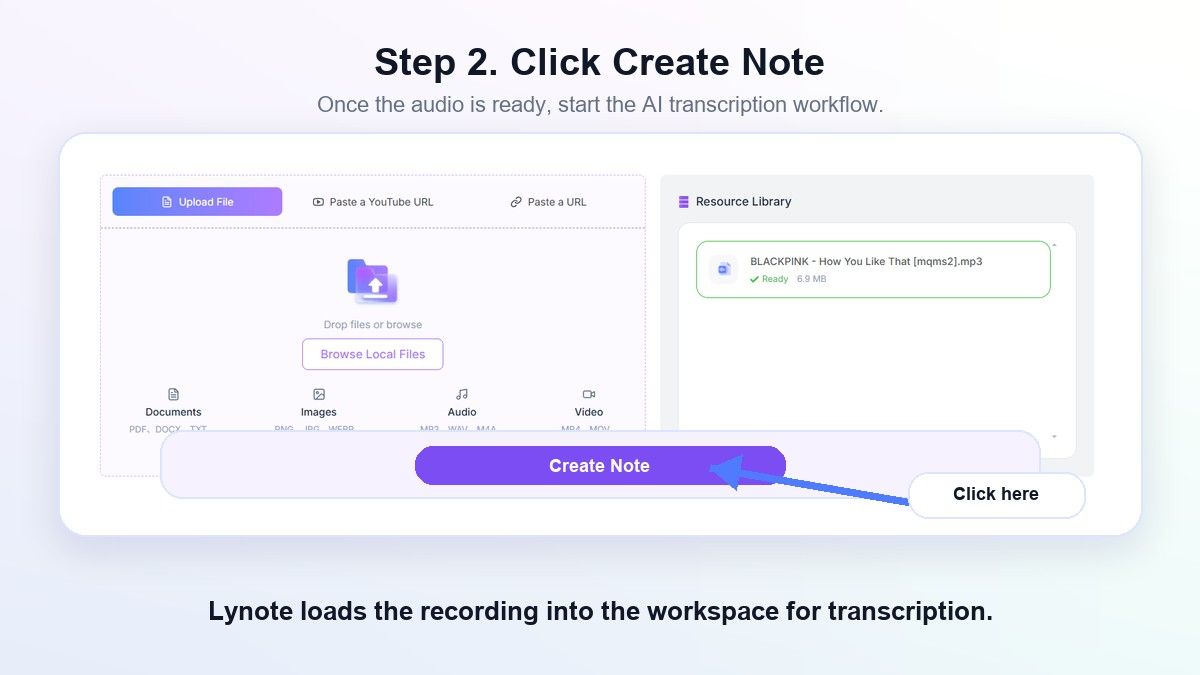
After generating the transcript, review critical information such as names, numbers, acronyms, technical terms, and anything else that did not come through clearly. AI transcription tools like Lynote are meant to save time, not replace proofreading. Treat the result as a draft.
Step 3. Review, Copy, and Reuse
When you have the text, consider what you want to do with it. Are you taking lecture notes, drafting meeting summaries, pulling quotes for research, outlining a blog post, or making a study guide? This is where Lynote comes in handy, especially compared to a design-focused workflow.
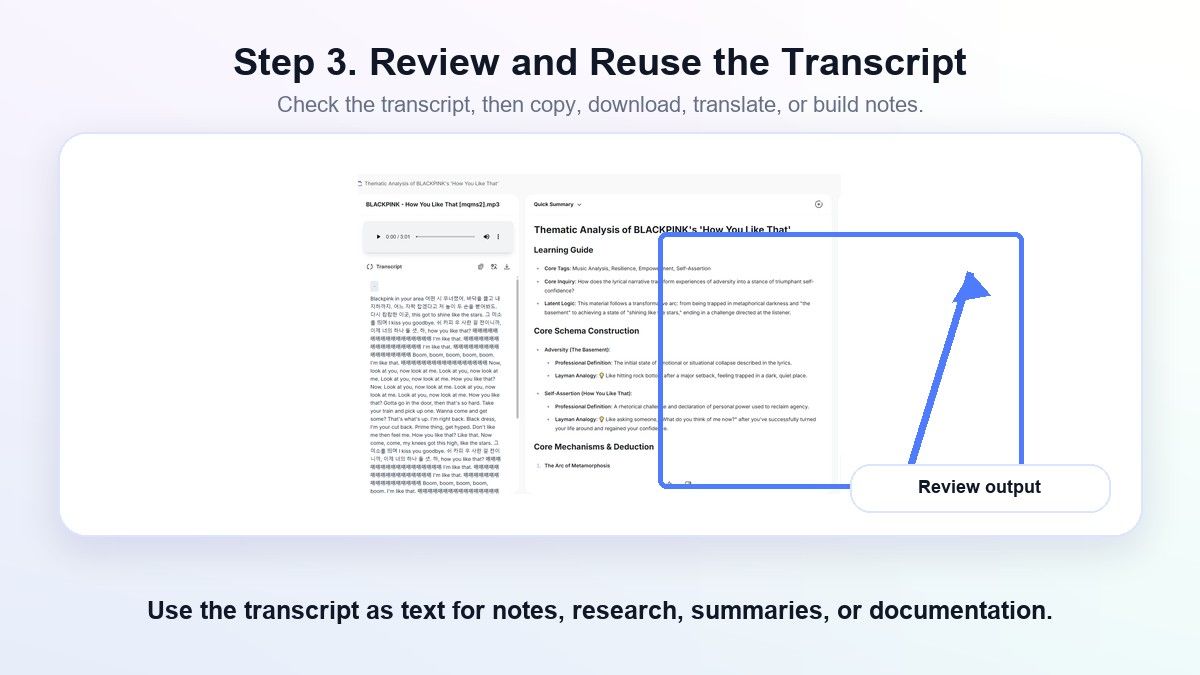
The short version is this: Lynote takes your audio and turns it into text. If you do not need captions or a graphic, Lynote is a more direct Canva audio to text converter alternative.
Best Use Cases for Lynote
Students who record their classes, seminars, or study groups can benefit from Lynote. Rather than listen back to an entire recording, they can review the transcript and generate notes. This makes exam prep and online learning more efficient.
Researchers can use Lynote for interviews and field recordings. Having a transcript makes it easier to find relevant themes, quotes, examples, and key points. Still, double-check any important quotes against the audio before publishing.
Lynote can also be used for meetings, voice memos, webinars, and project discussions. Rather than design-focused content, that transcript can become action items, meeting summaries, or project documentation. That is a much better fit than a visual design tool.
When Canva Might Still Be Better
Canva might still be a good choice if your transcript is part of a creative asset. For example, if you are creating subtitles for a video, copy for a social post, or a visual presentation, Canva allows you to keep everything in one place. That is useful for creators who already work within Canva.
It is also a good choice if you want to style your transcript visually. Canva allows you to change the font, color, layout, and other design elements. For marketing and social media teams, that could be more important than organizing notes and transcripts.
Again, that does not mean Canva is a bad option. It just means that it might not be the right option for every audio workflow. Canva is a design-first audio to text converter, while Lynote is a text-first transcription and note-taking workflow.
Tips for Better Audio to Text Results
Record in a quiet space with minimal background noise and try to get close to the speaker. A clean recording makes any audio to text converter more accurate. This applies whether you use Canva, Lynote, or another transcription tool.
Try to avoid overlapping speech as much as possible. It is hard to separate different speakers when multiple voices are talking at the same time. In meetings, ask participants to pause between speaking turns.
Proofread the transcript before using it for important work. This applies to Canva audio to text, Lynote, and other AI transcription services. Double-check names, dates, numbers, quotes, and industry-specific terms.
FAQs About Canva Audio to Text Converter Alternatives
Does Canva Have an Audio to Text Converter?
Yes, Canva has an audio to text converter. It can be used to transcribe audio files and use the resulting text in designs, captions, documents, and other video-centric workflows. The feature is most useful when your transcript will become part of a Canva project.
Is Canva Audio to Text Converter Free?
Canva describes its audio to text converter as free on some feature pages, but limits, credits, and plans can change. Check Canva's latest pricing page and feature limits before uploading longer recordings. If you need frequent note-focused transcription, compare it with Lynote.
How Do I Use Canva Audio to Text Converter?
Open Canva and create or open a project. Go to the Apps section and search for Transcribe Audio. Upload your audio file and generate the transcript, then proofread the text and place it in your design or document.
What Is the Best Canva Audio to Text Converter Alternative?
The best alternative depends on your needs. If you need to create designs and captions, Canva may be sufficient. If you need editable transcripts for note-taking, summarizing, research, or studying, Lynote is the better Canva audio to text alternative.
Can Lynote Convert Audio to Text?
Yes, Lynote audio to text converts audio to text. It works well for lectures, meetings, interviews, podcasts, voice memos, and other audio recordings. As always, double-check the transcript before relying on it for anything important.
Which Tool Is Better for Students, Canva or Lynote?
Lynote is usually better for students because the output is easier to use as notes, summaries, and study material. Canva is better when the student is creating a visual project or captioned video. The right choice depends on the assignment and output format.
Conclusion
A Canva audio to text converter is useful when transcription supports a design, caption, or video workflow. But if your main goal is to turn audio into clean, editable notes, Lynote is usually the better fit. Try Lynote Audio to Text as a canva audio to text converter alternative when you want transcripts that are easier to review, summarize, and reuse.

Written by Danny
Product Marketing Manager
Danny explains how Lynote features fit real workflows, from everyday productivity to product-led writing use cases. View all articles →