VEED Audio to Text Alternative: Lynote Review

If you're looking for a veed io audio to text alternative, you likely want something more than a plain transcript. VEED is great for content creators who want audio transcription as part of a video editing process. Lynote Audio to Text is designed for those who want to convert audio to text that they can edit into notes, study material, summaries, or reusable work content quickly and easily.

Transcripts are rarely the end goal. Students need lecture notes. Researchers need references from interviews. Content creators need video outlines. Teams need meeting notes. In this article, I compare VEED to Lynote and help you determine which audio to text tool best suits your workflow.
Quick Verdict
VEED is a solid option for audio transcription if it is tied to video editing, subtitles, captions, and social media content creation. The official audio to text landing page on VEED highlights uploading or recording audio, auto-transcribing, translating, reviewing, and exporting the transcript in various formats.
However, Lynote Audio to Text is a better choice if you want an easier, streamlined process of turning audio into text that can become notes, summaries, study material, or work content. If you want to simply transcribe, review, and reuse the text, then Lynote is the VEED IO audio to text alternative you have been searching for.
What Does VEED Audio to Text Do?
VEED's official audio to text feature is described as an AI-powered audio transcription tool. It includes use cases such as podcast transcription, interview transcription, social video transcription, and meeting recording transcription. It also features capabilities beyond transcription, such as subtitles, translation, editing, and export.

This means that if you are already working within a video editing platform, the VEED audio to text tool could be a good fit for you. If you need subtitles or caption files, or you want to reuse social video content, this could make sense. The platform itself is not limited solely to audio transcription.
Users also frequently search for veed mp3 to text to find a way to transcribe their audio files. VEED supports common audio formats and allows users to review the transcription. Depending on your subscription plan and how you use the tool, transcript export options may have limits, so check the current VEED pricing page before starting a big project.
When VEED Might Feel Like Overkill
VEED is primarily designed as a media creation platform, which makes it useful if you want to incorporate the transcript into a video project. However, if you are not editing video, cutting clips, customizing subtitles, or planning social media posts, having all of those tools may feel like overkill. For example, a student taking notes from a lecture probably does not need access to a video editor.
Another example is someone who types VEED IO audio to text into a browser but wants short notes. While they still want a transcript, they also want to extract key ideas, summarize sections, or convert the text into study material. The right VEED IO audio to text alternative is not necessarily the most feature-rich media editor.
What your alternative needs to do is shorten the gap between your recording and usable text. It needs to help you go from audio to transcript, then from transcript to review, notes, or study material. This is exactly the workflow that Lynote aims to streamline.
Lynote as a VEED IO Audio to Text Alternative
The purpose of Lynote Audio to Text is to take your audio and convert it into text that can easily be edited and used within a note-taking workflow. It can be used for lectures, interviews, meetings, voice memos, podcasts, and other recorded audio. The result is easier to incorporate into notes, summaries, research documents, and study material.
This matters because audio transcription is generally only part of the process. From there, you may need to correct names, verify technical jargon, extract summary points, or copy the text into a separate document. That is where Lynote is helpful: when you want the post-transcription process to feel seamless.
Therefore, when you compare the VEED create audio to text process to the Lynote Audio to Text process, the key question is what comes after transcription. VEED is primarily about creating video content. Lynote is focused on notes, review, and reusing audio content.
Feature Comparison: VEED vs. Lynote
| Feature | VEED Audio to Text | Lynote Audio to Text |
|---|---|---|
| Main focus | Audio transcription within a media editor | Audio to text for note-taking, studying, research, and reuse |
| Ideal users | Creators producing captions, subtitles, and social media videos | Students, researchers, creators, and professionals listening to audio |
| Common use cases | Audio, video, and other media from content creators | Lectures, interviews, podcasts, meetings, and voice memos |
| Resulting output | Text transcript, subtitles, captions, and exported file formats | Text transcript for notes, summaries, and content creation |
| Workflow style | Video/media editing plus transcription | Transcription plus note-focused review |
| Best advantage | Handy for captioning and video repurposing | Straightforward route from audio to written material |
| Main limitation | Too much functionality if you just need the text | Requires manual correction for names, numbers, and poor audio |
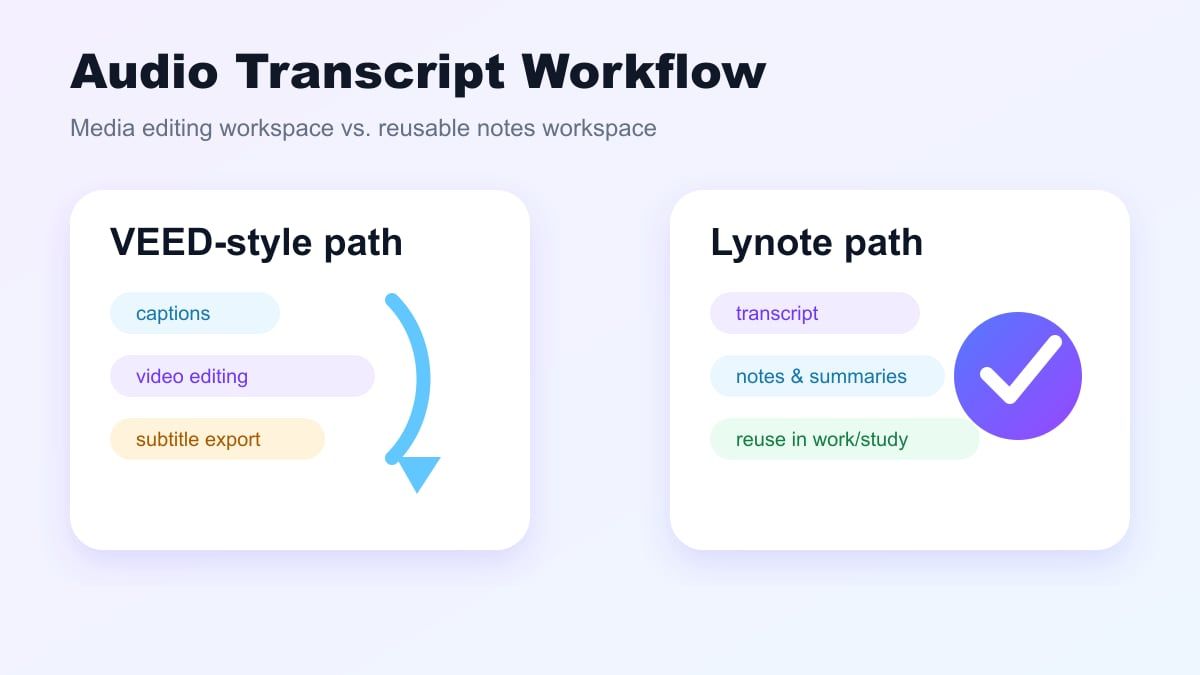
Depending on the situation, either solution may work well. Lynote is the better choice if your final output is text-based. On the other hand, VEED is better for video editing workflows where your main goal is to create a video, subtitle track, or captioned media file.
How to Use Lynote Audio to Text
Step 1. Add Your Audio Source
Open Lynote Audio to Text and upload the audio file you want to transcribe. This could be a class lecture recording, interview audio, meeting clip, podcast audio, voice memo, or similar recording. Select the highest quality version you have.
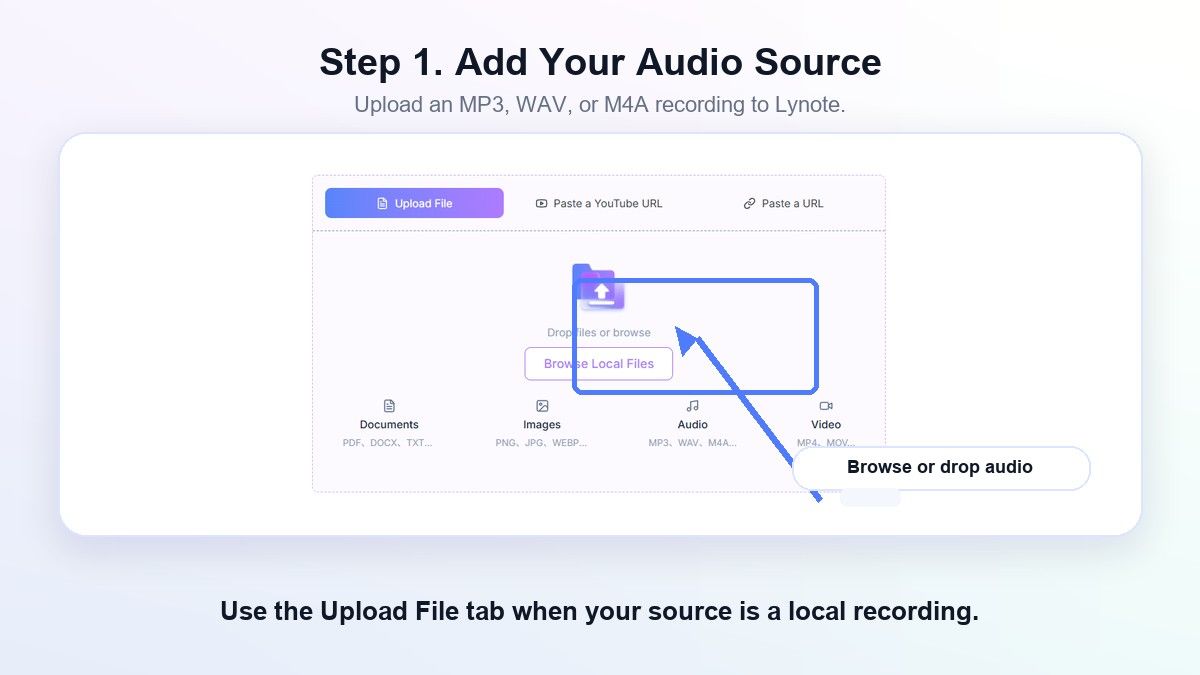
Before generating the transcript, assess the audio quality. Poor audio will always require more review. Excessive background noise, multiple speakers, low-quality microphones, or heavy echo may interfere with even the best audio to text conversion tools.
Step 2. Generate the Transcript
Run the transcription process to create the transcript. The goal here is to generate an editable text version of your recording. This is where Lynote becomes a practical VEED IO audio to text alternative for anyone who wants a transcript they can review, edit, and reuse.
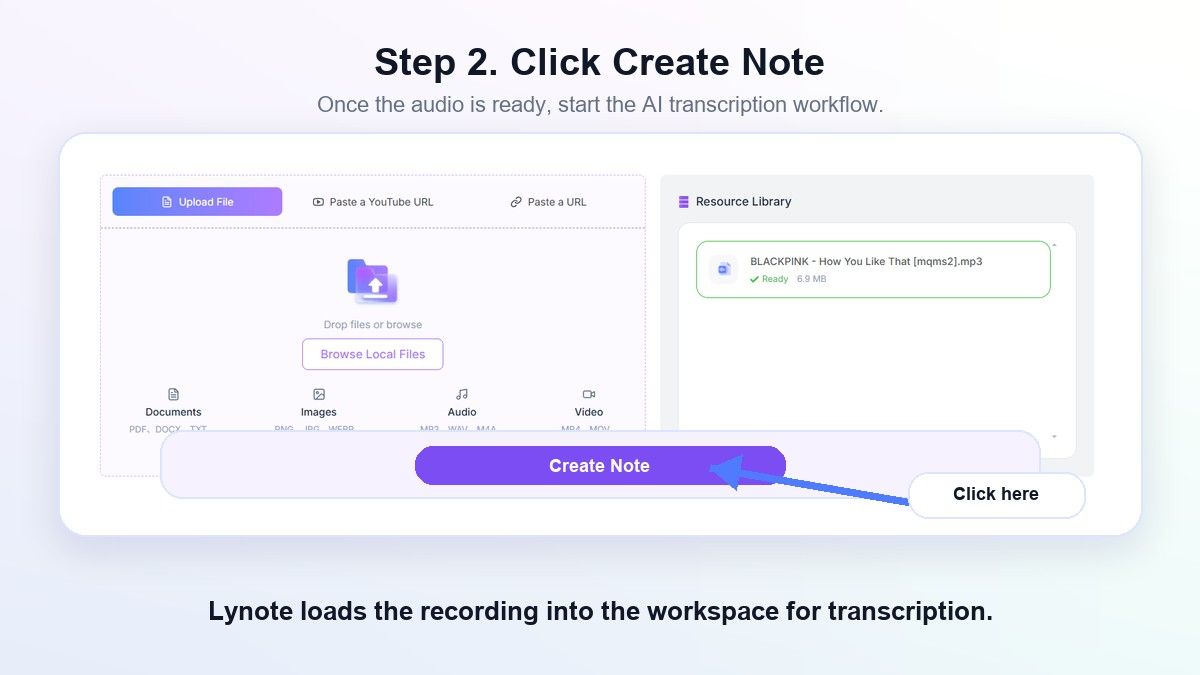
Once the transcript has been generated, carefully review the most important sections. Look over proper nouns, numbers, technical jargon, and any portions of the recording that did not come through clearly. Automated audio to text conversion is meant to save time, but critical information should still be reviewed.
Step 3. Review, Edit, and Reuse
Now that you have your transcript, you can edit the text and decide what you want to do with it. You can remove unnecessary filler words, correct speaker labels, make highlights, or export it as a document. This is where Lynote shines because it offers a flexible audio to text workflow.
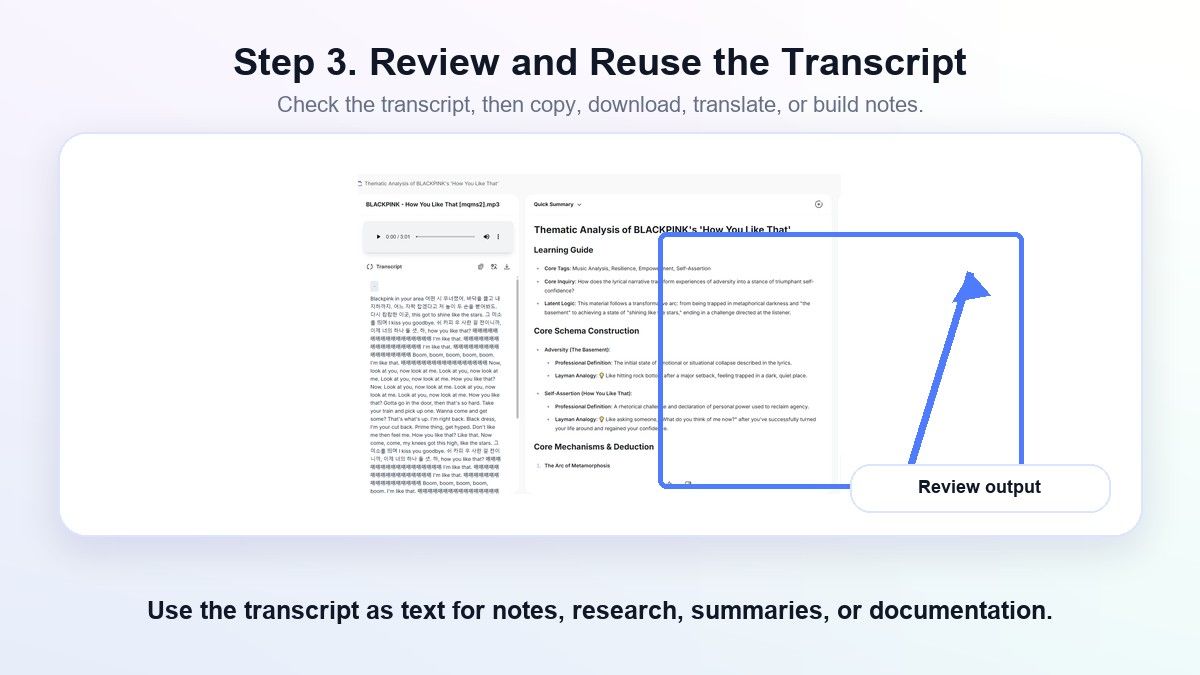
Students can use the transcript as lecture notes or a study guide. Researchers can export the transcript as interview data. Content creators can turn the transcript into an outline, article draft, newsletter content, or quote collection.
Best Use Cases for Lynote Audio to Text
Lynote is helpful for lecture recordings. If you want to study without listening to the entire lecture repeatedly, you can use Lynote to transcribe your lecture, review the important sections, and take clear notes. This is useful for exams, online classes, and recorded workshops.
Lynote is also useful for interviews and research conversations. Rather than listening to hours of audio, you can generate a transcript and quickly search for names, ideas, examples, and quotable lines. Always double-check sensitive or important quotes before posting or submitting work.
Content creators will appreciate Lynote for podcasts, webinars, voice memos, and brainstorm sessions. It can be used as a content brief, a script outline, a blog post draft, or the basis for a social media post. If you were searching for www veed io tools audio to text but do not really want video editing, Lynote is probably a cleaner fit.
When VEED May Still Be Better
VEED might still be the better tool if you need subtitle styling, caption editing, video repurposing, or a media editor on the same platform. For instance, a marketer creating short videos for social channels may prefer the broader editing features of VEED. In that case, VEED audio to text is one component of a much bigger content workflow.
You may also want to consider VEED if your transcripts will be exported in formats compatible with video publishing. If your output will be subtitle files or captioning data, then it may be more convenient to work within a video-centric application. That becomes even more true if you are already working on the video in VEED.
That said, Lynote is not a replacement for all VEED use cases. This is a more targeted recommendation. Lynote is a VEED IO audio to text alternative for those who value their transcripts above video editing.
When Lynote Is the Better Tool
Use Lynote when you need your transcript to function as meeting notes, research material, study notes, or reference material. It is ideal for users who want a streamlined audio to text experience without the overhead of creating a video editing project. It works well for anyone who wants to convert audio recordings into usable text.
It is also useful for multiple audio recordings, making it practical for students, researchers, professionals, writers, and others who need to process spoken material. If you are weighing VEED MP3 to text against Lynote, consider what you want to do with your transcript after it has been generated. If you want subtitles, VEED is solid; if you want notes, summaries, research, or writing material, Lynote is probably the better fit.
Tips for Better Audio to Text Results
Pick the clearest audio file you have. The better the quality of your audio, the cleaner your transcript will usually be. If you have a clear recording with little background noise, the results should be easier to review.
Record as close to the speaker as possible. Make sure you are in a room without too much echo, music, or background conversation. That applies to VEED transcribe audio, Lynote, and any other AI transcription tool.
Review your transcript carefully. You may need to manually edit names, product names, medical terms, legal terms, and technical jargon. Treat the transcript as a first draft, not an official final record without review.
VEED IO Audio to Text Alternatives FAQ
What is the best VEED IO audio to text alternative?
It depends on your use case. If you are looking to edit a video, add subtitles, and style your captions, VEED might be the best fit. If you want a transcript to turn into notes, summaries, research papers, or study materials, Lynote is a strong VEED IO audio to text alternative.
Can VEED convert MP3 to text?
On the audio to text page, VEED states it can handle standard audio formats like MP3. This is likely why people search for VEED MP3 to text when looking for ways to convert audio to text. As always, check the latest VEED documentation on supported formats, exports, and subscription plans.
Is VEED audio to text free?
According to VEED, you can test audio transcription services for free. Depending on the pricing plan, there may be limitations. Longer transcripts, more frequent use, and export features may require an upgrade.
Does Lynote transcribe audio to text?
Yes. With Lynote's Audio to Text feature, you can convert audio files to editable text. Lynote works well with lectures, meetings, interviews, podcasts, voice memos, and other recordings. Be sure to proofread the result to ensure all important details are accurate.
Which is better for students, VEED or Lynote?
Most students are looking for notes, summaries, study guides, or references rather than a video editing application. Therefore, Lynote is probably a better option for converting lecture or class recordings. VEED would be the better choice if the student is editing a video and wants to add captions.
Why would someone search for VEED audio to text alternatives?
Some users find VEED while browsing audio or video editing platforms. However, they may prefer a more streamlined transcription tool that makes it easier to review and reuse the transcript. If you primarily want to read, review, and convert your audio file into notes, Lynote may be a better option.
Conclusion
A VEED IO audio to text workflow is ideal if you want to edit your video, add captions, or repurpose media. But if you would rather quickly convert audio to text, notes, summaries, or study materials, Lynote is a better fit. Try Lynote as a veed io audio to text alternative if your goal is to transcribe, review, and reuse audio.

Written by Janet L. Harris
AI Writing Specialist
Janet reviews AI detectors and humanization tools, with a focus on accuracy, limitations, and responsible use. View all articles →