HappyScribe Audio to Text Alternative: Lynote Review

If you're looking for a happyscribe audio to text alternative, you probably want a faster way to get from recordings to text without having to build a separate workflow for editing. Happy Scribe is a transcription tool, but not everyone needs a full transcription tool. Some students, content creators, researchers, and teams just want clean transcripts to review, edit, summarize, and use.
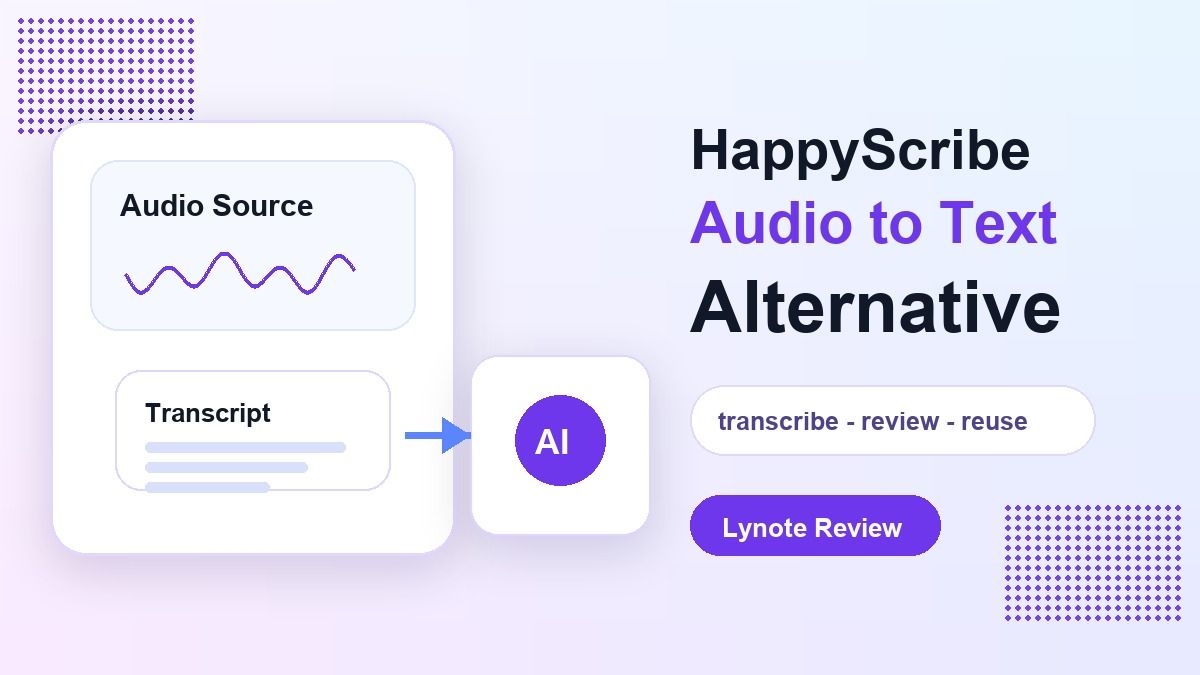
That's where Lynote Audio to Text can be a better fit. It focuses on turning audio into text and leaving the output in a place closer to notes, summaries, study material, and content. In this review, we compare Happy Scribe with Lynote to see which is the better Happy Scribe audio to text alternative for your audio to text task.
Quick Verdict
Happy Scribe works if you want a transcription tool that has lots of options for exporting and working with teams. Its audio to text landing page covers file upload, link import, recording audio, AI transcription, language choice, and downloading transcripts. This makes it a good choice for people who need a full transcription workspace.
Lynote is better if you want a simpler process for turning audio into text and then using the text to make notes, summaries, research, or study materials. It works best when transcription is part of a larger learning or content workflow, instead of the end goal. If your goal is "transcribe, review, and reuse," Lynote is a solid HappyScribe audio to text alternative.
What Does HappyScribe Audio to Text Do?
The official Happy Scribe audio to text page frames the tool as a way to convert audio files into transcripts with AI. The page includes instructions on how to upload an audio file, import a link, record audio, choose a language, and download the transcript. It also states that it supports many languages and common audio formats.
If you need a dedicated transcript editor, Happy Scribe might feel familiar. Transcription is the main product offering. That could be helpful for content creators, media teams, and businesses that work with a lot of transcription tasks.
But a dedicated transcription tool can be more than you need. If you want to transcribe a lecture, meeting clip, interview, podcast clip, or voice memo and then use the transcript for studying or summarizing, you might prefer a tool that keeps the transcript closer to a note. That's why you might want a HappyScribe audio to text alternative.
When Happy Scribe Can Feel Overkill
Happy Scribe is built around transcription workflows, which can be both an advantage and disadvantage. If you want editor features, export options, and team features, that structure can be helpful. If you are looking for a quick transcript just to take notes, it might be a bit of extra effort.
Some users, especially students and solo people, would rather see their transcript become something useful right away. This could be a study summary, a quote, a cleaned-up outline, or notes based on the audio. In that case, the ideal audio to text transcription tool is not always the one with the most transcription-focused features.
A Happy Scribe transcribe audio to text process might be a great way to produce a transcript. However, Lynote focuses more on what happens after the transcript: reviewing, editing, making notes out of your ideas, and reusing the output in studies or projects.
Lynote as a HappyScribe Audio to Text Alternative
Lynote Audio to Text is designed for people who want their transcript to become usable material quickly. You can input audio, generate the text, review it, and transfer it into a larger note-taking workflow. This is great for lectures, interviews, meetings, podcasts, webinars, and other voice recordings.
The main distinction is intention. Happy Scribe centers around transcription as a professional editing project. Lynote is centered around transcription as part of a knowledge workflow.
So Lynote is helpful if you do not want to end up with just a raw transcript. You can use it as a basis for notes, summaries, study guides, article drafts, or references for research. For many people, that is a better HappyScribe audio to text alternative.
Feature Comparison: Happy Scribe vs. Lynote
| Feature | Happy Scribe | Lynote Audio to Text |
|---|---|---|
| Primary use | Transcription and subtitle workflows | Audio-to-text plus notes and reuse |
| Best for | Media teams, creators, transcript editing | Students, researchers, creators, knowledge workers |
| Input style | Upload, link import, recording | Audio source workflow for transcription and reuse |
| Output focus | Transcript downloads and editor workflow | Editable text for notes, study, summaries, and content |
| Learning workflow | Not the main focus | Strong fit for note-based review |
| Best reason to choose | Dedicated transcription platform | Faster path from audio to reusable notes |
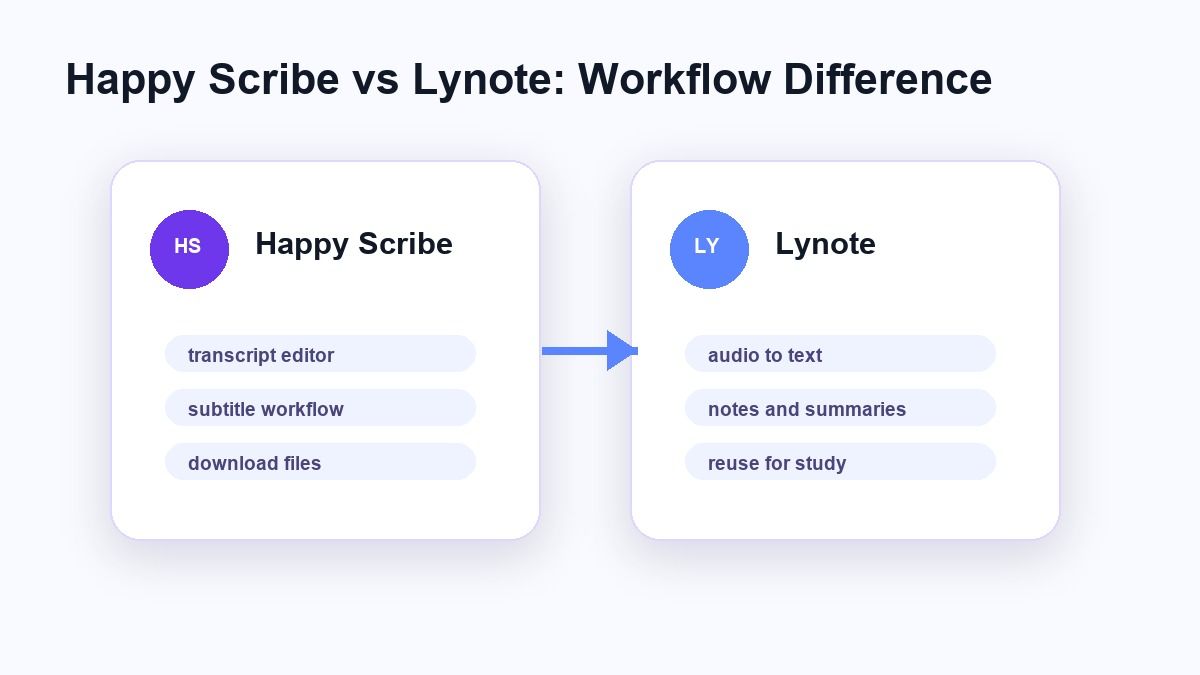
This comparison does not suggest one tool is always better. It depends on what you plan to do with the transcript after it is done. If the transcript is the end product, then Happy Scribe might be sufficient. If the transcript is the beginning of notes or studying, then Lynote might be more helpful.
How to Use Lynote Audio to Text
Step 1. Add Your Audio Source
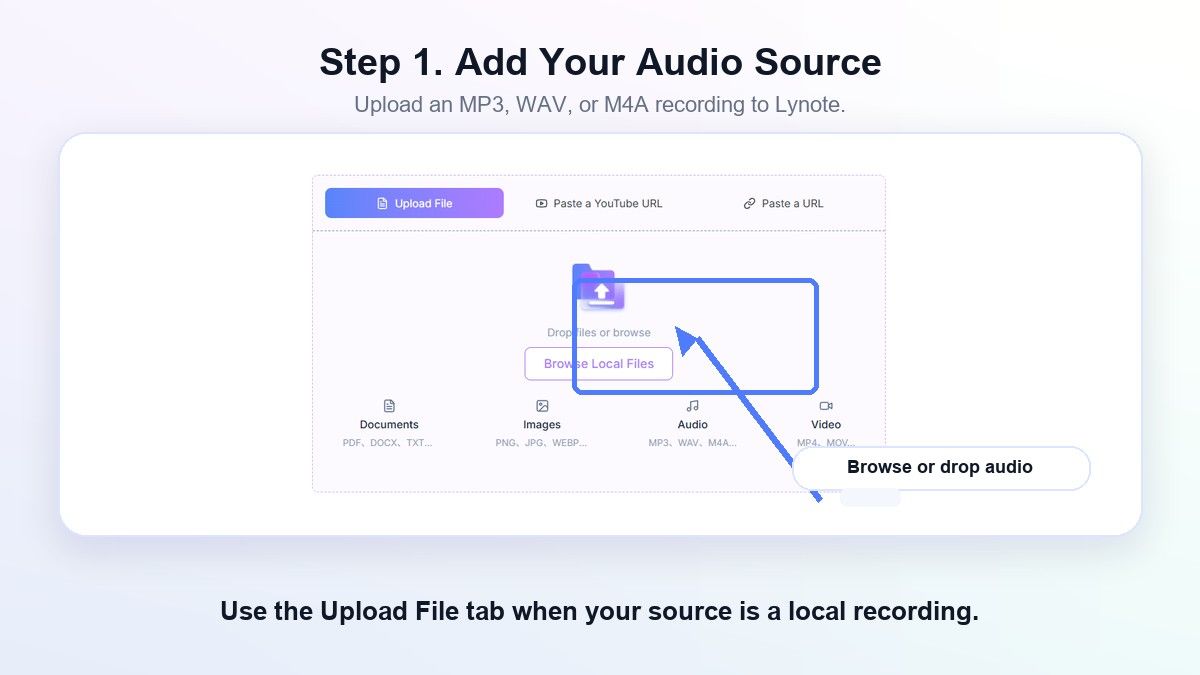
First, open Lynote Audio to Text and add the audio you want to transcribe. You could add a recording, lecture, interview, meeting audio, podcast, or voice memo. Ideally, the audio is clear, because that will make it easier to review the text later.
Before uploading, think about whether the audio has background noise, multiple speakers talking over each other, or long silent sections. Any of those things can make a transcription process more difficult. A cleaner source gives you a better initial draft.
Step 2. Generate the Transcript
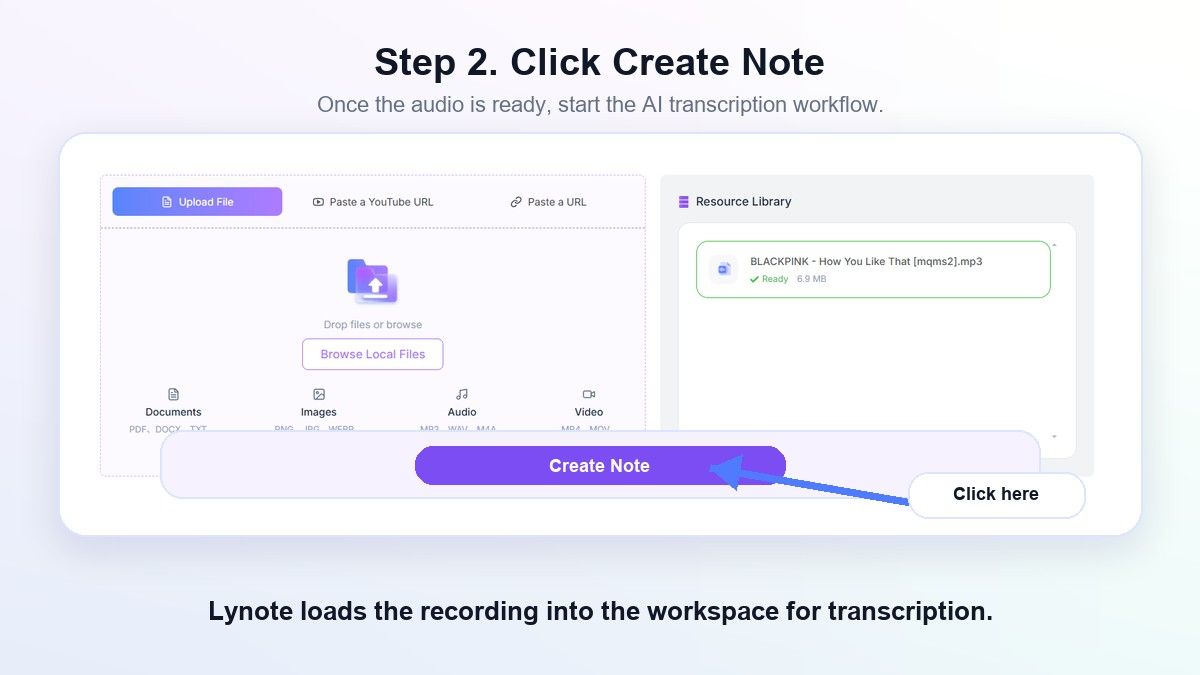
Once you have added the audio source, start the transcription process. Lynote turns your speech into text so that you can read, revise, and repurpose it. This is the crucial point in any discussion about Lynote vs HappyScribe audio to text.
After you have generated a transcript, skim through it for people's names, specific technical terms, timecodes, and speaker identification. You should not assume that any automated speech recognition software will be flawless without review. The transcription will be a strong first draft, but you should not rely on it as an official legal or academic record.
Step 3. Revise and Repurpose
Now that you have a text version, revise what is important. Delete verbal tics, correct technical terms, and highlight significant topics. This is where the transcribed text becomes usable.
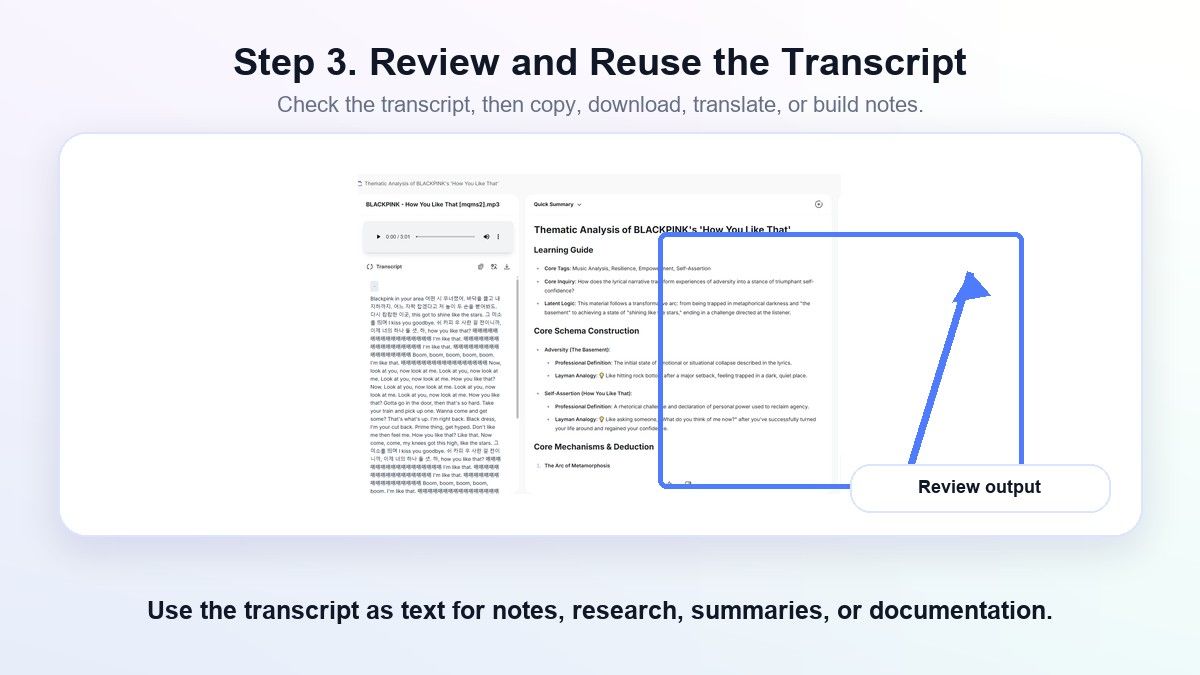
The power of Lynote is that the transcript can facilitate additional work. It can be used as notes, condensed summaries, research sources, study guides, or even outlines for a content project. This is where Lynote becomes more than just a simple Happy Scribe audio to text alternative.
Top Uses for Lynote
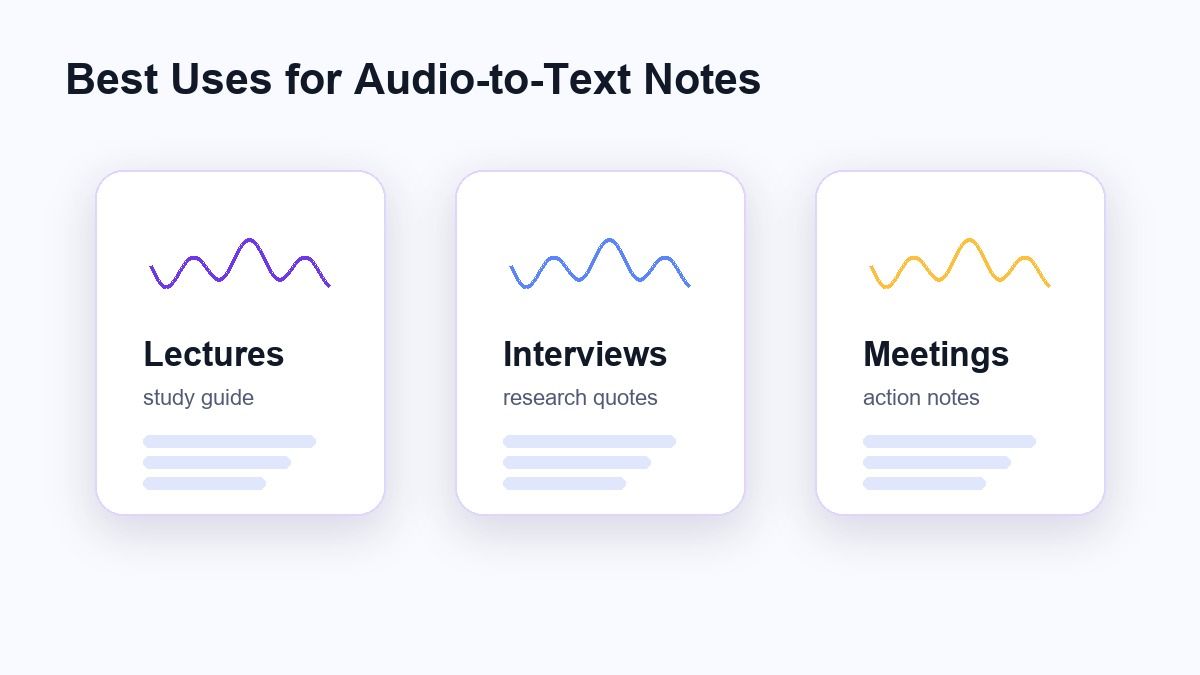
Students can benefit from taking audio recordings of classes and then having a text copy of the lectures for future reference. You could take a lecture transcript and turn it into a study guide, an exam review sheet, or a set of flashcards. That saves you from listening to the lecture again.
Researchers and creators can benefit from using Lynote to organize ideas from interviews, webinars, podcasts, or personal voice notes. You can take your recorded materials and turn them into text that can be used in your writing process.
Workers can also take notes during meetings or training and then have text copies of them to refer back to later. This way, information does not get lost in audio recordings. In this case, Lynote would be a useful HappyScribe audio to text alternative.
When Happy Scribe Might Still Win Out
If your primary objective is a dedicated transcription and subtitling platform, Happy Scribe might be the way to go. If you are looking for a tool that centers around editing transcripts, localizing media, or managing your team's transcripts, Happy Scribe might be a better option. Those who are working extensively with subtitles might also lean toward using Happy Scribe.
Happy Scribe has an easy-to-follow process for uploading files, choosing a language, and downloading transcripts. It is good if all you want is a transcript. Some organizations prefer this type of dedicated transcription platform.
But Happy Scribe is not as targeted toward study or note-taking. If you want to use the transcript as a learning aid or keep track of your notes, Lynote might be the better choice.
When Lynote Is the Best Option
You should use Lynote if you want to integrate audio transcription with note-taking. This is particularly valuable for students, researchers, and creators who need more than a raw transcription file. The transcript becomes a gateway into organized knowledge.
You should also consider Lynote if you want a streamlined experience. The flow from audio to text, text to notes, and text to summary means you do not have to overbuild your workflow. This is a solid HappyScribe audio to text alternative for those who value fast turnaround and reusability.
Who it is for: users who want to ask themselves, "What can I do with this transcript next?" If you care about that, then Lynote is worth testing.
Tips for Better Audio to Text Results
Record with the clearest audio you have. Transcription quality depends on audio clarity, speaker separation, background noise, accents, and microphone quality. Better input leads to a cleaner transcript that is easier to work with.
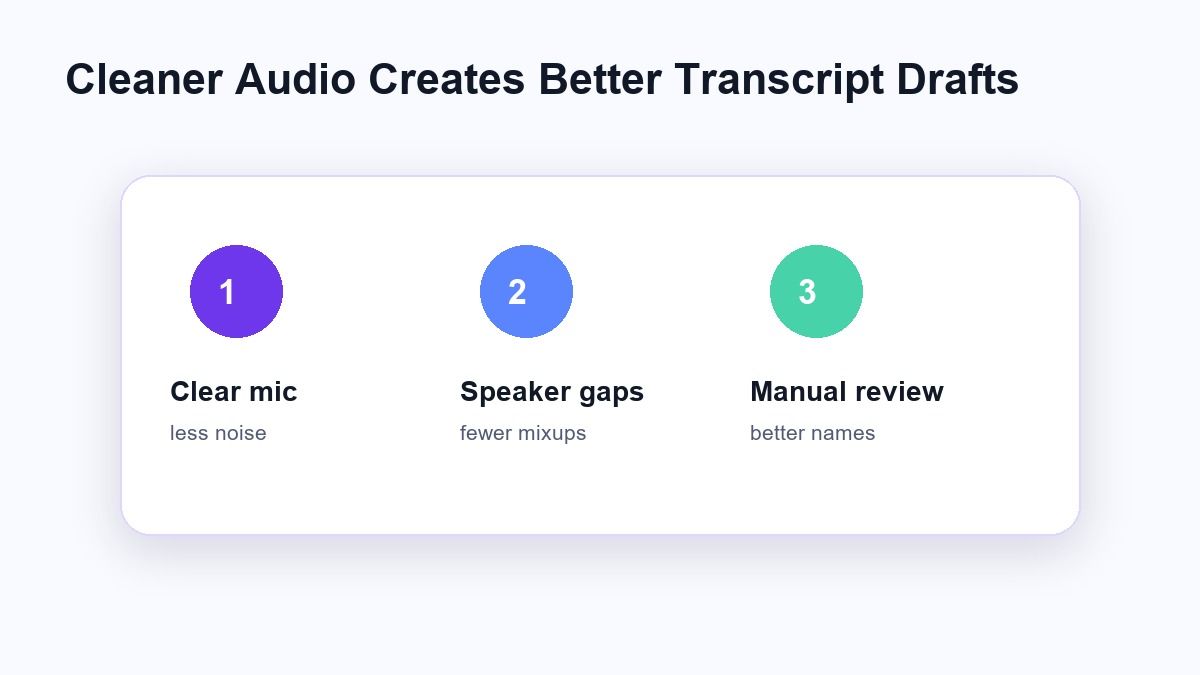
Get as close to the mic as possible. Avoid rooms with heavy echo. If you are transcribing a lecture or meeting, use the highest quality audio file available.
After transcription, manually review the most important parts of the text. Names, numbers, technical terms, and field-specific vocabulary all need careful review. This applies to Happy Scribe, Lynote, or any other audio to text tool.
FAQs About HappyScribe Audio to Text Alternatives
What is the best HappyScribe audio to text alternative?
It depends on what you want. If you just want a transcript editor, then Happy Scribe might still be a good choice. If you want to transcribe audio and have that text connect naturally to your notes, summaries, and study materials, Lynote is a great alternative.
Is Happy Scribe audio to text free?
Happy Scribe says its audio to text workflow is free to start and mentions a free trial on its official page. You should verify the current details and limitations on the Happy Scribe website. Pricing, free tier access, and download restrictions may vary.
Can Lynote transcribe audio to text?
Yes. Lynote Audio to Text converts audio to text. It works well for lectures, interviews, voice memos, podcast audio, meetings, and other spoken audio files. You should still read through the result for accuracy.
Is Lynote better than Happy Scribe?
If you want to turn transcripts into notes, summaries, or study materials, Lynote is the better choice. If you want a dedicated transcription tool or subtitle workflow, Happy Scribe might be a better fit. The decision depends on your post-transcription needs.
What should I look for after using AI transcription?
Double-check names, numbers, technical terms, speaker references, and anything that was difficult to understand. AI transcription saves time but is still prone to errors. Spend a few minutes reviewing your transcript to ensure it is accurate.
Conclusion
A happyscribe audio to text workflow is great if you need a dedicated transcription platform, but it might not be the most efficient solution for everyone. If your goal is to turn audio into notes, summaries, study material, or general text, Lynote might be a better path forward. Test out Lynote Audio to Text if you need audio that fits neatly into a broader study or content workflow.

Written by Janet L. Harris
AI Writing Specialist
Janet reviews AI detectors and humanization tools, with a focus on accuracy, limitations, and responsible use. View all articles →