Lynote vs Restream Audio to Text: Which Is Better?

If you are searching for Restream audio to text, you likely need a fast way to convert recordings, podcasts, interviews, lectures, or meetings into readable text. Restream and Lynote can both transcribe audio, but they are built around different workflows. Restream connects transcription to a broader live-streaming platform, while Lynote focuses on turning source content into searchable, editable information that you can continue working with.
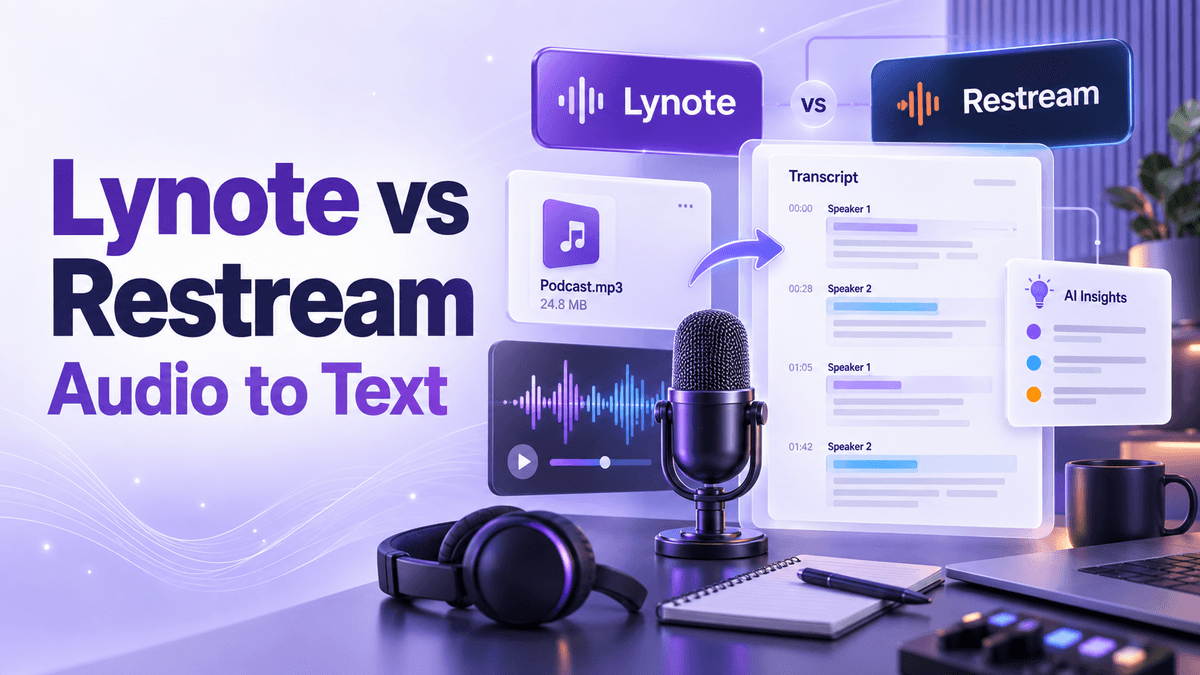
So, how do Lynote and Restream audio to text compare for transcription? This guide examines their workflow, supported inputs, transcript tools, AI features, pricing, and best use cases so you can choose the platform that fits what happens before and after transcription.
Lynote vs Restream Audio to Text: Quick Comparison
| Feature | Lynote | Restream |
|---|---|---|
| Main focus | Transcription and AI content workflow | Live streaming with transcription tools |
| Audio transcription | Yes | Yes |
| Common audio formats | MP3, WAV, M4A, and more | MP3, WAV, FLAC, AAC, and more |
| Video transcription | Yes | Yes |
| YouTube URL input | Yes | Not the main standalone workflow |
| Editable and searchable transcript | Yes, inside the workspace | Standalone result downloads as TXT |
| Speaker-aware text | Yes | Available for Restream recordings and uploads |
| AI chat with the source | Yes | Not a core transcription feature |
| Connected study tools | Notes, summaries, AI Chat, and more | Not the platform's primary focus |
| Best fit | Students, researchers, journalists, and content workflows | Streamers and creators already using Restream |
The short answer is that both products can turn speech into text. The more important distinction is what you want to do next. Lynote keeps the transcript connected to tools for reviewing, understanding, and reusing information, while the Restream audio to text workflow fits naturally with a streaming and recording ecosystem.
What Is Lynote Audio to Text?
Lynote Audio to Text is an AI transcription tool for converting spoken recordings into clear, searchable, and editable text. You can upload lectures, interviews, meetings, podcasts, voice notes, and webinars without manually typing everything. It also accepts video files and YouTube URLs, which helps when the source is not stored as a traditional audio file.
Lynote treats transcription as the beginning of the workflow rather than the final output. After processing, users can review the transcript, identify different speakers, search for information, edit or translate the text, and ask AI questions about the recording. This approach is useful when the goal is to understand and reuse the information, not simply download a TXT file.
Key Lynote Audio to Text Features
- Upload MP3, WAV, M4A, MP4, MOV, and other supported formats
- Paste a YouTube link as a transcription source
- Generate searchable and editable transcripts
- Identify different speakers in conversations
- Work with long podcasts, interviews, meetings, and lectures
- Ask questions about uploaded audio with AI Chat
- Generate summaries and key insights from recordings
- Copy, export, share, or translate generated text
What Is Restream Audio to Text?
Restream is primarily a live-streaming platform that lets creators broadcast to multiple destinations from one workflow. Alongside streaming, recording, analytics, and creator tools, it offers a standalone page that converts uploaded audio and video into text. This is why searches such as audio to text Restream and Restream transcribe audio to text often lead to a simple file-upload tool.
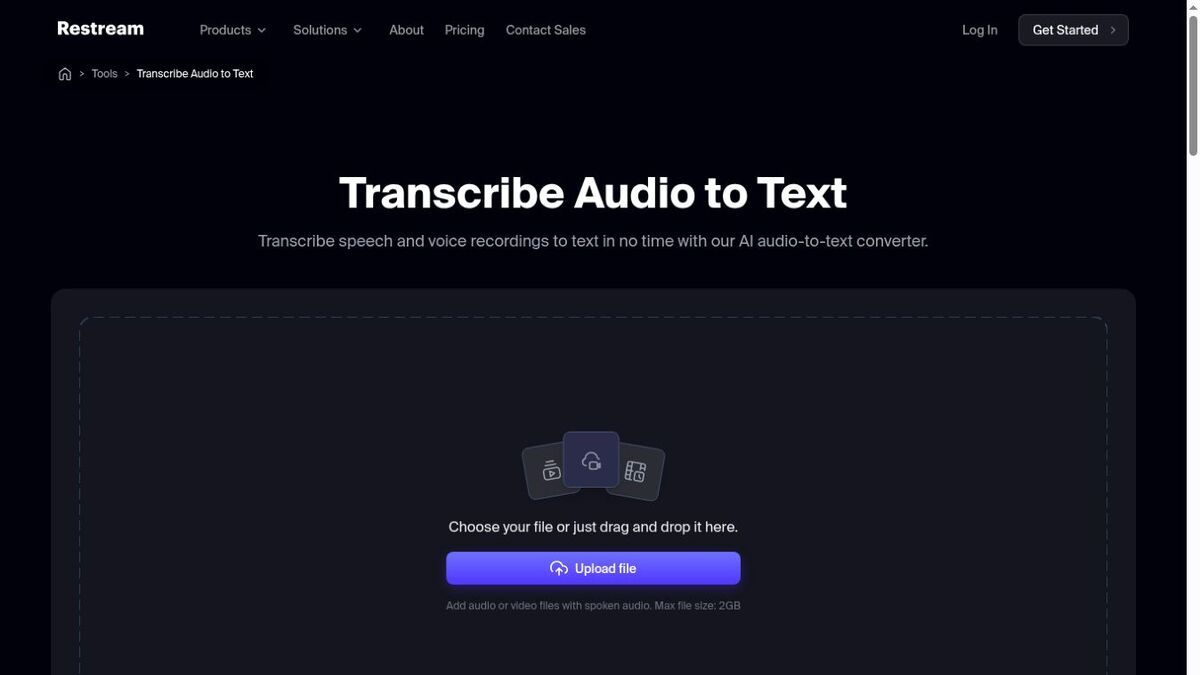
The standalone Restream audio to text workflow is intentionally direct. Users choose a supported file, start processing, and download the resulting transcript. Restream audio to text also connects with recordings and videos stored in its Video Storage workflow, where timestamps and speaker labels may be available.
Key Restream Audio to Text Features
According to Restream's current official tool page and help documentation, the Restream audio to text converter supports common audio formats, files up to 2 GB, and more than 36 languages. Its upload-first design works well when the immediate goal is a downloadable transcript. For creators whose recordings already live in Restream, the integrated recording workflow can reduce the need to move content between services.
Essential Differences Between Lynote and Restream
Looking only at whether each product can transcribe a file hides the most useful differences. A practical Lynote vs Restream audio to text comparison needs to consider source flexibility, what users can do with the transcript, and which broader workflow each platform supports. The sections below show where Restream audio to text and Lynote meaningfully diverge.
1. Audio Transcription Workflow
Lynote starts with the source content. Upload an audio or video file, or paste a YouTube URL, and the platform turns the speech into structured text. You can then continue to search, edit, translate, summarize, or discuss the content in the same workspace.
When users search for transcribe audio to text Restream, they usually encounter a narrower standalone flow: choose a file, upload it, wait for transcription, and download the TXT output. Restream users can also transcribe recordings kept in Video Storage, which is convenient when streaming or recording is already the center of their work.
2. Editing and Working With Transcripts
Lynote is designed to keep generated text useful after transcription. Users can review, edit, search, copy, export, share, or translate the transcript instead of treating it as a finished download. That is valuable for long interviews, lectures, or meetings where finding one topic matters as much as producing the transcript.
The standalone Restream audio to text tool emphasizes a downloadable TXT result. This is straightforward when you only need a text file that can be moved into another editor. Restream's recording workflow adds timestamps and speaker labels for eligible stored content, but the broader experience remains connected to creator and streaming tasks.
3. AI Features After Transcription
One of Lynote's clearest differences is AI Chat with the uploaded source. A user can ask questions about a lecture, interview, podcast, or meeting and retrieve key points without replaying the full recording. Summaries and connected note tools make the transcript part of a wider information-processing workflow.
Restream positions transcripts as material for reviewing and repurposing creator content. A transcript can support quotes, articles, social posts, and planning after a stream. That is useful, but AI conversation with the uploaded audio is not presented as a core feature of the standalone Restream.io audio to text tool.
4. Supported Sources and Formats
Lynote accepts popular audio formats such as MP3, WAV, and M4A, plus video formats including MP4 and MOV. It also accepts YouTube URLs, so users can start with online video content without downloading and converting the file first. This flexibility helps when a workflow moves between local recordings and web-based sources.
Restream audio to text supports formats including MP3, WAV, FLAC, AAC, MP4, MOV, MKV, WEBM, AVI, and MPEG in its standalone transcription tool. Its current documentation lists a 2 GB file limit and broad format compatibility. Users evaluating Restream audio to text therefore get strong local-file support, while Lynote adds direct YouTube input.
5. Language Support
Lynote provides multilingual audio transcription and can translate generated text as part of the post-transcription workflow. This can help international teams, researchers reviewing multilingual interviews, and students working with materials in more than one language. The transcript remains searchable and editable after processing.
The current Restream audio to text page states that it supports more than 36 languages, including English, Spanish, French, German, Hindi, Japanese, Korean, Mandarin, Portuguese, Turkish, and Ukrainian. This is an important update because older third-party comparisons may describe more limited support. Current product pages should always be checked before relying on an older Restream audio to text review.
6. Pricing and Free Access
Lynote lets users try audio transcription online for free and offers paid plans for broader access to its transcription, note-taking, study, and writing tools. Its value is not limited to one conversion task because the same workspace also includes AI Notes, summaries, AI Chat, flashcards, YouTube transcription, and other utilities.
Restream says the first audio, podcast, or video file can be transcribed for free through the Restream audio to text tool, while additional files require a paid account. Restream plans are primarily structured around streaming features such as multistreaming, recording, cross-platform chat, and analytics. Someone who only needs transcription may therefore evaluate Restream audio to text differently from a creator who also needs the full broadcasting platform.
7. Best Use Cases
Lynote works especially well when the transcript needs to become searchable knowledge. Students can process lectures, researchers can review interviews, journalists can extract quotes, professionals can document meetings, and creators can turn podcasts into reusable written content. The connected AI tools reduce the number of steps between capturing information and understanding it.
Restream audio to text is a strong fit for creators whose audio and video content begins with live streaming. They can broadcast, save a recording, generate a transcript, and repurpose the result without leaving the same ecosystem. The standalone audio to text Restream page also works for users who simply need a TXT transcript from one local file.
How to Transcribe Audio to Text With Lynote
The Lynote process has three steps. Each step keeps the source and transcript connected, so you can move from uploading to review without rebuilding the workflow in another tool. This connected process is the main alternative to the download-first Restream audio to text experience.
Step 1: Upload Your Audio
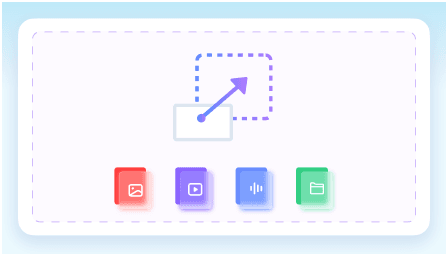
Open Lynote Audio to Text and upload an MP3, WAV, M4A, or another supported file. You can also upload a supported video or paste a YouTube link. This gives Lynote the source it needs to create the transcript.
Step 2: Convert Audio to Text
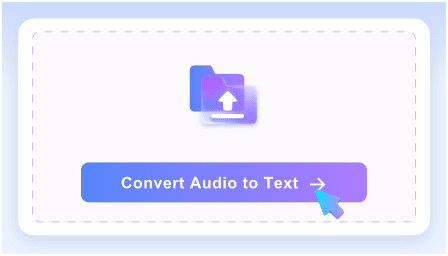
Start the transcription process and Lynote converts spoken content into structured text. Speaker recognition and readable formatting make conversations, meetings, lectures, and interviews easier to follow. You can review the result inside the workspace rather than downloading it immediately.
Step 3: Review, Export, or Continue
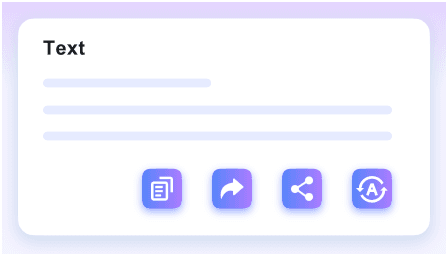
Once the transcript is ready, edit or search the text and choose the next action. You can copy, export, share, or translate it, then use connected AI features for questions, notes, and summaries. This is where Lynote moves beyond a basic file converter.
Lynote vs Restream Audio to Text: Which Should You Choose?
Choose Lynote when your main workflow begins with lectures, interviews, podcasts, videos, meetings, or YouTube content and continues after transcription. Searchable and editable text, speaker awareness, AI Chat, summaries, translation, and connected note tools make it easier to reuse the information. It is the stronger fit when transcription is one stage in a learning, research, or content workflow.
Choose Restream audio to text when live streaming is already central to your work. Its transcription features connect naturally with saved Restream recordings, and the standalone tool offers a simple path from upload to TXT. For a streamer who also needs broadcasting, recording, and multichannel distribution, keeping the process inside Restream can be practical.
Final Verdict
Both platforms can convert speech into text, but they solve different versions of the problem. Restream audio to text fits a streaming and recording ecosystem, while Lynote turns audio into searchable, editable, and reusable information. If you want the transcript to lead into questions, summaries, notes, translation, and further work, try Lynote Audio to Text and keep working with the recording after transcription.

Written by Janet L. Harris
AI Writing Specialist
Janet reviews AI detectors and humanization tools, with a focus on accuracy, limitations, and responsible use. View all articles →