10 Bluedot AI Alternatives for Better Meeting Notes

Looking for a Bluedot alternative you can keep using after the first few meetings? Maybe you like recording without a bot, but need more free sessions, easier access to old conversations, or better notes from files you already have.
I compared ten Bluedot AI alternatives around those needs, using their official plans and documented workflows. Here's what each is useful for, where the free limits matter, and when switching would actually improve your day.
Quick Answer: Which Bluedot Alternative Fits Your Meetings?
Scribbl is worth considering if you want bot-free capture with a renewable monthly allowance. Fathom is a stronger starting point for frequent free recording, while Lynote fits a different job: organizing meeting material you've already saved.
Bluedot itself is bot-free, so avoiding a meeting bot is not automatically a reason to leave it. The more immediate free-plan issue is that its five included meetings are a lifetime allowance, not five new meetings every month.
| Tool | Best For | Capture Route | Free-Access Catch |
|---|---|---|---|
| Scribbl | Recurring bot-free meetings | Browser extension or desktop app | Ten meetings monthly; limited AI chat |
| Lynote | Notes from saved recordings | Upload source material | Check current account allowances |
| Fathom | Frequent recording | Bot or bot-free beta | Advanced AI follow-up is paid |
| Tactiq | Live text in browser meetings | Browser extension | Ten transcripts and five AI credits monthly |
| Granola | Improving your own notes | Device-based capture | Free history covers 30 days |
| Jamie | Short bot-free conversations | Device-based capture | Ten notes monthly; 30-minute cap |
| MeetGeek | Mixed capture and uploads | Bot, bot-free, or files | Three transcription hours monthly |
| Fireflies.ai | Searching team conversations | Supported capture routes and uploads | Storage and summaries are limited |
| tl;dv | Replay and short clips | Meeting recording | Full automatic notes become restricted |
| Otter.ai | Live text and mobile use | Live recording and supported meetings | 30-minute transcripts; limited imports |
This is a workflow comparison, not a transcription-accuracy benchmark. I haven't run a controlled recording test across all ten, and the list order reflects the use cases below rather than measured performance scores.
10 Bluedot AI Alternatives With Free Plans or Free Access
The important distinction here is between a free account and a free workflow you can sustain. Most entries publish recurring free tiers; Lynote offers a source-based note workflow whose current account allowance should be checked before regular use.
1. Scribbl: Best for a Recurring Bot-Free Meeting Allowance
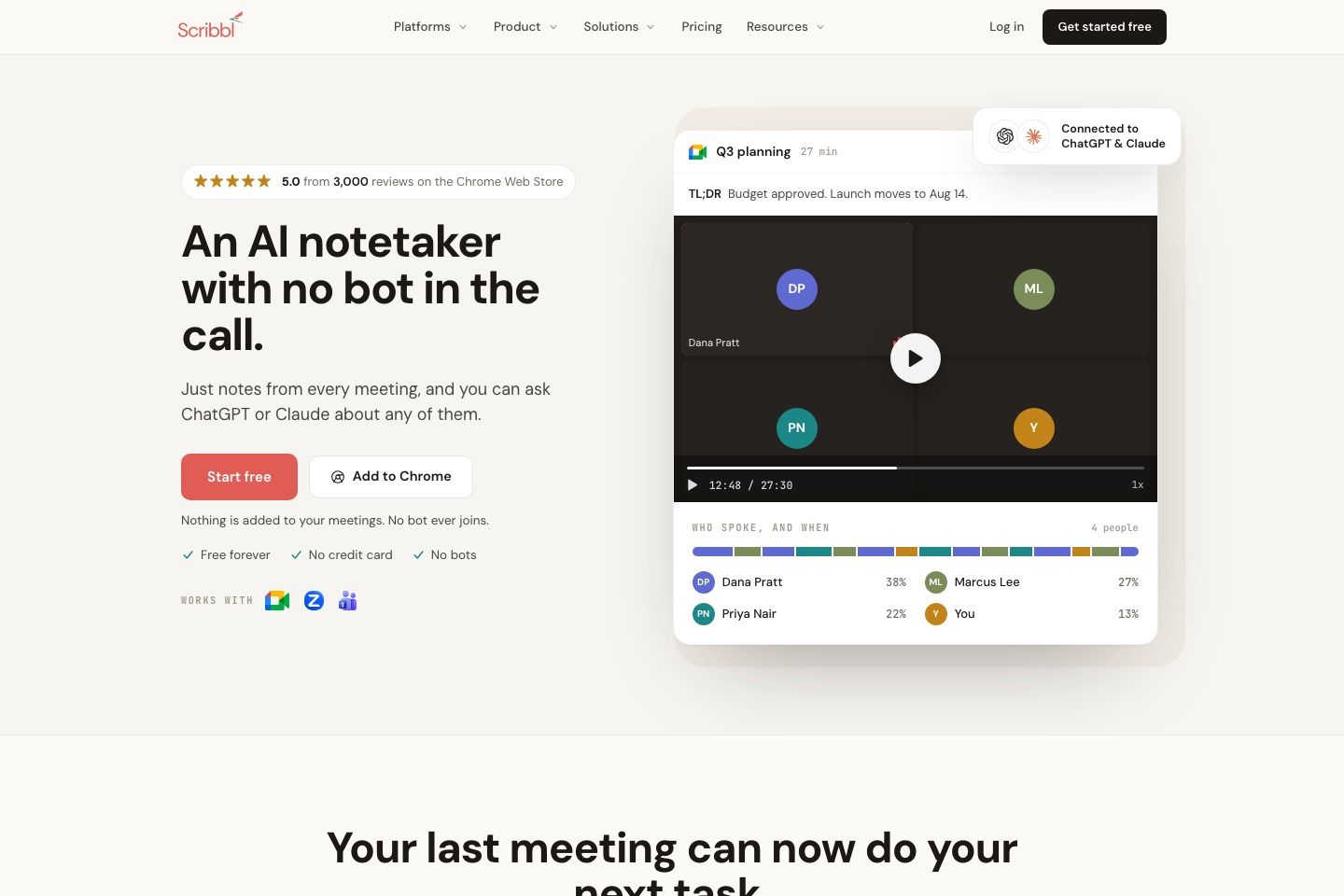
If your main frustration is reaching Bluedot's five-meeting limit, Scribbl is a close match to investigate. Its free allowance renews monthly, and its recording approach keeps an additional assistant out of the participant list.
The platform route matters: Google Meet uses a Chrome extension, while Zoom and Teams use the desktop app. That is worth checking before a call, particularly if your workplace restricts extensions or software installation.
Features
- Meeting video, transcripts, AI notes, and action items.
- Bot-free capture through supported browser and desktop routes.
- Questions about a meeting within the plan's allowance.
Pros
- A recurring allowance suits occasional meetings better than a lifetime sample.
- Keeps video available when a summary alone misses the context.
Cons
- Ten meetings may be insufficient for a busy calendar.
- Free chat is limited to one AI question per meeting.
Best for: Individuals who want to keep a bot-free workflow for a modest monthly meeting schedule.
Free plan: Ten meetings per month, with notes, transcript, video, and limited AI chat. The pricing page lists no meeting-length limit.
2. Lynote: Best for Turning Saved Recordings Into Useful Notes
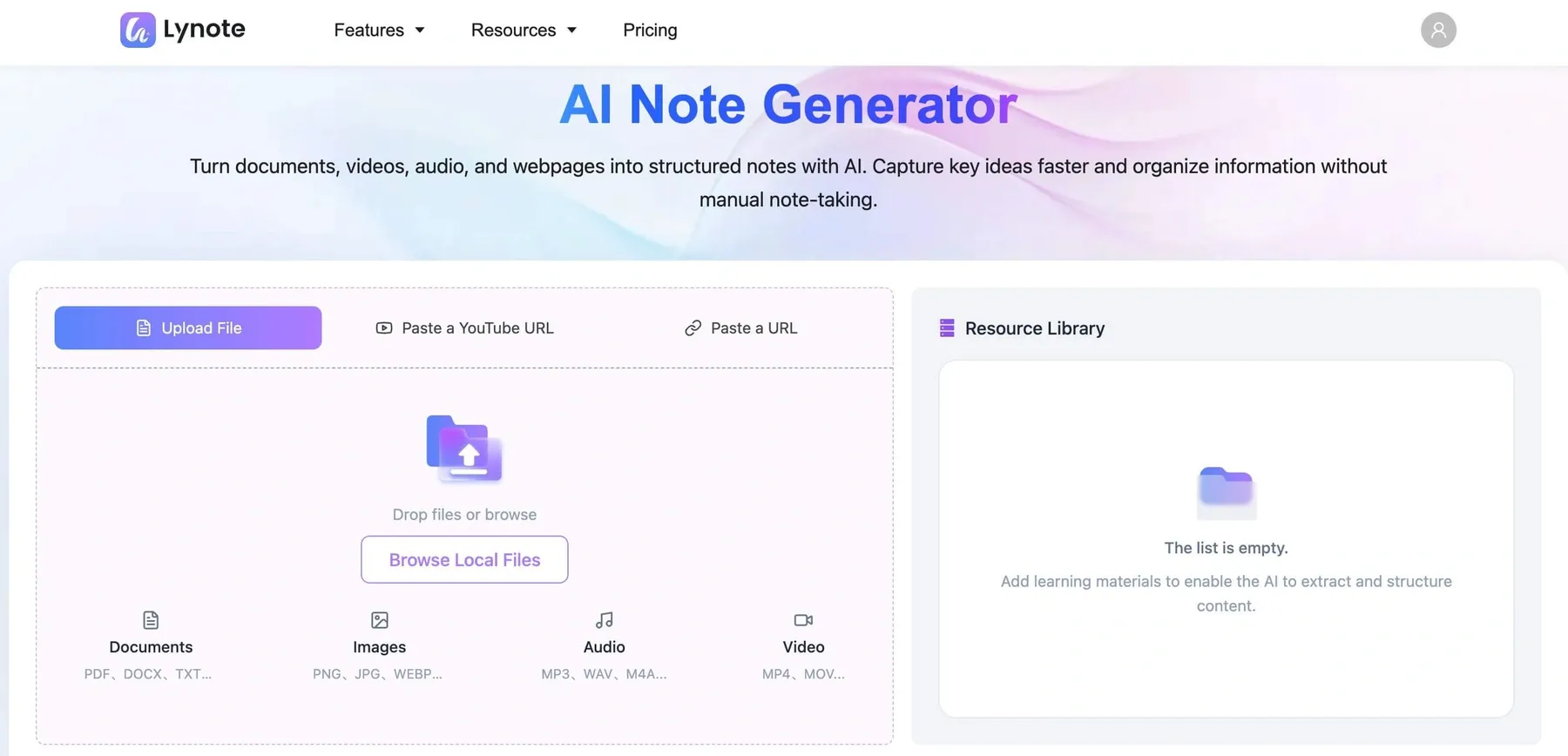
Already have the recording, but still face the job of making sense of it? Lynote AI Note Generator turns supplied audio, video, documents, and other supported material into structured notes you can edit and ask questions about.
That makes it a useful alternative for the work after capture: reviewing an interview, organizing a training session, or extracting decisions from a saved call. It isn't a replacement for live recording; it helps when the source already exists and another meeting assistant would add little.
Features
- Structured notes from supported recordings and documents.
- An editable note workspace with follow-up questions.
- Optional conversion of notes into flashcards for learning material.
Pros
- Gives existing recordings a useful second life.
- Supports both work notes and source-based learning in one workflow.
Cons
- You'll need to have your recording or source file ready before creating notes.
Best for: Students, researchers, and professionals who want useful notes from material they already have.
Free access: Check the allowance shown in your account before processing long files or planning recurring use. Don't assume an unlimited meeting quota.
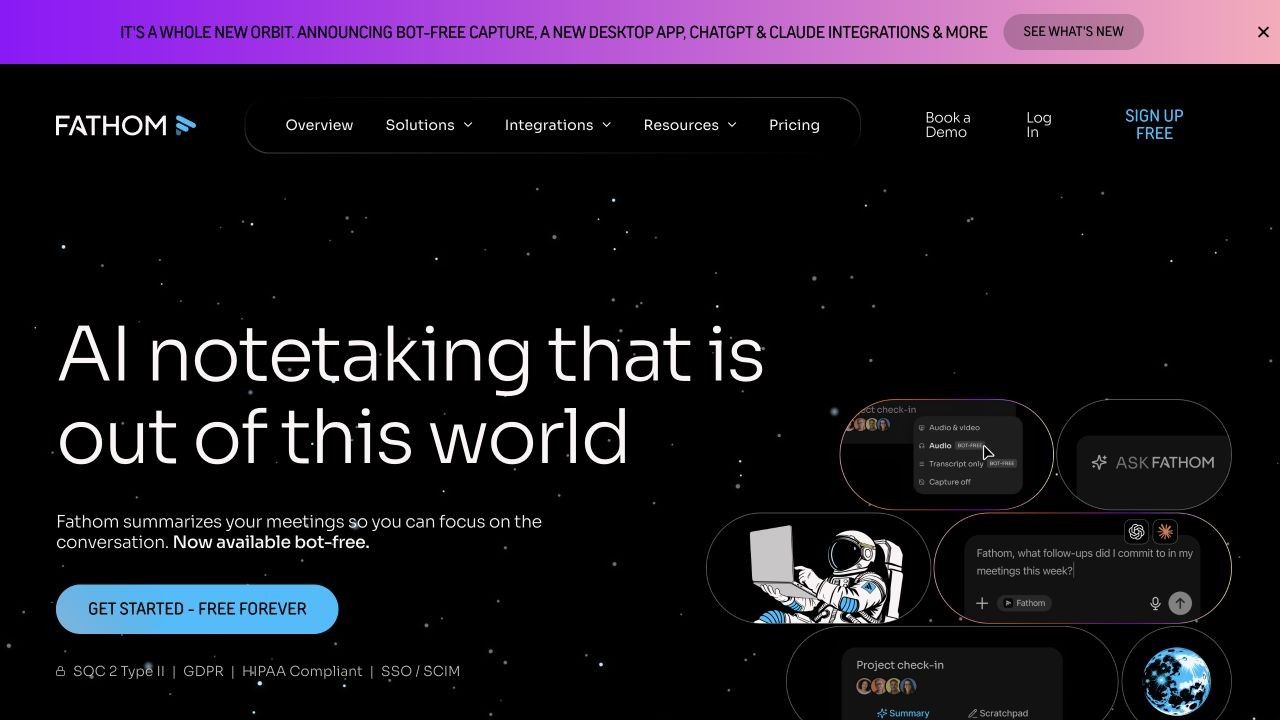
3. Fathom: Best for Frequent Free Meeting Recording
Some weeks, ten meetings is barely enough to reach Wednesday. Fathom's free recording offer makes it a sensible shortlist candidate when the number of calls, rather than a specialized note format, is the problem.
The distinction I would watch is standard summaries versus advanced follow-up. A readable recap may be sufficient for a weekly check-in; automatically generated action items or a conversational assistant can push the same workflow into a paid tier.
Features
- Recordings, transcripts, and standard AI summaries.
- Clips and search across calls.
- Bot capture or a bot-free option labeled beta.
Pros
- A generous foundation for frequent individual recording.
- Replay helps resolve details that a short recap leaves unclear.
Cons
- Advanced AI outputs require Premium.
- The beta recording route needs checking against your setup.
Best for: Individuals who prioritize capturing many calls over advanced AI follow-up.
Free plan: Unlimited recordings and transcriptions with standard summaries. Unlimited capture does not mean every AI feature is included.
4. Tactiq: Best for Browser-Based Live Transcripts
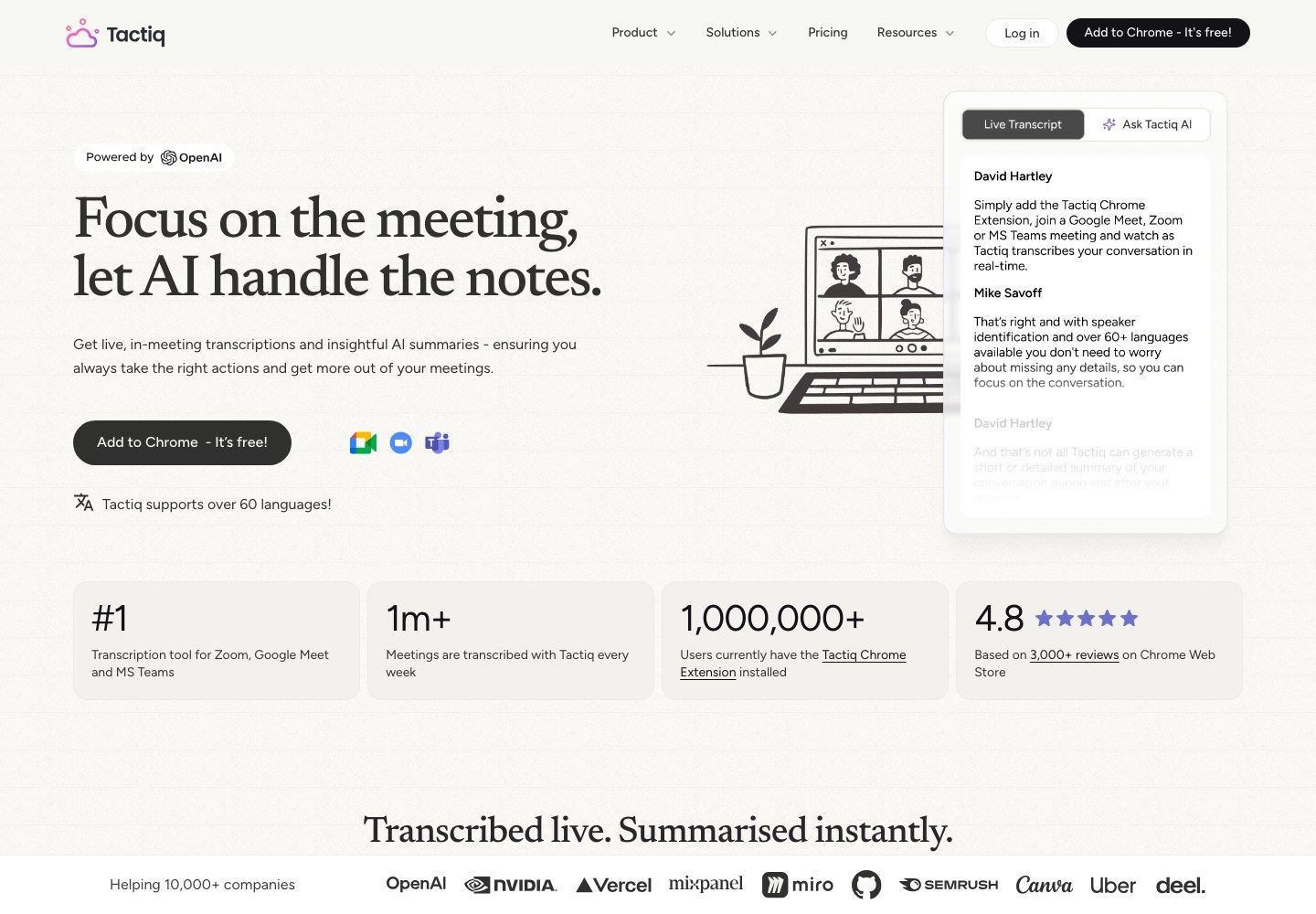
You may not need a video archive at all. If the useful part is seeing the words during a browser meeting and keeping a text record afterward, Tactiq offers a more transcript-centered approach.
This changes what you should evaluate. Instead of asking how polished the recording player looks, check whether the transcript captures your meeting clearly and whether the available AI credits cover the summaries you actually need.
Features
- Bot-free live transcription for supported browser meetings.
- AI insights and summaries using credits.
- Transcript sharing and export.
Pros
- Fits a browser-based workday.
- Useful for a text-first record without prioritizing video replay.
Cons
- Depends on a supported browser and meeting environment.
- AI credits run separately from the transcript allowance.
Best for: People who mainly want live text and occasional AI processing.
Free plan: Ten transcripts and five AI credits per month. Budget for both rather than treating ten transcripts as ten unlimited AI workspaces.
5. Granola: Best for AI-Enhanced Personal Meeting Notes
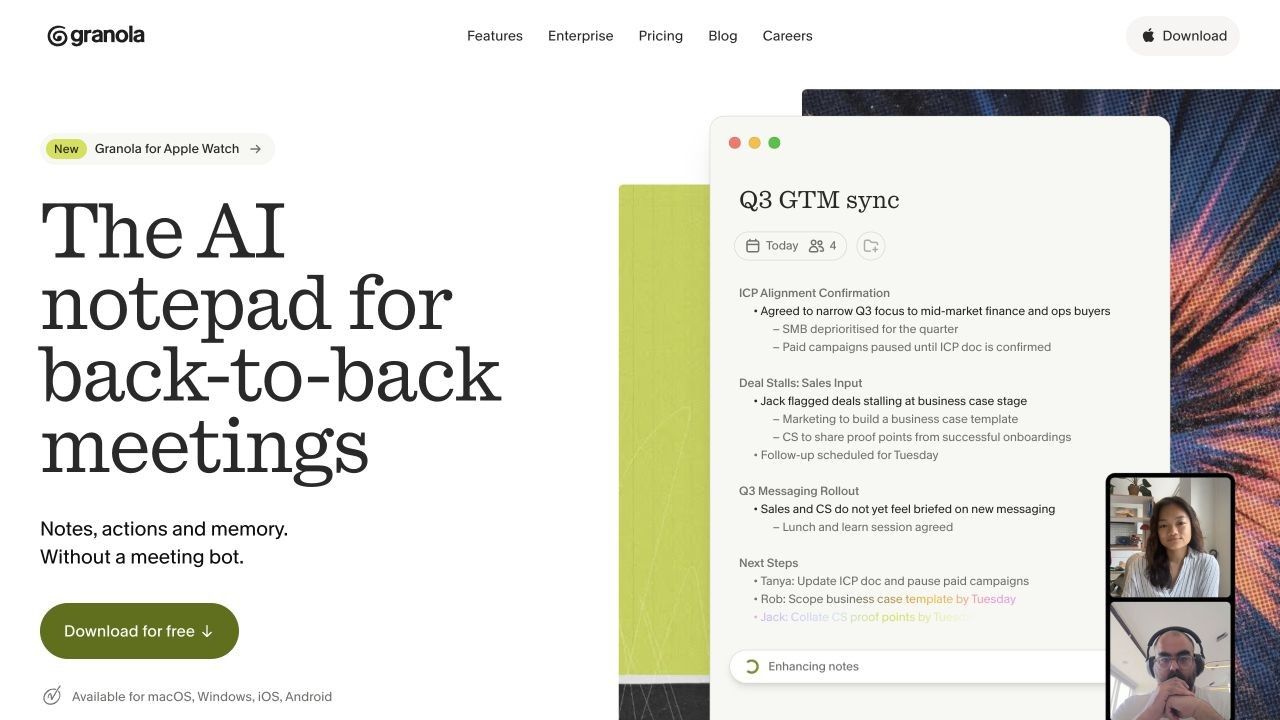
An automatic summary doesn't necessarily know which detail mattered to you. Granola's approach leaves room for your own rough notes, then uses the conversation to help turn them into something fuller.
I see the appeal for interviews and one-to-ones, where a brief observation can be more valuable than another paragraph of recap. The tradeoff is keeping a long-term record: Basic's history window is short for research that stretches across several months.
Features
- Bot-free capture with AI-enhanced personal notes.
- Custom templates and meeting chat.
- Shared folders.
Pros
- Keeps your own observations central to the note.
- Suits people who prefer a notepad to a reporting dashboard.
Cons
- Basic provides a 30-day meeting-history window.
- Advanced integrations require a paid plan.
Best for: People who already jot down useful observations and want help filling in the conversation.
Free plan: Basic includes notes and chat with limited history. Don't read paid-plan promises of unlimited history as free-tier entitlements.
6. Jamie: Best for Short Bot-Free Conversations
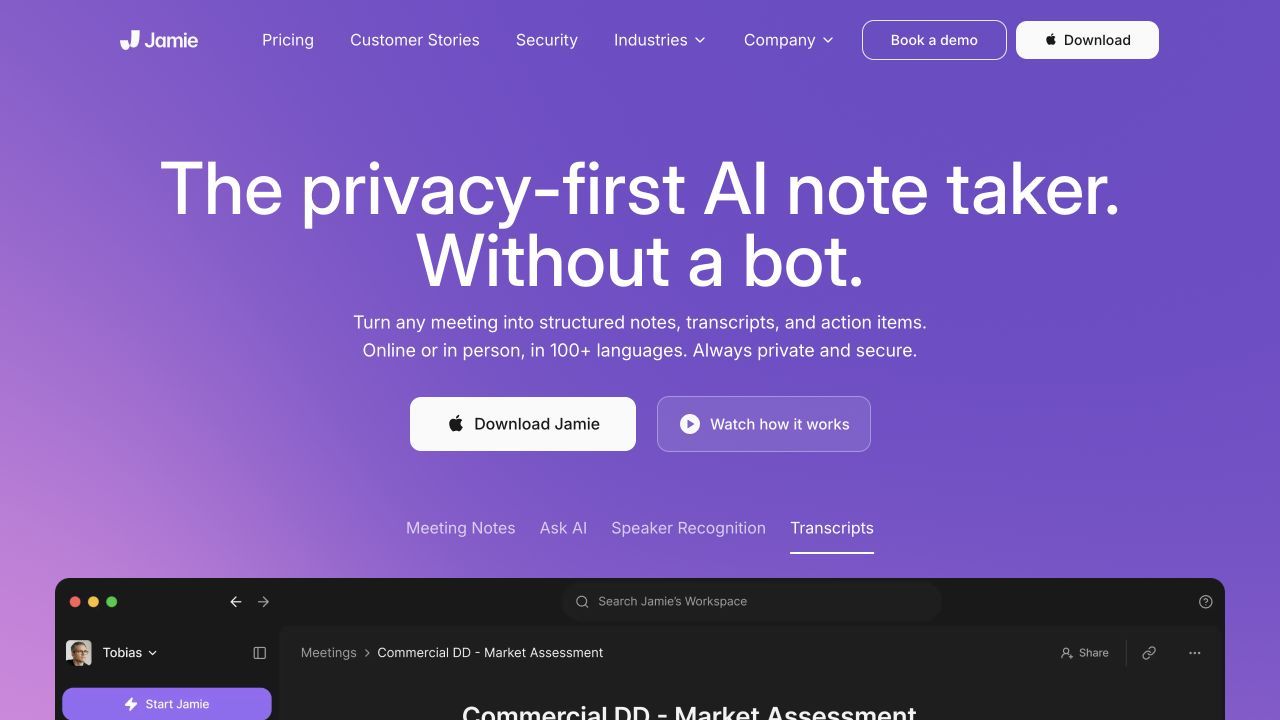
Jamie belongs on the shortlist when you want meeting notes without a participant bot and don't need to make video replay the center of your workflow. Its online and in-person positioning is relevant if your conversations aren't all calendar-based calls.
The duration limit makes the decision fairly concrete. A 20-minute check-in and a 60-minute research interview may both count as one meeting, but they aren't equally suitable for Jamie's free plan.
Features
- Bot-free meeting capture.
- Notes and task detection.
- Follow-up questions through Ask Jamie.
Pros
- A focused workflow for shorter discussions.
- Publishes a clear free meeting count and duration limit.
Cons
- The free 30-minute cap restricts longer sessions.
- Broader integrations need a paid-plan check.
Best for: Individuals whose regular conversations fit within half an hour.
Free plan: Ten AI notes per month, a 30-minute meeting limit, and Ask Jamie access.
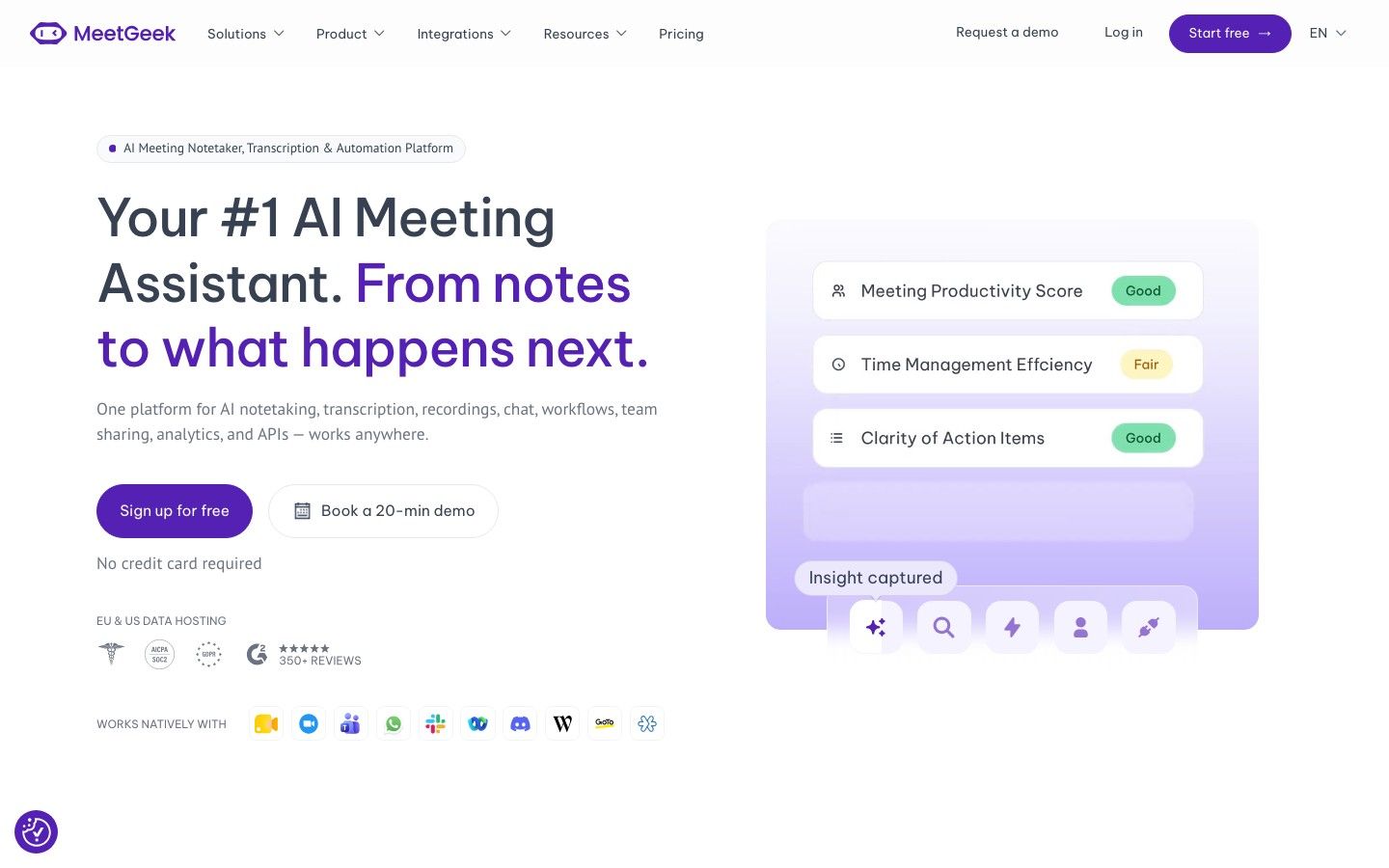
7. MeetGeek: Best for Mixing Live Meetings and Uploaded Recordings
Your meeting history might be a mixture of live calls and files someone sends afterward. MeetGeek is relevant when you want to evaluate both routes in the same product, instead of choosing a tool that only fits one of them.
Its free budget suits occasional use more than a full working week of calls. I would also check when you tend to revisit recordings: having the transcript available doesn't necessarily mean the original audio remains available for the same period.
Features
- Bot and bot-free capture, plus recording uploads.
- Meeting summaries and transcription.
- Chat and search across meetings.
Pros
- Flexible ways to bring conversations into the workspace.
- Useful for evaluating both capture and post-meeting processing.
Cons
- Three free transcription hours can disappear quickly.
- Audio and transcript retention windows differ.
Best for: Occasional meeting users working with a mix of live conversations and saved files.
Free plan: Three transcription hours monthly, three months of transcript storage, and one month of audio storage.
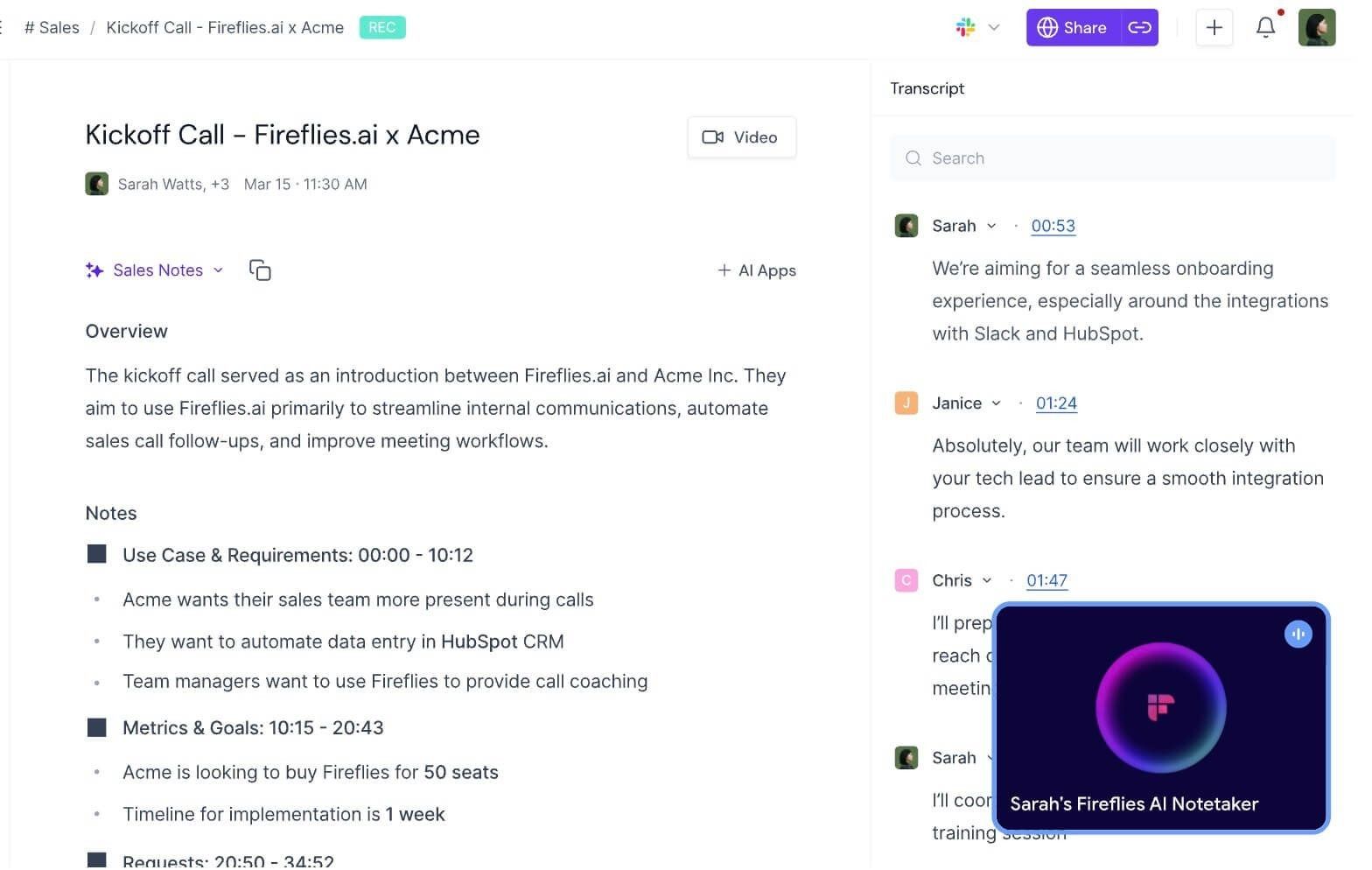
8. Fireflies.ai: Best for a Searchable Team Meeting Archive
Sometimes the hard part isn't writing today's recap; it's finding the discussion that explains a decision from last month. Fireflies emphasizes a searchable conversation archive, which makes it worth considering for teams that regularly revisit earlier calls.
Look beyond its integration list before deciding that it will finish your follow-up work. Searching a meeting, downloading the record, and automatically moving information into another app are separate capabilities with different plan boundaries.
Features
- Meeting search and AskFred assistance.
- Supported meeting capture and audio/video uploads.
- Live transcription and notes.
Pros
- Useful for retrieving context across conversations.
- Offers room to expand into team workflows.
Cons
- Free summaries and storage are limited.
- Downloads and broader integrations require payment.
Best for: Teams evaluating a searchable record of conversations, with possible paid integration needs later.
Free plan: Limited summaries and 400 minutes of storage per team. The unlimited-transcription headline has conditions; it isn't an unrestricted allowance for every capture and upload route.
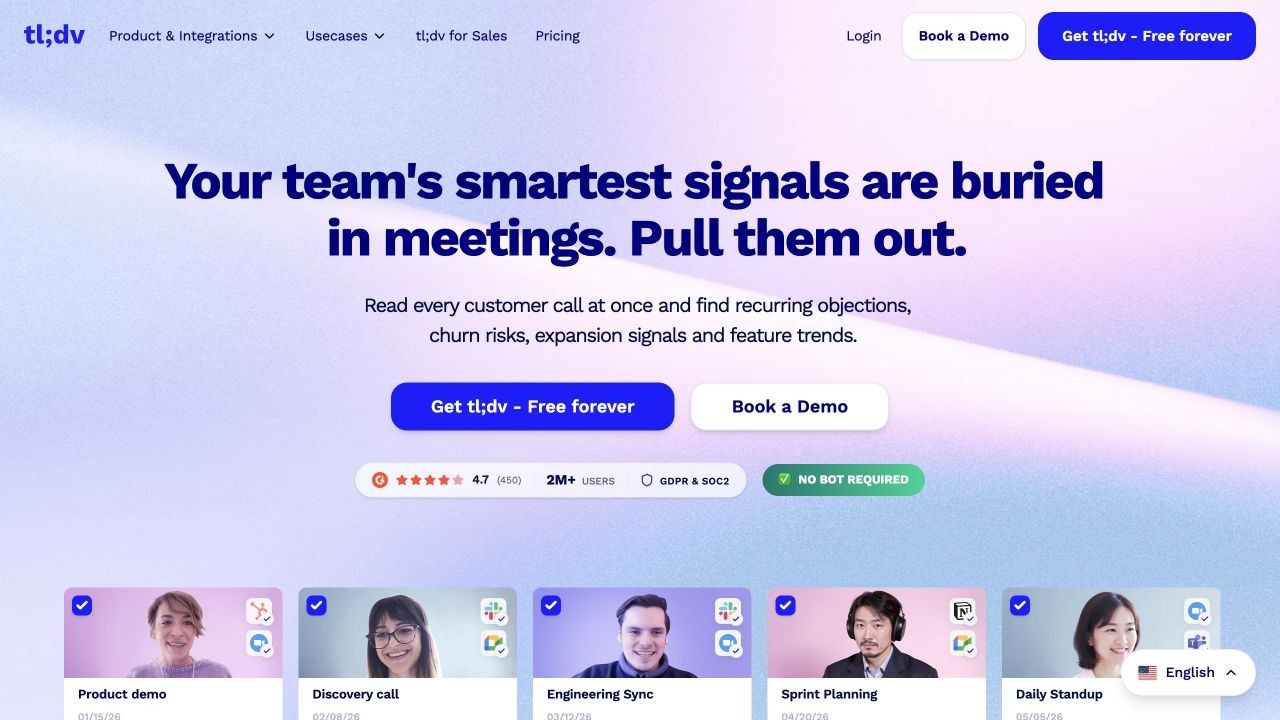
9. tl;dv: Best for Meeting Replay and Shareable Clips
A written recap can't fully preserve a software demonstration or the moment someone points to a design problem. tl;dv is a candidate when you expect to revisit the actual conversation, rather than use the summary as your only record.
Its free recording offer is more generous than its automatic-note offer. That distinction is especially important for long discussions, where the decision may arrive near the end rather than in the opening minutes.
Features
- Meeting recordings and transcripts.
- Timestamped review and limited clips.
- Limited file imports and AI functions.
Pros
- Replay retains context that text can omit.
- Short clips can focus a colleague on one exchange.
Cons
- Full automatic notes cover only the first ten meetings; later notes cover the opening ten minutes.
- Retention and archive rules affect access to recordings.
Best for: People who value replay more than unrestricted AI recaps.
Free plan: Unlimited recordings and transcripts, with three-month recording retention. Imports and clips have lifetime allowances rather than monthly renewals.
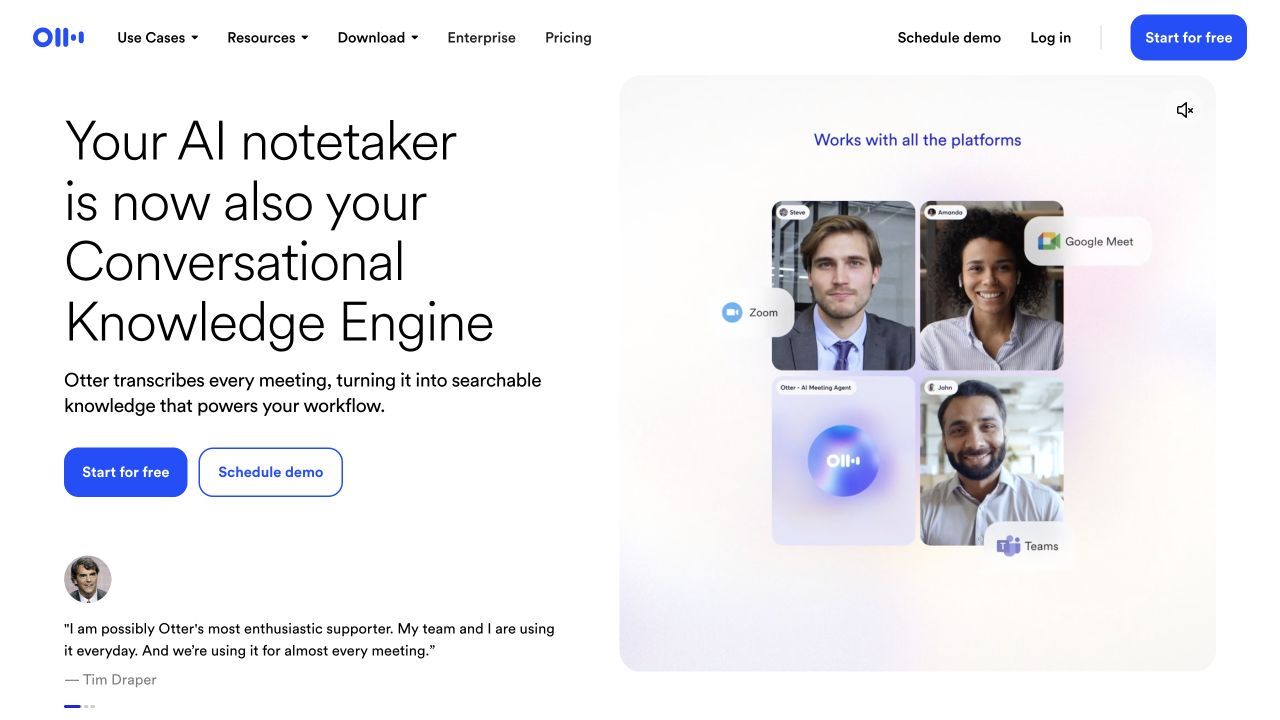
10. Otter.ai: Best for Live Transcription Across Desk and Mobile
If you want to follow a conversation as text while it happens, Otter is a reasonable option to compare. Mobile access also matters when your notes come from a mixture of desk-based calls and in-person conversations.
The free minutes need a closer look than the headline number suggests. A monthly budget can be enough in total while the per-conversation limit still prevents access to the full transcript of your usual interview.
Features
- Live transcription and speaker identification.
- Audio playback and meeting chat.
- Mobile apps and supported online-meeting workflows.
Pros
- Useful for reading along during a discussion.
- Combines live text with access to the recorded audio.
Cons
- Basic limits transcript access to 30 minutes per conversation.
- Three lifetime imports don't support regular file processing.
Best for: People with shorter conversations who want live text and mobile access.
Free plan: 300 transcription minutes monthly, three lifetime imports, and access to the 25 most recent conversations. Older conversations are archived, not automatically deleted.
Bluedot AI Note Taker Review: What Works and Where the Limits Start
Before replacing a tool, it helps to separate what it does well from the specific restriction you're trying to escape. This Bluedot AI note taker review focuses on that distinction, rather than treating every limitation as a reason to switch.
What Is Bluedot AI, and How Does It Capture Meetings?
Bluedot is an AI meeting note taker built around bot-free recording, transcription, and summaries. Its browser, desktop, and mobile offerings serve different capture situations; describing it as only a Google Meet extension misses the broader product.
In practical terms, bot-free means another assistant need not appear as a meeting participant. It doesn't establish where processing occurs, who can access the results, or whether recording is appropriate for a particular conversation.
Recording, Transcripts, Summaries, and Follow-Up Work
A useful Bluedot workflow connects the conversation with a transcript and a structured recap. The transcript is where you check a disputed detail; the summary is where you quickly recover the main decisions.
Those outputs should do different jobs. If the summary simply compresses every topic equally, it may still leave you searching for the decision that actually changed someone's work.
For an illustrative project call, I would look for three things: what was agreed, who owns the next step, and what remains unresolved. That is a more useful test than whether a summary sounds polished.
Bluedot Free vs. Paid: What Happens After Five Meetings?
Bluedot's free allowance covers five meetings over the lifetime of the account. Basic focuses on audio and caps recordings at an hour; Pro adds video and longer recording support, while Business expands integrations and organizational controls.
That makes the free access useful for evaluation, but not a renewing meeting budget. Someone who records twice a week needs to plan for what happens after those initial sessions.
Think about the output you use before comparing subscriptions. Paying for video is easier to justify for design reviews or demonstrations than for calls where you only ever read the notes.
Bluedot Pros, Cons, and Who Should Keep It
Pros
- Bot-free recording across several capture environments.
- Transcripts and summaries alongside the original conversation.
- A path toward more advanced team workflows.
Cons
- The free meeting allowance does not renew.
- Video, imports, and advanced workflows have plan-specific boundaries.
Keep it if the capture process already works reliably for you and the necessary plan makes sense for your schedule. Switching solely for a prettier recap can cost more effort than it saves, particularly when your old meeting history is still useful.
Bluedot vs. the Alternatives: Feature and Free-Plan Comparison
The two tables below answer different questions: what kind of workflow does the product support, and what can you sustain without paying? A feature checkmark in the first table is not a promise of unlimited free access.
Legend: ✅ means supported in the stated scope, ❌ means not part of that workflow, and ◐ means limited or plan-dependent. A ? means the capability wasn't confirmed in the documentation reviewed, not that the product lacks it.
Capture and Output: What Each Tool Actually Does
| Tool | Live Meeting Capture | Bot-Free Route | Existing File Processing | AI Notes | Main Output to Evaluate |
|---|---|---|---|---|---|
| Bluedot | ✅ | ✅ | ◐ Plan-dependent | ✅ | Recording plus structured recap |
| Scribbl | ✅ | ✅ Browser/desktop | ? | ✅ | Video, transcript, and action items |
| Lynote | ❌ Supplied sources | ✅ No joining bot needed | ✅ | ✅ | Editable source-based notes |
| Fathom | ✅ | ◐ Beta | ? | ✅ | Replay and standard summaries |
| Tactiq | ✅ Live text | ✅ Browser | ? | ✅ Credit-based | Transcript-led follow-up |
| Granola | ✅ | ✅ Device capture | ? | ✅ | Your notes expanded with context |
| Jamie | ✅ | ✅ Device capture | ? | ✅ | Notes and follow-up questions |
| MeetGeek | ✅ | ✅ | ✅ | ✅ | Mixed capture and summaries |
| Fireflies.ai | ✅ | ◐ Route-dependent | ✅ | ✅ | Searchable conversation archive |
| tl;dv | ✅ | ? Verify current route | ◐ Limited free imports | ◐ Free AI limits | Replay and timestamped moments |
| Otter.ai | ✅ | ✅ Direct/mobile recording | ◐ Three free imports | ✅ | Live text and audio playback |
Lynote's bot-free entry describes processing supplied files without joining a call, not live capture. For Otter and other multi-route tools, direct recording and automatic attendance in an online meeting are also different experiences.
Free Allowances, AI Limits, and Recording Retention
| Tool | Free Access Renews? | Main Allowance | AI Boundary | History or Access Catch |
|---|---|---|---|---|
| Bluedot | ❌ Meeting quota | Five meetings total | Initial evaluation access | Check subscription changes before leaving |
| Scribbl | ✅ Monthly | Ten meetings | One chat question per meeting | Check your archive needs separately |
| Lynote | ? Check account | Account-dependent | Verify processing allowance | Keep permitted source files available |
| Fathom | ✅ Ongoing Free | Unlimited capture | Standard summaries; advanced AI paid | Verify your chosen replay/export workflow |
| Tactiq | ✅ Monthly | Ten transcripts | Five AI credits | Capture and AI quotas are separate |
| Granola | ✅ Ongoing Basic | Basic notes access | Advanced models paid | 30-day history |
| Jamie | ✅ Monthly | Ten notes; 30 minutes each | Ask Jamie included | Short-session restriction |
| MeetGeek | ✅ Monthly | Three transcription hours | Basic summaries and chat | Three-month transcripts; one-month audio |
| Fireflies.ai | ◐ Conditional capture | 400 minutes team storage | Limited summaries and credits | Downloads are paid |
| tl;dv | ◐ Capture continues | Unlimited recordings/transcripts | Full notes for initial ten meetings | Three-month recording retention |
| Otter.ai | ✅ Minutes; ❌ imports | 300 minutes; 30-minute transcripts | Within Basic limits | 25 recent conversations accessible |
Here is a simple way to read those limits. Imagine eight 45-minute calls in a month: that is 360 minutes, and the duration of each individual call still matters even if the monthly allowance looks large.
Bluedot's initial five meetings would not cover all eight. MeetGeek's three hours would cover only part of the schedule, while Jamie's and Otter Basic's 30-minute boundaries create a different problem: incomplete coverage of each normal-length session.
This is an illustrative workload calculation, not a performance test. Do the same arithmetic with your own calendar before investing time in a new archive.
Which Part of Bluedot Are You Trying to Replace?
You Want More Than Five Free Meetings
Count the conversations you need to keep, not every event on your calendar. A team may have daily stand-ups but only need a permanent record of interviews, planning calls, or customer decisions.
Scribbl and Fathom are useful places to start that comparison. The choice depends on whether a modest monthly allowance fits or whether frequent capture is the priority; advanced AI needs can change either calculation.
You Want Bot-Free Capture Without Losing Useful Notes
First identify what bothers you about the current setup. Is it a visible participant, installing an extension, remembering to start capture, or dealing with notes that don't match the conversation?
Those are different problems. Tactiq's browser approach, Granola's personal-note workflow, and Jamie's device capture deserve different trials rather than a single checkmark labeled bot-free.
Before using any tool with colleagues or customers, follow your organization's recording rules and make the recording clear to participants. An unobtrusive interface should not become a reason to conceal collection of the conversation.
You Need Video Replay, Not Just a Transcript
For a training demonstration, the important detail may be where someone clicked rather than what they said. A transcript can correctly capture the sentence and still omit the information you need.
Compare replay-oriented options such as Scribbl, Fathom, and tl;dv with the Bluedot tier that includes video. Check whether you can access or share the relevant moment weeks later, not just immediately after recording.
You Already Have Recordings to Process
If someone has already sent you the recording, a second live recorder doesn't solve the remaining task. The useful comparison is between file-processing workflows: what can you upload, what notes do you get, and how easily can you correct or reuse them?
Lynote fits this scenario because the supplied source is the starting point. MeetGeek and Fireflies also deserve consideration when you need file processing alongside live meeting capture.
You Need Notes in Your Team's Existing Tools
Name the exact destination and action before comparing integrations. Sending a recap to a chat channel is not the same as updating a CRM field or creating a task with an owner and deadline.
Then check three things: whether the integration performs that action, whether your plan includes it, and whether your organization allows it. An integration logo alone doesn't answer any of those questions.
A small pilot is enough to expose many mismatches. Use a non-sensitive conversation, inspect the destination record, and check whether a teammate can act on it without opening the transcript again.
How to Turn Existing Meeting Recordings Into Notes With Lynote
This workflow is for recordings or transcripts you already have permission to process. It does not connect to Bluedot or transfer an account automatically, so first obtain the source through whatever export options your existing tool permits.
The screenshots below show the general note workspace, not results from a tested meeting.
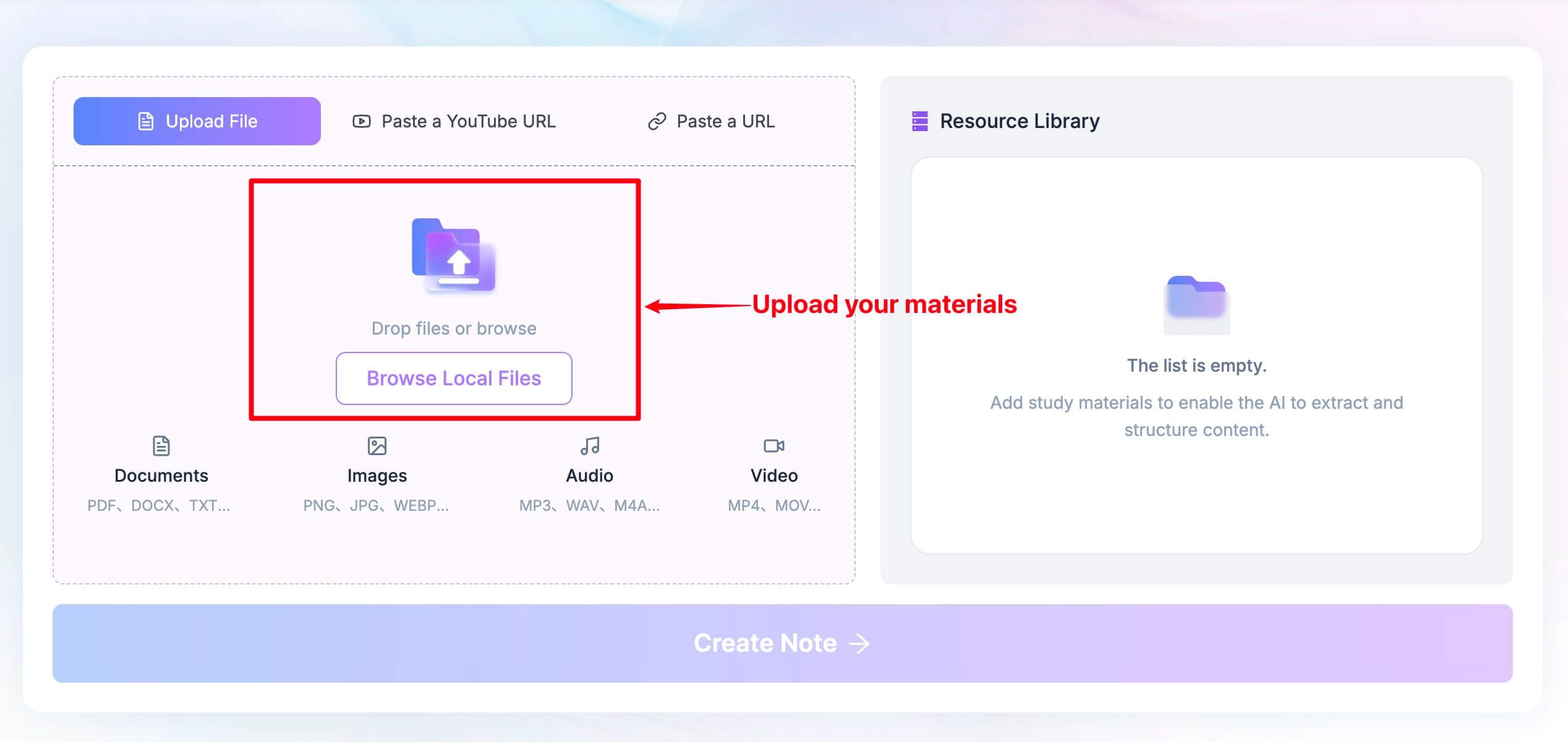
- Add the recording or transcript: open the Lynote workspace and use Upload File or Browse Local Files to add a supported source. Check that you've selected the right meeting before processing, especially when filenames only contain dates.
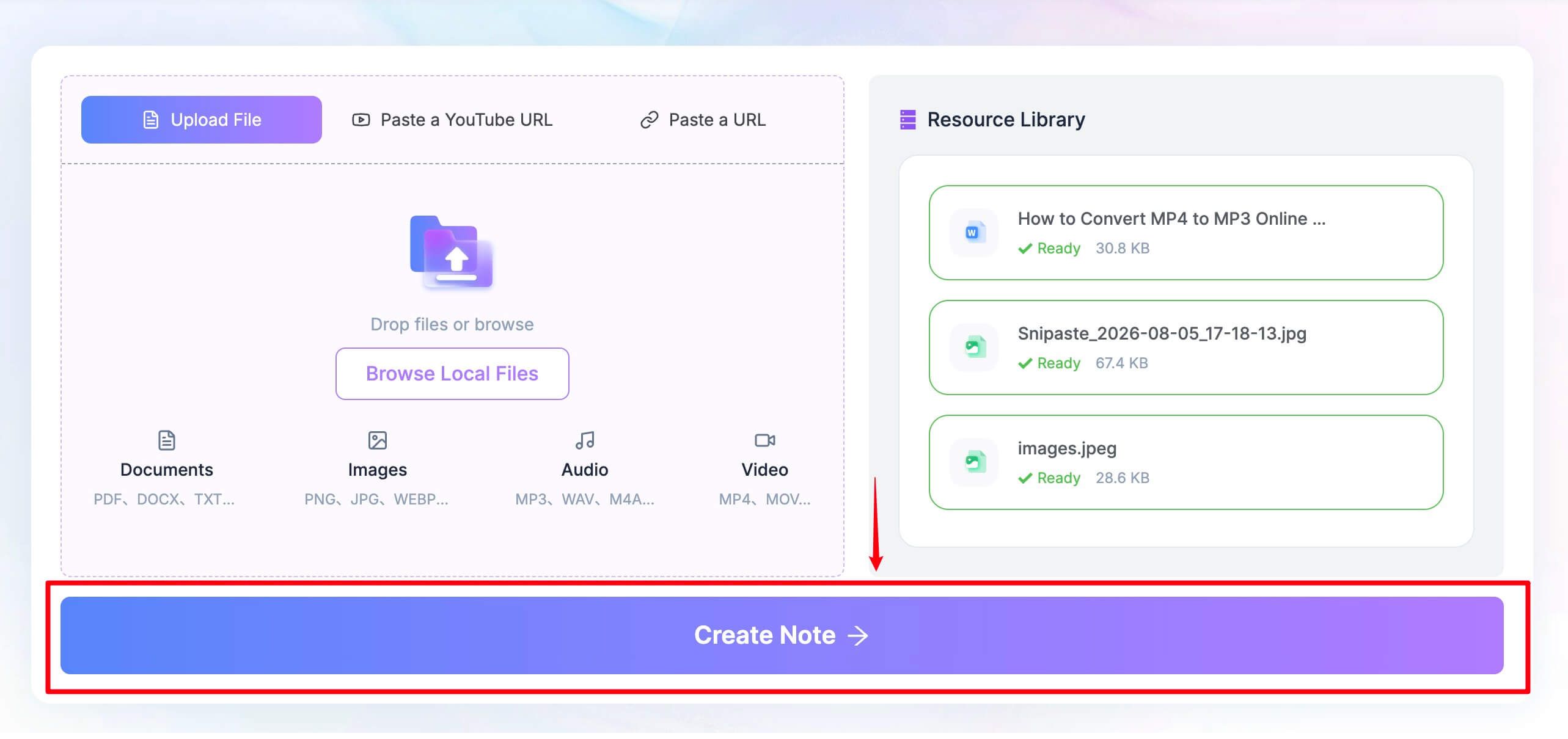
- Generate the note: once the source appears in the Resource Library, select Create Note. Keep the recording or transcript available so you can check details in the resulting note rather than treating the first output as final.
- Review decisions and follow-up work: edit the note and ask focused questions about the supplied content. A request such as "Separate confirmed decisions from suggestions, and identify any unresolved questions" gives you a clearer review task than simply asking for another summary.
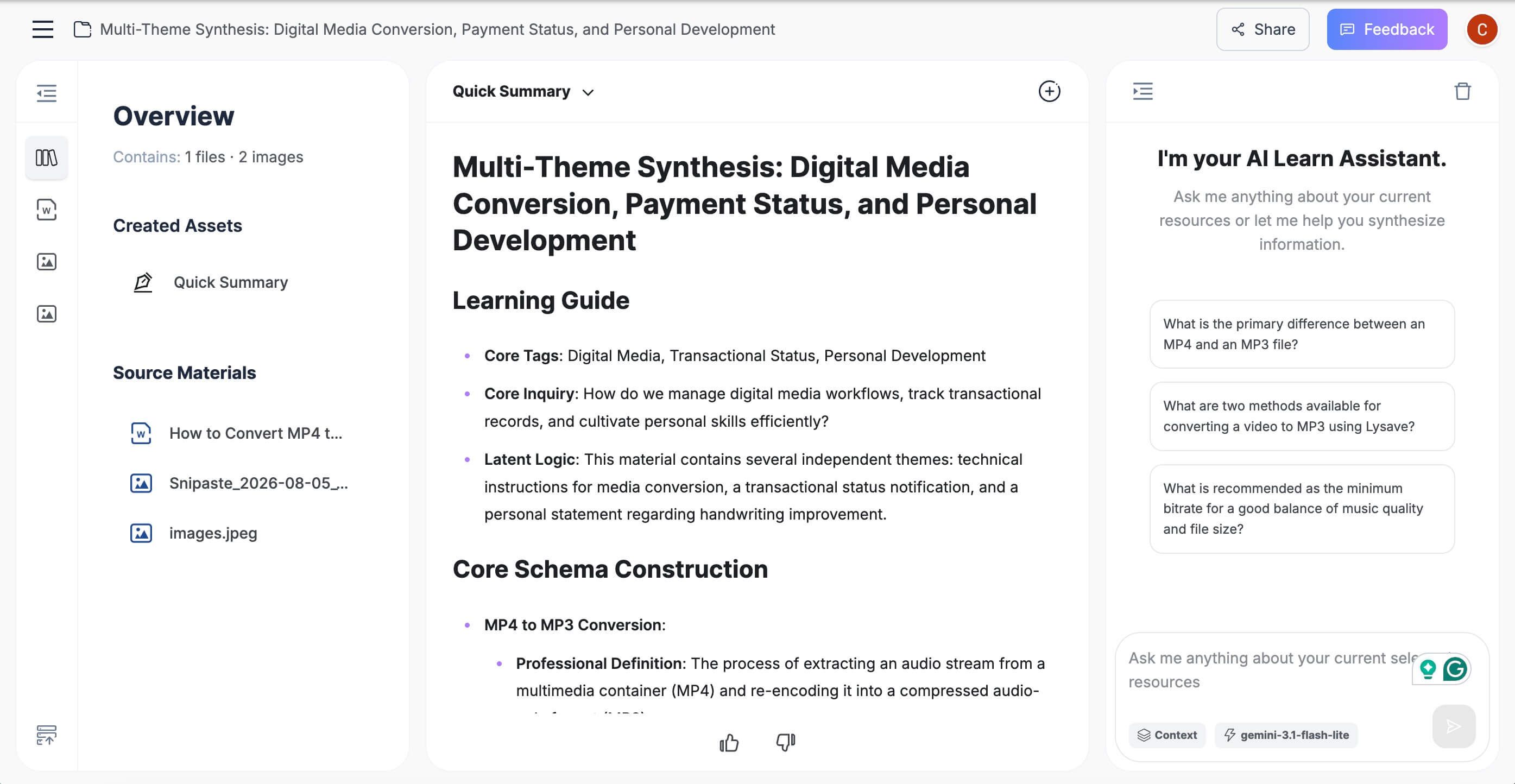
Reviewing is where you add the context an automated note may miss. A person saying "I can look into that" has not necessarily accepted ownership of a deadline, and an idea mentioned during brainstorming is not automatically an approved decision.
The following is an illustrative checklist, not a generated result from a tested recording:
| Item | Useful Question | What to Do if the Source Is Unclear |
|---|---|---|
| Decision | Was this agreed, or only proposed? | Label it as a proposal |
| Owner | Did someone accept the task? | Leave the owner unconfirmed |
| Date | Was a specific deadline stated? | Don't invent one |
| Open issue | What still needs an answer? | Keep it separate from completed decisions |
| Supporting detail | Where does the source establish this? | Recheck the relevant passage |
For training material, you can also turn the reviewed notes into flashcards. That is useful for concepts people need to remember, but it isn't necessary for an ordinary action list.
How to Switch From Bluedot Without Losing Important Context
The safest migration starts before cancellation. You want to know what you can retain and how the replacement handles it while the original workspace is still available.
1. Separate Essential Records From Routine Calls
Make a short list of conversations that still matter: customer commitments, research interviews, training sessions, and decisions that explain current work. You may not need to migrate every routine check-in.
For each important record, note whether you need the media, transcript, summary, or all three. A summary without the source may be enough for a low-stakes update but inadequate for checking a disputed detail.
2. Confirm Export and Cancellation Rules
Bluedot's pricing FAQ warns that canceling a paid subscription affects recording access and can lead to deletion. Its description of access after the initial free allowance is a different situation; don't assume those two account states behave identically.
Before changing the subscription, confirm the policy for your workspace and retain permitted copies of essential material. Shared links are not a substitute for a verified copy if access depends on the old account.
3. Run One Representative Trial
Pick a non-sensitive conversation with the kind of audio and discussion you normally encounter. An unusually quiet two-person sample won't tell you much about the overlapping speech in your usual group meetings.
If you're evaluating file processing, use the same permitted source in each candidate. If you're evaluating live capture, keep a short manual record of the actual decisions so you have something independent to compare afterward.
4. Check More Than the Summary
Look at names, numbers, decisions, action owners, and unresolved questions. Check whether someone who missed the meeting could distinguish what was discussed from what was agreed.
Then repeat the access check from a teammate's perspective. A note that only you can open, or that arrives in the wrong destination, can create more follow-up work than it removes.
5. Move Gradually and Keep a Fallback
Use the replacement for a small set of meetings before changing the whole team's routine. Keep the original records according to your organization's retention rules until the new workflow is proven useful.
You don't have to force one tool to handle every conversation. A live recorder for calls and a source-based note tool for existing files can be a sensible combination, provided it doesn't duplicate sensitive data unnecessarily.
FAQs About Bluedot AI Alternatives
What Is the Best Free Bluedot AI Alternative?
Scribbl is a useful shortlist option for recurring bot-free meetings, while Fathom suits frequent free capture. If you already have the recording, Lynote addresses the post-meeting note task instead; the best choice depends on what part of Bluedot you need to replace.
Is Bluedot AI Free, or Is It a Five-Meeting Trial?
Bluedot offers a free account with five meetings over the account's lifetime. That is useful for trying the workflow, but it is not a monthly allowance for continued recording.
Does Bluedot Record Meetings Without a Bot?
Yes. Bluedot's capture approach does not require an assistant to join the participant list, with browser, desktop, and mobile options for different situations. That does not remove the need to follow recording policies and inform participants appropriately.
Which Bluedot Alternatives Offer Recurring Free Usage?
Scribbl, Tactiq, Jamie, MeetGeek, and Otter publish recurring free allowances, while Fathom offers an ongoing free capture tier. Compare duration and AI limits alongside meeting counts: a renewable quota is only useful when it covers your actual sessions.
Can I Turn an Existing Recording Into Meeting Notes?
Yes, if the selected tool accepts your file and you have permission to process it. Lynote, MeetGeek, and Fireflies support source-file workflows, but import allowances and supported formats should be checked before moving a collection of recordings.
Is a Bot-Free Note Taker the Same as an Offline Note Taker?
No. Bot-free describes how a conversation is captured without an extra participant, while offline describes where processing can occur without a network connection. A tool can capture device audio and still send it to a cloud service for transcription or summaries.
Can I Keep Using My Bluedot Recordings After Switching?
Check the rules for your specific account and subscription change before relying on continued access. Verify exports while the workspace is active, preserve only material you are authorized to retain, and don't assume canceling a paid plan is equivalent to exhausting the initial free allowance.
Final Verdict: Keep the Workflow, Change the Limits
The useful question isn't which Bluedot alternative has the longest feature list. It's which one preserves the part of your workflow that already works while removing the restriction you keep running into.
For live meetings, start with the recording method and a realistic month of usage. For saved files, start with the quality and editability of the notes; then check access, retention, and follow-up before moving your history.
A good replacement should make the next conversation easier to use, not just easier to record.

Written by Janet L. Harris
AI Writing Specialist
Janet reviews AI detectors and humanization tools, with a focus on accuracy, limitations, and responsible use. View all articles →