10 Best Meetily Alternatives for AI Meeting Notes

Looking for Meetily alternatives that need less setup, handle your recordings differently, or make notes easier to share? Start with one question: must the entire workflow stay on your computer?
For existing recordings, I would shortlist Lynote AI Note Generator; for local transcripts, MacWhisper or Buzz Classic; for AI-assisted meeting notes, Granola; and for a cloud recording library, Fathom. These replace different parts of Meetily, not necessarily its local-first approach.
10 Best Meetily Alternatives at a Glance
Meetily already has a free Community edition. A useful replacement therefore needs to improve something you care about: setup, editing, recording access, sharing, or support for your particular computer.
I compared the tools below using their documented workflows and current plan details, checked on October 25, 2026. This is an editorial comparison, not a claim that I ran an identical recording through all ten products.
Here, ✅ means available in the described workflow, ❌ means not offered as a local capability, and ◐ means conditional or separately configured. Features may require a paid tier even when the product has a free version.
| Tool | Best fit | Main input or capture route | Local transcription | Local AI notes | Free access |
|---|---|---|---|---|---|
| Lynote | Notes from existing recordings | Upload audio or video | ❌ Online workflow | ❌ Online workflow | Included allowance |
| MacWhisper | Mac-based transcript work | Files, microphone; meeting features vary by tier | ✅ Local model | ◐ Local AI setup | Free version; Pro upgrade |
| Buzz Classic | Open-source transcript creation | Files or microphone | ✅ Local model | ◐ Plugin/provider-dependent | Free open-source app |
| Granola | Notes shaped during the meeting | Device audio capture | ❌ Cloud processing | ❌ Cloud processing | Basic plan; limited history |
| Jamie | Online and in-person notes | Bot-free device capture | ❌ Not a local-only service | ❌ Not a local-only service | 10 notes/month; 30-minute meetings |
| Fathom | Recording review and sharing | Meeting capture; Mac bot-free beta | ❌ Cloud service | ❌ Cloud service | Free recording and basic summaries |
| Otter.ai | Live transcript review | Live capture or file import | ❌ Cloud service | ❌ Cloud service | Minutes and import limits |
| Fireflies.ai | Searchable team meeting knowledge | Meeting capture or uploads | ❌ Cloud service | ❌ Cloud service | Conditional transcription; other limits |
| tl;dv | Sharing meeting moments | Meeting recording and uploads | ❌ Cloud service | ❌ Cloud service | Free plan; AI and retention limits |
| Tactiq | Browser meeting transcripts | Supported browser meetings | ❌ Not an offline engine | ❌ Cloud AI | 10 transcripts; 5 AI credits/month |
A cross in the local column is not a security rating. It means the tool does not replace a locally configured Meetily workflow on that particular dimension.
The 10 Best Meetily Alternatives
1. Lynote: Best for Turning Existing Recordings Into Useful Notes
Sometimes recording the meeting is already solved. You have the audio or video, but still need to turn a rambling conversation into something you can read before the next call.
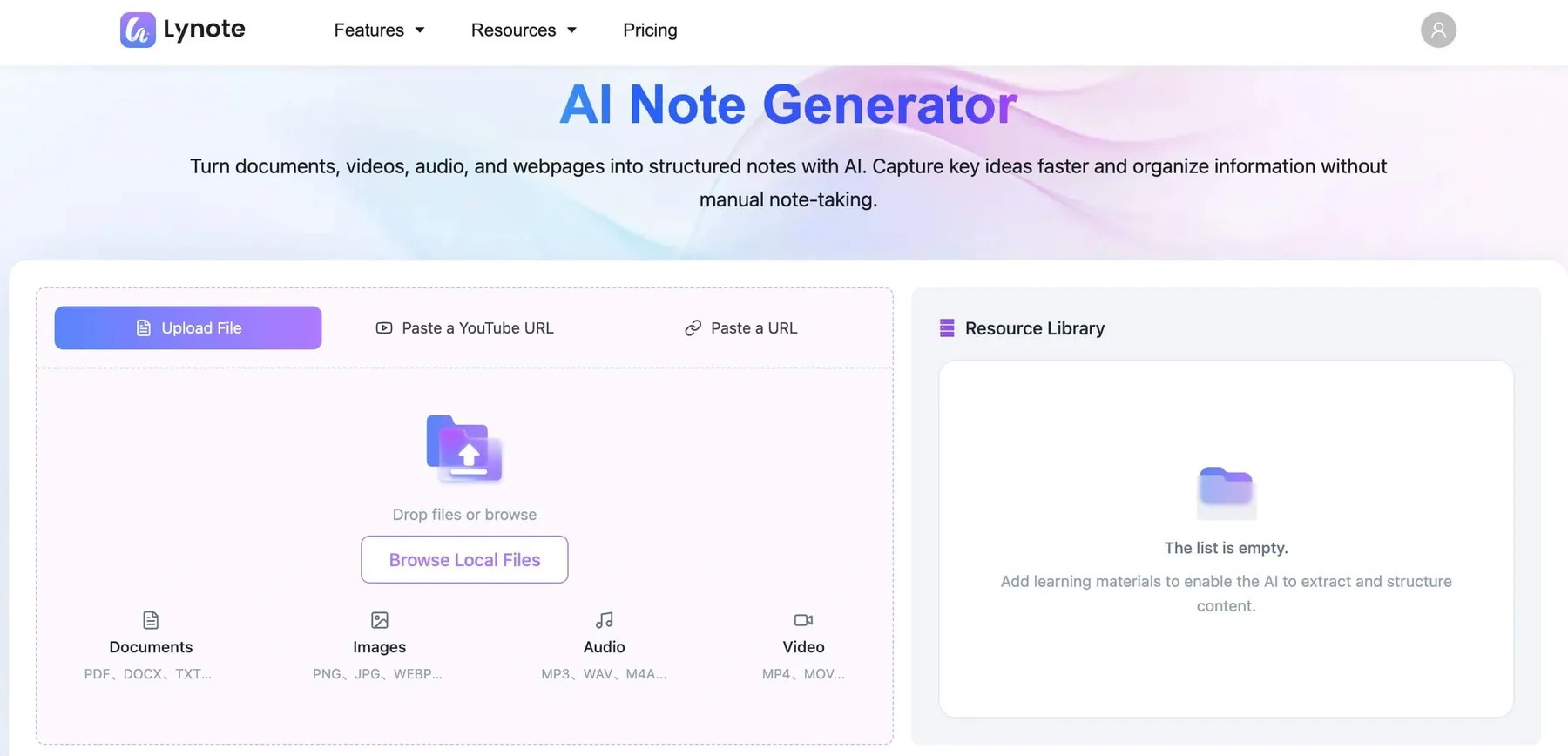
That is where Lynote AI Note Generator fits this list. It accepts source material, produces structured notes, and lets you edit the result or ask questions about the content, without configuring a local speech model.
I would use this approach for reviewing an interview, training session, or recorded project discussion. It is an upload-first online workflow, not a replacement for Meetily's on-device recorder or a bot that automatically attends your calendar events.
Features
- Audio and video input alongside supported documents and other source types.
- Structured notes with headings and bullet points.
- Rich-text editing and questions grounded in the supplied material.
- Export and sharing options for reusing the finished note.
Pros
- Starts from recordings you already have rather than requiring another live capture tool.
- Keeps note creation, editing, and follow-up questions together.
- Helpful when your real bottleneck is reviewing the conversation afterward.
Cons
- Free access includes a usage allowance; continuing beyond it requires a paid plan.
Best for
- Students, researchers, and professionals turning existing recordings into organized notes.
For a meeting recording, the workflow is straightforward:
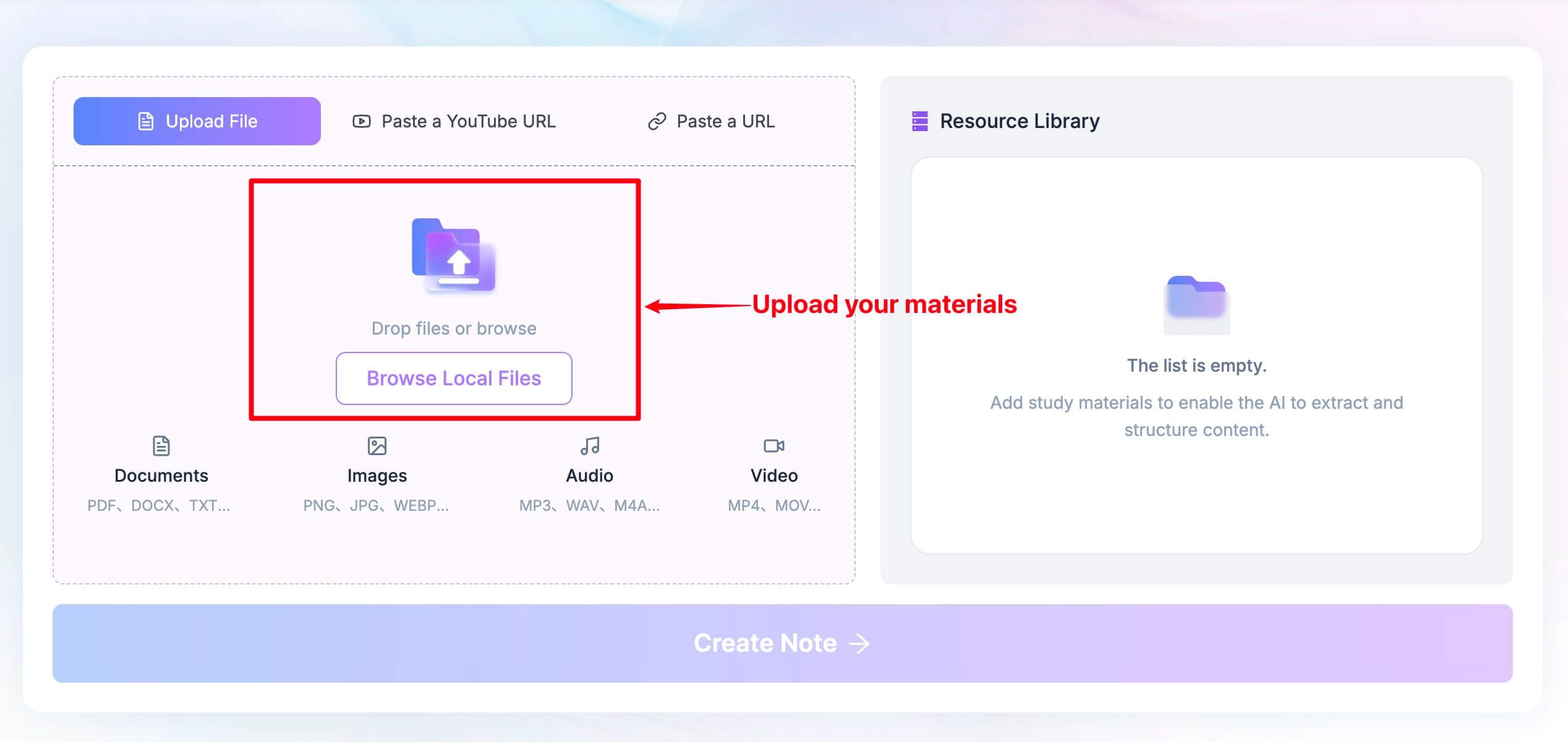
- Open the AI Note Generator, select Upload File, and add your audio or video through Browse Local Files. Direct uploads do not need the Parse action used for URLs.
-
Once the source is ready, click Create Note to generate the structured output.
-
Review and edit the note, then ask targeted follow-up questions about decisions or unresolved issues. Check names, owners, and deadlines against the source before sharing it.
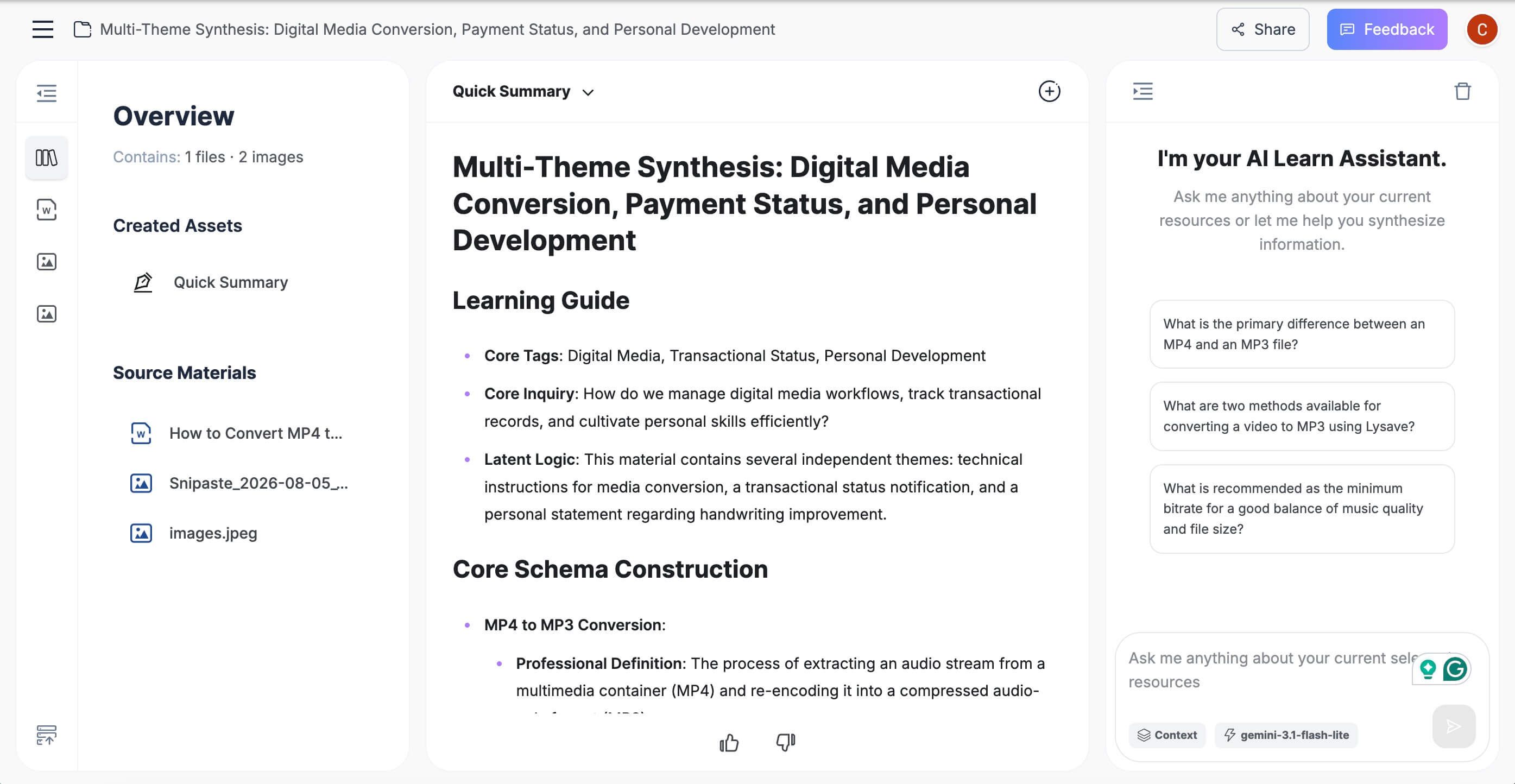
The workspace above is a general note example, not a transcript of the meeting discussed here.
A useful follow-up is, "Which next steps were explicitly agreed, and which were only suggested?" That distinction matters more than making a meeting summary sound polished.

2. MacWhisper: Best for Local Transcription on a Mac
MacWhisper is worth comparing when you like keeping transcription on your computer but want a file-centered Mac application. Its workflow covers imported recordings as well as microphone input, with additional meeting and AI capabilities available across its paid feature set.
The distinction I would watch is transcription versus summarization. A local speech model can keep the transcription step on your Mac, while an external AI provider changes where the resulting text is processed; local AI connections are also available.
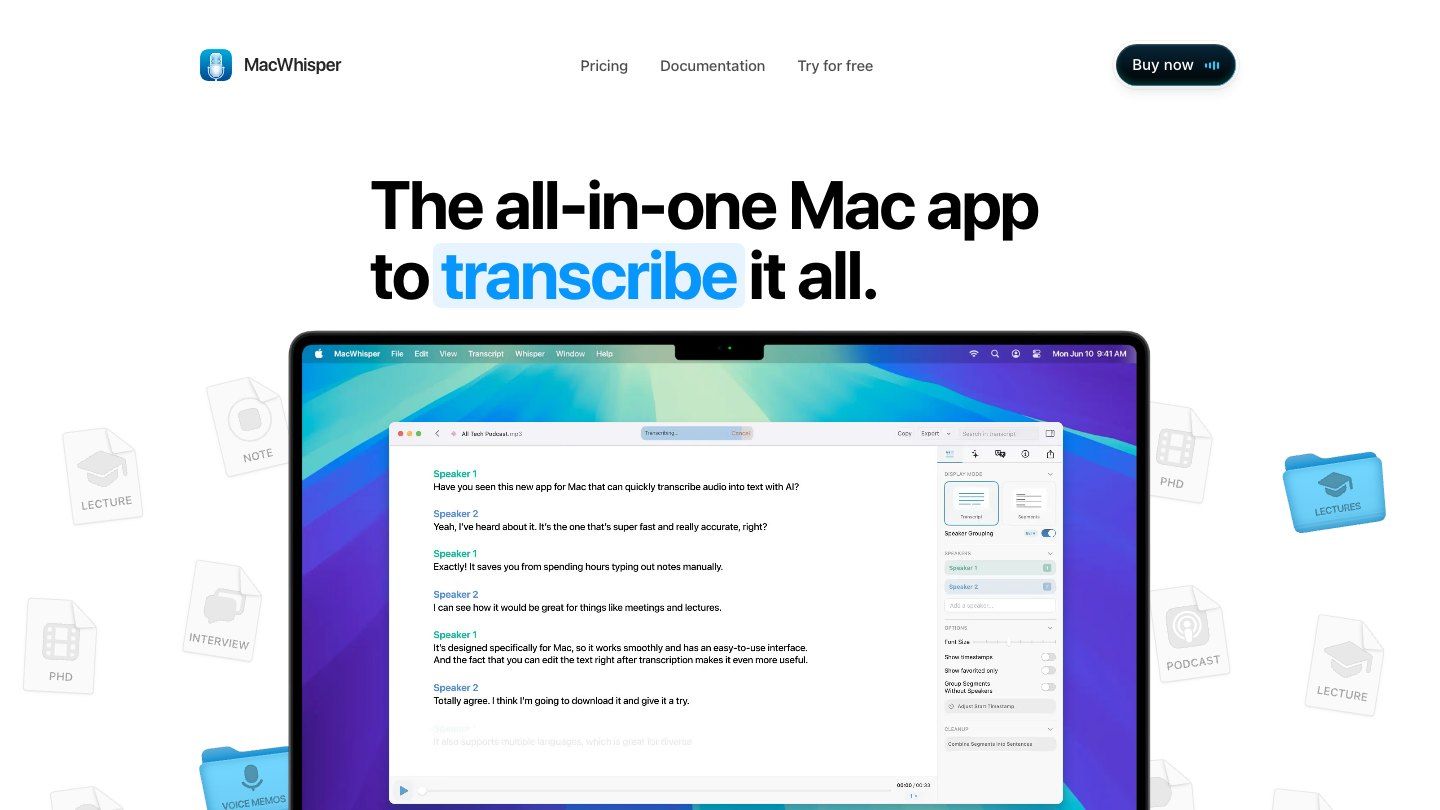
Features
- Local transcription and imported audio or video files.
- Text and subtitle export options.
- Optional AI connections, including local models through Ollama or LM Studio.
Pros
- A practical choice when you want to keep and edit transcript files.
- A one-time Pro license option rather than only a recurring subscription.
Cons
- Mac-focused; advanced capabilities are not all part of the free edition.
- Automatic meeting notifications differ between the direct-download app and the Mac App Store version.
Best for
- Mac users who value local transcription and control over output files.
The listed free version is ongoing, while Pro was EUR 64 per license when checked. Its support documentation labels automatic meeting recording as beta, so I would validate that capture route before relying on it for an important conversation.
3. Buzz Classic: Best Free Open-Source Option for Transcript-First Work
Buzz Classic is the most focused alternative here: it turns speech into text. That makes it useful when you want a transcript you can search, edit elsewhere, or process with your own tools, rather than another hosted meeting workspace.
It supports local models, file imports, and microphone transcription. The tradeoff is that an editable transcript is only one part of Meetily's workflow; optional summary plugins add another setup step, rather than making this a ready-made meeting-summary and follow-up workspace.
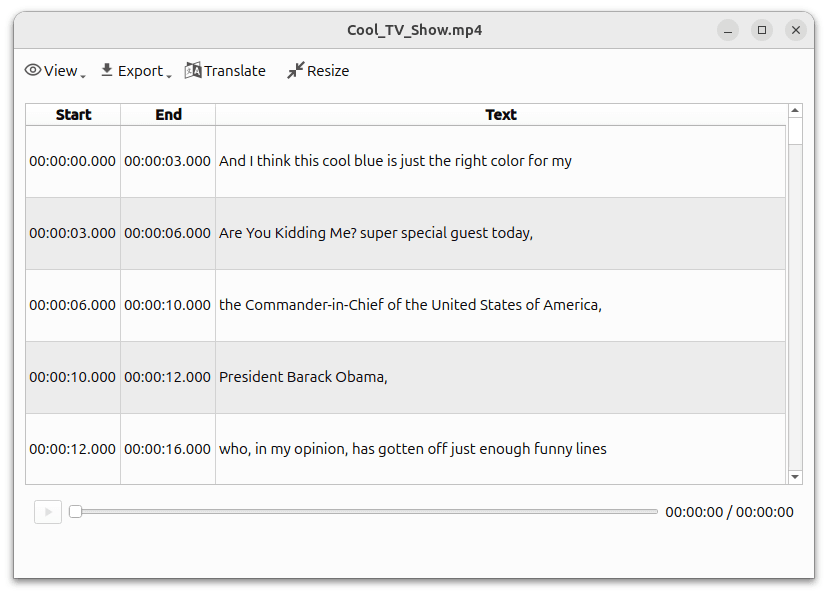
Features
- Local Whisper-based transcription options.
- Audio and video imports.
- TXT, CSV, SRT, and VTT exports.
Pros
- Free and open source in the Classic edition.
- Includes a Linux path, useful when an installer matters more than cloud collaboration.
Cons
- Processing speed depends on your hardware and selected model.
- Optional summary plugins require extra setup; check the chosen provider before treating the full workflow as local.
Best for
- Users who need an offline transcript first and are comfortable choosing their own next step.
Keep Buzz Classic separate from the native macOS product when comparing editions. Also choose a local engine deliberately: the availability of an optional transcription API does not make every configuration offline.
4. Granola: Best for Notes You Shape During the Meeting
Granola is appealing if you want to remain involved in the notes rather than receive a transcript dump afterward. Its notepad approach combines the points you write with meeting context, which is a different starting point from treating every spoken sentence as equally useful.
For me, the deciding question would be whether I want a working note or a recording archive. Granola uses cloud transcription and AI providers, and its desktop workflow does not retain meeting audio for later playback.
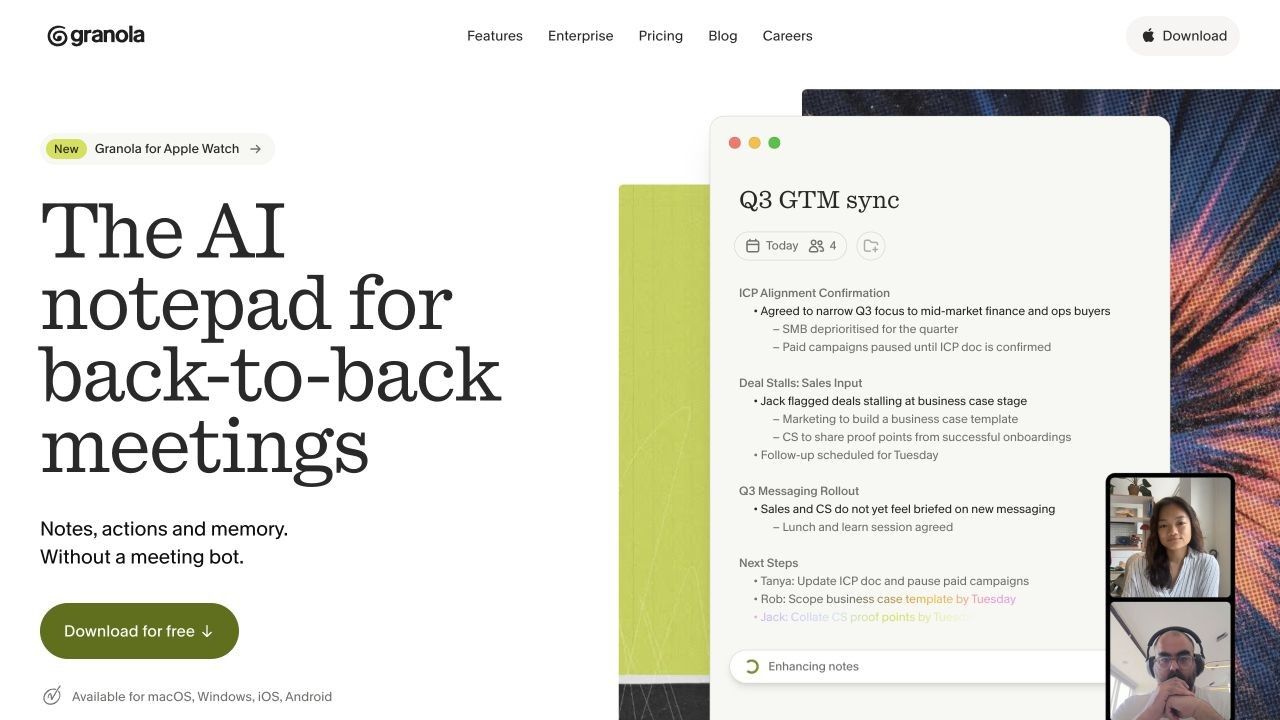
Features
- Bot-free capture of meeting audio.
- AI-enhanced notes, templates, and meeting chat.
- Shared folders and collaboration features.
Pros
- Fits people who already jot down priorities during calls.
- Keeps a readable meeting note central to the experience.
Cons
- Cloud processing does not meet a strict local-only requirement.
- Basic includes limited history rather than unrestricted long-term access.
Best for
- People who want AI to expand their meeting notes, not replace their judgment about what mattered.
Basic is free; Business adds unlimited notes and history. If you regularly need to replay someone's exact wording, compare a recording-oriented alternative instead of assuming a transcript and a recording are interchangeable.
5. Jamie: Best for Bot-Free Notes Across Online and In-Person Meetings
Jamie makes sense when your meetings do not all happen in the same place. You might have a browser call in the morning, a different video platform at lunch, and an in-person discussion later.
Its bot-free capture and meeting-note workflow address that inconsistency. However, running a recorder on your device is not the same as running the entire transcription and AI pipeline locally, so it should not be presented as an offline equivalent to Meetily.
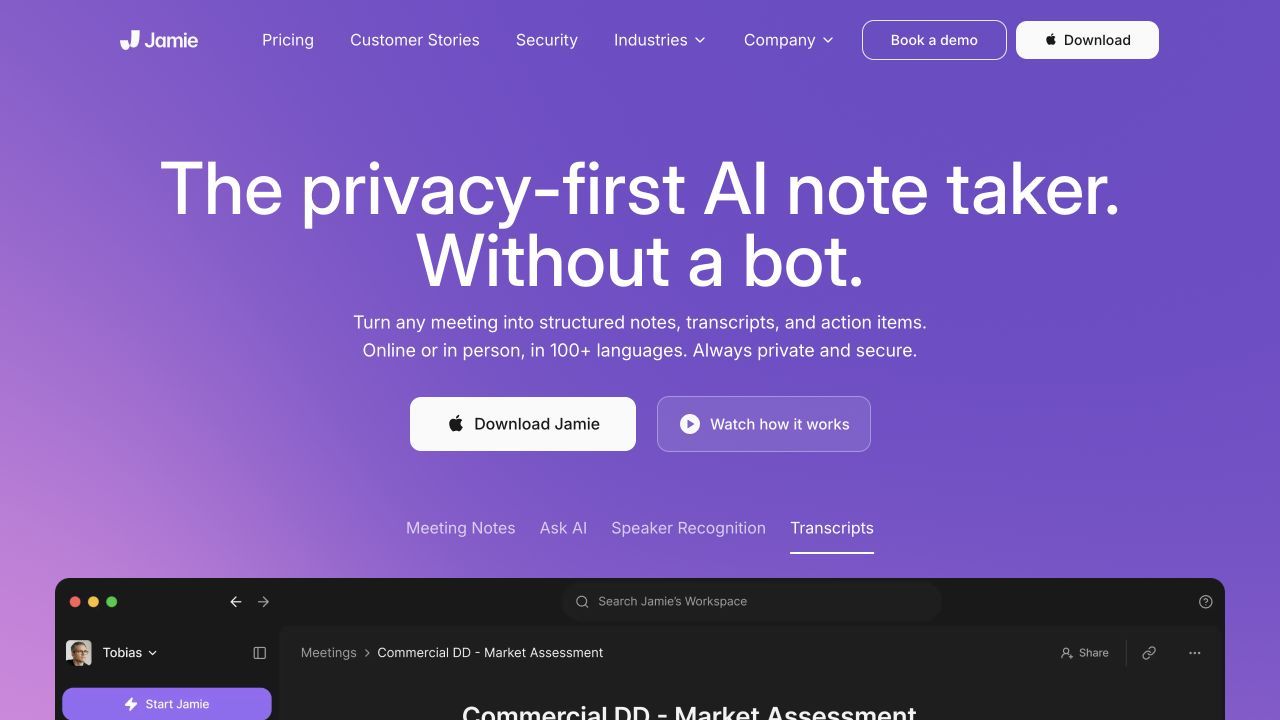
Features
- Bot-free capture for online and in-person conversations.
- Meeting notes and transcripts.
- Ask Jamie for questions about meeting content.
Pros
- Does not require a separate virtual participant in the call.
- Useful when switching between meeting environments.
Cons
- The free plan's 30-minute duration limit can be a poor fit for longer discussions.
Best for
- Professionals who prioritize consistent note capture across meeting settings.
The current free plan lists 10 AI notes per month. I would judge it against the length of your usual meeting, not just that monthly count: a free slot is not especially helpful if your recurring review takes an hour.
6. Fathom: Best for a Generous Free Recording and Review Workflow
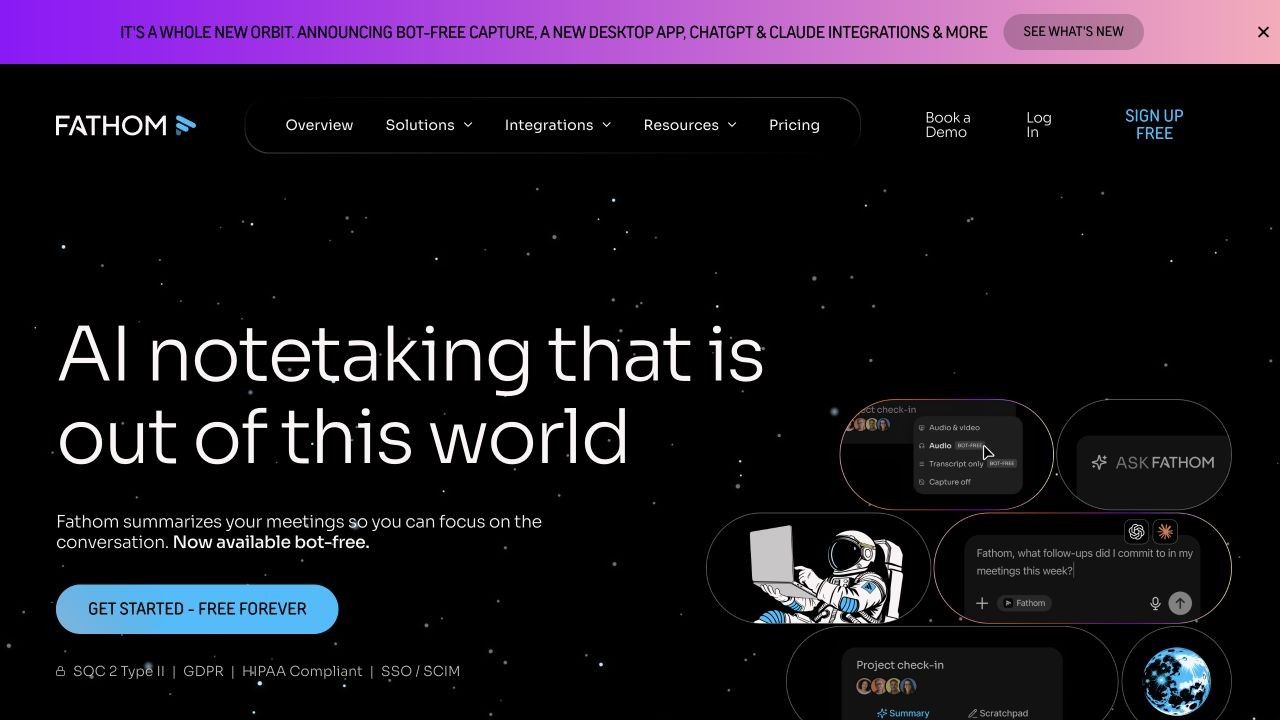
Fathom is a strong shortlist choice when returning to the original conversation matters as much as reading the recap. Recording, transcription, clips, and search support a review workflow rather than only a finished page of notes.
Its free plan lists unlimited recordings and transcriptions with instant summaries. Advanced summaries and additional AI features sit in paid tiers, so "free summaries" should not be read as access to every analysis feature.
Features
- Meeting recordings and transcripts.
- Basic AI summaries.
- Clips, playlists, and search across calls.
Pros
- A useful continuing free option for recording-based review.
- Makes it easier to revisit a specific part of a conversation.
Cons
- It is a cloud workflow, not an offline replacement.
- The bot-free capture option is currently labeled a Mac beta.
Best for
- Individuals who want a replayable meeting library with basic summaries.
Do not rely on older comparisons that describe Fathom as necessarily bot-only. At the same time, a beta option should not be treated as equivalent availability on every device you use.
7. Otter.ai: Best for Live Transcripts You Can Revisit and Share
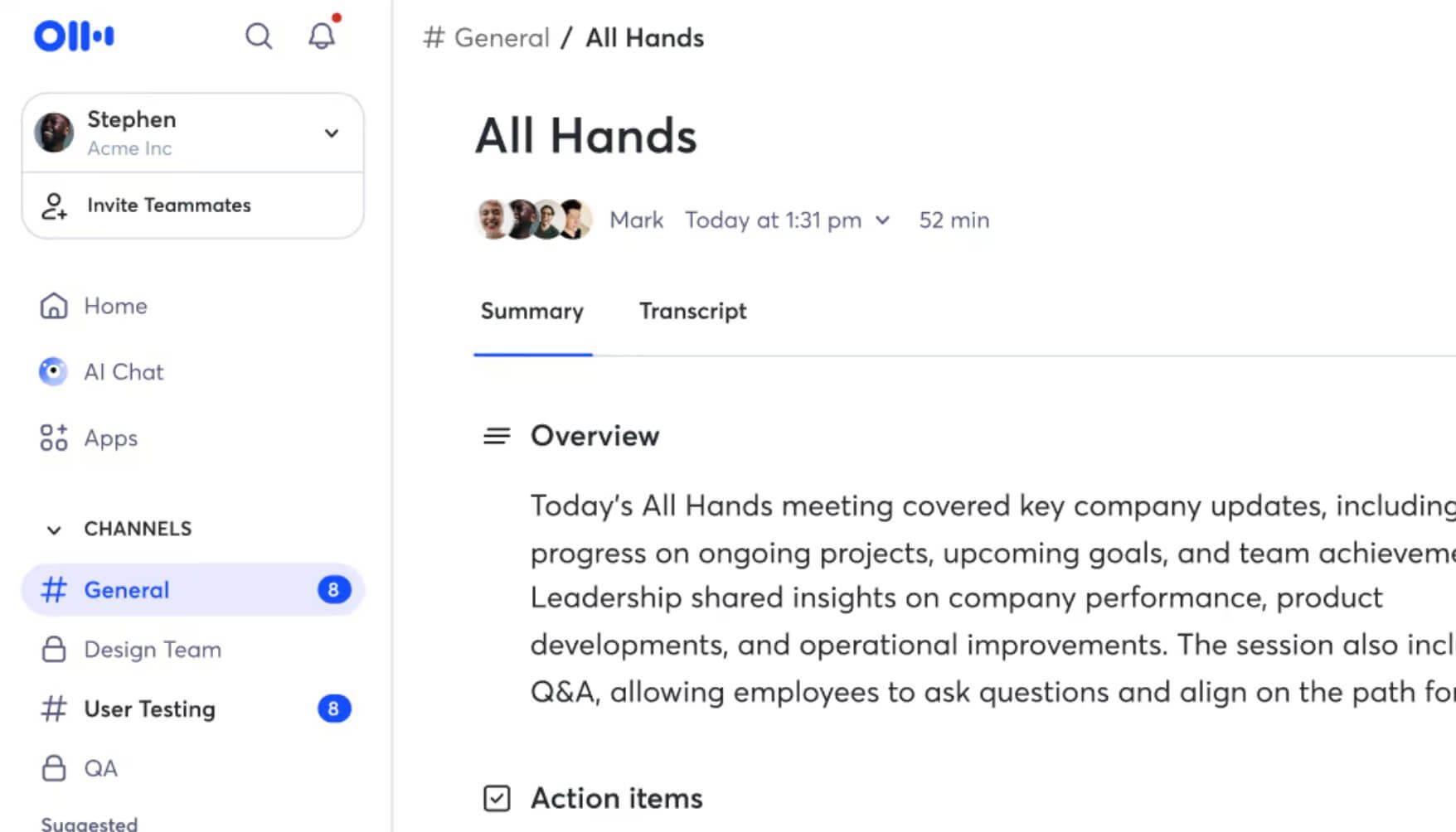
Otter is worth considering when the transcript itself is the working document. Live transcription, speaker identification, and playback are useful when you need to find who said something, not just read a compressed recap.
The free-plan restriction that deserves attention is file import. Otter Basic includes 300 monthly transcription minutes, but only three lifetime audio or video imports; those allowances answer different questions.
Features
- Live transcription and speaker identification.
- Recorded-audio playback.
- AI chat and mobile access.
Pros
- Suits transcript-led review and discussion.
- Supports workflows across desktop and mobile devices.
Cons
- Basic also limits a conversation to 30 minutes.
- A monthly minute allowance does not reset the lifetime import quota.
Best for
- People who want to work directly with live transcripts and revisit individual statements.
For someone moving a folder of old Meetily recordings, I would check import capacity before recording a new sample. A tool can be convenient for future meetings yet a poor fit for migrating your existing archive.
8. Fireflies.ai: Best for Searchable Team Meeting Knowledge
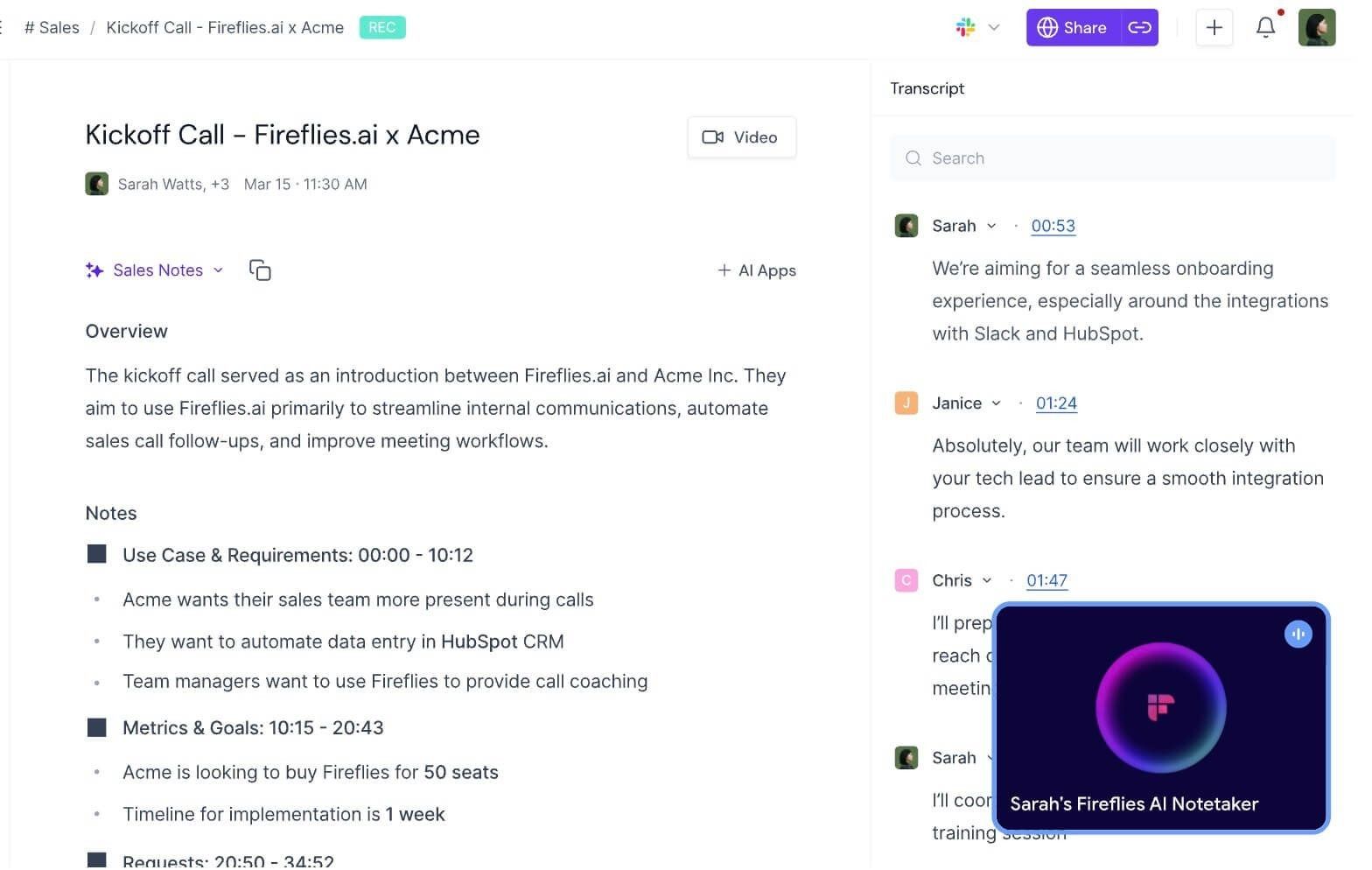
Fireflies becomes more relevant when the problem is finding information across a team, not just generating your own notes. Its meeting search, AskFred, and integrations support that broader use case.
There is an important catch in the free offer. For newer accounts, its help documentation ties unlimited meeting transcription to the Auto-join setting; uploads and summaries still have separate credit rules, so the headline does not mean unlimited processing of any file you choose.
Features
- Meeting search and questions through AskFred.
- Audio and video uploads.
- Multiple capture routes and integrations.
Pros
- Useful when meeting knowledge needs to be retrieved by others.
- Offers more than one way to bring conversations into the workspace.
Cons
- Transcription, storage, summaries, and downloads have separate plan boundaries.
- Automatic capture settings need careful review before connecting a calendar.
Best for
- Teams evaluating a searchable meeting workspace rather than a private desktop archive.
The pricing page lists 400 minutes of free storage per team, while a help article describes that allowance per seat. Confirm how your account applies it, and note that free transcript downloads are restricted; neither point is answered by an "unlimited transcription" headline.
9. tl;dv: Best for Sharing Meeting Moments With a Team
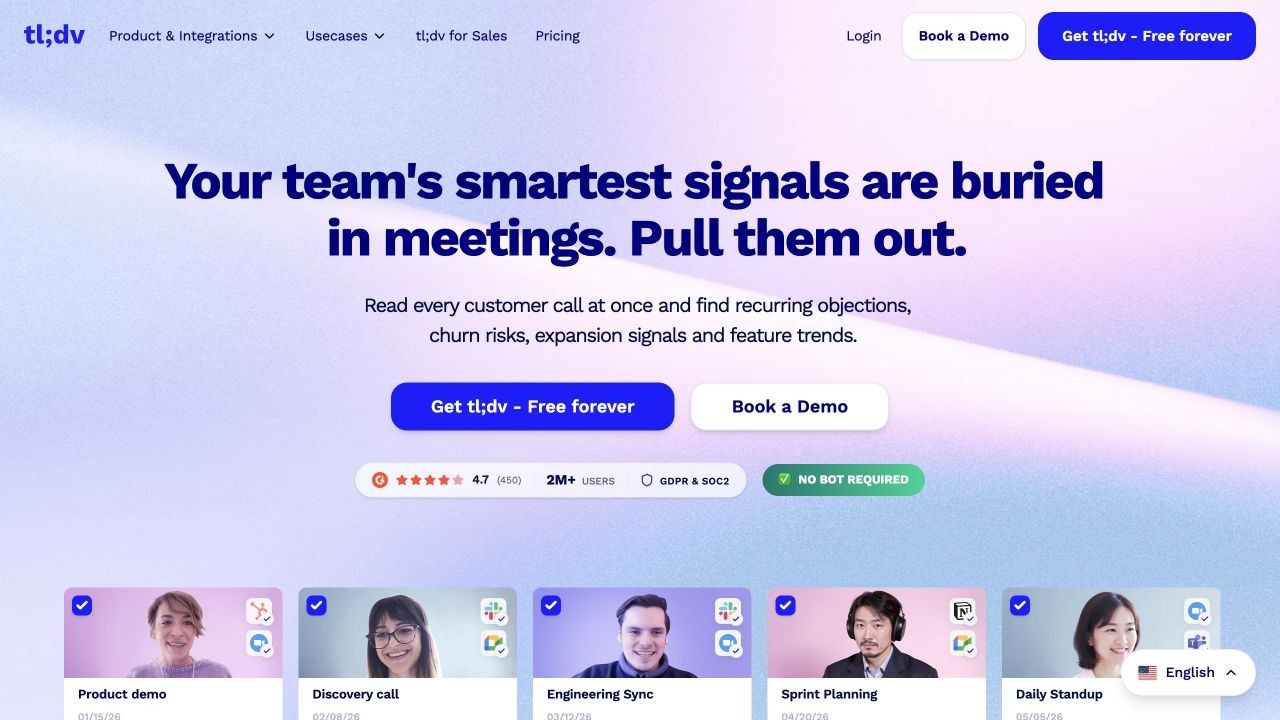
Sometimes the most useful output is a short segment a colleague can watch, not another summary they need to interpret. That is the angle I would use to evaluate tl;dv: recordings, transcripts, timestamps, and clips for people who were not in the room.
This is a different tradeoff from local ownership. You gain a sharing-oriented workspace, but should inspect how long recordings remain available and whether you can download them when you need them.
Features
- Meeting video recordings and transcripts.
- Timestamped notes and shareable clips.
- AI summaries and team-oriented workflows.
Pros
- Helps preserve the context behind a short quotation or decision.
- Useful for asynchronous review across a team.
Cons
- Free recording access and AI coverage have limits beyond the headline offer.
- Retention and download rules matter if this becomes your only archive.
Best for
- Teams sharing specific moments from calls instead of forwarding entire recordings.
The free-plan help page describes archive storage and AI-note restrictions that broad marketing copy does not spell out. I would confirm the active account terms before treating it as a permanent recording library or a source of unrestricted full-length AI summaries.
10. Tactiq: Best for Browser-Based Meeting Transcripts Without a Bot
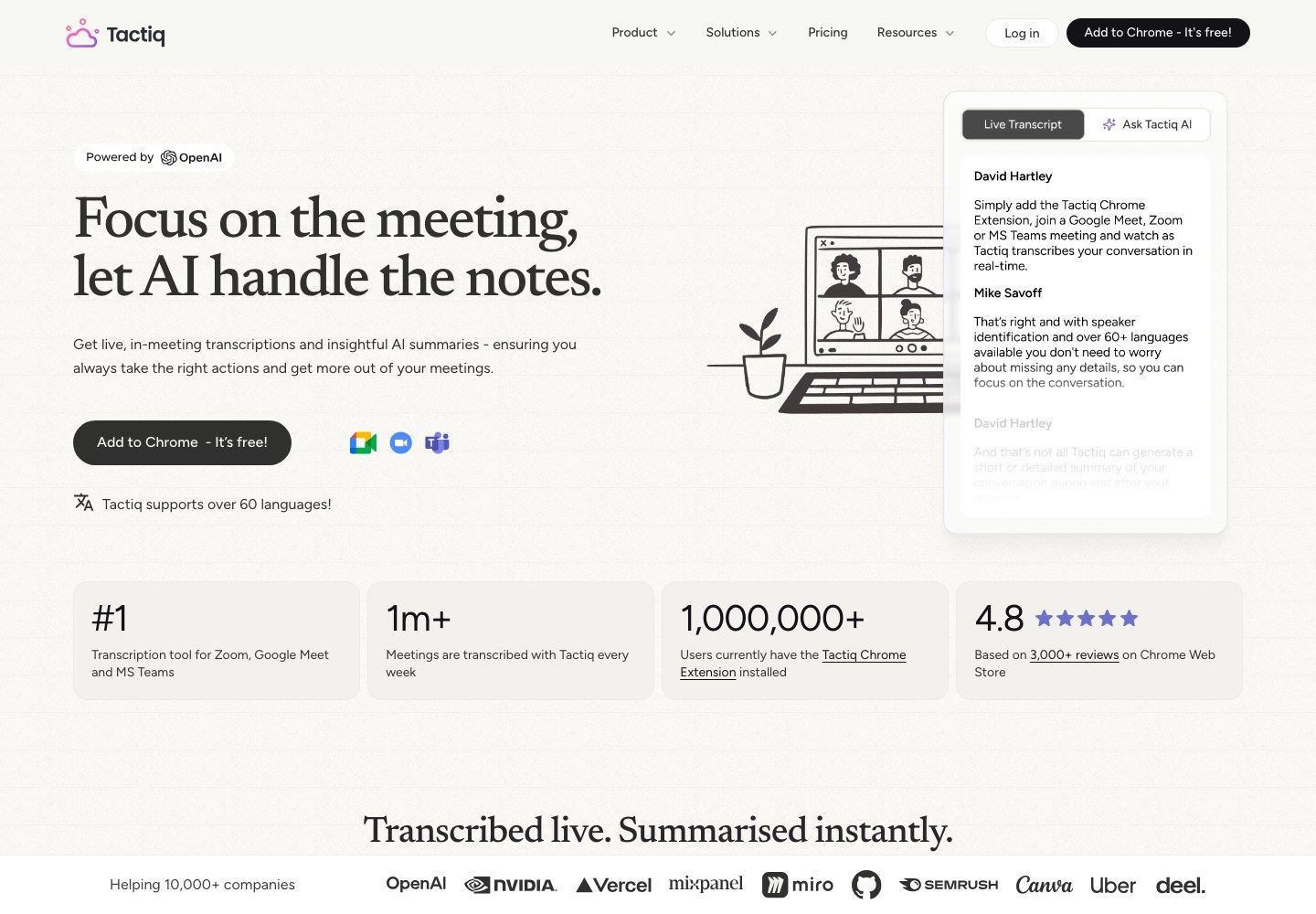
Tactiq is the option I would examine when installing and configuring a local recording stack feels excessive for browser meetings. Its extension supports transcription in compatible Google Meet, Zoom, and Microsoft Teams contexts without adding a meeting bot.
The important boundary is the browser workflow. It is not the same as a general system-audio recorder for every desktop application, and its AI features should not be described as offline.
Features
- Transcripts from supported browser meetings.
- AI prompts and meeting insights.
- Transcript sharing and export.
Pros
- A lightweight route for people already working in a compatible browser.
- No separate virtual attendee needs to join the call.
Cons
- Supported meeting contexts matter.
- Transcript and AI allowances are counted separately.
Best for
- People who want browser-based meeting text rather than a local recording library.
Free includes 10 transcripts and five AI credits per month. If you expect to generate several different outputs from every transcript, evaluate the AI allowance as well as how many meetings you can transcribe.
Meetily Community vs. Pro: What Are You Actually Replacing?
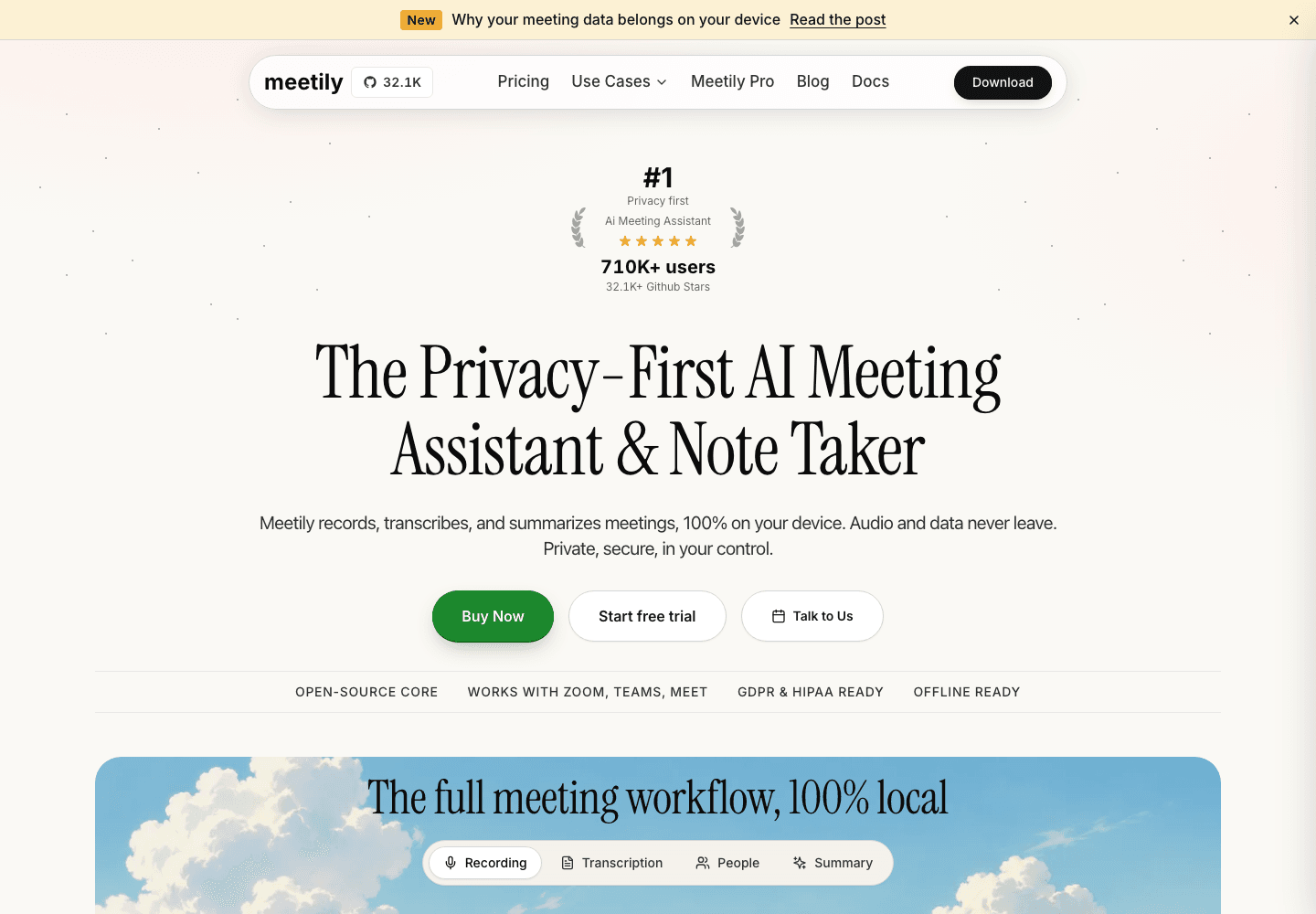
Meetily's official product page presents its local meeting workflow; this image is not a test recording from this comparison.
Before removing Meetily, identify whether your frustration comes from its core workflow, the edition you use, or your configuration. Those are different problems, and changing products does not automatically solve all three.
Community is free and open source, with local transcription, summaries, and recordings stored on your computer. Pro adds capabilities including speaker diarization, meeting detection, and more export options; the two editions should not be treated as one identical feature bundle.
| Requirement | Meetily Community baseline | What Pro adds or changes | What to compare elsewhere |
|---|---|---|---|
| On-device transcription | ✅ Included | Retains local transcription | Whether local processing is genuinely required |
| AI summaries | ✅ Available with the configured workflow | Additional model and template options | Summary setup, editing, and data destination |
| Speaker diarization | ❌ Listed as a Pro capability | ✅ Speaker separation | Attribution quality, not just the presence of labels |
| Meeting automation | More manual workflow | Detection and calendar features | Supported apps and reliable capture |
| Reusable output | Basic copy/local output | PDF and DOCX export options | Whether you can keep usable files after leaving |
For a local workflow, the summary provider matters as much as the transcription engine. Choosing a cloud provider with your own API key means the text used for that request is processed outside the computer, even if the speech recognition happened locally.
There is also a platform distinction: Meetily provides Mac and Windows desktop downloads, while its Linux route involves a source build rather than the same ready-made installer experience. That can justify choosing a simpler transcript tool without implying Meetily is unusable on Linux.
My practical rule is to fix the narrow problem first. If you only need a better way to review existing recordings, changing the post-meeting tool may be enough; if your organization requires local processing throughout, moving to an easy cloud application changes the requirement rather than satisfying it.
Bot-Free Is Not Offline: Follow Your Meeting Data
"No bot" describes how a tool appears in the meeting. "Offline" describes where processing can happen without a network connection, and neither phrase tells you the complete story about storage or sharing.
This is the most useful distinction when comparing Meetily AI alternatives. A less visible recording method may improve the meeting experience while leaving the underlying cloud-processing decision unchanged.
Where Recording, Transcription, and Summaries Happen
I would trace five steps before choosing a replacement: capture, transcription, summary generation, storage, and integrations. An application can be local at one step and remote at the next.
| Step | Question to ask | Why the answer matters |
|---|---|---|
| Capture | Does it capture microphone audio, computer audio, a platform transcript, or an uploaded file? | Determines what it can actually hear or import |
| Transcription | Does a local model or an external service convert speech to text? | Establishes whether audio needs remote processing |
| Summary | Where does the model read the transcript? | Text can leave the device even when audio does not |
| Storage | Where are recordings, transcripts, and notes retained? | Affects access, retention, backups, and deletion |
| Integrations | What gets sent to a calendar, CRM, or shared workspace? | Adds destinations beyond the original note-taking app |
For example, a locally configured Meetily workflow and a bot-free cloud notepad can feel similar during the call. They are not equivalent if one processes the transcript on your computer and the other sends it to an external model.
Likewise, an upload-first tool gives you control over which recording you submit, but it is still an online processing decision. Selective upload and local processing solve different problems.
Why No Audio Storage Does Not Mean No Audio Upload
Granola illustrates this distinction: its security explanation describes cloud transcription providers while also explaining that desktop meeting audio is not retained as a recording. These statements can both be true because processing and long-term storage are separate stages.
The practical implication is two-sided. You may prefer not to maintain an audio archive, but you also lose the ability to replay that archive when a transcript looks wrong.
Before choosing, decide what evidence you need later. A short internal check-in might only need reviewed notes; an interview with names, numbers, and careful wording may call for keeping an authorized original recording separately.
What Changes When You Connect an External AI Provider
Bringing your own API key does not make a model local. It gives you an account relationship with the provider handling the request, and potentially a separate usage bill.
Look at the actual destination rather than the branding of the desktop application. A local model endpoint and a hosted model endpoint can sit next to each other in a settings menu while creating very different data flows.
Also consider the destination folder. Keeping a transcript on your laptop does not mean it remains only there if the folder is automatically synced to another service.
For workplace use, check the approved tools and recording process before collecting meeting content. A bot-free interface is not a reason to record participants without telling them what you are doing.
Is Switching Actually Cheaper Than Keeping Meetily?
For a Community user, the subscription baseline is already zero. The financial question is whether an alternative saves enough setup or review time to justify its restrictions, or whether a paid workflow provides something you genuinely cannot do today.
I would separate four costs: the application, the computing hardware, any external AI usage, and the human work needed to correct and distribute the output. A free application can still be expensive in time; a paid application can still leave you doing most of the editing.
Price the Work You Need, Not Just the Minutes
Here is a hypothetical workload, not a product benchmark: 12 meetings a month, each lasting 45 minutes. That totals 540 minutes, before any reprocessing or old recording imports.
- Otter Basic's 300 monthly minutes do not cover that workload, and its 30-minute conversation limit is a separate obstacle.
- Jamie's 10 free notes and 30-minute meeting limit create two constraints, not one.
- Tactiq's 10 monthly transcripts would not cover all 12 meetings; AI credits need their own budget.
- Fathom's free recording offer is worth comparing for this volume, but advanced output requirements can still change the plan you need.
- A local application avoids a cloud minute allowance only for the local capabilities it actually provides; it does not make every summary feature free.
If the meetings are already recorded, check import allowances before live-recording allowances. Otherwise, the plan that appears cheapest for attending calls may be the most restrictive for processing a backlog.
Watch the Limit You Will Hit First
| Free-access model | First practical bottleneck | What to establish before switching |
|---|---|---|
| Free open-source application | Hardware, configuration, or missing workflow pieces | Whether the full task works on your computer |
| Free desktop edition plus paid upgrade | A needed capture, model, or export feature | Which exact edition supports your workflow |
| Monthly minutes or meeting count | Volume and per-meeting duration | Whether a normal week fits, not just a short demo |
| Transcript allowance plus AI credits | Notes or follow-up queries run out first | Whether credits reset and which actions consume them |
| Free recording with limited retention | Older files become harder to access or disappear | Export rights, storage duration, and retrieval delays |
| Bring-your-own-key workflow | Provider charges in addition to the app | Which steps trigger paid external requests |
Fireflies shows why a single number can conceal several restrictions: enabling unlimited eligible meeting transcription does not remove separate upload, summary, storage, and download rules. In a comparison, I would write those as separate requirements instead of giving the whole free plan one checkmark.
A similar issue applies to a recording archive. Being allowed to record another meeting is not the same as keeping every previous meeting in a permanent, downloadable archive.
Count the Work After the Summary
Imagine two outputs from the same discussion: one is attractively formatted but assigns a task to the wrong person; the other is less polished but preserves the disagreement and links clearly to the relevant context. I would rather spend a minute formatting the second than unknowingly distribute the first.
That is why the useful unit is a reviewed, usable meeting record, not merely a generated summary. When you compare free plans, include the steps between receiving the output and actually trusting it enough to act on it.
Before You Switch, Run One Meeting Through This Checklist
Start with a short, non-sensitive conversation that everyone involved has agreed can be recorded and processed. Include both sides of a call and a few realistic details; a clean solo monologue is too easy to reveal common meeting problems.
Use this as your own trial procedure, not as a claim about tests performed for this article. The point is to expose a failure before the tool becomes responsible for an important record.
Check That Both Sides Are Captured
Test your normal microphone, headphones, and meeting application. Ask someone on the remote side to speak, then listen back or inspect the transcript to confirm that their words are present.
A microphone can capture your voice clearly while missing the audio sent into your headphones. If that happens, changing the summary prompt will not recover the missing half of the conversation.
Also try stopping and restarting a meeting, where practical. Confirm that you can tell when capture is active and find the saved result afterward rather than assuming a notification means the recording succeeded.
Separate Word Accuracy From Speaker Accuracy
Include a product name, a number, a corrected date, and a brief interruption. Review the words and speaker assignments separately, because a transcript can get a sentence right while attributing it to the wrong person.
For example, "I can review it, but Alex owns the delivery" should not become an action item assigning delivery to the speaker. The ability to edit names is helpful, but it does not replace checking whether the segments were assigned correctly in the first place.
Check Decisions, Owners, and Deadlines
Make a small reference note yourself before reviewing the AI output. Record the actual decision, any unresolved question, the agreed owner, and whether a deadline was confirmed.
| Output element | What a useful result should preserve | Warning sign |
|---|---|---|
| Decision | What the group actually agreed | A suggestion rewritten as approval |
| Owner | The person explicitly responsible | A task assigned to whoever mentioned it |
| Deadline | The final confirmed date, if any | A tentative date presented as fixed |
| Open question | What remains unresolved | Disagreement removed to simplify the recap |
| Context | Conditions attached to a commitment | Important qualifiers dropped |
This check is especially valuable when the summary is short. Compression is useful, but removing a condition such as "after budget approval" can change the meaning of the meeting.
Test Offline Behavior, Export, and Retrieval
If offline processing is a requirement, finish the initial installation and model downloads first, then test the intended transcription and summary workflow without a network connection. Being able to open yesterday's note offline does not prove that today's recording can be processed offline.
Export a sample into the format you actually need and open it outside the app. Check headings, timestamps, speaker names, and whether a colleague can read the output without getting an unwanted access request.
Finally, locate the recording and its related transcript, note, and shared link. Understand the controls for each, since deleting a note, removing a link, and deleting an uploaded recording may be different actions.
Keep your authorized originals until you have verified the replacement. There is little benefit in a smoother new interface if your previous meeting records become inaccessible during the move.
FAQs About Meetily Alternatives
What Is the Best Free Meetily Alternative?
It depends on what needs replacing. Buzz Classic is a useful free open-source choice for local transcripts, MacWhisper offers a free Mac transcription path, and Fathom is worth comparing for a free cloud recording workflow.
None of those statements means every tool replaces Meetily's complete local recording-to-summary process. If that is your requirement, keeping Community may be the better starting point.
Is Meetily Community Actually Free?
Yes. Meetily offers a free, open-source Community edition alongside Pro and a Pro trial; those are distinct options, not three names for the same offer.
Optional external model services can introduce their own costs. Check the edition and provider configuration when evaluating what is free in your setup.
Which Meetily Alternatives Work Fully Offline?
Buzz Classic and MacWhisper can perform local transcription with downloaded models. Completing the entire task offline also requires a local summary workflow if you need AI notes, not just text.
Do not assume a tool is fully offline because it records without a bot or stores a local copy. Check each processing stage separately.
Is Granola a Local Alternative to Meetily?
Not if "local" means transcription and AI processing remain on your computer. Granola captures audio through your device but uses cloud providers for transcription and AI enhancement.
It is better compared as a bot-free notepad workflow, not an interchangeable local-processing substitute.
Which Alternatives Can I Use on Linux?
Buzz Classic is worth evaluating for a Linux-based transcription workflow. Browser services may also be usable for their supported online tasks, but browser access does not provide an offline desktop recorder.
Meetily itself documents a Linux source-build route. Consider your willingness to maintain that setup before treating the lack of a ready-made installer as a reason to change everything.
Can I Turn an Existing Meeting Recording Into AI Notes?
Yes, if the chosen tool accepts your recording format and your plan covers file uploads. Use an upload-to-notes workflow rather than assuming a service designed to join future meetings can process an entire old archive.
Check file size, duration, and import allowances first. Keep the original available so you can verify the generated notes.
Do Bot-Free Meeting Tools Still Need Participant Permission?
Removing the bot does not resolve permission or workplace-policy questions. Tell participants how the conversation will be captured and processed, and follow the applicable rules before recording or uploading it.
For sensitive workplace meetings, confirm the permitted data destination with your organization rather than relying on a privacy label in a product description.
Final Verdict
The best Meetily alternative is the one that fixes the part of your workflow that is not working. Start with an upload-to-notes tool for existing recordings, a local transcription app for editable files, or a meeting workspace when sharing and retrieval are the real priorities.
I would keep Meetily on the shortlist if local transcription and summaries are already working well. Switch when the new tool makes a specific task easier, and only after checking the free limits, data destination, and quality of the record you will actually use.

Written by Danny
Product Marketing Manager
Danny explains how Lynote features fit real workflows, from everyday productivity to product-led writing use cases. View all articles →