How to Turn a 2-Hour University Lecture Video into a 5-Minute Study Guide

Staring down a two-hour lecture video can feel like a monumental task, especially when you're trying to distill it into useful notes. The traditional method of pausing, rewinding, and frantically scribbling can eat up valuable study time. There's a better way.

This guide provides step-by-step methods, including AI tools, to convert 2-hour lectures into 5-minute study guides. It covers transcription, summarization, visual aids, and export options for effective learning. Learn how to transform overwhelming lecture videos into focused study guides with AI-powered efficiency.
Quick Verdict: Best Methods for Lecture Video Note-Taking
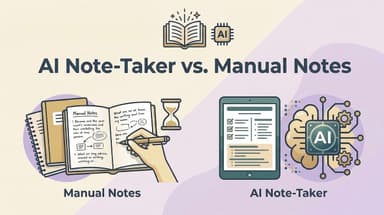
Choosing the right method for taking notes from lecture videos depends on your learning style, time constraints, and the complexity of the material. Some prefer the deep engagement of manual note-taking, while others need to quickly extract key information using AI.
| Method | Best For | Tradeoffs | Speed |
|---|---|---|---|
| Manual Note-Taking | Deep understanding, active learning | Time-consuming, prone to missed details, requires focus | Slow |
| AI Transcription | Quick text extraction, searching, accessibility | Requires editing for accuracy, may not capture nuances in tone | Fast |
| AI Summarization | Grasping core concepts quickly | May miss subtle but important details, requires review for completeness | Fast |
| Visual AI Summarization | Enhanced understanding, visual learners | Best for tutorials/podcasts with strong visuals, requires content to "fit" | Fast |
Ultimately, the best approach often involves a combination of methods. Use AI to quickly generate a transcript or summary, then refine it with your own notes and insights. If the lecture has strong visual components (demonstrations, diagrams), visual AI summaries can be invaluable.
Before You Start: Essential Preparations
Before diving into any note-taking method, make sure you have a solid foundation.
- Video Quality: Check that the video resolution is clear enough to see any visuals or text displayed.
- Audio Quality: Ensure the audio is clear and free from excessive background noise. If the audio is poor, try using noise-canceling headphones or adjusting the playback speed.
- Captions/Transcripts: The single most important step. Determine if the video has captions or a transcript available. If not, check if YouTube's auto-generated captions are enabled (though accuracy can vary).
Having these elements in place will significantly streamline your note-taking process.
Method 1: Manual Note-Taking – The Traditional Approach
The traditional approach involves actively listening to the lecture and jotting down notes in real-time. While it can be time-consuming, it also fosters deeper engagement with the material.
- Active Listening: Focus intently on the lecture, paying attention to key points, arguments, and examples.
- Summarizing Key Points: Condense information into concise summaries rather than writing down everything verbatim. Use your own words to ensure understanding.
- Abbreviations and Symbols: Develop a system of abbreviations and symbols to speed up note-taking. For example, use "w/" for "with," "b/c" for "because," or arrows to indicate relationships between concepts.
The main reason manual note-taking remains valuable is the active engagement with the material. This can lead to better retention and a more thorough understanding of the subject matter. However, be aware of the limitations: you might miss crucial details while writing, and it's easy to fall behind if the lecture is fast-paced.
Method 2: AI Transcription for Quick Text Extraction
AI-powered transcription tools offer a fast and efficient way to convert lecture audio into text. This provides a searchable and editable record of the entire lecture.
Here's how to use Lynote's YouTube Transcript tool:
Step 1. Open Lynote YouTube Transcript Generator
Go to Lynote YouTube Transcript Generator. This is your starting point for extracting the spoken content from the video.
Step 2. Paste or Search
Simply paste the YouTube video URL into the designated field, or use the in-page search to find the video directly within Lynote.

Step 3. Generate Transcript & Summary
Click the "Generate" button and wait for the AI to process the video and create the transcript. This typically takes only a few seconds.

Step 4. Copy or Download
Once the transcript is generated, you can copy the text directly to your clipboard or download it as a MD file for later use. You can also share the result via a link.

Note: If the lecture is in a foreign language, use the translation feature to translate the transcript into your preferred language. You can choose between full-text translation or paragraph-by-paragraph translation.
Pro Tip: Chrome Extension
For an even smoother workflow, install the Lynote Chrome extension. This allows you to access the transcript directly from the YouTube page, without having to switch between tabs.
Expert takeaway: The primary advantage of AI transcription is speed and completeness. You get a full text record that you can quickly search and copy from.
Method 3: AI Summarization for Key Concept Identification
AI summarization tools analyze the lecture transcript and automatically identify the main points, creating a concise summary of the key concepts. This can save you a significant amount of time compared to manually summarizing the lecture.
Pitfall warning
AI summarization is not perfect. It may miss subtle nuances or details that are important for a complete understanding of the material. Always review and edit the AI-generated summary to ensure accuracy and completeness.
Here's how this might work with a hypothetical AI tool (check the current feature set):
- Upload the transcript (generated in Method 2) to the AI summarization tool.
- Choose the desired summary length (e.g., 10%, 20%, or 30% of the original transcript).
- Review the AI-generated summary, editing as needed to correct any errors or omissions.
Method 4: Visual Summaries with AI: Action Guides and Key Moments
Visual summaries combine text with key snapshots from the lecture video, creating a more engaging and informative learning experience. This method is particularly useful for tutorials, demonstrations, and lectures that rely heavily on visual aids.
Lynote's YouTube Summary tool excels at this:
- Open Lynote YouTube Summary: Navigate to the YouTube Summarizer.
- Paste YouTube URL: Paste the URL of the tutorial, podcast, or lecture video into the designated field.
- Generate Visual Summary: Run the tool to generate a visual summary, complete with chapters and an actionable checklist (where applicable).
- Jump to Key Moments: Use the timestamps to jump directly to high-value moments in the video, saving you from manual scrubbing.
- Export or Copy: Export the summary to Markdown for use in Notion, Obsidian, Tana, or copy it directly into your preferred notes app.


Feature Spotlight: Smart Chapters
Lynote automatically generates smart chapters based on the content of the video. This allows you to quickly navigate to specific topics or sections, making it easier to find the information you need.
Bottom line: Visual summaries provide context and enhance understanding, especially for visually-rich lectures. Lynote's smart chapters and actionable checklists further streamline the learning process.
Advanced Tips and Tricks for Efficient Lecture Note-Taking
- Mind Maps: Use mind maps to visually organize and connect key concepts. This can help you see the bigger picture and understand the relationships between different ideas.
- Flashcards: Create flashcards to memorize key terms, definitions, and formulas. Use spaced repetition to reinforce your learning.
- Integration with Learning Resources: Integrate your lecture notes with other learning resources, such as textbooks, articles, and online forums. This will help you develop a more comprehensive understanding of the subject matter.
- Stay Focused: Minimize distractions by turning off notifications, closing unnecessary tabs, and finding a quiet place to study. Consider using a website blocker to avoid procrastination.
Common Mistakes to Avoid When Taking Lecture Notes
- Writing Down Everything Verbatim: Focus on summarizing key points rather than trying to transcribe the entire lecture.
- Not Actively Listening: Engage with the material by asking questions, making connections, and thinking critically about the information being presented.
- Failing to Review and Edit Notes: Review and edit your notes regularly to ensure accuracy and completeness. Fill in any gaps in your understanding and clarify any confusing points.
FAQ: Lecture Video Note-Taking
Q: What's the best note-taking method for me?
A: It depends on your learning style, time constraints, and the complexity of the material. Experiment with different methods to find what works best for you. Many find a hybrid approach (AI transcription + personal annotation) to be the most effective.
Q: Are AI-generated transcripts always accurate?
A: No. AI transcription accuracy varies depending on audio quality, accent, and background noise. Always review and edit the transcript to correct any errors.
Q: What if the lecture video doesn't have captions?
A: Check if YouTube's auto-generated captions are available. While not always perfect, they can provide a starting point for transcription. Alternatively, you can use a transcription service to create a transcript from scratch.
Q: Why does the AI summary sometimes miss key details?
A: AI summarization algorithms are designed to identify the most important information in a text. However, they may sometimes miss subtle nuances or details that are important for a complete understanding. The main reason AI misses details is that it prioritizes frequency and statistical relevance over contextual understanding. Manually review and edit the AI-generated summary to ensure accuracy and completeness. If the AI tool is focused on pure text, it will also miss visual cues that a human would instantly grasp. Lynote’s visual summaries can help bridge this gap.
Conclusion: Mastering the Art of Lecture Video Note-Taking
Turning a lengthy lecture video into a concise study guide is a skill that can significantly improve your learning efficiency. By combining traditional note-taking techniques with AI-powered tools, you can extract key information, save time, and enhance your understanding of the material.
Whether you prefer the deep engagement of manual note-taking, the speed of AI transcription, or the visual clarity of AI summaries, the key is to find a method that works for you and to consistently apply it to your learning process.
Ready to transform your lecture video note-taking? Try Lynote today and experience the power of AI-assisted learning.

Written by Janet L. Harris
AI Writing Specialist
Janet reviews AI detectors and humanization tools, with a focus on accuracy, limitations, and responsible use. View all articles →