5 Ways to Download Audio from YouTube on Mac

If you're on a Mac with an M1, M2, or M3 chip, you probably want to keep your music saved locally. Whether you are curating playlists for the Apple Music app (formerly iTunes) or archiving educational content, the goal is clean audio. However, the platform strictly limits content consumption to streaming. There is no native "Save as MP3" button, so you'll need a workaround to extract audio tracks for offline use.

If you are searching for the most reliable way to download audio from YouTube on a Mac, you must navigate around these restrictions using third-party tools. The ideal workflow should support M4A (AAC) for native Apple ecosystem compatibility and standard MP3 for universal usage, ensuring zero data loss during conversion.
This guide covers the best ways to extract audio from the most effective extraction methods
Method 1: Instant Online Tools (The Quickest Route)
For the majority of Mac users, the most efficient method to extract audio does not involve cluttering the Applications folder with third-party software. If you need to grab a single song, a lecture, or a podcast episode, browser-based converters offer the easiest way. This approach eliminates the need to bypass macOS Gatekeeper security checks often required for non-App Store software.
We recommend using the Lynote YouTube Video Downloader as the primary solution for casual downloading. It is engineered to function smoothly within Safari, Google Chrome, and Firefox on macOS, uses cloud-based processing to convert video to audio without taxing your M1, M2, or M3 chip.
Step-by-Step Guide: How to Download Without Software
- Copy the Video URL Go to the video you want to save. Click the URL bar and press Command + C to copy the link to your clipboard.

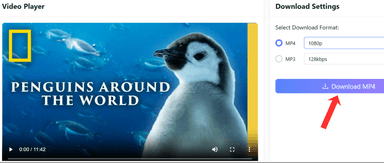
- Paste and Initialize Open the Lynote YouTube Video Downloader. Click inside the input field and press Command + V to paste the link. The tool pulls the video info automatically; if not, click the "Start" or "Convert" button.

- Select Format and Download You will be presented with format options. Select your desired bitrate (e.g., 128kbps, 256kbps) and file type, then click Download. The file will automatically save to your Mac’s Downloads folder, accessible via the Dock or Finder.


Choosing the Right Format: MP3 vs. M4A
When using online tools, you will typically see options for MP3 and M4A.
- MP3: The universal standard. Choose this if you plan to share the file with non-Apple devices or legacy MP3 players.
- M4A (AAC): This is the native container for Apple devices. For macOS users, M4A is often the better option as it provides higher audio fidelity at the same bitrate compared to MP3. It integrates natively with the Apple Music app and QuickTime Player.
Why Choose This Method?
- Nothing to Install: Completely bypasses the Mac App Store and system security prompts.
- Works on iPhone & iPad Too: Works identically on iPhone and iPad, saving directly to the "Files" app.
- 100% Free: No subscription tiers or limits on daily downloads for standard quality.
- No Malware Risk: Cloud-based conversion ensures zero risk of installing malware.
Method 2: Professional Desktop Software (The Power User Choice)
Online tools are fast for one-off downloads, but if you're grabbing entire playlists or need batch processing, desktop apps do the heavy lifting. For users requiring reliability, bulk processing capabilities, and advanced metadata management, desktop software makes more sense. Dedicated macOS applications take full advantage of your M-series chip to process audio faster and manage large playlists without crashing.
Paid tools generally offer a "set-and-forget" experience, automatically updating to bypass changing algorithms and ensuring you receive the highest bitrate audio available.
Top Recommendation: Downie 4
Verdict: The Gold Standard for macOS

Downie 4 is the go-to video downloader for Mac users Unlike cross-platform apps built on Electron (which can feel sluggish), Downie is a native macOS application. It is lightweight, incredibly fast, and integrates deeply with the operating system.
One of Downie's strongest selling points is its update frequency. YouTube frequently changes its code to break downloaders; the developer behind Downie pushes updates almost daily to ensure uninterrupted service. Additionally, it supports 4K video audio extraction and integrates with "Permute" for advanced format conversion if the native extraction isn't sufficient.
Key Features:
- Native Apple Silicon Support: Runs natively on M1, M2, and M3 chips for maximum efficiency.
- Metadata Processing: Automatically fetches cover art and writes ID3 tags, perfect for Apple Music imports.
- Post-Processing: Can be configured to extract audio automatically upon link detection.
- Supports 1,200+ sites (not just YouTube)
Usage Guide
- Installation: Download Downie 4 (via their website or Setapp). Grant necessary permissions.

- Configuration: Open Settings > Post-processing. Ensure "Extract Audio Only" is checked.

- Drag-and-Drop: Drag a URL from Safari directly onto the Downie icon in your Dock. The download starts immediately.

Don't want to pay $19.99? Lynote offers free MP3 downloads with no software required; open it in Safari, and you're done
Honorable Mention 1: 4K Video Downloader+
Verdict: Best for Cross-Platform & Bulk Playlists

If you use both Windows and macOS, or if your primary goal is downloading massive playlists (100+ songs) at once, 4K Video Downloader+ is a powerhouse. While the interface is utilitarian compared to Downie, its raw power in handling channels is unmatched.
The standout feature is Smart Mode. This allows you to pre-define your preferred format (e.g., MP3, 320kbps) and output directory. Once enabled, you simply paste the link, and the app executes the command immediately without further prompts. It also includes a built-in browser to access age-restricted content.
Honorable Mention 2: PullTube
Verdict: Best User Interface & Trimming Capabilities

For users who value aesthetics, PullTube offers the most beautiful interface on the market, featuring a clean design that fits perfectly alongside native Apple apps.
PullTube’s "Killer Feature" is its Trim Mode. Often, you may want audio from a 2-hour podcast but only need a specific 5-minute segment. PullTube allows you to trim the media timeline before the download begins, saving significant bandwidth and storage space.
Comparison: Paid Mac Audio Downloaders
| Feature | Downie 4 | 4K Video Downloader+ | PullTube |
|---|---|---|---|
| Best For | Native Mac Experience | Bulk Playlists | UI Design & Trimming |
| Pricing Model | $19.99 one-time purchase OR included with Setapp subscription ($9.99/month) | ||
| Free version: 30 downloads/day limit |
Lite: $15/year
Personal: $25 lifetime
Pro: $45 lifetime
| $19.99 or Setapp | | Apple Silicon | Yes (Native) | Yes (Rosetta/Native) | Yes (Native) | | Batch Support | Excellent | Superior | Good | | Audio Quality | Up to 320kbps / M4A | Up to 320kbps / M4A | Up to 320kbps / M4A |
Method 3: Free Desktop Clients (The Middle Ground)
Paid apps aren't for everyone, and some users prefer desktop software over browser tools Free desktop apps split the difference. These tools provide batch downloading capabilities and better stability than web converters, though they often lack the polished user interface of paid alternatives.
If MediaHuman feels like overkill for grabbing a single track, Lynote does the same thing in your browser, no download required
Top Pick: MediaHuman YouTube to MP3 Converter

MediaHuman remains the most reliable free desktop solution for macOS. Unlike many competitors that are simply wrappers for web tools, MediaHuman is a fully native application. Its strongest selling point is its ability to automatically import downloaded tracks directly into the Music app, streamlining the process of syncing audio to an iPhone or iPad.
Key Features:
- Clipboard Tracking: Automatically detects when you copy a link.
- Tag Editor: Allows for simple editing of ID3 tags (Artist, Title) before saving.
- Apple Music Integration: Smoothly adds files to specific playlists.
Honorable Mention: ClipGrab

ClipGrab is a well-known open-source downloader that supports Vimeo and Dailymotion alongside YouTube. It features a built-in search bar, allowing users to find videos without leaving the application.
Critical Warning: While the software is safe, the installer is bundled with third-party promotional software (adware). During installation, you must read every screen carefully and select "Decline" or "Skip" on additional offers to install only ClipGrab.
Method 4: The Terminal Method (For Developers)
If you're comfortable with Terminal, yt-dlp is the most powerful option to download audio. Unlike graphical applications that consume system resources with visual interfaces, yt-dlp runs entirely in the Terminal. Fun fact: many paid apps are built on top of yt-dlp.
Prerequisites: Homebrew
To run yt-dlp effectively, you need the Homebrew package manager. If not installed, open Terminal and paste:
/bin/bash -c "$(curl -fsSL https://raw.githubusercontent.com/Homebrew/install/HEAD/install.sh)

Image Source: LunaSkyeTvArt / via YouTube

Image Source: LunaSkyeTvArt / via YouTube
Step-by-Step Installation and Usage
1. Install yt-dlp and FFmpeg FFmpeg is essential for converting the raw audio stream (often .webm or .opus) into your desired format. Run this command:
brew install yt-dlp ffmpeg

Image Source: LunaSkyeTvArt / via YouTube
2. Download and Convert Audio Use the -x (extract audio) flag combined with the --audio-format flag.
Command Syntax:
yt-dlp -x --audio-format mp3 [INSERT_URL_HERE]

Image Source: LunaSkyeTvArt / via YouTube
Why Use the Terminal?
- Zero Ads or Bloatware: You are running open-source code directly.
- Scriptable: Automate bulk downloads or schedule them for specific times.
- Metadata Control: Advanced flags allow for embedding thumbnails and complex file numbering.
Method 5: System Audio Recording (The Fallback)
Sometimes downloaders hit a wall, usually in the form of heavy DRM protection or live streams. In these instances, recording system audio is your backup plan. This method captures the audio stream directly as it plays through your Mac's sound card.
Option A: QuickTime Player + BlackHole (Free)
To use QuickTime, you first need to install a virtual driver like BlackHole, which routes your computer's audio output back into the microphone input.
- Configure Audio: Install BlackHole. Go to System Settings > Sound > Output and select "BlackHole 2ch."

- Setup QuickTime: Open QuickTime Player, navigate to File > New Audio Recording.

- Select Source: Select "BlackHole 2ch" as the microphone source.

- Record: Press record, then play the video.

Option B: Audio Hijack (Paid)

For users who prefer not to configure drivers, Audio Hijack priced at ~$69, Free trial available, owned by Rogue Amoeba is the industry standard. It captures audio from specific applications (like Safari) rather than the entire system, preventing notification sounds (like emails or Slack pings) from ruining your recording.
Frequently Asked Questions
Is it legal to download audio from YouTube?
Downloading content generally violates YouTube's Terms of Service unless a specific download button is provided. However, legally, the situation depends on your jurisdiction. In many regions, downloading copyrighted material for Personal Use (time-shifting or offline listening) falls under "Fair Use" or private copy exceptions, provided you do not redistribute or monetize the content.
MP3 vs. M4A - Which is better for Mac?
For macOS and iOS users, M4A (AAC) is the superior format.
- Quality: Higher fidelity than MP3 at the same bitrate.
- Efficiency: Smaller file sizes due to better compression.
- Metadata: Handles album art and tags more reliably within the Apple ecosystem.
How do I sync downloaded songs to my iPhone?
- Open the Music app on your Mac.
- Drag and drop your file into the "Songs" library view.
- If you use iCloud Music Library, the track will automatically upload to your phone. If not, connect your iPhone via USB and manually sync via Finder.
Conclusion
Grabbing audio from YouTube on a Mac comes down to your workflow:
Quick one-off download? Use Lynote; paste the link, pick MP3 or M4A, and you're done. No install, no account.
Building a serious music library? Downie 4 ($19.99) handles metadata, cover art, and batch downloads without breaking a sweat.
Want free desktop software? MediaHuman is solid and syncs directly with the Music app.
Tech-savvy and want full control? yt-dlp in Terminal is unmatched—and free.
Pick the method that fits how you work.

Written by Janet L. Harris
AI Writing Specialist
Janet reviews AI detectors and humanization tools, with a focus on accuracy, limitations, and responsible use. View all articles →