How to Download Blocked YouTube Videos in 4K (Free & No Install)

You found the perfect video, clicked the link, and... nothing. Maybe it says "not available in your country," or perhaps it's hidden behind an age verification wall. It is frustrating, but it isn't a dead end.
Whether you are dealing with a strict region lock or a network restriction at work or school, you can bypass these hurdles with the right approach. In this guide, we will show you exactly how to download blocked YouTube videos using the safest tools available—starting with the fastest, no-install methods.

Quick Verdict: The Best Ways to Bypass Region Locks
If you are staring at a "Video Unavailable" error, you don't have time to test a dozen different apps. The right method depends entirely on your tech skills and whether you want to install software.
Here is a quick comparison to help you choose the best tool for your situation.
| Method | Best For | Ease of Use | Success Rate | Cost |
|---|---|---|---|---|
| Online Tools (Lynote) | Speed & Convenience. Perfect for grabbing single videos quickly without installing anything. | ⭐⭐⭐⭐⭐ (Easiest) | High (When paired with a VPN) | Free |
| Desktop Software | Bulk Downloading. Ideal if you need to download entire playlists or channels regularly. | ⭐⭐⭐ (Moderate) | High (Often has built-in proxy settings) | Freemium / Paid |
| Command Line (yt-dlp) | Developers. The "nuclear option" for stubborn videos that standard tools can't grab. | ⭐ (Hard) | Very High | Free (Open Source) |
Which Option Should You Choose?
- Choose an Online Tool (Lynote) if you want the video now. It is the safest "no-install" route. You simply copy the link, paste it, and save the file. If the video is heavily geo-blocked, you may need to toggle a VPN on your browser first, but the download process remains instant.
- Choose Desktop Software only if you are downloading 20+ videos at once. The setup time isn't worth it for a single clip.
- Choose Command Line only if you are comfortable using Terminal or Command Prompt. It is powerful, but you will need to read documentation to make it work.
Method 1: The Best Online Tools (Fastest Way)
For most people, this is the best route. If you don't want to install heavy software or risk downloading executable files just to save one video, online converters are the answer. They run entirely in your browser, using cloud servers to process the video conversion.
The Champion: Lynote YouTube Downloader
Lynote is our top pick for the "streamlined" user. It is completely free, requires no installation, and unlike many competitors, it supports Full HD and 4K resolution downloads without watermarks. Because Lynote processes downloads via the cloud, it can often bypass basic server-side restrictions that might block a direct download from your local IP address.

Pro Tip for Geo-Blocked Content:
If a video is heavily region-locked (e.g., "This video is not available in your country"), an online downloader alone might not be enough. The secret to 100% success is pairing a VPN with Lynote. Use the VPN to make the video accessible, then use Lynote to strip the file and save it permanently to your drive.
How to Download Blocked Videos with Lynote:
- Get the Link: Go to the YouTube video you want to save. Copy the URL from the address bar.
- Unblock (Optional but Recommended): If the video won't play at all due to region locks, switch your VPN to a region where the video is allowed (e.g., USA or UK).
- Paste & Process: Go to https://lynote.ai/youtube-downloader. Paste the link into the box and hit Start.
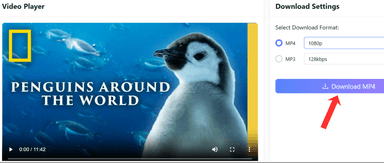
- Select Quality: Lynote will analyze the video. Choose your format (MP4 for video, MP3 for audio) and resolution. Select 1080p or 4K for the best quality.
- Download: Click the download button. The file will save directly to your device.

Alternative Option: Y2Mate
If you need a backup, Y2Mate is a veteran tool in the downloading space. It supports a wide variety of formats and is generally reliable for standard-definition videos.
The Trade-off:
While functional, Y2Mate is often full of aggressive pop-up ads and redirects. This can be a security risk if you accidentally click "Allow Notifications." Also, download speeds for 1080p and 4K content are frequently throttled compared to Lynote, making it better suited for quick, lower-quality clips.
Method 2: The Best Desktop Software (For Batching)
Online tools like Lynote are perfect for quick, single downloads. However, if you are downloading entire playlists or if your browser-based VPN isn't cutting it, you might need a heavier solution. Desktop software often includes built-in proxy settings, allowing the application itself to bypass geo-blocks independently of your web browser.
The Champion: 4K Video Downloader
For users who want a balance between power and simplicity, 4K Video Downloader is the industry standard. Its standout feature for this specific problem is the In-App Proxy Setup. This allows you to route the downloader's traffic through a specific server to bypass region locks without changing your entire computer's network settings.

How to use the In-App Proxy:
- Install & Launch: Download and install the software from the official site.
- Access Preferences: Click on Tools in the top menu bar and select Preferences.
- Configure Proxy: Go to the Connection tab. Check the box for Enabled under the Proxy section. You will need to enter the server details provided by your proxy or VPN provider.
- Paste the Link: Once the proxy is active, close the preferences window. Copy your blocked YouTube link and click the green Paste Link button. The software will now fetch the video as if it were in the allowed region.
Alternative Option: JDownloader 2
If you prefer open-source software and don't mind a complex interface, JDownloader 2 is a powerful alternative. It is free and capable of handling thousands of links at once.
- Pros: Completely free, open-source, and customizable. It can bypass complex "Age-Gate" restrictions if you input your YouTube cookies into the Account Manager.
- Cons: The interface is cluttered and outdated. It has a steep learning curve compared to Lynote or 4K Video Downloader.
- Warning: Be careful during installation. The installer often contains "bundled offers" (adware)—make sure to decline or uncheck any extra software offered during the setup.
Method 3: The Technical Solution (Command Line)
If you are comfortable with a terminal or command prompt, this is arguably the most robust method available. When online converters or desktop apps get stuck on a specific encryption or region lock, command-line interface (CLI) tools often succeed because they are updated constantly by the developer community.
The Champion: yt-dlp
yt-dlp is a command-line media downloader and a fork of the now-inactive youtube-dl. It is widely considered the "gold standard" for archiving video because it bypasses throttling and complex age-gates better than almost any commercial software.

However, it has no graphical interface. You must type commands manually.
How to Use It for Blocked Videos
To download a geo-restricted video using yt-dlp, you generally need to route the traffic through a proxy or use cookies from a browser where you are already logged in (for age restrictions).
The Basic Proxy Command:
If you have a proxy URL (which you can get from your VPN provider), use this command:
yt-dlp --proxy "http://user:password@proxy_ip:port" "https://www.youtube.com/watch?v=VIDEO_ID"
The "Cookies" Command (For Age-Gated Content):
If a video is blocked because of age restrictions rather than region, you can tell yt-dlp to use the cookies from your browser (where you are signed in):
yt-dlp --cookies-from-browser chrome "https://www.youtube.com/watch?v=VIDEO_ID"
The Verdict
- Pros: Extremely powerful, open-source (free), supports 4K/8K, no ads, and highly scriptable.
- Cons: Steep learning curve. Requires installing Python and FFMPEG. If you aren't tech-savvy, this method is likely overkill.
Method 4: How to Download Blocked Videos on Mobile (Android & iOS)

Downloading blocked content on mobile is trickier than on desktop because Apple and Google strictly ban YouTube downloaders from their app stores. If you search the Play Store or App Store, you will mostly find fake apps or ad-heavy junk.
To bypass these restrictions, you need to use tools that exist outside the official app stores.
Android Solution: NewPipe (Sideloading Required)
Since Google owns YouTube, they block any app that allows downloading. The best workaround is NewPipe, a free, open-source client that is lightweight and excellent at bypassing age restrictions and region blocks.

Because it is not on the Play Store, you must "sideload" it (install the APK manually).
- Allow Unknown Sources: Go to your phone's Settings > Apps > Special App Access > Install Unknown Apps. Select your browser (e.g., Chrome) and toggle "Allow."
- Download the APK: Open your browser and visit the official NewPipe website or F-Droid. Download the latest .apk file.
- Install: Open the downloaded file and tap Install.
- Download Video: Open NewPipe, search for your video (or paste the link), and tap the Download button.
Note: If the video is strictly region-locked (e.g., "Not available in your country"), you must run a VPN app on your Android device before opening NewPipe.
iPhone Solution: Lynote + Safari (No App Needed)
Apple is even stricter than Google. The smartest workaround for iPhone users is using Safari’s built-in Download Manager combined with an online tool like Lynote.
This method requires zero installation and saves the video directly to your iPhone’s "Files" app or Camera Roll.
Step-by-Step Guide:
- Prepare the Link: Copy the link of the blocked YouTube video.
- Tip: If the video is Geo-Blocked, turn on your mobile VPN app and set it to an allowed region first.
- Open Safari: Go to https://lynote.ai/youtube-downloader.
- Paste & Process: Paste the YouTube link into the search bar and tap Start.
- Download: Select your quality (e.g., 1080p or 4K) and tap Download.
- Locate the File:
- Look at the address bar in Safari. You will see a small blue arrow icon pointing down. Tap it and select Downloads.
- Tap the video file to open it.
- To move it to your Photos app, tap the Share icon (square with an arrow) and select "Save Video."
Why Are Videos Blocked? (Understanding the Restrictions)

Before you can successfully bypass a block, it helps to know exactly what is stopping you. YouTube restricts access based on three main criteria. Identifying the specific error message you see will help you choose the right tool for the job.
1. Geo-Restrictions (Region Locking)
This is the most common hurdle. It usually appears as: "The uploader has not made this video available in your country."
- The Cause: Licensing agreements. TV networks, music labels, and sports broadcasters often sell exclusive rights to specific regions. If a channel only has the rights to show a clip in the UK, YouTube’s algorithm will block IPs from the US, Canada, or Asia.
- The Fix: You must "trick" YouTube into thinking you are in the allowed region. This requires a VPN combined with an online downloader like Lynote.
2. Age Restrictions (Age-Gating)
If you see a warning stating "Sign in to confirm your age," the content has been flagged as mature.
- The Cause: YouTube Community Guidelines regarding violence, strong language, or sensitive topics. These videos are hidden from users who are logged out or under 18.
- The Fix: Standard copy-pasting often fails here because the downloader tool cannot "sign in" as you. You need a tool capable of passing authentication cookies or a specialized desktop downloader (like yt-dlp) to verify age.
3. Copyright Blocks (Content ID)
Sometimes a video is available globally but has the audio muted or is blocked entirely due to a copyright strike.
- The Cause: The uploader used copyrighted music or footage without permission. The copyright holder (e.g., Sony or Universal) decided to block the video rather than monetize it.
- The Fix: If the video is fully removed from the platform, it cannot be downloaded. However, if it is only blocked in certain countries due to copyright, the Geo-Restriction fix (VPN) will work.
Quick Solution Mapping: Which Tool Do You Need?
Use this table to match your specific error message to the correct solution.
| Block Type | Error Message | The Solution |
|---|---|---|
| Geo-Lock | "Not available in your country" | VPN (set to allowed region) + Lynote |
| Age-Gate | "Sign in to confirm age" | Desktop Software (4K Video Downloader) or yt-dlp |
| Network Block | "Restricted by Administrator" (School/Work) | Lynote (Mobile Data or Home Wi-Fi recommended) |
| Copyright | "Video removed by rights holder" | Impossible (File no longer exists on servers) |
Comparison: Lynote vs. Desktop Software vs. Extensions
Choosing the right tool to download blocked YouTube videos often comes down to a trade-off between convenience and safety. While desktop software offers power, it requires installation. Browser extensions seem convenient but are frequently removed from the Chrome Web Store due to policy violations.
Here is how Lynote compares to the standard alternatives when you need a high-quality file without the headache.
The Feature Breakdown
| Feature | Lynote (Online Tool) | Desktop Software | Browser Extensions |
|---|---|---|---|
| Installation | None (Cloud-based) | Heavy Install (.exe/.dmg) | Add-on Required |
| 4K Support | Yes (Free) | Often Paid/Premium only | Rarely (usually 720p max) |
| Safety/Privacy | High (No local access) | Moderate (Risk of bloatware) | Low (Risk of tracking) |
| Cost | 100% Free | Freemium (Pay for full speed) | Free (but buggy) |
| Speed | Fast (Server-side) | Dependent on your CPU | Slow |
| Bypass Power | Medium (Works with VPN) | High (Built-in Proxies) | Low |
The Verdict
- The Winner (Lynote): For the user who wants to grab a video and go, Lynote is the superior choice. It processes the video on the cloud, meaning you don't tax your computer's processor, and you get 4K resolution without hitting a paywall. When combined with a VPN to bypass the initial block, it is the safest method.
- Desktop Software: These are powerful tools if you need to download entire playlists or require built-in proxy settings. However, many "free" versions cap download speeds or restrict you to 1080p unless you buy a license.
- Browser Extensions: We generally advise against these for YouTube. Google actively blocks extensions that download YouTube videos from the Chrome Web Store. Those that do exist often require "sideloading" or carry malware risks.
Critical Safety & Legal Warnings

When dealing with third-party downloaders—especially for "blocked" content—safety is often the biggest compromise users make. The internet is full of sites that trade free downloads for your personal data or system security. Before you proceed, understand the risks and the rules.
The Malware Trap: Avoid "Allow Notifications" Scams
The most common threat on video downloader sites isn't always a virus you download; it's a permission you grant.
Many "free" converters use a deceptive tactic called Browser Hijacking. They will show a pop-up asking you to "Allow Notifications" to prove you are not a robot or to start the download.
- The Risk: If you click "Allow," the site gains permission to spam your desktop with aggressive ads, fake virus warnings, and links to actual malware, even when you aren't on the website.
- The Rule: Never click "Allow" on a notification request from a downloader site.
- The Safe Alternative: Use a tool like Lynote, which relies on a clean, cloud-based architecture. Lynote does not use aggressive pop-ups, does not ask for notification permissions, and does not require you to install executable (.exe) files.
Copyright & Legal Disclaimer
While technology allows you to bypass region locks and download videos, the law and platform Terms of Service (ToS) are distinct matters.
- YouTube Terms of Service: YouTube’s ToS explicitly prohibits downloading content unless a "Download" button or link is displayed by YouTube on the particular service. Using third-party tools is generally a violation of these terms.
- Copyright Law: Downloading copyrighted material (music videos, movies, premium content) for the purpose of distribution, sale, or re-uploading is illegal in most jurisdictions.
- Fair Use & Personal Archiving: Many users rely on the concept of "Time-Shifting" (recording content to watch later offline) or "Fair Use" (for educational or transformative commentary).
Disclaimer: The tools and methods listed in this guide are intended for personal archiving of non-copyrighted material, public domain videos, or content you have permission to use. We do not endorse copyright infringement.
FAQ: Downloading Blocked Content
Can I download a blocked video without a VPN?
It depends on how the video is blocked. If the video is region-locked (Geo-restricted), you almost always need a way to mask your location. However, because online tools like Lynote process videos on cloud servers, they can sometimes bypass these blocks automatically if their server is located in a region where the video is allowed.
If that fails, using a proxy or a VPN is the only reliable workaround. You simply switch your virtual location to an allowed country, refresh the link, and paste it into the downloader.
How do I download age-restricted YouTube videos?
Age-restricted videos are tricky because YouTube requires a Google account sign-in to verify your age. Most basic online converters cannot bypass this because they browse anonymously.
- The Fix: You typically need desktop software (like 4K Video Downloader) or command-line tools (yt-dlp) that allow you to import your browser cookies. This "tricks" YouTube into thinking the software is you, allowing the download to proceed.
Is it safe to use online YouTube downloaders?
The market is flooded with unsafe sites, but safe options exist.
- The Risk: Many low-quality sites rely on "Malvertising." They trick you into clicking fake "Download" buttons that install malware or ask you to "Allow Notifications" (which spams your desktop with ads).
- The Solution: Stick to clean, reputable tools like Lynote. Avoid any site that asks you to install a plugin, update your Flash player, or download an .exe file just to convert a video. A legitimate online tool should handle everything in the browser.
Why is there no sound on my downloaded video?
If you downloaded a high-resolution video (1080p, 2K, or 4K) and it’s silent, the tool you used failed to handle DASH (Dynamic Adaptive Streaming over HTTP).
To save bandwidth, YouTube separates high-quality video and audio into two different streams.
- Basic Tools: They only download the video stream, leaving you with a silent movie.
- Advanced Tools (Like Lynote): We automatically download both the video and audio tracks separately on our servers, merge them into a single file, and deliver a perfect MP4 with sound—no extra work required on your end.
Conclusion
Bypassing region locks, age gates, and copyright restrictions doesn't have to be a technical headache. While a VPN is often the necessary first step to access the content, you still need a reliable tool to save that content for offline viewing.
You shouldn't have to clutter your hard drive with heavy software or risk malware just to download a single video. The best modern solutions are cloud-based, handling the heavy lifting on their servers rather than your device.
For the fastest, safest, and highest-quality result, we recommend starting with the Lynote YouTube Downloader. It combines user-friendly design with powerful 4K processing, allowing you to grab the content you want without the "Video Unavailable" frustration.
Ready to download?
Try Lynote YouTube Downloader for Free

Written by Janet L. Harris
AI Writing Specialist
Janet reviews AI detectors and humanization tools, with a focus on accuracy, limitations, and responsible use. View all articles →