How to Transcribe Audio to Text Without Extra Apps

If you are wondering how to transcribe audio, the simplest path is to turn your recording into editable text online instead of replaying it line by line. Audio transcription is useful for lectures, interviews, meetings, podcasts, voice memos, video audio, and research recordings. With Lynote, you can upload an audio file, generate text, review the transcript, and reuse it for notes, summaries, articles, or study material.
Quick Answer: How to Transcribe Audio
The fastest way to transcribe audio is to upload your recording to an online audio-to-text tool, run the transcription, then review the output for names, technical terms, and unclear speech. This avoids manual typing and keeps the transcript easy to copy, edit, export, or translate.
For a direct workflow, open Lynote Audio to Text, add your audio source, and create a transcript inside the Lynote workspace. It works best when the recording is clear, the speakers are easy to hear, and background noise is limited.
What Audio Transcription Means
Audio transcription means converting spoken words from a recording into written text. The source may be an MP3, WAV, M4A, meeting recording, phone memo, podcast clip, webinar, lecture, or video soundtrack.
People search how to transcribe audio to text for many reasons. Students want study notes, creators want captions or blog material, researchers want interview text, and teams want searchable meeting records.
A good transcript should be editable, readable, and easy to verify against the original recording. It should not trap you inside one app or force you to manually copy every line.
Best Ways to Transcribe Audio to Text
| Method | Best For | Main Limitation |
|---|---|---|
| Online audio transcription | Fast everyday transcripts | Needs a good recording |
| Microsoft Word transcription | Word users with Microsoft access | Workflow depends on account and file options |
| Video editing apps | Premiere Pro, DaVinci Resolve, or CapCut projects | Built for editing timelines, not clean notes |
| Manual transcription | Legal, court, or highly sensitive review | Slow and tiring |
| AI transcription workflow | Notes, study, meetings, and reusable text | Output still needs human review |
How to Transcribe Audio Online With Lynote
Lynote is useful when you want a clean online workflow instead of moving between several tools. You can use it for audio files, recordings, and YouTube-based audio workflows when the source fits the task.
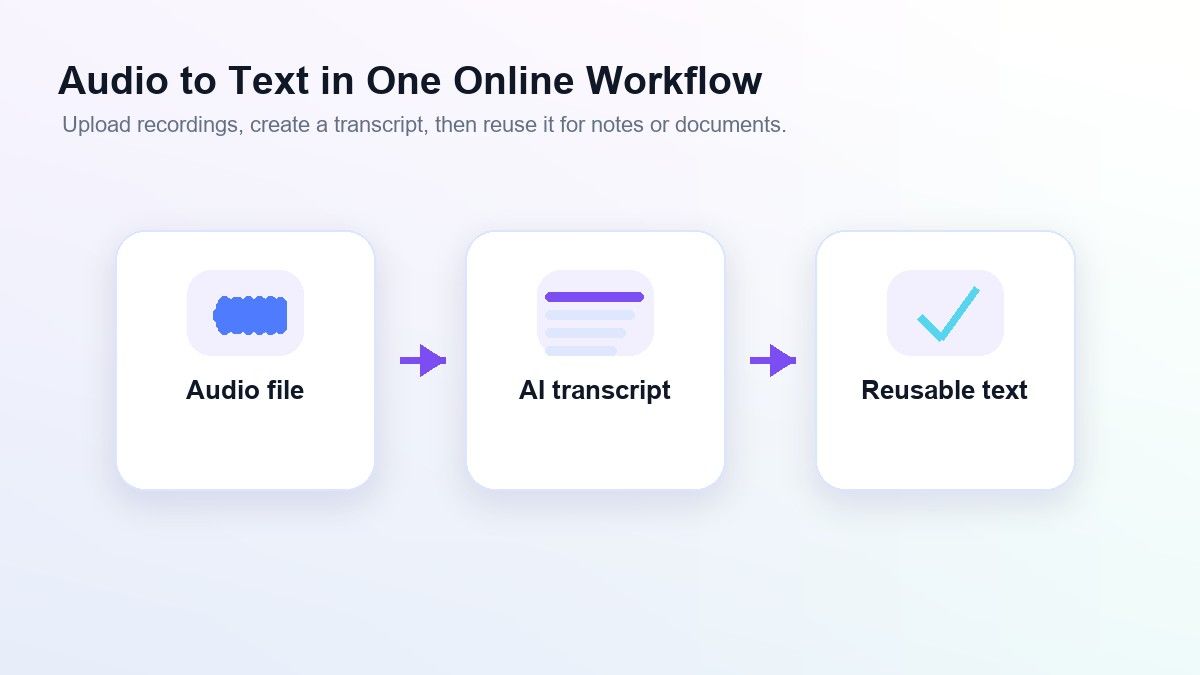
The workflow is simple: add the source, generate the transcript, review the text, and reuse the result. This gives you more control than a one-click text dump because you can continue into notes, translation, or review.
Step 1. Add Your Audio Source
Open Lynote Audio to Text and add your recording. You can upload a local audio file such as MP3, WAV, or M4A, or use a YouTube URL when the audio comes from a video source.
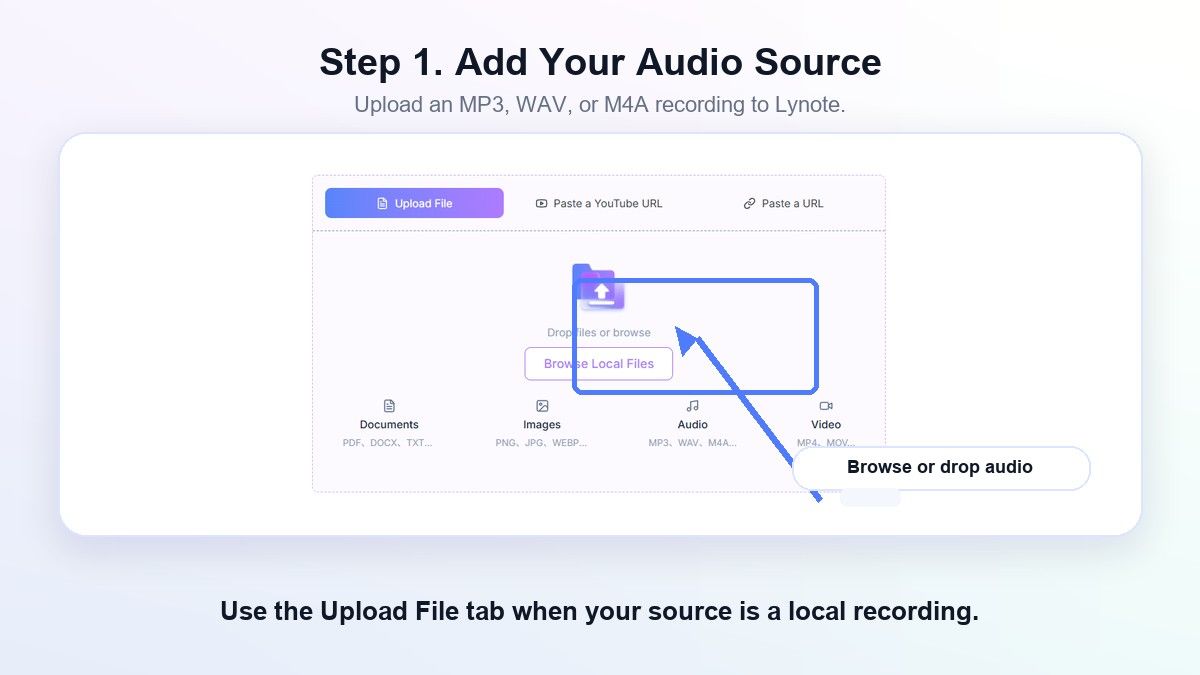
If you paste a YouTube URL, use the Parse step so Lynote can pull the source into the workspace. For direct audio uploads, you can add the file and continue without converting it first.
Step 2. Generate the Transcript
After the source is ready, click Create Note to load the audio into the Lynote workspace. Then run the transcription action so Lynote can convert the spoken content into editable text.
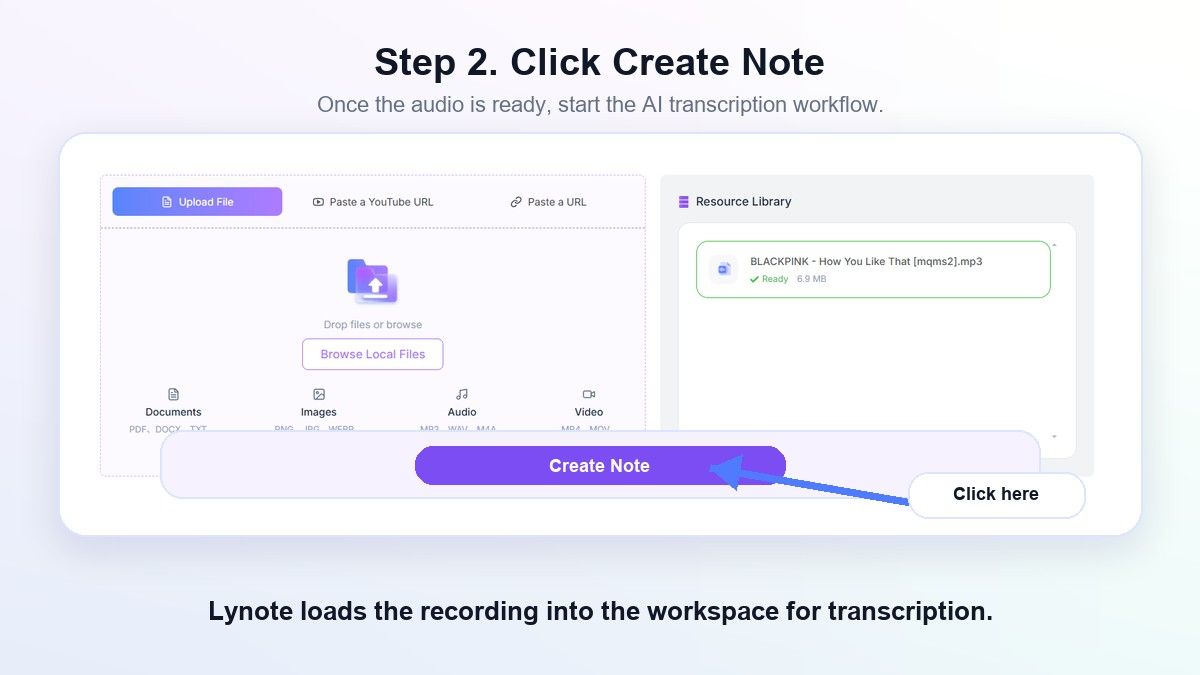
This is the core step in how to transcribe audio to text online. Instead of replaying the file repeatedly, you get a written draft that you can review, search, and reuse.
Step 3. Review the Text Carefully
Read through the transcript and check names, timestamps, product terms, acronyms, and any sentences affected by background noise. AI transcription can save time, but it should still be reviewed when the text will be used for school, publishing, client work, or research.
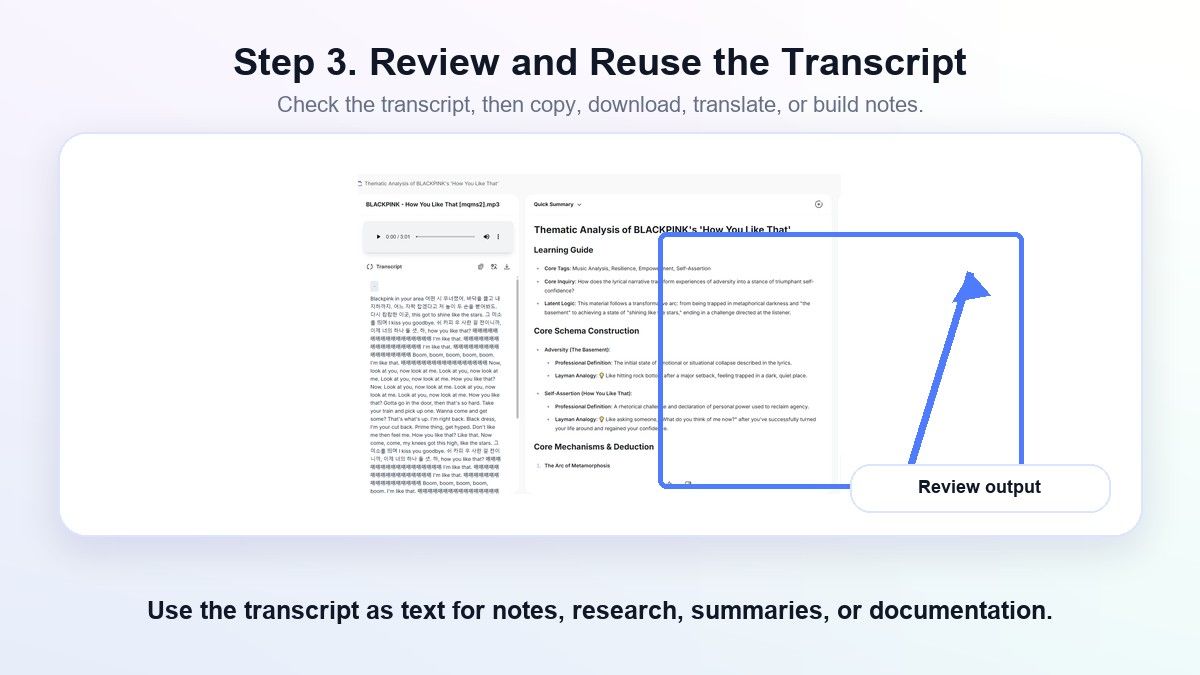
This review step matters because audio quality varies. Overlapping speakers, accents, quiet sections, music, and room echo can all affect transcription quality.
Step 4. Copy, Export, Translate, or Reuse
Once the transcript looks clean, copy or download the text for your next workflow. You can use it in notes, documents, summaries, blog drafts, subtitles, study guides, or project records.
Lynote is especially helpful when you want the transcript to become more than a raw text file. You can continue into downstream workflows such as translation, notes, or chat-based review.
How to Transcribe Audio in Word
Microsoft Word includes transcription options for some users, which can help if your workflow already lives in Word. This is why many people search how to transcribe audio in Word or how to transcribe audio to text in Word.
The basic idea is to open Word, use the transcription feature, upload or record audio, and insert the transcript into a document. The exact steps can vary by account type, region, subscription, and current Microsoft interface.
Word can be convenient for document-first work. However, if your goal is to quickly transcribe audio online and reuse the text across notes, summaries, or study material, a dedicated tool like Lynote may feel more direct.
How to Transcribe Audio From Video
If your recording is inside a video, you need to extract or process the spoken audio. This is common for YouTube videos, webinars, online courses, interviews, Zoom recordings, and screen recordings.
You can transcribe video audio to text in editing software or use an online workflow that accepts video or YouTube sources. People often search how to transcribe audio in Premiere Pro, how to transcribe audio in DaVinci Resolve, or how to transcribe audio in CapCut because those tools are already part of editing workflows.
Those apps are useful when the transcript supports a video project. If you mainly need readable text for notes, research, or content repurposing, Lynote keeps the workflow centered on the transcript rather than the editing timeline.
How to Transcribe Audio Manually
Manual transcription means listening to the recording and typing the words yourself. It can be useful for short clips, sensitive interviews, court-related material, or recordings where every phrase needs careful judgment.
The process is simple but slow. Play a short segment, pause, type what you hear, rewind when needed, and repeat until the recording is finished.
Manual transcription gives you control, but it takes patience. For long lectures, podcasts, meetings, or interviews, many users prefer to generate a first draft with AI and then edit the transcript manually.
When to Use AI to Transcribe Audio
AI transcription is a strong fit when speed matters and the recording is clear enough to process. It is useful for lectures, team meetings, podcasts, voice notes, research interviews, customer calls, and video audio.
People also search how to use AI to transcribe audio or how to use ChatGPT to transcribe audio because they want a faster option than typing. The key is choosing a workflow that accepts your source, produces editable text, and gives you room to review the result.
Lynote works well for this kind of practical workflow. It turns audio into text, then lets you continue with note-taking, translation, or reuse instead of stopping at a plain transcript.
Audio Transcription Use Cases
Students and Lectures
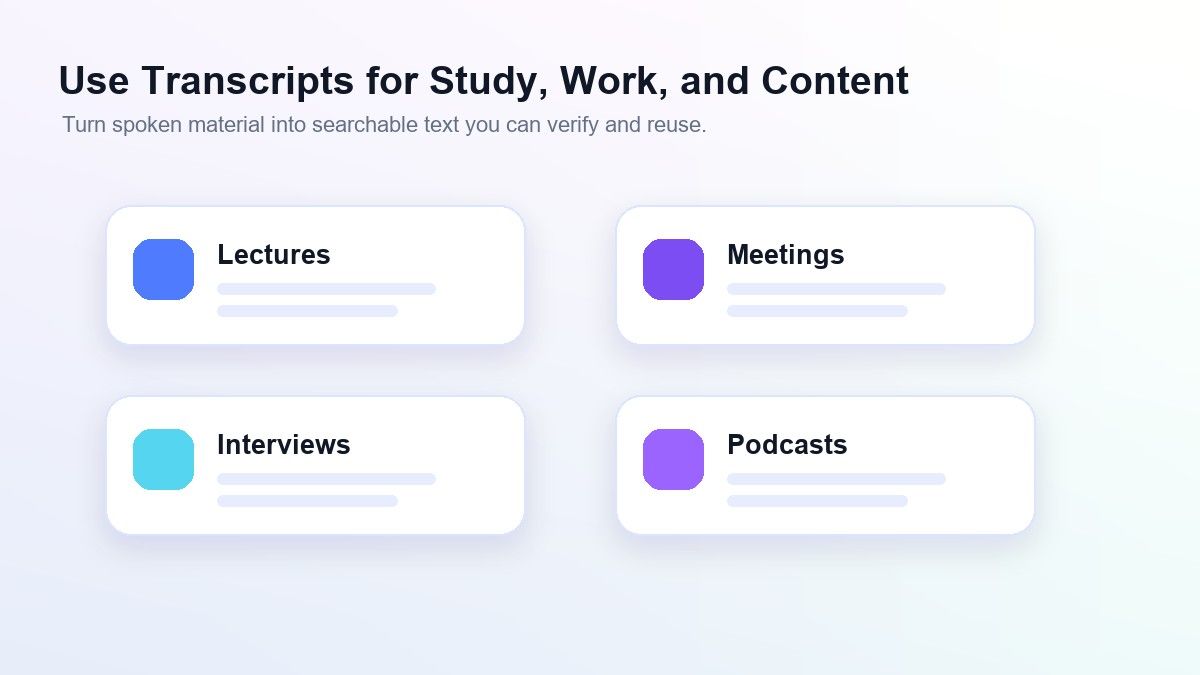
Students often record lectures but never have time to replay every minute. A transcript turns the recording into searchable study material.
After transcription, students can highlight definitions, compare topics, and create notes from the lecture. This is especially useful for exam review and missed class sessions.
Interviews and Research
Researchers, journalists, and content teams often need exact wording from interviews. Transcription makes it easier to find quotes, organize themes, and check what was actually said.
For research use, review the transcript carefully before quoting anyone. Names, numbers, and technical phrases deserve a second pass.
Meetings and Team Calls
Meeting audio can contain decisions, follow-ups, objections, and project details. A transcript helps teams find those points without replaying the full call.
For important meetings, use the transcript as a working record rather than a final legal document. Clean up speaker names and action items before sharing broadly.
Podcasts and Content Repurposing
Podcast creators can use transcripts to create show notes, summaries, clips, newsletters, and blog outlines. This makes one recording easier to reuse across several channels.
A transcript also helps editors locate strong quotes or sections. It gives content teams a searchable base instead of relying on memory.
Tips for Better Audio Transcripts
Use the clearest recording possible. Place the microphone close to the speaker, reduce background noise, and avoid talking over other people.
Use full files instead of tiny chopped clips when context matters. Longer context can help you understand names, terms, and repeated phrases during review.
Always proofread the final transcript. Even good AI output can miss uncommon names, industry language, or words spoken during noisy sections.
Common Mistakes to Avoid
Do not assume every transcript is ready to publish without review. Audio quality, speaker overlap, and unclear pronunciation can affect the result.
Do not use transcription as a substitute for consent or compliance. If you are recording people, follow the rules that apply to your setting, school, company, or jurisdiction.
Do not paste a transcript directly into public content if it contains private information. Remove personal details, sensitive data, or internal comments before sharing.
FAQs About How to Transcribe Audio
How do I transcribe audio to text?
Upload your audio file to an audio-to-text tool, generate the transcript, then review and edit the result. Lynote lets you do this online with supported audio files and YouTube-based audio sources.
How can I transcribe an audio file to text for free?
You can use an online tool that offers basic audio transcription access without requiring a complicated setup. Check the tool's current limits before uploading long recordings or large files.
How do I transcribe audio in Word?
In Microsoft Word, use the transcription feature if it is available in your account. Upload or record audio, wait for the transcript, then insert the text into your document.
How do I transcribe audio on iPhone?
You can record audio on your iPhone, then upload the file to an online transcription tool. For best results, record in a quiet place and keep the speaker close to the microphone.
How do I transcribe audio from video?
Use a tool that can process the video's audio track or paste a supported video link. Lynote can help when your workflow involves turning video or YouTube audio into reusable text.
Is AI transcription accurate?
AI transcription can be very useful, but accuracy depends on audio quality, speaker clarity, noise, accents, and terminology. Always review the transcript before using it in important work.
Final Thoughts
Learning how to transcribe audio is mostly about choosing the right workflow for your source. If you want editable text from a recording without juggling extra apps, Lynote Audio to Text gives you a focused way to upload, transcribe, review, and reuse audio content.

Written by Hamza Razzaq
Technical Writer
Hamza creates hands-on explainers and technical guides that make AI writing tools easier to understand and use. View all articles →