Image Compressor for Discord

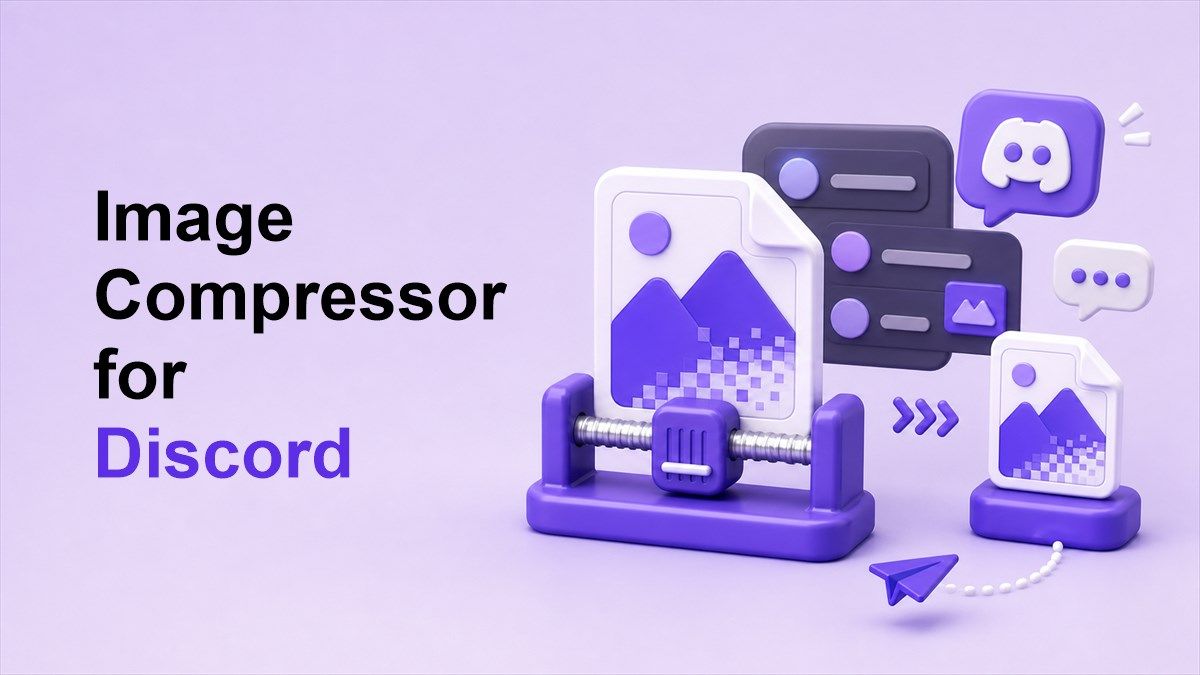
If your image upload fails or takes too long, using an image compressor for discord can help you send pictures faster without making them look messy. Discord is built for quick conversations, but large images can slow down sharing, especially in busy servers or mobile chats. This guide shows you how to compress images for Discord with simple methods that keep your files smaller and easier to upload.
Why Should You Compress Images for Discord?
Discord is often used for fast sharing. People send screenshots, memes, artwork, game captures, product previews, and community images every day. When those files are too large, they can interrupt the flow of a conversation.
An image compressor for Discord helps reduce file size before upload. Smaller files usually send faster, preview more smoothly, and are easier for other users to open. This is useful whether you are chatting in a private DM or posting inside a large community server.
Compression is also helpful when you are sending multiple images. A few high-resolution screenshots can quickly become heavy. If you learn how to compress images for Discord, you can share more smoothly without repeatedly resizing or deleting files.
Faster Uploads
Large images take longer to upload. This can be annoying when you want to share a screenshot during a live discussion. A compressed image is lighter and usually moves through the upload process faster.
This matters most on mobile networks or slower Wi-Fi. If the file is smaller, you spend less time waiting. That is one reason many users look for a discord image compressor before posting.
Fewer Upload Errors
Image uploads can fail when files are too large or the connection is unstable. Compression lowers the file size and makes the upload easier to complete. This can save time when you are trying to send something quickly.
If you have ever asked how to compress image for Discord because a file would not send, the issue was probably size. Reducing the file before upload is usually faster than trying the same large file again. It also helps avoid repeated upload failures.
Better Sharing Experience
Compressed images are easier for others to view. They load faster in chat and are less frustrating for people on mobile devices. This makes the conversation feel smoother.
Good compression should not destroy the image. The goal is to keep the picture clear while reducing unnecessary data. A good image compressor for Discord should help you find that balance.
What Is an Image Compressor for Discord?
An image compressor for Discord is a tool that reduces the file size of images before you upload them to Discord. It can shrink photos, screenshots, graphics, and other image files. The result is a smaller file that is easier to send.
Compression can work in different ways. Some tools reduce quality slightly, some resize the image, and some remove extra data from the file. Many tools combine these methods to create a smaller image that still looks good.
For Discord, you usually do not need a full-resolution camera file. Most images are viewed inside a chat window or opened briefly for context. That means smart compression can reduce file size without hurting the actual viewing experience.
How Small Should Discord Images Be?
The best file size depends on what you are sending. A meme, quick screenshot, or casual image can usually be compressed heavily. Artwork, design previews, and text-heavy screenshots may need higher quality.
A practical goal is to make the image small enough to upload quickly while keeping important details readable. If the image includes text, zoom in and check that the letters are still clear. If it is a photo or game screenshot, check that colors and edges still look natural.
Do not focus only on the smallest possible file. Extreme compression can create blur, rough edges, and color blocks. The best image compressor for Discord gives you a lighter file that still looks clean in chat.
3 Simple Ways to Compress Images for Discord
There are several ways to prepare an image before uploading it to Discord. You can use an online compressor, resize the image, or export it with lower quality settings. Each method works, but some are faster than others.
For most users, an online tool is the easiest option. It does not require installing software or changing complicated settings. This is the fastest answer if you need to know how to compress images for Discord right now.
Below are three simple methods. Start with the first method if you want the quickest workflow. Use the other methods when you need more control over image dimensions or final quality.
Method 1: Use Lynote Image Compressor
The easiest way to reduce image size is to use Lynote Image Compressor. It works online, so you can compress your image before uploading it to Discord. This is useful for screenshots, photos, graphics, server announcements, and community images.
First, open Lynote in your browser. Upload the image file you want to shrink. If you have multiple files, compressing them before posting can make sharing much easier.
Next, choose your preferred compression result or target size. This helps when you need a smaller image for Discord but still want it to look sharp. A target size can be especially useful for large screenshots or photos.
After compression, preview the image before downloading. Check important details like text, faces, UI elements, or artwork lines. Then download the compressed file and upload it to Discord.
This workflow is simple because it avoids trial and error. Instead of guessing how to compress image for Discord manually, you can use a tool built for file size reduction. That makes Lynote a practical image compressor for Discord users who want speed and clarity.
Method 2: Resize the Image Before Uploading
Resizing is one of the most effective ways to reduce file size. Many images are larger than Discord users need. A screenshot or photo may be thousands of pixels wide, even though it will be viewed in a much smaller chat window.
You can resize images with a photo app, preview tool, design tool, or built-in editor. Keep the original aspect ratio so the image does not look stretched. Reducing width and height often lowers file size significantly.
This method works well for screenshots, photos, and images taken from high-resolution displays. If an image is 4000 pixels wide, try reducing it to a more reasonable web size. Then use an image compressor for Discord to shrink it even further.
Method 3: Export the Image with Lower Quality
Many image editors let you control export quality. Lowering quality from maximum to high can reduce file size a lot. In many cases, the difference is hard to notice in Discord.
This method is helpful if you already edit images before sharing them. Open the image, choose export or save as, and adjust the quality setting. Save a copy, then compare the file size and visual result.
Be careful with text-heavy images. If compression makes text blurry, increase quality or use a different format. When you learn how to compress images for Discord, the goal is always smaller files with readable results.
Best Image Formats for Discord
JPEG is a good choice for photos and game screenshots. It usually creates smaller files and works well for images with many colors. If your file is a large photo, JPEG compression can make a big difference.
PNG is better for screenshots, graphics, interface images, and images with sharp text. However, PNG files can be much larger than JPEG files. If a PNG is too heavy, use a discord image compressor to reduce it before uploading.
WebP can also create small files with good quality. It is useful for modern web workflows, though compatibility can vary depending on where the image is used after Discord. If you want the safest everyday option, JPEG and PNG are still the most common choices.
How to Compress Images for Discord Without Losing Clarity
Start by checking what matters in the image. If it is a screenshot, text and UI details should stay readable. If it is artwork, edges, colors, and gradients should remain clean.
Use moderate compression first. Download the compressed image and open it at normal viewing size. If it looks clear, the file is probably ready for Discord.
Avoid compressing the same image over and over. Repeated compression can slowly damage quality. Keep the original file and create one optimized version with an image compressor for Discord.
Common Mistakes to Avoid
The first mistake is uploading original camera files directly. These files can be much larger than needed for Discord. Compressing them first makes the upload easier.
The second mistake is making the file tiny at the cost of readability. If people cannot read the text or see the detail, the image is no longer useful. Compression should improve sharing, not ruin the message.
The third mistake is using the wrong format. PNG is not always best for photos, and JPEG is not always best for sharp screenshots. Choose the format based on the image type, then compress it.
When Should You Compress Discord Images?
Compress images when uploads are slow, files are too large, or you need to send several images together. Compression is also useful before posting announcements, guides, or server resources. Smaller images make channels easier to browse.
You should also compress images when sharing from a phone. Mobile photos are often high resolution and can take longer to upload. A quick compression step can make sharing much faster.
If the image is meant for printing or professional editing, keep the original version separately. Send the compressed version in Discord for preview or discussion. Share the full-quality file through cloud storage when needed.
FAQ
What is the best image compressor for Discord?
The best image compressor for Discord is one that reduces file size while keeping the image clear enough to view in chat. Lynote is a simple online option because you can upload, compress, preview, and download your image. It works well for everyday Discord sharing.
How do I compress images for Discord?
You can compress images for Discord by using an online tool, resizing the image, or exporting it with lower quality settings. The easiest method is to upload the file to Lynote, reduce the size, and download the optimized version. Then you can upload the smaller file to Discord.
How do I compress image for Discord without blur?
To compress image for Discord without blur, avoid extreme compression and preview the final result before sending. Keep text and important details readable. If the image looks too soft, use a higher quality setting or reduce dimensions less aggressively.
Is JPEG or PNG better for Discord?
JPEG is usually better for photos and colorful screenshots because it creates smaller files. PNG is better for sharp graphics, interface screenshots, and images with text. The best choice depends on what the image contains.
Conclusion
Using an image compressor for Discord makes image sharing faster, cleaner, and less frustrating. Start with Lynote when you need a quick online tool, then resize or adjust format when needed. With the right workflow, image compressor for discord becomes a simple step before sending large images in any chat.

Written by Janet L. Harris
AI Writing Specialist
Janet reviews AI detectors and humanization tools, with a focus on accuracy, limitations, and responsible use. View all articles →