5 Ways to Download YouTube Videos on Mac

If you’re a Mac user, you know the struggle of trying to save YouTube videos locally. Unlike Windows, Apple’s ecosystem is pretty strict about downloading content, and its App Store guidelines don't allow direct video downloading apps.
With more than 2.7 billion people using YouTube every month worldwide, it’s clear why many users are looking for ways to access videos offline. This demand is particularly evident on restrictive platforms like macOS.
On top of that, recent updates to Safari have made many older browser extensions unusable or unstable. As a result, Mac users often have to turn to specific software or web-based tools to get their offline videos.

Legal Disclaimer: Downloading copyrighted material without permission violates YouTube’s Terms of Service. This guide is for personal use only (e.g., offline viewing, archiving your own content, or downloading Creative Commons videos). Always follow copyright laws and Fair Use standards before downloading third-party content.
To navigate these restrictions effectively, we have tested and verified the most reliable methods for macOS in 2025. This guide is structured hierarchically based on user intent and technical proficiency, ranging from instant web tools to advanced command-line operations.
Method 1: Instant Online Tools for Free YouTube Video Downloader
Best for: Casual users who need a quick, single-file download without dealing with DMG files.
For users who just want to download a single video quickly without installing third-party software, online web-based downloaders are the most efficient solution. This method bypasses macOS security restrictions (Gatekeeper) entirely, as the conversion happens cloud-side rather than on your local machine.
LYNOTE AI The Best Free YouTube Downloader & Converter 100% Ad-Free | MP3, MP4, 4K, and HD
To download YouTube videos on a Mac, Lynote.ai is a great choice. It works directly in your browser (Safari, Chrome, etc.) with no need to install any software. You can download videos and audio in formats like MP4 and MP3, with options for different quality levels.
There are no ads, and it's completely free. It's ideal for one-off downloads where installing a .dmg file is unnecessary or restricted by admin privileges.
Steps to download YouTube videos on a Mac using Lynote AI:
- Copy the YouTube URL:
Open the YouTube video you want to download. Copy the URL from the browser’s address bar (Command + C).
Image source: National Geographic via YouTube
- Go to Lynote.ai:
Open a new tab and go to Lynote.ai. Paste the URL into the search field (Command + V).

- Choose Format and Quality:
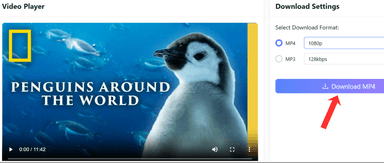
Lynote.ai will automatically process the video. Select your preferred format (MP4 for video, MP3 for audio) and the resolution (e.g., 1080p or 720p).

Image source: National Geographic via YouTube
- Download the File:
Click “Download” next to your selected option. The file will be saved directly to your Mac’s Downloads folder.


Lynote.ai is a straightforward and efficient tool for downloading YouTube videos on macOS. It’s fast, simple, and free from ads, giving you a smooth and easy experience every time—perfect for quick downloads without the need for software installations.
Alternative Web Tools
If you're looking for other options, there are several alternative tools available. However, these tools often come with some trade-offs, particularly in terms of user experience and the presence of ads.
- SSYouTube: This tool comes with a lot of pop-up ads and redirects when you click the download button. It typically limits the download resolution to 1080p, and higher resolutions may not include audio due to YouTube's stream separation.

- SaveFrom.net: A more straightforward option with moderate ad-intrusiveness. However, it limits video quality to 720p with audio. If you want 1080p or 4K, you’ll need to install their extension, which may not be ideal for those looking to avoid extra installations.

- Y2Mate: Y2Mate is a popular alternative that supports multiple formats (MP4, 3GP, MP3) and resolutions up to 1080p. While it’s generally user-friendly, you may encounter pop-up ads and occasional redirects to third-party websites.

Method 2: Professional Mac Apps to Download YouTube Videos
Best for: Power users requiring stability, 4K/8K resolution support, and bulk playlist downloading.
For users who need consistency, speed, and high-quality file management, web-based converters can be limiting. Native macOS applications are a better choice as they leverage the full power of your system. These apps can handle 4K/8K downloads, batch playlists, and metadata tagging without the risk of browser crashes or intrusive ads.
Downie 4 - YouTube Video Downloader for macOS
Downie 4 is widely regarded as the "gold standard" for video downloading on macOS. Unlike cross-platform apps built on Electron, Downie is a native application designed specifically for Apple Silicon and Intel Macs. It supports over 1,000 websites, but its seamless integration with macOS, especially Safari, makes it stand out.
Key Features of Downie 4:
- Drag-and-Drop Interface: A minimalist UI that accepts URLs directly from your browser or clipboard.
- Post-Processing: Automatically converts downloaded files to MP4 or extracts audio to MP3 based on your preferences.
- Permute Integration: Easily send files to Permute (another tool by the same developer) for complex transcoding, all within the macOS environment.
- Privacy Focused: No hidden tracking or bundled adware.
How to Use Downie 4 to Download YouTube Videos on a MacBook:
- Installation: Download and install Downie 4 from the official website or Setapp. Upon first launch, grant the necessary permissions for the app to access your Downloads folder.

- Browser Integration (Recommended): Open Downie’s preferences (Cmd + ,) and navigate to the Browser Extensions tab. Click to install the extension for Safari, Chrome, or Firefox to add a button to your toolbar.

- Initiate Download:
Method A (Extension): Click the Downie icon in your browser toolbar while viewing a video.

Image source: Free High-Quality Documentaries via YouTube
Method B (Drag and Drop): Drag the URL from the address bar directly onto the Downie icon in your Dock.

- Quality Selection: By default, Downie downloads the highest available quality (up to 4K/8K). If you need something different, adjust the setting in the bottom bar from "Best Quality" to "Audio Only" or a specific resolution before dragging the link.

Notable Alternatives
If Downie does not suit your specific workflow, two other premium applications offer unique advantages:
1. PullTube (Design-Centric Choice): If you value design and need more control over your downloads, PullTube offers a sleek, macOS-native interface that blends well with the look and feel of macOS Sonoma.

- Unique Feature: The standout feature is Trim Mode, which allows you to crop the video or audio timeline before downloading. This is perfect for users who only want a specific clip, such as a 30-second segment from a long podcast or video.
- Price: sells for around $19.99 for a standard lifetime license for use on two Macs or available via Setapp.
2. Softorino YouTube Converter 2 (Ecosystem Choice) SYC 2 is designed for users deeply integrated into the Apple ecosystem who wish to bypass the Finder.

- Unique Feature: The Automatic Wi-Fi Transfer function lets you download a YouTube video, convert it to an Apple-compatible format (h.264/AAC), and directly send it to your TV or Music app on your iPhone or iPad, no iTunes or Finder needed. It also includes a built-in ringtone maker for easy customization.
- Price: Offers a full license for about $39.96 per year to unlock all features without limitations.
Method 3: Freemium Desktop Applications
Best for: Users needing higher resolution than web tools but who are unwilling to pay for premium software.
Freemium desktop apps let you download higher-resolution videos (up to 8K) and even extract subtitles. However, they usually have restrictions, like limits on daily downloads or playlist length.
4K Video Downloader+ The Most Efficient Tool for Bulk YouTube Downloads on MacOS
4K Video Downloader+ is the industry standard for freemium downloading tools. It is the modernized iteration of the classic "4K Video Downloader," rebuilt with a new code base for faster processing. It is particularly favored for its ability to handle 3D, 360-degree videos, and high-framerate (60fps) content that online converters often corrupt.
The "Freemium" Catch: While the software is free, the "Starter" tier limits you to 30 single video downloads per day. You also can’t download playlists longer than 10 videos, and simultaneous downloads are disabled.
Step-by-Step Method on How to Download YouTube Videos on MacOS:
- Installation: Download the .dmg file from the official 4K Download website and drag the icon into your Applications folder.

- Paste into App: Copy a YouTube URL (Cmd + C), launch the app, and click the large Paste Link button. The software parses the clipboard automatically.

Image source: National Geographic via YouTube
- Configure Output: A pop-up will appear. Select MP4 (compatibility) or MKV (efficiency), choose your resolution (up to 8K), and select subtitles if needed.

- Finalize: Click Download. The file saves to ~/Movies/4K Video Downloader+/ by default.

Pro Tip: Toggle "Smart Mode" (lightbulb icon) to set default formats and bypass the settings window for future downloads.
Open Source Alternative: ClipGrab
If the daily limits of 4K Video Downloader+ are too restrictive, ClipGrab is a viable GPL-licensed alternative. It is completely free with no restrictions on download counts or video length.

Warning: ClipGrab is free, but it sustains development through ads and bundled software. During installation, the installer often presents "special offers" (bloatware). Be sure to read each screen carefully and select "Skip" or "Decline" to avoid unwanted software. Once installed, the interface is basic but fully functional.
Method 4: The Terminal Power Tool
Best for: Developers, data archivists, and users comfortable with the Command Line Interface (CLI).
For those who prefer efficiency over graphical interfaces, the Command Line Interface offers the most robust solution. The current industry standard is yt-dlp, a highly active fork of the now-deprecated youtube-dl. Unlike many GUI apps that struggle with YouTube’s throttling algorithms, yt-dlp is frequently updated to bypass speed limits and age restrictions.
Why Choose the Terminal?
- Bulk Archiving: Download entire playlists or channels with a single command.
- No Bloatware: Runs entirely in the background with minimal system resource usage.
- Metadata Embedding: Automatically adds thumbnails, subtitles, and descriptions.
Step-by-Step Installation Guide
To run yt-dlp on macOS, you must first install Homebrew, the standard package manager for Mac.
1. Install Homebrew Open the Terminal app. Paste the following command and press Enter (you may be prompted for your password):
/bin/bash -c "$(curl -fsSL https://raw.githubusercontent.com/Homebrew/install/HEAD/install.sh)"
2. Install yt-dlp and FFmpeg Use Homebrew to download the tool. Installing ffmpeg alongside it is highly recommended; without it, yt-dlp cannot merge separate high-resolution video and audio streams (necessary for 1080p+).
brew install yt-dlp ffmpeg
3. Download a Video Navigate to your desired save location (e.g., Desktop) and execute the download:
cd ~/Desktop
yt-dlp [INSERT_YOUTUBE_URL_HERE]
Advanced Commands:
- Best Quality (Audio+Video):
yt-dlp -f bestvideo+bestaudio [URL] - Extract Audio Only (MP3):
yt-dlp -x --audio-format mp3 [URL] - Download Playlist:
yt-dlp [PLAYLIST_URL]
Method 5: The Fallback Solution (Screen Recording)
Best for: Live streams or protected content that fails in other tools.
When direct download methods fail due to heavy DRM encryption or specific live stream protocols, screen recording serves as the definitive fallback. Every Mac comes with QuickTime Player, allowing you to capture video directly without extra software. While not as convenient as other methods, it’s reliable when other tools don’t work.
The Audio Challenge: By default, QuickTime only records via the microphone. To capture pristine system audio, you must install a virtual audio driver such as BlackHole or Loopback.
QuickTime Recording Steps:
- Setup: Open the YouTube video and pause it at the start. Ensure quality is set to maximum.

- Launch: Open QuickTime Player and press Command + Shift + 5.

- Configure: Click Options. Under "Microphone," select BlackHole 2ch (for system audio). Select Record Selected Portion.

- Record: Drag the crosshairs to frame the video player. Click Record, then play the video.

Image source: Epic Nature Documentary via YouTube
- Save: Stop the recording via the menu bar icon and save the .mov file.

Comparison and Verdict
Choosing the right method depends largely on your frequency of use and technical comfort level.
| Feature | Online Web Tool | Downie 4 | 4K Video Downloader+ | yt-dlp (Terminal) |
|---|---|---|---|---|
| Price | Free | $19.99 (One-time) | Freemium ($15/year+) | Free (Open Source) |
| Max Resolution | Varies (Often 1080p) | Up to 8K | Up to 8K | Up to 8K |
| Bulk Download? | No | Yes (Unlimited) | Yes (Limited in Free) | Yes (Unlimited) |
| Installation? | No | Yes (.dmg) | Yes (.dmg) | Yes (Homebrew) |
| Ad-Free? | No (High Ads) | Yes | Yes (Paid Version) | Yes |
Verdict
- Best for Single Use: The Online Web Tool is the superior choice for users who only need to download a specific video occasionally. It requires zero commitment and keeps your Mac storage free of extra software.
- Best for Power Users: Downie 4 remains the industry standard for Mac users who download content daily. Its ability to handle massive playlists and its native Safari integration justifies the price tag for heavy collectors.
- Best for Tech-Savvy Users: If you are comfortable with the command line, yt-dlp offers the most power and flexibility without costing a dime.
Frequently Asked Questions
Is there a way to download YouTube videos without installing any software on my Mac?
Yes, Lynote.ai is a great option for downloading YouTube videos directly from your browser, without any software installation. Just paste the video link, choose your format, and download the video quickly and easily.
Why can't I find a YouTube downloader on the Mac App Store?
You won’t find working YouTube downloaders on the Mac App Store due to Apple’s strict content policies. Since YouTube’s user agreement forbids unauthorized downloading, Apple avoids these apps to prevent legal issues. Mac users must rely on third-party software or command-line tools for downloads.
Is it safe to install DMG files for downloaders?
Yes, as long as the software is verified through Apple Notarization. When opening a notarized DMG, macOS will ask if you’re sure you want to open it. If you see a warning about unverified developers, be cautious. Always download tools like Downie or 4K Video Downloader+ from official vendor sites.
How do I extract just the MP3 on Mac?
Most video downloaders include native audio extraction.
- In Downie/4K Video Downloader: Change the "Format" dropdown menu from "Video" to "Audio Only" or "MP3" before pasting the URL.
- In Terminal: Use the flag yt-dlp -x --audio-format mp3 [URL].
- Online Tools: Select the "Audio" tab on the download page to generate a lightweight MP3 file.

Written by Janet L. Harris
AI Writing Specialist
Janet reviews AI detectors and humanization tools, with a focus on accuracy, limitations, and responsible use. View all articles →