How to Download YouTube Videos to Camera Roll (iPhone & Android Guide)

Figuring out how to download YouTube videos to camera roll on a smartphone is often harder than it should be. If you are on Android, it’s usually straightforward, but if you are on an iPhone, Apple’s file restrictions make it tricky. You hit "download," but the video seems to vanish, never appearing in your Photos app.
Whether you need a high-quality clip for a video edit, a meme to share on WhatsApp, or just want to watch content offline, the method you choose matters. Some save the file permanently to your device, while others lock it inside the YouTube app.
Here is the complete guide to getting that video file exactly where you want it.

Quick Verdict: What is the Best Method?
Most people have one of two goals: you either want to watch a video offline later (like on a plane), or you need the raw video file to edit and share on social media.
The method you pick determines if the video lands in your Camera Roll (usable anywhere) or stays trapped inside the YouTube app.
Here is the fast breakdown:
| Method | Best For | Quality | Cost | Saves to Camera Roll? |
|---|---|---|---|---|
| Online Tool (Lynote) | Editing & Sharing. Getting the raw MP4 file. | Up to 4K | Free | Yes |
| Screen Recording | Short Clips. Capturing a quick meme. | Low | Free | Yes |
| YouTube Premium | Watching Offline. Viewing inside the YouTube app. | Up to 1080p | ~$13.99/mo | No (App Only) |
The Reality Check
- For Creators & Editors (The Lynote Route): If you need to put the video into CapCut, Instagram, or TikTok, you must use an Online Tool. This is the only way to get a real MP4 file onto your phone.
- For Casual Viewers (The Premium Route): If you just want to watch videos on a commute, stick with YouTube Premium. It supports creators and is hassle-free, but remember: you cannot move these downloads out of the YouTube app.
- For Quick Captures (The Native Route): If quality doesn't matter and you just want to text a funny clip to a friend, Screen Recording is the fastest workaround. Just know it records your battery icon and notifications too.
Method 1: Use a Free Online Downloader (Best for Quality)
If you want the best video quality (up to 4K) without filling your phone with random apps, using a browser-based tool is the best move. This works directly inside Safari (iPhone) or Chrome (Android) and saves a genuine MP4 file.
Best Option: Lynote YouTube Downloader
Lynote is the recommended tool here because it’s clean—no aggressive pop-ups or signups required.

Step-by-Step Guide:
- Copy the Link: Open the YouTube app, find your video, tap Share, and select Copy Link.
- Paste in Lynote: Open Safari (on iOS) or Chrome (on Android). Go to lynote.ai/youtube-downloader and paste the link.
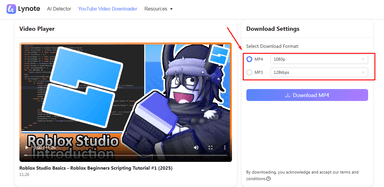
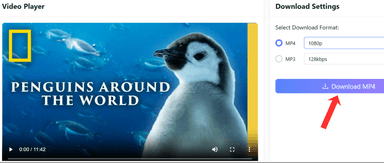
- Select Quality: Choose your resolution (e.g., 1080p or 4K MP4) and tap Download.
- Confirm Download:
- On iPhone: A pop-up asks if you want to download the file. Tap Download. A small blue arrow icon will appear in the Safari address bar.
- On Android: The file downloads straight to your notification shade.
- Move to Camera Roll (Crucial Step):
- Note: On iPhone, Safari saves files to the "Files App" by default, NOT the Camera Roll. You have to move it manually.
- Tap the blue arrow in Safari and select Downloads.
- Tap the video file to open it.
- Tap the Share Icon (box with an arrow pointing up) in the bottom left.
- Select "Save Video." Check your Photos app—the video is now in your Camera Roll.

Why do this? Unlike screen recording, this method keeps the original audio clear and the video sharp. It's the only real option if you plan to repost the clip.
Alternative Option: Y2Mate
Y2Mate is an older tool that works similarly but can be frustrating on mobile.
- Pros: It’s fast and supports many formats.
- Cons: It is heavy on pop-up ads. On a phone screen, these are hard to close and often cover the "Download" button. Be careful not to tap on fake "Update your Phone" alerts.

Verdict: Use Y2Mate only if Lynote is down, and watch where you tap.
Method 2: Use a "File Manager" App (For Older iPhones)

If you are using an older iPhone (iOS 12 or earlier), Safari might not support direct downloads. Or, you might just prefer a dedicated app to organize your files.
In this case, you can use a "File Manager" app from the App Store. These apps have built-in browsers that bypass Safari's old restrictions.
Best Option: Documents by Readdle
Documents by Readdle is the standard for this. It’s free, stable, and acts like a bridge between the web and your Camera Roll.
How to do it:
- Install: Download "Documents by Readdle" from the App Store.
- Open the Browser: Launch the app and tap the Compass Icon in the corner. This opens its internal web browser.
- Go to Lynote: Type lynote.ai/youtube-downloader in the address bar.
- Download: Paste your YouTube link and download the file. The app will save it to its own "Downloads" folder.
- Move to Camera Roll:
- Exit the browser and go to the app's main My Files screen.
- Open the Downloads folder.
- Tap the three dots (...) on your video file.
- Select Move $\rightarrow$ Photos.
- Grant permission to access your Photos.
Your video is now in your native iPhone Camera Roll.
Method 3: The "Native" Workarounds (No Internet Required)

If you only need a specific 15-second clip for a meme and don't care about 4K quality, you don't need a downloader tool. You can just record your screen.
This is the "quick and dirty" solution. It requires no internet (once the video loads), but the quality won't be perfect.
Screen Recording (iOS & Android)
How to do it on iPhone:

- Go to Settings > Control Center and make sure "Screen Recording" is added.
- Open your YouTube video and rotate your phone to landscape.
- Swipe down from the top-right to open the Control Center.
- Tap the Record button (solid circle). You have 3 seconds to hide the menu.
- Play the video.
- When done, tap the red clock in the top-left corner and hit Stop.
How to do it on Android:

- Swipe down twice to open Quick Settings.
- Tap the Screen Record tile.
- Select "Media sounds" so it records the video audio, not your microphone.
- Tap Start, play video, and Stop when finished.
The Clean Up:
Since you recorded your whole screen, the video will show you starting and stopping the recording. Go to your Photos app, hit Edit, and trim the start and end points.
Why this isn't ideal:
- Clutter: It captures buffering wheels, volume bars, and text notifications.
- Bad Audio: The sound is often compressed or tinny.
- Low Res: You can't "record" 4K if your screen is only 1080p.
Method 4: The Official Subscription (YouTube Premium)
If you strictly want to watch videos offline without ads—and you don't need to edit the file or share it—YouTube Premium is the smoothest option.
How Premium Downloads Work

For about $13.99/month, you can download videos legally:
- Open the YouTube app.
- Tap the Download button under the video.
- Find your video in Library > Downloads.
The "Camera Roll" Catch
This is where many people get confused: YouTube Premium does NOT save videos to your Camera Roll.
It saves an encrypted file that only works inside the YouTube app.
- You cannot see the file in your Photos app.
- You cannot edit the clip in CapCut or iMovie.
- You cannot share it on TikTok or Instagram.
If you need the file for anything other than watching inside the YouTube app, you need Method 1 (Lynote).
Comparison: Which Method is Right for You?
Choosing the right method depends on what you plan to do with the video.
| Feature | Lynote (Online Tool) | Screen Recording | YouTube Premium |
|---|---|---|---|
| Cost | Free | Free | ~$13.99/mo |
| Video Quality | High (Original) | Low (Screen Size) | Up to 1080p |
| File Location | Camera Roll / Gallery | Camera Roll / Gallery | Inside YouTube App Only |
| Editability | Full | Low (UI buttons visible) | None |
| Best For | Creators & Editors | Quick clips & Memes | Watching on flights |
- Choose Lynote If: You need the actual video file to edit, share, or keep forever.
- Choose Screen Recording If: You need a 10-second clip fast and don't care about quality.
- Choose YouTube Premium If: You just want to watch offline and support creators.
Troubleshooting & Safety Tips

Mobile operating systems can be finicky. If you are stuck, check these common issues.
"Where is my file? It’s not in my Camera Roll."
This is the #1 issue for iPhone users. When you download from Safari, Apple saves it to the Files App first, not Photos.
- The Fix: Open the blue "Files" app $\rightarrow$ Browse $\rightarrow$ Downloads. Tap your video $\rightarrow$ Share Icon $\rightarrow$ "Save Video." Now check your Photos app.
Security Warning: Avoid "Configuration Profiles"
Be careful with "Downloader Apps" that ask you to install a Configuration Profile in your Settings. These profiles give the app deep access to your phone.
- Stay Safe: Stick to browser tools like Lynote. Because they run inside Safari, they are "sandboxed," meaning they can't access your private data or contacts.
A Note on Copyright
Downloading videos is generally against YouTube’s Terms of Service unless you have permission. However, "Fair Use" or "Private Copying" often allows you to download content for personal offline viewing. Just don't re-upload someone else's work as your own.
FAQ: Downloading to Camera Roll
Q: Why can't I see the video in my Photos app immediately?
A: On iPhone, Safari downloads to the Files app by default. You must manually open the file in the Files app and select "Save Video" to move it to your Camera Roll.
Q: Can I download YouTube Shorts this way?
A: Yes. Copy the link from the Share button on the Short, paste it into Lynote, and download. It will save as a vertical video, perfect for reposting to TikTok or Reels.
Q: Is it safe to use online downloaders on iPhone?
A: Yes, as long as you use a reputable site like Lynote that doesn't ask you to install software. Avoid any site that asks you to download a "profile" or a suspicious app.
Conclusion
Getting a YouTube video onto your phone shouldn't be a headache. While Screen Recording is fine for a quick, low-quality clip and YouTube Premium is great for watching offline, neither gives you true ownership of the file.
If you need a high-resolution video sitting in your actual Camera Roll—ready to edit, share, or archive—you need a dedicated browser tool.
Lynote offers the best balance of speed and quality without the spam. It bypasses the need for sketchy apps and delivers a clean MP4 directly to your device.
Ready to save your video? Scroll up, paste your link in the Lynote YouTube Downloader, and get your video in seconds.

Written by Janet L. Harris
AI Writing Specialist
Janet reviews AI detectors and humanization tools, with a focus on accuracy, limitations, and responsible use. View all articles →