5 Solutions to Downloading YouTube Videos on Linux

Linux users prioritize control, privacy, and open-source software, yet downloading YouTube videos remains more annoying than it should be.
While Windows and macOS users often rely on bloated, ad-filled software, the Linux community frequently faces a different set of challenges: abandoned GitHub repositories, broken Python dependencies, and command-line tools that suddenly stop working due to YouTube’s rolling API changes. Finding a solution that reliably handles 4K resolution, extracts audio at high bitrates, or parses entire playlists without requiring complex configuration is often more difficult than it should be.

This guide covers the best ways to download YouTube videos on Linux, regardless of your technical expertise or distribution. Whether you are running Ubuntu, Debian, Linux Mint, Fedora, or Arch Linux, the following methods cover the entire spectrum of functionality:
- Browser-Based Tools: "Distro-agnostic" solutions that function immediately without installation or root privileges.
- Command Line Interface (CLI): Use powerful CLI tools like yt-dlp for automation, scripting, and bypassing throttling mechanisms.
- Desktop GUIs: Native applications (Flatpak, Snap, and AppImage) that provide a visual front-end for seamless interaction.
Legal Disclaimer: Downloading videos from YouTube violates their Terms of Service unless you own the content, have express permission from the creator, or the content is in the Public Domain. This guide is intended for educational purposes and archiving content under Fair Use principles. Please respect copyright laws in your jurisdiction.
Method 1: The Browser-Based Approach (No Installation)
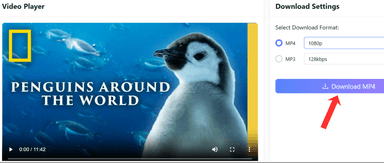
If you've ever spent an hour debugging a broken Python install, the most efficient solution is often one that bypasses the operating system entirely. Our Lynote YouTube Video Downloader works on any Linux distro. It functions identically whether you are running a lightweight Window Manager on Arch, a standard GNOME environment on Ubuntu, or KDE Plasma on Fedora.
Unlike local software, this method is immune to the display server architecture (Wayland vs. X11) and requires absolutely no root privileges or package management.
How to Download Without Installation
This process relies on server-side processing, meaning the heavy lifting of video conversion and audio extraction happens on cloud infrastructure, not your local CPU.
- Copy the Video URL: Navigate to the YouTube video you wish to save in your preferred browser (Firefox, Chromium, Brave, etc.) and copy the full URL from the address bar.
- Paste into the Tool: Scroll to the input field at the top of this page (or navigate to our homepage) and paste the link.

- Select Format and Download: Choose your desired resolution (MP4 1080p, 4K) or format (MP3) and click the download button. The file will save directly to your ~/Downloads directory.


Why Linux Users Prefer This Method
While terminal tools offer power, they introduce complexity. This browser-based approach eliminates the specific friction points common to Linux desktop environments:
- Skip Dependency Hell: You do not need to install ffmpeg, update Python versions, or troubleshoot libc conflicts.
- No Root Needed: Because no software is installed locally, there is no security risk associated with granting administrative privileges to unknown binaries.
- No Sketchy PPAs: You avoid adding third-party Personal Package Archives (PPAs) that often clutter your update lists or become deprecated.
- Works on Any Distro: It works seamlessly on strict, immutable filesystems like Fedora Silverblue or SteamOS (Steam Deck), where installing traditional packages is difficult or impossible.
Method 2: The Command Line Interface (CLI)
If you live in the terminal, CLI tools offer superior efficiency over graphical interfaces. They require fewer system resources, support headless operation (SSH), and can be easily scripted for cron jobs or batch automation.
yt-dlp — The Only CLI Tool You Need
yt-dlp is currently the most robust open-source command-line media downloader available for Linux. It originated as a fork of the now-stagnant youtube-dl project and specifically addresses the severe bandwidth throttling issues that plague its predecessor.
Why it is the top choice:
- Active Maintenance: YouTube frequently changes its API and video serving signatures. yt-dlp is updated almost daily to bypass these changes.
- Throttling Bypass: It implements specific workarounds to ensure downloads utilize your full bandwidth, whereas older tools often get capped at 40–70 KiB/s.
- SponsorBlock Integration: It has built-in support for the SponsorBlock API to mark or remove sponsor segments automatically.
Installation Instructions
While yt-dlp is available in most distribution repositories, using Python's package manager (pip) often ensures you get the latest version with the newest extractors.
Debian / Ubuntu / Linux Mint:
_sudo apt update_
_sudo apt install yt-dlp_

Note: The apt repositories may lag behind the latest release. If you encounter errors, use the pip method below.
Arch Linux / Manjaro:
_sudo pacman -S yt-dlp_
Any Distro (via pip): This method works on any distro with Python 3 installed and is recommended for receiving the fastest updates.
_sudo apt install python3-pip # If pip is not installed_
_python3 -m pip install -U yt-dlp_
Basic Usage Syntax
To download a video, simply invoke the command followed by the URL. The tool automatically selects the best available resolution and merges video and audio streams (requires FFmpeg).
Standard Download:
_yt-dlp "https://www.youtube.com/watch?v=example"_
Download Audio Only (Convert to MP3):
_yt-dlp -x --audio-format mp3 "https://www.youtube.com/watch?v=example"_
Alternative CLI Tools (Legacy & Niche)
While yt-dlp is the recommended standard, strictly legacy tools still exist within the Linux ecosystem.
- youtube-dl (Legacy): For years, this was the downloader. However, development has slowed significantly. Users frequently report download speeds dropping to roughly 50 KiB/s due to YouTube throttling requests from older clients. It is only useful on extremely old systems where newer Python versions required by yt-dlp are not available.

- cclive: A lightweight extraction tool written in C++. Because it is compiled, it has a lower memory footprint than Python-based scripts. However, it supports significantly fewer websites and lacks complex playlist management. It is best used on embedded Linux systems with severe RAM constraints.

Technical Comparison: Throttling & Dependencies
The following comparison highlights why yt-dlp has superseded youtube-dl for modern workflows.
| Feature | yt-dlp (Recommended) | youtube-dl (Legacy) | cclive |
|---|---|---|---|
| Throttling Status | Bypassed (Full Speed) | Active (Often <70 KiB/s) | Variable |
| Language/Dependency | Python 3.7+ | Python 2.6+ / 3.2+ | C++ (libquvi) |
| Update Frequency | High (Daily/Weekly) | Low (Months/Years) | Low |
| SponsorBlock | Native Support | Plugin Required | Not Supported |
| FFmpeg Requirement | Required for 1080p+ merge | Required for 1080p+ merge | Not typically used |
Conclusion on CLI: For 99% of Linux users, yt-dlp is the only tool required. It balances dependency complexity with unrivaled performance.
Method 3: Open Source GUI Clients
Not everyone wants to type commands. For those who prefer visual cues, the ecosystem offers robust Open Source GUI clients. These tools typically act as visual wrappers for yt-dlp, combining the raw power of the command line with the convenience of drag-and-drop functionality.
Top Pick: Video Downloader (by Unrud)
Designed specifically for the GNOME desktop environment, Video Downloader is the best option for GNOME desktops It adheres strictly to GNOME Human Interface Guidelines (HIG), meaning it integrates visually with the OS as a native application rather than a clunky foreign port.
Why it stands out:
- Native Aesthetics: It features a clean, minimalist interface that fits perfectly with modern Linux themes (Libadwaita).
- Throttling Prevention: It manages the underlying yt-dlp engine automatically, ensuring you bypass speed limits.
- Sandboxed Security: Distributed primarily as a Flatpak, it runs isolated from your core system dependencies, preventing conflicts with system Python libraries.
Installation Guide (via Flatpak)
Flatpak is the recommended installation method as it ensures you always have the latest version of the downloader and its dependencies.
- Open your Terminal (Ctrl+Alt+T).
- Run the installation command:
flatpak install flathub com.github.unrud.VideoDownloader

- Run the application:
flatpak run com.github.unrud.VideoDownloader
How to Queue a Download
- Launch Video Downloader from your application menu.
- Copy the URL of the YouTube video or playlist you wish to save.
- Click the "Add URL" button inside the app (or paste directly).
- A dialog will appear asking for preference: select Audio (MP3/M4A) or Video (up to 4K/8K).
- Click Download. The file will be saved to your ~/Downloads folder by default.
Alternative GUI Options
1. Parabolic (Formerly Tube Converter) Parabolic is a highly performant alternative for users prioritizing speed and advanced threading. It leverages a C++ backend (integrating aria2) to enable multi-threaded downloading. Unlike standard downloaders that pull a single stream, Parabolic splits the file into chunks and downloads them simultaneously, significantly increasing speed on high-bandwidth connections. It is ideal for massive 4K video files.
2. Tartube While Video Downloader focuses on minimalism, Tartube focuses on exposing every possible configuration option. It is a classic, utilitarian GUI for yt-dlp best suited for archivers and data hoarders. Though the UI is dense, it excels at automated channel monitoring, allowing you to configure the software to check specific channels periodically and auto-download new content.
Method 4: Commercial & Proprietary Software
While the Linux ecosystem thrives on FOSS, maintaining complex Python environments isn't for everyone. Some users prefer commercial or "freemium" software that offers a "set-and-forget" experience with dedicated support teams ensuring the software adapts immediately to YouTube’s algorithm changes.
Top Pick: 4K Video Downloader+

4K Video Downloader+ is the industry standard for desktop downloading, distinguished by its robust support for native Linux package managers. Unlike Wine-based solutions that run Windows apps poorly, this software runs natively on Ubuntu, Debian, Fedora, and OpenSUSE. It is particularly effective for users who need to download entire channels, private playlists, or extract subtitles in .srt format alongside the video file.
How to Install and Use on Debian/Ubuntu
- Download the Installer: Visit the official website and download the Linux .deb package (64-bit).

- Install via Terminal: Navigate to your downloads folder and run the package manager.
cd ~/Downloads
sudo dpkg -i 4kvideodownloaderplus_*.deb

Image Source: SSTec Tutorials / via YouTube
Note: If you encounter dependency errors, run sudo apt -f install to fix them automatically.
- Download a Video: Launch the app, copy a YouTube URL, and click Paste Link. The software will parse the link and offer quality options (up to 8K) and format choices (MP4, MKV).

Image Source: SSTec Tutorials / via YouTube
Pricing:
- Free: 30 downloads/day, basic features
- Personal: $25 one-time (lifetime)
- Pro: $45 one-time (commercial use, 7 simultaneous downloads)
Don't want to pay for software or deal with Java dependencies? Lynote offers free 4K downloads directly in your browser
Notable Alternatives
1. JDownloader 2 A powerful, free (adware-supported) tool running on Java. It is unmatched for bulk downloading and automation (e.g., unzipping files, solving CAPTCHA). However, it consumes high memory and often scales poorly on high-DPI Linux displays.
2. ClipGrab A donation-ware tool providing a simple GUI for casual downloading. It features a built-in search function, so you don't need to leave the app to find videos. While user-friendly, it lacks the advanced playlist parsing capabilities of paid competitors.
Method 5: Browser Extensions
If you don't want to leave your browser, browser extensions offer a seamless alternative. Since Firefox is the default web browser for major distributions like Ubuntu and Fedora, it is your best bet. Note that Chromium-based browsers (Chrome, Brave, Vivaldi) typically prohibit YouTube downloaders via the Chrome Web Store.
Hero Tool: Easy Youtube Video Downloader Express (Firefox)
This extension is favored for its non-intrusive integration, injecting a download button directly into the YouTube interface.
Installation and Usage:
- Open Firefox and navigate to the Mozilla Add-ons (AMO) store.

Image Source: Jonathan's Games & Tutorials / via YouTube
- Search for "Easy Youtube Video Downloader Express" and click Add to Firefox.

Image Source: Jonathan's Games & Tutorials / via YouTube
- Once installed, navigate to a video. Locate the green "Download As" button next to the "Subscribe" button.

Image Source: Tech Castle / via YouTube
- Select your desired format (e.g., MP4 720p) to begin.

Image Source: Tech Castle / via YouTube
Technical Limitations: Convenience vs. Resolution
While browser extensions score highest on convenience, they face significant technical limitations compared to CLI tools like yt-dlp.
- Resolution Caps (720p Limit): YouTube uses DASH (Dynamic Adaptive Streaming over HTTP) for resolutions 1080p and higher, separating audio and video into distinct streams. Extensions generally lack the integrated FFmpeg libraries required to merge these streams, limiting most downloads to 720p.
- Speed: Extensions rely on the browser's single-threaded download manager, which may be slower than multi-threaded desktop clients.
Comparison Matrix: Choosing the Right Tool
Linux users prioritize efficiency and control, but the best tool depends on whether you value a lightweight system or advanced archiving capabilities.
| Tool | Installation Difficulty | Max Resolution | Batch Downloading | Cost |
|---|---|---|---|---|
| Lynote | None (Browser) | 4K | Single File | Free |
| yt-dlp | High (CLI) | 8K+ | Unlimited | Free (Open Source) |
| Video Downloader | Medium (Flatpak) | 4K | Yes | Free (Open Source) |
| 4K Video Downloader+ | Low (.deb/.rpm) | 8K | High Volume | Free / $25-$45 |
Frequently Asked Questions (FAQ)
Why do I get "Permission Denied" errors when downloading?
This usually happens when you try to save to a system folder. If you try to save a video to a system folder (like /usr/local/bin), the system blocks the write request. Always navigate to your home directory (e.g., cd ~/Downloads) before running a download command. Additionally, avoid running the actual download command with sudo, as this creates files your standard user account cannot edit later.
How do I merge video and audio streams?
If your downloaded file has no sound or comes as two separate files, you probably don't have FFmpeg installed. Install FFmpeg (sudo apt install ffmpeg or sudo pacman -S ffmpeg). Tools like yt-dlp and Video Downloader rely on FFmpeg to automatically merge these tracks after downloading.
Why is my download speed extremely slow with youtube-dl? If speeds are capped at roughly 50-70KiB/s, you are likely using the legacy youtube-dl tool. YouTube actively throttles automated requests from older clients. The fix is to switch to yt-dlp, which utilizes multiple connections and updated algorithms to bypass these restrictions.
Conclusion
Downloading YouTube on Linux used to mean broken scripts and dependency hell. Now you have options:
Quick download, no setup? Use Lynote, paste the link, grab your file.
Power user building an archive? Install yt-dlp and script your downloads.
Prefer a GUI? Video Downloader (Flatpak) wraps yt-dlp in a clean interface.
Pick what fits your workflow.

Written by Janet L. Harris
AI Writing Specialist
Janet reviews AI detectors and humanization tools, with a focus on accuracy, limitations, and responsible use. View all articles →