How to Compress a PDF on Windows: 5 Easy Methods

Need to send a large PDF from your PC but the file is too big? This guide explains how to compress pdf windows files using five practical methods, including built-in workarounds, offline options, and Lynote Compress PDF for a faster online result.
Large PDFs can slow down email, fail upload limits, and take up storage space. This is common with scanned documents, image-heavy reports, contracts, presentations, and application files. The good news is that Windows users have several ways to make PDFs smaller without rebuilding the document from scratch.
Why Compress PDFs on Windows?
A smaller PDF is easier to upload, email, store, and share. If you work with school portals, job applications, business reports, or client documents, file-size limits can become annoying fast. Learning how to compress pdf windows files helps you avoid those last-minute upload errors.
Compression is not just about shrinking a file. The real goal is to keep the document readable while reducing unnecessary file weight. A good method should preserve text clarity, images, signatures, tables, and overall layout.
Method 1: Compress a PDF Online With Lynote
The easiest option is to use an online compressor like Lynote Compress PDF.
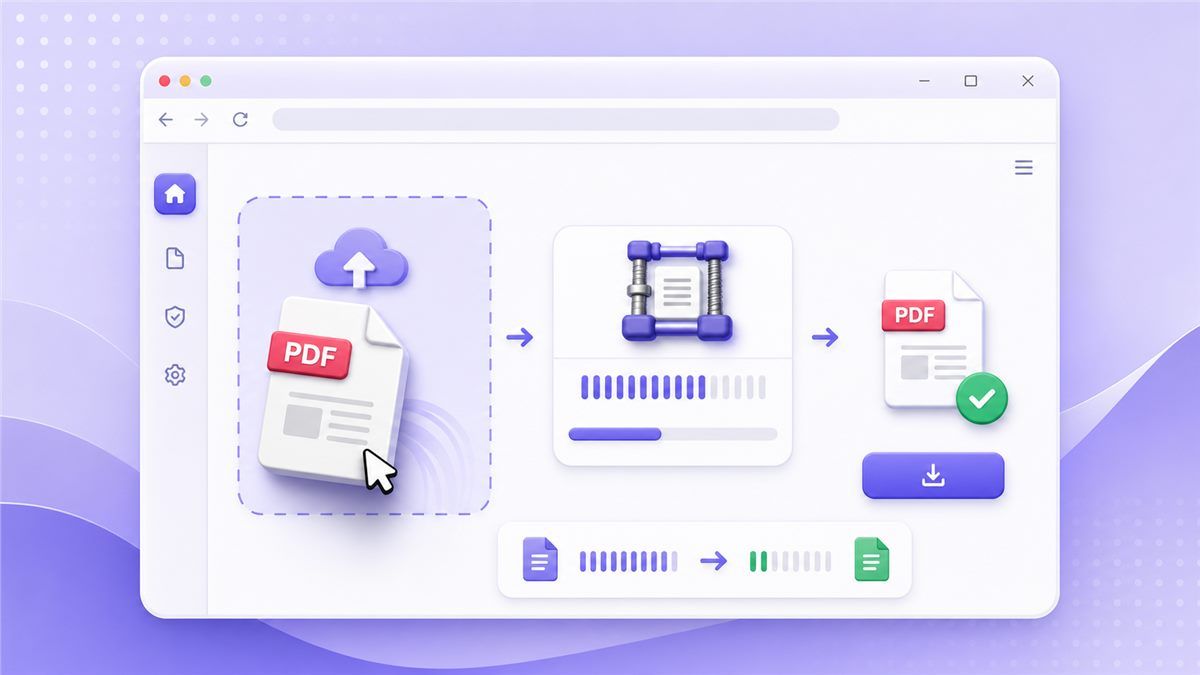
It works in your browser, so you do not need to install software or search through hidden Windows settings. This is the simplest answer if you want to know how to compress a pdf on windows quickly.
How to Use Lynote Compress PDF
- Open Lynote Compress PDF.
- Upload or drag your PDF into the tool.
- Let Lynote compress the document online.
- Download the smaller PDF.
- Open the file and review the quality.
Lynote is useful when you need to compress PDF file size on Windows without learning a complicated workflow. It is also helpful when the PDF includes images, scanned pages, or charts. You can use it for resumes, reports, invoices, coursework, and business documents.
Why This Method Works Best for Most Users
Many people search for how to compress a pdf file on windows for free because they need a quick result, not a technical process. Lynote keeps the workflow simple: upload, compress, download. That makes it a strong choice when speed matters.
It also avoids the trial-and-error problem of desktop workarounds. You do not need to convert the PDF into another format or create a zip file that may not help with upload forms. For most everyday files, Lynote is the cleanest path.
Method 2: Use Microsoft Word to Reduce PDF Size
Microsoft Word can sometimes help if your PDF was created from a Word document.
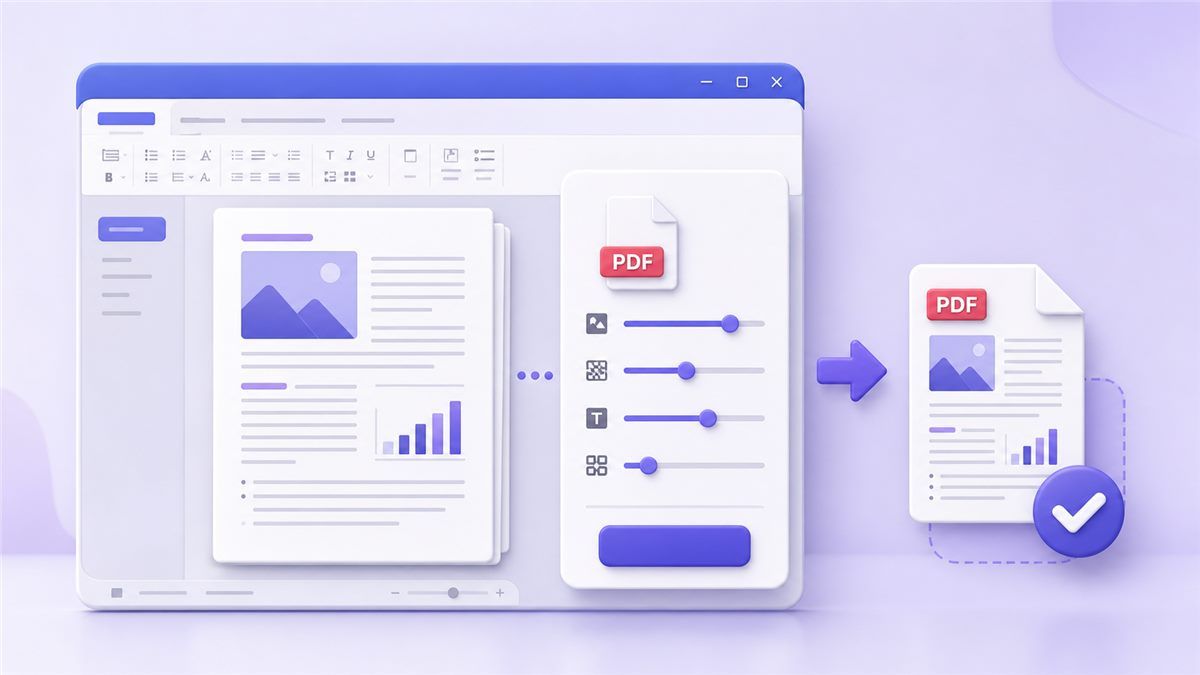
You can open the source file, export it again, and choose optimization settings during export. This is a practical option if you are wondering how to reduce PDF file size Windows 10 without another app.
How to Compress With Word
Open the original Word document if you still have it. Click File, choose Save As or Export, and select PDF as the file type. When available, choose an option like minimum size or online publishing.
This method works best before the PDF is finalized. If you only have the PDF and not the source document, Word may alter formatting when it converts the file. That makes it less reliable for contracts, designed documents, and scanned files.
When Word Is a Good Fit
Use Word when your file is mostly text and you control the original document. It can help you make a PDF file smaller Windows users can share more easily. It is not ideal for PDFs with complex layouts, forms, or embedded graphics.
If the formatting changes, stop and use Lynote instead. A smaller file is not useful if your pages look different. Always compare the exported PDF with the original before sending it.
Method 3: Compress Images Before Creating the PDF
If your PDF is large because of photos or screenshots, reduce those images first.
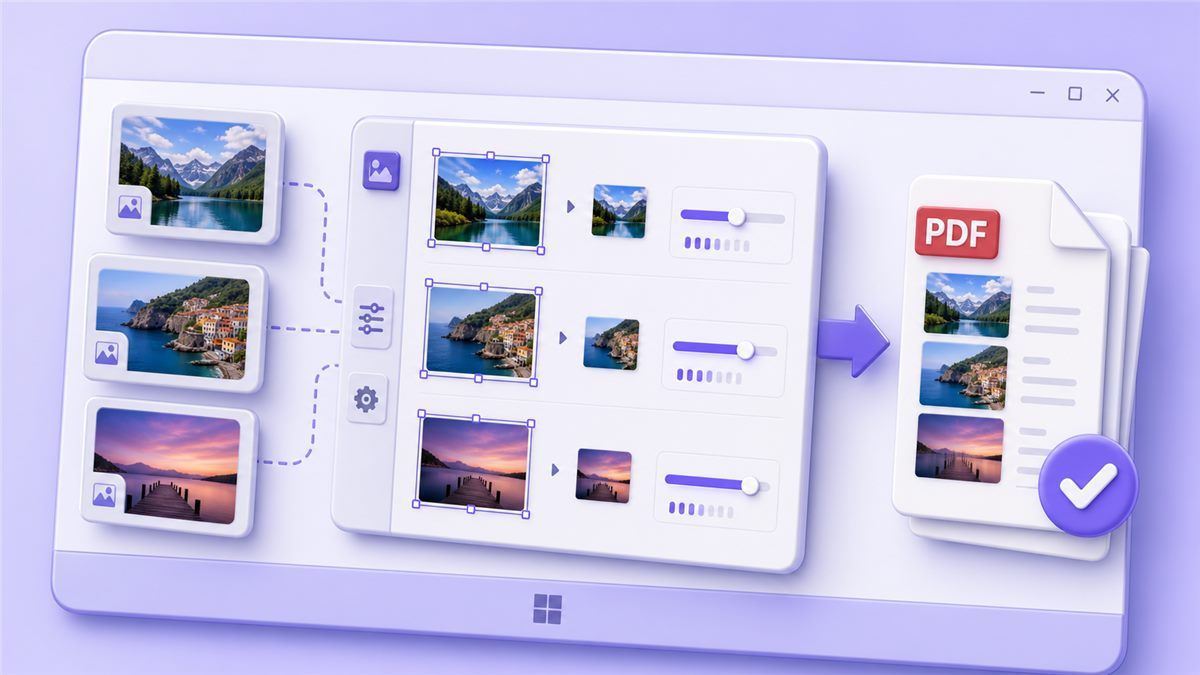
This works well for reports, portfolios, manuals, and slide-style documents. It is a smart workaround for anyone asking how to reduce size of PDF on Windows before exporting.
How to Prepare Smaller Images
Open the images in a photo editor or Windows image tool. Resize large images to a reasonable width and save them with a balanced quality setting. Then rebuild or export the PDF again.
This can significantly reduce the final PDF size. However, it takes more time because you must handle the source images manually. It is best for people who still have access to the original project files.
Watch Image Quality Carefully
Do not reduce images so much that they become blurry. Product photos, ID scans, certificates, charts, and diagrams need enough detail to stay useful. If the PDF already exists, Lynote is usually faster than rebuilding the whole document.
This method is helpful for creators and teams. But if you need to compress PDF in Windows in under a minute, an online compressor is usually more convenient. Manual image reduction is better for planned documents, not urgent uploads.
Method 4: Zip the PDF File on Windows
Windows can create compressed zip folders without extra software.
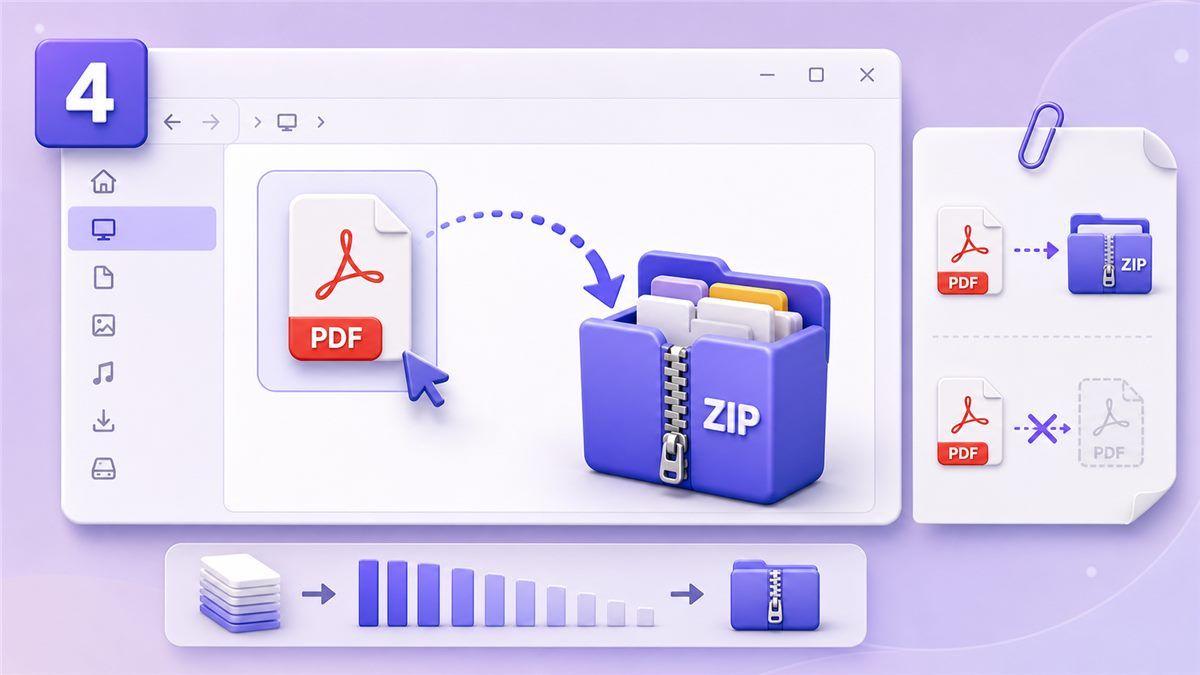
Right-click your PDF, choose Send to, and select Compressed zipped folder. This creates a zip file that may be slightly smaller.
When Zip Compression Helps
Zip compression works best for files that are not already compressed. Unfortunately, PDFs often contain compressed images and embedded data already. That means zipping may not reduce the size much.
This method can still be useful if you need to package multiple PDFs together. It is not the best answer for how to shrink a PDF file size on Windows when a website requires the PDF itself to be under a limit. Many portals will not accept a zip file instead of a PDF.
Best Use Case for Zip Files
Use zip when you are emailing several documents to a person who can unzip them. Do not rely on zip for application portals, school systems, or government forms. Those systems usually require the PDF file directly.
If your upload system says "PDF only," use Lynote instead. It reduces the actual PDF file rather than wrapping it inside another archive. That makes it more useful for real upload limits.
Method 5: Use a Desktop PDF App
Desktop PDF apps can compress files offline and may offer advanced settings.
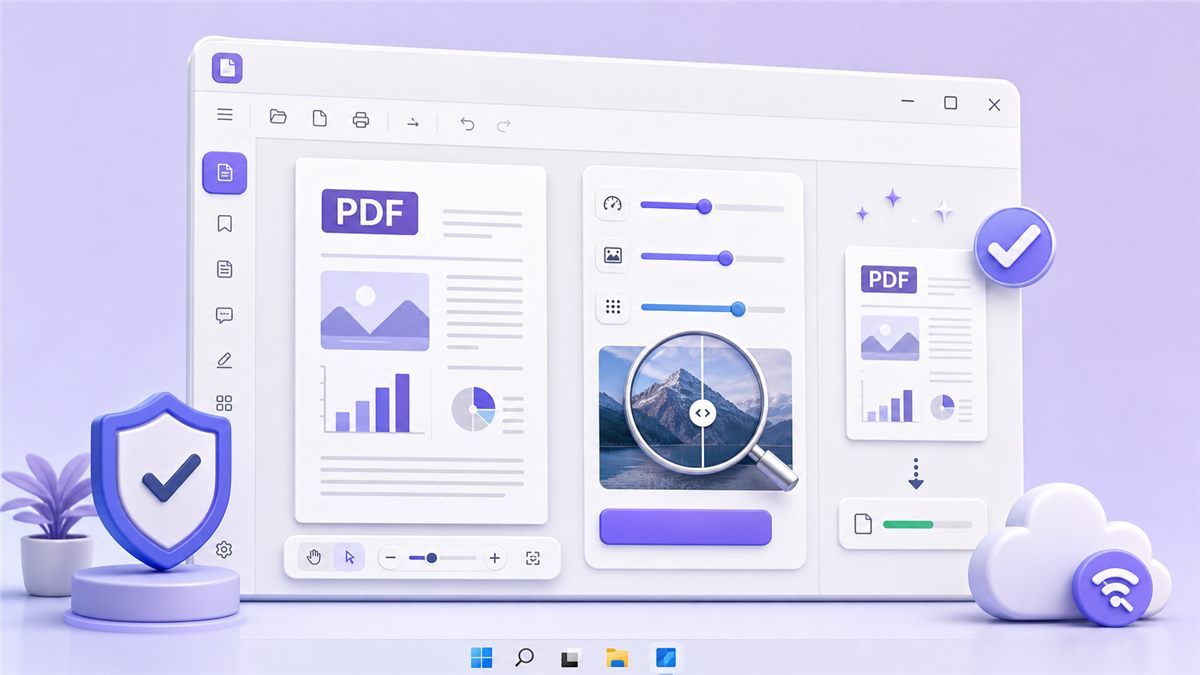
Some tools let you choose image quality, resolution, or compression level. This helps if you often need how to reduce PDF file size offline in Windows 10 workflows.
How Desktop Compression Usually Works
Open the PDF in the desktop app. Look for options like optimize, reduce file size, or compress PDF. Choose a compression level, save a copy, and review the output.
The benefit is offline access and more control. The downside is that many desktop tools require installation, updates, or paid plans. They may also feel too heavy if you only need to compress one file.
When Desktop Apps Make Sense
Use a desktop app if you handle sensitive files and prefer offline processing. It can also help if you compress PDFs every day. For occasional use, Lynote is faster because it works directly in your browser.
A desktop app is a good long-term workflow for power users. But for a one-time task, it can be more setup than you need. That is why many users choose online compression first.
Pros and Cons of Each Method
| Method | Best For | Pros | Cons |
|---|---|---|---|
| Lynote Compress PDF | Fast online compression | Easy, no install, browser-based | Requires internet |
| Microsoft Word | Source documents | Good for text-heavy files | May change formatting |
| Image reduction | Planned PDFs | Strong control over image size | Manual and slower |
| Zip folder | Sharing multiple files | Built into Windows | Often does not shrink PDFs much |
| Desktop PDF app | Offline workflows | More settings | May require installation or payment |
If you need how to compress PDF on Windows 10 quickly, Lynote is the easiest starting point. If you need offline control, a desktop app may be better. If you still have the original Word file, exporting a smaller PDF can also work.
Expert Tips for Better PDF Compression
Start with the original PDF whenever possible. Recompressing a file many times can damage image quality without saving much extra space. Keep one untouched backup before testing any method.
Check the final PDF before sending it. Zoom in on small text, signatures, charts, and screenshots. A good compression result should make the file smaller while keeping the document professional.
Think about the upload requirement. If the limit is 10MB, you do not need to crush the file down to 1MB. The best answer to how to reduce PDF file size Windows is the method that meets the limit while preserving clarity.
Which Method Should You Choose?
Choose Lynote if you want the fastest browser-based option. It is especially useful when you need to make PDF smaller Windows files without installing software. For students, job seekers, freelancers, and office teams, this is usually the most practical method.
Choose Word if you still have the source document. Choose image reduction if the PDF is image-heavy and you are rebuilding it. Choose a desktop app if you need offline compression often.
Zip is the least reliable method for PDF size limits. It is fine for packaging files, but it usually will not solve strict upload requirements. For actual PDF compression, use Lynote or a proper PDF tool.
FAQs
How do I compress a PDF file on Windows?
You can use an online tool, Microsoft Word export settings, image compression before export, a zip folder, or a desktop PDF app. The fastest method is to upload the file to Lynote Compress PDF. It helps you compress the actual PDF file without installing anything.
How do I compress a PDF in Windows 10?
If you need how to compress a PDF in Windows 10, use Lynote in your browser or export a smaller PDF from Word. You can also use a desktop PDF app for offline compression. Always review the result before sharing.
How do I reduce PDF file size on Windows 11?
The same methods work on Windows 11. You can use Lynote online, Word export settings, image resizing, zip folders, or desktop PDF software. For most users, Lynote is the simplest way to reduce the file size directly.
Can I compress a PDF on Windows for free?
Yes. You can try built-in Windows zip compression, Word export settings, or a free online compressor. If you want how to compress a PDF file on Windows for free, Lynote is a convenient browser-based option.
How do I make a PDF smaller on Windows?
Use a PDF compressor rather than only zipping the file. Upload the PDF to Lynote, compress it, then download the smaller version. This is usually easier than manually changing images or rebuilding the document.
How do I compress PDF files in Windows 7?
If your browser still supports the online tool, you can use Lynote on Windows 7. You can also try older desktop PDF tools or export a smaller file from Word. The online method is often simpler because it does not depend on newer Windows features.
Conclusion
Now you know how to compress PDF Windows files with five practical methods. For the fastest result, use Lynote Compress PDF to upload, compress, and download a smaller PDF online without extra software.

Written by Danny
Product Marketing Manager
Danny explains how Lynote features fit real workflows, from everyday productivity to product-led writing use cases. View all articles →