How to Compress a PDF for Email
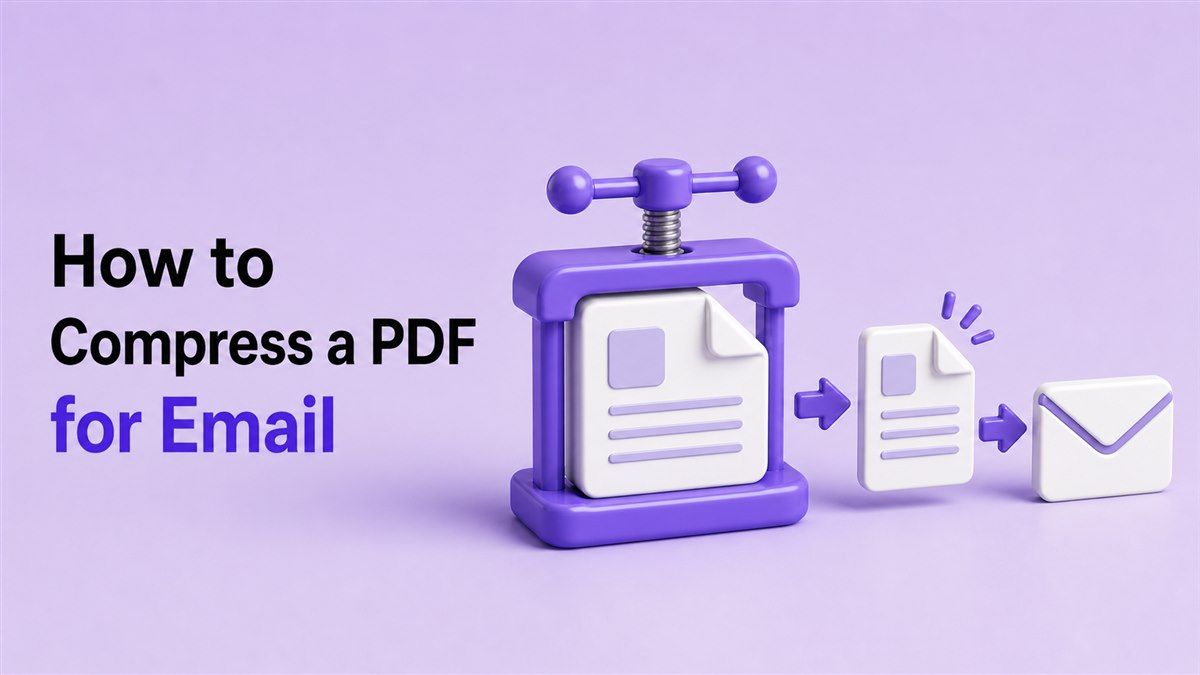
Learning how to compress a PDF for email is useful when your attachment is too large to send. PDF files can become heavy because of images, scanned pages, charts, forms, or presentation-style layouts. With Lynote's online PDF compressor, you can reduce file size quickly and send your document with fewer email problems.

Why PDFs Can Be Too Large for Email
Email providers often limit attachment size. Gmail, Outlook, Yahoo Mail, and business email systems may reject large PDFs or force you to use a cloud link. If you need to send a document quickly, a file size error can slow everything down.
Many people search for how to compress a PDF file for email when a contract, invoice, report, resume, or application document will not attach. Others need to know how to compress a PDF file size for email without making the file unreadable. The goal is simple: make the PDF smaller while keeping the content clear.
How to Compress a PDF to Send via Email Online
The fastest method is to use an online PDF compressor. Lynote's Compress PDF tool works in your browser, so you do not need to install software. You can upload your PDF, reduce the file size, preview the result, and download the smaller version.
This is helpful if you are wondering how to compress a PDF to send via email from a laptop, desktop, tablet, or phone. You can complete the process in a few steps and attach the compressed PDF to your message. It is also useful when you need to compress PDF to email before a deadline.
Step 1. Open Lynote Compress PDF
Go to https://lynote.ai/compress-pdf in your browser. The tool is built for quick PDF compression, so you can start without creating an account. This makes it convenient when you need to compress a PDF document for email fast.
Before uploading, check the email attachment limit if you know it. Some email services allow around 20MB to 25MB, while workplace systems may allow less. Knowing the target size helps you decide how much compression you need.
Step 2. Upload Your PDF File
Click the upload area or drag your PDF into the tool. Lynote can help with documents such as contracts, resumes, reports, invoices, scanned forms, manuals, and image-heavy files. If you need to compress PDF documents for email, this browser-based workflow keeps the process simple.
You can also use this method when you need to compress PDF files for email in a repeated workflow. Instead of opening a heavy desktop editor, you can upload the file online and get a smaller version. This is practical for everyday business, school, and personal documents.
Step 3. Compress, Download, and Attach
After uploading, Lynote compresses your PDF and prepares a smaller file. Download the compressed version and save it somewhere easy to find. Then open your email, attach the smaller PDF, and send your message.
This answers the common question: how do I compress a PDF for email without complicated software? The process is direct: upload, compress, download, and attach. Before sending, open the compressed file once to confirm that the text and images still look clear.
How to Compress PDF File Size for Email Without Losing Quality
When users ask how to compress PDF file size for email, they usually want a balance between small size and readable quality. Compression reduces unnecessary file weight by optimizing images and document data. A good result should make the file easier to send without damaging the important content.
Text-heavy PDFs often compress well with little visible change. Scanned documents and image-heavy PDFs may need more careful review because strong compression can affect sharpness. If your PDF includes signatures, charts, small text, or official forms, always preview the compressed version before emailing it.
Choose the Right Compression Target
If your email provider has a limit, aim for a file size comfortably below that number. For example, if the limit is 25MB, compressing the file to 20MB or less gives you a safer margin. This helps avoid failed sends caused by hidden email encoding or server restrictions.
If you are asking how can I compress a PDF file to email, start by checking the current file size. Then use Lynote to reduce the PDF to a more email-friendly size. A smaller attachment uploads faster and is easier for the recipient to download.
Review the Compressed PDF Before Sending
After compression, open the PDF and check a few important pages. Look at text, images, signatures, tables, forms, and scanned areas. Make sure the document still looks professional and complete.
This step is especially important for legal files, invoices, medical forms, resumes, design proofs, and academic documents. You want the PDF to be small enough for email, but still clear enough for the recipient to use. A quick review prevents unnecessary back-and-forth.
Compress PDFs with Built-In Tools Before Emailing
Some devices offer basic ways to reduce PDF size. On Mac, Preview can export a PDF with a "Reduce File Size" filter. On Windows, some PDF viewers or print-to-PDF workflows may create a lighter copy depending on the source file.
These built-in methods can work for simple documents. However, they often provide limited control over final file size and quality. If you need a more predictable result, an online compressor like Lynote is usually easier.
When Built-In Compression Works
Built-in compression is useful when you have a simple PDF and only need a quick size reduction. It may be enough for text documents, basic forms, or short files. If the result looks clear and attaches successfully, you can send it right away.
The downside is that the file may become blurry or still remain too large. This can happen with scanned pages or PDFs full of photos. In those cases, use Lynote to compress the PDF more directly for email sharing.
How to Compress Multiple PDF Files for Email
If you need to send several PDFs, compress each file before attaching it. This helps keep the total email size below the provider's limit. It also makes the message easier for the recipient to download and store.
People often ask how do I compress PDF files for email when they have multiple invoices, forms, or reports. The best approach is to reduce each PDF first, then attach only the compressed versions. If the total size is still too large, send the most important files by email and share the rest through a secure cloud link.
Avoid Sending Oversized Email Attachments
Large attachments can fail silently or get blocked by company mail servers. Even if your email sends successfully, the recipient's inbox may reject it. Compressing PDFs first reduces that risk.
A smaller PDF also creates a better recipient experience. It opens faster, downloads faster, and uses less storage. This matters when sending documents to clients, schools, recruiters, vendors, or coworkers.
When Should You Compress a PDF for Email?
You should compress a PDF when it is too large to attach or slow to upload. You should also compress it when the recipient may be using a mobile device or limited connection. Smaller files are easier to send and easier to receive.
Common examples include resumes, contracts, proposals, scanned IDs, tax forms, invoices, portfolios, and school assignments. If your PDF contains many images or scanned pages, compression is often worth doing before you write the email. It helps prevent attachment errors and delays.
Common Questions About Compressing PDFs for Email
How do I compress a PDF to email?
Use Lynote's Compress PDF tool, upload your file, download the smaller version, and attach it to your email. This is the simplest way to compress a PDF to email without installing software. Always check the compressed file before sending.
How to compress a PDF document for email?
Open Lynote in your browser and upload the PDF document. The tool reduces the file size and gives you a smaller copy to download. You can then attach the compressed document to your email.
How to compress a PDF file size for email?
First, check your email provider's attachment size limit. Then compress the PDF with Lynote until it is small enough to attach. Download the new file and send that version instead of the original.
How to compress PDF files for email?
Compress each PDF file before attaching it to your message. This keeps the total email size lower and reduces the chance of delivery failure. If the combined size is still too large, consider sending fewer attachments or using a secure shared link.
How can I compress a PDF file to email?
Go to Lynote Compress PDF, upload the file, and download the compressed version. Attach the smaller PDF to your email and send it normally. This works well for reports, resumes, invoices, forms, and scanned documents.
Final Thoughts
Knowing how to compress a PDF for email helps you avoid attachment limits, slow uploads, and failed sends. With Lynote Compress PDF, you can reduce PDF file size online, keep documents readable, and send files faster. Use it whenever you need a simple way to prepare a PDF for email.