How to Make Flashcards in Google Docs with Lynote

How to Make Flashcards in Google Docs with Lynote
If you want to learn how to make flashcards in google docs, the basic method is simple: create a document, set the page layout, insert a table, add terms and answers, then print or share the file. Google Docs works well for manual flashcards, but it can become slow when you need dozens of cards from notes, PDFs, lectures, or study guides. That is where Lynote AI Flashcard can help you turn source material into review cards faster.
Quick Answer: Can You Make Flashcards in Google Docs?
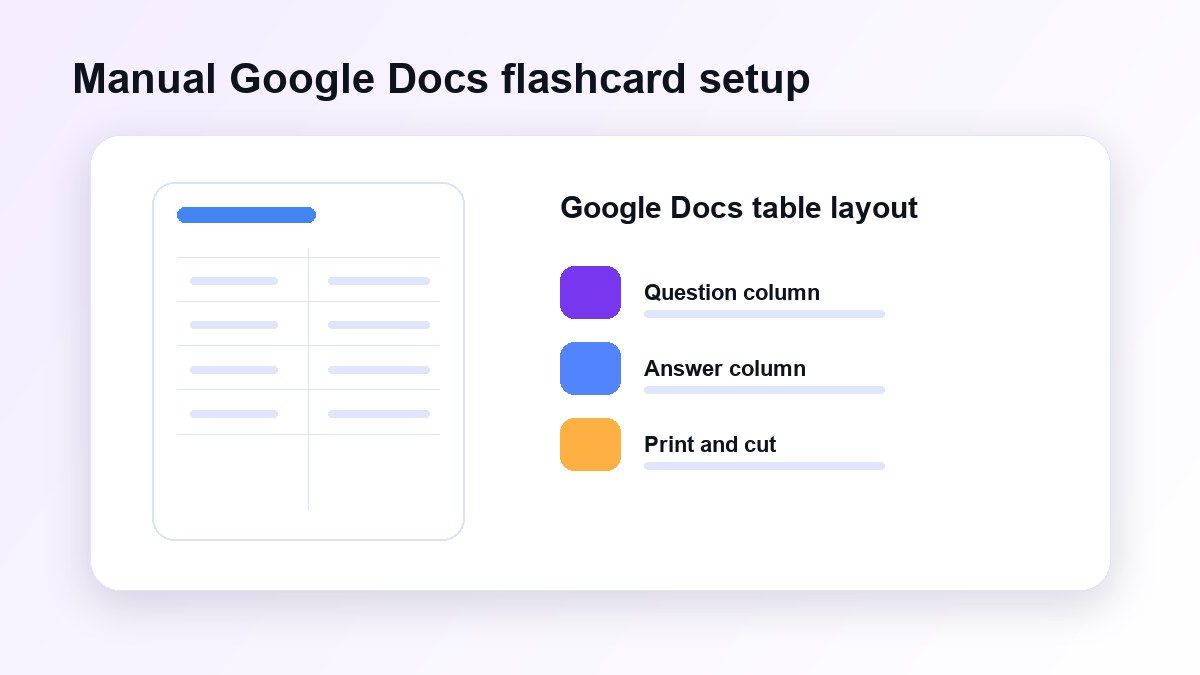
Yes, you can make flashcards in Google Docs by using tables, page setup, and print settings. The most common layout is a two-column table, with the question or term on one side and the answer or definition on the other.
This method is useful if you want printable flashcards or a simple shared study document. However, it still requires manual typing, formatting, checking, and cutting if you plan to print physical cards.
Google Docs vs Lynote for Flashcards
| Workflow | Google Docs | Lynote AI Flashcard |
|---|---|---|
| Best for | Manual printable cards | AI-generated study cards |
| Input | Typed text | Notes, PDFs, audio, video, URLs, YouTube |
| Setup | Page layout and tables | Upload or paste source material |
| Speed | Slower for large decks | Faster for long study material |
| Review style | Print or read manually | Active recall flashcard mode |
Google Docs is a flexible writing tool, not a dedicated flashcard generator. Lynote is better when your goal is to create review cards from existing learning material rather than manually design each card.
How to Make Flashcards in Google Docs
To understand the manual workflow, start with the standard Google Docs setup. This is the method most students use when they want printable cards for vocabulary, definitions, exam terms, or short Q&A practice.
Step 1. Create a New Google Doc
Open Google Docs and create a blank document. Give the file a clear name, such as "Biology Flashcards" or "AP History Review Cards," so you can find it later.
Before adding content, decide whether your flashcards will be printed or used digitally. Printed cards need more careful spacing, while digital cards can be more flexible.
Step 2. Set the Page Layout
Go to File, then Page setup. Choose a page size such as Letter or A4, depending on your printer and region.
If you want wider cards, choose landscape orientation. This gives each card more horizontal space for questions, definitions, or short explanations.
Step 3. Insert a Table
Click Insert, then Table. A simple two-column table works well for question-and-answer flashcards.
Put the question, term, or prompt in the left column. Put the answer, definition, or explanation in the right column.
Step 4. Add Your Flashcard Content
Now fill each row with one flashcard. Keep each card focused on one idea so it is easier to review.
For example, instead of writing a long paragraph about photosynthesis, write one question about chlorophyll, one about glucose, and one about light-dependent reactions. Shorter cards usually work better for active recall.
Step 5. Customize the Design
Use bold text for key terms and larger font sizes for readability. You can also adjust borders, spacing, and colors to make each card easier to scan.
Do not overdesign the document. Flashcards should help you recall information quickly, not distract you with too many fonts or decorative elements.
Step 6. Print or Share the Cards
When your table is ready, go to File and Print. Review the preview carefully before printing so the cards do not cut off at the edge.
If you do not need physical cards, share the Google Doc with classmates. They can add comments, suggest edits, or copy the template for their own study session.
How to Make Custom Size Flashcards in Google Docs
If you are searching for how to make custom size flashcards in Google Docs, the main control is Page setup. You can adjust paper size, orientation, margins, and table dimensions.
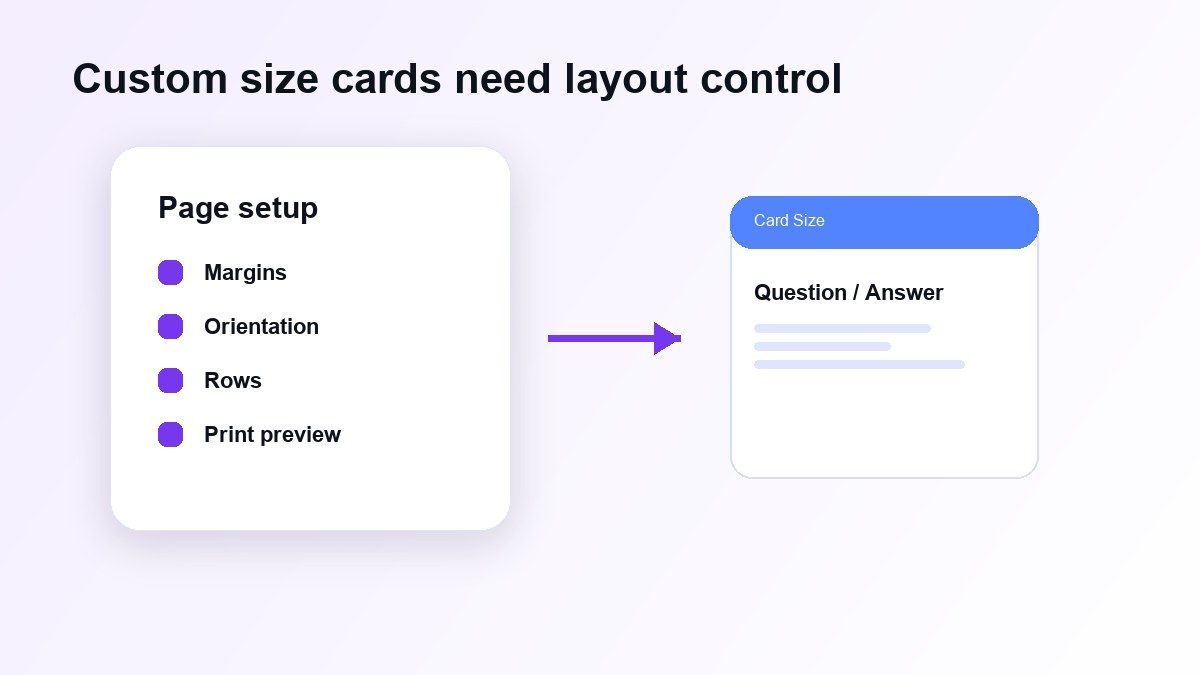
For printable cards, reduce the margins and use a consistent table layout. You can create smaller cards by adding more rows, or larger cards by using fewer rows per page.
A common setup is two cards per page for larger study prompts or four cards per page for shorter vocabulary terms. Always print a test page before printing a full deck.
How to Make Printable Flashcards in Google Docs
To make printable flashcards in Google Docs, design the document with cutting in mind. Leave enough white space between rows so you can separate cards cleanly after printing.
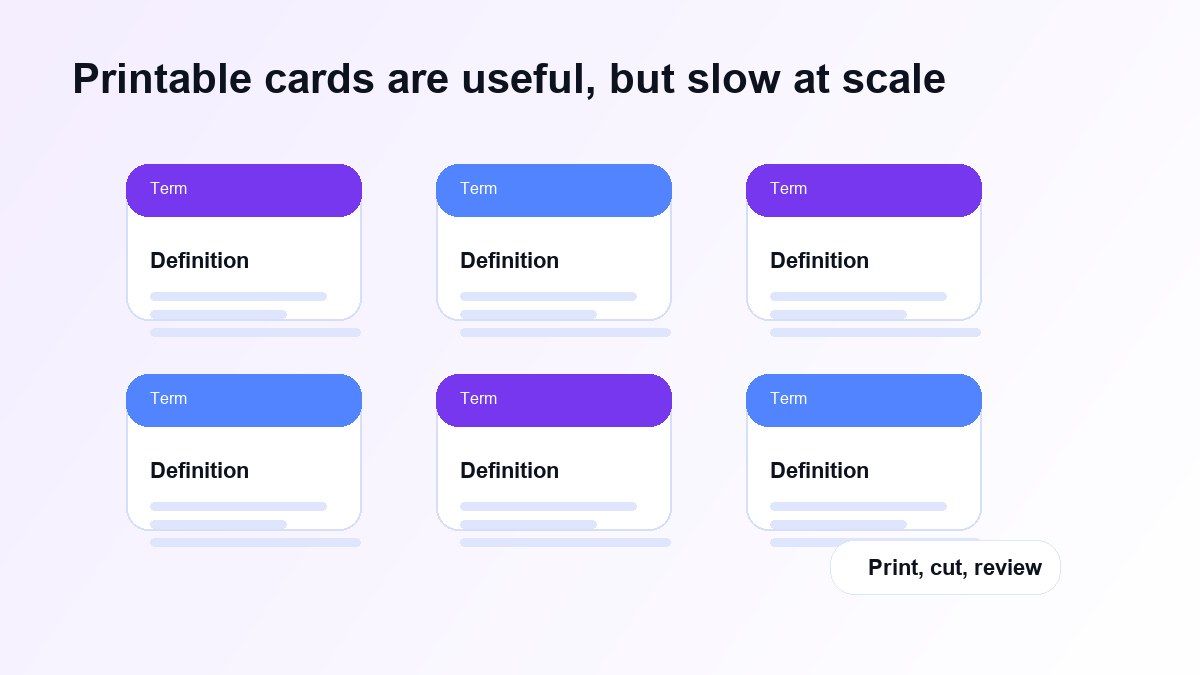
Use borders to mark card edges. If you want double-sided cards, keep the layout consistent so the answer side lines up with the question side.
Printable flashcards are useful for younger students, language learning, and quick offline review. The downside is that printing and cutting can take time, especially for large decks.
Why Manual Google Docs Flashcards Get Slow
The biggest problem with Google Docs flashcards is not the layout. It is the manual work required to create useful cards.
You have to read the source material, choose the key points, rewrite them as questions, add answers, format the table, and check for mistakes. That is manageable for ten cards, but it becomes tiring for a full chapter or exam unit.
This is why many students start by learning how to make flashcards in google docs, then look for a faster workflow when the study load grows.
A Faster Way: Turn Study Material Into Flashcards with Lynote
Lynote AI Flashcard helps when your cards need to come from existing material. You can use notes, PDFs, lecture audio, videos, or links instead of typing every question manually.
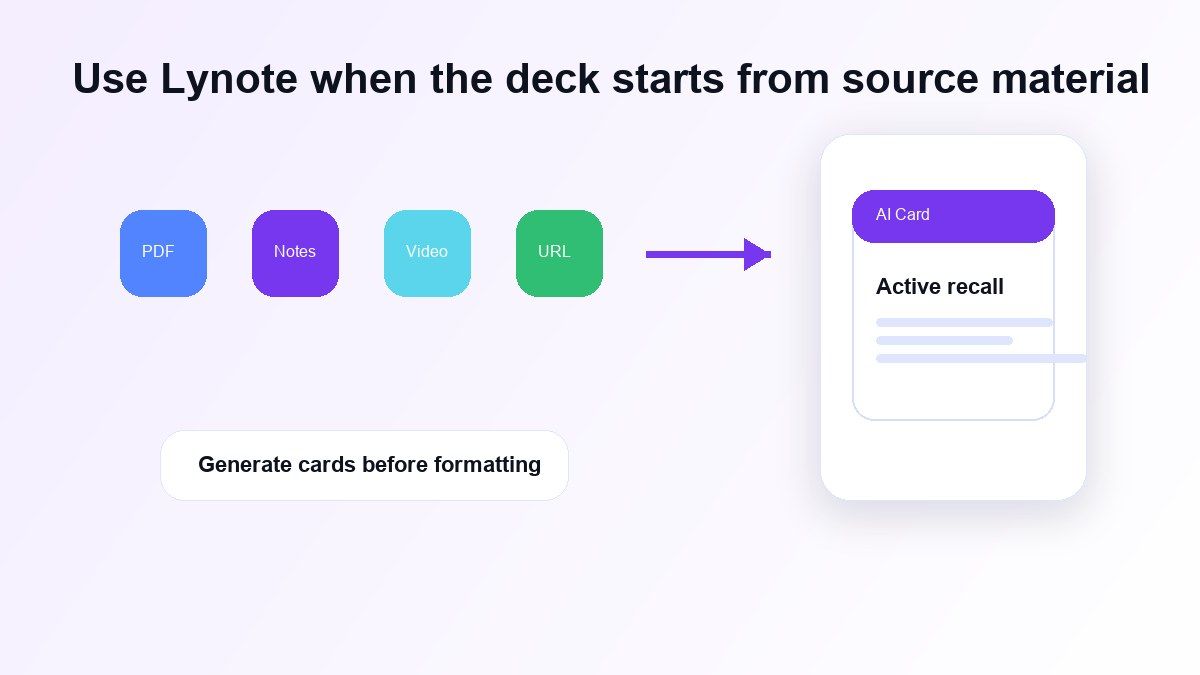
This is useful for students who already have class notes, readings, slides, or recorded lectures. Lynote can identify key concepts and turn them into question-and-answer cards for active recall.
Google Docs is still helpful for editing or printing. Lynote is better for generating the first study deck from your source material.
How to Create Flashcards with Lynote
Step 1. Add Your Study Material
Open Lynote AI Flashcard and add your source material. You can upload study files or paste a supported link, depending on what you want to review.
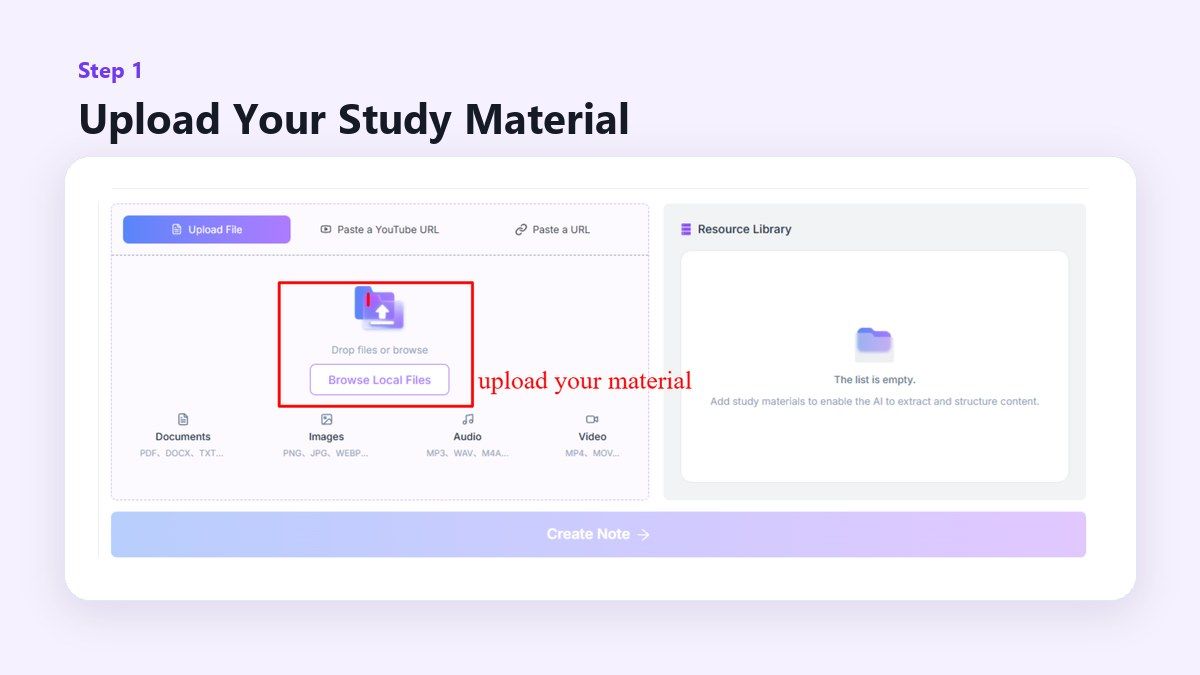
This is useful when your content is longer than a few lines. Instead of copying details into a Google Docs table, you start with the original material.
Step 2. Generate the Flashcards
After the source is loaded, create the note and open the flashcard feature. Lynote turns key facts, definitions, dates, and concepts into Q&A cards.
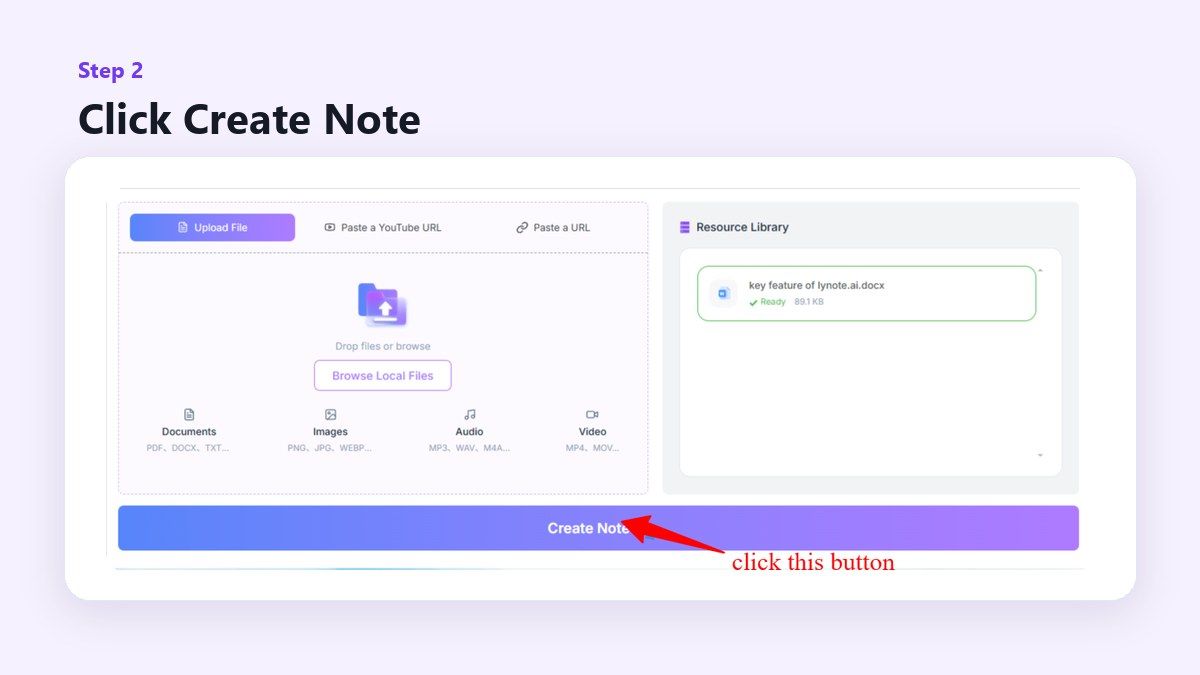
This helps you move from passive reading to active recall. You can review the cards instead of rereading the same notes again and again.
Step 3. Review and Edit the Deck
Read through the generated cards before studying. Edit any card that is too broad, too easy, or missing context.
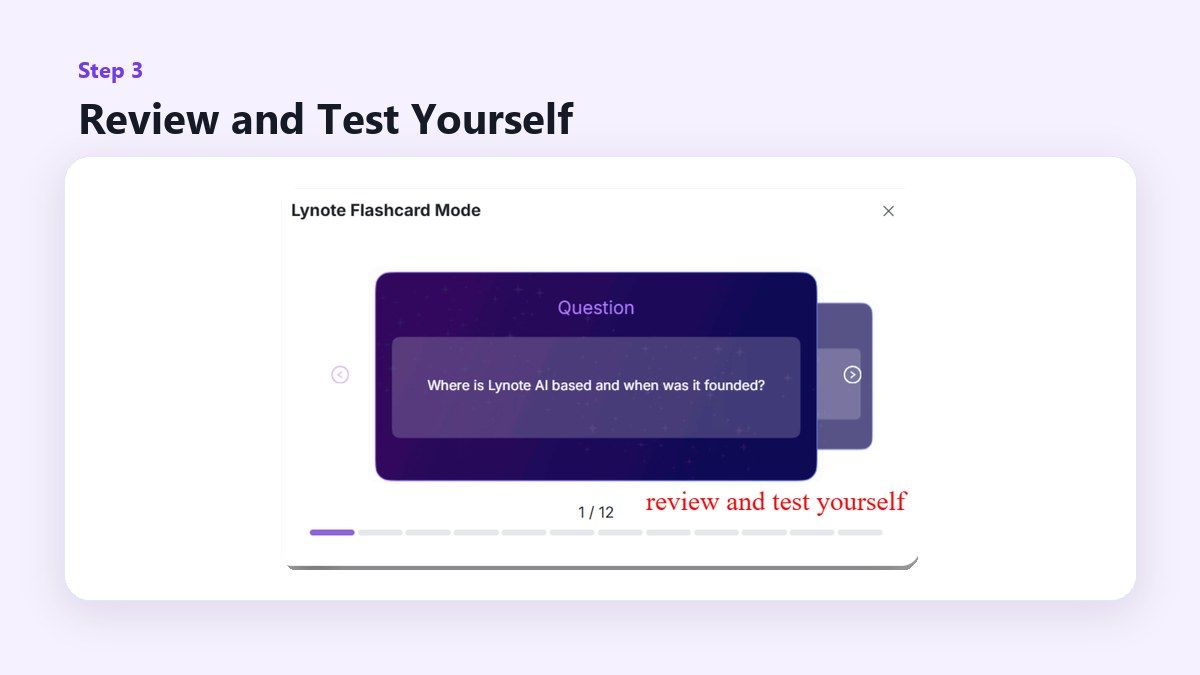
AI can speed up card creation, but you should still check the output. Good flashcards are specific, accurate, and tied to what you need to remember.
When Google Docs Is Still the Better Choice
Google Docs is still a good option when you want a printable worksheet-style deck. It is also useful if your teacher requires a shared document or if you want classmates to collaborate in one file.
It works well for small decks, custom layouts, and simple card templates. If you only need ten vocabulary cards, Google Docs may be enough.
The key is knowing when the manual process is helping and when it is slowing you down.
When Lynote Is the Better Choice
Lynote is better when you have too much material to convert by hand. It is also useful when your source is a PDF, lecture recording, video, webpage, or mixed study pack.
Instead of starting from a blank table, you start from the material you already need to learn. That makes the workflow faster for exam prep, class review, and long study sessions.
If you still need printed cards, you can use Lynote to generate the content first, then move selected cards into Google Docs for formatting.
Tips for Better Flashcards
Keep each card focused on one idea. A card that asks one clear question is easier to remember than a card that tries to cover an entire chapter.
Use direct wording. If the answer needs three paragraphs, the card is probably too broad.
Mix definitions, examples, and application questions. The best decks help you recall facts and understand how to use them.
Common Mistakes to Avoid
Do not copy long textbook sentences directly into flashcards. Rewrite them into simple prompts that force you to remember the idea.
Do not make every card equally important. Mark difficult or high-value concepts so you can review them more often.
Do not assume the first deck is final. Whether you use Google Docs or Lynote, review and improve your cards after the first study session.
FAQs About Making Flashcards in Google Docs
How do I make flashcards in Google Docs?
Create a blank document, set the page layout, insert a table, and place questions in one column and answers in the other. Then format the table and print or share the document.
How do I make custom size flashcards in Google Docs?
Use File > Page setup to adjust paper size, orientation, and margins. Then resize your table rows and columns to match the card size you want.
Can I make printable flashcards in Google Docs?
Yes. Use table borders, consistent spacing, and print preview to create printable flashcards. Test one page before printing a full deck.
Is Google Docs the fastest way to make flashcards?
Not always. Google Docs is good for manual layouts, but Lynote is faster when you want to generate flashcards from notes, PDFs, videos, or lecture material.
Can Lynote replace Google Docs for flashcards?
Lynote can replace the manual card-generation step for many students. You may still use Google Docs if you want custom printable layouts or shared document editing.
Final Verdict
Learning how to make flashcards in google docs is useful when you need simple printable cards or a custom table layout. But if your study material is already in notes, PDFs, videos, lectures, or links, Lynote can help you create flashcards faster and review them with active recall. Use Google Docs for layout control, and use Lynote when you want to turn source material into study-ready cards without starting from scratch.

Written by Janet L. Harris
AI Writing Specialist
Janet reviews AI detectors and humanization tools, with a focus on accuracy, limitations, and responsible use. View all articles →