10 Best Free ChatPDF Alternatives in 2026

The best free ChatPDF alternative is Lynote for focused PDF questions and source checking, while NotebookLM is the stronger choice for comparing several PDFs in one research notebook. PDFgear is the most practical pick when you also need a free reader and editor, Claude is useful for charts and visually complex PDFs, and Humata offers one of the clearest page-based free allowances.
Direct answer: Choose Lynote for a balanced upload, ask, and verify workflow; NotebookLM for multi-document research; PDFgear for reading and editing in one app; Claude for visual reasoning; and Humata for occasional technical PDFs. No free tool is simultaneously unlimited, consistently strong at OCR, clear with citations, suitable for every workplace, and equally good with every document layout.
ChatPDF itself has changed. It now supports multi-file chats and formats beyond PDF, so a useful 2026 comparison should not repeat the old claim that it only handles one PDF at a time. The more relevant question is whether another tool gives you better recurring limits, clearer citations, stronger visual analysis, safer file handling, or a workflow that fits what you do after receiving an answer.
Free-plan details in this guide were checked in August 2026, but AI allowances change frequently. Treat exact limits as a snapshot and confirm the current plan before uploading a large collection.
Quick Verdict: Which ChatPDF Alternative Should You Choose?
Start with the document problem, not the longest feature list. A researcher comparing eight papers needs a different workspace from someone asking one question about a downloaded invoice.
| Your main need | Best pick | Why it stands out | Free-access caveat |
|---|---|---|---|
| Focused PDF Q&A with source checking | Lynote | Keeps questions, summaries, follow-ups, and review of the original document in one clear flow | Higher-volume use depends on current credits or allowances |
| Several PDFs in one research project | NotebookLM | Source-selective chat, inline citations, and up to 50 sources per standard notebook | Daily chat and artifact limits apply |
| Free PDF chat plus reading and editing | PDFgear | Combines a chatbot with annotations, page tools, and PDF editing | Its current completely-free status is tied to a feedback phase |
| Charts, figures, and visually complex pages | Claude | Supported models can analyze text and visual elements in shorter PDFs | Free message usage varies, especially with large attachments |
| Extracting and transforming information | ChatGPT | Can turn findings into tables, action lists, analyses, or new documents | Free users currently receive only a small daily upload allowance |
| Occasional technical PDFs | Humata | A transparent 60-page monthly free allowance | Too limited for a full textbook or large monthly workload |
| Browser-integrated PDF research | AskYourPDF | Purpose-built document chat with extension and research workflows | One free document upload per day |
| Simple one-off browser chat | PDF.ai | Very low learning curve and a direct upload-and-ask experience | The free personal allowance is one PDF up to 10MB |
| Scientific papers | SciSpace | Explains academic terminology and connects reading with research discovery | Free Copilot access is limited |
| Visually traceable source citations | Denser | Makes the path from an answer to its supporting source easier to inspect | Free plan allows 20 queries per month |
10 Best Free ChatPDF Alternatives in 2026
I shortlisted these tools using seven criteria: whether free access remains useful after the first session, how clearly answers connect to the original PDF, support for multiple documents, treatment of scans and visual pages, practical limits, privacy controls, and the amount of setup required. This is an editorial comparison of current product information, not a fabricated hands-on benchmark.
Free ChatPDF Alternatives at a Glance
| Rank | Tool | Best for | Cited answers | Multi-PDF | Visual PDF support | Free model | Main catch |
|---|---|---|---|---|---|---|---|
| 1 | Lynote | Balanced PDF Q&A and source checking | ✅ | ✅ | ◐ | Ongoing free entry with dynamic usage | Allowance depends on the task and current credits |
| 2 | NotebookLM | Multi-source research | ✅ | ✅ | ◐ | Standard access with daily limits | Requires a Google account |
| 3 | PDFgear | Reader, editor, and chatbot | ◐ | ◐ | ◐ | Currently completely free | Free model may change after feedback phase |
| 4 | Claude | Charts and complex reasoning | ◐ | ✅ | ✅ | Free messages with variable limits | No dedicated side-by-side citation viewer |
| 5 | ChatGPT | Extraction and transformation | ◐ | ✅ | ◐ | Three free file uploads per day | Visual PDF retrieval depends on plan |
| 6 | Humata | Technical PDFs | ✅ | ◐ | ◐ | 60 pages per month | Small allowance for long documents |
| 7 | AskYourPDF | Browser-based research | ✅ | ◐ | ◐ | 1 document and 50 questions per day | OCR and larger limits require payment |
| 8 | PDF.ai | Simple one-off PDF chat | ✅ | ❌ | ◐ | 1 PDF up to 10MB | Very small free document allowance |
| 9 | SciSpace | Scientific literature | ✅ | ◐ | ◐ | Limited free research tools | Best fit is narrow and academic |
| 10 | Denser | Visual source navigation | ✅ | ◐ | ◐ | 20 queries, 100 pages or 50MB monthly | Low query allowance |
✅ means the capability is a clear part of the workflow, ◐ means it is partial, plan-dependent, or less purpose-built, and ❌ means it is not a meaningful free capability.
1. Lynote: Best Balanced ChatPDF Alternative
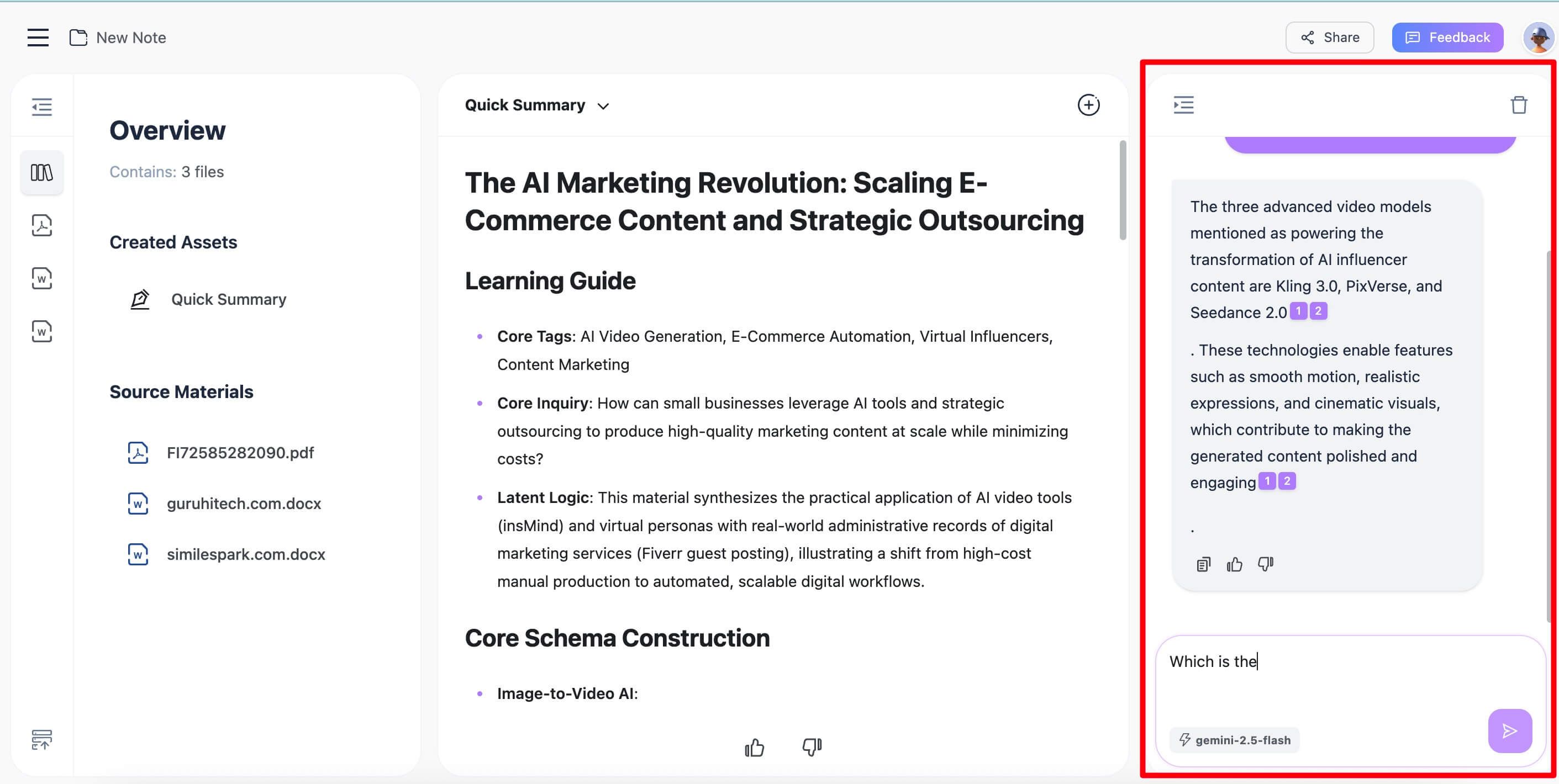
Lynote Chat with PDF is the best overall alternative when you want the simplicity of uploading a PDF and asking questions without losing sight of the source. You can ask what a section means, request a concise summary, find a term or claim, and use the response as a path back to the original document.
The workflow is especially useful when a PDF is only the first source in a larger project. The same Lynote workspace can accommodate documents and other source types, so you do not need to rebuild the research context when a webpage, audio recording, video, or second document becomes relevant.
Lynote does not frame the AI answer as a substitute for reading. The more credible use is triage: identify the section that matters, ask a focused follow-up, and verify important wording, figures, and exceptions in context.
Features
- Natural-language questions about uploaded PDFs
- Section-level and whole-document summaries
- Follow-up questions based on the current source
- Source checking against the original PDF
- Multi-source workspace for projects that expand beyond one document
Pros
- Purpose-built path from upload to question to source review
- Useful for papers, manuals, reports, policies, and class readings
- Supports a broader research workflow without overcomplicating the first PDF task
- Encourages verification instead of treating a fluent answer as proof
Cons
- Higher-volume AI use depends on the current allowance or credit balance
Best for: Students, researchers, and professionals who want straightforward PDF Q&A with a clear source-checking habit.
How to Chat With a PDF in Lynote
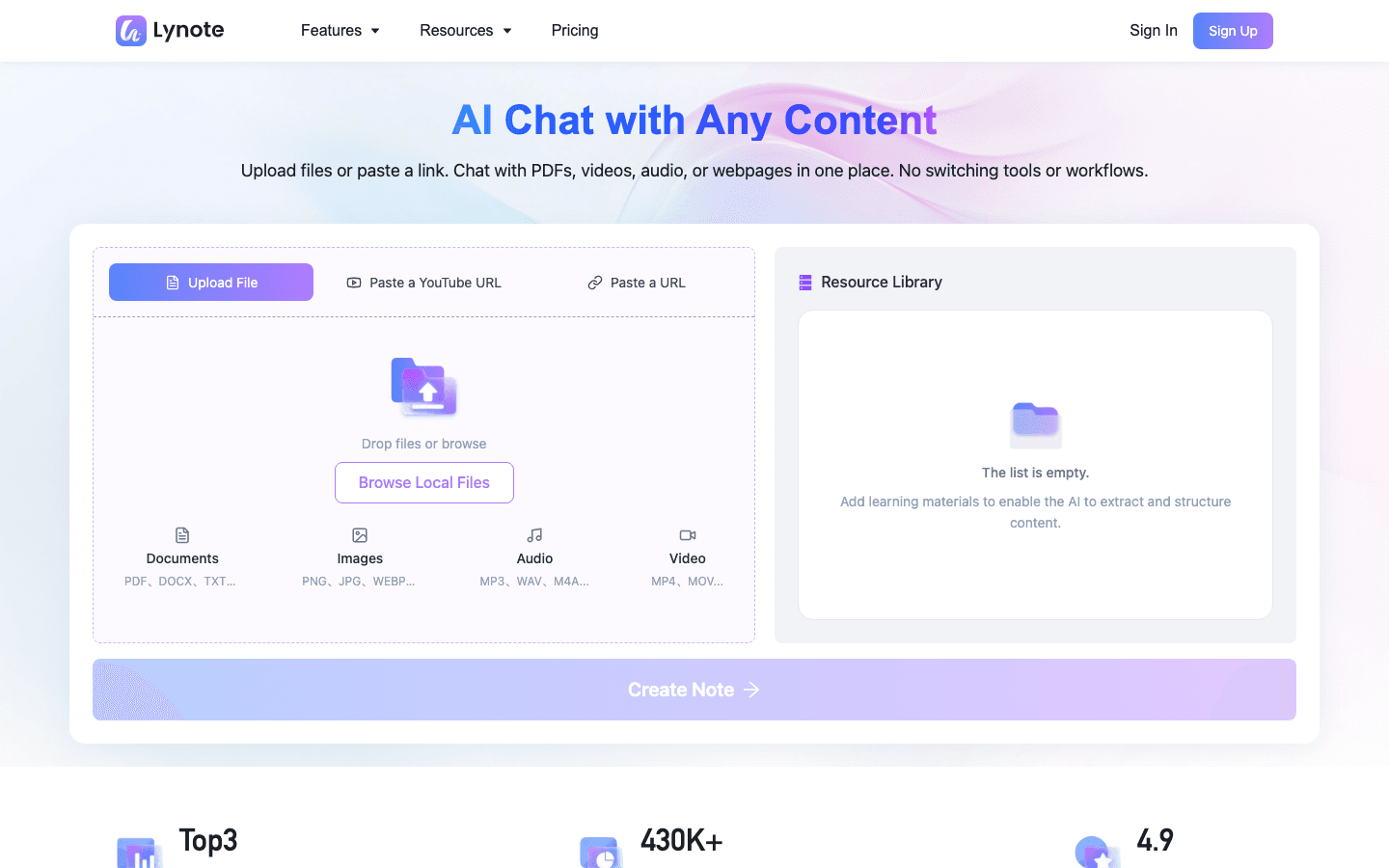
- Open Lynote, start a new note, and upload the PDF as source material.
- Let Lynote process the document, then ask one focused question about a section, claim, term, or figure.
- Read the answer, inspect the cited source context, and ask a narrower follow-up before using the information.

2. NotebookLM: Best Free Option for Multi-PDF Research
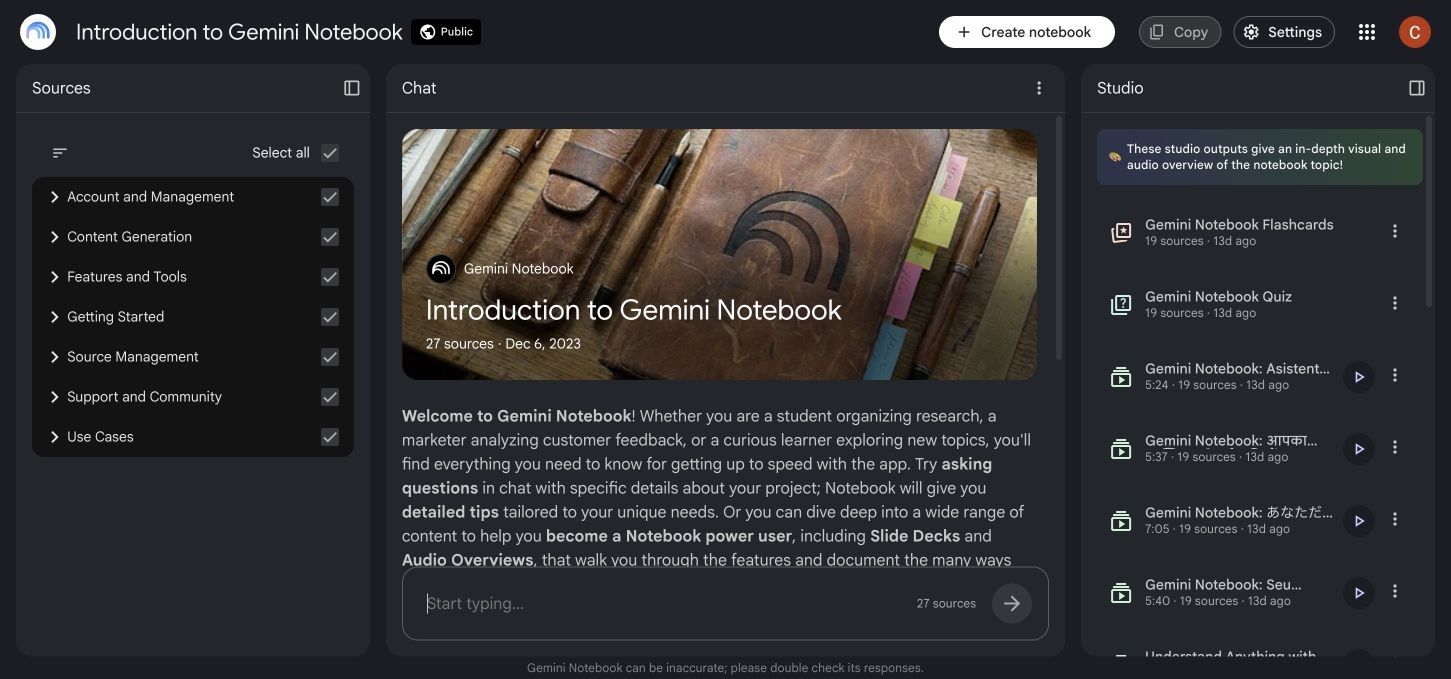
NotebookLM is the strongest free choice when your unit of work is a collection rather than one document. Standard access currently allows 100 notebooks, 50 sources per notebook, and 50 chat queries per day, while each uploaded source can contain up to 500,000 words or reach 200MB.
The source panel is the real advantage. You can select exactly which PDFs should answer a question, compare findings across papers, and follow inline citations back to supporting passages. It also turns the same sources into reports, mind maps, flashcards, quizzes, and audio or video overviews.
NotebookLM is less convenient for a no-account, one-minute interaction. It makes the most sense when a PDF belongs to a course, investigation, literature review, or ongoing knowledge project.
Features
- Source-grounded chat with inline citations
- Up to 50 sources in a standard notebook
- PDFs, websites, Word files, slides, audio, YouTube, and other source types
- Reports, study guides, flashcards, quizzes, mind maps, and overviews
- Selective source control for each question
Pros
- Generous and clearly documented standard-access limits
- Excellent for comparing several related PDFs
- Answers remain grounded in selected notebook sources
- Strong organizational model for work that lasts longer than one chat
Cons
- Requires a Google account and eligible regional or organizational access
- Daily chat and generation limits still apply
Best for: Literature reviews, course packs, policy research, and any project that needs cross-document citations.
3. PDFgear: Best Free PDF Reader, Editor, and Chatbot
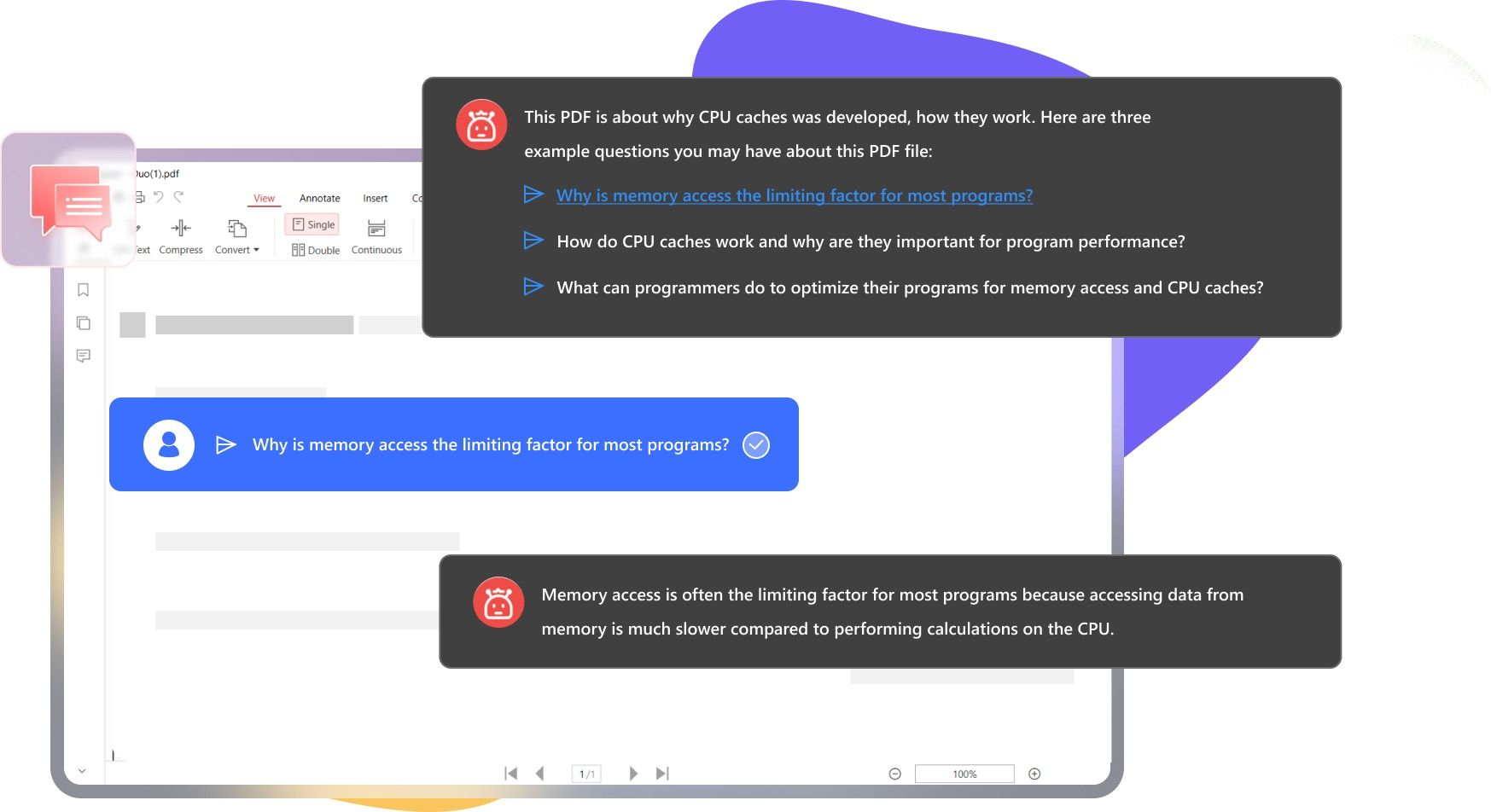
PDFgear is a different kind of alternative because the AI chat lives inside a broader PDF application. You can ask questions, summarize or explain content, then highlight, annotate, extract pages, merge files, split a document, or continue editing without moving the PDF into another tool.
That side-by-side workflow is valuable when the answer leads to an action. For example, you can locate a clause, mark it, remove irrelevant pages, and save a smaller review copy rather than merely copying the AI response into another app.
PDFgear currently says its chatbot is completely free while it gathers feedback. That is attractive, but it is also a reminder that a free product phase is not a permanent contractual promise.
Features
- PDF chatbot for questions, summaries, explanations, and translation
- Desktop and mobile PDF reader
- Highlighting, annotations, and comments
- Page extraction, merging, splitting, and other PDF utilities
- Suggested questions based on the open document
Pros
- Combines AI assistance with practical PDF editing
- Currently free rather than a brief card-required trial
- Keeps the document visible while you work with the answer
- Useful for readers who need to save marked or reorganized PDFs
Cons
- The completely-free model may change after the feedback phase
- Installing an application is more effort than a quick browser upload
Best for: People who want to question, annotate, reorganize, and save PDFs in one tool.
4. Claude: Best for Charts and Visually Complex PDFs
Claude is a general AI assistant rather than a dedicated PDF reader, but it has a meaningful advantage with visual documents. Supported Claude models can analyze both extracted text and visual elements such as charts, graphics, and page images in PDFs under 100 pages.
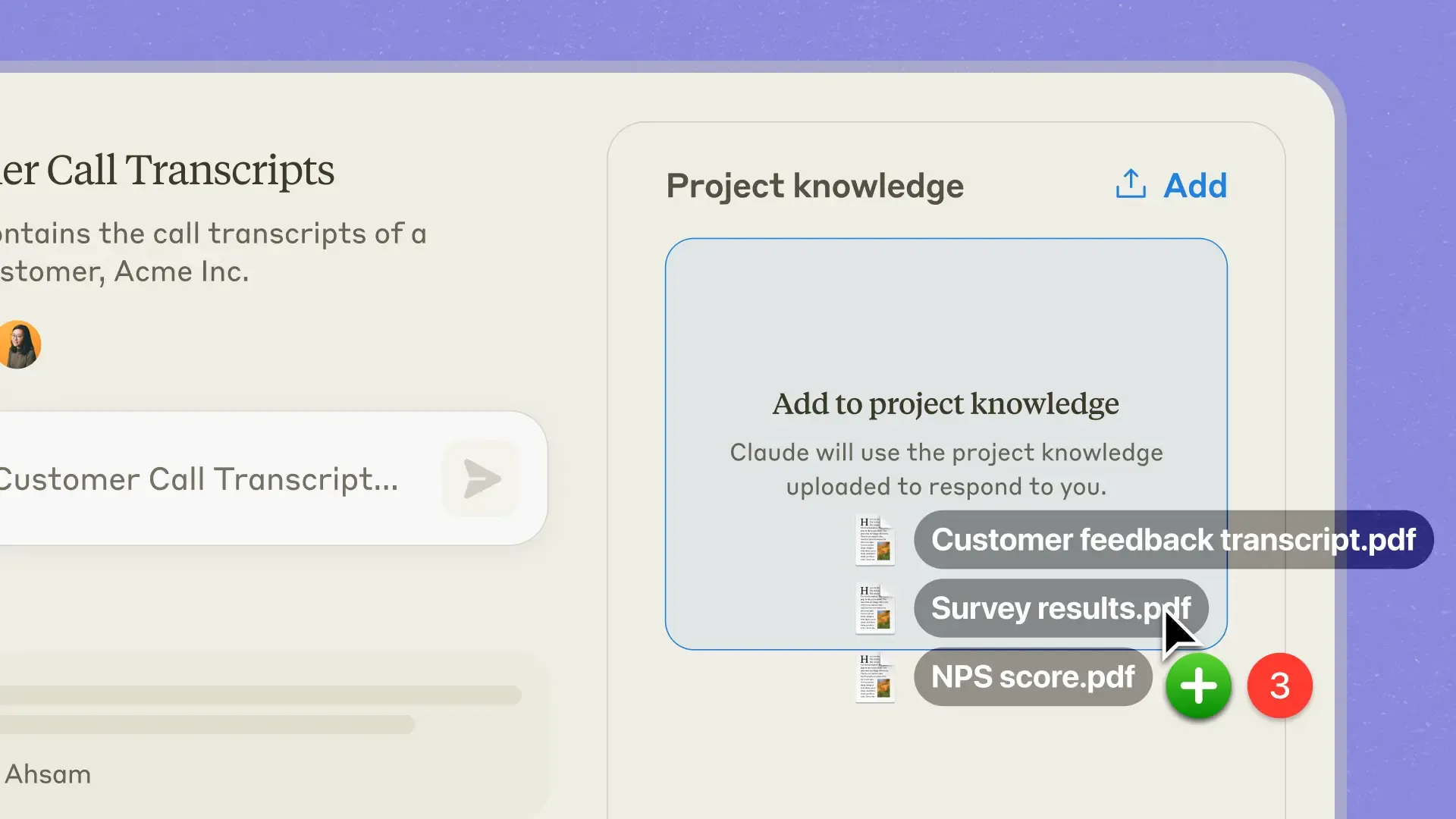
Chat uploads currently support files up to 30MB and as many as 20 files in one conversation, although the usable amount also depends on token length and the account's message allowance. That makes Claude useful for comparing a handful of reports or asking why a chart and the accompanying narrative appear to disagree.
The trade-off is navigation. Claude can discuss page content and cite page references when prompted carefully, but it does not feel like a dedicated side-by-side PDF viewer with clickable evidence anchors.
Features
- Text and visual analysis for supported PDFs under 100 pages
- Up to 20 files in a chat
- Cross-document comparison and synthesis
- Support for PDF, DOCX, CSV, TXT, HTML, EPUB, and other formats
- Strong follow-up explanations and structured reasoning
Pros
- Better suited to charts, diagrams, and page layout than text-only extraction
- Strong at explaining complex arguments in plain language
- Can compare several files in one conversation
- Useful when the task requires reasoning beyond retrieval
Cons
- Free message availability varies with file size, context length, and demand
- Source navigation is less purpose-built than a PDF-specific interface
Best for: Visual reports, technical papers, and PDFs where charts or diagrams carry essential meaning.
5. ChatGPT: Best for Flexible Extraction and Transformation
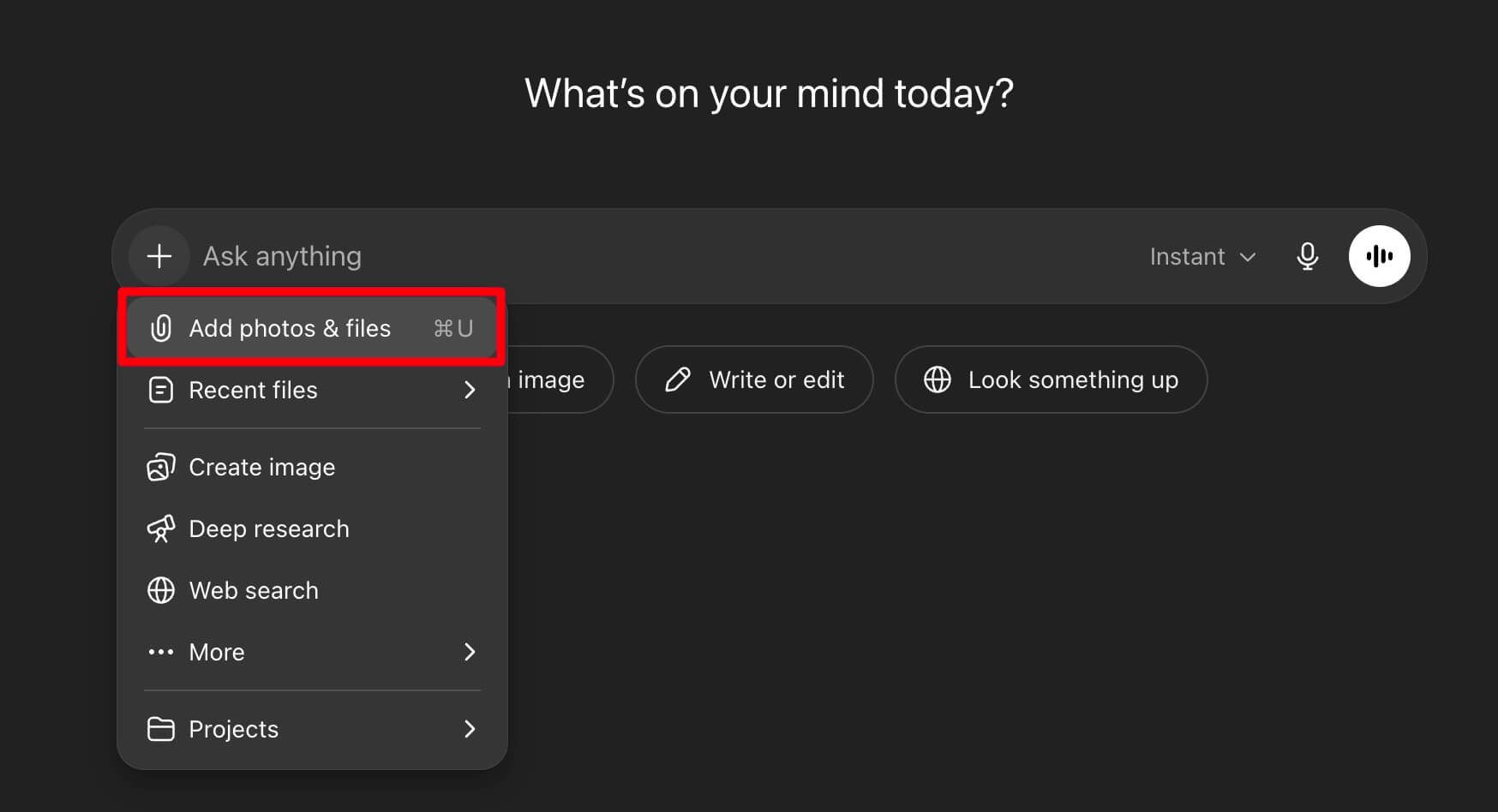
ChatGPT becomes useful when the output needs to be more than an answer. After uploading a PDF, you can ask it to extract every deadline, restructure a comparison into a table, identify repeated themes, draft an action list, or combine the document with a spreadsheet or another text file.
Free users currently receive up to three file uploads per day, and the system may reduce that allowance during peak periods. The hard per-file ceiling is much larger than most PDF-chat tools, but text and document files are also subject to a token limit, and visual retrieval from embedded PDF images depends on the plan.
This is a flexible analysis environment, not the clearest citation-first reader. When exact traceability matters, explicitly request page references and check every important result in the PDF.
Features
- PDF and common document uploads
- Data extraction and restructuring
- Multi-file comparison
- Tables, lists, drafts, and downstream analysis from document findings
- Projects for keeping related reference material together
Pros
- Can turn PDF findings into many useful output formats
- Handles questions that combine document content with broader analysis
- Familiar interface with flexible follow-up instructions
- Useful for mixed files, not only PDFs
Cons
- Free users have a low daily file-upload allowance
- Visual understanding of embedded PDF images is plan-dependent
Best for: Users who want to extract information and immediately transform it into another work product.
6. Humata: Best for Technical PDFs with Clear Page Limits
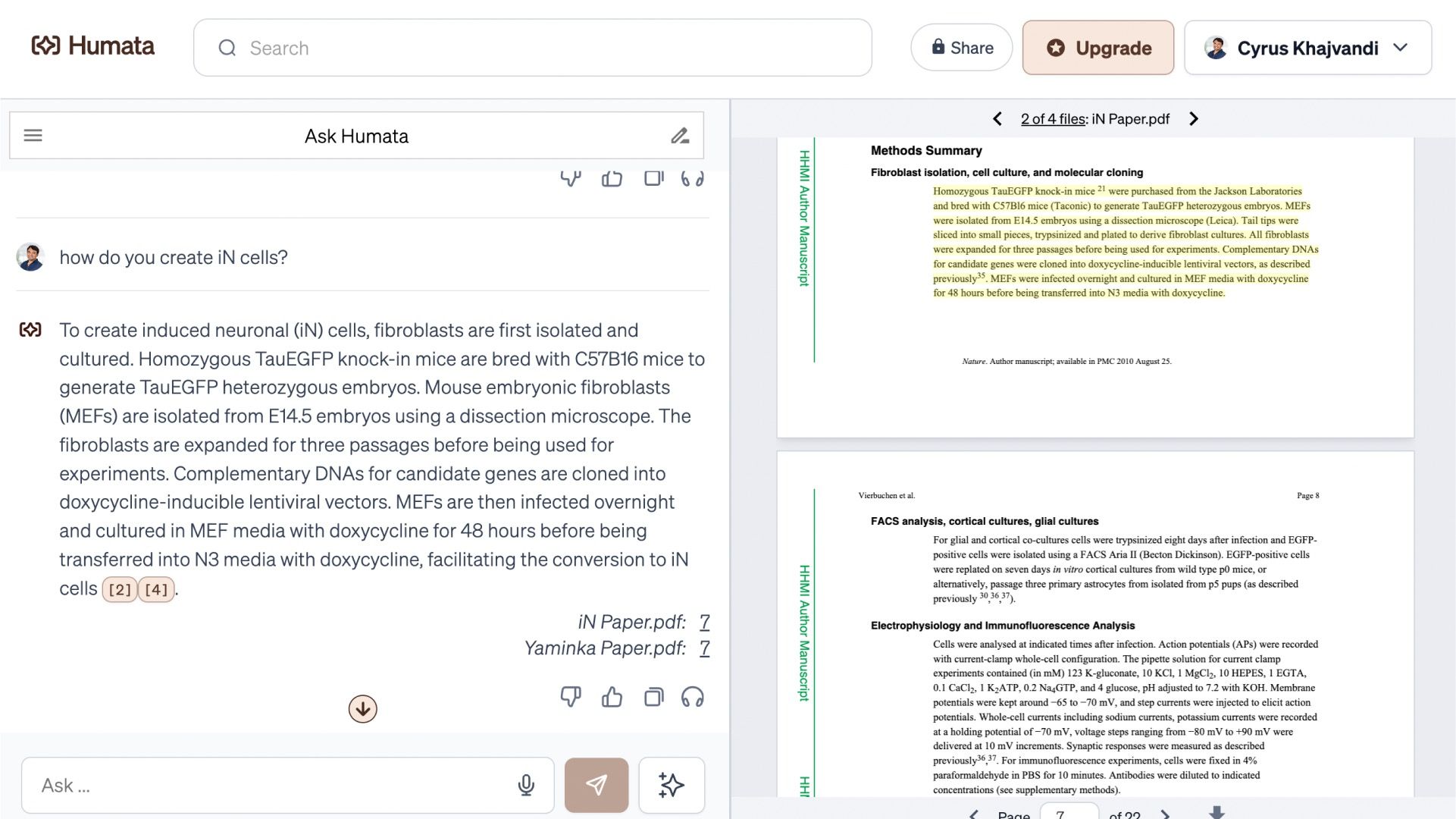
Humata is appealing because its free limit is expressed in pages rather than an opaque credit count. The official free plan currently includes basic features for up to 60 pages per month, which is enough for an occasional paper, report, or technical brief.
The interface is centered on asking questions of documents, so there is less setup than a general research platform. Once the monthly page allowance is exhausted, however, the free plan does not offer additional paid-per-page processing; that option begins on higher tiers.
Sixty pages is transparent but not generous. A single textbook chapter, annual report, or set of research papers can consume the whole month.
Features
- Question answering over uploaded PDFs
- Document summaries and technical explanations
- Page-based usage model
- Paid team and permission controls
- Higher plans for larger document volumes
Pros
- Free allowance is easy to understand before uploading
- Focused document-reading interface
- Suitable for occasional technical or academic material
- No need to calculate how many prompts equal one credit
Cons
- Sixty pages per month is restrictive for books or repeated research
- OCR and advanced team controls require higher plans
Best for: Occasional technical documents when a predictable page allowance matters more than volume.
7. AskYourPDF: Best for Browser-Integrated Research
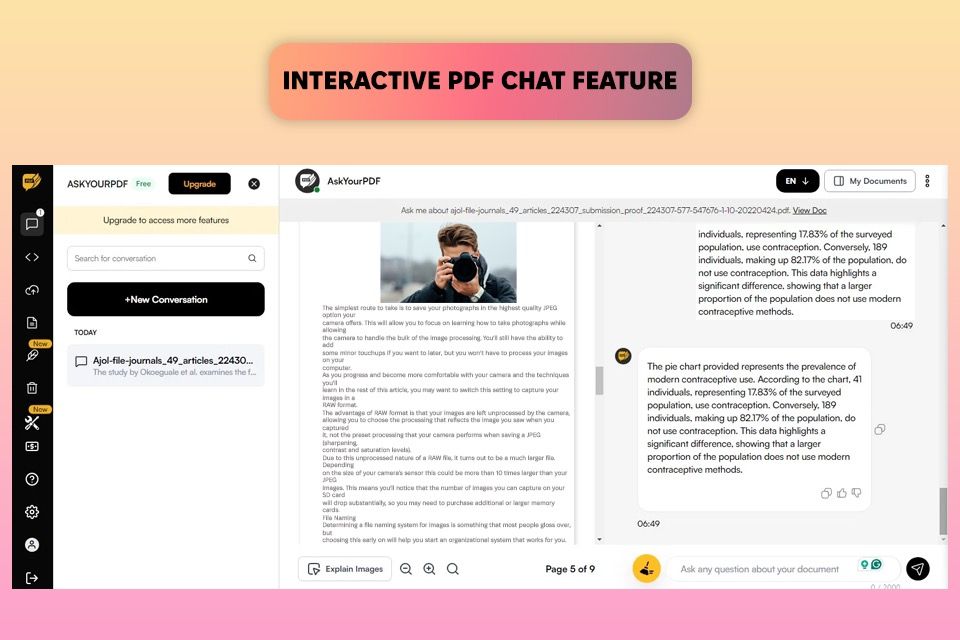
AskYourPDF combines purpose-built document chat with browser and research-oriented workflows. Its current free access supports one document upload per day, up to 100 pages in that document, and as many as 50 questions per day, which is workable for focused daily reading.
The free plan does not include the same OCR and knowledge-base capabilities available on paid tiers. Free-user documents may also remain in the service database for up to 90 days, so readers working with sensitive material should review retention and deletion controls before uploading.
AskYourPDF is more useful than a bare upload box when it sits close to your existing research process. For a one-off public PDF, though, its wider ecosystem may be more than you need.
Features
- PDF and document Q&A
- Browser-integrated workflow
- Document library and research assistant
- Multiple supported document formats
- Multilingual questions and answers
Pros
- Fifty daily questions can support a focused reading session
- One 100-page document per day is easy to understand
- Purpose-built research and document workflow
- Useful for readers who work primarily in a browser
Cons
- Free access is limited to one document upload per day
- OCR, knowledge bases, and larger limits require an upgrade
Best for: Browser-based researchers who usually focus on one substantial document each day.
8. PDF.ai: Best for a Simple Browser-Based Replacement
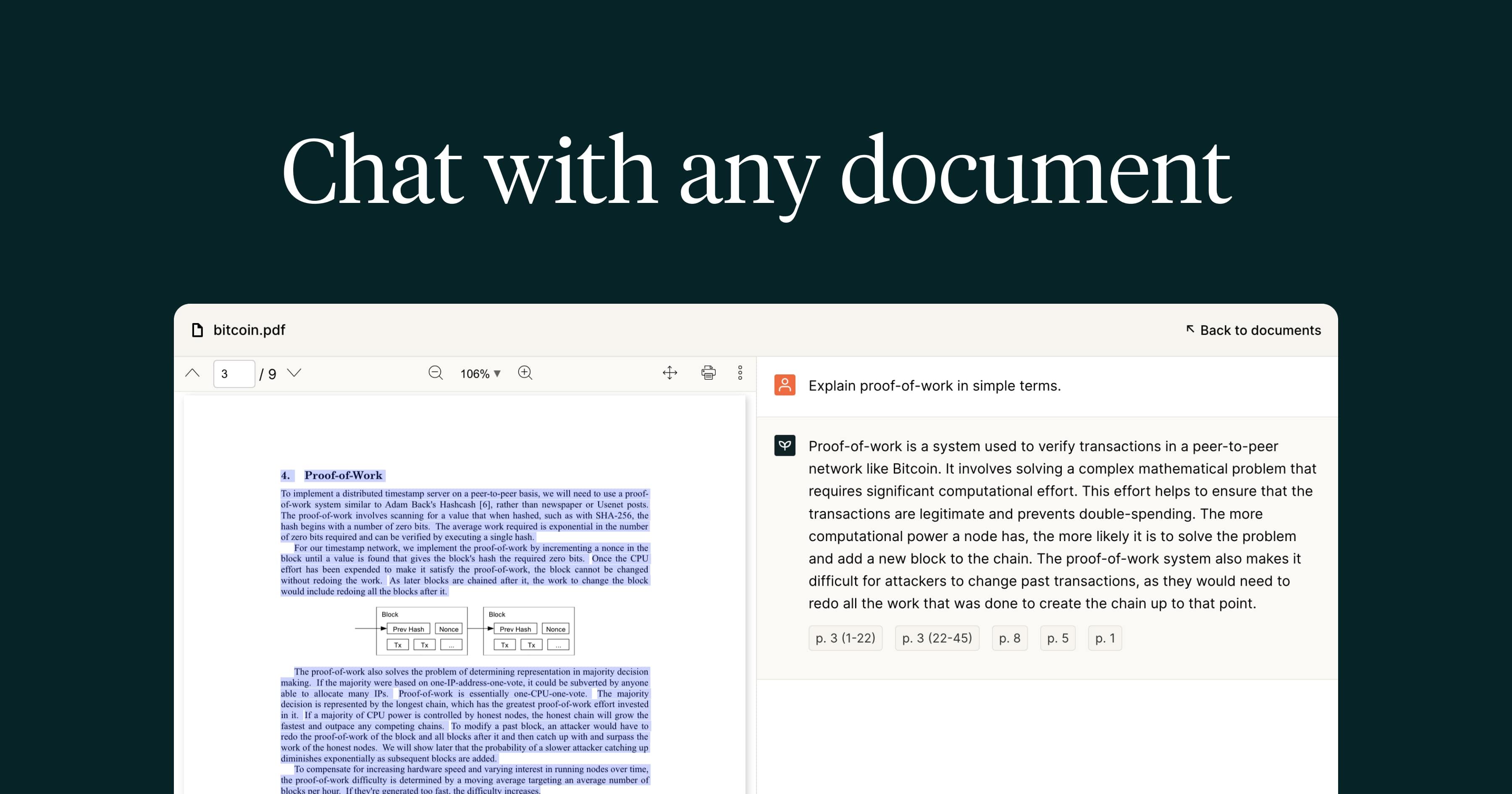
PDF.ai is one of the closest matches to the basic ChatPDF interaction: upload a document, wait for processing, and ask questions in a clean browser interface. That makes it easy to learn and useful for people who do not want to organize notebooks, projects, or research libraries.
Its current personal free offer is narrow: one PDF with a maximum size of 10MB. The separate developer platform offers recurring API credits, but that is a different workflow and should not be confused with unlimited free document chat for ordinary users.
PDF.ai therefore works best as a quick evaluation or occasional fallback. It is not the strongest free choice for a weekly stream of papers.
Features
- Browser-based PDF upload and chat
- Document summaries and focused questions
- Source-oriented answers
- Separate parsing, extraction, splitting, and ask APIs
- No-card developer free credits for technical experiments
Pros
- Very low learning curve
- Familiar upload-and-ask workflow
- Useful for testing one representative PDF
- Separate API path for developers building document workflows
Cons
- Personal free use is limited to one PDF up to 10MB
- Less useful for recurring multi-document research
Best for: Occasional users who want a simple browser replacement for one small PDF.
9. SciSpace: Best for Scientific Papers
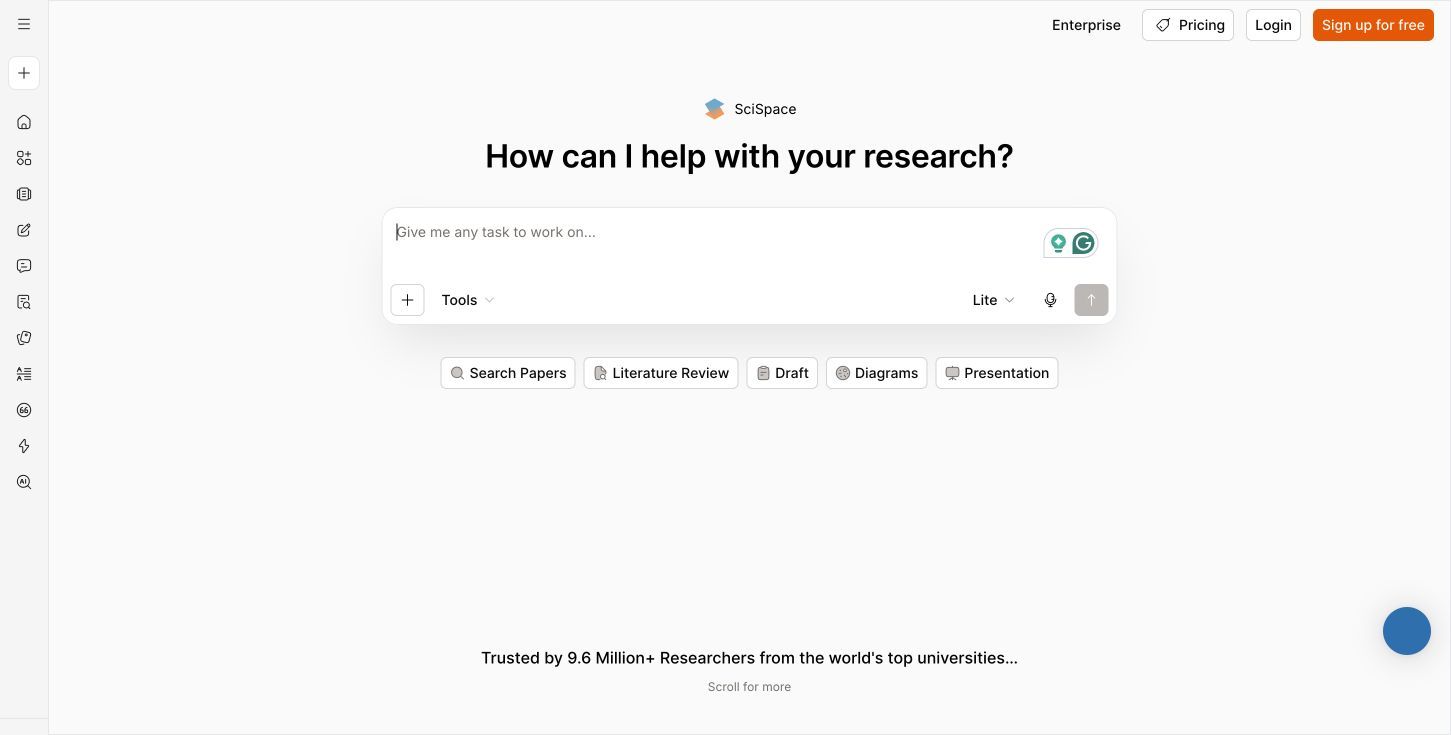
SciSpace is not trying to be the best reader for every PDF. Its advantage appears when the document is a scientific paper and the reader needs help with methods, equations, unfamiliar terminology, related literature, or the difference between a paper's claim and its evidence.
The platform combines Chat with PDF with literature discovery, citation tools, and research-writing support. A free plan exists with limited access, while heavier Copilot and advanced research use requires an upgrade.
For a product manual or household document, this specialization adds little. For a dense journal article, it can provide more useful context than a generic summary-first chatbot.
Features
- Chat with scientific PDFs
- Plain-language explanations of highlighted passages
- Literature search and related-paper discovery
- Citation and research-writing tools
- Academic terminology and methods support
Pros
- Designed around how people actually read research papers
- Helpful for unfamiliar terms, methods, and dense passages
- Connects document reading with literature discovery
- Better context for scholarly questions than a generic PDF bot
Cons
- Free Copilot and advanced research access is limited
- Specialized features are less relevant to ordinary PDFs
Best for: Students, researchers, and science readers working with journal articles.
10. Denser: Best for Visual Source Citations
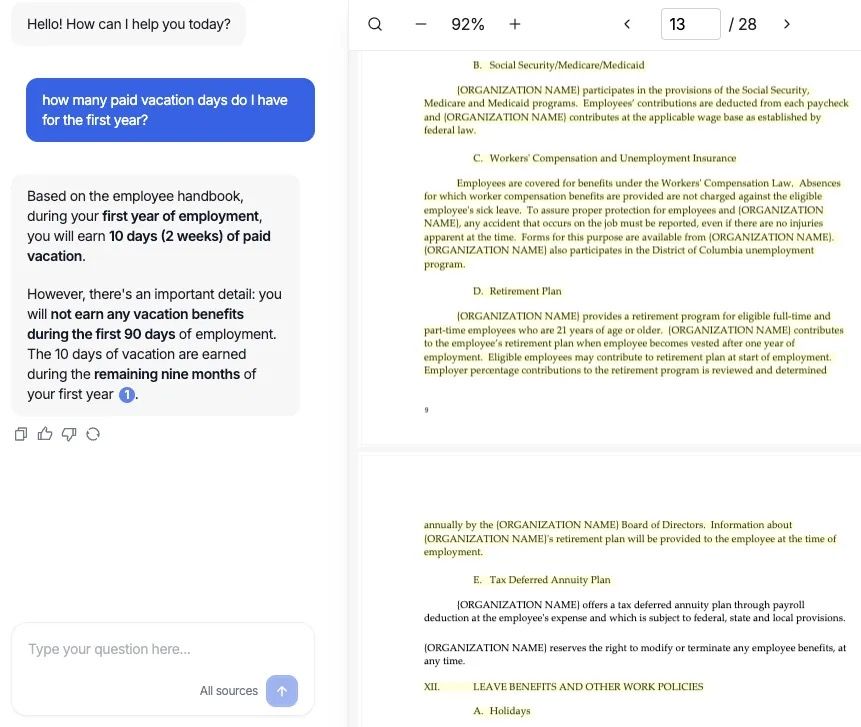
Denser emphasizes answers that point back to exact source material. Its free plan currently provides one bot, one team member, 20 queries per month, and a capacity of 100 pages or 50MB, which is enough to evaluate a focused document set but not enough for frequent daily use.
The citation-forward presentation is the reason to choose it. When the goal is to inspect the evidence behind an answer quickly, visual source navigation can matter more than having another dozen AI features.
Denser also extends into website and documentation chatbots, so its setup reflects a reusable knowledge bot more than a disposable one-file conversation. That can be useful for a recurring manual or policy set and unnecessary for a single download.
Features
- Answers cited to source material
- PDF, document, and website knowledge bots
- Up to 100 pages or 50MB on Free
- Continuous chatbot training
- Team and API capabilities on paid plans
Pros
- Strong emphasis on visible source traceability
- Useful for dense manuals and reusable knowledge sets
- Free capacity is stated in pages and file size
- Can grow into a broader documentation assistant
Cons
- Twenty free queries per month is restrictive
- More setup than a disposable PDF chat
Best for: Readers who prioritize visible source verification and reusable document bots.
What Changed About ChatPDF, and Why Alternatives Still Matter
Some older comparisons say ChatPDF only accepts PDFs, works with one file at a time, or cannot organize documents. Those claims are no longer a fair baseline.
ChatPDF Now Supports More Than One PDF
ChatPDF now lets account holders create folders and chat across multiple files. It also supports Word, PowerPoint, Markdown, and text documents in addition to PDFs, so format breadth alone is not a compelling reason to leave.
The side-by-side view and cited answers also address one of the most common PDF-chat concerns: getting back to the original passage. Any alternative claiming to be better should offer a concrete advantage beyond a similar upload box.
The Free Decision Centers on Two Documents per Day
The official free plan currently analyzes two documents each day, and users can try the basic workflow without creating an account. That may be sufficient for occasional reading, especially because signup adds saved history and multi-document organization.
The limit becomes meaningful for a literature review, due-diligence folder, course pack, or a workday containing many small documents. NotebookLM's source model, PDFgear's integrated utility set, or a specialist allowance may fit those workloads better.
Purpose-Built Reading and General Reasoning Are Different
ChatPDF, Lynote, AskYourPDF, PDF.ai, and similar tools optimize the path from document to cited answer. Claude and ChatGPT optimize a broader conversation in which PDFs are one type of context.
Choose the first group when navigation and repeated source checks dominate. Choose the second when the document is input to a larger reasoning, extraction, coding, or writing task.
A Different Workflow Can Beat a Higher Limit
More uploads do not automatically mean less work. If one tool finds the right passage but cannot annotate the PDF, generate a reusable research notebook, interpret a chart, or transform results into a structured deliverable, you may still spend time moving material between apps.
The best alternative is the one that removes the next bottleneck after the answer appears. That may be source verification, editing, multi-document synthesis, or creating an output someone else can use.
The Four PDF Failure Modes That Matter More Than the AI Model
Marketing pages often emphasize the model behind a PDF chatbot. In practice, many bad answers begin before the model writes a sentence.
1. OCR Failure: The Tool Reads the Page Incorrectly
A text-based PDF stores selectable characters. A scanned PDF may contain only page images, so the tool must run optical character recognition before it can answer questions.
Poor OCR can change a decimal point, merge columns, omit a footnote marker, or confuse similar characters. If the extracted text is wrong, even excellent reasoning produces an answer based on faulty evidence.
2. Layout Failure: The Relationships on the Page Disappear
PDFs preserve visual arrangement rather than semantic structure. A two-column paper, table, sidebar, caption, and footnote may be extracted in the wrong order.
This is why visual PDF support matters. Ask the tool to restate the table's units, row labels, and footnotes before trusting its interpretation, especially when the page contains financial or scientific data.
3. Retrieval Failure: The Tool Selects the Wrong Passage
Document chat systems usually retrieve a small set of relevant chunks before generating an answer. Similar wording in an executive summary, appendix, and superseded policy section can cause the system to select the wrong evidence.
A citation is useful only if it points to the passage that truly supports the answer. Open the cited page and check whether the surrounding context changes the conclusion.
4. Answer Failure: The Response Overstates the Evidence
The tool may retrieve the correct paragraph and still make the conclusion sound stronger than the source. Correlation may become causation, a recommendation may become a rule, or a qualified estimate may become a precise fact.
Ask what the document does not establish and request the key caveat or exception. This simple follow-up reveals whether the answer is summarizing evidence or smoothing over uncertainty.
ChatPDF vs. the 10 Alternatives: Detailed Comparison
The table below compares the free path rather than the maximum capability of the most expensive plan. A partial mark can mean limited allowances, model-dependent behavior, or a workflow that is possible but not purpose-built.
| Tool | Recurring free path | Multi-PDF | Clickable or clear citations | Scanned PDFs/OCR | Charts and images | General file types | Best use case |
|---|---|---|---|---|---|---|---|
| ChatPDF | ✅ 2 documents/day | ✅ With account | ✅ | ◐ | ◐ | ✅ | Quick cited document chat |
| Lynote | ✅ Dynamic allowance | ✅ | ✅ | ◐ | ◐ | ✅ | Focused PDF Q&A with wider source workflow |
| NotebookLM | ✅ Daily standard limits | ✅ | ✅ | ◐ | ◐ | ✅ | Multi-source research notebooks |
| PDFgear | ✅ Current free phase | ◐ Via PDF tools | ◐ | ◐ | ◐ | ◐ | Chat, read, annotate, and edit |
| Claude | ✅ Variable messages | ✅ | ◐ | ❌ Native OCR is not the core workflow | ✅ Under supported conditions | ✅ | Visual reasoning and synthesis |
| ChatGPT | ✅ 3 uploads/day | ✅ | ◐ | ◐ | ◐ Plan-dependent | ✅ | Extraction and transformation |
| Humata | ✅ 60 pages/month | ◐ | ✅ | ❌ On Free | ◐ | ◐ | Occasional technical PDFs |
| AskYourPDF | ✅ 1 document/day | ◐ Paid knowledge bases | ✅ | ❌ On Free | ◐ | ✅ | Browser-integrated daily research |
| PDF.ai | ◐ 1 personal PDF | ❌ On personal free use | ✅ | ◐ | ◐ | ❌ | One-off small PDF chat |
| SciSpace | ✅ Limited free access | ◐ | ✅ | ◐ | ◐ | ❌ | Scientific literature |
| Denser | ✅ 20 queries/month | ◐ | ✅ | ◐ | ◐ | ✅ | Traceable document bots |
Which Tool Has the Most Useful Free Access?
NotebookLM provides the broadest clearly documented standard research capacity. PDFgear is currently the least restrictive all-around PDF application, but its free phase can change, while Lynote offers the most balanced path when PDF chat is part of a mixed-source workflow.
ChatPDF's two documents per day may be more useful than a one-time large allowance because it renews. Humata, AskYourPDF, PDF.ai, and Denser are easier to compare once you translate their limits into your actual monthly pages and questions.
Which Tool Makes Verification Easiest?
NotebookLM, ChatPDF, Lynote, and Denser make source traceability central to the experience. Adobe-style PDF readers and PDFgear add another advantage: the document remains close to annotations and editing tools.
General assistants can provide page references, but the reader has to enforce a verification habit. They are most useful when reasoning flexibility matters more than a dedicated citation interface.
Run This Three-Document Test Before You Switch
Feature tables cannot tell you how a tool will behave with your files. A short test using three deliberately different documents reveals more than uploading the same clean sample PDF to every product.
Test Document 1: A Clean Text PDF with an Exception
Choose a searchable policy, report, or paper containing one exact number and one exception to the main rule. Ask for the number, the unit, the date or population it applies to, and the exception.
Follow the citation back to the page. A tool fails this test if the number is right but the unit, scope, or exception disappears.
Test Document 2: A Scan or Two-Column PDF with a Table
Use a scan, a paper with two columns, or a report containing a chart and footnote. Ask the tool to reproduce the table's row labels and units before explaining the conclusion.
This separates genuine visual or OCR competence from confident answers based on incomplete extracted text. Check at least one cell and footnote manually.
Test Document 3: Two Sources That Disagree
Upload two PDFs that define a term differently or reach different conclusions. Ask the tool to compare them, name the source behind each position, and avoid resolving the disagreement unless the documents provide a basis.
A useful multi-document assistant preserves provenance. A weak one blends the sources into a smooth answer that neither document actually states.
Five Questions to Use in Every Test
- “What exact passage supports this answer, and where is it in the PDF?”
- “What qualification, exception, or footnote could change this conclusion?”
- “What information is missing, unreadable, or uncertain?”
- “Separate what each document says instead of combining them.”
- “What should I verify manually before using this answer?”
Record whether the answer is correct, whether the citation is easy to inspect, and how much cleanup is required. The tool that produces the shortest impressive answer is not necessarily the tool that saves the most time.
Choose a ChatPDF Alternative by Document Type
Research Papers and Literature Reviews
NotebookLM is the best general choice for a collection of papers because it keeps sources separate and supports cross-document questions. SciSpace is stronger when you need help with academic terminology, methods, related literature, or understanding a highlighted passage.
Lynote is useful for focused questions and summaries when the project also includes non-PDF sources. Claude becomes valuable when charts and diagrams play a major role.
Textbooks and Course Packs
Start by checking page and file limits. A 700-page textbook can exceed a free plan in one upload or create such a large context that answers become less precise.
NotebookLM works well when chapters can be separated into sources. Lynote offers a clean question-and-review path, while PDFgear is useful when you also want to highlight and annotate the material.
Scanned PDFs and Image-Heavy Reports
Do not assume every “chat with PDF” tool performs OCR on a free plan. If you cannot select the text, verify whether the product explicitly supports scanned pages before uploading.
Claude can analyze visual elements in supported shorter PDFs, while paid OCR features in specialist tools may be more reliable for large scans. For important records, OCR the file separately and compare the extracted text with the page image.
Contracts, Policies, and Compliance Documents
Prioritize source links, page navigation, retention settings, and the ability to isolate the governing version. Ask for exact wording and exceptions rather than requesting a general legal conclusion.
Lynote, NotebookLM, Denser, and other citation-forward tools can help locate clauses. None replaces professional judgment or confirmation that the uploaded document is complete and current.
Financial Reports with Tables
Visual interpretation and unit preservation matter more than a polished summary. Test whether the tool distinguishes thousands from millions, quarterly from annual figures, and reported results from adjusted metrics.
Claude can be useful for chart reasoning, while ChatGPT is strong at restructuring extracted values. Always reconcile important numbers with the actual table and footnotes.
One-Off Personal PDFs
For a public manual, event guide, or ordinary statement, simplicity may be the deciding factor. ChatPDF, Lynote, PDF.ai, or PDFgear can all be faster than building a research notebook.
Use a more specialized workspace only when you need persistent organization, repeated cross-file questions, or strict citation review. The smallest workflow is often the best free workflow.
A Privacy Checklist Before Uploading Any PDF
PDF chat requires sending document content to a service for processing unless the product explicitly runs locally. A visible lock icon does not answer every question about storage, model improvement, organizational access, or deletion.
- Remove pages and attachments the AI does not need.
- Redact personal identifiers, account numbers, signatures, and confidential names when possible.
- Check how long uploaded files and chat history are retained.
- Confirm whether you can delete both the document and derived chat data.
- Review whether the provider may use content to improve models when feedback or training settings are enabled.
- Use an approved organizational account for protected workplace or school material.
- Do not upload a document you lack permission to process.
- Verify legal, medical, financial, academic, and compliance interpretations against the source and qualified human guidance.
For low-risk public documents, these checks may take a minute. For confidential material, the privacy decision should happen before the feature comparison.
FAQs About Free ChatPDF Alternatives
What is the best free ChatPDF alternative in 2026?
Lynote is the best balanced alternative for focused PDF questions, summaries, follow-ups, and source checking. NotebookLM is better when you need to compare many PDFs, while PDFgear is the stronger choice when reading, annotation, and editing must stay in one application.
Is there a completely free ChatPDF alternative?
PDFgear currently describes its chatbot as completely free during a feedback phase. NotebookLM offers a substantial standard-access tier, but it still has daily limits; most other products use recurring credits, pages, documents, messages, or questions rather than unlimited free access.
What is the best ChatPDF alternative for multiple PDFs?
NotebookLM is the strongest free multi-PDF option because a standard notebook supports up to 50 sources and lets you select which sources answer each question. Lynote is a good alternative when the project includes PDFs plus webpages, audio, video, or other file types.
Which PDF chat tool provides the clearest citations?
NotebookLM, ChatPDF, Lynote, and Denser all make source traceability an important part of the workflow. The best choice is the one that lets you open the supporting passage quickly and preserves separate provenance when several documents are involved.
Can a ChatPDF alternative read scanned PDFs?
Only when the tool or plan includes OCR or visual PDF processing. A scan may contain no machine-readable text, so test a real scanned page and confirm a number, heading, and table cell before trusting broader answers.
Is NotebookLM better than ChatPDF?
NotebookLM is better for organized, multi-source research and generated study artifacts. ChatPDF can be faster for a quick no-account conversation and offers a purpose-built side-by-side document experience.
Can ChatGPT or Claude replace ChatPDF?
Yes, when you value flexible reasoning and transformation more than a dedicated PDF citation interface. Claude is especially useful for supported visual PDFs, while ChatGPT is strong at extracting and restructuring information, but both require more deliberate source verification.
Are free PDF chat tools safe for confidential documents?
No tool should be assumed safe for every confidential workflow merely because it uses encryption. Review retention, deletion, model-training policies, account controls, and your organization's rules before uploading sensitive files.
Which ChatPDF alternative works best for research papers?
NotebookLM is best for comparing a collection of papers with source-grounded answers. SciSpace is better for explaining scientific terminology and methods, while Lynote is useful when papers must be reviewed alongside other source formats.
Final Verdict
The best free ChatPDF alternative is not simply the product with the largest upload number. Lynote offers the most balanced PDF question-and-verification workflow, NotebookLM is the free multi-source research leader, PDFgear combines AI chat with real PDF work, Claude handles visual reasoning well, and Humata makes a small monthly allowance easy to understand.
Before migrating, run the three-document test: one clean PDF with an exception, one scan or table-heavy report, and two sources that disagree. Choose the tool that preserves evidence, uncertainty, and document context with the least manual repair—not the one that merely sounds most confident.

Written by Danny
Product Marketing Manager
Danny explains how Lynote features fit real workflows, from everyday productivity to product-led writing use cases. View all articles →