Dropbox Compress PDF Review: Can Dropbox Shrink PDFs?

Trying to find a dropbox compress pdf option before sending a large file? This review explains what Dropbox can do with PDFs, what it cannot do, and when Lynote Compress PDF is the better way to shrink a PDF file.
Dropbox is excellent for storing, syncing, previewing, and sharing documents. But many users expect it to work like a true PDF compressor, especially when a file is too large for email or an upload portal. The key question is simple: can Dropbox compress PDFs, or do you need a dedicated tool?
Jump to the Section
- What to Know Before You Start
- What Does Compress PDF Mean?
- Why Compress a PDF Before Sharing?
- Dropbox vs Compressed PDF: What Is the Difference?
- Dropbox Compress PDF Review
- How to Compress a PDF Before Uploading to Dropbox
- FAQ
- Final Recommendation
What to Know Before You Start
Before using Dropbox for PDF sharing, keep three points in mind. First, Dropbox is mainly a cloud storage and file sharing service. Second, a synced PDF is not automatically smaller just because it is stored in Dropbox.
Third, if you need true pdf compression dropbox support, you may be disappointed. Dropbox can help you organize and send files, but it is not built as a dedicated PDF compression engine. For actual file-size reduction, use a tool like Lynote Compress PDF before uploading.
What Does Compress PDF Mean?
To compress a PDF means to reduce its file size while keeping the document usable. This usually involves optimizing images, removing unnecessary data, and making the file easier to upload or share. A compressed PDF should still preserve layout, text, and important visual details.
This matters because cloud sharing is different from real compression. A service may store the same file more efficiently behind the scenes, but that does not always mean your downloaded PDF becomes smaller. When people search compress pdf dropbox, they usually want the actual PDF file size to shrink.
Why Compress a PDF Before Sharing?
Large PDFs can be inconvenient even when you use cloud storage. They take longer to upload, slower connections may fail, and recipients may struggle to download them. A smaller PDF is easier to send, review, archive, and submit.
Compression is especially useful for scanned contracts, reports, presentations, portfolios, and image-heavy documents. It also helps when you need to upload a PDF into a form that has a strict file-size limit. Dropbox can share large files, but it does not solve every size-limit problem.
Dropbox vs Compressed PDF: What Is the Difference?
The phrase dropbox vs compressed.pdf can be confusing because Dropbox and a compressed PDF solve different problems. Dropbox helps you store and share files online. A compressed PDF is the actual smaller version of the file itself.
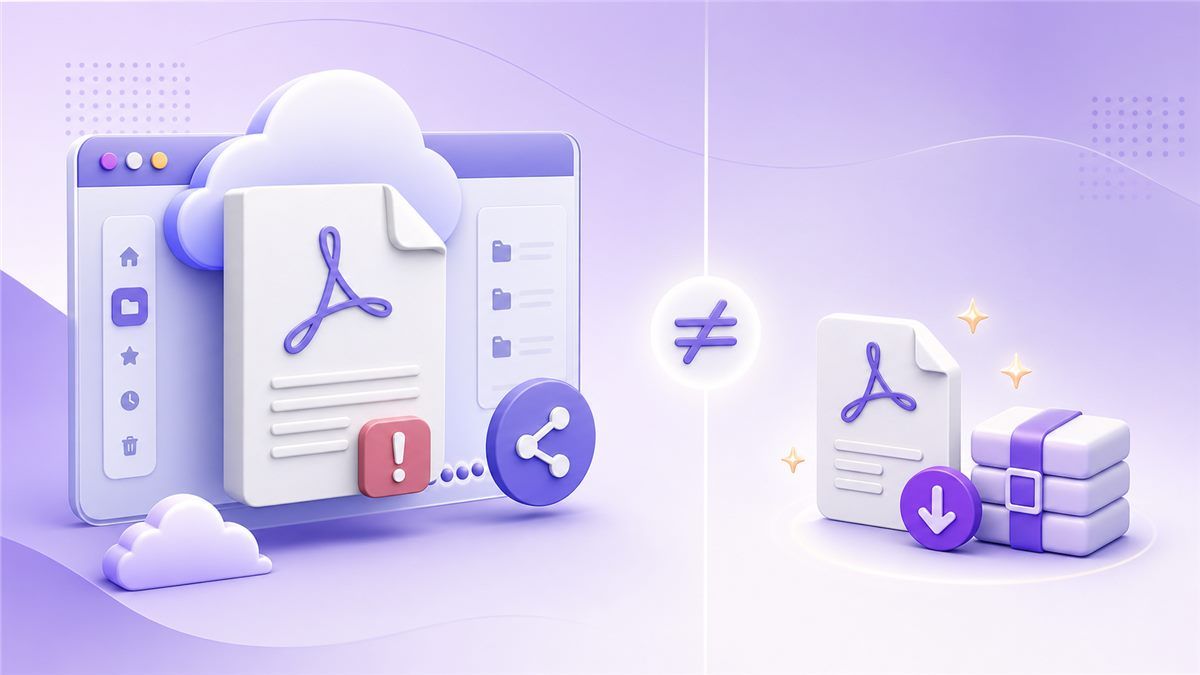
If you upload a 40MB PDF to Dropbox, it may still be a 40MB PDF when someone downloads it. The file is easier to access through a link, but it is not necessarily smaller. If a website requires a 10MB PDF, a Dropbox link usually will not replace the actual compressed file.
Dropbox Sharing
Dropbox sharing is best when the recipient can open a link. You upload the file, create a share link, and send it without attaching the file directly. This avoids email attachment limits.
However, the PDF itself may remain large. If the recipient needs to download it, store it, or upload it elsewhere, the size problem can return. That is why sharing is not the same as compression.
Compressed PDF
A compressed PDF is smaller at the file level. You can attach it to email, upload it to a portal, store it locally, or send it through cloud tools. The document itself becomes easier to handle.
This is where Lynote helps. Instead of only creating a share link, Lynote creates a smaller PDF you can use anywhere. You can then upload the compressed file to Dropbox if you still want cloud sharing.
Dropbox Compress PDF Review
So, does Dropbox compress PDFs by itself? In the way most users mean it, no. Dropbox is not a true PDF compressor that lets you upload a PDF, choose compression, and download a smaller PDF.
Dropbox can preview PDFs, store them, sync them across devices, and make them easier to share. It may also create thumbnails or previews for viewing. But those preview optimizations are not the same as reducing the actual PDF file size.
What Dropbox Does Well
Dropbox is useful when you need reliable document access across devices. It is also helpful for sharing a PDF with a client, classmate, teammate, or reviewer. The link workflow is simple and familiar.
Dropbox also works well for collaboration. You can keep versions in one place and avoid sending multiple email attachments. For file management, it is a strong option.
What Dropbox Does Not Do
Dropbox does not give you a clear dropbox pdf compressor workflow. You do not get a simple upload-compress-download process for PDFs. You also cannot reliably target a specific smaller file size.
This is important if your goal is to pass a file-size limit. If a government form, job application, school portal, or client system requires a smaller PDF, Dropbox sharing may not be enough. You need real PDF compression before uploading.
Can Dropbox Compress PDF Files?
If you are asking can Dropbox compress PDF files for sharing, the answer depends on what you mean. Dropbox can help avoid email attachment limits by letting you send a link. But it does not generally create a smaller downloadable PDF file for you.
If you need a smaller actual file, compress it first with Lynote. Then upload the smaller PDF to Dropbox for storage or sharing. This gives you both benefits: reduced file size and convenient cloud access.
How to Compress a PDF Before Uploading to Dropbox
The cleanest workflow is to compress the PDF first, then upload it to Dropbox. This avoids confusion and gives you a file that works outside Dropbox too. It also helps if the recipient needs to download and submit the file somewhere else.
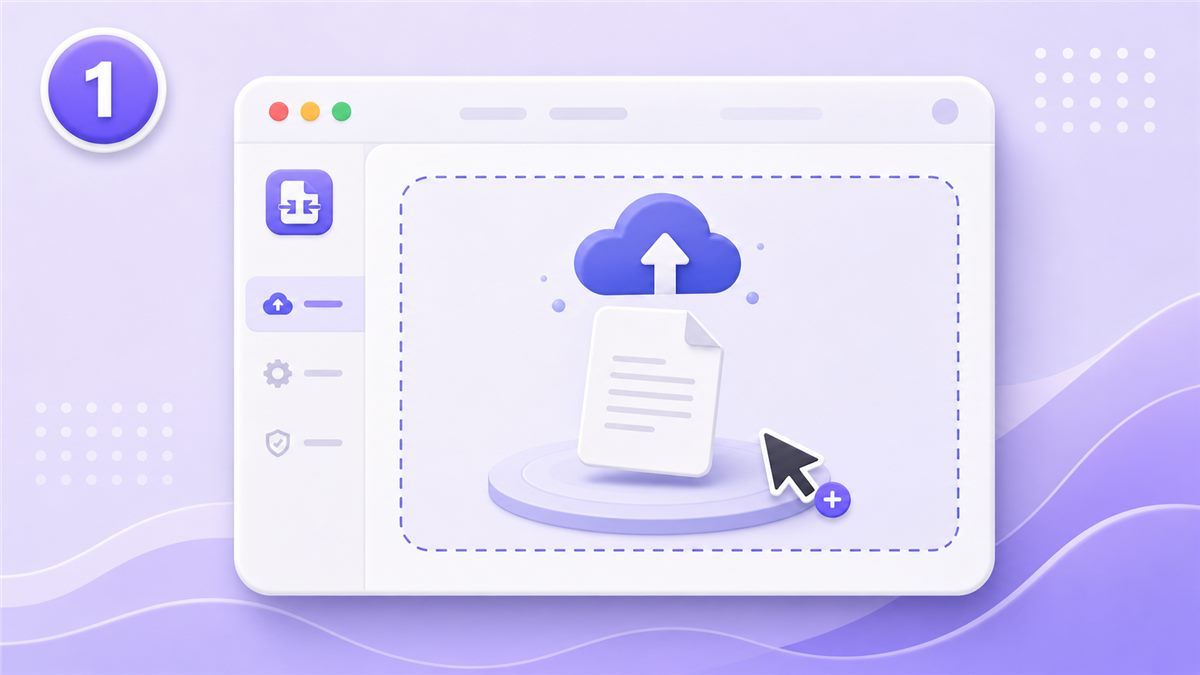
Step 1: Open Lynote Compress PDF
Go to Lynote Compress PDF in your browser. You do not need to install a desktop app. The tool is designed for people who want a fast, simple PDF compression workflow.
This is the better route if you searched for dropbox compress pdf but actually need a smaller file. You can start with the original PDF and create a compressed copy. Keep the original as a backup.
Step 2: Upload Your PDF
Drag your PDF into Lynote or choose it from your device. This works well for scanned PDFs, reports, forms, resumes, portfolios, and business files. The goal is to reduce the file size while keeping the document readable.
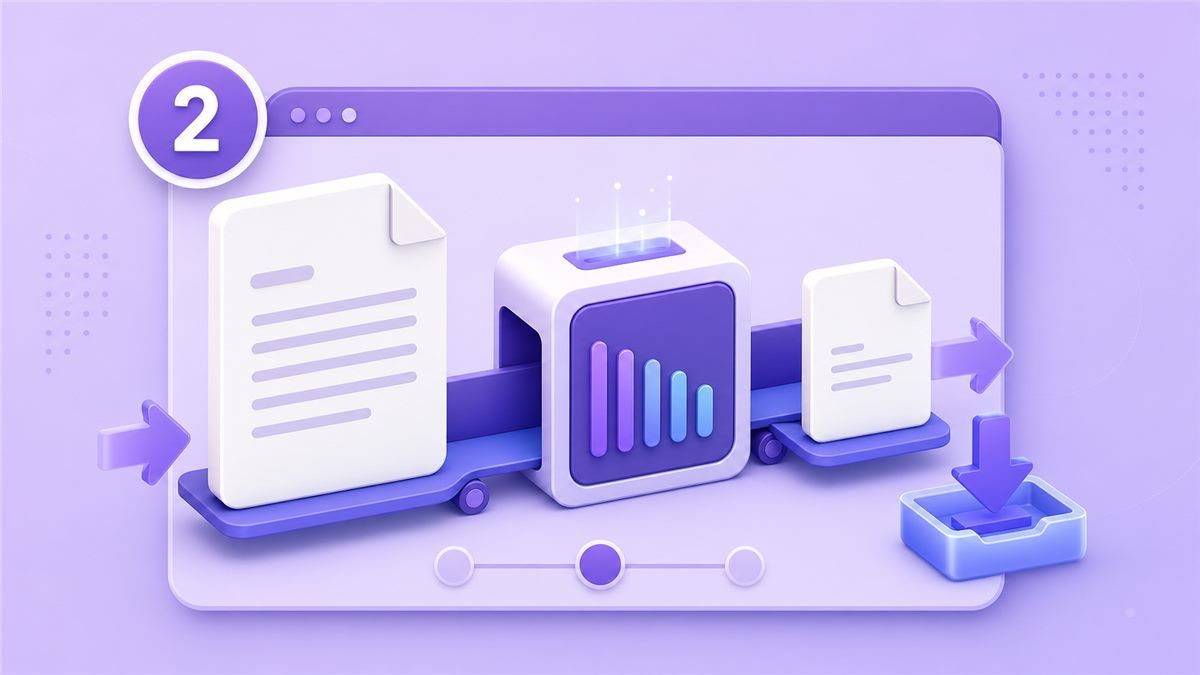
After compression, download the smaller PDF. Open it and check images, signatures, charts, and small text. A good compressed file should still look clean enough to send or submit.
Step 3: Upload the Smaller PDF to Dropbox
Now upload the compressed PDF to Dropbox. Because the file is smaller, it should sync faster and be easier for recipients to download. You can still create a Dropbox share link if that is your preferred delivery method.
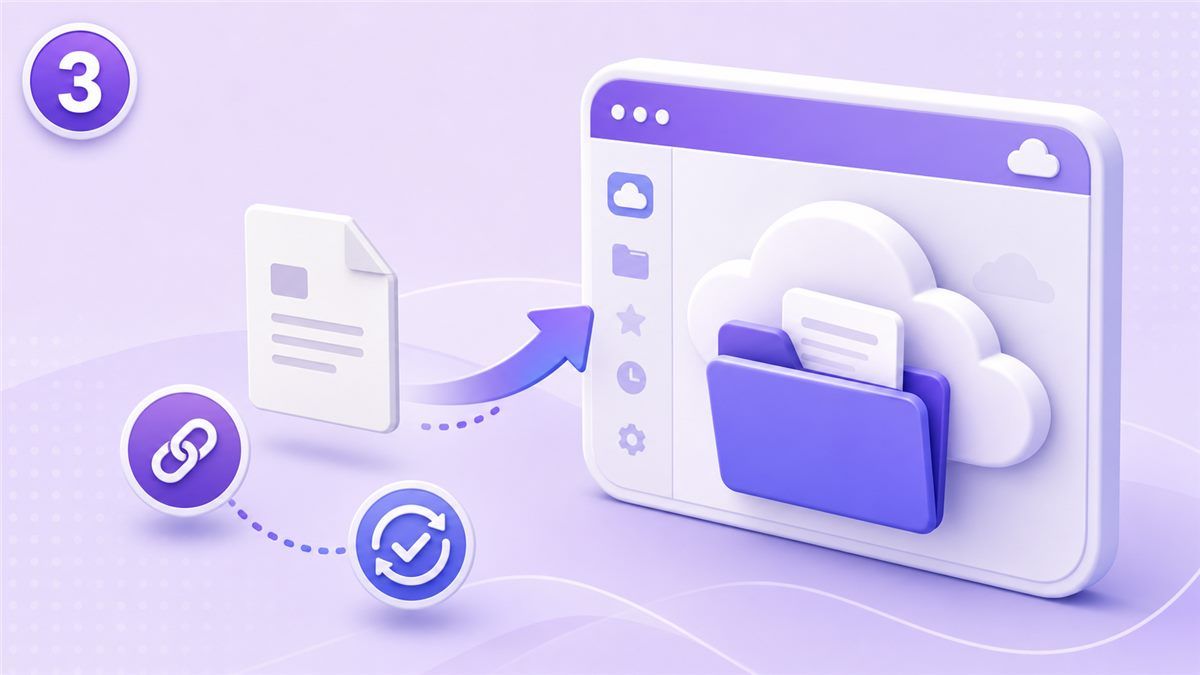
This workflow is more reliable than hoping Dropbox will compress the file for you. It gives you a real compressed PDF plus cloud sharing. For most users, that is the best combination.
What About Dropbox Compress Photos?
Some users also search dropbox compress photos because image-heavy PDFs often contain large photos. Dropbox may store or preview photos efficiently, but that does not mean it will optimize the images inside your PDF. The PDF file can remain large.
If your PDF was built from photos, compressing the final PDF is usually faster than editing each image manually. Lynote can help reduce the overall PDF file size in one workflow. If you still have the original photos, you can also resize them before rebuilding the PDF.
How to Use Dropbox PDF Files After Compression
If you want to know how to use Dropbox PDF files after compression, the process is simple. Upload the smaller PDF, organize it in the right folder, and share a link with the recipient. You can also keep the original version in a separate archive folder.
This makes Dropbox more useful. Instead of storing only a large file, you can keep both the original and compressed versions. Name them clearly so you do not accidentally send the wrong one.
Dropbox Compress PDF vs Lynote Compress PDF
| Feature | Dropbox | Lynote Compress PDF |
|---|---|---|
| Main purpose | Store and share files | Reduce PDF file size |
| True PDF compression | Limited or not direct | Yes |
| Upload-compress-download workflow | No | Yes |
| Works before portal upload | Not always | Yes |
| Good for sharing links | Yes | Yes, after download |
| Best use case | Cloud storage | Smaller PDFs |
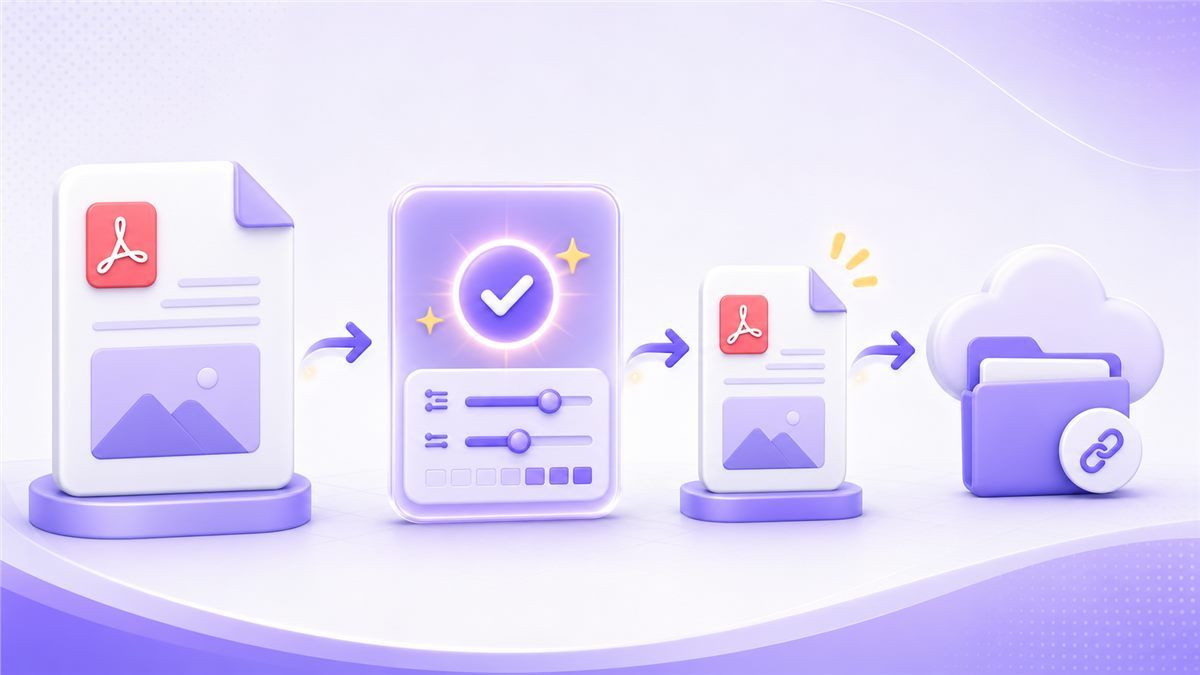
Dropbox is best when you need a place to store and share documents. Lynote is best when you need the PDF itself to become smaller. Used together, they create a smoother workflow.
FAQ
Does Dropbox compress PDFs?
Dropbox does not usually compress PDFs in the way users expect from a PDF compressor. It can store, preview, sync, and share PDFs. But if you need a smaller actual file, use Lynote Compress PDF first.
Can Dropbox compress PDF files for email?
Dropbox can help you avoid email attachment limits by letting you send a share link. However, the PDF file itself may not be smaller. If the recipient needs a smaller downloadable PDF, compress it with Lynote before sharing.
Is Dropbox a PDF compressor?
No, Dropbox is mainly a cloud storage and sharing service. It is not a dedicated dropbox pdf compressor with compression settings and a smaller output file. Lynote is built for the compression step.
What is the best way to compress a PDF before Dropbox?
Use Lynote Compress PDF, download the smaller file, then upload it to Dropbox. This creates a real compressed PDF and keeps Dropbox available for sharing. It is the most practical workflow for large files.
Can Dropbox compress photos inside a PDF?
Not reliably. Dropbox may preview or store photos, but it does not necessarily reduce the photos embedded inside a PDF. For image-heavy PDFs, compress the PDF itself with Lynote.
Final Recommendation
This dropbox compress pdf review comes down to one simple point: Dropbox is great for sharing, but it is not the best tool for shrinking the PDF itself. Use Lynote Compress PDF first, then upload the smaller file to Dropbox for easy sharing.

Written by Danny
Product Marketing Manager
Danny explains how Lynote features fit real workflows, from everyday productivity to product-led writing use cases. View all articles →