How to Create Flashcards with Quizlet AI (Step-by-Step Guide)

Quizlet’s AI flashcard generator is an automated feature designed to create study sets from your notes, a document, or even a simple prompt. Instead of manually typing out every term and definition—a process that can take hours—the AI scans your source material and generates question-and-answer pairs for you. It’s built to drastically cut down the prep time between receiving your study materials and actually starting to learn them, turning dense paragraphs into digestible, ready-to-use flashcards in minutes.
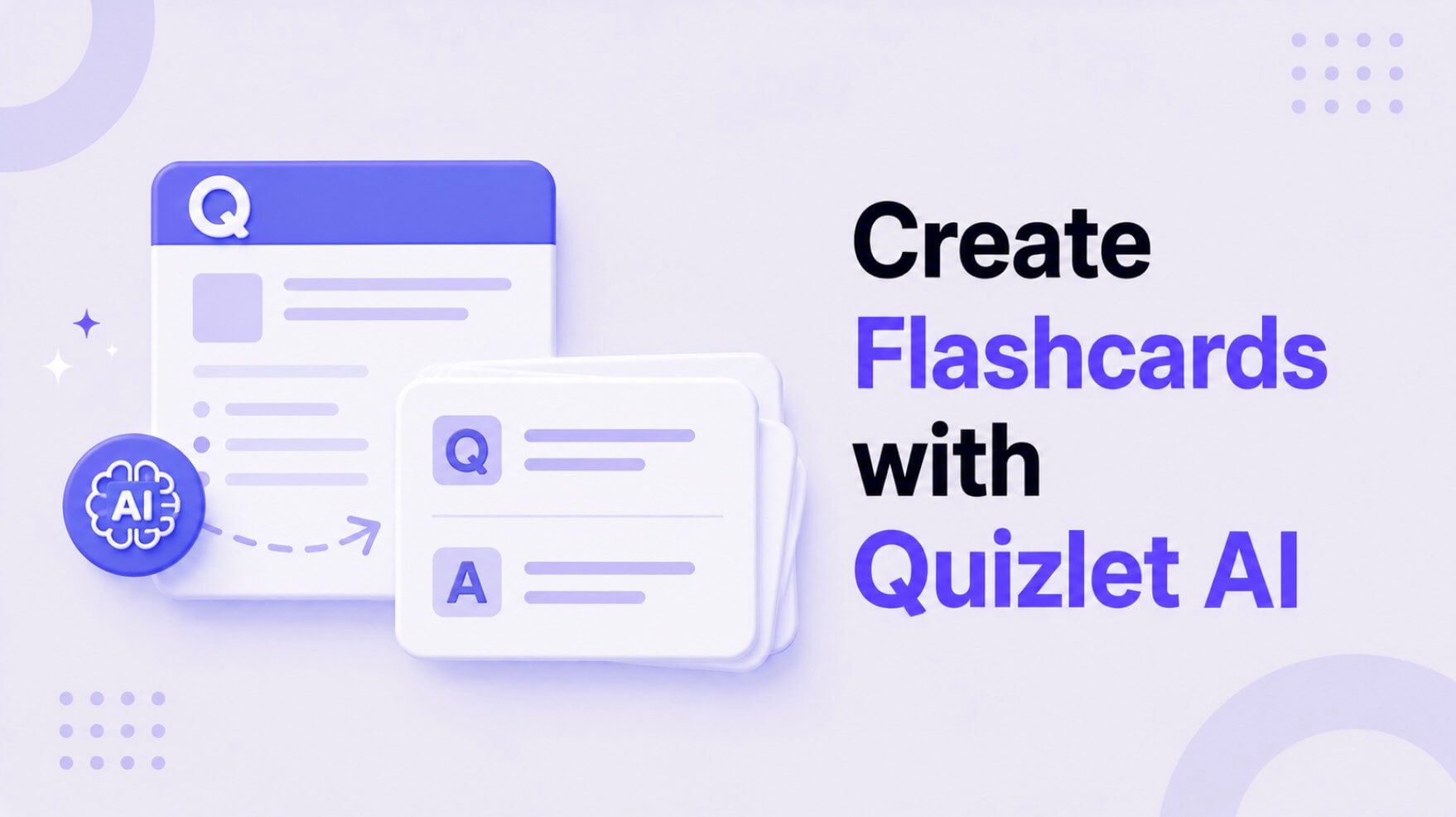
The core idea is simple: you provide the context, and the AI does the heavy lifting of extraction and formatting. This allows students and educators to focus more on studying and less on the administrative chore of content creation.
Quick Verdict: Quizlet AI vs. Manual Creation vs. Alternatives
Before diving deep, let’s get a high-level view. Your best method for creating flashcards depends entirely on your goals, your budget, and how much time you have before that big exam. Are you cramming for a final, or are you trying to build deep, long-term knowledge?
Here’s a quick breakdown of the options:
| Method | Speed | Cost | Customization (1-5) | Best For... |
|---|---|---|---|---|
| Manual Creation | Hours | Free | 5/5 | Deep conceptual learning, nuanced subjects, and learners who benefit from the act of writing. |
| Quizlet AI | Minutes | Subscription Required | 3/5 | Rapidly creating study sets from existing notes for fact-based subjects; last-minute exam prep. |
| Alternatives (e.g., Lynote) | Seconds to Minutes | Varies (Freemium/Paid) | 4/5 | Users wanting a flexible, integrated study toolkit that handles multiple file types and workflows. |
Scores are editorial heuristics based on user control and flexibility, not measured benchmarks.
Bottom Line: If you're already in the Quizlet ecosystem and need to convert class notes into a study set fast, Quizlet AI is your most direct path. If you need more control or are building a broader digital study system, an alternative might be a better fit.
How to Create Flashcards with Quizlet AI: A Step-by-Step Guide
Imagine it’s 10 PM. You have a midterm tomorrow, and you’re staring at 20 pages of densely typed lecture notes. The thought of manually creating flashcards for every key term feels impossible. This is the exact scenario where Quizlet AI is designed to shine. It acts as your personal study assistant, ready to build the tools you need to get started.
Before You Begin
To ensure a smooth process, make sure you have the following sorted out first. This isn't just about software; it's about setting the AI up for success.
- A Quizlet Plus Subscription: This is non-negotiable. The AI-powered creation tools are premium features and are not available on the free plan.
- Clean, Organized Source Material: The AI is powerful, but it's not a mind reader. Your source notes should be reasonably well-structured. Use clear headings, bullet points, and complete sentences. A messy, stream-of-consciousness document will produce messy, unreliable flashcards.
- A Clear Objective: Know what you want to study. Are you focusing on key vocabulary for a history chapter? Or formulas for a physics class? Having a goal helps you edit the AI's output effectively.
Step 1: Navigate to the Creation Hub
Once you're logged into your Quizlet account, look for the prominent "Create" button, typically located in the top navigation bar. Clicking this will open a dropdown menu. Select "Study set" to begin the process. This takes you to the main interface where you'd traditionally build a set by hand.
Step 2: Choose the AI-Powered Path
On the study set creation page, you'll see the standard fields for "Term" and "Definition." Instead of starting there, look for the option that says "Create with AI" or a similar magic-wand icon. Quizlet frequently updates its UI, but the AI option will be clearly marked.
You'll be presented with a few choices for your source material. The most common method is "Add your own notes."
Step 3: Input Your Source Material
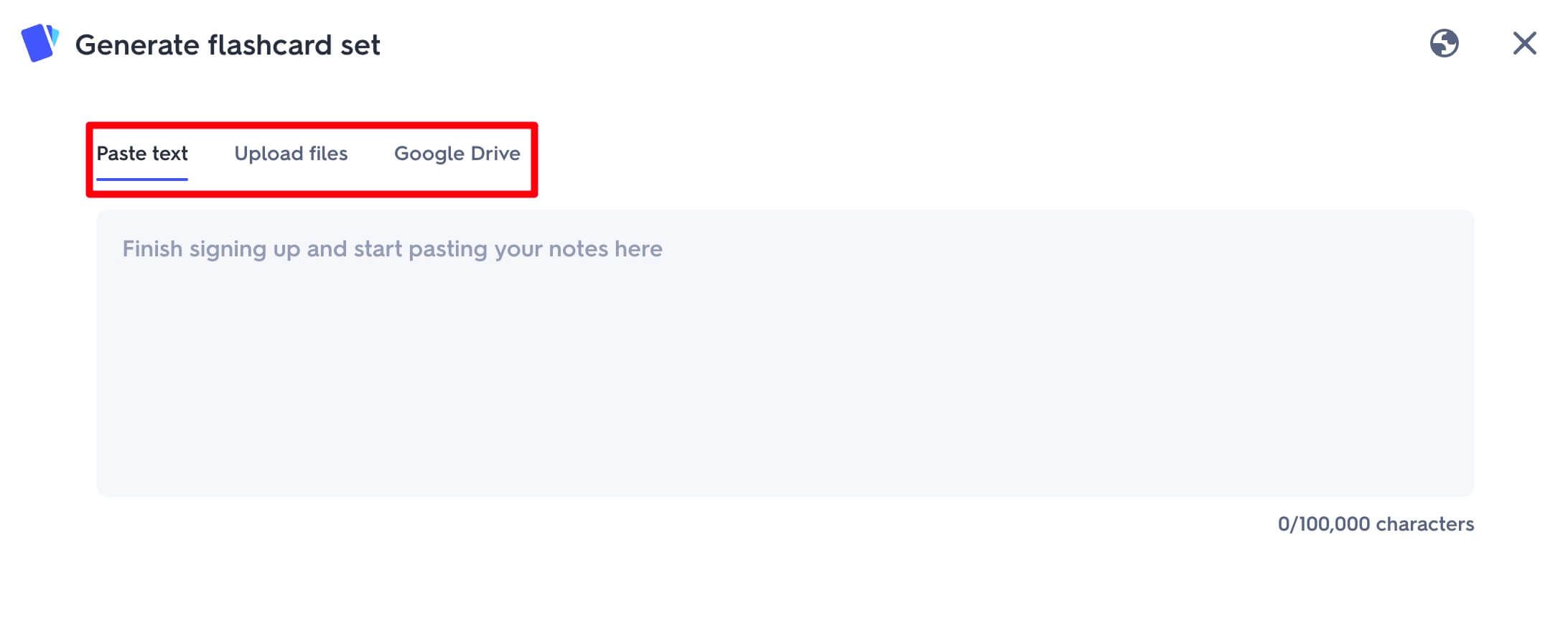
This is the most critical step. A new window or field will appear, prompting you to paste your content. You can copy and paste directly from a Word document, a PDF, or your lecture notes.
For best results, consider these tips:
- Be Specific: Don't paste an entire 50-page textbook chapter. Isolate the specific section you need to study. For a history exam on the American Revolution, paste the notes covering that topic, not the entire semester's worth.
- Formatting Matters: While the AI can handle paragraphs, it works best with structured text. A list of key terms followed by their explanations is ideal.
- Use the Prompt: You can also simply type a prompt, like "Create a set of 20 key vocabulary terms for AP Biology Unit 3: Cellular Energetics." The AI will generate a set from its own knowledge base. This is great for broad topics but less effective for highly specific course material.
Step 4: Generate and Review the Flashcards
After you've pasted your notes or entered a prompt, click the "Generate" or "Create flashcards" button. The AI will take a few moments to process the information. It analyzes the text, identifies potential term-definition pairs, and populates the study set fields for you.
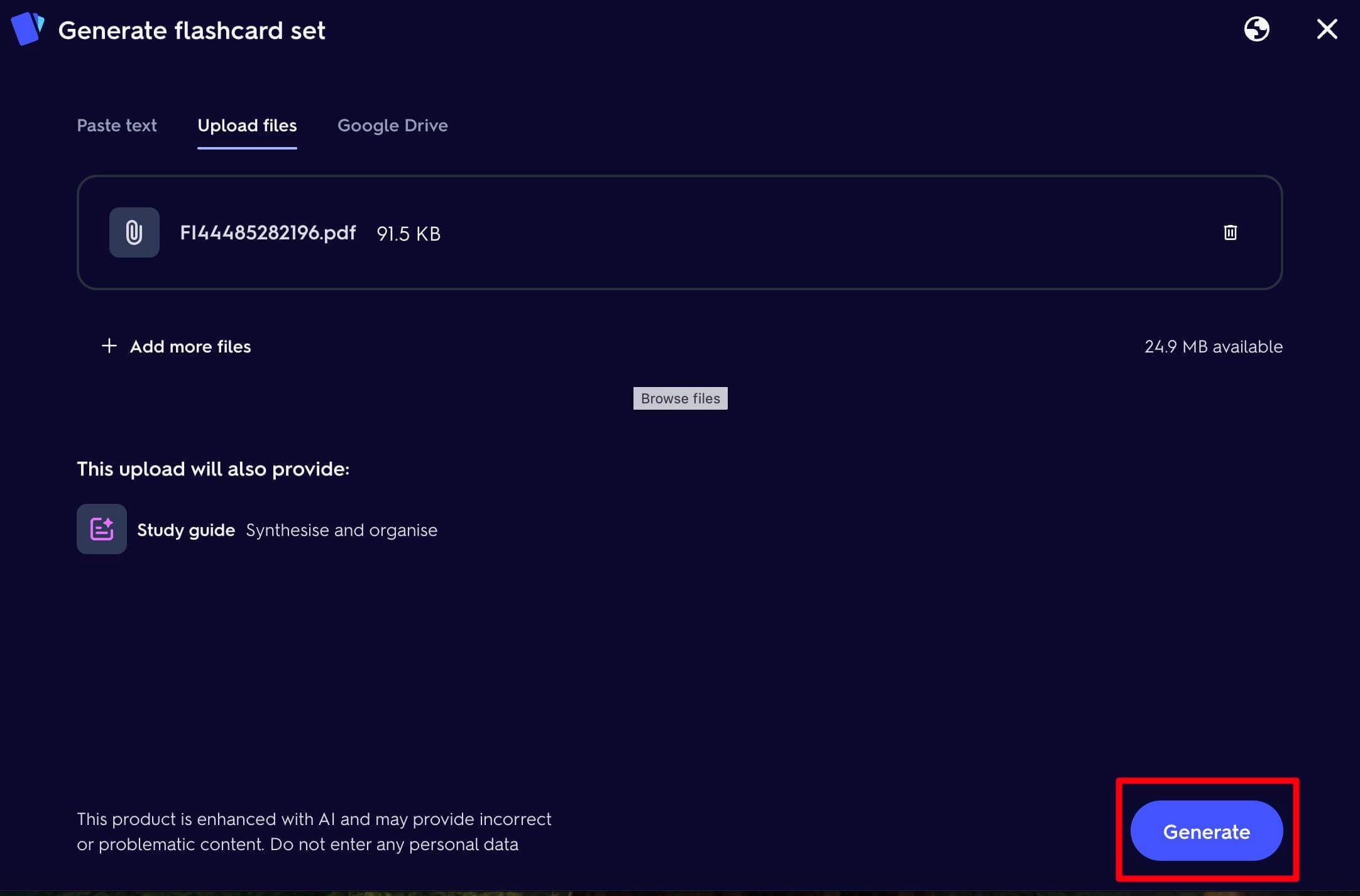
What you'll see next is a preview of the generated flashcards. Do not skip the review. Read through every single card. The AI is a powerful starting point, not a perfect final product.
Step 5: Edit, Refine, and Finalize Your Set
This is where your human intelligence comes in. Go through the generated set and ask yourself:
- Is this definition accurate?
- Is this the most important part of the concept?
- Did the AI miss any key terms from my notes?
- Are any of these cards redundant or irrelevant?
Click into any term or definition to edit it. Delete cards that aren't useful and manually add any that the AI missed. Once you're satisfied, give your study set a title, and click the final "Create" button to save it to your library. It’s now ready to be used with all of Quizlet’s learning modes, like Learn, Test, and Match.
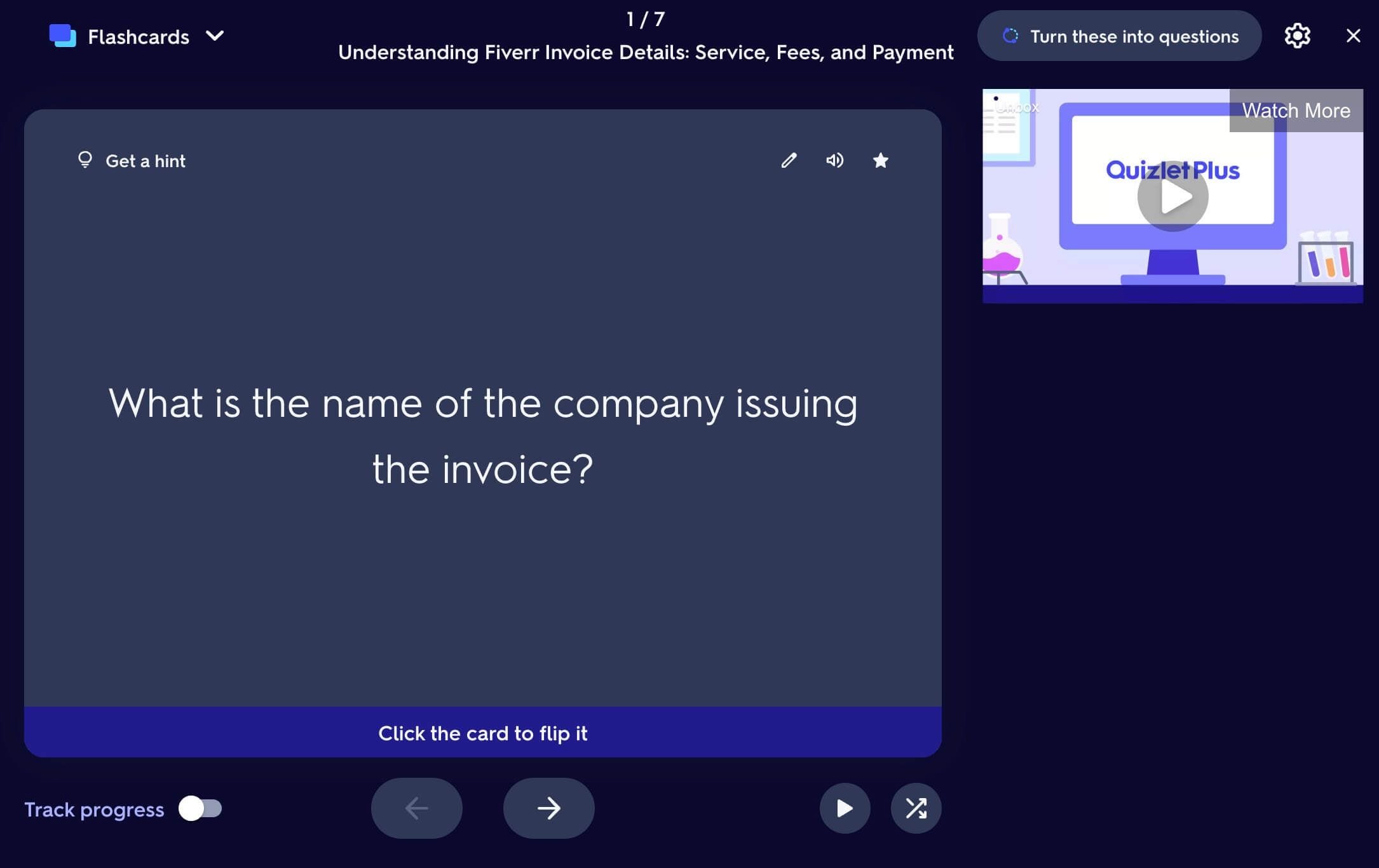
Is Quizlet AI Worth It? A Review of Pros, Cons, and Pricing
So, the tool is fast. But is it actually good? And is it worth the price of admission? Let's break it down honestly.
The Wins (Pros)
- Blazing Speed: This is the number one benefit. The time it saves is substantial. Converting a 1,500-word page of notes into a 25-card study set can be done in under two minutes, a task that might take a half-hour or more manually.
- Overcoming Inertia: Sometimes the hardest part of studying is just starting. The AI removes that initial friction. It gives you a "good enough" set of materials to begin engaging with, which is often better than having no materials at all because you felt overwhelmed.
- Identifying Key Concepts: The AI is surprisingly good at pulling out keywords and definitions from well-written text. It can help you spot the core vocabulary you might have overlooked in a dense paragraph.
The Catches (Cons)
- Accuracy Isn't Guaranteed: Here's the ugly truth: the AI can be wrong. It might misinterpret a sentence, pull an incomplete definition, or hallucinate a connection that doesn't exist. For technical subjects like medicine or law, this is a serious risk. You must always verify the generated content.
- Loss of Nuance: AI struggles with subjects that rely on interpretation, like literature, philosophy, or history. It might define "Transcendentalism" with a sterile, dictionary-like entry, missing the rich context your professor provided in a lecture.
- The "Garbage In, Garbage Out" Problem: The tool is only as good as your source material. If your notes are disorganized, contain typos, or are full of personal shorthand, the AI will produce low-quality, often nonsensical, flashcards.
The Price Tag
Quizlet's AI features are not free. They are bundled into the Quizlet Plus subscription. As of late 2023/early 2024, this subscription typically costs around $36 per year or $7.99 per month. You're not just paying for the flashcard generator; you're paying for an ad-free experience, offline access, and other advanced study tools like custom learning paths.
Whether it's "worth it" depends on how deeply you're invested in the Quizlet platform. If you use Quizlet daily, the Plus subscription and its AI tools can be a massive productivity booster. If you're a casual user, the cost may be hard to justify.
A Powerful Alternative for AI Flashcards: Lynote
While Quizlet offers a streamlined experience within its own ecosystem, some learners need more power and flexibility. This is where dedicated AI learning toolkits come into play. A standout in this space is Lynote AI Flashcard, which is designed to be a more comprehensive study partner.
You might be wondering, why look for an alternative if Quizlet's tool works? The answer comes down to workflow. Quizlet's AI is a feature inside a flashcard app. Lynote aims to be the central hub where you process all your learning materials.
The main reason students might prefer a tool like Lynote over a single-function generator is its integration into a broader study workflow, handling diverse inputs and turning them into multiple study formats, not just flashcards. Unlike tools locked into one platform, it's built for flexibility.
Here's how you might generate flashcards with a tool like Lynote:
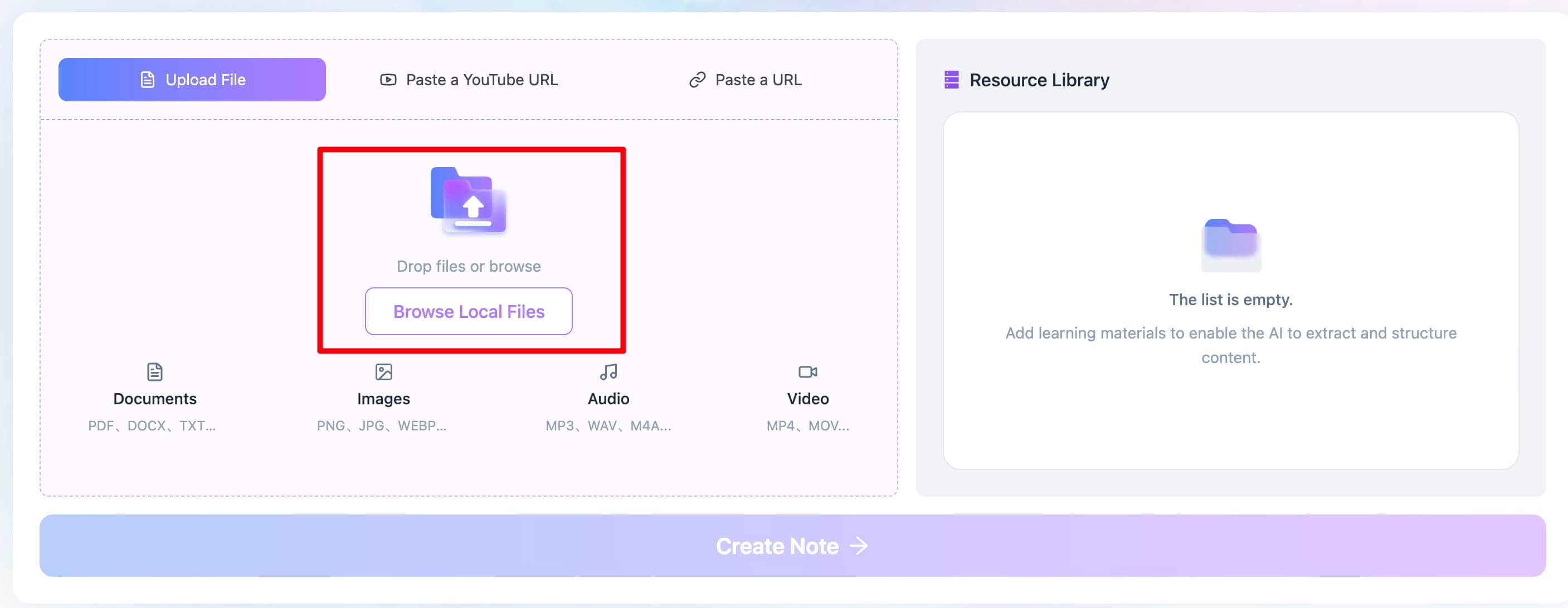
Step 1. Upload or Paste Your Source Material
The first step in Lynote is providing your content. You can typically paste text directly into the tool, just like with Quizlet. However, the key advantage of a dedicated platform is often its ability to handle direct file uploads, such as PDFs or other document types, streamlining the process even further.
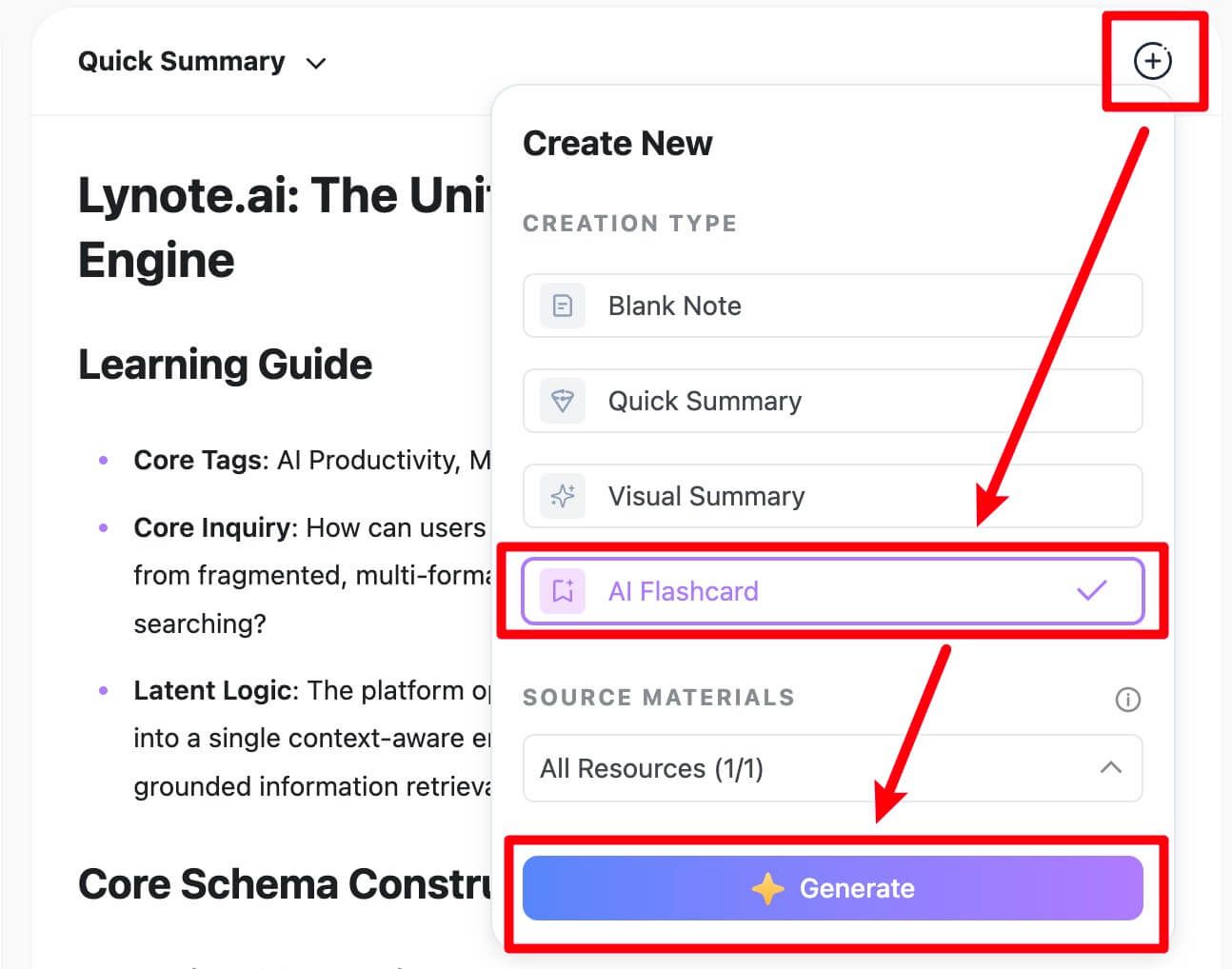
Step 2. Initiate the AI Flashcard Generation
Once your content is loaded, you simply select the "Generate Flashcards" function. The AI engine processes the document, identifies the most important concepts, and structures them into a term-and-definition format. The goal is to provide a high-quality first draft with minimal effort.
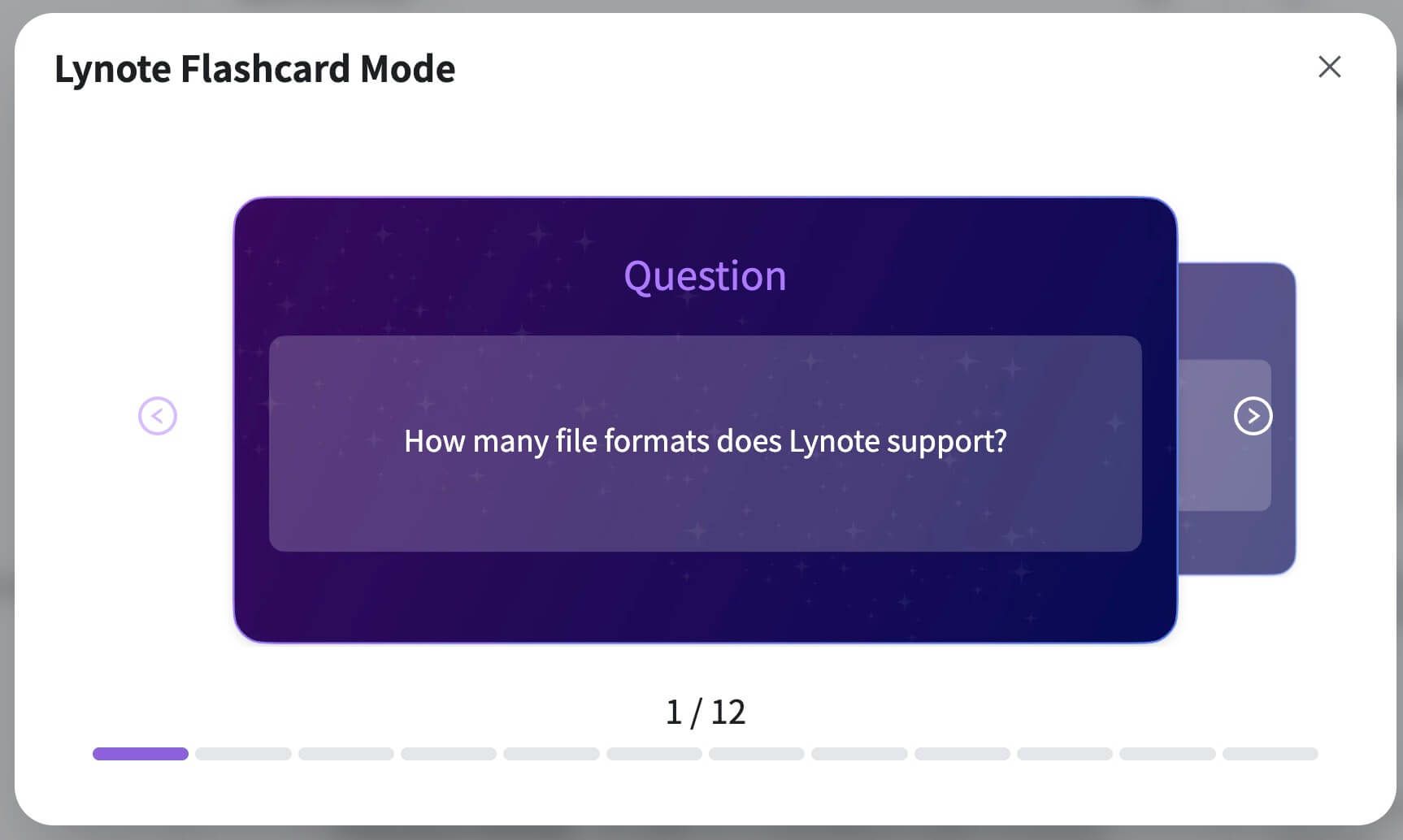
Step 3. Review, Refine, and Export
As with any AI tool, the final and most important step is human review. Lynote presents the generated flashcards in a clean interface for you to edit, delete, or add to. After refining the set, you can use them within the platform or often export them for use in other applications, giving you ownership and control over your study materials.
For students who work with a variety of materials—from textbook PDFs to web articles to lecture transcripts—a multi-format tool like Lynote offers a more powerful and adaptable solution.
Pro Tips: Getting the Most Out of Any AI Flashcard Maker
Simply clicking "generate" isn't enough. To truly leverage these tools, you need to think like an editor, not just a user.
- Prime Your Source Material. Before you even copy-paste, take two minutes to clean up your notes. Add clear headings. Turn rambling sentences into bullet points. Bold key terms. This simple pre-editing step dramatically improves the quality of the AI's output.
- Use the AI for "Brute Force" Tasks. Let the AI handle the boring stuff. If you have a long list of vocabulary words with simple definitions, it's the perfect task for automation. Save your own manual effort for complex, conceptual cards that require critical thinking.
- Think in Layers. Don't expect one click to solve everything. Generate a set of flashcards, then ask the AI a follow-up question in a chatbot interface (if available): "Based on these flashcards, what are three core themes?" or "Create a practice quiz question about [specific term]." Use the tools to build upon each other.
- Audit for "Trivial" Cards. AI sometimes latches onto unimportant details, like a date mentioned in passing or a minor character's name. Be ruthless about deleting these. A smaller set of high-quality cards is far more effective than a bloated set of irrelevant ones.
Frequently Asked Questions About Quizlet AI
Is Quizlet's AI flashcard generator free?
No, it is a premium feature. You must have an active Quizlet Plus subscription to access and use the AI-powered creation tools, including generating flashcards from notes or prompts.
Can Quizlet AI make flashcards from a PDF or video?
Currently, Quizlet's primary AI method involves pasting text from a source or typing a prompt. It does not offer a direct "upload PDF" or "paste YouTube link" feature for flashcard generation. You would need to first extract the text from the PDF or get a transcript from the video and then paste that text into the tool.
Why are my AI-generated flashcards sometimes wrong or irrelevant?
This happens because AI models are not truly "understanding" your notes; they are statistically predicting which words should go together based on patterns in vast amounts of data. The AI can get things wrong for several reasons:
- Ambiguous Source Text: A poorly phrased sentence in your notes can lead to a completely incorrect interpretation.
- Lack of Context: The AI doesn't know what was discussed in your lecture or the specific focus of your course. It might create a technically correct but contextually irrelevant flashcard.
- Over-Simplification: It may strip crucial nuance from a complex topic to fit it into a simple term/definition format.
The best fix is always a thorough manual review and edit of any AI-generated content before you start studying it.
Final Verdict: Should You Automate Your Flashcard Creation?
The rise of AI study tools presents a clear choice: trade time for control. Automating flashcard creation with a tool like Quizlet AI is an undeniable advantage when you're short on time and working with straightforward, fact-based material. It can turn hours of tedious work into minutes, freeing you up to actually learn.
However, this speed comes at the cost of nuance and requires a non-negotiable final step of human verification. For complex, interpretive subjects, the old-fashioned manual method often leads to better comprehension, as the act of writing and summarizing is a powerful form of learning in itself.
Editor's Choice
For most students already embedded in the Quizlet platform, Quizlet AI is the logical choice. Its primary strength is its seamless integration—it's right there where you already study. It's the path of least resistance for turning digital notes into a usable study set with maximum speed.
The candid downside? You're locked into a paid subscription within a single ecosystem, and its capabilities are focused primarily on that platform's core functions.
Here’s how to decide:
- Choose Quizlet AI if: You are a heavy Quizlet user, your subscription is already paid for, and you need to quickly process large volumes of notes for subjects like biology, history dates, or vocabulary.
- Consider an alternative like Lynote if: You want a more powerful, all-in-one study hub that can potentially handle different file types and is part of a larger AI-driven learning workflow.
- Stick to manual creation if: The subject matter is highly nuanced (like law or literature), you learn best by writing things out yourself, or you don't have the budget for another subscription.
Ultimately, the best tool is the one that gets you to engage with the material effectively. Use AI to handle the grunt work, but always leave the critical thinking to yourself.


Written by Janet L. Harris
AI Writing Specialist
Janet reviews AI detectors and humanization tools, with a focus on accuracy, limitations, and responsible use. View all articles →