How to Make Flashcards from a Word Document: 3 Smart Methods

You’ve done the hard work. You sat through the lectures, synthesized the readings, and now you have a meticulously crafted Word document full of notes. But as the exam date looms, a familiar sense of dread creeps in. Staring at a 20-page document isn't studying; it's just rereading. The information is all there, but it’s passive. To truly learn it, you need to engage with it through active recall. You need flashcards.
The good news is that your Word document is the perfect raw material. The challenge is turning that wall of text into a dynamic study tool without spending an entire weekend on manual data entry. It’s a classic student dilemma: the very notes meant to save you time now demand more of it.
You can make flashcards from a Word document in three main ways: the manual copy-paste method using tables, a printable template for physical cards, or an automated AI tool that generates them instantly. The manual method offers total control but is slow. Templates are great for physical study but require printing and cutting. AI tools are the fastest, converting your entire document into interactive Q&A cards in seconds.
This guide breaks down each of these three methods, from the old-school grind to the modern, automated solution. We'll cover the step-by-step process for each, explore the honest pros and cons, and help you choose the right path to transform your notes from a static document into a powerful engine for learning.
Quick Verdict: Which Flashcard Method Is Right for You?
Before we dive into the nitty-gritty of each technique, let's get a high-level view. Your best method depends entirely on your available time, your preferred study style (digital vs. physical), and how much control you want over the final product.
Here’s a quick comparison to help you decide where to focus your energy.
| Method | Time Investment | Best For | Study Effectiveness (Score 1-5)* |
|---|---|---|---|
| 1. Manual (Tables) | High (1–3 hours per doc) | Total control; users of Anki/Quizlet who want perfect formatting. | 4/5 |
| 2. Template (Printable) | Moderate (30–60 mins + printing) | Tactile learners; creating physical cards for group study. | 3/5 |
| 3. AI Generator | Low (Under 5 minutes) | Speed and efficiency; students with dense, long documents. | 5/5 |
Scores are editorial heuristics based on the potential for active recall and spaced repetition integration, not measured benchmarks.
The bottom line is simple: If you have a long document and a short deadline, jump straight to the AI method. If you swear by physical flashcards and have a printer ready, the template method is your best bet. And if you are a power user of a specific app like Anki and demand absolute precision, the manual approach still has its place.
Method 1: The Manual Approach (Copy-Paste or Tables)
This is the classic, time-tested method. It’s methodical, it gives you complete control, and it forces you to re-engage with your notes during the creation process. While it’s the most labor-intensive, some learners find that the act of manually formatting questions and answers helps reinforce the material from the get-go.
The most efficient way to do this manually is by structuring your content in a two-column table directly within your Word document. This creates a clean, organized source that you can easily copy and paste into dedicated flashcard software like Anki or Quizlet, which often support importing from spreadsheets or tab-delimited text.
How to Do It:
- Open Your Notes: Start with your completed Word document.
- Create a Two-Column Table: Go to the
Inserttab, clickTable, and select a two-column layout. You can add as many rows as you need. - Label Your Columns: In the first row, label the left column "Prompt" or "Question" and the right column "Answer" or "Definition."
- Populate the Table: Go through your notes paragraph by paragraph. For each key concept, copy the term or question into the left column and the corresponding definition or explanation into the right column. This is the most time-consuming step.
- Refine and Condense: As you populate the table, rewrite your notes into a concise Q&A format. Avoid copying entire paragraphs. The goal is to create bite-sized pieces of information that are easy to recall.
- Export or Copy-Paste: Once your table is complete, you have two options:
- For Anki/Quizlet: Copy the entire table from Word and paste it into a spreadsheet program like Excel or Google Sheets. Then, save that file as a
.csv(Comma Separated Values) file. Most flashcard apps can import a.csvfile directly, instantly creating a full deck. - Manual Entry: If you prefer, you can simply have your Word document open next to your flashcard app and manually copy and paste each prompt and answer one by one.
- For Anki/Quizlet: Copy the entire table from Word and paste it into a spreadsheet program like Excel or Google Sheets. Then, save that file as a
The honest truth: This method is a grind. I remember one late night before a history final, trying to turn 40 pages of lecture notes into an Anki deck this way. The process of organizing the table took hours—time I probably should have spent actually studying. While I knew the material inside and out by the end, it’s not a sustainable strategy for every class, every week.
Expert Takeaway: The manual method is best for short, highly specific study sets where every card needs to be perfect. For long, comprehensive review documents, its time cost often outweighs the benefits.
Method 2: Using a Printable Word Flashcard Template
Do you learn best with physical objects you can hold, sort, and shuffle? If so, digital-only solutions might not cut it. The printable template method bridges the gap between your digital notes in Word and tangible, old-school flashcards.
The idea is to use a pre-formatted Word template designed to align perfectly with standard, perforated card stock (like Avery business cards or index cards). This saves you the headache of measuring margins and ensures your cards are easy to separate after printing.
How to Do It:
- Find a Template:
- Built-in: Open Word, go to
File>New, and search for "flashcard" in the template search bar. Microsoft offers several basic options. - Online: Websites like Avery.com provide free templates designed for their specific card stock products (e.g., Avery 5371 for business cards). This is often the best choice for guaranteed alignment.
- Built-in: Open Word, go to
- Download and Open the Template: Open the template file in Word. You'll see a grid of boxes, each representing the front or back of a flashcard.
- Copy and Paste Your Content: This part is still manual. Go back to your original notes document. Copy a term or question and paste it into one of the boxes in the template. Then, copy the corresponding answer and paste it into the adjacent box (or the corresponding box on the "back side" page, depending on the template's layout).
- Format for Readability: Adjust the font size and style to ensure the text is large and clear enough to read easily once printed. Use bolding to emphasize key terms.
- Load Your Card Stock: Place your perforated card stock into your printer's paper tray, making sure you know which side is the "print" side.
- Print and Separate: Print the document. If your template has separate pages for fronts and backs, you may need to print one side, then re-feed the paper to print the other (check your printer's duplexing capabilities). Once printed, carefully fold along the perforations to separate the cards.
This method works wonderfully for creating study aids for a classroom or a study group. It feels more "real" than staring at a screen, and the physical act of flipping a card can be a powerful memory trigger. The main pitfall is the manual labor of copying and pasting, which, while faster than formatting from scratch, can still be tedious for large documents.
Method 3: The Instant Method with an AI Flashcard Generator
If the manual methods feel like relics from a bygone era, you're right. Today, the smartest and fastest way to turn a Word document into flashcards is with an AI-powered tool. These platforms can read your document, understand the context, identify key information, and automatically generate high-quality question-and-answer pairs in seconds.
This approach eliminates nearly all the manual labor, freeing you up to spend your time on what actually matters: studying. A great tool for this is the Lynote AI Flashcard Generator, which is built specifically for students and learners. It takes your source material—including Word documents—and transforms it into an interactive study deck.
Here’s how you can do it in just a few clicks.
Step 1. Upload Your Word Document
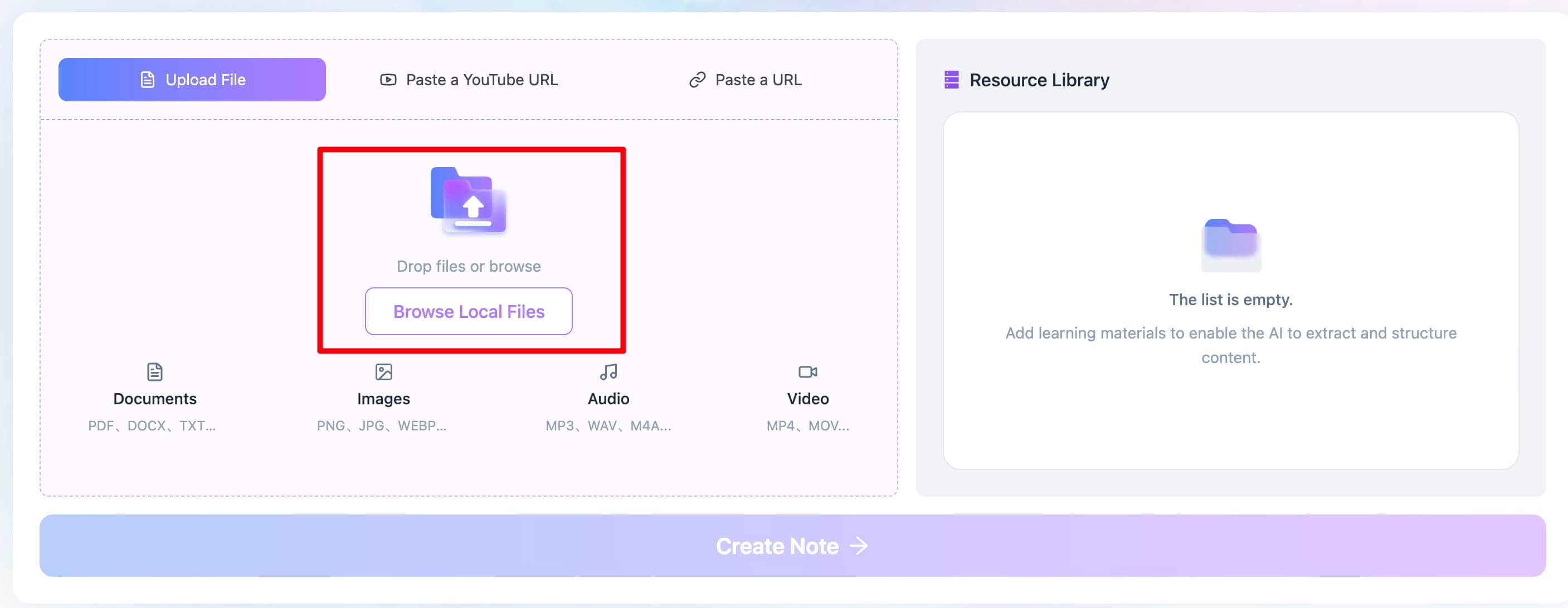
First, head over to the Lynote workspace. The interface is clean and designed to get you started without any friction. Look for the Browser Local File tab. You can either drag and drop your .docx file directly into the designated area or click to browse your computer's files and select it. The upload process is quick, and the tool is ready for the next step almost immediately. There's no need to pre-format your document or convert it to another file type; the platform handles it all.
Step 2. Generate Flashcards from the Word Document
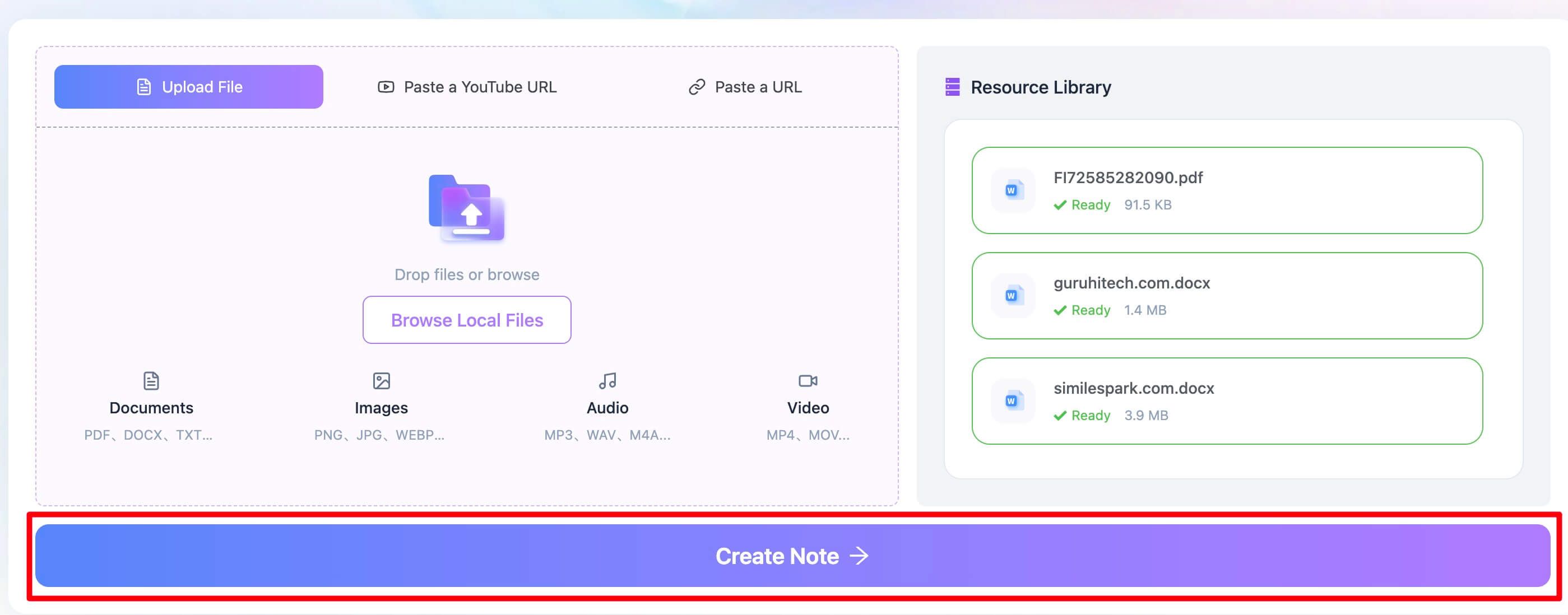
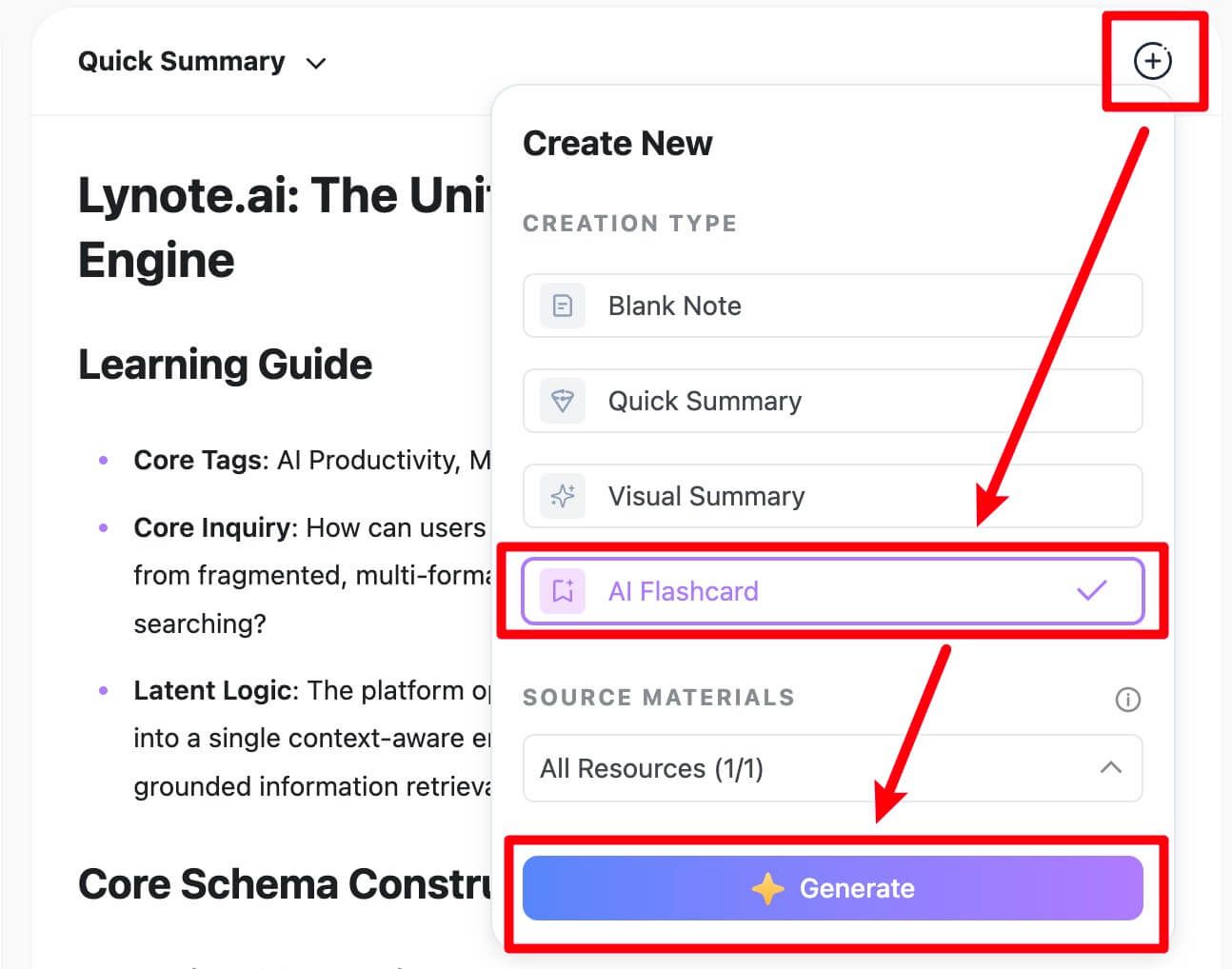
Once your document is uploaded, click the Create Note button. This processes your document and brings you into Lynote's unified workspace.
From here, find and click on the Flashcard feature tab. You'll see a simple button labeled Generate. Clicking this is where the magic happens. The AI scans your entire document, identifies key terms, dates, definitions, and conceptual relationships, and then formulates them into a clear question-and-answer format optimized for active recall. In less than a minute, a full deck of flashcards appears, saving you what could have been hours of manual work.
Step 3. Study Your New Flashcards
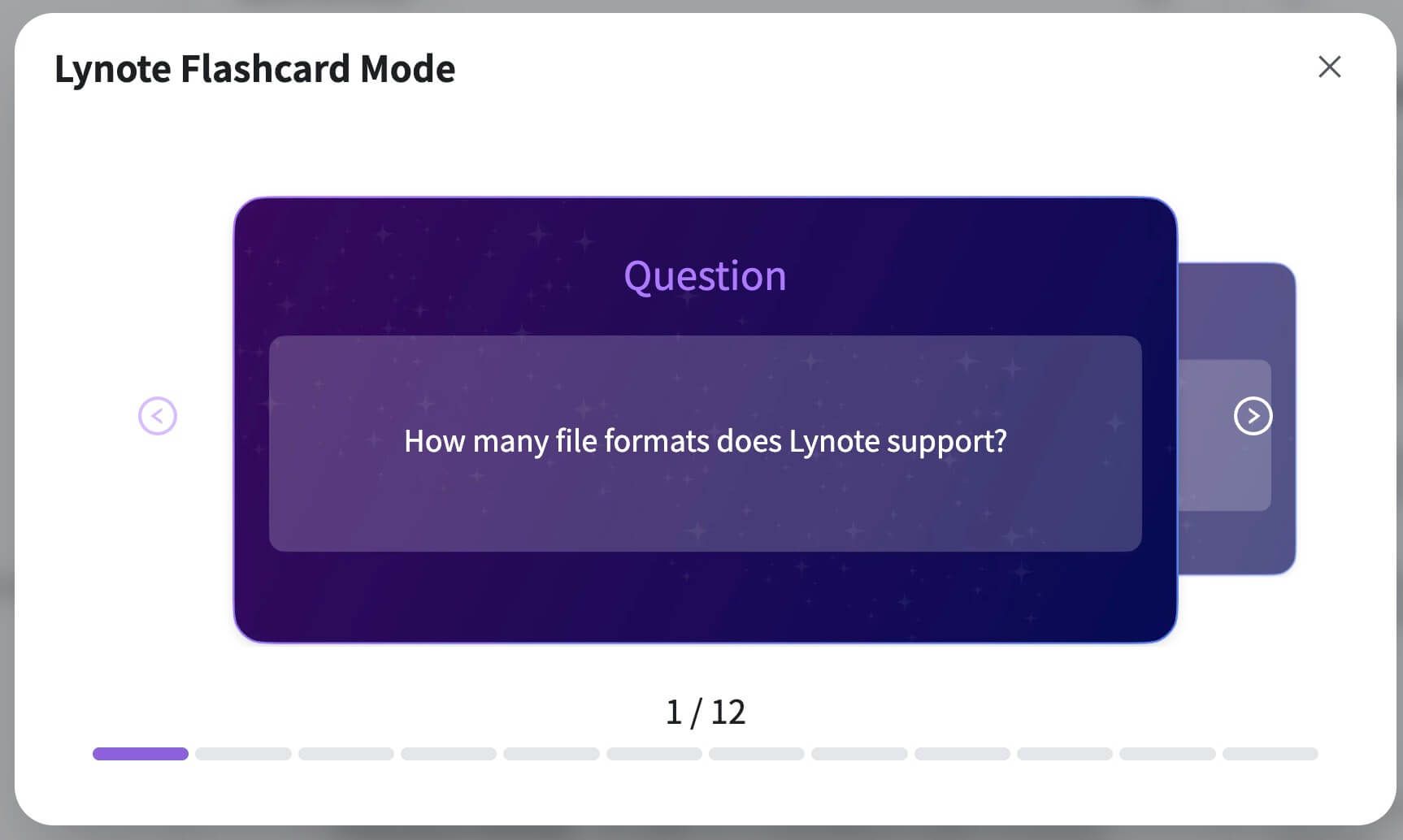
With your flashcards generated, you can begin studying immediately within the same interface. Flip through the cards one by one to test your knowledge. As you review, you can mark cards that you struggle with, allowing you to focus your efforts on your weak areas during subsequent study sessions. If you find a card that isn't quite right or want to add more detail, you can easily edit it. This combination of instant generation and interactive studying creates a powerful and efficient learning loop, all from your original Word document.

Best Practices for Effective Flashcards (Beyond Creation)
Creating the flashcards is only half the battle. How you design and use them makes all the difference between rote memorization and true understanding. Regardless of which method you choose, applying these principles will supercharge your study sessions.
1. One Concept Per Card:
This is the golden rule. Resist the temptation to cram multiple facts onto a single card. If you have a card that says "Explain the three main causes of the French Revolution," you're making it too difficult. Break it down. Create separate cards for each cause. This makes the information easier to digest and recall.
2. Phrase Questions to Force Recall, Not Recognition:
A poorly designed flashcard asks a question you can guess from context. A great flashcard forces your brain to actively retrieve the information from scratch.
- Weak (Recognition): "True or False: The mitochondria is the powerhouse of the cell."
- Strong (Recall): "What is the primary function of the mitochondria?"
The second question requires you to generate the answer yourself, which builds stronger neural pathways.
3. Use Your Own Words:
When creating cards manually, don't just copy and paste from your notes. Paraphrasing a definition or explaining a concept in your own words forces a deeper level of cognitive processing. This act of translation is a powerful form of studying in itself. Even with AI-generated cards, it's a good practice to review and edit them to match your own voice and understanding.
4. Incorporate Spaced Repetition:
Have you ever wondered why you can cram for a test and forget everything a week later? It’s because you haven't moved the information into long-term memory. Spaced Repetition Systems (SRS) solve this. Software like Anki or the review features in tools like Lynote show you difficult cards more frequently and easy cards less frequently. This is, by far, the most efficient way to study. The main reason SRS-based tools outperform manual shuffling is that their algorithms are optimized to fight the brain's natural forgetting curve.
Frequently Asked Questions
Can I turn a Google Doc into flashcards with these methods?
Yes, absolutely. All three methods work just as well for Google Docs. For the manual and template methods, simply download your Google Doc as a Microsoft Word (.docx) file by going to File > Download > Microsoft Word (.docx). For the AI method, most modern tools like Lynote accept various file formats, but downloading it as a .docx or .pdf first is a reliable workflow.
Why did the AI create an irrelevant or incorrect flashcard?
This is a great and important question. It happens because AI language models are probabilistic, not factual databases. They generate content based on patterns in their training data. An AI might create an odd flashcard for a few reasons:
- Ambiguous Source Text: If a sentence in your Word document is poorly worded or could be interpreted in multiple ways, the AI might get confused.
- Lack of Context: The AI might pull a minor detail out of context and treat it as a main point.
- Formatting Issues: Complex tables, stray bullet points, or inconsistent headings in your source document can sometimes trip up the parsing algorithm.
The fix is usually simple: Most AI flashcard tools, including Lynote, allow you to edit or delete any generated card. For best results, ensure your Word document has clear headings and well-structured paragraphs before you upload it.
Is it better to study with digital or physical flashcards?
Neither is inherently "better"—it comes down to personal preference and context.
- Digital flashcards are portable (on your phone), easily editable, and can incorporate powerful features like spaced repetition algorithms. They are ideal for large volumes of information and on-the-go studying.
- Physical flashcards are great for tactile learners who benefit from holding and sorting cards. They also eliminate digital distractions and are excellent for collaborative study sessions with a group.
Conclusion: Choose Your Path to Smarter Studying
Your Word document is a goldmine of knowledge; you just need the right tools to extract it. We've explored three distinct paths, each with clear trade-offs.
- The Manual Method offers unparalleled control but demands a significant investment of your most valuable resource: time.
- The Printable Template Method is the perfect compromise for those who thrive on physical study aids and don't mind a bit of hands-on work.
- The AI-Powered Method represents a true paradigm shift. It prioritizes speed and efficiency, transforming hours of tedious work into a few seconds of processing.
So, what's the right choice? If you're a student, professional, or lifelong learner juggling multiple priorities, the answer is clear. The efficiency gain from using an AI tool is too significant to ignore. It allows you to move past the creation of study materials and spend nearly all your time on the act of learning.
Stop letting your valuable notes sit passively in a folder. Pick the method that fits your style, and start turning that dense text into a dynamic tool for mastering your subject.

Written by Janet L. Harris
AI Writing Specialist
Janet reviews AI detectors and humanization tools, with a focus on accuracy, limitations, and responsible use. View all articles →