

Free Google Docs AI Detector
How is Lynote Google Docs AI Detector Better than Other Tools?

Advanced Google Docs AI Checker
Lynote is a free Google Doc AI Detector. It generates detailed reports based on human, AI, and mixed signals. It classifies a document into different parts. This helps users edit only the parts where needed.

Plagiarism Checker
AI tools tend to plagiarize content from other sources. Our Google Docs AI Detector also checks for plagiarism along with AI. Timely detection ensures your final document has zero errors.

Auto-typing Detection
Whether a document is written by a human or an AI, Lynote detects it all. It recognizes repeated AI patterns to generate a trustworthy report. Submit your writing with confidence.
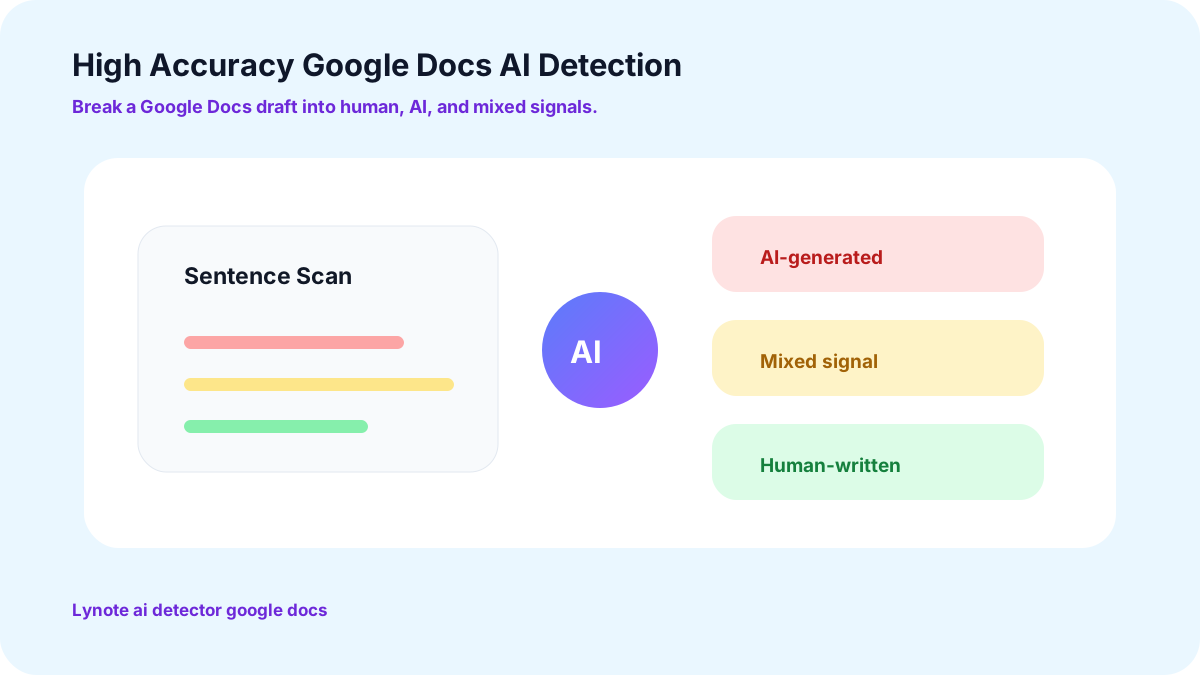
Google Doc AI Detector with High Accuracy
The Lynote Google Docs New AI Detector has worked on more than 500k files. Its advanced technology detects AI with a 92% signal match rate. By providing a detailed breakdown of human, AI, and mixed signals, we ensure our users submit their final writings with full confidence. Even ChatGPT and Gemini cannot surpass its AI detection test.
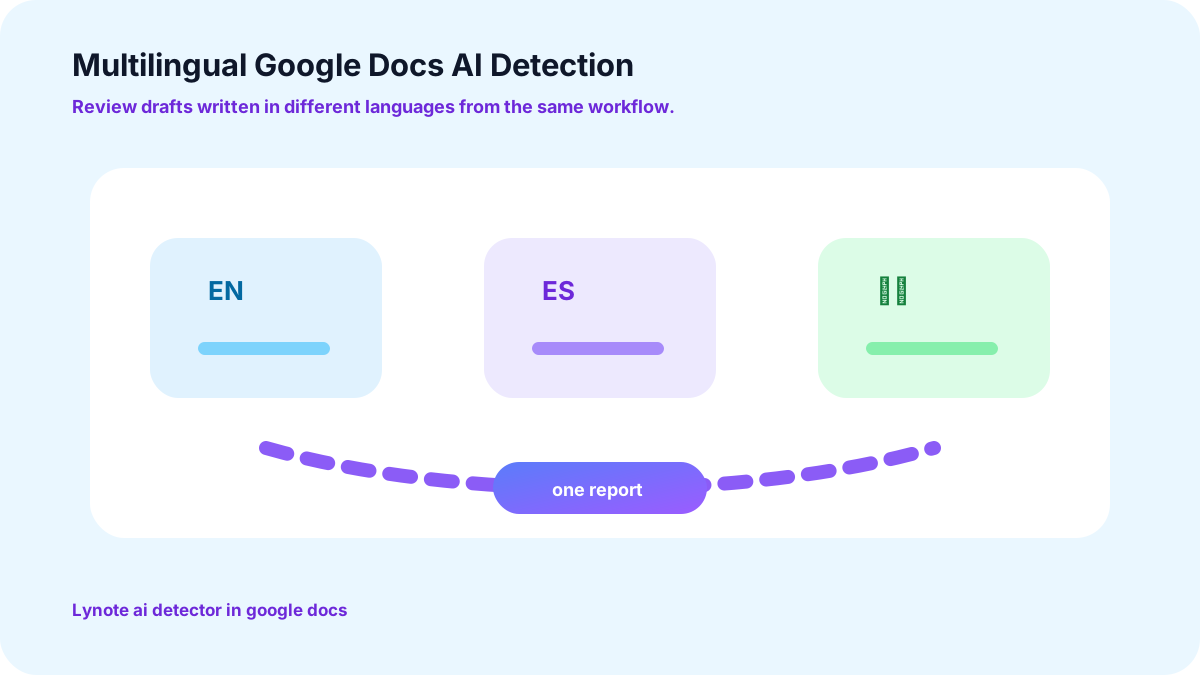
Multilingual Google Docs AI Detection
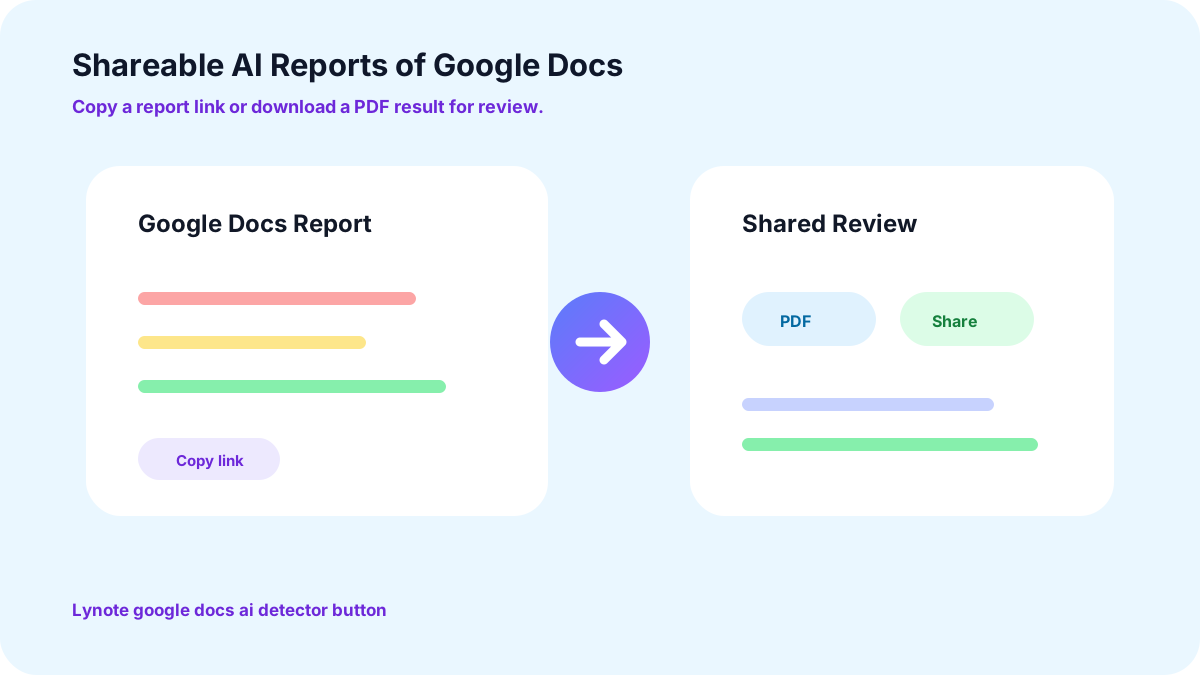
Shareable AI Reports of Google Docs
Who is Lynote Google Docs AI Detection Tool For?

Writers, Editors, and Marketers
Anyone in the field of content creation can use our new Google Docs AI Detector. It can detect AI for blog posts, news articles, and marketing scripts within seconds.

Students and Teachers
The Lynote Google Docs AI Detector is perfect for academic purposes. It is trained on a wide variety of data. Hence, the tool can detect AI accurately, even in assignments or research papers.

Schools and Enterprise
Lynote AI Detector goes beyond simple flagging. It distinguishes between content that's fully AI-generated and content that's human-written with AI assistance. It empowers organizations to enforce fair AI-use policies.
How to Use Lynote AI Detector on Google Docs?
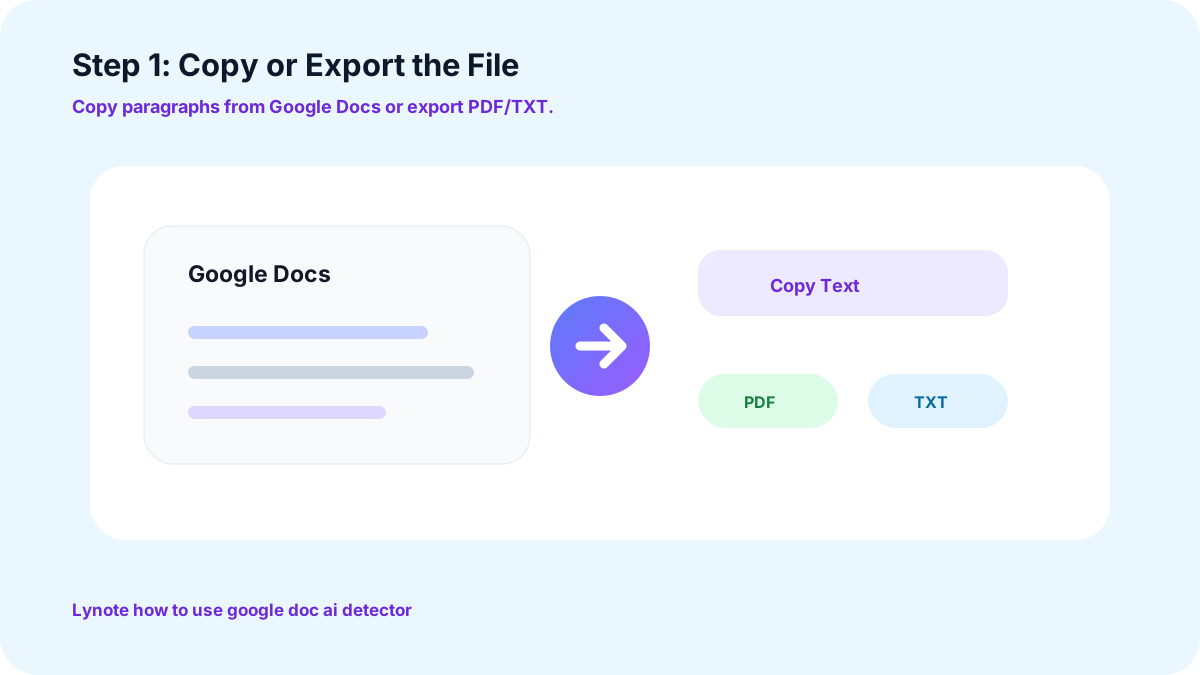
Step 1: Copy or Export the File
Copy the Google Docs paragraphs or export the file in PDF or TXT format. It checks 300 words in the free version and up to 3000 words in the paid version at once.
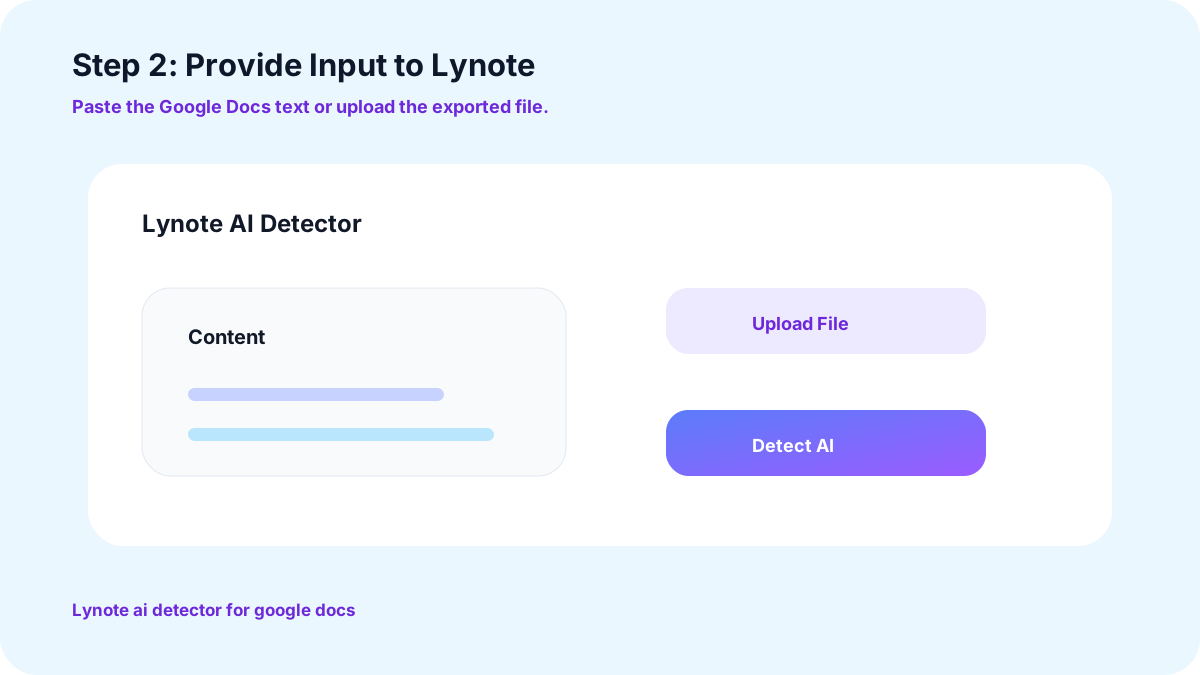
Step 2: Provide Input to Lynote
Go to Lynote and paste or upload it under the “Content” section.
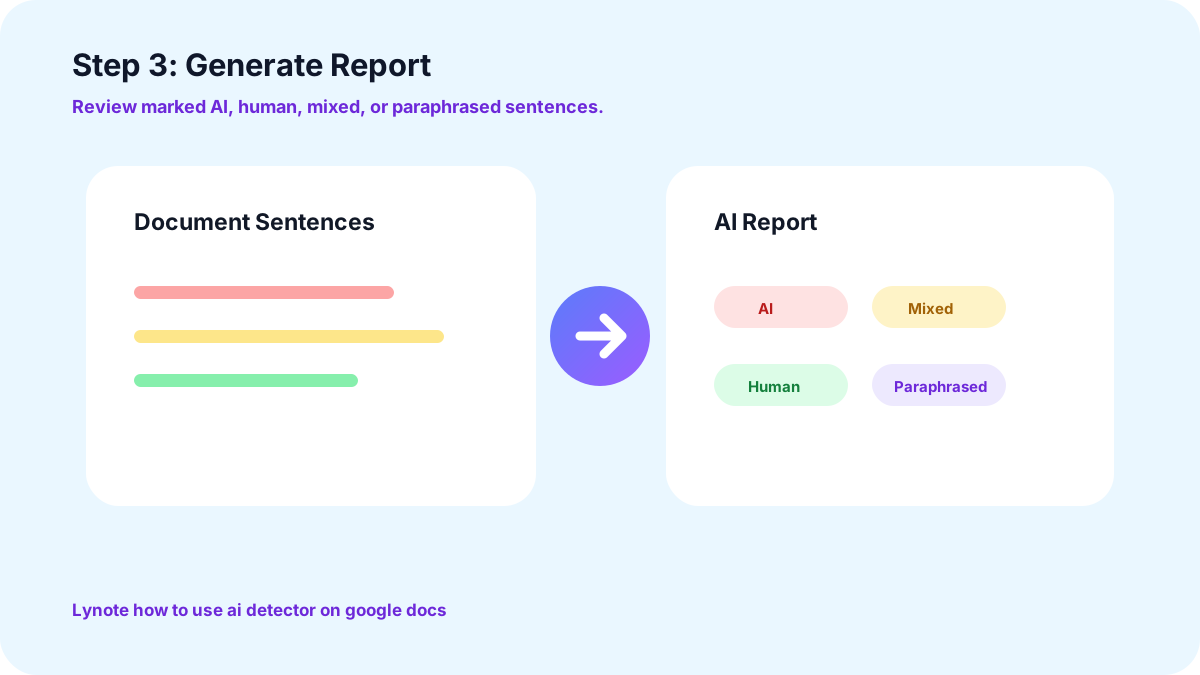
Step 3: Generate Report
Click on “Generate AI” to review your report. It will have all the sentences marked as AI, human, mixed, or paraphrased. Edit only the required parts and submit.
What is the Benefit of Lynote Google Docs AI Detector?
Higher AI Detection Precision
The reports generated by Lynote AI Google Docs detector have a very low false positive rate. Our tool delivers 92% accuracy. It ensures genuine work is never falsely flagged, and no one's hard work is unfairly dismissed.
Encouraging Responsible AI Use
Lynote AI Detector provides clear feedback that gives users greater visibility into how their writing may be perceived. By highlighting patterns that may appear AI-generated, it helps users refine and personalize their writing while making more informed decisions about how they use AI.
Fairer AI Detection for ESL learners
The Lynote Google Docs AI Detector is trained on thousands of diverse text inputs, helping it distinguish AI-generated patterns from the natural variations found in human writing. While detecting AI, it accounts for differences in language proficiency observed in ESL writing to provide unbiased results.
FAQs
Yes, Lynote provides an accurate report with a 92% signal match rate. Its sentence-level report is highly precise. Moreover, it has accurately scanned over 500k documents.
To share a report, click on the “share” button and copy the link to use later. You can also download the results in PDF form and share it with anyone.
Yes, Lynote Google Docs AI Detector can detect paraphrased text along with AI-written content. The paraphrased content may be marked as AI or mixed depending on the AI patterns in it.
There are no conditions. You can use Lynote AI Detector for free without worrying about any hidden requirements. It allows users to scan 300 words at once without any payment.
No, the Google Docs extension is not available yet. To run a Google Doc through our scanner, you can either copy text or export files in PDF or TXT format.
To run a Google document through an AI detector, you can simply open the Lynote AI Detector web page. Paste or upload your file and click on “Detect AI.”
More Lynote Tools for Google Docs Review and Draft Cleanup








Guides for Checking Google Docs Drafts and AI-Written Text
Read Lynote guides about AI detection, false positives, text humanizing, and cleaner writing workflows before you submit, publish, or share a Google Docs draft.


