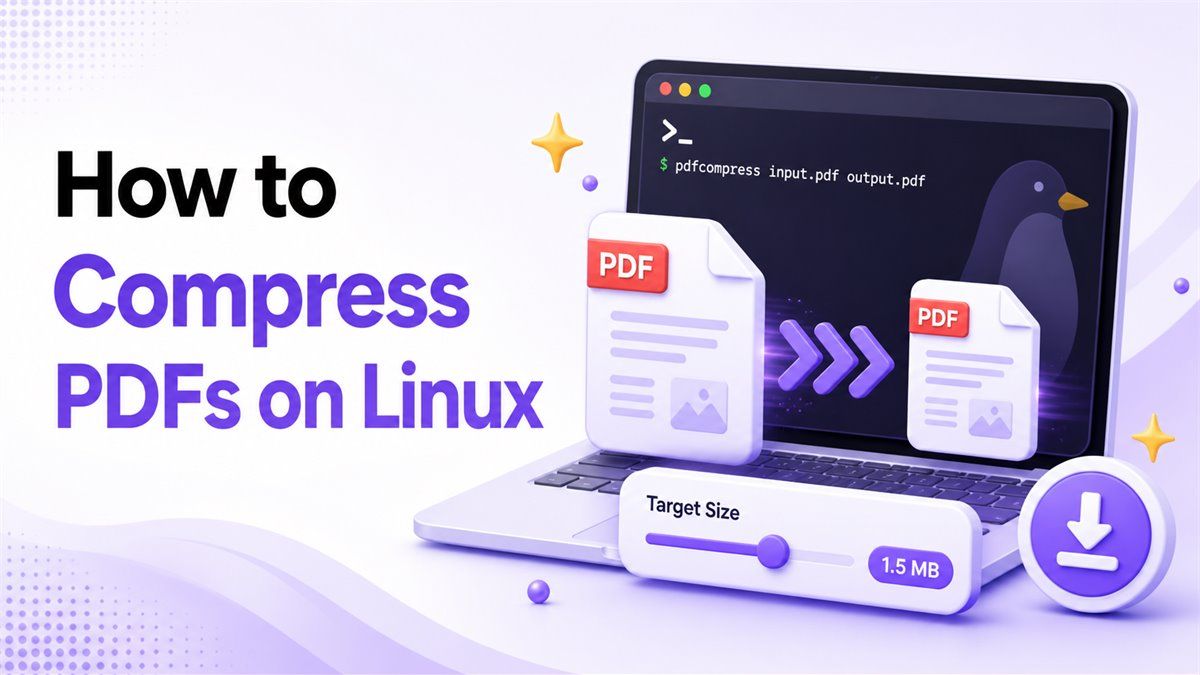
How to Compress PDFs on Linux Without Extra Setup

If you need to compress PDF Linux files, you have two practical choices: use terminal tools or use an online PDF compressor. Linux command line utilities can be powerful, but they often require installation, parameters, and quality checks. For many students, developers, and office users, an online workflow like Lynote Compress PDF is faster because you can choose a target size, upload your PDF, preview the result, and download the smaller file without writing commands.
Why Compress PDF Files on Linux?
PDF files can become large when they include scanned pages, high-resolution images, charts, screenshots, or exported design files. A large PDF may fail when you upload it to a form, send it by email, attach it to a school portal, or store it in a shared folder.
That is why searches like compress PDF Linux, pdf compression Linux, and linux compress PDF file size are so common. The goal is usually simple: make the file smaller while keeping the document readable.
Linux gives you several ways to reduce PDF size. Some are terminal-based, while others work in the browser and do not depend on your distribution.
Linux PDF Compression With Command Line Utilities
Many Linux users start with command line tools because they are already comfortable in the terminal. The common approach is to use a PDF processing utility that rewrites the file with lower image quality, optimized object streams, or different compatibility settings.
This can be useful when you want a repeatable workflow. For example, a developer may need to compress many exported reports from a script, or a system administrator may want a lightweight Linux PDF compress process for a server.
The tradeoff is that command line compression is not always obvious. You may need to install packages, test different presets, and compare the original PDF with the compressed version manually.
Common Terminal Workflow
A typical compress PDF command line Linux workflow looks like this:
- Install a PDF compression utility.
- Open the terminal in the folder where the PDF is stored.
- Run a command that creates a smaller output file.
- Open the compressed file and check the quality.
- Repeat with different settings if the result is too blurry or still too large.
This process works, but it can feel slow when you only need to compress one PDF. It is also easy to overwrite a file or choose a setting that reduces image quality more than expected.
When Linux Command Line Compression Makes Sense
A Linux command line compress PDF method is useful when you process files often. It can also help when you need automation, batch jobs, or a reproducible pipeline.
For example, you may want to compress invoices, reports, or generated PDFs on a server. In that case, a Linux compress PDF command line setup can save time once the parameters are tested.
However, if you are compressing a resume, class handout, research paper, or application file, a visual preview is usually more helpful. You want to see whether tables, images, and scanned text still look acceptable before downloading the result.
How to Open a PDF File in Linux Command Line
Before or after compression, you may want to open the PDF from the terminal. Most Linux desktop environments let you open a PDF with a simple command that launches the default viewer.
For example, many systems support a command that opens the file with the default application. Some users also use document viewers installed with their desktop environment.
This step matters because PDF compression Linux workflows should include a quality check. A smaller file is only useful if the text is readable, images still make sense, and the page layout remains usable.
What to Check After Compression
After you compress PDF on Linux, review the result before sharing it. Check the first page, any scanned pages, images, charts, signatures, and pages with small text.
Also compare the original file size with the compressed file size. If the reduction is tiny, you may need a stronger setting. If the output looks blurry, you may need a lighter compression target.
This is where browser-based tools can be easier. A preview workflow removes some guesswork because you can inspect the original and compressed PDF before saving the final file.
Compress PDFs in Linux With an Online PDF Compressor
If you want to compress PDF Linux files without installing utilities, an online compressor is the simpler route. Linux users can use it from Chrome, Firefox, Edge, or another browser.
With Lynote Compress PDF, the workflow is built around target size, upload, preview, and download. That makes it useful when you need a smaller PDF for email, forms, school portals, job applications, or file sharing.
You do not need to remember a Linux PDF compress command. You can work visually and check the result before you keep the compressed version.
Step 1. Choose a Target Size
Open Lynote Compress PDF and choose a target size before uploading. This is useful when the PDF must fit a limit, such as 1 MB, 2 MB, 5 MB, or a custom upload requirement.
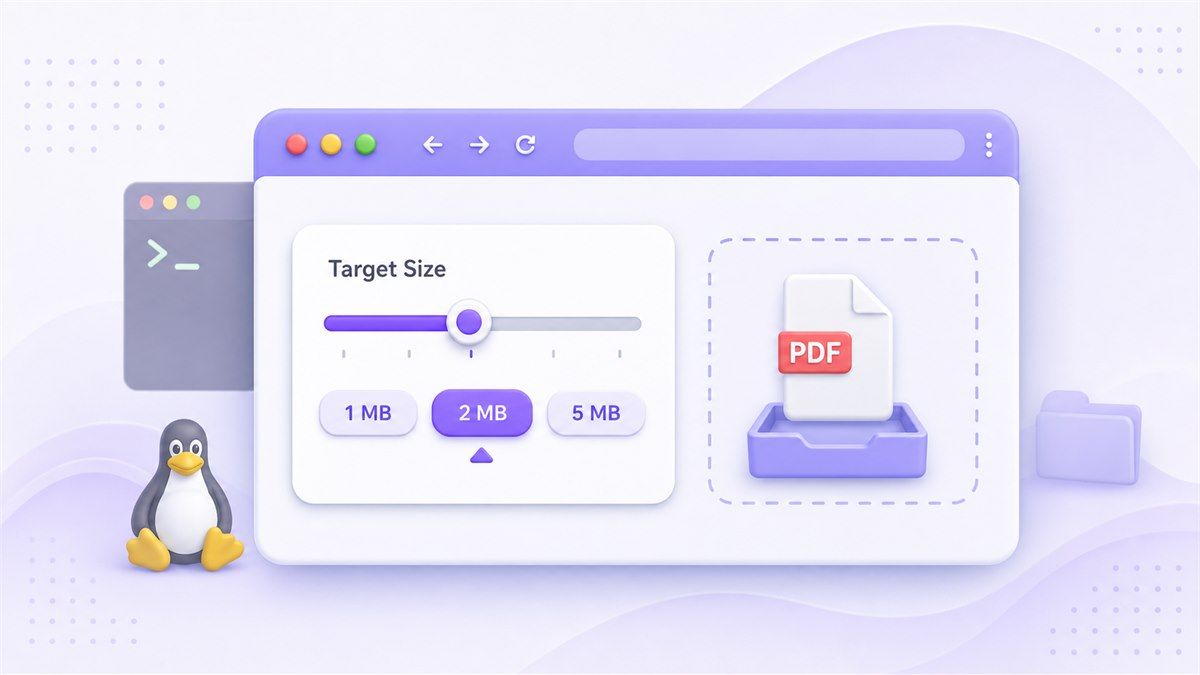
Choosing the target first gives the compression process a clearer goal. Instead of testing several terminal commands, you can aim for the file size you actually need.
This is especially helpful for users searching for linux compress PDF file size because the desired size is often more important than the exact compression method.
Step 2. Upload Your PDF File
Drag your PDF into the upload area or choose the file from your device. Lynote can work with one PDF or multiple PDFs when you need a batch-style workflow.
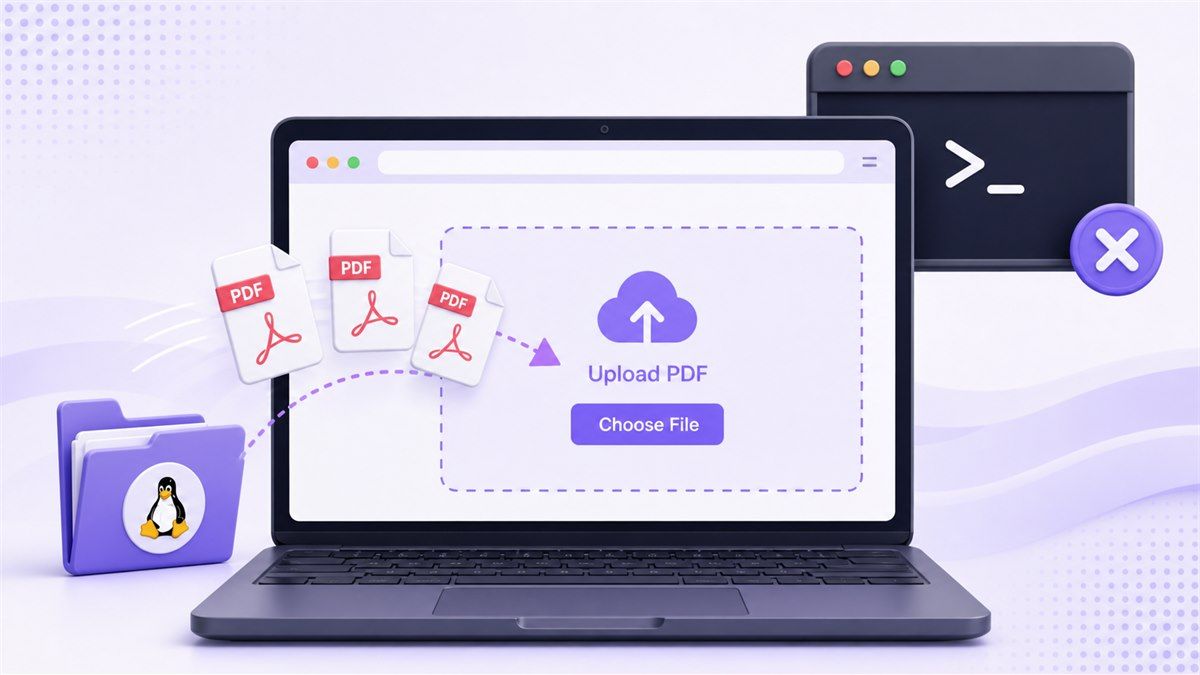
After upload, compression starts automatically. This keeps the workflow simple for Linux users who do not want to install packages or remember a compress PDF Linux terminal command.
If you are compressing a large PDF, wait for the process to finish before closing the browser tab. Larger files with many images may take longer than simple text-based PDFs.
Step 3. Preview the Original and Compressed PDF
After compression, preview the result before downloading. Lynote lets you inspect the original and compressed PDF, then compare the file sizes.
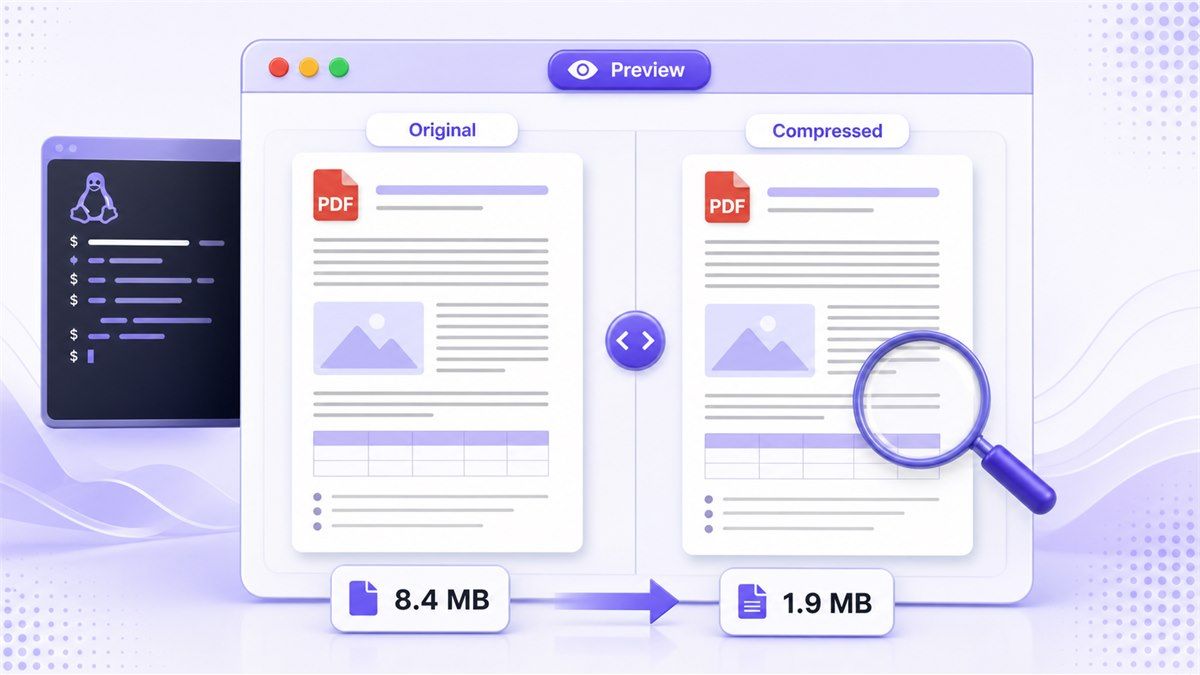
This matters because not every PDF should be compressed the same way. A scanned contract, a photo-heavy presentation, and a text-only report have different quality needs.
For many users, this preview step is the biggest advantage over a basic compress PDF Linux CLI workflow. You can decide whether the smaller file is still clear enough before saving it.
Step 4. Download the Compressed PDF
When the preview looks right, download the compressed PDF to your Linux device. You can then upload it to a portal, attach it to an email, or store it in your project folder.
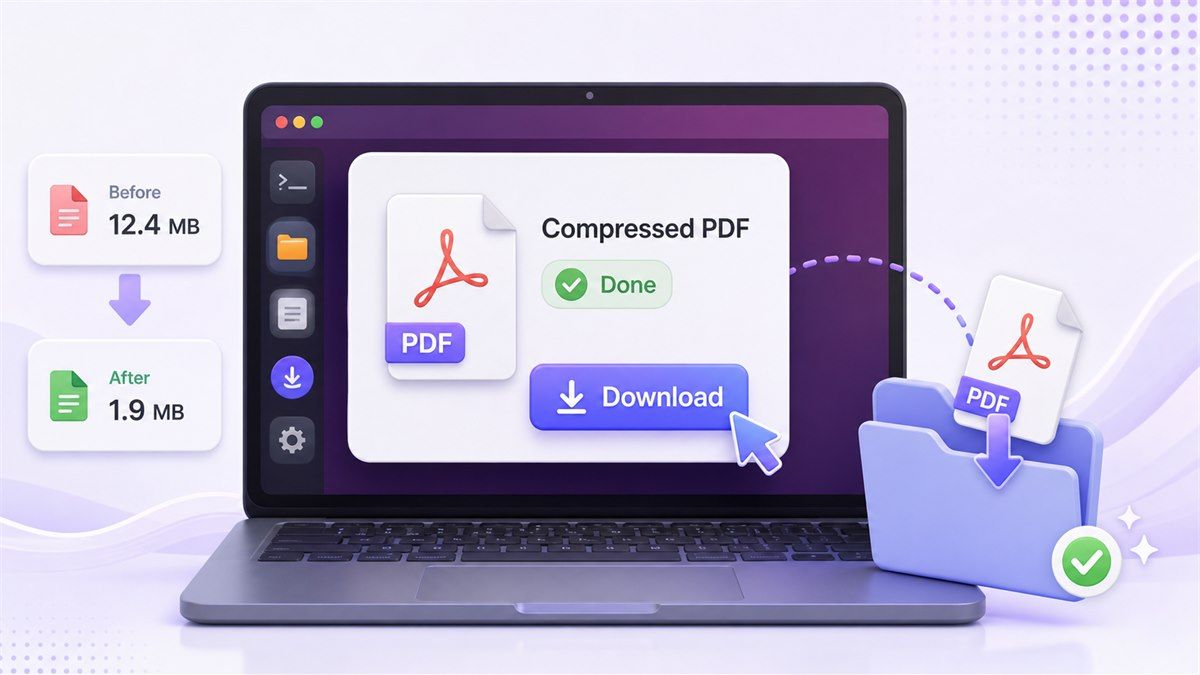
Keep the original file until you confirm the compressed version works for your use case. That way, you can return to the source document if you need a less aggressive compression result.
This workflow is practical when you need to compress PDF on Linux quickly, especially if you do not want to troubleshoot terminal packages.
Linux Terminal vs Online PDF Compression
Both methods can work, but they fit different situations. A terminal tool is best when you need automation, while an online compressor is better when you need quick visual control.
| Method | Best For | Main Benefit | Main Limitation |
|---|---|---|---|
| Linux terminal utility | Automation and repeated scripts | Works well for technical workflows | Requires setup and parameter testing |
| Linux desktop app | Local editing and manual exports | Keeps files in local software | May require installation |
| Lynote Compress PDF | Fast browser-based compression | Target size, preview, and download workflow | Requires uploading the PDF online |
If your goal is simply to compress PDF Linux files once or twice, Lynote is often the lighter workflow. If your goal is server-side automation, command line tools may still be worth setting up.
Best Practices for PDF Compression on Linux
The best way to compress a PDF depends on the document. A text-heavy PDF usually compresses cleanly, while a scanned PDF may lose clarity if compressed too aggressively.
Start with a reasonable target size instead of choosing the smallest possible file. If the compressed file becomes difficult to read, the saved storage space is not worth the quality loss.
For important documents, compare several pages before sending the result. Check signatures, diagrams, footnotes, small tables, and pages with image-heavy content.
Common Problems When Compressing PDFs in Linux
The first common issue is unreadable scanned text. If your PDF is made of images, strong compression may make letters fuzzy or hard to read.
The second issue is a file that remains too large. This can happen when the PDF contains many high-resolution images, embedded fonts, or scanned pages that are already optimized.
The third issue is workflow friction. A compress PDF Linux command line method may work well after setup, but beginners can lose time testing flags, installing packages, and checking output files manually.
When to Use Lynote Instead of a Linux CLI Tool
Use Lynote when you want a faster browser-based workflow. It is a good fit for resumes, forms, assignments, reports, invoices, portfolios, and PDFs that need to meet an upload limit.
Use a Linux CLI tool when you need to compress many PDFs automatically as part of a script. That is a different job, and terminal tools are often better for scheduled or server-side processing.
For everyday pdf compress Linux needs, Lynote keeps the process easier to understand. You choose a target size, upload the file, preview the result, and download the compressed PDF.
FAQs About Compress PDF Linux
How do I compress PDF in Linux?
You can compress PDF in Linux with terminal utilities, desktop PDF tools, or an online compressor. Terminal methods are useful for automation, while online tools are better for quick one-off compression.
If you want fewer setup steps, use Lynote Compress PDF in your browser. It lets you choose a target size, upload the PDF, preview the compressed result, and download the smaller file.
Can I compress PDF Linux files without terminal commands?
Yes. You can use an online PDF compressor from a Linux browser without installing command line utilities.
This is helpful when you only need to compress a PDF file quickly. It also avoids package setup, command syntax, and repeated trial-and-error compression settings.
What is the best Linux compress PDF method?
The best method depends on your workflow. For automation, a Linux compress PDF command line setup may be best. For quick manual compression, an online tool is usually easier.
If you need to inspect the result visually, Lynote is useful because it includes preview and before/after file-size comparison. That helps you avoid downloading a file that is too blurry or still too large.
Can I compress large PDF files on Linux?
Yes, but results depend on the PDF content. Image-heavy and scanned PDFs may compress more than text-only PDFs, but they also need more quality checking.
If the document is important, preview the output carefully. Check small text, charts, and scanned pages before sharing the compressed version.
Does PDF compression reduce quality?
PDF compression can reduce quality, especially when images or scanned pages are heavily compressed. The goal is to reduce file size while keeping the document readable.
That is why preview matters. A tool that lets you compare the original and compressed PDF can help you choose a better balance.
Final Thoughts
If you need to compress PDF Linux files, you can use terminal utilities, desktop tools, or a browser-based compressor. Command line methods are useful for automation, but they require setup and careful testing. For everyday PDF compression, Lynote Compress PDF gives you a simpler path: choose a target size, upload your PDF, preview the result, and download the smaller file.

Written by Janet L. Harris
AI Writing Specialist
Janet reviews AI detectors and humanization tools, with a focus on accuracy, limitations, and responsible use. View all articles →