

Microsoft Copilot AI Detector



Why Choose Our Copilot Microsoft AI Detector

Document Accuracy
Get document accuracy for Microsoft 365 Copilot drafts across reports, essays, briefs, and Word documents.

Microsoft 365 Context
Use Microsoft 365 context to check Word reports, briefs, and summaries that may have been written or rewritten by Copilot.

Word Draft Highlights
Use Word draft highlights to see which lines appear AI-written, mixed, or paraphrased during document review.

Word Doc Uploads
Upload .docx, .pdf, or .txt files directly to review school assignments, employee reports, and policy drafts.

AI Copilot Rewrite Signals
Use Copilot rewrite signals to catch subtle rewrites and heavily paraphrased sentences that still carry machine-generated structure.

Private Document Review
Review sensitive Word reports, school assignments, and workplace documents with private processing and a no-training policy.
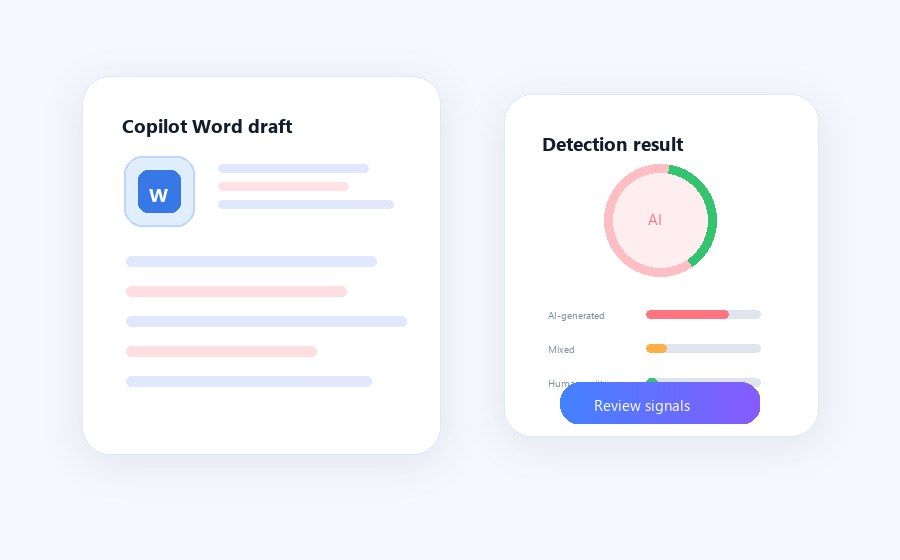
Detect MS Copilot Drafts in Word
Microsoft Copilot drafts often mix original ideas with automated rewriting, summaries, and polished workplace tone. Lynote checks Copilot-assisted Word text and returns AI, mixed, and human-written probabilities. You get a clearer picture of the document before making review decisions.
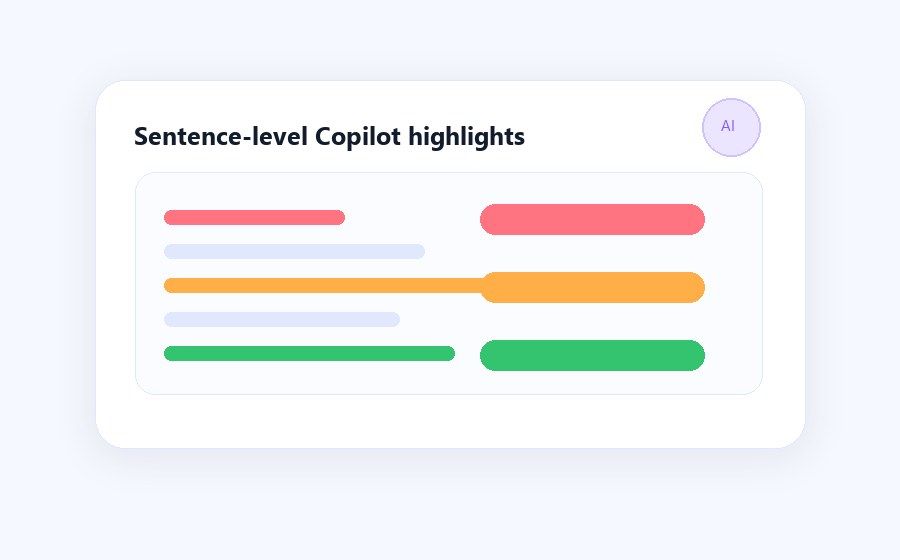
Review Copilot Sentence Highlights
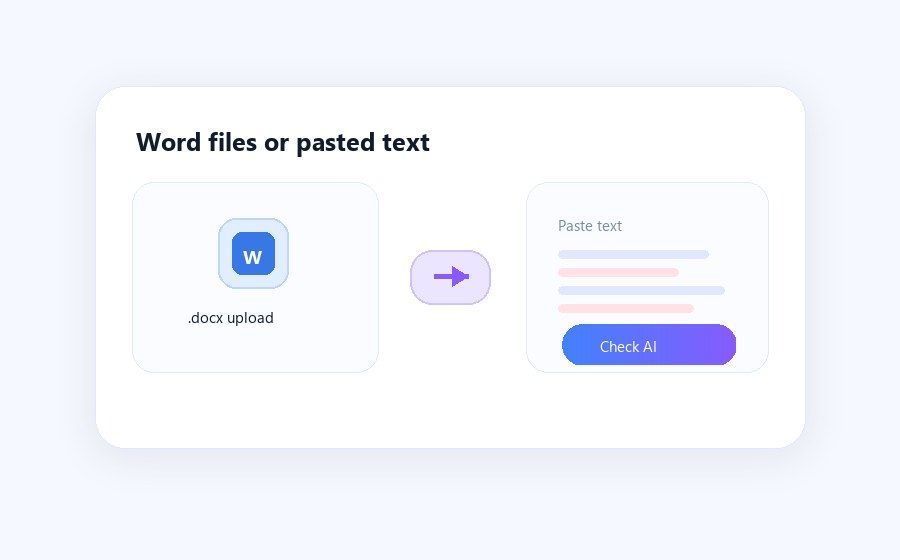
Review Word Files or Pasted Text
Reviewing Word files or pasted text should fit naturally into your existing workflow without complex file conversions. You can paste text directly or upload files, with native .docx support designed for Microsoft Word users. This keeps report and essay review moving efficiently.
How to Check Microsoft Copilot Text in Seconds
Step 1. Paste Text or Upload Document
Add the Copilot-assisted paragraph you want to check, or choose a supported .docx, .pdf, or .txt file from your device for review.

Step 2. Click Detect AI
Click the 'Detect AI' button to start scanning the document. The AI detector for Copilot returns probability scores and flagged lines for closer review.
Step 3. Review the Report
Read the probability scores on the results screen. Review the flagged sentences to identify where AI assistance may appear in the document.

Step 1. Paste Text or Upload Document
Add the Copilot-assisted paragraph you want to check, or choose a supported .docx, .pdf, or .txt file from your device for review.
Step 2. Click Detect AI
Click the 'Detect AI' button to start scanning the document. The AI detector for Copilot returns probability scores and flagged lines for closer review.
Step 3. Review the Report
Read the probability scores on the results screen. Review the flagged sentences to identify where AI assistance may appear in the document.
Who Is This Copilot AI Detector For?

University Professors
Check student essays submitted in .docx format for undisclosed generation using our copilot AI detector to maintain academic integrity.

Workplace Managers
Review employee reports for possible AI-assisted summaries. This AI detector for Copilot helps managers compare original thinking with generated sections.

Academic Students
Scan your own drafts before submission. Check whether minor grammar edits might look like heavier AI generation to an AI detector copilot system.

Content Editors
Screen freelancer .docx submissions with this microsoft copilot AI detector to review original writing against heavy reliance on automated drafting tools.

HR Professionals
Screen cover letters and applicant assignments for heavy AI co-drafting to assess the true writing capabilities of potential candidates.
Compliance Officers
Audit internal documentation against company AI policies and review whether sensitive materials appear human-written or machine-assisted.
What Our Users Say

University Professor

"Grading student essays in .docx format is much clearer now. The three-way breakdown of AI, mixed, and human text shows where review is needed."

Operations Manager
"Reviewing sensitive internal reports requires strict privacy. I appreciate that this copilot AI detector processes text without storing any data, keeping our company information secure."

Managing Editor
"Checking 3,000-word freelancer submissions is incredibly straightforward since I can just upload the original Microsoft Word files directly without copying and pasting."

Graduate Student
"I ran my 50-page thesis draft through this tool to ensure my minor grammar checks wouldn't be falsely flagged as entirely AI-generated by my university."

HR Director
"Screening applicant cover letters has become much more effective. It flags heavily paraphrased paragraphs that look human at first glance."

Compliance Auditor
"Auditing our corporate policy manuals is faster because the tool highlights sentences that appear machine-generated, saving me hours of manual reading."
Frequently Asked Questions
Questions about detecting Microsoft Copilot text? We have answers.
A Copilot AI detector analyzes text and estimates the likelihood that it was generated or heavily rewritten by large language models. It helps educators and professionals review documents and identify heavily automated drafting.
The tool scans your document for predictable phrasing, repetitive structures, and specific vocabulary patterns common to large language models. It then calculates an overall probability score to determine the likelihood of automated generation.
Yes. You can upload .docx, .pdf, or .txt files directly into the scanner, or paste Copilot-related text into the box for an immediate review.
Yes. The tool highlights text at the sentence level and assigns a mixed percentage. If Microsoft Copilot only rewrote a few lines in an otherwise human-written document, those specific sentences will be flagged for review.
No, we do not store your text or files. Once the scan is complete, your data is immediately removed and never used for model training.
The free detector supports up to 600 words in the text box. Pro users can check up to 3000 words per request. If you need to scan a longer piece of content, upload it as a .docx, .pdf, or .txt file instead.
Microsoft Copilot uses similar large language model behavior to many AI writing tools. Our scanner looks for predictable phrasing and structure, then flags content that may be generated or heavily edited.
No, you do not need an account for basic usage. You can paste text or upload files to get your detection report immediately without signing up.
Humanize Copilot AI Content in A More Natural Tongue
When Lynote detects high Copilot AI content,you can take action to humanize the text in a more natural human tongue by Lynote AI Humanizer.
More Tools to Check and Humanize AI Content,Text,Doc


Latest Research on AI Detection&Humanization
Explore the latest research on AI detection and humanization to keep pace with modern science and make life easier when needed.


