Transcribe Zoom Recording to Text Free with Lynote AI

Need to transcribe Zoom recording to text free without replaying an entire meeting? Lynote AI helps turn saved Zoom audio and video recordings into clear, searchable transcripts with speaker labels, timestamps, and AI summaries.

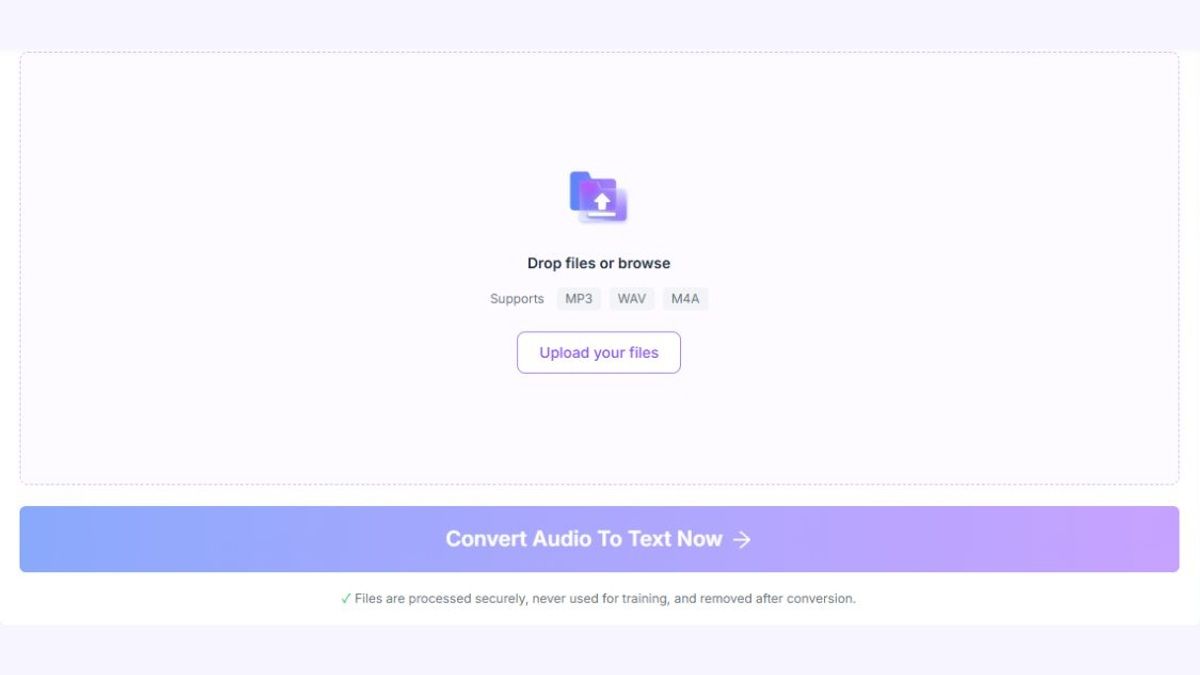
Upload your saved Zoom audio recording

SupportsMP3WAVM4A

✓Files are processed securely, never used for training, and removed after conversion.

Upload a supported M4A, MP3, or WAV audio file. For an MP4 video recording, use Lynote Video to Text (https://lynote.ai/video-to-text), then review, copy or export your transcript, and edit your working notes online. Whether you're documenting team meetings, classes, interviews, or webinars, make recorded conversations easier to find and reuse.

Already have a Zoom recording? Download or locate the saved audio or video file, then upload it to Lynote to begin.

Why Choose Lynote to Transcribe Zoom Recordings?

A recorded Zoom meeting can contain valuable conversations, important decisions, and explanations that are difficult to find later. Lynote converts supported recordings into readable text, helping you revisit information without listening to the entire meeting again.

transcribe zoom recording to text - convert zoom audio and video to text

Convert Zoom Audio and Video to Text

Upload saved M4A, MP3, or WAV recordings with Audio to Text. For saved MP4 videos, use Lynote Video to Text (https://lynote.ai/video-to-text). Lynote converts spoken content into written text that you can read, search, and review.

transcribe zoom recording to text - identify speakers in conversations

Identify Speakers in Conversations

Keep multi-speaker conversations easier to follow with automatic speaker detection. Speaker labels help separate different parts of the discussion, although speaker identities should be checked before sharing the transcript.

transcribe zoom recording to text - find conversations with timestamps

Find Conversations with Timestamps

Locate relevant moments in your Zoom recording using timestamped transcripts. Instead of manually searching through a long recording, identify the section you want to review and return to the original audio when necessary.

transcribe zoom recording to text - edit and search your transcript

Edit and Search Your Transcript

Review the transcription, then copy or export the text to correct names, technical vocabulary, or misheard words. Use text search in your browser or editor to find terms and discussion topics. Lynote also provides an editable notes workspace for your working material.

transcribe zoom recording to text - summarize zoom meeting recordings

Summarize Zoom Meeting Recordings

Turn lengthy meeting transcripts into shorter AI-generated summaries. Review major discussion points and important topics without manually rewriting every section of the recording.

transcribe zoom recording to text - transcribe meetings in multiple languages

Transcribe Meetings in Multiple Languages

Use Lynote's multilingual transcription capabilities for supported recordings in different languages and accents. Review the results carefully, especially when speakers switch languages or use specialized terminology.

How to Transcribe a Zoom Recording to Text in 3 Steps

Converting a saved Zoom recording into text doesn't require manually typing the conversation. Follow these three steps to upload your recording, generate a transcript, and prepare the text for future use.

transcribe zoom audio to text - upload audio recording

Step 1. Upload Your Saved Zoom Recording

Locate or download the Zoom recording on your device. Upload a supported M4A, MP3, or WAV audio recording here. Use Lynote Video to Text (https://lynote.ai/video-to-text) for an MP4 meeting video.

You can also use other supported formats, including MP3 and WAV. Make sure you have the necessary permission to process the recording before uploading it.
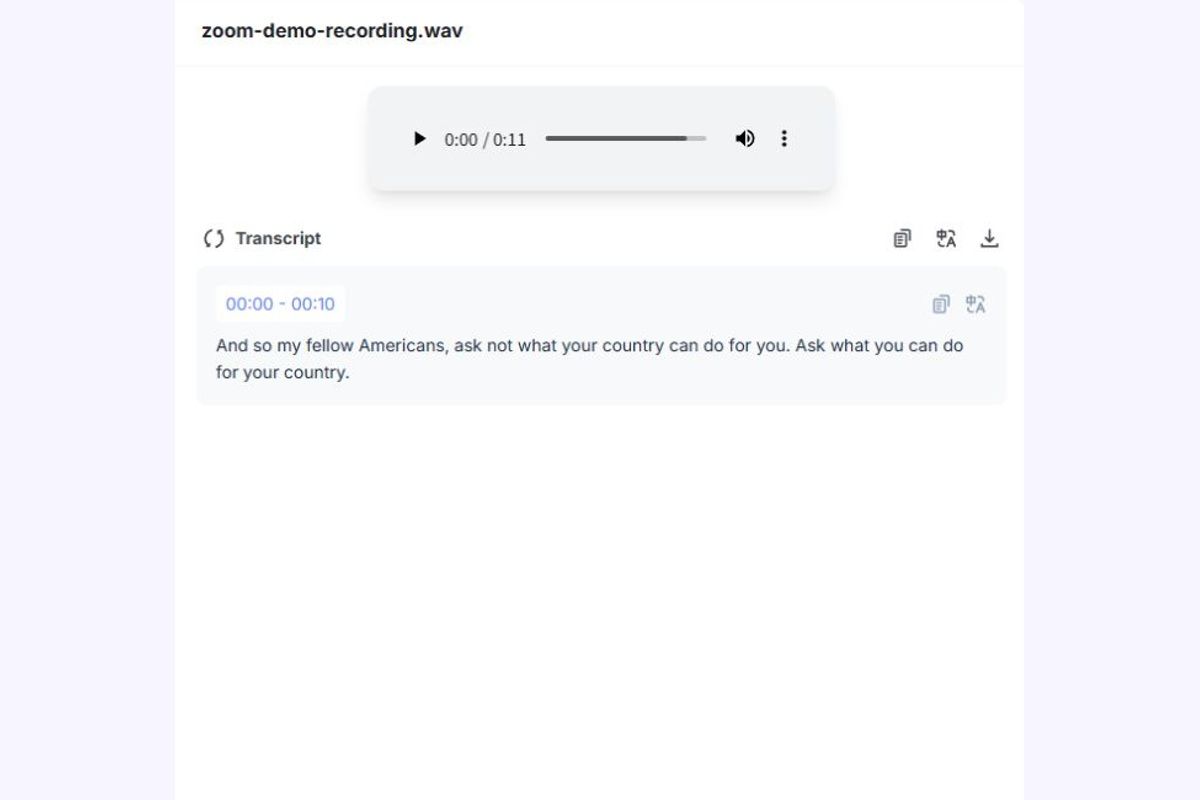
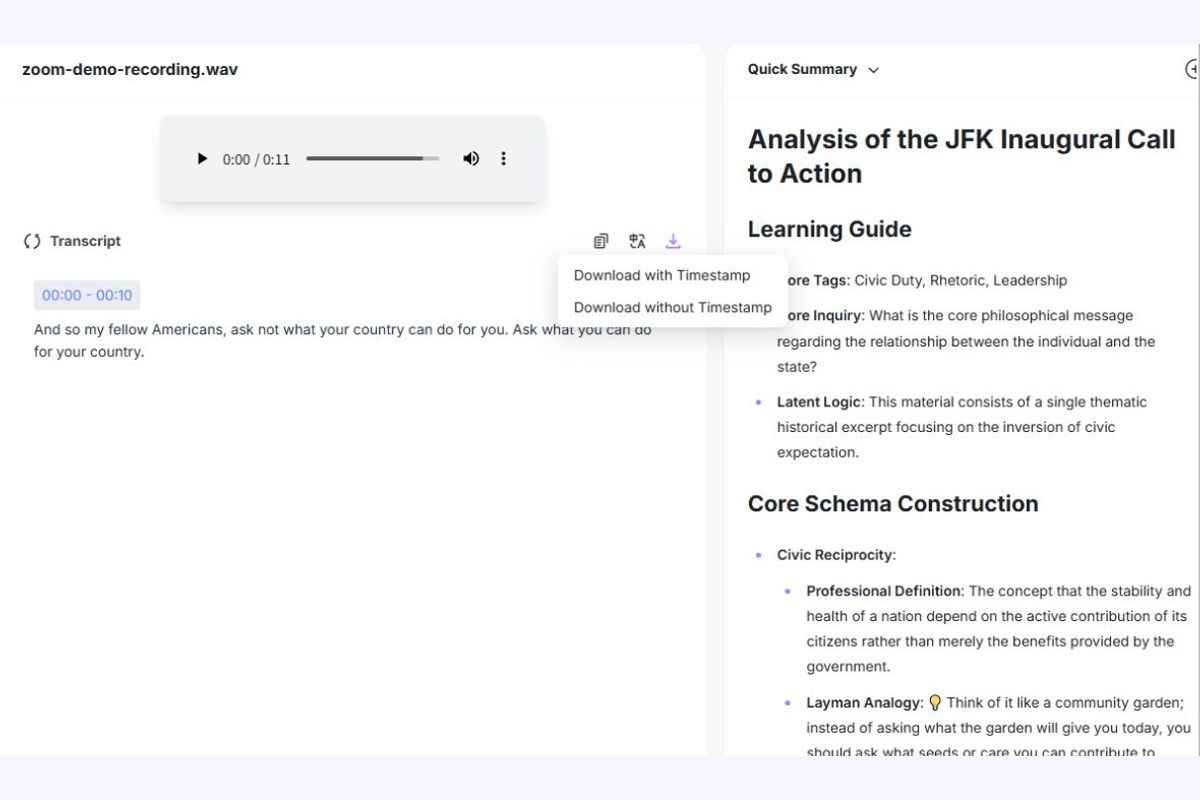
zoom audio to text converter - generated transcript

Step 2. Convert Zoom Audio to Text with AI

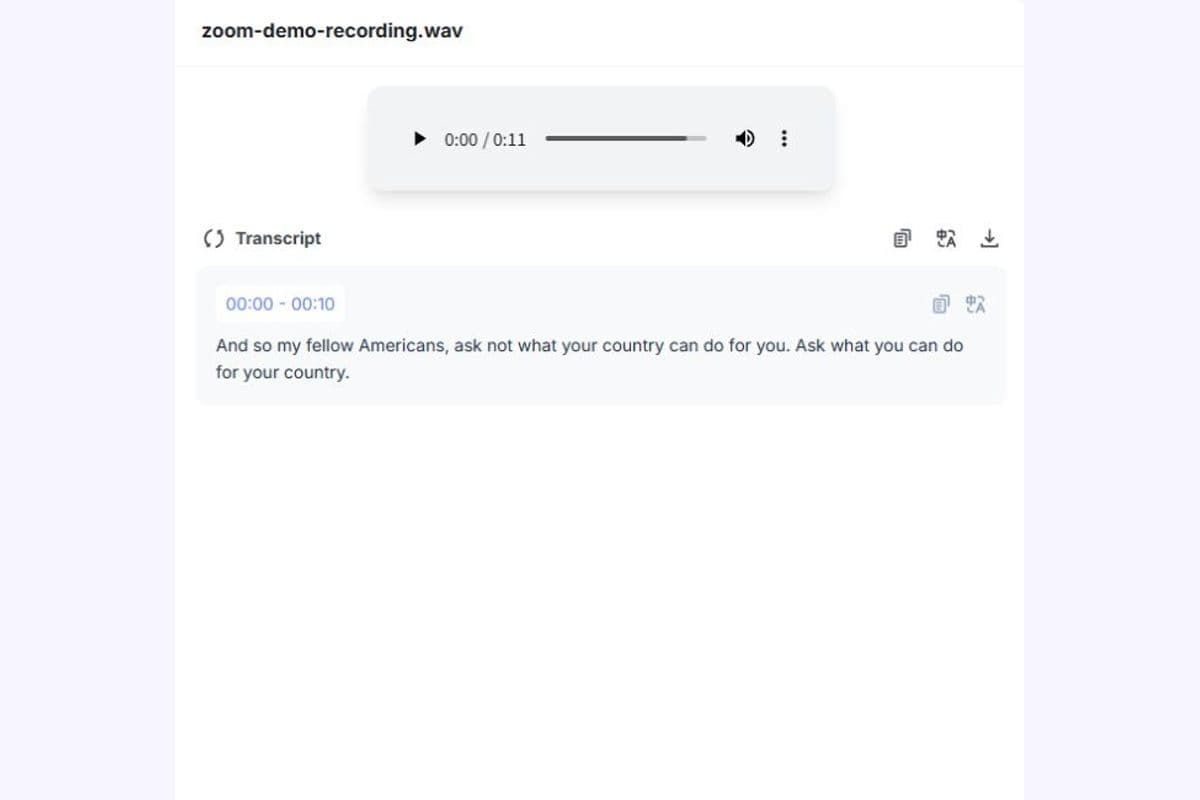
Once you submit the recording, Lynote processes the speech and generates a written transcript. Supported transcription features include speaker labels and timestamps to help organize recorded conversations.

You can review the transcript alongside the original recording to identify important discussions and verify unclear passages.

transcribe zoom recording to text - export transcript and edit notes

Step 3. Review, Edit, Summarize, and Export

Read through the transcription and correct any mistakes in names, figures, or specialized terms. Use text search in your browser or editor and the available AI summary to organize important content.

When the text is ready, copy or export it using the options available in the tool. Keep a reference to the original recording when important details may need verification.

How to Download a Zoom Recording Before Transcription

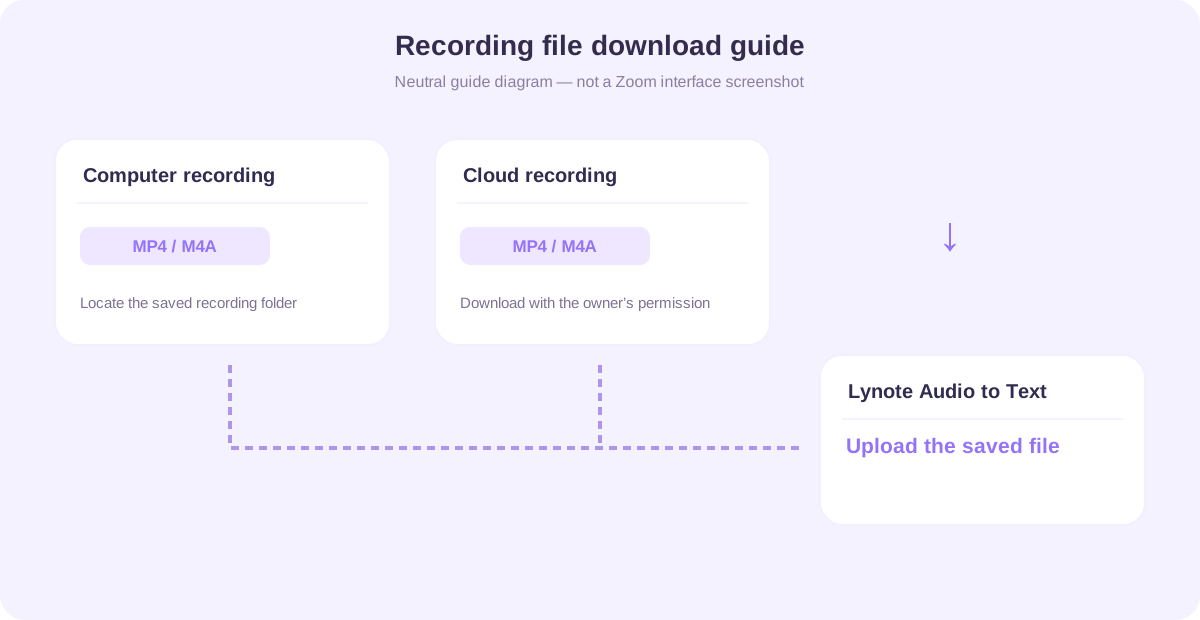
To transcribe a Zoom recording with Lynote, you first need access to the saved recording file. Zoom supports computer recordings and cloud recordings, but where you find the file depends on how the meeting was recorded.

how to download zoom recording for transcription
01

Find a Zoom Computer Recording

If a meeting was recorded locally, Zoom saves the recording files to a folder on the computer used for recording. Open the recording location and look for the completed audio or video files.

Zoom commonly saves video recordings as MP4 and audio-only recordings as M4A. Choose the file containing the conversation you want to transcribe.

If the recording has not finished processing, allow Zoom to complete its file conversion before uploading it.

02

Download a Zoom Cloud Recording

If the meeting was recorded to the Zoom cloud, sign in to the appropriate Zoom account and locate the recording through the available recording management interface. Open the recording and download the audio or video file if your account and sharing permissions allow it.

Cloud recording and download availability depend on the Zoom plan, the host's permissions, and the recording settings. If you cannot download a shared recording, ask the authorized owner for access.

03

Upload the Recording to Lynote

After downloading the file, return to Lynote and upload it to the transcription tool. Select the supported recording file rather than pasting a Zoom meeting invitation or cloud recording share link.

Important: Lynote's file-based transcription workflow does not automatically access your Zoom account, download cloud recordings, or join live meetings.

zoom voice transcription - searchable meeting text

Turn Long Zoom Recordings into Searchable Meeting Text

Replaying a lengthy meeting just to locate one comment can interrupt your workflow. A searchable transcript makes it easier to locate information and revisit the relevant part of the conversation.

Lynote converts supported Zoom recordings into text you can search in your browser and copy or export for editing. This is useful when reviewing project updates, researching interview responses, or checking what was discussed during a class.

Rather than relying entirely on memory, you can return to the recorded words and confirm important details.

    Convert Zoom Recording to Text
    zoom meeting transcription - timestamps in a single-speaker demonstration

    Keep Speakers and Discussion Moments Organized

    Meetings often involve several participants discussing different topics. Without clear organization, a continuous block of transcript text can be difficult to understand.

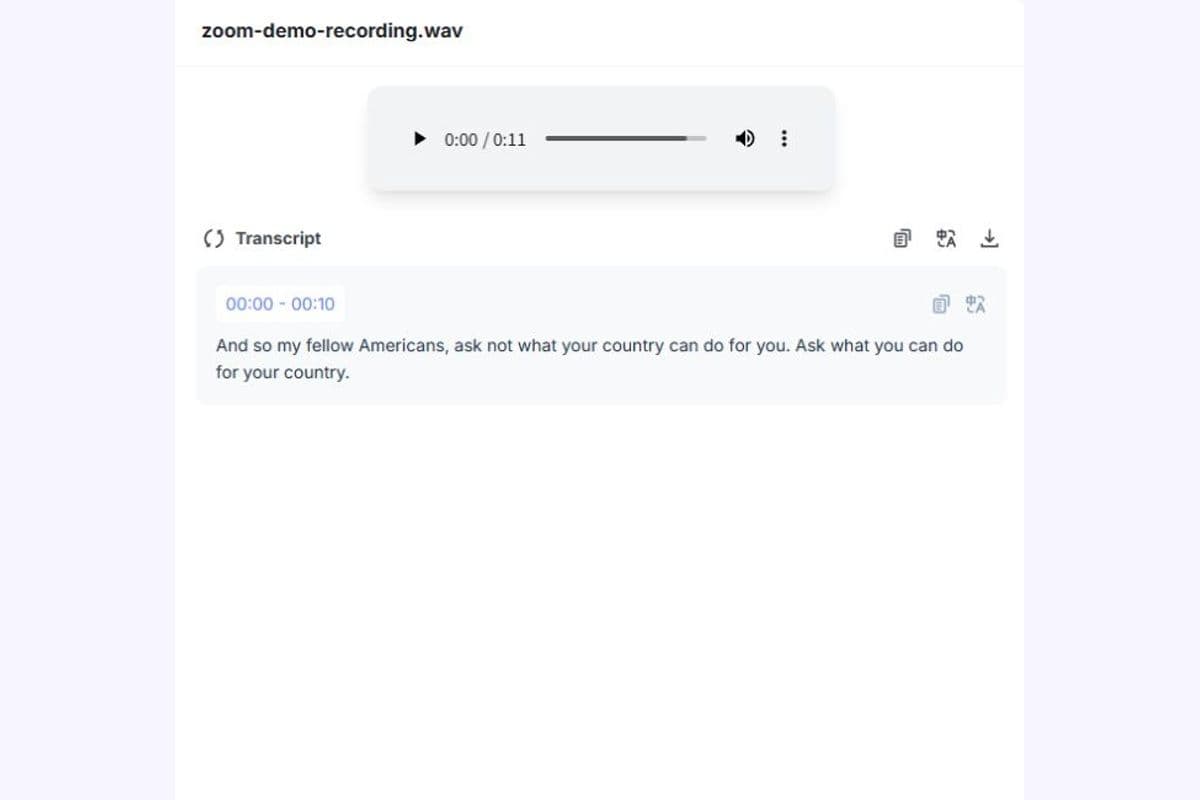
    Lynote's speaker detection and timestamps help separate spoken contributions and locate relevant points in the recording. You can then review the original audio to confirm a speaker's identity or verify a statement.

    This is particularly helpful for interviews, project discussions, and recorded team meetings.

      Transcribe Audio with Speaker Labels
      convert zoom audio to text - AI meeting summary

      Turn Zoom Transcripts into Useful Summaries

      A complete transcript preserves spoken content, while a summary helps readers understand the main discussion more quickly. Both can be useful for different follow-up tasks.

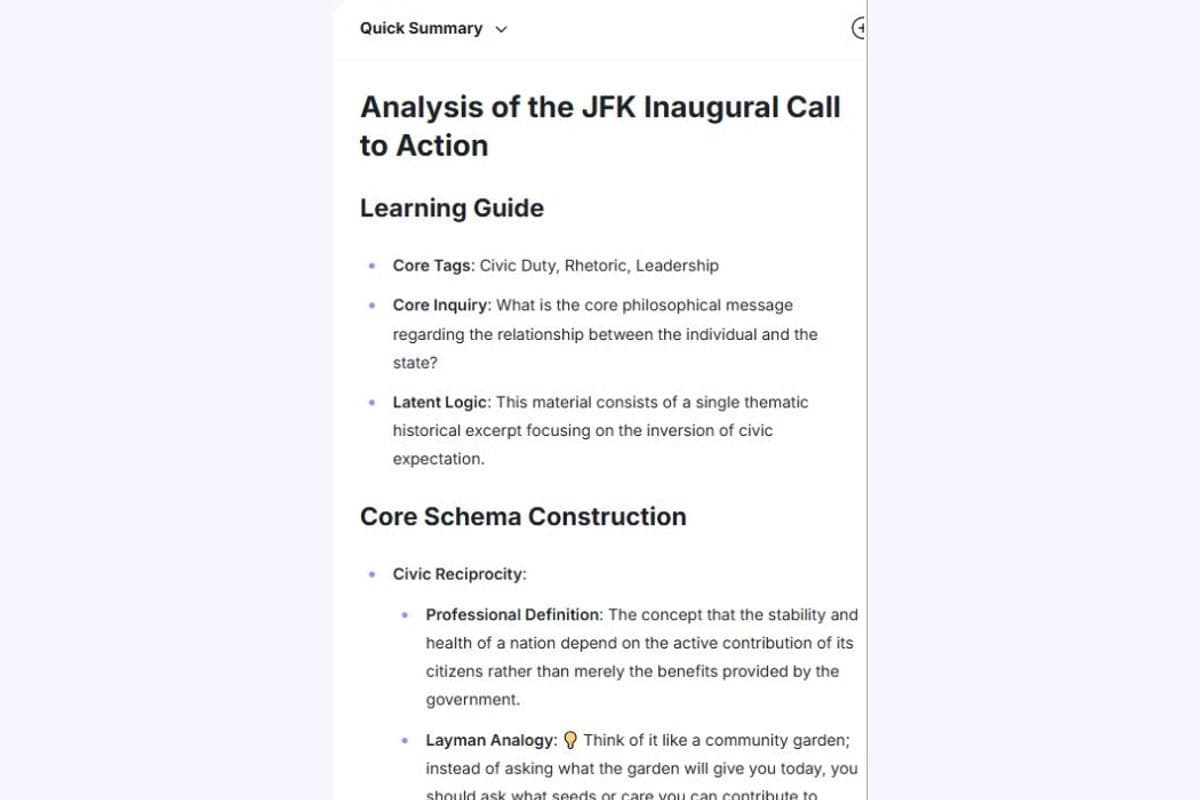
      Lynote provides AI-powered summarization alongside transcription, helping you review lengthy recordings through shorter organized content. Use the summary as an initial draft, then verify important decisions, action items, and facts.

      The final record should reflect what was actually discussed, not assumptions generated from incomplete context.

        Transcribe and Summarize

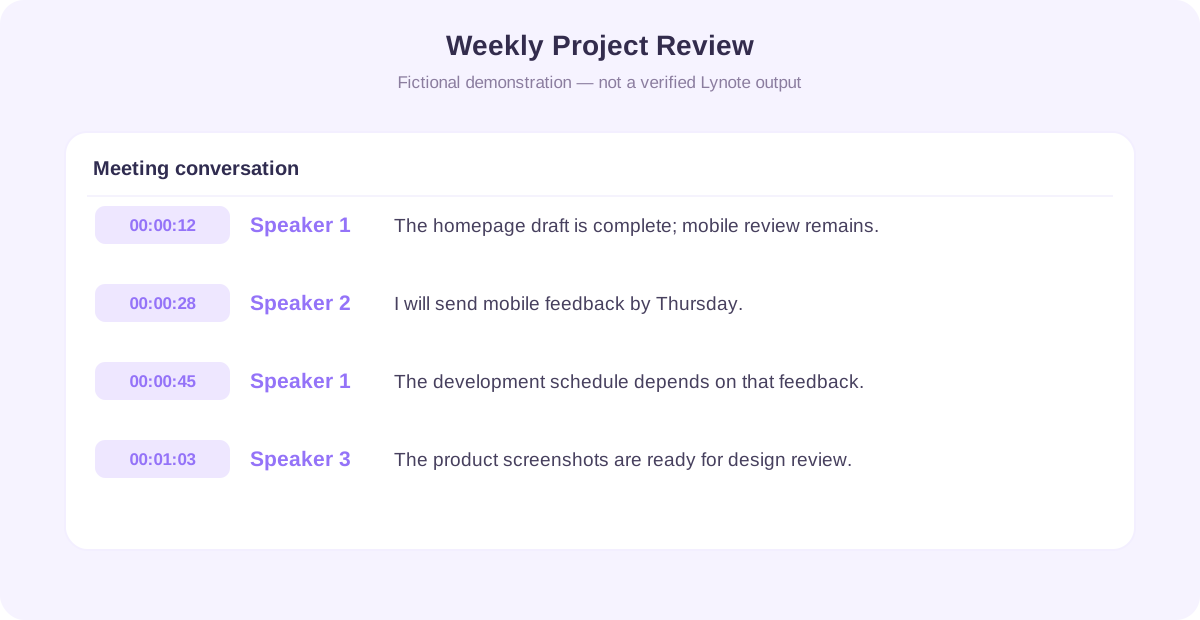
        Zoom Recording Transcript Example

        Wondering what a Zoom voice transcription looks like? Here is a simplified example of a recorded project meeting converted into speaker-labeled text.

        The conversation and timestamps below are fictional demonstration content, not an actual customer meeting or a verified Lynote output.

        zoom recording transcript example - meeting conversation
        01

        Example: Weekly Project Review

        00:00:12 | Speaker 1

        We've completed the homepage draft, but the mobile layout still needs review.

        00:00:28 | Speaker 2

        I'll review the mobile screens by Thursday and send feedback to the design team.

        00:00:45 | Speaker 1

        Great. We'll wait for that feedback before finalizing the development schedule.

        00:01:03 | Speaker 3

        The updated product screenshots are also ready for the next design review.

        02

        Example AI Meeting Summary

        Discussion Overview

        The team reviewed the current website redesign progress and discussed outstanding mobile design work.

        Main Points

        • Homepage draft completed.
        • Mobile layout still requires review.
        • Updated product screenshots are ready.

        Potential Follow-Up

        • Speaker 2 said they would send mobile layout feedback by Thursday.
        • The development schedule remains dependent on that review.

        This example shows how timestamps and speaker labels can make a meeting easier to revisit. Always confirm the identity of speakers and the details of any follow-up before distributing a finalized meeting record.

        What Can You Do with a Zoom Transcript?

        Converting Zoom recordings into text can support different professional and educational workflows. A searchable record helps users return to conversations without repeatedly playing the entire audio or video.

        zoom meeting transcription - team meetings use case

        Team Meetings

        Transcribe recorded team discussions to preserve important explanations, project updates, and decisions. Review the content before circulating meeting notes or using it to assign follow-up work.

        zoom meeting transcription - client interviews use case

        Client Interviews

        Convert authorized customer interviews and research calls into text. Search for recurring topics and verify important quotations against the original recording before using them in reports.

        zoom meeting transcription - online classes use case

        Online Classes

        Turn recorded Zoom lectures into readable study material. Find definitions and explanations, then organize important concepts for revision.

        zoom meeting transcription - webinars and training use case

        Webinars and Training

        Create transcripts from recorded webinars, workshops, and training sessions. Make the information easier to review when preparing reference materials or revisiting instructions.

        zoom meeting transcription - research discussions use case

        Research Discussions

        Convert interviews, focus groups, or academic discussions into searchable text when recording and processing are authorized. Preserve original recordings for accurate quotation and context checks.

        zoom meeting transcription - project reviews use case

        Project Reviews

        Review decisions and outstanding questions from recorded project meetings. Use the transcript as a source when preparing an independently verified project summary.

        Supported Zoom Recording Formats

        Zoom commonly creates MP4 video files and M4A audio-only files. The Audio to Text upload control currently accepts M4A, MP3, and WAV. Use Lynote Video to Text (https://lynote.ai/video-to-text) for video recordings; confirm its current supported formats before uploading.

        File FormatTypical UseLynote Workflow
        MP4Zoom video recordingUse Lynote Video to Text rather than this audio upload control
        M4AZoom audio-only recordingUpload audio directly for transcription
        MP3Converted meeting audioUpload the supported audio file
        WAVExported or converted recordingUpload and generate a transcript
        MOVCompatible meeting videoCheck current support in Lynote Video to Text before uploading
        01

        Zoom MP4 to Text

        Use MP4 when you have a saved Zoom video recording. Use Lynote Video to Text (https://lynote.ai/video-to-text) for a supported video file; the Audio to Text control on this page accepts audio files.

        02

        Zoom M4A to Text

        M4A is commonly used for Zoom audio-only recordings. If your goal is transcription rather than viewing the video, the audio file may be a convenient source.

        03

        Do You Need to Convert the File First?

        Usually not for a supported M4A audio file. Upload it here after checking current file size and usage requirements. For an MP4 recording, use Lynote Video to Text (https://lynote.ai/video-to-text), or obtain an audio-only recording first.

        Zoom may also produce TXT, VTT, and other recording-related files. These are not interchangeable with audio or video recordings, so select a compatible media file for speech transcription.

        Zoom Audio to Text vs. Live Zoom Transcription

        People searching for speech to text in Zoom meetings may be referring to two different workflows. One creates text from a recording after the meeting, while the other displays or generates text during a live call.

        FeaturePost-Meeting Recording TranscriptionLive Meeting Transcription
        When It HappensAfter a recording is savedDuring the active meeting
        InputSaved audio or video fileLive meeting audio
        Typical PurposeDocumentation and later reviewReal-time accessibility and reference
        Main RequirementAccess to the recording fileLive transcription capability and permissions
        Lynote Audio to TextSupported file-based workflowNot advertised as a live Zoom integration
        01

        Transcribe a Saved Zoom Meeting

        Use Lynote when you already have a compatible Zoom recording. Upload the file, generate the text, and review it after the meeting has ended.

        02

        Speech to Text During a Live Zoom Meeting

        Zoom offers its own live captioning and transcription capabilities, depending on available features and account settings. These are separate from uploading a completed recording to Lynote.

        If you need real-time captions during a meeting, use an appropriate live captioning feature rather than assuming an offline file transcription tool can provide it.

        Tips for More Accurate Zoom Voice Transcription

        Audio quality can affect the readability and accuracy of a transcript. Background noise, overlapping speech, unfamiliar names, and technical vocabulary can all create transcription challenges.

        zoom voice transcription - use the clearest recording available

        Use the Clearest Recording Available

        Choose a recording with clear speech and minimal background noise. If Zoom has saved a separate audio-only file, compare it with the video version when deciding which is easier to process.

        zoom voice transcription - reduce overlapping speech

        Reduce Overlapping Speech

        When several people speak simultaneously, automatic speaker labeling and word recognition can become less reliable. Review sections with overlapping voices against the original recording.

        zoom voice transcription - check names and technical terms

        Check Names and Technical Terms

        AI transcription may misunderstand product names, acronyms, people, and specialized vocabulary. Edit these details before using the transcript in a formal document.

        zoom voice transcription - verify decisions and deadlines

        Verify Decisions and Deadlines

        Do not treat a suggested deadline as a confirmed commitment. Check the original statement and clarify ownership or timing with the relevant participants.

        zoom voice transcription - keep the original recording

        Keep the Original Recording

        When permitted, retain the original file until you have verified the transcript and completed any necessary follow-up. This provides a reference when text is unclear or context is missing.

        Transcribe Zoom Meetings Responsibly

        Zoom recordings may contain personal information, confidential business discussions, or protected educational material. Before uploading a recording to an online service, confirm you have the necessary permission to record and process the conversation.

        Follow applicable laws, consent requirements, and your organization's data-handling policies. Avoid uploading sensitive information unless the service's documented privacy and security practices meet your requirements.

        Lynote provides information about its file-processing and data policies on its website. Review the current privacy documentation rather than assuming that a product described as secure necessarily offers end-to-end encryption or specific regulatory certifications.

        Frequently Asked Questions About Zoom Transcription

        First, locate or download the Zoom recording to your device. Upload a supported audio file to Lynote Audio to Text and use its AI transcription tool to generate text. For a video recording, use Lynote Video to Text (https://lynote.ai/video-to-text). Free access is subject to Lynote's current usage limits, supported file formats, and account requirements. Check the tool for the latest free allowance before processing a long recording.

        Yes. Lynote offers online audio transcription for supported files, including common formats used by Zoom recordings. Download or locate the saved file, upload it to the tool, and review the generated text. Longer recordings or additional usage may be subject to plan limits.

        Find the saved Zoom audio recording, typically an M4A file, and upload it to a compatible transcription tool. Lynote converts supported audio recordings into text you can copy or export for editing. Review speaker labels and important details before exporting or sharing the transcript.

        Yes. If you have a saved recording and permission to process it, you can transcribe the meeting afterward. Lynote uses the recorded audio or video file as its source. It does not need to join the original meeting to process that saved file.

        The Audio to Text upload control currently accepts M4A, MP3, and WAV. Use Lynote Video to Text (https://lynote.ai/video-to-text) for supported MP4 video recordings. Zoom commonly produces these two types of recording files. Confirm the file size and other limits before uploading.

        Yes, after downloading an accessible cloud recording to your device. You must have the appropriate account or sharing permission to obtain the file. Upload the saved audio or video file to Lynote. Pasting a Zoom cloud recording URL is not the same as uploading a supported media file.

        No. The Zoom transcription workflow described here is based on uploading previously saved recording files. Lynote should not be represented as a Zoom meeting bot, automatic recorder, or live transcription integration unless those capabilities become available and are documented.

        Zoom provides built-in live captioning and related transcription features, depending on settings and eligibility. These are different from the file-based transcription process offered by Lynote. If you're searching for voice to text Zoom meeting features during a live call, check Zoom's current accessibility and captioning options.

        Lynote supports automatic speaker detection and speaker labels in transcripts. This helps separate contributions in recorded conversations. However, automatic labels do not guarantee that every speaker is identified correctly. Verify speaker identities, particularly in meetings involving several participants or overlapping speech.

        Lynote supports timestamped transcripts, allowing you to locate specific parts of a recording. Timestamps can help you return to an important discussion or verify the original wording. The exact timestamp display and navigation options depend on the tool interface.

        You can review, copy, and export the transcript, then correct inaccurate names, terminology, and spoken phrases in your preferred editor. The generated notes workspace in Lynote is editable. Copy or export the raw transcript text to make corrections in your preferred editor. Review the text before using it in meeting minutes, reports, or published material. Important quotations should be checked against the recording.

        Yes. Lynote provides AI summarization alongside transcription, helping you review the main points of a recorded conversation. AI summaries may omit context or misunderstand a decision. Verify the output before treating it as an approved meeting record.

        Lynote supports multilingual audio transcription, including numerous languages and accents. You can use it with supported Zoom recordings spoken in different languages. Results may vary with accent, audio quality, language switching, and terminology. Review important passages against the original recording.

        Accuracy depends on the recording's audio quality, speaker clarity, background noise, language, and subject matter. Automatic transcription may contain errors even when speech is generally clear. Use the transcript as an editable draft and verify important content before relying on it.

        Lynote's Audio to Text tool supports batch processing of multiple supported audio files. This may be helpful when organizing several recorded meetings or training sessions. Check the current batch upload, file size, and usage limits before processing a large collection.

        The answer depends on the information in the recording, your organization's policies, and the transcription service's documented safeguards. A confidential recording should not be uploaded solely because a tool is convenient. Confirm recording consent, permissions, data-handling requirements, and any contractual restrictions before uploading. Remove unnecessary sensitive information when possible.

        Transcription and Note-Taking Guides

        Learn practical ways to organize recorded content, extract useful information, and create better notes.


        Turn Your Zoom Recording into Searchable Text

        Stop replaying long meetings just to find one important statement. Upload a saved Zoom recording to Lynote and turn the conversation into searchable text with timestamps and AI summaries, which you can copy or export for editing. Review any speaker labels provided with your result. Review important information, correct transcription errors, and keep the result available for your next task.