

Riverside Audio to Text: Convert Recordings with AI

Upload your saved Riverside audio or video file
✓Files are processed securely, never used for training, and removed after conversion.
Why Choose Lynote for Riverside Audio Transcription?
Transcribe Riverside Audio and Video
Convert supported Riverside recording files into written transcripts. Upload MP3, WAV, MP4, and other compatible formats to prepare text from podcast episodes, interviews, and recorded discussions.
Keep Host and Guest Voices Organized
Use automatic speaker detection to distinguish different voices in a recording. Speaker labels can help you follow interviews and conversations involving multiple participants, although speaker identities should still be verified.
Find Important Moments with Timestamps
Timestamped transcripts make it easier to locate relevant sections of a recording. Return to important explanations, guest responses, and discussion topics without replaying the entire session.
Edit and Search Your Transcript
Correct misheard words, guest names, product references, and technical terminology. Search the transcript for key topics to find information you want to quote, summarize, or use in future content.
Summarize Long Podcast Recordings
Create AI-generated summaries from your transcript to review the main topics and explanations. Use these summaries as drafts for episode research, internal notes, or content planning.
Transcribe Multilingual Conversations
Process supported recordings in different languages using Lynote's multilingual transcription capabilities. Check unfamiliar vocabulary, names, and language switching carefully against the original recording.
How to Transcribe Riverside Audio to Text in 3 Steps
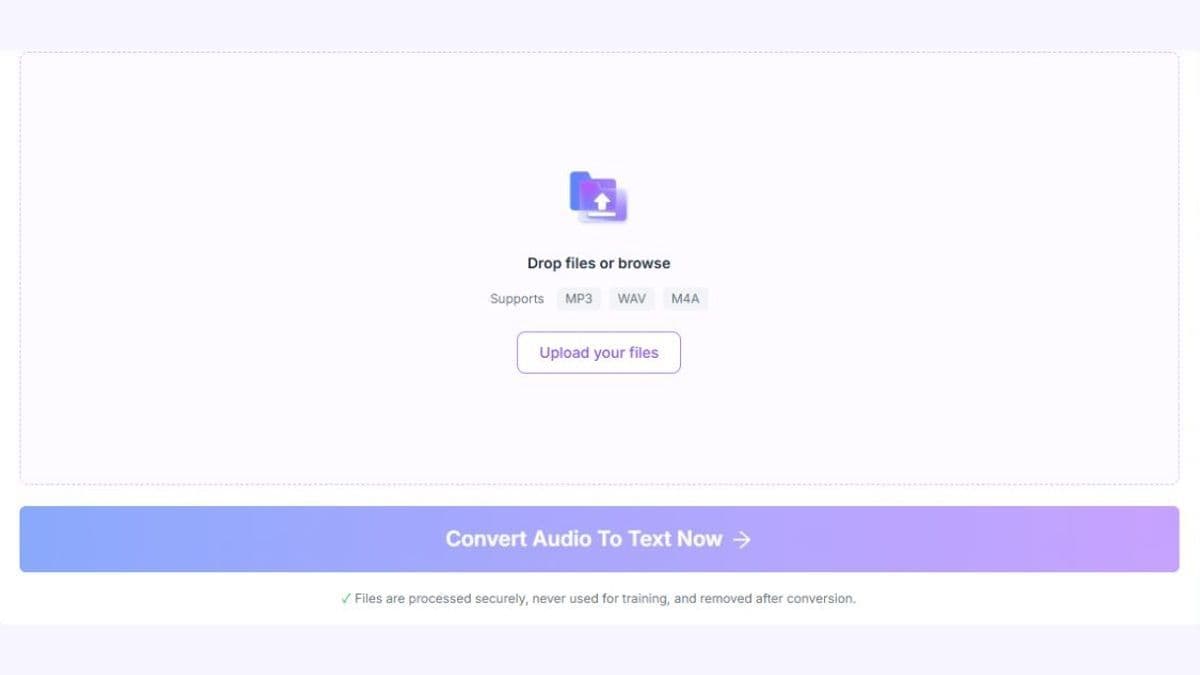
Step 1. Upload Your Riverside Recording
Download the recording from Riverside and save it to your device. Then upload a supported MP3, WAV, MP4, or other compatible media file to Lynote. You can work with an exported combined recording or an individual speaker track. Make sure you have permission to use and process the audio before uploading it.
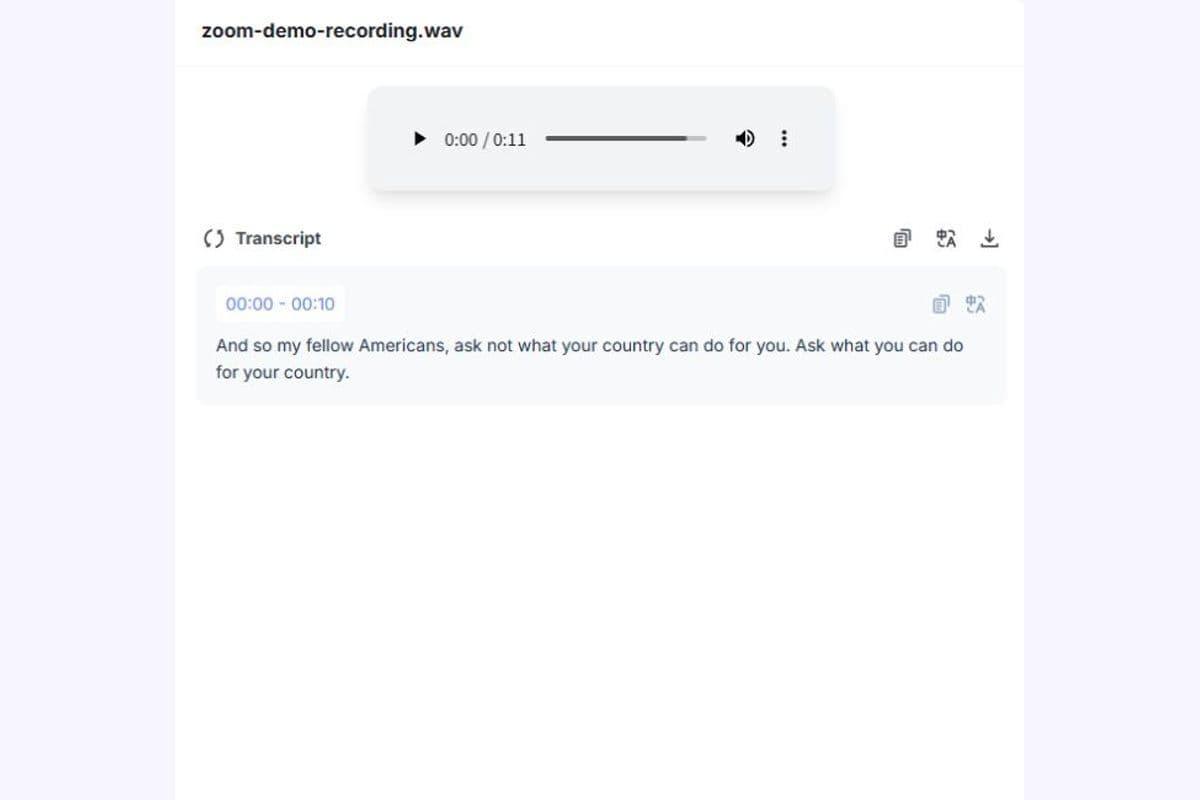
Step 2. Generate Your AI Transcript
Start the transcription process after selecting your file. Lynote converts supported speech into text and provides speaker labels and timestamps where available. Review the transcript to identify important topics and check whether sections with overlapping speech, accents, or background noise need correction.
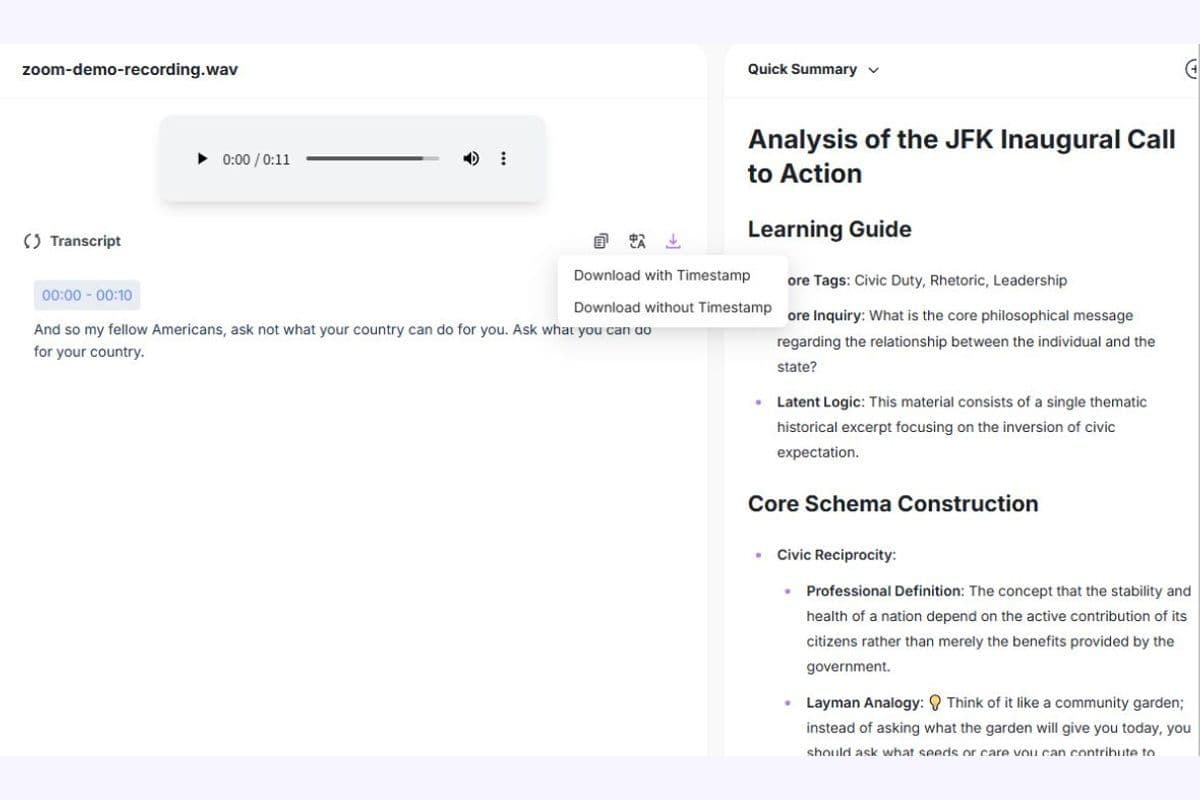
Step 3. Edit, Summarize, and Export
Use Lynote's transcript editor to correct inaccurate names, terminology, and spoken phrases. Search the text, review important sections, and create a summary when needed. Copy or export the result using the available options. Keep the original recording accessible when preparing quotations, subtitles, or other published content.
How to Download Riverside Recordings for Transcription
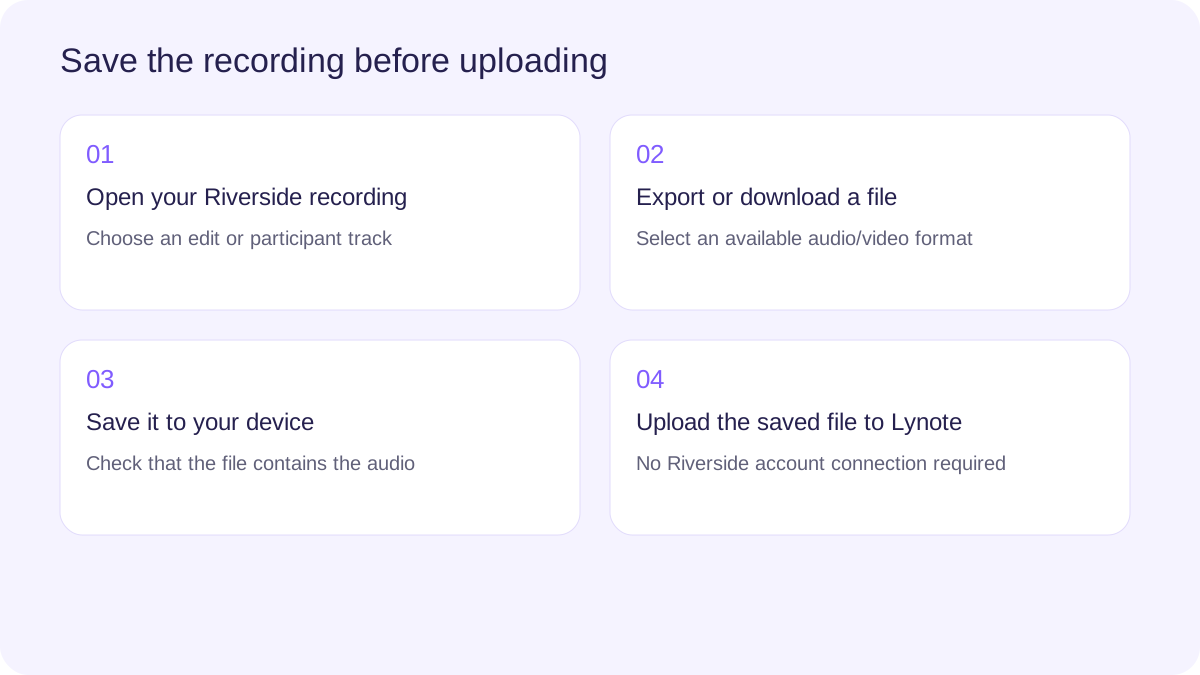
Before you can transcribe Riverside audio with Lynote, you need a compatible media file saved on your device. Riverside provides options for exporting combined sessions and downloading individual participant recordings.
Download a Combined Audio Recording
Open the relevant recording or edit in your Riverside workspace. Use the available export options to prepare a combined audio file containing the selected participants.
Depending on the export options available, you may be able to download WAV or MP3 audio. WAV generally preserves more audio detail, while MP3 produces a smaller file that is convenient for transferring and uploading.
After the export finishes, save the file to your device and upload it to Lynote for transcription.
Download Individual Speaker Tracks
Riverside can record participants on separate tracks, making it possible to work with an individual speaker's audio. Open the relevant recording project and locate the available participant tracks.
Select the track you want and choose a supported download format. Available options and download limits may depend on your Riverside plan and recording configuration.
You can upload each compatible track to Lynote separately. However, separately transcribing several tracks is not the same as automatically combining them into one synchronized conversation.
Download a Riverside Video Recording
If you prefer working with the recorded video, export or download the recording as an MP4 file where available. A combined video can include the selected participants and their spoken conversation.
Upload the compatible MP4 file to Lynote to transcribe its audio content. You do not necessarily need to convert the video into an audio-only file first.
Upload the Saved File to Lynote
Once the recording is saved, open Lynote Audio to Text and select the downloaded file. Use the file upload workflow to generate your transcript.
Important: This process requires a saved audio or video file. Lynote does not claim to connect directly to your Riverside account, download recordings automatically, or transcribe a Riverside project URL without the file.
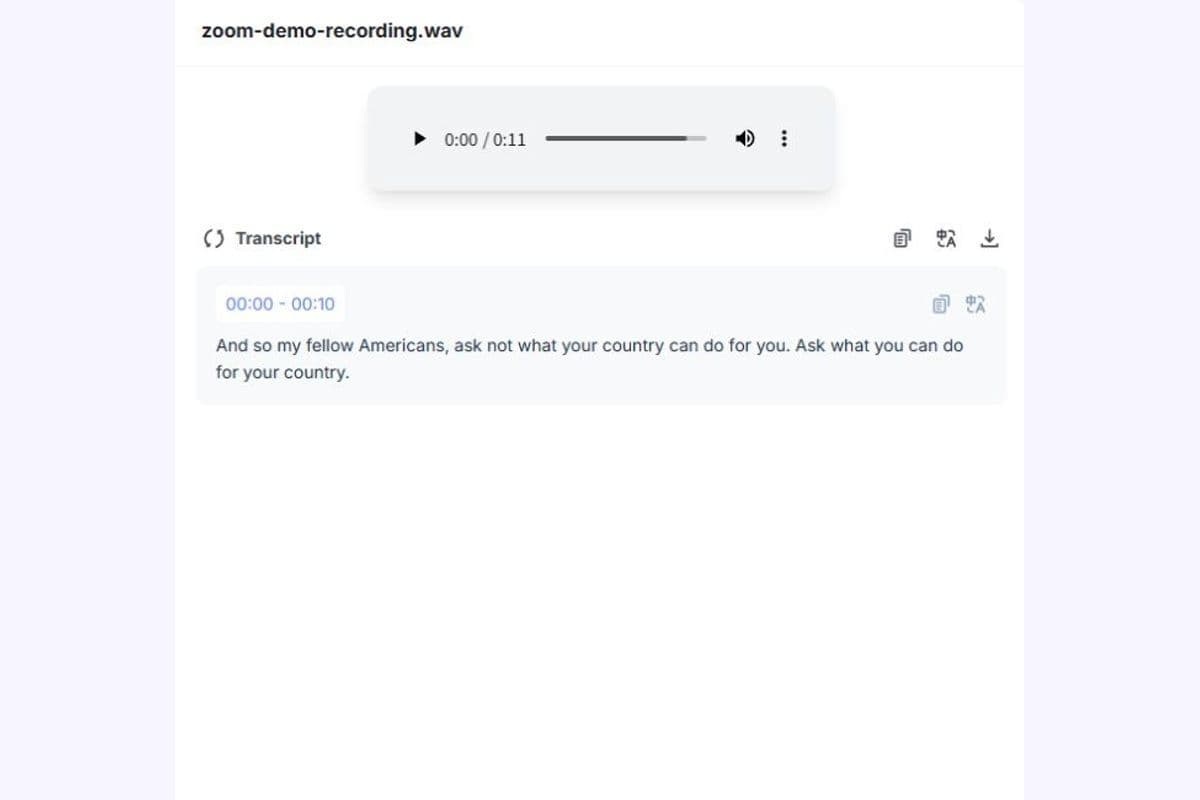
Turn Riverside Podcasts into Searchable Transcripts
Long podcast episodes can contain dozens of useful comments, stories, and explanations. Finding a specific point by listening to the entire episode again can take considerable time.
Lynote converts supported recordings into searchable text, making it easier to locate guest responses and identify topics worth revisiting. You can use the transcript when preparing show notes, researching an episode, or reviewing a conversation.
Always check the original audio before publishing a guest's quotation, especially when wording or context is important.
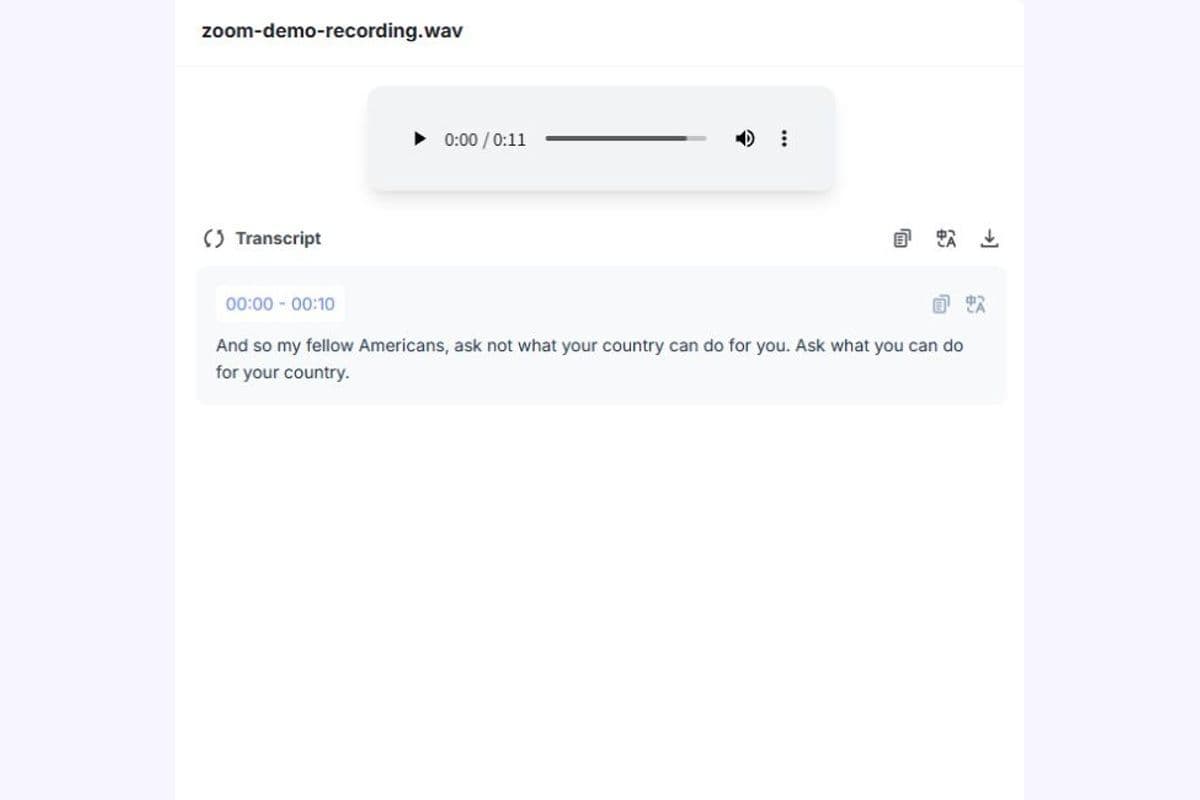
Keep Interviews Organized with Speaker Labels and Timestamps
Podcast interviews often move between hosts, guests, and multiple discussion topics. A transcript with speaker labels and timestamps helps separate contributions and locate relevant moments.
With Lynote, you can review the conversation in text form and search for specific words or topics. Speaker labels provide an initial structure, but they should not be treated as guaranteed participant identification.
This workflow can support interview review, editorial research, and preparation for content editing.
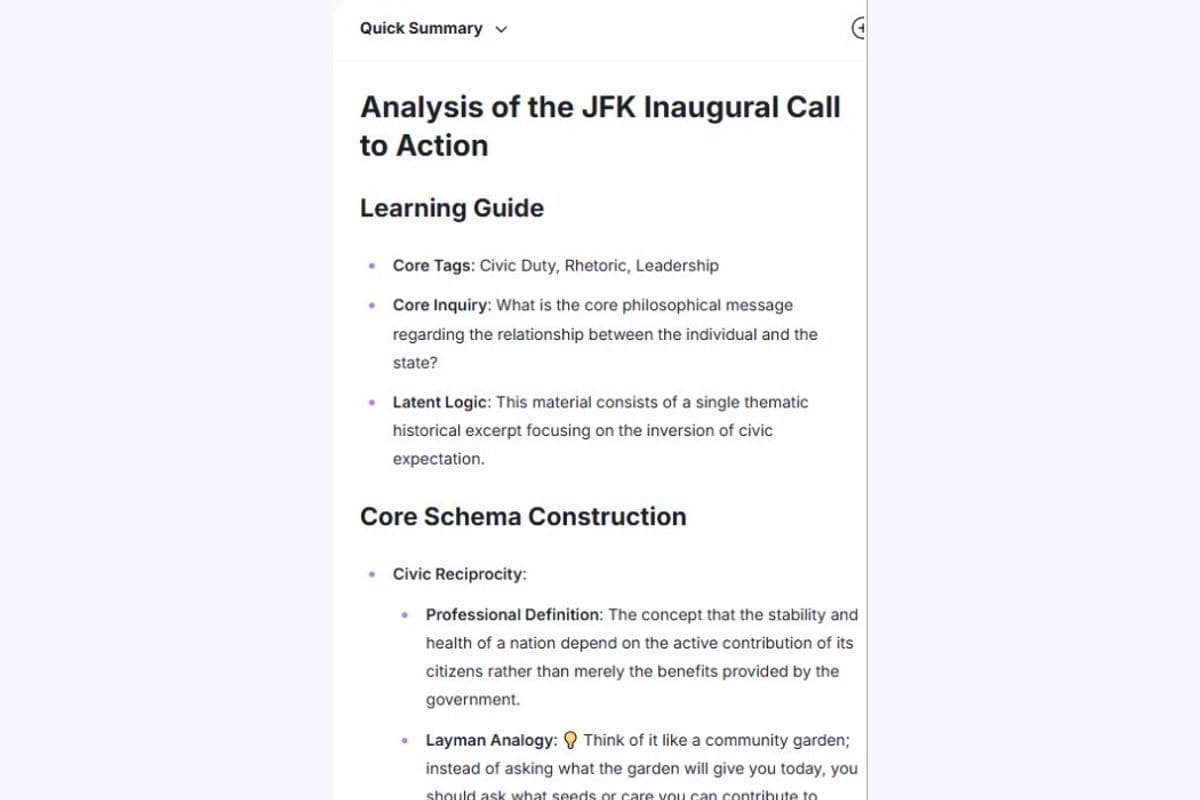
Turn Long Recordings into Content Ideas
A full podcast episode can provide material for several forms of written content. A transcript can help you identify the main themes, summarize explanations, and find sections that may be useful for an article or social media post.
Lynote's AI summary feature helps prepare a shorter overview of the source conversation. You can then add context, verify claims, and develop your own written content from the reviewed transcript.
Lynote does not automatically publish podcast episodes or generate a finished content campaign. It provides transcription and summarization tools that creators can use within their own workflows.
Riverside Audio to Text Transcription Example
Here is a simplified example of how a recorded creator interview might appear after transcription. The dialogue and timestamps are fictional and demonstrate the intended layout rather than an actual customer's recording.
Recording Type: Podcast Interview
Topic: How Creators Organize Their Research
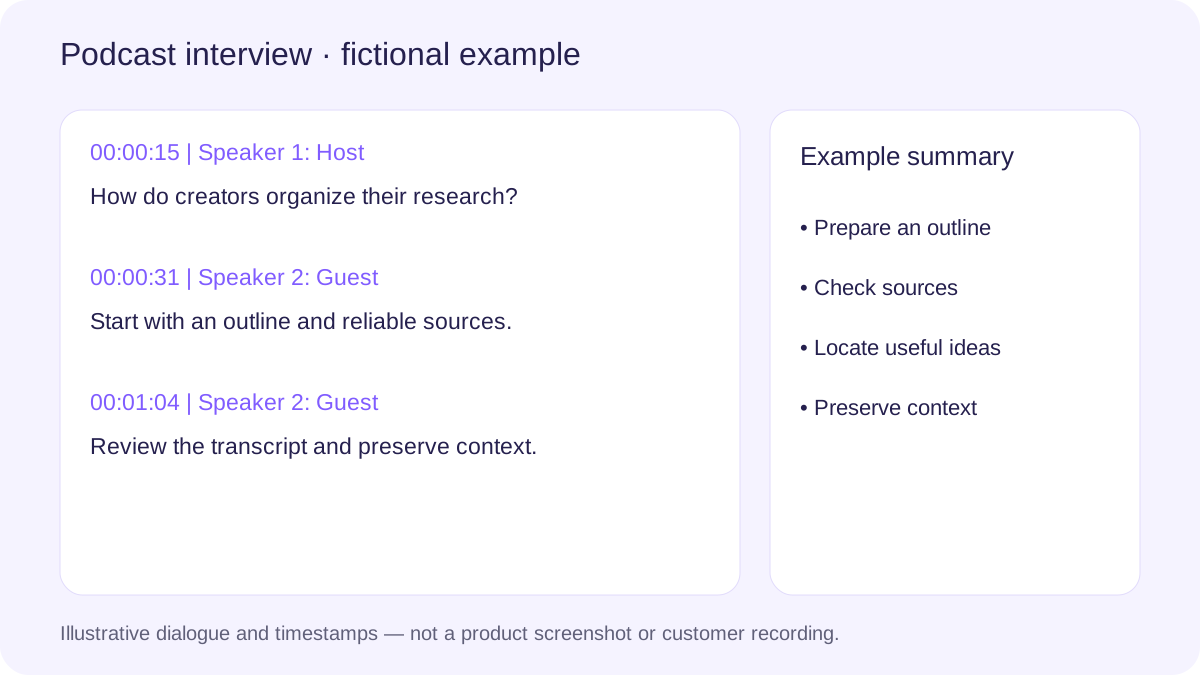
Example Transcript
00:00:15 | Speaker 1: Host
Welcome back. Today we're discussing how creators organize their research before recording a new podcast episode.
00:00:31 | Speaker 2: Guest
I usually begin with a short outline, collect a few reliable sources, and write questions that help structure the conversation.
00:00:48 | Speaker 1: Host
After recording, how do you decide which parts of the discussion should become short clips or written articles?
00:01:04 | Speaker 2: Guest
I review the transcript, identify useful explanations, and check which ideas can stand on their own without losing context.
Example AI Summary
Main Topic: Organizing research and repurposing podcast conversations.
Key Points
- A short outline provides structure before recording.
- Reliable source material helps prepare interview questions.
- Transcripts make important explanations easier to locate.
- Content repurposing requires checking whether an excerpt preserves its original meaning.
Potential Content Ideas
- How to prepare a podcast research outline.
- How to turn interviews into written articles.
- How to select podcast highlights without losing context.
A transcript preserves the recorded conversation, while a summary provides a shorter overview. Both should be checked against the source before being used in published work.
What Can You Do with Riverside Transcripts?
Riverside transcripts can support several content and research activities after a recording has finished. Turning speech into text makes it easier to review material, find relevant sections, and prepare additional written resources.
Podcast Show Notes
Use a transcript to identify the topics discussed in an episode. Create a short overview, highlight key themes, and add verified links or references before publishing show notes.
Guest Interview Research
Review guest responses and organize quotations by topic. Search for recurring ideas and preserve the original audio for accurate attribution and context checks.
YouTube Video Scripts and Captions
Use a transcript as a reference when preparing video descriptions, outlines, or caption text. Correct transcription errors and confirm timing before using the content in a final video production workflow.
Blog Posts and Newsletters
Identify explanations and insights that could support a written article. Rewrite and structure the material for readers rather than simply publishing an unedited transcript.
Research Interviews
Convert authorized interviews into searchable text for qualitative review. Preserve the original recording and follow applicable privacy and consent requirements.
Training and Educational Recordings
Turn recorded explanations into text that learners can revisit. Organize important definitions and instructions, then confirm technical details against the source.
Supported Riverside Audio and Video Formats
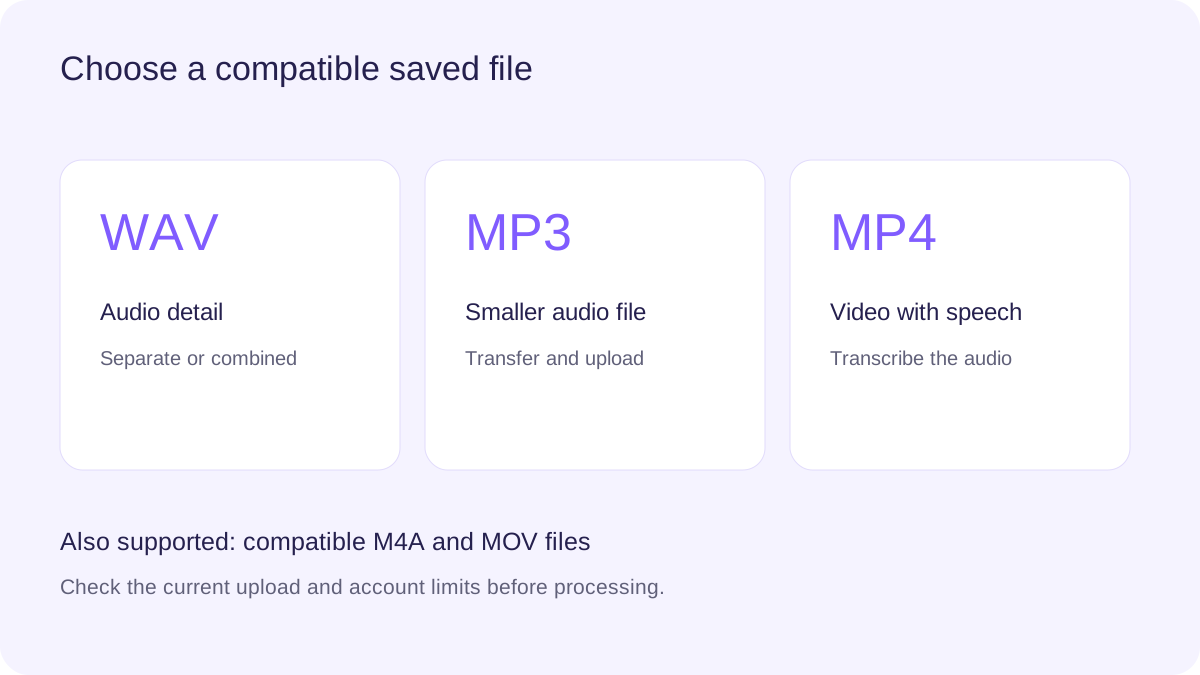
Riverside provides several export formats for recording and editing workflows. The appropriate choice depends on whether you need high-quality audio, a smaller file, or a combined video.
| Format | Common Riverside Use | How Lynote Can Help |
|---|---|---|
| WAV | High-quality audio, separate tracks or combined exports | Transcribe compatible WAV recordings |
| MP3 | Compressed audio for easier storage and transfer | Convert compatible MP3 audio to text |
| MP4 | Video tracks and edited video exports | Transcribe spoken content from MP4 files |
| M4A | Audio files converted or exported through compatible software | Process supported M4A audio |
| MOV | Compatible video files from other recording workflows | Process supported MOV files |
Riverside WAV to Text
WAV files are useful when you want to retain high-quality audio for editing and transcription. Riverside provides WAV options for individual audio tracks and selected combined exports.
Upload a supported WAV recording to Lynote, then review the generated transcript. Larger files may require additional upload time and must meet the tool's current file limits.
Riverside MP3 to Text
MP3 files are smaller and convenient for transferring podcast recordings. Riverside supports compressed MP3 audio exports in applicable workflows.
You can upload a supported MP3 file directly to Lynote. Audio compression can affect clarity, so review important passages carefully.
Riverside MP4 to Text
MP4 is useful when you have a saved Riverside video recording. Lynote can transcribe the speech in supported video files without requiring a separate audio file.
Check that the video contains the audio you want to process before uploading it.
Separate Tracks vs. Combined Riverside Recordings
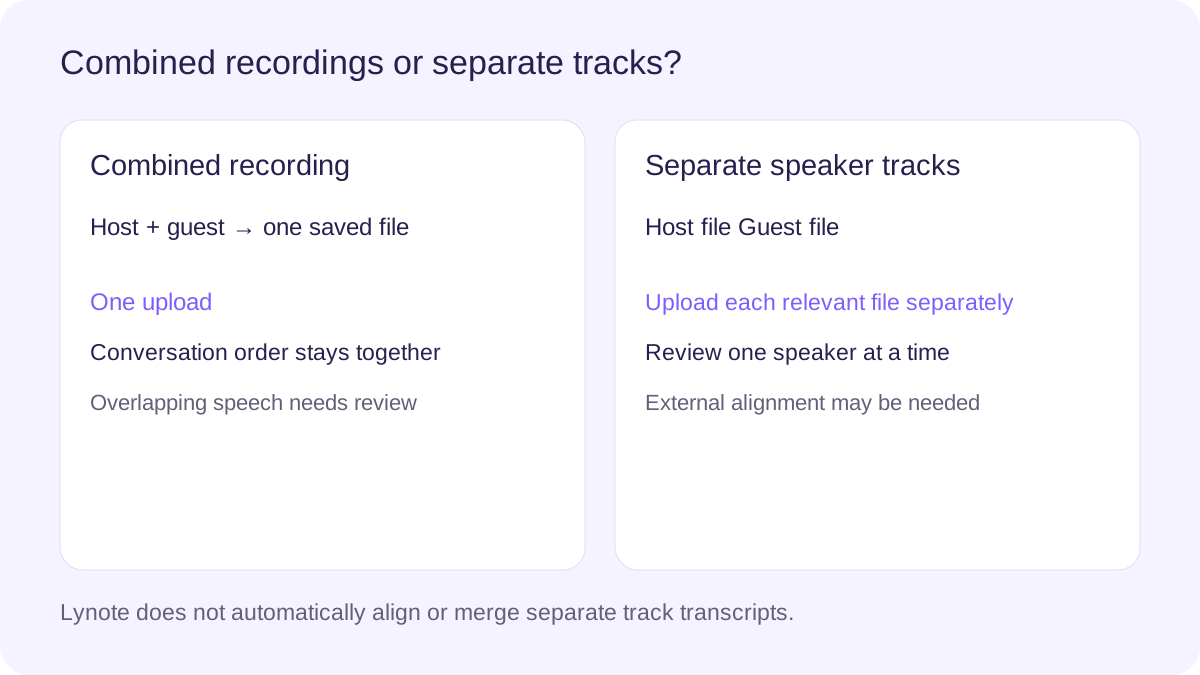
Riverside supports separate participant recordings as well as combined exports. Understanding the difference helps you choose a file that fits your transcription needs.
| Feature | Combined Recording | Separate Speaker Tracks |
|---|---|---|
| Audio Content | Multiple participants in one file | Typically one participant per track |
| Upload Workflow | Upload one combined audio or video file | Upload the relevant track or tracks separately |
| Conversation Order | Preserved within the combined recording | May require alignment across tracks |
| Speaker Recognition | Speaker detection can distinguish voices | Track identity may make the source speaker clearer |
| Best For | Full podcast or interview transcripts | Individual speaker review and audio editing |
| Main Limitation | Overlapping speech can reduce clarity | Individual transcripts may not preserve complete conversation order |
When to Use a Combined Recording
Choose a combined recording if you want to transcribe the full conversation in one file. This is usually the simplest option for preparing a podcast transcript or reviewing an interview.
Speaker detection can help separate participants, but overlapping speech and recording quality may affect the results.
When to Use Separate Audio Tracks
Separate tracks can be useful when one speaker's recording needs individual review or editing. They may also offer better clarity if participants recorded in different environments.
However, creating one complete conversation from separately transcribed tracks may require external editing and synchronization. Lynote does not claim automatic multi-track alignment or merging.
Which Is Better for Podcast Transcription?
For a complete episode transcript, begin with a combined recording when available. For detailed speaker-specific analysis, separate tracks may be more convenient.
Keep the original files in case you need to verify timing, spoken words, or participant identity.
Tips for Better Riverside Audio Transcription
Even high-quality recordings can contain names, jargon, interruptions, or unclear speech. Reviewing the source alongside the generated transcript helps improve the final result.
Choose a Clear Recording
Use the clearest file available, particularly when participants have different microphones or recording environments. High-quality tracks may be helpful for difficult passages.
Check Guest Names and Specialized Terms
Automatic transcription may misunderstand names, brand terminology, or uncommon expressions. Correct these details before reusing the text.
Review Overlapping Dialogue
When speakers interrupt or talk simultaneously, a transcript may not preserve every word perfectly. Return to the original audio to confirm uncertain passages.
Preserve Context When Quoting
A sentence can have a different meaning when separated from the surrounding conversation. Review the full answer before selecting an excerpt for publishing.
Keep a Source Copy
Retain the original audio or video file when permitted. This helps verify quotations, timestamps, and editorial changes later.
Privacy and Consent for Riverside Recording Transcription
Podcast recordings, interviews, and private conversations may include personal details or confidential information. Confirm that participants have agreed to the recording and any relevant transcription or processing.
Before uploading content, follow your organization's policies and applicable privacy requirements. Avoid processing restricted information unless the service's documented safeguards satisfy your needs.
When preparing transcripts for publication, remove private details where appropriate and verify quotations with the source recording. Lynote's published privacy and data-processing information should be consulted for current storage and security practices.
Frequently Asked Questions About Riverside Audio to Text
Riverside audio to text is the process of turning audio recorded using Riverside into a written transcript. You can transcribe podcasts, interviews, discussions, and recorded video sessions. Lynote provides a file-based transcription workflow for compatible Riverside exports. Download the recording first, then upload it to the transcription tool.
Lynote offers free access to audio transcription, subject to current usage limits, file restrictions, and account requirements. You can begin with a supported audio or video file and check the available allowance. Longer recordings or additional transcription usage may require a paid plan. Review the current tool interface for the applicable limits.
Download a compatible audio recording from Riverside, such as an MP3 or WAV file. Upload the saved file to Lynote and start the transcription process. Review the generated transcript, correct important details, and export or copy the text using available options.
Yes. Lynote's Audio to Text tool supports MP3 and WAV audio files, along with other compatible audio and video formats. These formats are commonly available in Riverside recording and export workflows. File limits and processing options should be checked before uploading.
Yes. Lynote supports transcribing speech from compatible MP4 files. Download the Riverside video and upload the saved file to Lynote. You do not necessarily need to extract the audio separately.
Yes. You can upload supported individual speaker tracks for separate transcription. However, Lynote does not claim to automatically synchronize multiple independent transcripts into a complete conversation. If you need one combined episode transcript, consider exporting a combined recording first.
Lynote provides speaker detection and labels to help separate voices in a transcript. These labels may help organize interviews and discussions involving multiple participants. The tool does not guarantee that a speaker's name or identity will be recognized correctly. Verify speaker assignments before publishing or sharing the transcript.
Lynote supports timestamped transcripts, helping you locate relevant moments in the original recording. This can be useful when reviewing a guest's response or selecting a clip for editing. Timestamp accuracy and display depend on the source file and transcription output. Check the original recording for precise editing decisions.
Lynote supports multilingual audio transcription for many languages and accents. You can upload supported Riverside recordings containing speech in an available language. Audio quality, accent, technical terminology, and speakers switching languages may affect accuracy. Review important passages carefully.
No. The workflow described here requires a saved recording file. Lynote does not claim direct Riverside account integration, automatic cloud synchronization, or recording import through a Riverside share link.
The Lynote Audio to Text workflow processes uploaded, saved files. It is not advertised as a live Riverside recording transcription integration. For transcription during a live Riverside session, check Riverside's current built-in features and available account options.
Yes. A transcript can help you identify episode topics, important explanations, and references for show notes. Lynote can provide AI summaries to help prepare an initial outline. You should still write and verify the final show notes before publication.
Yes, provided you have the necessary rights to reuse the recording content. A transcript can help identify useful explanations, quotes, and themes for written articles. Review the source and add original structure and context rather than publishing raw transcription without editing.
Accuracy depends on speech clarity, background noise, microphone quality, speaker overlap, and language. High-quality recordings can help, but automatic transcription may still contain errors. Correct important statements, quotations, names, and technical information before using the text in professional or published material.
No automatic multi-track transcript alignment or merging capability is claimed here. Separate tracks can be uploaded individually when their formats are supported. If you need one transcript preserving the conversation sequence, exporting a combined recording from Riverside may be the more practical approach.
Yes, within Lynote's current supported file sizes, durations, and usage limits. Longer podcast episodes may take more processing time or require additional account allowances. Check the current transcription tool and pricing details before processing large recording files.
Riverside offers its own transcription features within eligible recording and editing workflows. Lynote provides a separate transcription and summarization option for compatible exported media files. The appropriate choice depends on whether you want to work inside Riverside or process a saved file through a different tool. Feature availability and plan restrictions may differ.
Guides to Transcription and Content Creation

Turn Your Riverside Recording into Searchable Text
Make your podcast recordings, interviews, and video conversations easier to review with Lynote. Upload a compatible Riverside audio or video file, generate an editable transcript, and use speaker labels, timestamps, and AI summaries to organize important information. Spend less time searching through recordings and more time developing useful content from your conversations.
