How to Extract Text from a Scanned PDF: 3 Proven Methods

You have a scanned PDF—a class handout, a signed contract, an old manual—and you need to copy a paragraph. You drag your cursor over the text, but nothing happens. The entire page highlights as a single, stubborn image. It’s a frustratingly common problem, but the text isn't lost. It's just locked away.
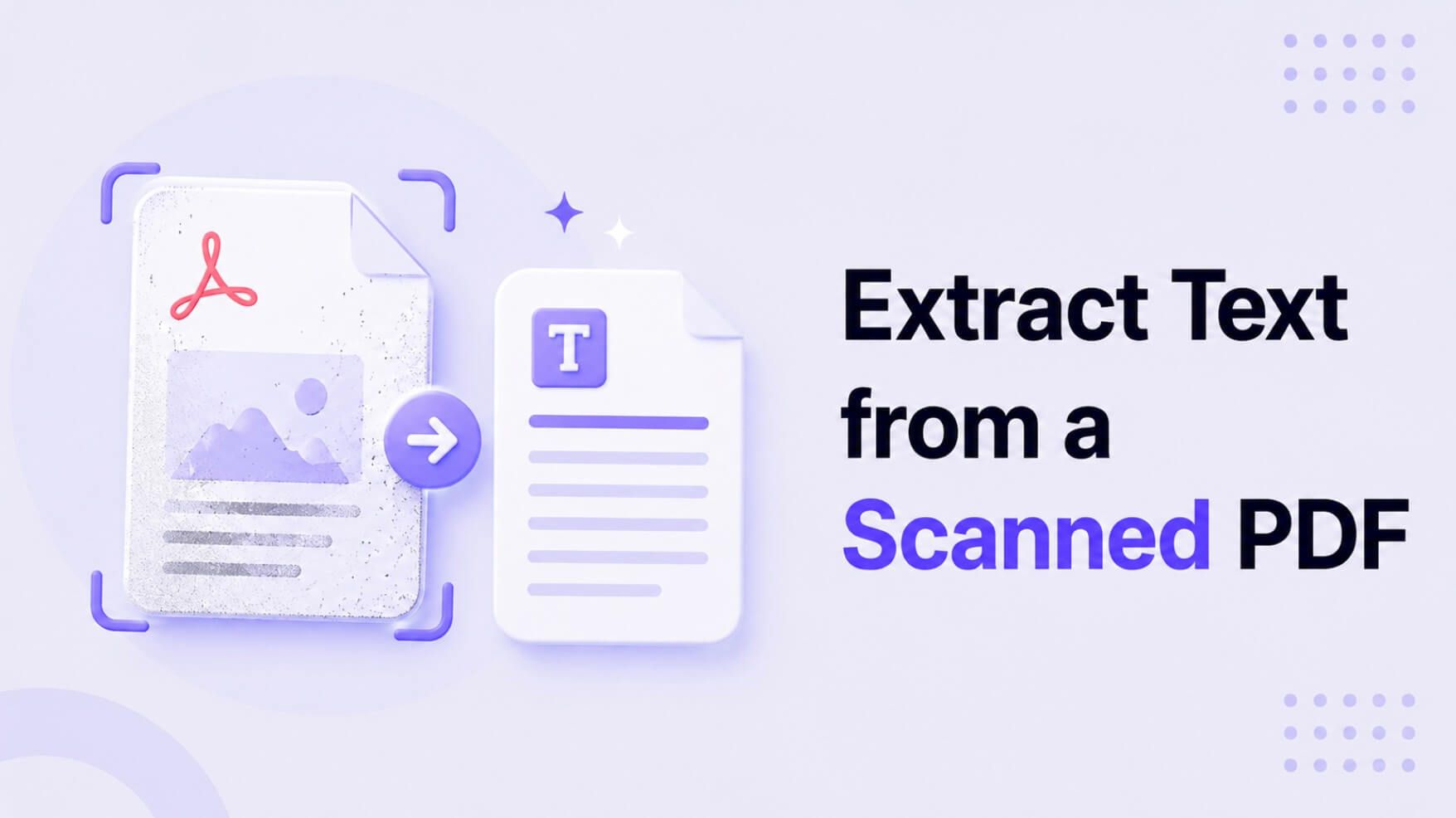
A scanned PDF is essentially a photograph of a document. Your computer sees pixels, not letters, which is why you can't select, copy, or search the text. To unlock it, you need a process called Optical Character Recognition (OCR). OCR technology scans the image, identifies the shapes of letters and numbers, and converts them into machine-readable, editable text. This guide walks you through three reliable methods for using OCR to extract text from your scanned documents, from quick online tools to professional-grade software.
Quick Verdict: Best Ways to Extract Text from Scanned PDFs
For those on a deadline, here’s the bottom line. Choosing the right method depends entirely on your needs for speed, accuracy, and privacy.
| Method | Best For | Accuracy (1-5) | Typical Cost |
|---|---|---|---|
| Online OCR Tools | Quick, one-off extractions of simple documents (e.g., a few pages of notes). | 3.5 | Free (with limits) |
| Adobe Acrobat Pro | Professionals needing high accuracy and layout fidelity for business documents. | 4.5 | Subscription (~$20/mo) |
| Dedicated OCR Software | High-volume, archival, or complex batch processing with maximum control. | 5.0 | High one-time fee ($100+) |
Scores are editorial heuristics based on typical performance, not measured benchmarks. Results vary by document quality.
Bottom Line: For most students, researchers, and office workers who occasionally need to grab text from a scan, a free online OCR tool is the most efficient starting point. If you handle sensitive documents or require pixel-perfect formatting daily, investing in Adobe Acrobat Pro is justified.
Understanding the Source: Scanned vs. Native PDFs
Before we dive into the "how," let's clarify the "why." Not all PDFs are created equal. The frustration you're feeling comes from the difference between two fundamental types: native and scanned.
- Native PDFs: These are typically created from a digital source, like exporting a Microsoft Word document or a Google Doc. They have a built-in text layer. The characters are defined by data, not pixels. You can select, copy, search, and edit the text just like in any other text document.
- Scanned PDFs: These are born from a physical scanner or a smartphone camera app. Each page is a flat image file (like a JPEG or TIFF) wrapped inside a PDF container. There is no text layer, only a picture of text.
How can you tell which one you have? The test is simple: open the PDF and try to highlight a single sentence with your cursor. If you can select the text precisely, you have a native PDF. If your cursor draws a big blue box over a whole section or the entire page, you have a scanned, image-based PDF. This is where OCR becomes your essential tool.
Method 1: Using Free Online OCR Tools for Quick Conversions
For the vast majority of tasks—like grabbing quotes from a scanned academic article or digitizing a printed invoice—a free online tool is the fastest path from A to B. These web-based converters require no software installation and can turn your image-based PDF into usable text in seconds.
The upsides are obvious: they're free, accessible from any browser, and incredibly fast. The part people often miss, however, are the tradeoffs. Free services may have limitations on file size or the number of pages you can process per day. More importantly, you're uploading your document to a third-party server, which might not be suitable for confidential or sensitive information.
Still, for non-sensitive material, their convenience is unmatched. A great modern example is the PDF text extraction tool, which uses an AI-powered engine to provide clean text extraction without requiring a sign-up for basic use.
Here’s a typical workflow:
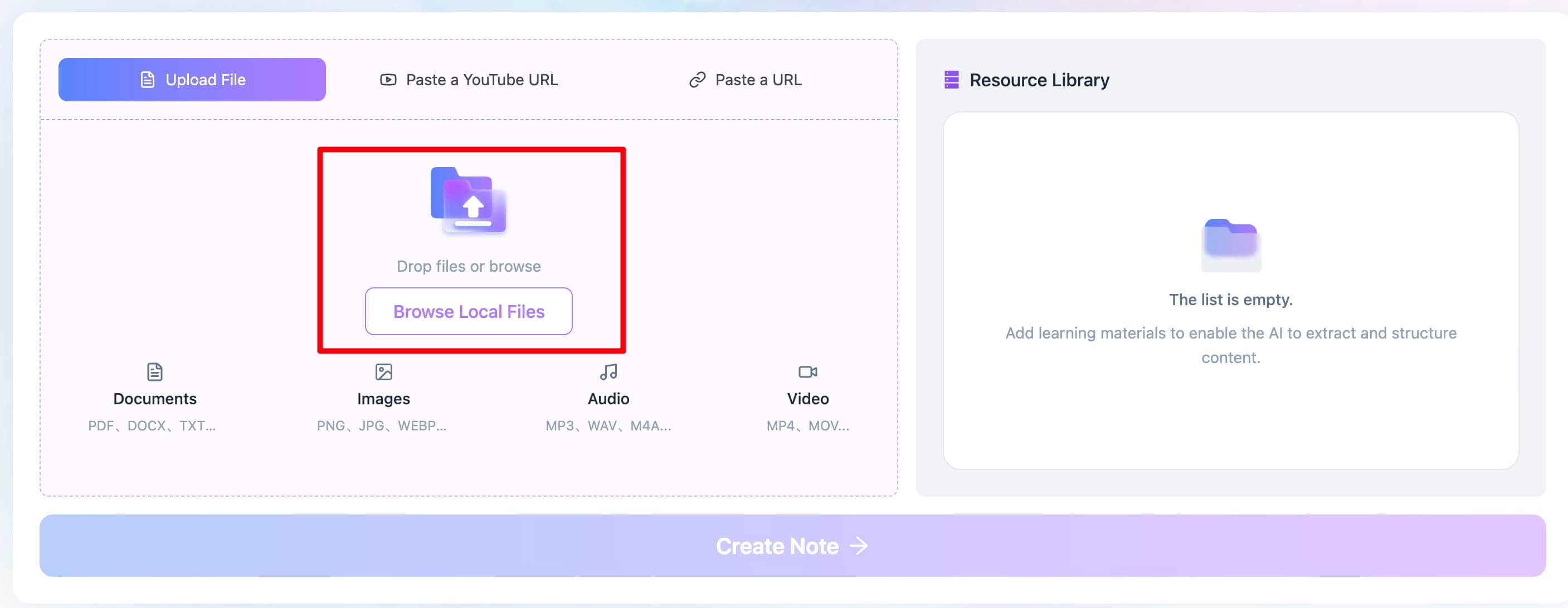
- Upload Your Scanned PDF. Navigate to the Lynote workspace. You’ll see a few options for input, but for a local file, stick with the "Upload File" tab. You can either drag your scanned PDF directly onto the page or click "Browse Local Files" to select it from your computer.
- Extract Text from the PDF. Once your file is loaded, simply click the "Create Note" button. This action sends the document to the AI engine, which immediately begins the OCR process. It analyzes the image of each page, recognizes the characters (supporting over 130 languages), and reconstructs the content as digital text.
- Review and Export the Text. In a matter of seconds, the extracted text will appear on the left of the main editor panel. You can select all the text and copy it to your clipboard. You can also check the PDF summary or ask any questions about it.
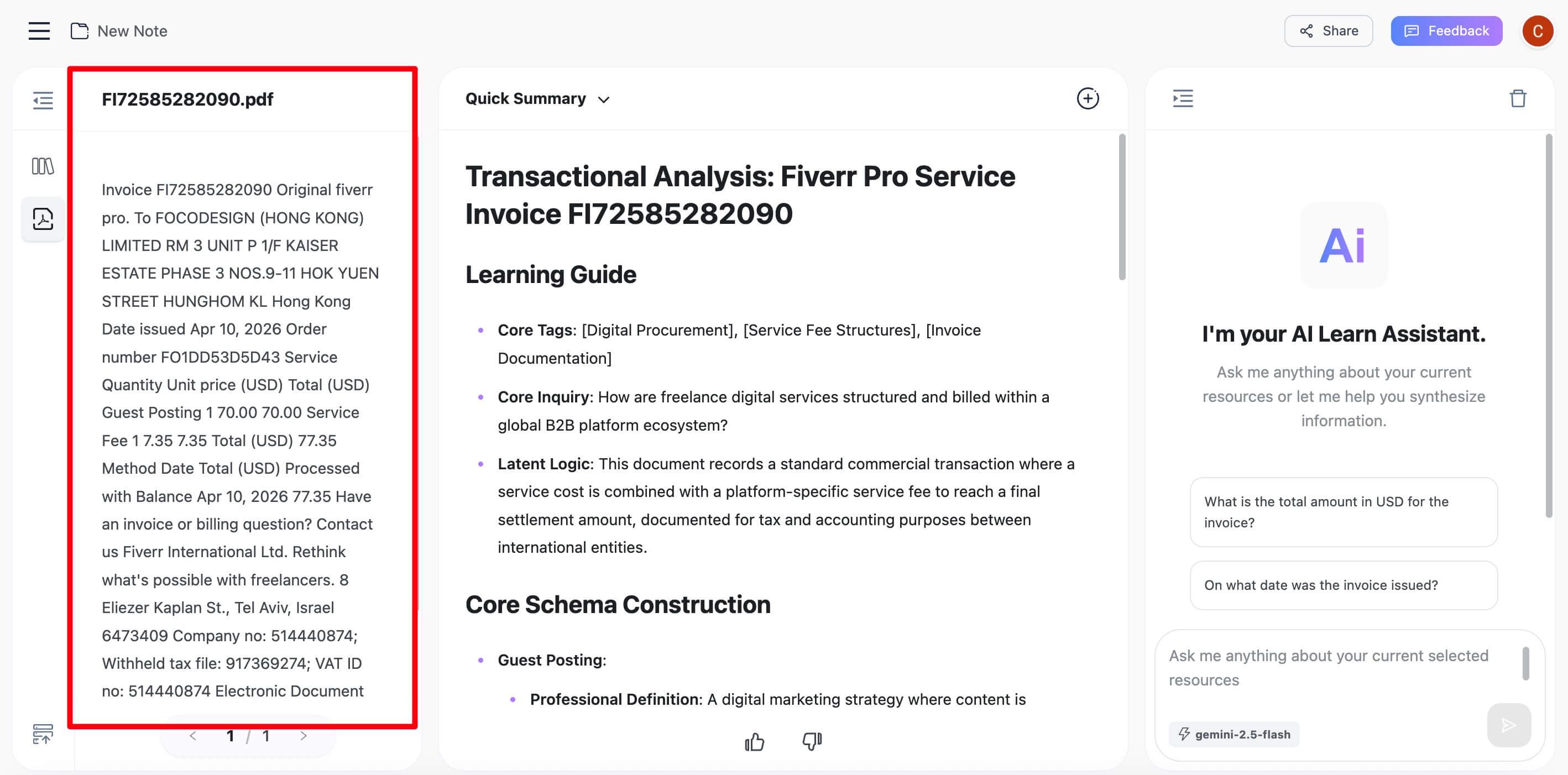
I once found myself in a classic student bind: a 30-page scanned reading was assigned for a history seminar, and the final paper was due the next day. I remembered the professor mentioning a specific historian, but I couldn't recall where in the dense text. Instead of panic-skimming for an hour, I dropped the PDF into an online OCR tool. Less than a minute later, I had a searchable document. A quick Ctrl+F for the historian's name took me right to the three key pages I needed. It was a small thing that completely saved my night.

Method 2: Using Adobe Acrobat Pro's Built-in OCR
If you work with PDFs professionally, you likely have access to Adobe Acrobat Pro. It’s the industry standard for a reason, and its built-in OCR capabilities are both powerful and reliable. This method is ideal when you need more than just the raw text—you also want to preserve the document's original layout, fonts, and formatting as closely as possible.
Unlike many online tools that just dump the text, Acrobat creates a "searchable image" PDF. This means it keeps the original scanned image but adds an invisible, selectable text layer on top of it. The document looks identical, but now it's fully searchable and you can copy-paste from it.
You might be wondering, is it worth paying for? If you already have a Creative Cloud subscription, it’s a no-brainer. If not, the monthly cost is steep for occasional use.
Before you start:
- You must have a paid subscription to Adobe Acrobat Pro (the free Adobe Reader does not include OCR).
- For best results, ensure your scanned PDF is clear and at least 300 DPI.
How to Recognize Text in Acrobat Pro:
- Open Your Scanned PDF in the Adobe Acrobat Pro application.
- Navigate to the "Tools" center. You can find this in the top toolbar or the right-hand pane.
- Select the "Enhance Scans" tool. This groups together several features for improving scanned documents.
- In the "Enhance Scans" toolbar that appears, click "Recognize Text." A small dropdown will appear. Choose "In This File."
- A settings dialog box will pop up. For most uses, the default settings are fine. You can specify the language of the document for better accuracy. Click "Recognize Text" to begin the process.
Acrobat will now process each page. For a long document, this can take a few minutes. Once it's done, try selecting text again. You'll find you can now highlight, copy, and search the document as if it were a native PDF all along.
The main reason Adobe Acrobat Pro often preserves layout better than free online tools is its advanced document analysis engine, which is designed to reconstruct complex tables and columns rather than just extracting raw text streams.
Method 3: For High-Volume Needs — Dedicated OCR Software
When you move from processing one document to digitizing an entire filing cabinet, you graduate to dedicated OCR software. Tools like ABBYY FineReader or Kofax OmniPage are the heavy machinery of the text extraction world.
This method is overkill for the average user. But for law offices, academic researchers, or businesses going paperless, it’s an essential investment. Here’s what sets these platforms apart:
- Batch Processing: You can feed the software hundreds of scanned PDFs at once and let it run overnight, exporting them all into your desired format.
- Advanced Layout Recognition: These tools excel at understanding complex layouts. They can intelligently identify headers, footers, columns, tables, and images, and reconstruct them faithfully in an editable format like a Word document.
- Integration and Automation: Many dedicated OCR programs can be automated. For example, you can set up a "watched folder" where any new scan dropped inside is automatically converted and saved to another location.
- Highest Accuracy: While online tools and Acrobat are very good, dedicated software often has more granular controls for improving recognition on poor-quality scans, giving it an edge in challenging situations.
The honest truth is that you'll know if you need this. If your workflow involves converting more than 10-20 scanned documents a week, or if you're dealing with very old, degraded, or complex documents, exploring a free trial of a dedicated OCR tool is a worthwhile next step.
Common Problems When Extracting Text (and How to Fix Them)
OCR technology feels like magic, but it can fail. When you get garbled text or a jumbled layout, the issue usually falls into one of these categories.
- Problem: The source scan quality is poor.
- Why it happens: OCR needs clear, distinct letter shapes to work. Blurry, skewed, or low-resolution scans (under 200 DPI) are like asking a person to read in a dark room. You’ll get a lot of "I think it says..."
- The Fix: If possible, rescan the document at a higher resolution (300 DPI is the gold standard). Make sure the page is flat on the scanner bed and aligned correctly. Good input is the single biggest factor in getting good output.
- Problem: The layout is complex (tables, columns, text boxes).
- Why it happens: Basic OCR reads left-to-right, top-to-bottom. When it encounters a two-column academic paper, it might read the first line of column one, then the first line of column two, and so on, mixing everything into nonsense.
- The Fix: This is where professional tools like Acrobat or dedicated software shine. They have "zonal OCR" that can identify these blocks of text and process them in the correct order. For a free tool, your best bet is to extract the raw text and be prepared to reformat it manually.
- Problem: The text contains handwriting, stamps, or unusual fonts.
- Why it happens: Most OCR engines are trained on standard printed fonts. They struggle with the variability of handwriting, and a big red "PAID" stamp across a paragraph can completely obscure the words underneath.
- The Fix: For handwriting, you need specialized ICR (Intelligent Character Recognition) software, which is a different beast entirely. For stamped documents, there's often no easy fix other than manual correction after the fact. Always proofread the output carefully, especially around non-standard elements.
Frequently Asked Questions
How accurate is OCR text extraction?
Modern AI-powered OCR can be incredibly accurate, often exceeding 99% for high-quality, typed documents. However, accuracy drops with poor scan quality, complex layouts, or unusual fonts. For critical documents, you should always budget time for a quick human proofread.
Why did my formatting and fonts change after extracting the text?
This is a critical point. OCR extracts the content (the characters), but it has to reconstruct the formatting. The process is not a perfect copy; it’s a rebuild. The new document uses standard system fonts (like Arial or Calibri), not the exact font from the original image. This can cause the text to reflow, changing page breaks and spacing, especially if the original used complex layouts.
Can I extract text from a scanned PDF without any software?
No. At its core, extracting text from an image requires OCR software. The choice is whether you use web-based software (an online tool), desktop software you install (like Acrobat), or an app on your phone. There is no way to do it without some form of OCR program running somewhere.
What's the best way to extract text from a scanned PDF for free?
For most users, a reputable online OCR tool like Lynote's AI Transcription is the best free option. It offers a balance of high accuracy, speed, and ease of use without requiring software installation or a paid subscription for standard tasks. Just be mindful of privacy for sensitive documents.
Final Verdict & Editor's Choice
Choosing how to extract text from a scanned PDF isn't about finding the single "best" tool, but the right tool for your specific task.
- If you need a quick, one-time conversion for a non-sensitive document, start with a free online OCR tool.
- If you regularly work with professional documents and need reliable formatting, Adobe Acrobat Pro is your workhorse.
- If your job involves digitizing archives or high volumes of scans, invest in dedicated OCR software.
Editor's Choice: For the vast majority of students, academics, and administrative professionals who face this problem occasionally, a modern online tool like Lynote is the most practical choice. It strikes the perfect balance: it's free for immediate use, powered by a highly accurate AI engine, and requires zero installation. While desktop software offers more control over layout for complex legal or financial documents, for the everyday task of making a scanned document searchable and its content accessible, Lynote delivers results in seconds.

Written by Janet L. Harris
AI Writing Specialist
Janet reviews AI detectors and humanization tools, with a focus on accuracy, limitations, and responsible use. View all articles →