How to Use the Grammarly AI Summarizer: A Step-by-Step Guide

You’ve been there. It’s 4:30 PM, and a dense, 2,000-word article lands in your inbox with the subject line "Thoughts before EOD?" Or you’re a student facing a mountain of assigned readings, trying to pinpoint the core arguments before a lecture. The modern knowledge worker’s dilemma isn’t a lack of information; it’s drowning in it. We need tools that help us triage, understand, and act—fast.
This is the promise of AI summarization. Grammarly, a tool many of us already use for polishing our writing, has stepped into this arena with its own AI-powered summarizer. It’s built right into the editor you know, offering a convenient way to get the gist of a text without leaving your workflow. But is convenience the same as effectiveness? This guide will not only walk you through the exact steps to use the feature but also give you the unvarnished truth about where it shines and when you need to reach for a more specialized tool.
To use the Grammarly AI summarizer, you need a Grammarly Premium, Business, or Education account. Open the Grammarly Editor and paste your text into the document. Once the text is analyzed, look for the green Grammarly icon or the "Generative AI" prompt. Click it and type a command like "Summarize this text" or "Give me the key takeaways in bullet points." Grammarly will generate a summary directly in a side panel. You can then review, copy, and paste the summary where you need it. The feature is designed for text pasted directly into the editor and does not support summarizing uploaded files like PDFs.
Quick Verdict: Is Grammarly's Summarizer the Right Tool for You?
Before we dive into the nuts and bolts, let's get straight to the point. Is Grammarly’s built-in summarizer the best choice for your needs? It depends entirely on what you’re summarizing and why. For a quick overview, here’s how it stacks up against a dedicated AI learning and research tool like Lynote.
| Feature / Use Case | Grammarly AI Summarizer | Lynote (Dedicated Tool) |
|---|---|---|
| Best For | Quick gists of emails, articles, or meeting notes already in text format. | In-depth analysis of academic papers, reports, and complex source documents. |
| Input Method | Copy-paste text only into the Grammarly Editor. | Direct file uploads (PDF, DOCX, etc.) & text paste. |
| Summary Depth | Good for high-level overviews and bullet points. (Score: 3/5) | Designed for nuanced, detailed summaries preserving key data and arguments. (Score: 4.5/5) |
| Source Flexibility | Low. Cannot handle PDFs, scanned documents, or complex layouts. | High. Built to process various document types, a key feature for students and researchers. |
| Integrated Tools | Part of a writing assistant suite (grammar, spelling, tone). | Part of a learning toolkit (upcoming features: AI chat, flashcards, note-taking). |
Scores are editorial heuristics based on typical use cases, not measured benchmarks.
Here’s the honest truth: If you’re a Grammarly Premium user and just need to quickly digest a block of text you can easily copy and paste, the summarizer is a fantastic, low-friction tool. It’s right there, it’s fast, and it does the job for casual use.
However, if your workflow involves research papers, legal documents, or multi-page reports stored as PDFs, you'll hit a wall immediately. The main reason a dedicated tool like Lynote outperforms Grammarly for academic or professional research is its ability to directly ingest and process source-formatted documents, eliminating the copy-paste bottleneck that destroys formatting and context.
How to Use the Grammarly AI Summarizer: A Step-by-Step Guide
Ready to give it a try? Using Grammarly’s summarizer is straightforward, as it’s integrated directly into the familiar editor interface.
Before You Start: The Essentials
- A Paid Account: The generative AI features, including the summarizer, are only available on Grammarly Premium, Grammarly Business, or Grammarly for Education plans. The free version does not include this.
- Clean Text: The AI works best with clean, well-structured text. If you're copying from a messy webpage or a poorly formatted document, take a moment to clean up weird line breaks or artifacts.
- Know Its Home: The summarizer lives inside the Grammarly Editor (the web app or desktop app). It isn't a standalone feature you can point at a URL.
Step 1. Open the Grammarly Editor and Add Your Text
Navigate to the Grammarly Editor in your web browser or open the desktop application. You can either start a new document or open an existing one.
The next move is simple: copy the text you want to summarize from its source (an email, a webpage, a Word document) and paste it directly into the Grammarly Editor. Wait a few moments for Grammarly to process the text and activate its suggestions.
Step 2. Launch the Generative AI Assistant
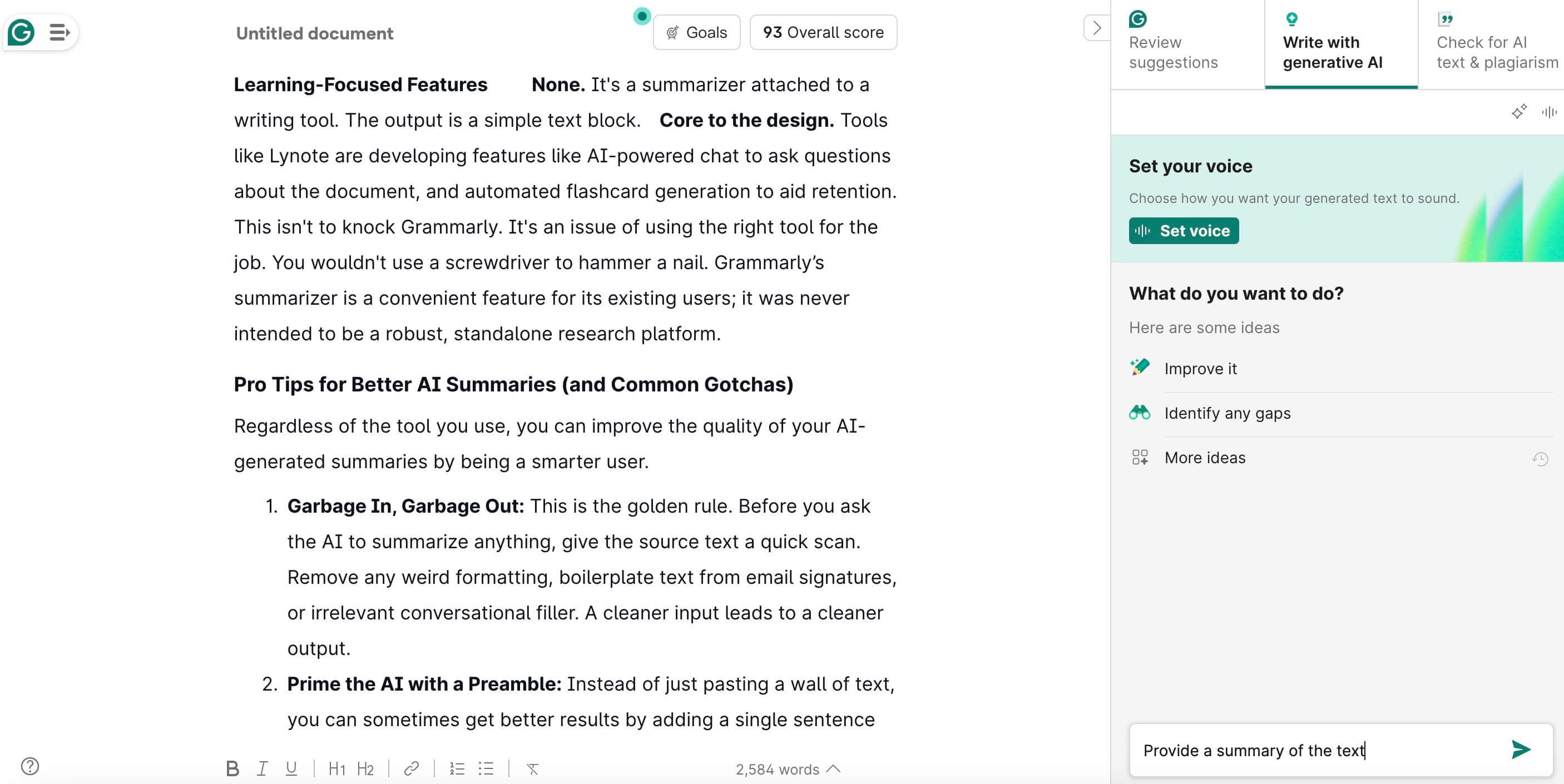
Once your text is in the editor, you’ll see the green Grammarly icon, often with a sparkle, indicating that generative AI features are ready. Click on this icon or look for any prompts that say “Improve it” or offer AI assistance.
This will open the generative AI panel. You’ll see a set of pre-packaged prompts and a text box where you can enter your own command.
Step 3. Give a Clear Summarization Command
This is where you tell the AI what you want. You can be direct. Type one of the following commands into the prompt box:
- "Summarize this"
- "Provide a summary of the text above"
- "Give me the key takeaways in a bulleted list"
- "Write a one-paragraph summary"
The more specific your command, the better the output will be. Asking for "key takeaways" often yields a more actionable, concise list than a generic "summarize."
Step 4. Review and Use the Generated Summary
Grammarly will process your request and generate the summary in the side panel within seconds. Now, it's your turn to be the human in the loop.
- Read it critically. Does it accurately reflect the main points of the source text?
- Check for context. Did it miss any crucial nuance?
- Copy and paste. Once you’re satisfied, you can easily copy the summary and paste it into your notes, an email, or wherever you need it.
And that’s it. In four steps, you’ve gone from a wall of text to a concise summary without leaving your writing assistant.
Beyond the Basics: Key Features and Known Limitations
Getting a summary is easy, but understanding the tool's texture—its strengths and weaknesses—is what separates a power user from a frustrated one.
Key Feature: Multiple Summary Formats
One of the best parts of Grammarly’s tool is its flexibility with output formats. You aren't stuck with a single block of text. By changing your prompt, you can get:
- Paragraph Summary: Good for a narrative overview.
- Bulleted List: Excellent for scannable key points and takeaways.
- Outline Format: Useful for understanding the structure and flow of an argument.
This adaptability makes it more than a one-trick pony. You can ask it to "identify the main ideas" or "give me a short summary," and it will adjust accordingly.
The Honest Limitations (Where It Stumbles)
No tool is perfect, and being aware of Grammarly's boundaries will save you a lot of frustration.
- The Copy-Paste Bottleneck: This is the big one. The inability to upload files is a major workflow killer for anyone working with PDFs, which is the standard for academic papers, business reports, and ebooks. Trying to copy text from a multi-column PDF often results in a jumbled mess of broken lines and lost formatting, which confuses the AI and leads to poor summaries.
- Lack of Source Context: Because you’re pasting raw text, the AI has no context for charts, graphs, images, or footnotes that might be critical to the document's meaning. A summary of a scientific paper might completely miss the conclusion illustrated in a key graph.
- Potential for "Hallucinations": Like all current large language models, Grammarly's AI can occasionally misinterpret text or generate statements that sound plausible but aren't actually in the source document. It’s less of a summarizer and more of a "re-interpreter," which means it is not a substitute for careful reading when factual accuracy is non-negotiable.
- Struggles with Highly Nuanced Text: I once fed it a dense piece of philosophical text filled with irony and subtext. The summary it produced was factually correct on a surface level but completely missed the author's satirical intent. It summarizes words, not always meaning.
Bottom line: Think of the Grammarly summarizer as a brilliant, fast-reading intern. It's perfect for giving you the executive summary of a straightforward memo. But you wouldn't ask it to summarize a complex legal contract or a PhD dissertation without close supervision.
An Alternative Solution: How to Use Lynote AI Summarizer
If Grammarly AI Summarizer feels too limited for long documents, videos, or multi-source content, Lynote offers a more flexible AI summarizing workflow. You can summarize PDFs, articles, YouTube videos, audio files, and more while generating structured notes and flashcards automatically.
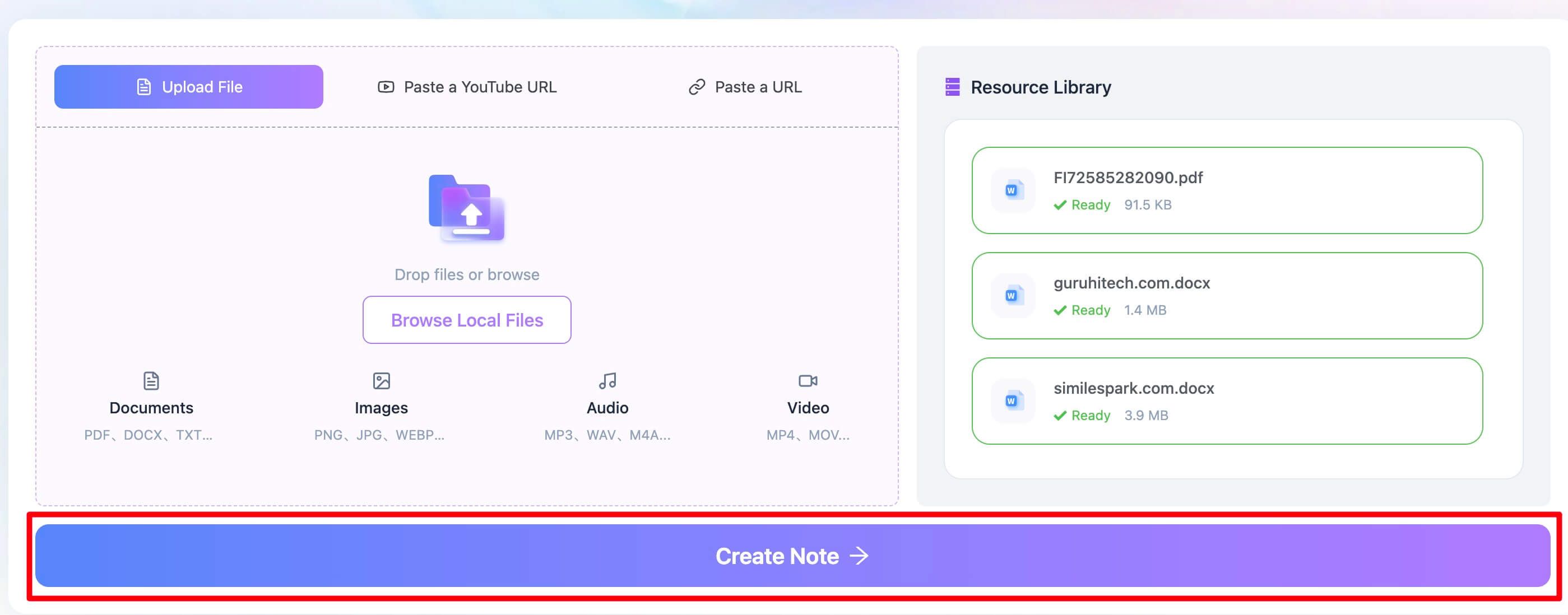
Step 1. Upload Your Files
Upload PDFs, Word documents, articles, YouTube links, audio files, or other study materials to Lynote. You can upload multiple resources together for multi-source summarization.
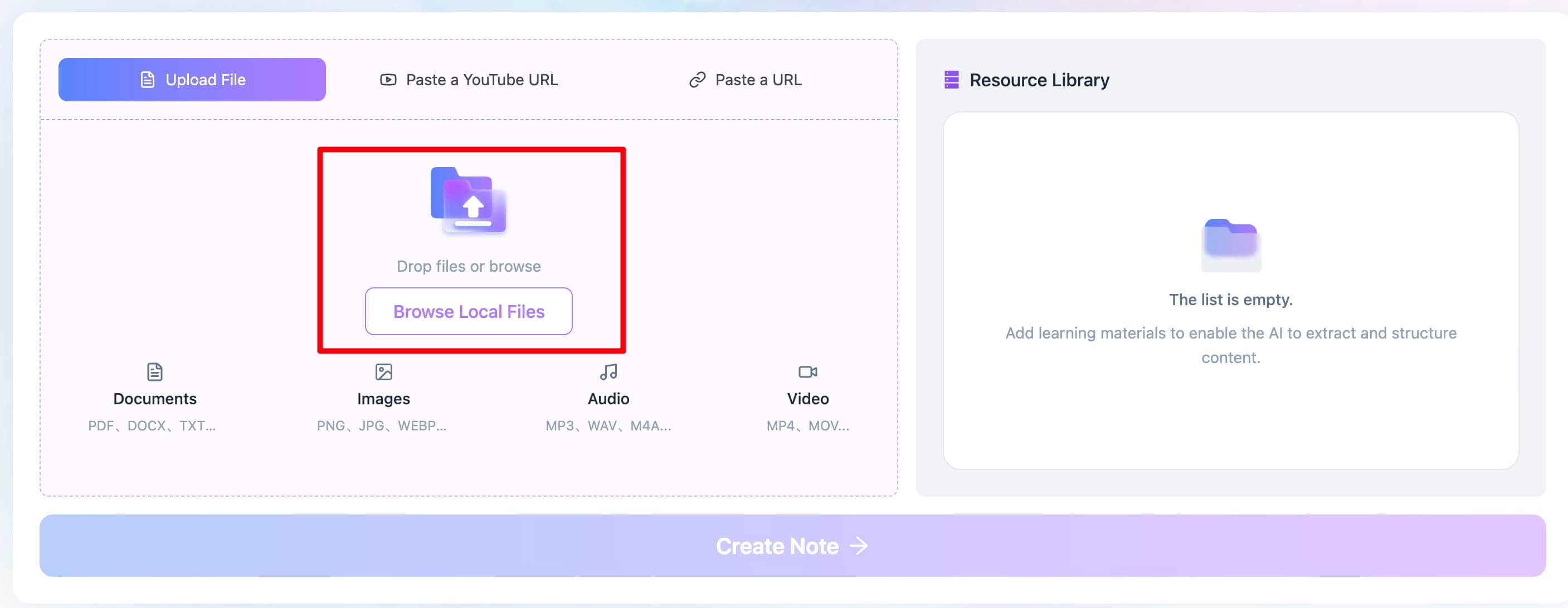
Step 2. Click “Create Note” to Start Summarizing
Click the “Create Note” button, and Lynote will instantly analyze your content. The AI automatically generates structured summaries, key points, and study notes in seconds.
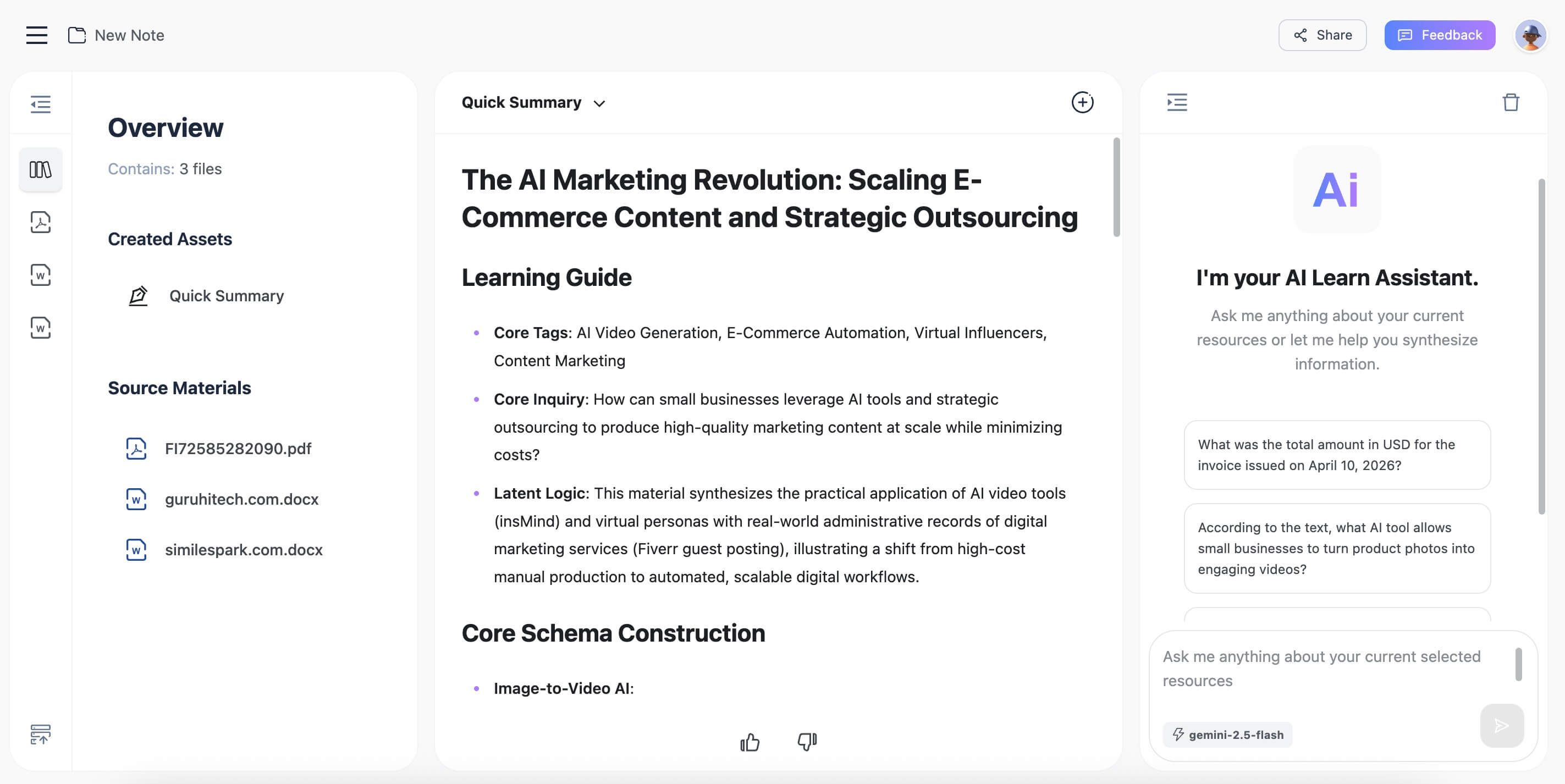
Step 3. Review, Edit, and Share the Summary
Review the generated summary, make edits if needed, and organize your notes. You can also share summaries with classmates, teammates, or save them for future study sessions.
Grammarly Summarizer vs. Dedicated Tools: A Performance Comparison
So, when the stakes are higher, what does a dedicated tool offer that Grammarly doesn't? Let's move beyond a simple feature table and talk about performance in real-world scenarios.
You might be wondering, "Why can't I just use Grammarly for everything?" Let's consider a concrete situation.
Imagine you're a college student working on a term paper. You have a dozen PDFs of academic research to get through.
- With Grammarly: Your workflow would be: Open PDF 1. Painstakingly select and copy the text, fighting with the two-column layout. Paste it into Grammarly. Clean up the formatting errors. Run the "summarize" command. Copy the summary to your notes. Repeat 11 more times. It's a clunky, time-consuming process that actively works against you.
- With a Dedicated Tool (like Lynote): Your workflow is: Upload all 12 PDFs. The tool processes them directly, understanding the structure. You get a clean, accurate summary for each document. Some tools are even building features to let you chat with your documents or auto-generate flashcards from the key concepts. The entire process is built around the source material, not a plain text input box.
Here’s a breakdown of the performance difference:
| Criterion | Grammarly AI Summarizer | Dedicated AI Learning Tools (e.g., Lynote) |
|---|---|---|
| Summary Accuracy & Nuance | Good for general topics. Can miss subtleties in technical, legal, or academic writing. Relies on the quality of the pasted text. | Higher fidelity. Designed to parse complex sentence structures and specialized terminology found in source documents. |
| Handling of Complex Layouts | Poor. Fails with multi-column PDFs, tables, and text with embedded images. The user must manually fix the input. | Excellent. Natively ingests PDFs and other formats, preserving the structural integrity and context of the original document. |
| Workflow Efficiency | High for simple text; very low for documents. The copy-paste requirement is a significant bottleneck for any serious research. | Very High. The file-upload-and-process model is exponentially faster for anyone working with a collection of documents. |
| Learning-Focused Features | None. It's a summarizer attached to a writing tool. The output is a simple text block. | Core to the design. Tools like Lynote are developing features like AI-powered chat to ask questions about the document, and automated flashcard generation to aid retention. |
This isn't to knock Grammarly. It's an issue of using the right tool for the job. You wouldn't use a screwdriver to hammer a nail. Grammarly’s summarizer is a convenient feature for its existing users; it was never intended to be a robust, standalone research platform.
Pro Tips for Better AI Summaries (and Common Gotchas)
Regardless of the tool you use, you can improve the quality of your AI-generated summaries by being a smarter user.
- Garbage In, Garbage Out: This is the golden rule. Before you ask the AI to summarize anything, give the source text a quick scan. Remove any weird formatting, boilerplate text from email signatures, or irrelevant conversational filler. A cleaner input leads to a cleaner output.
- Prime the AI with a Preamble: Instead of just pasting a wall of text, you can sometimes get better results by adding a single sentence at the top, like: "This is an article about the impact of interest rates on the housing market." This can help focus the AI on the core topic from the start.
- Summarize in Chunks: If you have a very long document (e.g., a 50-page report), don't paste the whole thing in at once. The AI can lose focus. Try summarizing it chapter by chapter or section by section. This gives you more detailed and accurate results for each part.
- The Biggest Gotcha: Don't Mistake a Summary for Understanding. An AI summary is a map; it is not the territory. It shows you the key landmarks but doesn't give you the experience of the journey. Use summaries to decide if a document is worth a full read, to refresh your memory on key points, or to get a high-level overview. Never cite a summary or base a critical decision solely on its content. You might be missing the one crucial sentence the AI deemed unimportant.
Frequently Asked Questions
Is the Grammarly AI summarizer free?
No, the summarization feature is part of Grammarly's generative AI suite, which requires a paid subscription (Grammarly Premium, Business, or Education). The free version of Grammarly does not include this capability.
Can Grammarly summarize a PDF file?
Directly, no. This is a critical limitation. Grammarly's AI summarizer can only process text that is pasted into its editor. To summarize a PDF, you would need to manually copy the text from the PDF and paste it into Grammarly, which can be messy and unreliable for documents with complex formatting.
Why did my Grammarly summary miss the main argument of the text?
This is a common and insightful question. AI summarizers work by identifying patterns, sentence structures, and keyword frequencies that it determines are important. However, a powerful or nuanced argument might be built subtly throughout a text, not just stated in a single, easily identifiable topic sentence. The AI might latch onto a more repetitive but less important sub-point, especially if the author's style is unconventional. This is why human oversight is essential; the AI gives you a probable summary, not a guaranteed one.
How long can the text be for Grammarly to summarize?
While Grammarly doesn't publish a hard character or word limit for its generative AI prompts, performance generally degrades with extremely long inputs. For best results, it's practical to work with texts up to a few thousand words at a time. For book-length documents, you should summarize them in smaller, chapter-sized chunks.
Final Verdict: A Convenient Helper with Clear Boundaries
So, should you use the Grammarly AI summarizer? Absolutely—for the right tasks.
For the busy professional who needs to get the gist of a long email thread or a marketing brief, it's a game-changer. It’s seamlessly integrated, fast, and delivers clean, usable summaries of straightforward text. If you're already paying for Grammarly Premium, it’s a powerful value-add that you should be using.
However, the moment your work involves source documents—PDFs, research papers, reports, scanned contracts—you've crossed its boundaries. The copy-paste workflow is simply too inefficient and unreliable for serious academic or professional research.
Editor's Choice:
- For Quick Gists & Casual Use: The Grammarly AI Summarizer is the clear winner for convenience. If the text is easily accessible and you're already in the Grammarly ecosystem, it's the fastest path to a decent summary.
- For Students, Researchers, & Professionals: A dedicated tool like Lynote is the right investment. Its ability to handle native document formats like PDFs is not a luxury; it's a fundamental requirement for any serious research workflow. The promise of integrated learning tools like AI chat and flashcards further cements its role as a specialized platform for deep work, not just quick looks.
Your final choice comes down to your primary workflow. Are you polishing text that’s already in front of you, or are you trying to conquer a mountain of source files? Answering that question will tell you everything you need to know.


Written by Janet L. Harris
AI Writing Specialist
Janet reviews AI detectors and humanization tools, with a focus on accuracy, limitations, and responsible use. View all articles →