ChatGPT Can't Extract Text from PDF? Here’s the Real Reason and a 3-Step Fix

You’ve got the perfect PDF—a dense academic paper, a scanned client contract, or a chapter from a textbook. You upload it to ChatGPT, ready for a summary or analysis, and then you hit the wall: “No text could be extracted from this file.” It’s a frustratingly common roadblock that stops your workflow cold. If you’ve been staring at this error message, you’re not alone, and the problem isn’t you—it’s a fundamental misunderstanding of what ChatGPT is built to do.

The core issue is that ChatGPT is a language model, not a universal document converter. It excels at processing clean, digital text. However, many PDFs, especially scans or complex reports, are essentially images of text, not text itself. ChatGPT lacks the built-in Optical Character Recognition (OCR) needed to "read" these image-based documents. It's like asking a brilliant linguist who can't see to describe a photograph of a book page. This guide will break down exactly why this error happens and give you a reliable, three-step fix to get the text you need.
Quick Verdict: ChatGPT vs. a Dedicated PDF Text Extractor
For those on a deadline, here’s the bottom line. Your method for getting text out of a PDF depends entirely on the type of PDF you have. Is it a simple, text-based document or a tricky, scanned image?
This table breaks down the choice between wrestling with ChatGPT’s native capabilities and using a purpose-built tool.
| Feature / Scenario | ChatGPT (Native Upload) | Dedicated OCR Extractor (e.g., Lynote) |
|---|---|---|
| Scanned/Image-Only PDF | Fails (Score: 1/5) | Excellent (Score: 5/5) |
| Multi-Column Layouts | Hit-or-miss; often jumbles text | Good; preserves reading order |
| Password-Protected Files | Fails (Score: 1/5) | Fails (by design for security) |
| Speed (for clean PDFs) | Fast for short, simple files | Fast; optimized for large batches |
| Best Use Case | Analyzing simple, digitally-born PDFs (e.g., exported Word docs) | Extracting text from scans, photos of documents, or complex layouts |
Scores are editorial heuristics (1=Poor, 5=Excellent), not measured benchmarks.
The takeaway is simple: if your PDF was created directly from a text editor (like Microsoft Word or Google Docs), ChatGPT might handle it. For anything else—especially documents that have been scanned, photographed, or heavily designed—you need a tool with a dedicated OCR engine.
The 4 Main Reasons ChatGPT Fails to Read Your PDF
You might be wondering, "If I can see the text on my screen, why can't ChatGPT?" The answer lies in how PDFs are constructed. A PDF isn't always what it seems. Here are the four primary culprits behind that dreaded extraction error.
1. Image-Only or Scanned PDFs (The Biggest Offender)
This is, by far, the most common reason for failure. When you scan a physical document or save a file as an "image PDF," you aren't saving text. You're saving a photograph of the page. To a computer, the letters in that file are no different from the pixels in a picture of a tree.
- The Scenario: You're a student trying to analyze a 30-page journal article your professor scanned from a library book. You upload it, and ChatGPT sees nothing but a collection of images.
- The Technical Hurdle: Without Optical Character Recognition (OCR), a process that analyzes images to identify and convert characters into digital text, ChatGPT is blind to the content. It needs a text "layer" to read, and scanned PDFs don't have one.
2. Complex Layouts and Formatting
PDFs are great for preserving visual design—columns, tables, headers, footers, and floating images. This strength is also a weakness for text extraction. ChatGPT's built-in parser is basic; it expects a straightforward, linear flow of text.
- The Scenario: You're a business analyst with a market research report filled with two-column text, charts with callouts, and data tables. When ChatGPT tries to read it, the text from the columns gets interleaved, turning coherent sentences into gibberish.
The company's growth in Q3 was a result of the new marketing... remarkable, reaching 5 million units... strategy that focused on social media. - The Technical Hurdle: The parser can't distinguish between a column break and the end of a paragraph. It reads text based on its position on the page, not its logical flow, resulting in a jumbled mess.
3. Password-Protected or Encrypted Files
This one is more straightforward. If a PDF requires a password to open or has restrictions on copying text, ChatGPT will respect those security settings. It won't (and can't) try to bypass them.
- The Scenario: A colleague emails you a sensitive, password-protected financial report for analysis. You can't just upload it and expect ChatGPT to crack it open.
- The Technical Hurdle: The file's content is encrypted. Until it's unlocked with the correct password, the data is unreadable to any application, including AI models.
4. File Corruption or Non-Standard Encoding
Less common but still a possibility, the PDF file itself might be damaged or use an unusual text encoding that ChatGPT's parser doesn't recognize. This can happen from a bad download, a faulty file conversion, or when dealing with very old documents. The text layer might technically exist, but it's scrambled in a way that makes it inaccessible.
Bottom Line: The main reason a dedicated tool outperforms ChatGPT for PDF extraction is its built-in Optical Character Recognition (OCR) engine, which is specifically designed to convert images of text into machine-readable characters that an AI can understand.
The Fix: How to Reliably Extract Text from Any PDF in 3 Steps
When ChatGPT fails, don't waste time trying different prompts or re-uploading the same file. The solution is to pre-process the PDF with a tool built for the job. Using an AI-powered transcription and data extraction tool with a strong OCR engine is the most reliable path forward.
Here’s how to do it in under a minute using a tool like Lynote AI Transcription, which is free for basic use and doesn't require an account to get started.
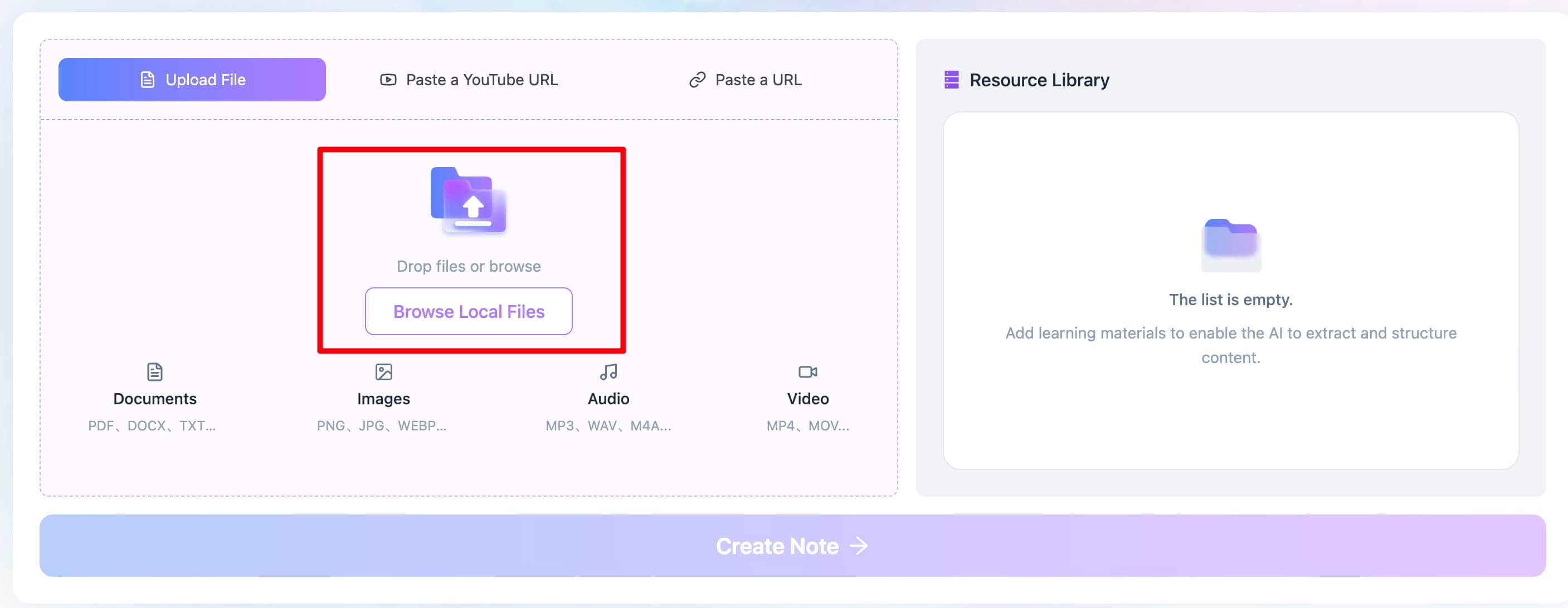
Step 1. Upload Your Problem PDF File
First, head over to the Lynote PDF text extractor. Instead of uploading your file to ChatGPT, drag and drop the problematic PDF directly into the Lynote upload area. You can also click to browse your computer and select the file. This works perfectly for those scanned lecture notes, complex reports, or image-based documents that ChatGPT instantly rejects.
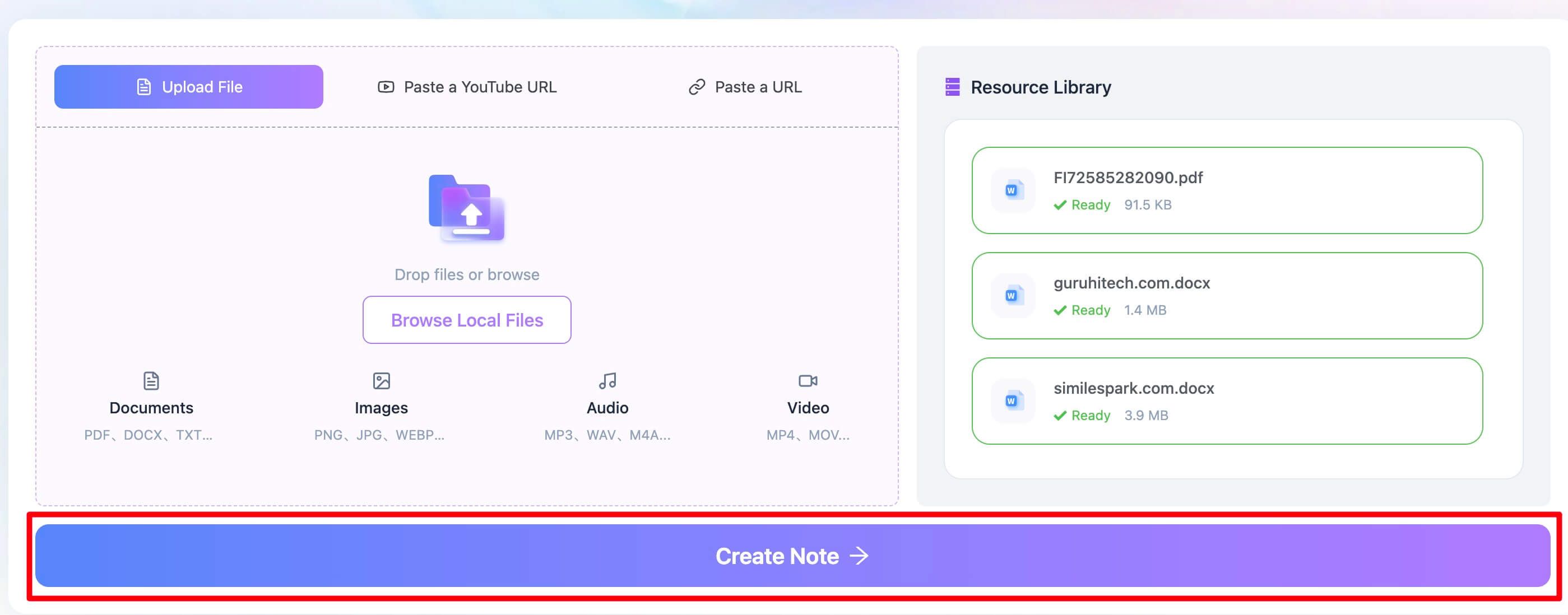
Step 2. Extract Text from the PDF
Once your file is uploaded, simply click the "Create Note" button. This is the crucial step. Lynote's backend immediately goes to work, applying a powerful OCR engine to your document. It doesn't just look for an existing text layer; it analyzes the page as an image, identifies the characters, and reconstructs the text digitally. It supports over 130 languages, so it's effective for international documents, too.
Step 3. Review and Copy the PDF Text
Within seconds, you'll see the clean, extracted text appear in an online editor. Now you have a perfect, text-based source that ChatGPT can easily understand. You can quickly scan it for any obvious OCR errors, make minor edits, and then copy to grab the entire text. From there, just paste it directly into your ChatGPT prompt and proceed with your analysis, summary, or query. You can also download the text as a .txt file for future use.
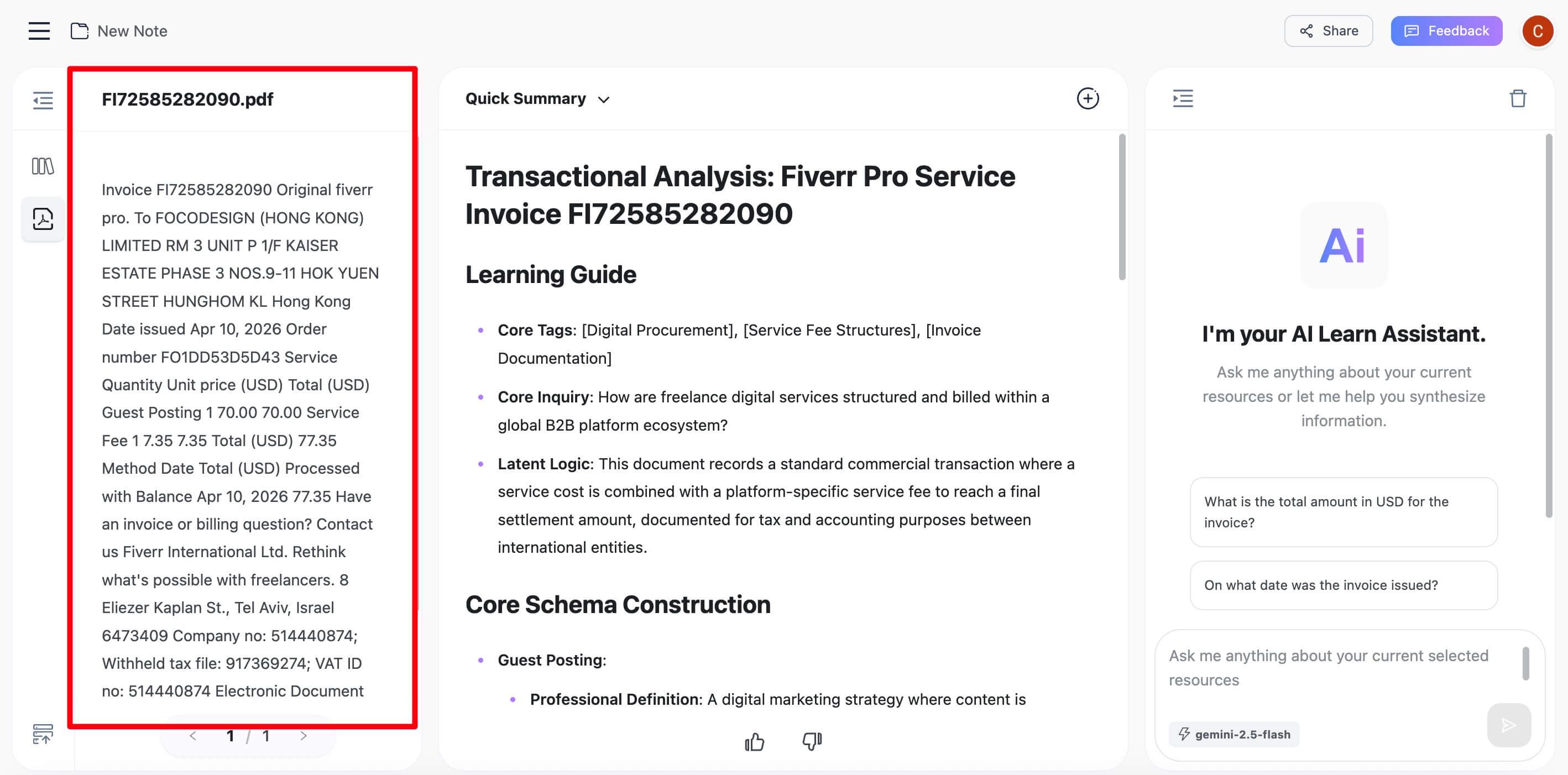
This three-step process effectively bridges the gap between your image-based PDF and ChatGPT's text-based world.

Beyond the Fix: What to Look for in a PDF Text Extraction Tool
Once you realize you need a dedicated tool, you'll find many options. So what separates a great one from a mediocre one? Here are the key features to look for, especially if you handle documents regularly.
- High-Accuracy OCR: This is non-negotiable. The tool's primary job is to convert images to text accurately. A good engine minimizes errors (like confusing
lfor1orrnform) and handles various fonts and resolutions. - Multi-Language Support: If you work with international documents, research papers, or historical texts, ensure the tool can recognize characters and diacritics from the languages you need. Tools like Lynote, with support for 130+ languages, offer crucial flexibility.
- Batch Processing: Are you trying to extract text from an entire folder of scanned invoices or a dozen research papers? A tool that lets you upload multiple files at once and processes them in a queue is a massive time-saver compared to handling them one by one.
- Flexible Export Options: Getting the text out is only half the battle. You need to be able to use it. Look for simple one-click options to copy to clipboard, download as a .txt or .docx file, or even integrate further. Modern tools may also let you immediately chat with the document or translate the extracted text within the same interface.
Choosing a tool with these features turns a frustrating roadblock into a seamless part of your research and analysis workflow.
Pro Tip: Handling Messy or Inaccurate Extracted Text
Even the best OCR technology isn't perfect 100% of the time, especially with low-quality scans, handwritten notes, or extremely complex layouts. When your extracted text comes out a little messy, don't despair. Here are a few professional tricks to clean it up quickly.
- Fix Broken Paragraphs: If the text from columns got merged, you'll see long, run-on lines. The fastest fix is to paste the text into a simple editor (like Notepad or TextEdit) and manually hit "Enter" to re-establish the paragraph breaks. It takes a minute but makes the text infinitely more readable for you and for ChatGPT.
- Use Find and Replace for Common Errors: OCRs have classic mistakes. If you see a lot of
1s wherels should be, or!s instead ofis, use your text editor's "Find and Replace" function (Ctrl+H or Cmd+Shift+H). A few strategic replacements can clean up 90% of the errors in seconds. - Simplify Before You Summarize: Before feeding the cleaned text to ChatGPT for a summary, consider deleting irrelevant sections like headers, footers, page numbers, and figure captions. This focuses the AI on the core content and often leads to a more accurate and concise output.
A little bit of cleanup on the front end can save you a lot of confusion and lead to much better results from your AI analysis.
Frequently Asked Questions
Can ChatGPT-4o read text from a scanned PDF?
No, not directly. Even the more advanced models like GPT-4o still lack a built-in, user-facing OCR engine for their standard file upload feature. If you upload a scanned, image-only PDF, you will receive the same "no text could be extracted" error. You must use an external OCR tool first to convert the PDF to text, then paste that text into your prompt.
Why does copy-paste work from my PDF but ChatGPT fails?
This is a great question that exposes the hidden layers of a PDF. Many PDFs have both an image layer (what you see) and an invisible text layer (generated when the file was created). When you highlight and copy, your PDF reader (like Adobe Acrobat or Preview) is pulling from that hidden text layer. However, if that text layer is corrupted, missing, or poorly encoded, ChatGPT's simpler server-side parser can't read it, even if your local software can.
Is there a free way to make my PDF text readable for ChatGPT?
Yes. The method described in this article using the free tier of a tool like Lynote is one of the most effective free options. It uses a high-quality OCR engine without requiring payment or an account for basic extractions. While some other free online OCR tools exist, they are often riddled with ads, have low accuracy, or impose very restrictive file size limits.
Why did the formatting (bold, italics) disappear after extraction?
Text extraction tools, especially OCR-based ones, are focused on capturing the characters, not the rich text formatting. The output is almost always plain text. This is generally better for AI models, as they are primarily concerned with the semantic content, not the visual styling.
Conclusion: Use the Right Tool for the Job
ChatGPT is a revolutionary tool for working with language, but it's not a Swiss Army knife for every file format. The "no text could be extracted from this file" error isn't a bug; it's a capability boundary. The model is built for processing text, not for deciphering images of text locked away in scans or complex layouts.
For students, researchers, and professionals who regularly work with diverse documents, the lesson is clear: don't fight the tool, supplement it. By adding a dedicated OCR-powered text extractor to your workflow, you turn a point of constant frustration into a reliable, two-step process: extract first, then analyze. This approach not only saves you time but unlocks the full potential of AI on all your documents, not just the simple ones.

Written by Janet L. Harris
AI Writing Specialist
Janet reviews AI detectors and humanization tools, with a focus on accuracy, limitations, and responsible use. View all articles →