How to Extract Text from a PDF in Chrome (4 Methods for Any Document)

You have a PDF open in a Chrome tab. The text is right there, staring you in the face. You highlight it, hit Ctrl+C, and paste it into a document… only to get garbled characters, a single block of unformatted text, or worse, nothing at all. It’s a common frustration that stalls students, researchers, and professionals daily.
The ability to extract text from a PDF directly in Chrome depends entirely on how the PDF was made. If it’s a text-based file (a "true" PDF), you can often use Chrome's built-in copy-and-paste function, though formatting may break. However, if it’s a scanned document or an image-based PDF, the text isn't actually text—it's part of a picture. For these, you need a tool with Optical Character Recognition (OCR) technology, like a Chrome extension or a dedicated AI web application, to make the text selectable and usable.
Quick Verdict: The Best Way to Extract PDF Text in Chrome
For those on a deadline, here’s the bottom line. Your best method depends on the PDF's complexity and your need for accuracy.
| Method | Best For | Accuracy Score (1-5) | Privacy Risk |
|---|---|---|---|
| AI Web Tool (OCR) | Scanned docs, long reports, complex layouts | 5/5 | Low (Reputable tools) |
| Chrome Extension (OCR) | Quick text grabs from any webpage or PDF | 3/5 | Medium |
| Built-in Copy & Paste | Simple, text-based PDFs | N/A (Fails on scans) | None |
| Disable Extraction | Protecting sensitive information | N/A | N/A |
Scores are editorial heuristics based on performance with typical scanned documents, not measured benchmarks.
Bottom line: For simple, modern PDFs, try the built-in copy-paste first. For anything scanned, low-quality, or where formatting matters, a dedicated AI web tool is the most reliable choice. Use a Chrome extension for spontaneous, small-scale extractions where convenience trumps perfect accuracy.
Can I Extract Text from PDF in Chrome?
Yes, you absolutely can extract text from a PDF in Chrome, but the how is what trips people up. Chrome has a native PDF viewer that lets you open and read PDF files without any extra software. For many documents, this is all you need.
The problem arises when the PDF isn't what it seems. You might be wondering, "Why can I highlight text in one PDF but not another?" The answer lies in the file's origin.
The Two Types of PDFs: Text-Based vs. Image-Based (Scanned)
Before you can pick the right tool, you have to diagnose the problem. PDFs generally fall into two categories, and knowing which one you have is the key.
Text-Based PDFs ("True" PDFs)
These are the gold standard. They are typically created by saving a document from a program like Microsoft Word, Google Docs, or Adobe InDesign. In these files, the text is stored as actual text data. Each letter is a character that your computer recognizes.
- How to spot it: You can click and drag your cursor to select individual words and sentences smoothly. The highlighting will snap precisely to the text.
- The upside: You can search the document with Ctrl+F, and copy-pasting is possible (though not always perfect).
- The downside: Even here, copying can scramble formatting, especially with columns, tables, or lists.
Image-Based PDFs (Scanned PDFs)
This is where most extraction problems begin. An image-based PDF is essentially a photograph of a document. When someone scans a paper contract, a page from a textbook, or an old report, they are creating a picture of the text, not the text itself.
- How to spot it: You can't select individual words. When you try to click and drag, you either select the entire page as one big image or you can't select anything at all. Ctrl+F will find nothing.
- The challenge: To your computer, the text in a scanned PDF is no different from the trees in a photograph. It’s just a collection of pixels. To extract it, you need a technology that can read the image and recognize the shapes of the letters. This technology is called Optical Character Recognition (OCR).
Now that you know the difference, let's get into the solutions that work for each type.
Method 1: Use a Chrome Extension for Instant OCR
For quick, on-the-fly text grabs from scanned PDFs or even images on a website, a Chrome extension is often the fastest tool. These extensions typically add an icon to your browser toolbar. When you encounter unselectable text, you click the icon, draw a box around the area you want to extract, and the extension’s OCR engine processes that small image.
Popular choices include:
- Blackbox: Popular with developers for copying code from videos, but works on any on-screen text.
- Selectext: Specifically designed to recognize and extract text from videos and images within Chrome.
How it works:
- Install the extension from the Chrome Web Store.
- Pin it to your toolbar for easy access.
- When you're on a page with an image-based PDF, click the extension's icon.
- Your cursor will change, allowing you to draw a rectangle around the text you need.
- The extension processes the selected area and copies the recognized text to your clipboard.
The honest truth: This method is incredibly convenient. You don't have to leave your tab or upload a file. However, it's not a silver bullet. The OCR accuracy can be hit-or-miss, especially with dense text, small fonts, or complex layouts like tables. Furthermore, you’re often sending snippets of your screen to a third-party server, which can be a privacy concern for sensitive documents.
Method 2: Use an AI Tool for High-Accuracy Extraction
When you're dealing with a multi-page scanned report, a low-quality academic paper, or a legal document where every word counts, a simple extension won't cut it. This is where dedicated, browser-based AI tools shine. They use more powerful, server-side OCR engines that are trained on massive datasets, resulting in far greater accuracy.
For this task, a tool like the Lynote AI Transcription service provides a robust solution that goes beyond simple text grabbing. While branded as a transcription tool, its underlying engine is a powerful OCR processor that handles PDFs with ease.
Here’s a small scene-based example: I once had to pull data from a 50-page environmental impact report that was a scanned PDF from the 1990s. The text was slightly faded and the tables were dense. A Chrome extension turned the tables into an unreadable jumble. Uploading it to a dedicated AI tool took about 30 seconds, and it returned a fully editable text document with the table structure largely intact. That’s the difference.
Here’s how to extract text from your PDF with high accuracy:
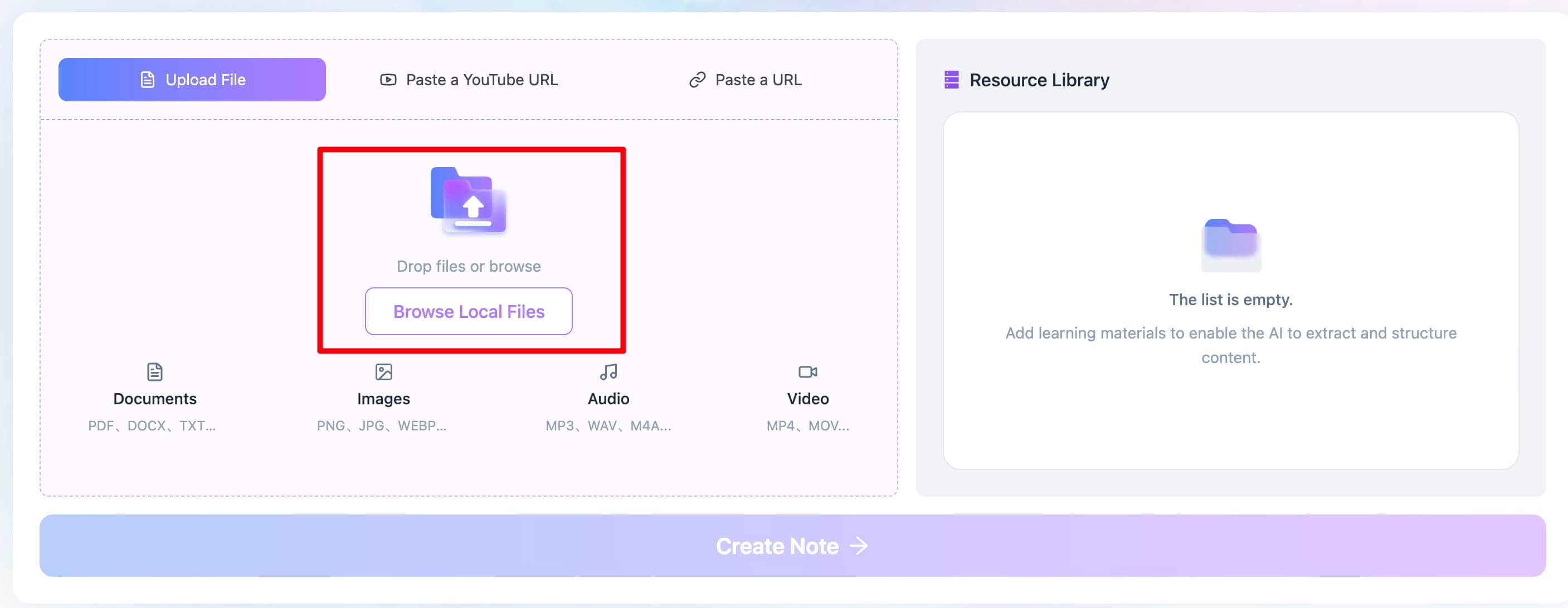
- Upload Your PDF File. Navigate to the Lynote workspace. You can drag and drop your PDF directly onto the page or click "Browse Local Files" to select it from your computer. There's no need to sign up for a one-off extraction.
- Extract Text from the PDF. Once uploaded, simply click the "Create Note" button. The AI engine gets to work, performing a deep OCR scan on the entire document. It supports over 130 languages, so it's effective for international documents as well.
- Review and Export the Text. In moments, a new workspace will open containing the fully extracted, editable text. You can review it, make corrections directly in the editor, copy sections, or download the entire text as a clean file.
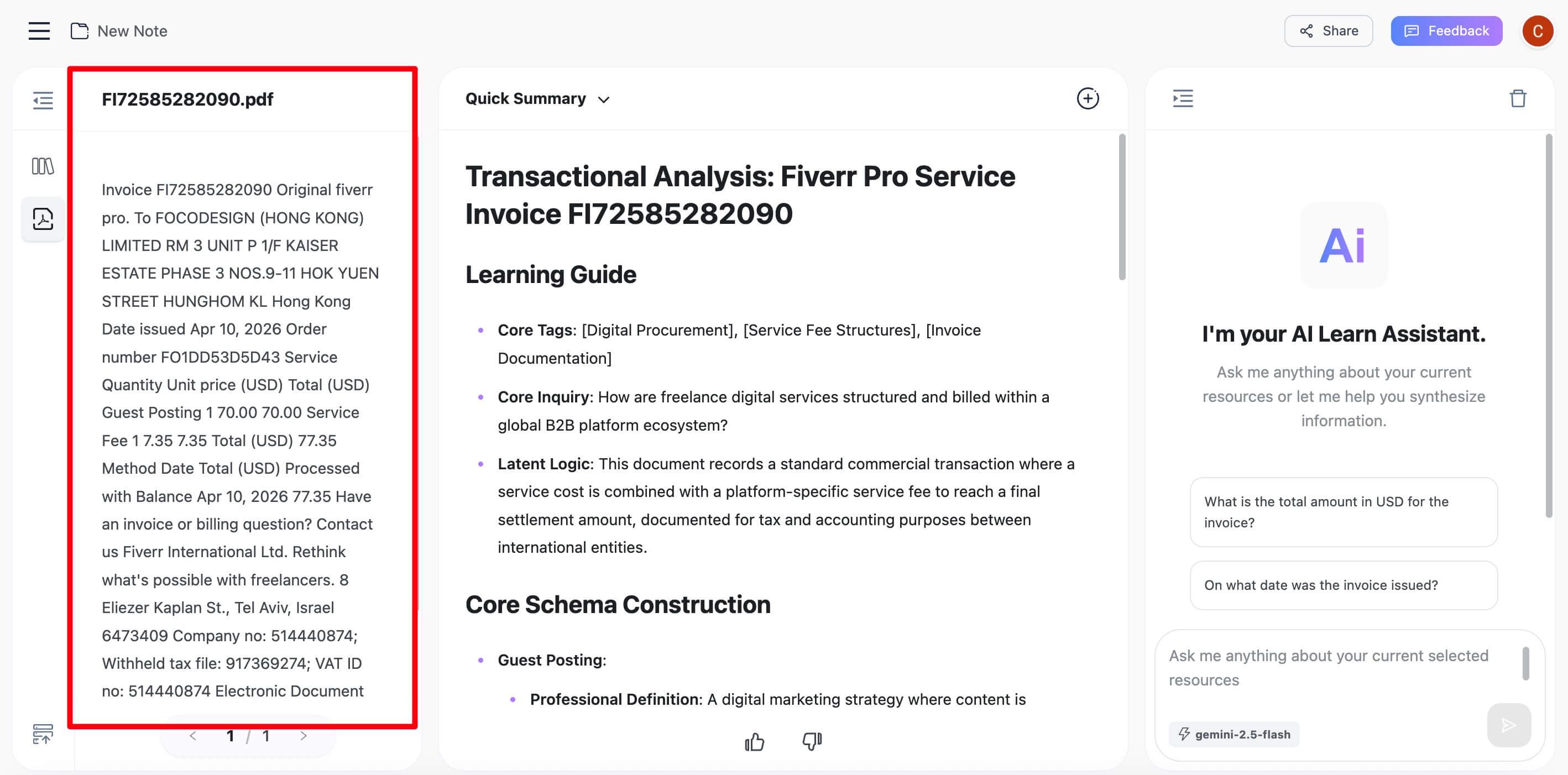
The main reason a dedicated tool like Lynote outperforms a browser extension for complex PDFs is its specialized OCR engine and processing environment. Unlike an extension that does a quick, localized scan, a web app can dedicate more computational resources to deciphering difficult text, correcting for skew, and understanding document structure.

Method 3: The Simple Copy & Paste (For Text-Based PDFs)
Don't overcomplicate it. If you've determined you have a text-based PDF, the first thing you should always try is the classic copy-and-paste.
- Open the PDF in your Chrome browser.
- Click and drag your cursor to highlight the desired text.
- Right-click and select "Copy," or use the keyboard shortcut Ctrl+C (on Windows/ChromeOS) or Cmd+C (on Mac).
- Paste the text (Ctrl+V or Cmd+V) into your destination, such as Google Docs, Word, or a notepad.
Pitfall Warning: This method is fast but fragile. Be prepared for:
- Broken Line Breaks: The text might paste as a single, long line or have a line break after every single line from the PDF, forcing you to manually reformat everything.
- Lost Formatting: Bolding, italics, bullet points, and hyperlinks are often lost.
- Mangled Tables: Copying tables from a PDF is notoriously difficult and often results in a messy blob of text and numbers.
This method works best for grabbing a simple paragraph or a few sentences. For anything more complex, you'll save time in the long run by using an OCR tool, even on a text-based PDF, as they are better at interpreting the intended layout.
Performance Compared: Accuracy, Formatting, and Privacy
Choosing the right method is a game of tradeoffs. What you gain in speed, you might lose in accuracy or privacy.
| Criterion | Chrome Extensions | AI Web Tools | Built-in Copy & Paste |
|---|---|---|---|
| OCR Accuracy | Fair to good on clean text. Struggles with handwritten notes, low-res scans, and complex fonts. | Excellent. Designed for difficult cases, including multi-column layouts and stamped documents. | N/A (Does not perform OCR) |
| Layout Preservation | Poor. Extracts raw text only. Tables and lists are typically destroyed. | Good to excellent. Modern AI can often retain basic formatting like paragraphs and lists. | Poor. Almost always breaks columns and tables, requiring heavy manual cleanup. |
| Speed | Very fast for small snippets. A few clicks and the text is on your clipboard. | Fast. A few seconds to upload, plus processing time (typically <1 min for ~50 pages). | Instant for copying, but can lead to hours of reformatting. |
| Privacy | A significant concern. Your screen selections are often sent to third-party servers. Read the privacy policy carefully. | Varies by provider. Reputable services have clear data policies, but you are still uploading your document. | Maximum privacy. The file never leaves your computer. |
How to Stop Chrome From Extracting Text
Interestingly, some users have the opposite problem: they want to prevent text from being copied from their PDFs. This is a common need for creators protecting intellectual property or companies sharing sensitive internal documents.
While you can't make a PDF 100% copy-proof (a screenshot and OCR can always defeat it), you can make it much harder.
- Set PDF Permissions: The most effective method is to set permissions before you distribute the PDF. Using software like Adobe Acrobat Pro, you can set a "permissions password" that specifically disables content copying. When opened in Chrome or other viewers, the copy option will be grayed out.
- Manage Extension Permissions: If you're a system administrator or are security-conscious, you can control which extensions are allowed to run. By default, extensions require your permission to "read and change data on websites you visit." You can manage these permissions by right-clicking the extension icon, going to "Manage extensions," and reviewing its site access. You can restrict extensions to only run on specific sites or require them to be clicked to activate, preventing them from automatically scanning pages.
- "Flatten" the PDF: For the truly paranoid, you can convert every page of your text-based PDF into a high-resolution image and then compile those images into a new PDF. This effectively turns it into a scanned PDF, forcing anyone who wants the text to use an OCR tool. It's a heavy-handed approach but works as a deterrent.
Frequently Asked Questions
Why does my copied PDF text have weird spacing and line breaks?
This happens because of how PDFs are structured internally. A PDF doesn't always store text in logical sentences or paragraphs. It often stores them as individual lines or text blocks positioned at specific coordinates on the page. When you copy-paste, the reader is just grabbing these blocks in order, without the original semantic context of the paragraph. This is why you get awkward line breaks.
Can Chrome's built-in PDF reader OCR a scanned document?
No. As of now, Google Chrome's native PDF viewer does not have a built-in OCR engine. It can only display the PDF as is. If you try to select text on a scanned document, you will be selecting the image, not the text within it. You must use an extension or external web tool for OCR.
Are PDF text extractor extensions safe to use?
It depends on the extension and your document's sensitivity. Many free extensions are ad-supported or may collect data on your browsing habits. When you use an OCR extension, you are sending an image of part of your screen to the extension developer's servers for processing. For a public webpage, this risk is low. For a confidential business contract or a financial statement, this is a significant security risk. Always read the privacy policy and user reviews before installing.
Why did the fonts and images move after I extracted the text?
Text extractors, especially OCR tools, are focused on one thing: getting the characters right. They are not designed to be perfect document converters. The process of rebuilding the text often involves creating a new document from scratch based on the recognized characters. This new document may use default fonts and have a different layout flow, causing images and other elements to shift or disappear entirely.
Conclusion: Choose the Right Tool for Your PDF Task
There is no single "best" way to extract text from a PDF in Chrome—only the best way for your specific document and needs.
Editor's Choice: For consistent, high-quality results across all PDF types, a dedicated AI web tool is the clear winner. While it involves an extra step of uploading the file, the superior accuracy of its OCR on scanned documents and its ability to handle long, complex files save immense time and frustration compared to the alternatives. The privacy of a reputable tool is also generally clearer than that of a random browser extension.
Here’s your final decision guide:
- For a simple, text-based PDF: Start with the built-in Copy & Paste. It’s instant and might be all you need.
- For a quick quote from a scanned PDF or image: A Chrome Extension is your fastest option for on-the-fly grabs.
- For any important, scanned, or long document: Use a powerful AI Web Tool like Lynote. The accuracy and reliability are unmatched, ensuring you get usable text without hours of corrections.

Written by Janet L. Harris
AI Writing Specialist
Janet reviews AI detectors and humanization tools, with a focus on accuracy, limitations, and responsible use. View all articles →