

Extract Text from PDFs and Scanned Documents
Drop files or browse
Add study materials to enable the AI to extract and structure content.



Why Use Lynote to Extract Text from PDF?

Works for Digital and Scanned PDFs
Pull text from selectable PDFs, and use OCR when the file is image-based or scanned.

Get Copyable Output
Turn locked or hard-to-copy pages into editable text for notes, drafts, summaries, or translation.

Save Manual Retyping
Avoid retyping pages from reports, books, forms, and class materials when the text can be read automatically.

Review OCR Results
Check names, numbers, tables, formulas, and unusual formatting because OCR quality depends on the source scan.

Prepare Text for Other AI Tasks
Once extracted, use the text for summarizing, translating, studying, or asking questions.

Handle Long Documents
Process multi-page PDFs faster than copying page by page.
Digital PDFs Are Usually Cleaner
If you can select text in the PDF, extraction is often straightforward. Scanned pages rely on OCR and may introduce mistakes.

Scans Need Better Source Quality
Blurry images, tilted pages, handwriting, small fonts, and dense tables can reduce OCR accuracy.
Use the Extracted Text Carefully
Before publishing, citing, or translating, compare important names, dates, numbers, and tables with the original PDF.
How to Extract Text from PDF with AI
Upload the PDF
Use the clearest version of the file. For scans, choose a high-resolution copy if possible.
Run Text Extraction
Let Lynote read the document and convert readable text into editable output.
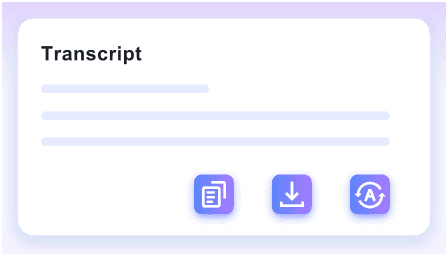
Review the Result
Check important details, then copy the text into notes, summaries, translations, or other workflows.
Who Should Use This PDF Text Extractor?

Students
Extract textbook passages, notes, and research excerpts for study.

Researchers
Pull text from papers, reports, and archives before summarizing or comparing sources.

Business Teams
Extract text from PDFs, proposals, manuals, and forms for reuse.

Translators
Convert scanned PDFs into text before translating.

Writers
Turn reference PDFs into editable notes.
Everyday Users
Copy text from downloaded PDFs without manual retyping.
What Our Users Say

Legal Consultant

"I used it to extract text from a 48-page lease packet and got clean clauses I could review line by line. The wording stayed accurate enough for contract edits and internal notes."

Academic Researcher
"I work with international PDF journals, and this handled articles in Spanish, German, and Korean in one project. Extracting text from PDF sources across 130+ languages saved me from switching tools between papers."

Graduate Student
"I had to pull notes from a 200-page PDF textbook before a seminar. This was about 10x faster than copying sections by hand and gave me usable text in one pass."

Operations Manager
"Our team processes dozens of PDF invoices every week, and the batch flow made a real difference. We extracted text from a full folder at once instead of opening every invoice one by one."

Freelance Translator
"I needed editable text from a 62-page PDF equipment manual for a translation project. Once the text was extracted, I could search repeated terms and reuse them across sections."

Technical Writer
"I just needed to pull text from a PDF spec sheet and did not want to create an account first. Being able to start basic extraction without sign-up was a big plus for short tasks."
Frequently Asked Questions
Answers to common questions before using this tool.
Yes, if OCR can read the scanned pages clearly. Poor scans may need cleanup first.
OCR means optical character recognition. It converts text inside images or scanned pages into editable characters.
Not always. Check names, numbers, tables, formulas, and unusual layouts before relying on the output.
You can copy it, summarize it, translate it, search it, or use it as notes for another workflow.


