How to Extract Text from a PDF in Python (3 Libraries Compared)

Extracting text from a PDF seems like it should be simple, but any developer who has tried knows it's a field littered with exceptions, broken layouts, and stubborn, image-based documents. This guide cuts through the noise. We'll start with a direct comparison of the best Python libraries for the job, so you can pick the right tool for your project immediately.
We'll then walk through code examples for three of the most effective libraries—PyPDF2, pdfplumber, and PyMuPDF (Fitz)—covering everything from basic text scraping to navigating complex tables. We’ll also tackle the toughest challenge: scanned PDFs that require Optical Character Recognition (OCR), and show you a pragmatic way to handle them without complex local setups. By the end, you'll have the code and the strategy to automate your PDF processing workflows reliably.
Quick Verdict: Best Python Libraries for PDF Text Extraction
Before we dive into the code, here's a high-level look at the top contenders. Your choice will depend entirely on whether you need speed, simplicity, or precision layout analysis.
| Library | Best For | Layout/Table Handling | Performance | Ease of Use (1-5) |
|---|---|---|---|---|
| PyPDF2 | Simple, text-only documents; basic PDF manipulation (merge/split) | Poor (extracts text stream, no positional data) | Moderate | 5 |
| pdfplumber | Extracting data from tables; documents with structured layouts | Excellent (provides coordinates for text, lines, and rectangles) | Slower | 4 |
| PyMuPDF (Fitz) | High-speed batch processing; handling images and annotations | Good (can extract text with basic positional info) | Excellent (fastest) | 4 |
Bottom Line: Start with PyPDF2 for the simplest cases. Move to pdfplumber the moment you see a table. Choose PyMuPDF when performance is your primary concern.
Before You Start: Setting Up Your Python Environment
To keep your project dependencies clean and avoid conflicts, always work inside a virtual environment. It's a non-negotiable best practice for any serious Python project.
Here’s how to get set up in your terminal:
-
Create a virtual environment:
# On macOS/Linux python3 -m venv pdf_env # On Windows python -m venv pdf_env -
Activate it:
# On macOS/Linux
source pdf_env/bin/activate

# On Windows
.\pdf_env\Scripts\activate
Your terminal prompt should now show
(pdf_env). -
Install the libraries: We'll install all three libraries we're comparing so you can experiment easily.
pip install pypdf2 pdfplumber pymupdfWith that, your environment is ready for the code examples below.
Method 1: Basic Text Extraction with PyPDF2
PyPDF2 is the go-to library for fundamental PDF operations. It's straightforward, has been around for a long time, and is perfect for "native" PDFs where the text is selectable and not part of an image. If your documents are simple reports, articles, or text-based exports, PyPDF2 will get the job done with minimal code.
The main limitation? It reads the PDF's internal text stream, which doesn't always correspond to the visual reading order, especially in multi-column layouts. It also has no concept of tables; it will just mash all the cell text together.
Here’s a simple script to extract all text from a PDF:
# requirements: pip install pypdf2

import PyPDF2

def extract_text_with_pypdf2(pdf_path):
    """
    Extracts text from a PDF file using the PyPDF2 library.

    Args:
        pdf_path (str): The file path to the PDF.

    Returns:
        str: The extracted text content, or an error message.
    """
    try:
        with open(pdf_path, 'rb') as file:
            reader = PyPDF2.PdfReader(file)
            num_pages = len(reader.pages)
            print(f"Total pages: {num_pages}")

            full_text = ""
            for page_num in range(num_pages):
                page = reader.pages[page_num]
                full_text += page.extract_text() + "\n"

        return full_text

    except FileNotFoundError:
        return f"Error: The file at {pdf_path} was not found."
    except Exception as e:
        return f"An unexpected error occurred: {e}"

# --- Usage Example ---
pdf_file = 'path/to/your/document.pdf'
extracted_text = extract_text_with_pypdf2(pdf_file)

if "Error" not in extracted_text:
    print("--- Extracted Text ---")
    print(extracted_text)
else:
    print(extracted_text)
This script works beautifully for simple, single-column text. But what happens when you feed it a financial statement with neat tables? You get a jumble of text and numbers with no structure. That's where our next library shines.
Method 2: Handling Tables and Layouts with pdfplumber
When your task involves extracting structured data, pdfplumber is the right tool. Built on top of pdfminer.six, it's designed to give you granular access to the geometry of a PDF page. It "sees" characters, lines, and rectangles, and it has a fantastic built-in method for detecting and extracting tables.
This is a game-changer for data science and business automation tasks. Imagine trying to pull quarterly earnings from a company's PDF report. With PyPDF2, it's a nightmare of string parsing. With pdfplumber, you can grab the data as a clean list of lists, ready for a Pandas DataFrame.
The main reason pdfplumber outperforms PyPDF2 for structured data is its ability to interpret the visual layout, not just the raw text stream. It understands that certain text elements are aligned in rows and columns, separated by lines.
Here’s how to extract tables from a PDF page:
# requirements: pip install pdfplumber

import pdfplumber
import pandas as pd

def extract_tables_with_pdfplumber(pdf_path, page_number=0):
    """
    Extracts all tables from a specific page of a PDF using pdfplumber.

    Args:
        pdf_path (str): The file path to the PDF.
        page_number (int): The page number to extract tables from (0-indexed).

    Returns:
        list of pandas.DataFrame: A list where each element is a DataFrame
                                  representing a table found on the page.
    """
    tables = []
    try:
        with pdfplumber.open(pdf_path) as pdf:
            if page_number >= len(pdf.pages):
                print(f"Error: Page {page_number} is out of range. The PDF has {len(pdf.pages)} pages.")
                return tables

            page = pdf.pages[page_number]
            # .extract_tables() is the key method here
            extracted_tables = page.extract_tables()

            for table_data in extracted_tables:
                # Convert the list of lists into a pandas DataFrame
                df = pd.DataFrame(table_data[1:], columns=table_data[0])
                tables.append(df)

        return tables

    except FileNotFoundError:
        print(f"Error: The file at {pdf_path} was not found.")
        return tables
    except Exception as e:
        print(f"An unexpected error occurred: {e}")
        return tables

# --- Usage Example ---
# You'll need pandas for this example: pip install pandas
pdf_file_with_table = 'path/to/your/report.pdf'
all_tables = extract_tables_with_pdfplumber(pdf_file_with_table, page_number=0)

if all_tables:
    print(f"Found {len(all_tables)} table(s) on page 0.")
    for i, table_df in enumerate(all_tables):
        print(f"\n--- Table {i+1} ---")
        print(table_df)
else:
    print("No tables found on the specified page.")
The tradeoff for this precision is speed. pdfplumber does more work analyzing the page, so it's inherently slower than libraries that just dump the text.
Method 3: High-Performance Extraction with PyMuPDF (Fitz)
When you need to process hundreds or thousands of PDFs quickly, performance becomes the deciding factor. This is where PyMuPDF, which you import as fitz, dominates. It's a Python binding for MuPDF, a lightweight C library, which makes it exceptionally fast.
I once had a project that required processing a few thousand multi-page legal documents. My initial pdfplumber script was projected to take hours. Switching to PyMuPDF brought the runtime down to under 30 minutes. The speed difference is that dramatic.
Beyond speed, PyMuPDF is a powerhouse of features. It can render pages as images (crucial for OCR workflows), extract embedded images, and handle annotations. While its table extraction isn't as out-of-the-box as pdfplumber's, its raw text extraction speed is unmatched.
Here's the PyMuPDF equivalent for fast text extraction:
# requirements: pip install PyMuPDF

import fitz  # The PyMuPDF library

def extract_text_with_pymupdf(pdf_path):
    """
    Extracts text from a PDF file using the high-performance PyMuPDF (Fitz) library.

    Args:
        pdf_path (str): The file path to the PDF.

    Returns:
        str: The extracted text content, or an error message.
    """
    try:
        doc = fitz.open(pdf_path)
        full_text = ""
        for page in doc:
            # .get_text() is the core function
            full_text += page.get_text() + "\n"

        doc.close()
        return full_text

    except FileNotFoundError:
        return f"Error: The file at {pdf_path} was not found."
    except Exception as e:
        # PyMuPDF can raise specific errors, e.g., fitz.fitz.FitzError
        return f"An error occurred with PyMuPDF: {e}"

# --- Usage Example ---
pdf_file = 'path/to/your/document.pdf'
fast_extracted_text = extract_text_with_pymupdf(pdf_file)

if "Error" not in fast_extracted_text:
    print("--- Extracted Text (Fast Method) ---")
    print(fast_extracted_text)
else:
    print(fast_extracted_text)
For sheer throughput on text-based PDFs, PyMuPDF is the undisputed champion.
Special Case: Dealing with Scanned PDFs Using OCR
You might be wondering: what happens when none of these methods work? If you run the code above on a scanned document—like a picture of a contract or a digitized book page—you’ll get back an empty string.
This happens because there is no text layer. The PDF contains an image, not characters. To solve this, you need Optical Character Recognition (OCR) to "read" the image and convert it into machine-readable text.
The standard Python solution is pytesseract, a wrapper for Google's Tesseract OCR engine. While powerful, it comes with a major headache: you have to install Tesseract separately on your system (e.g., via brew on Mac or an installer on Windows) and make sure Python can find the executable. This setup can be fragile, especially when deploying your code to a server or sharing it with colleagues.
Alternative: Pre-Process Complex PDFs with a No-Code Tool
When you're on a tight deadline or simply don't want the hassle of managing OCR dependencies, a practical alternative is to offload the text extraction to a dedicated tool first. This separates the complex OCR problem from your core Python logic.
An AI-powered tool like the Lynote AI PDF text extractor can act as a powerful pre-processor. You can upload your gnarly scanned PDF, and it will handle the OCR behind the scenes, giving you clean text that you can then feed into your script. This is especially useful for one-off tasks or when dealing with a small batch of problematic files.
Here’s how simple the workflow is:
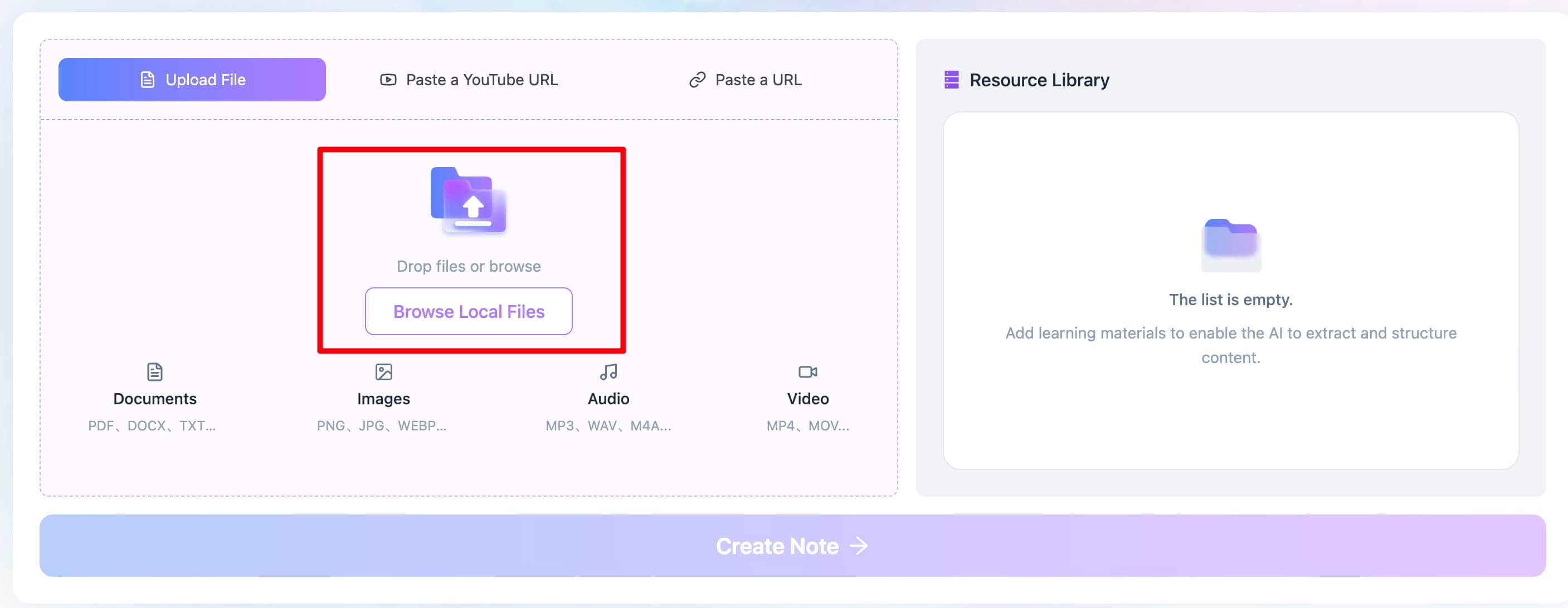
- Upload Your PDF File. Navigate to the Lynote workspace. In the 'Upload File' tab, you can drag and drop your PDF or browse your computer to select it. This works for both text-based and scanned image-based PDFs.
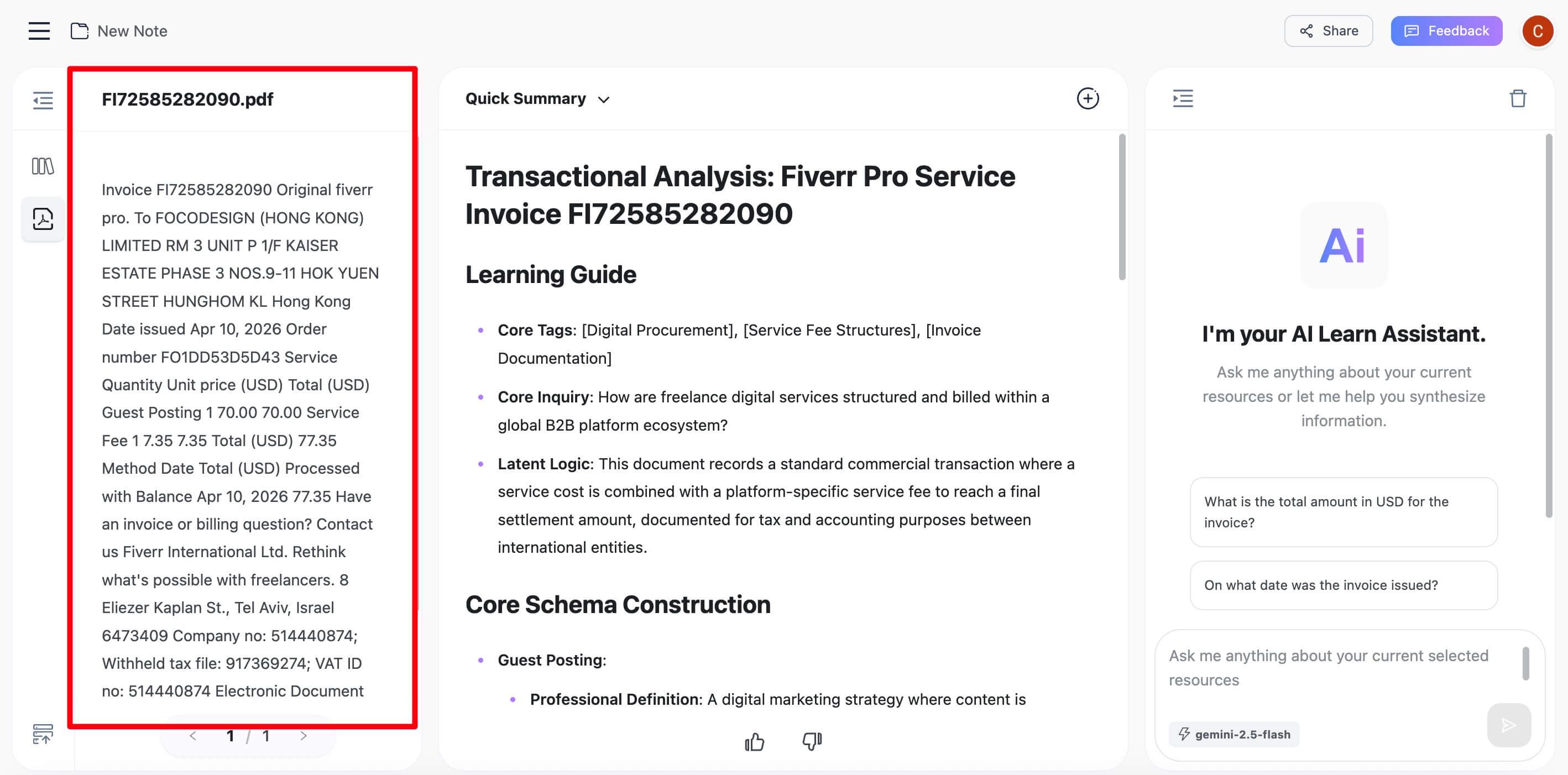
- Extract Text from the PDF. After the file is uploaded, click the "Create Note" button. Lynote's AI engine processes the document, automatically applying OCR if it detects an image-based file, and generates a clean, searchable text version.
- Copy the Extracted Text. Once the text appears in the editor, you can review it, make any minor corrections, and then use the copy button to grab the entire content. It's now on your clipboard, ready to be pasted into your Python script as a string variable.
This approach lets you focus on the data analysis part of your code, not the infrastructure and error-handling of a local OCR setup.
Common Pitfalls and Advanced Tips
Extracting text from PDFs is rarely a perfect process. Here are some common issues you'll likely run into:
- Character Encoding: You might encounter a
UnicodeDecodeError. This often happens with older PDFs or those generated by obscure software. Most modern libraries handleUTF-8well, but specifying the encoding can sometimes help if the library allows it. - Password-Protected PDFs: If a PDF requires a password to open, all these libraries will fail. You must provide the password during the opening process. For example,
PyPDF2.PdfReader(file, password='your_password'). - Loss of Formatting: Remember that text extraction almost always loses formatting like bold, italics, font size, and color. You are getting the raw text content, not a visual representation.
- Jumbled Text from Columns: As mentioned with PyPDF2, multi-column layouts (like in academic papers) can result in text that mixes lines from different columns.
pdfplumberis much better at separating these, as it understands the geometry of the page.
Expert Takeaway: Always test your script on a representative sample of your documents. A solution that works perfectly on one PDF might fail completely on another from a different source.
Frequently Asked Questions
Why did the extracted text from my table turn into one long, messy string?
This is the classic failure mode of libraries like PyPDF2 that don't analyze page layout. They read the raw text stream in the order it's stored in the file, which often doesn't match the visual row-and-column structure. To fix this, you must use a layout-aware library like **pdfplumber**, which is specifically designed to recognize tabular data.
Can Python extract text from a specific area of a PDF page?
Yes, but you need a library that provides coordinate information. pdfplumber and PyMuPDF are excellent for this. With pdfplumber, you can use the .crop((x0, top, x1, bottom)) method to create a bounding box and then run .extract_text() or .extract_tables() only within that cropped area.
Why is the extracted text empty for my scanned PDF?
Your PDF contains an image of text, not actual text data. Standard libraries can't "read" images. You need to use an Optical Character Recognition (OCR) process. You can either set up a local OCR engine with pytesseract or use a pre-processing tool like Lynote to convert the image-based PDF to clean text first.
How do I handle PDFs with multiple languages?
Modern libraries like PyMuPDF and pdfplumber generally handle Unicode (which supports most languages) well. The primary challenge comes during OCR. Tesseract, for example, requires you to download and specify the language packs you want it to use (e.g., -l eng+fra for English and French).
Conclusion: Choosing the Right Python PDF Tool
There is no single "best" library for extracting text from PDFs in Python. The right choice is always dictated by the nature of your documents and your project's goals.
Let's boil it down to a simple decision tree:
- If your PDFs are simple, text-based documents and you just need the raw content, PyPDF2 is the easiest and fastest to implement.
- If your PDFs contain tables or structured layouts that you need to parse into data (e.g., for loading into a database or a Pandas DataFrame), pdfplumber is the clear winner.
- If you are processing a large volume of documents and raw speed is your top priority, PyMuPDF (Fitz) is the most powerful and performant option.
- If you are dealing with scanned, image-based PDFs, you must use OCR. For a quick and reliable solution without local setup headaches, pre-processing the file with an external tool is often the most pragmatic path forward before bringing the clean text into your Python environment.
Start with the simplest tool that meets your needs and be prepared to switch to a more powerful one as the complexity of your documents increases.

Written by Janet L. Harris
AI Writing Specialist
Janet reviews AI detectors and humanization tools, with a focus on accuracy, limitations, and responsible use. View all articles →