YouTube Transcript Search — Find the Exact Part in a Video
Skip the scrub bar. Type what you remember, find the matching transcript line, and reopen the video at that timestamp.






Why Choose Lynote for YouTube Transcript Search?

Find Any Word Fast
Search a long YouTube transcript and find a quote, name, instruction, or statistic fast instead of replaying the video until you hear it again.

Jump by Timestamp
Every transcript section includes a timestamp, making it easy to return to the point where the matching word or phrase was spoken.

Paste or Search
Already have the video? Paste its URL. Still looking for it? Search by video keyword first, select the right result, and generate its transcript.

Read the Full Context
A search match is only part of the answer. Read the lines around it to check the speaker's meaning before quoting, clipping, or citing the passage.

Copy, Download, or Translate
Keep what you find in the format your next task needs: copy a useful passage, download the transcript as TXT, or translate the full text or individual paragraphs.

Start Without Signing In
Paste a YouTube link and generate the transcript without creating an account first. You can begin searching as soon as the transcript opens.
How to Search YouTube Transcripts in 3 Steps
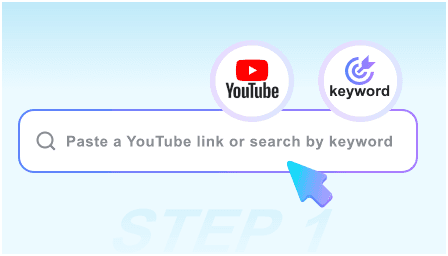
Step 1. Paste a Link or Search by Keyword
Paste a YouTube link directly, or enter a keyword to find the video you need. Select the correct video before moving to the next step.
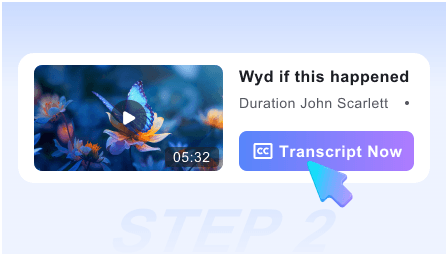
Step 2. Generate the Content
Click "Get Video" to generate a readable transcript from the video's available captions. The content is organized with timestamps so you can trace each line back to the video.
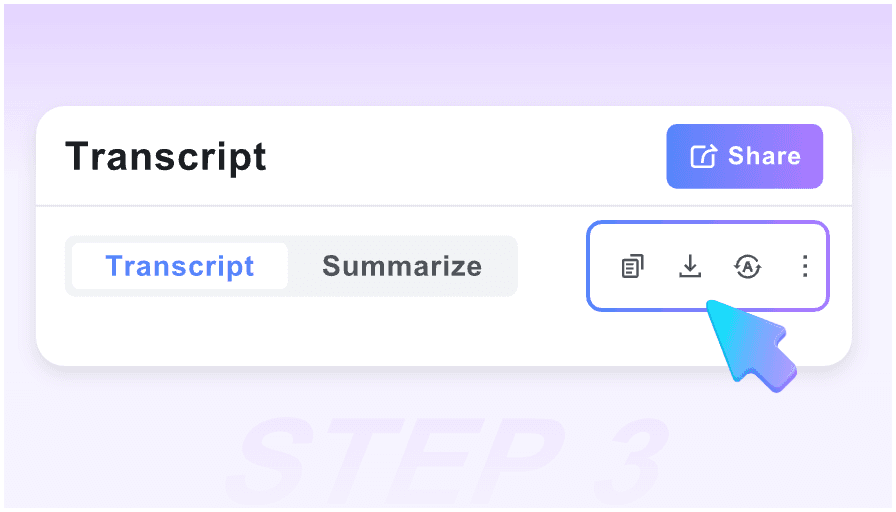
Step 3. Search the Transcript
Press Ctrl+F or Cmd+F and enter the word or phrase you remember. Review the matching line in context, open its timestamp in the video, or copy, translate, and download the transcript as needed.
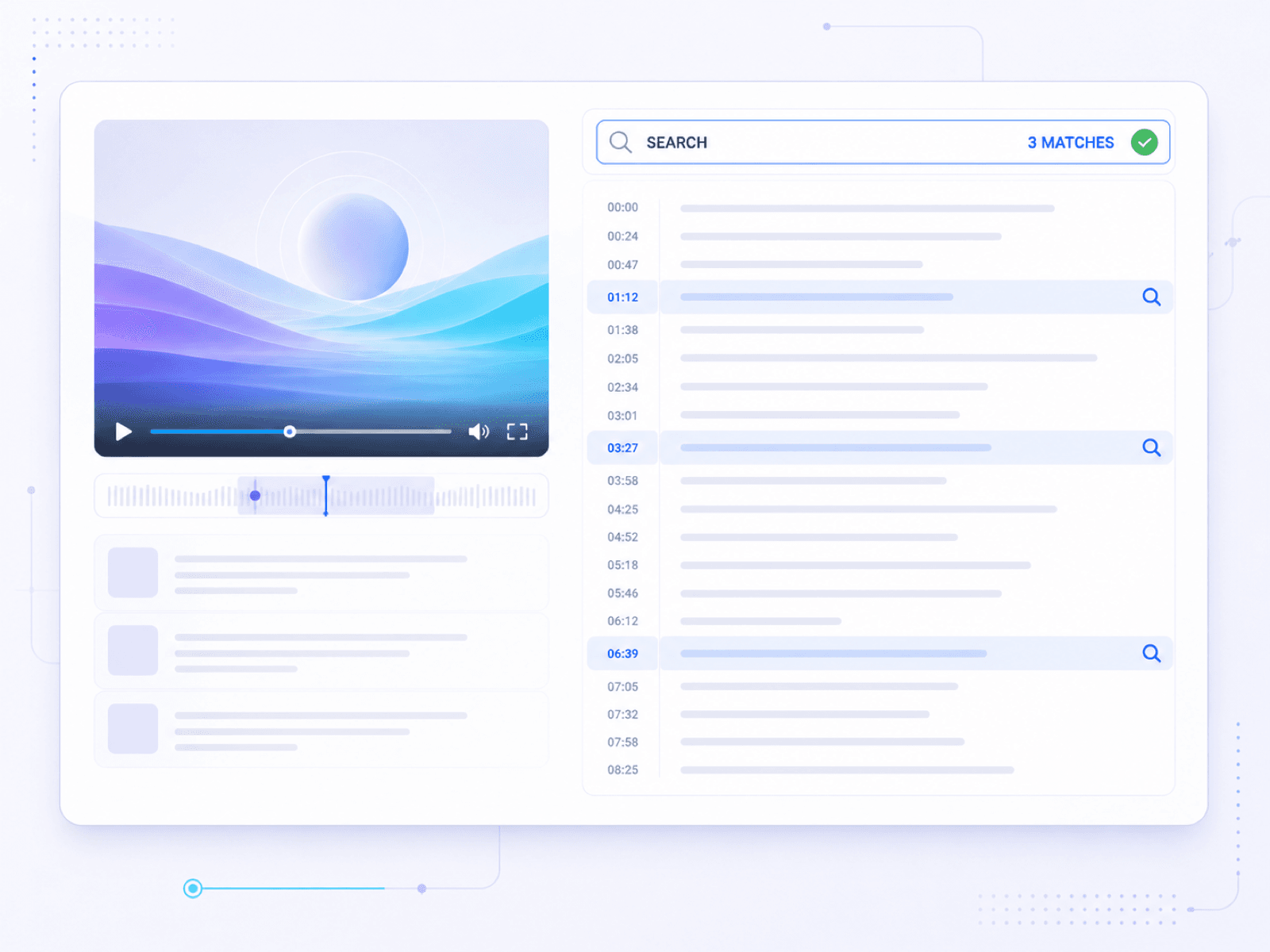
Search a Full YouTube Transcript
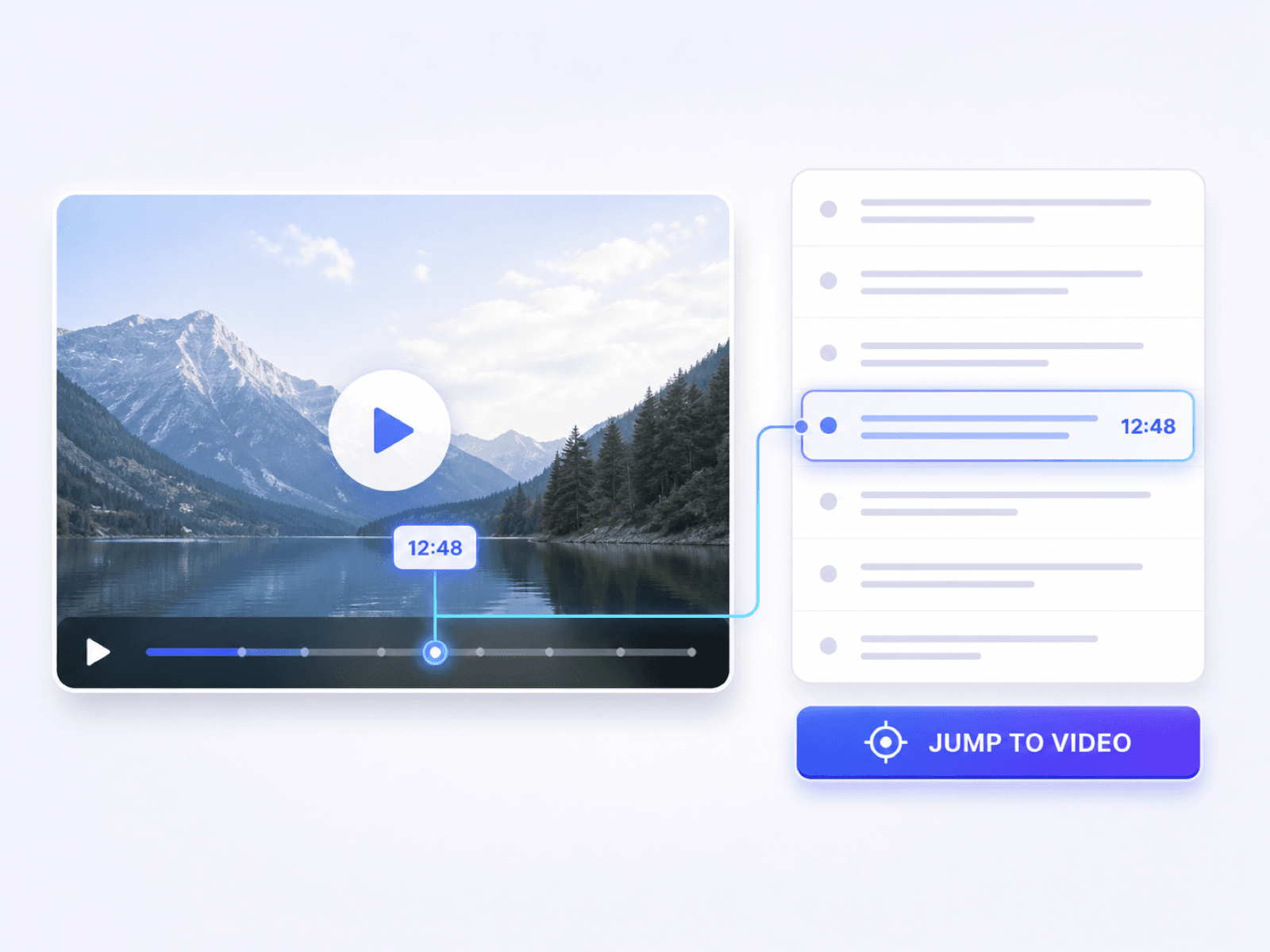
Find the Exact YouTube Moment From a Transcript Match
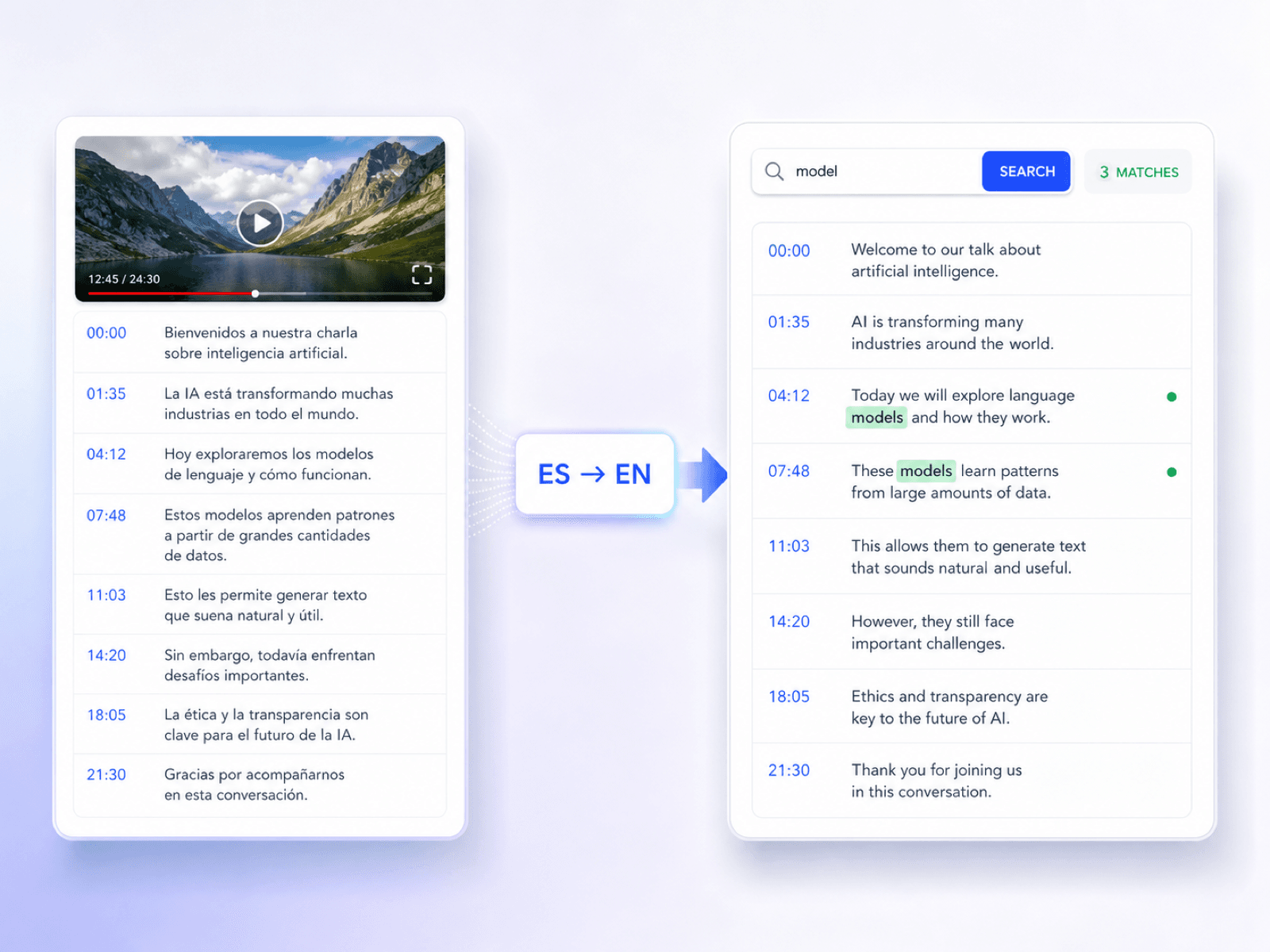
Search YouTube Transcripts in Any Language
Who Should Use This YouTube Transcript Search?

Content Marketers
Find quotable moments in interviews, webinars, and product videos before turning them into articles, social posts, or campaign briefs.

Graduate Students
Find definitions, formulas, and review points in recorded lectures, then revisit the exact teaching moment during note-taking or exam prep.

Video Editors
Locate the spoken line needed for a clip, then use its timestamp to return to the source before making the cut.

Developers
Search technical walkthroughs for a command, configuration step, API name, or troubleshooting explanation without replaying the entire tutorial.

Researchers
Verify quotes and statistics in interviews or news videos, then keep the relevant passage with source notes before citing it.

Language Learners
Read unfamiliar passages beside their timestamps and translate selected sections to understand vocabulary in its original context.
How People Use YouTube Transcript Search

Content Producer

"For one creator interview, I could remember a few words from the quote but not where it appeared. Transcript search found the line, and the surrounding text gave me enough context for the brief."

Graduate Student
"The professor's definition was familiar, but I had no idea where it appeared in the lecture. One phrase took me back to the explanation I needed."

Video Editor
"The timestamp got me close to the clip, but the nearby lines were the useful part. I could see where the speaker's thought actually began before making the cut."

Research Assistant
"A news interview mentioned a figure I wanted to cite. After finding it in the transcript, I replayed that timestamp and saved the surrounding passage with my source notes."

Language Learner
"The cooking tutorial moved too quickly for me to catch every phrase. The transcript let me slow the instructions down, translate the unfamiliar lines, and return to the right step."

Course Reviewer
"I review online courses before we publish them. Transcript search lets me check whether a lesson covers a required topic without sitting through the full recording again."
Frequently Asked Questions
Clear answers about finding words, timestamps, and context inside a YouTube transcript.
YouTube transcript search means finding a word or phrase inside a video's transcript instead of scrubbing through the timeline by hand. With Lynote, you generate the transcript for one selected YouTube video, then use your browser's Find function to locate names, quotes, instructions, or topics and jump to the matching timestamp.
To search a YouTube transcript, paste the video link or find the video by keyword, then click Get Video. When the transcript opens, press Ctrl+F or Cmd+F, enter your search term, and inspect the matching lines.
Yes. You can paste the full YouTube URL or use built-in search to locate the video before generating its transcript.
Yes. The transcript appears as readable text with a timestamp beside each section, so you can search the wording and then return to the relevant moment in the video.
No. Lynote processes one selected video per request. Choose the video first, generate its transcript, and then search within that transcript.
Lynote relies on captions or CC already available for the selected YouTube video. A video without usable captions may not produce a transcript.
Read the lines around the match, then use the timestamp to listen to the original audio. This helps confirm names, numbers, technical terms, and whether the quote still has its intended context.
Yes. You can copy useful text, download the transcript as a TXT file, or translate it using Full Translation or Paragraph-by-Paragraph mode.
Not from the spoken phrase alone. Lynote is not a cross-video transcript index: first select the source video by URL or video keyword, generate its transcript, and then search inside that transcript.
Yes. You can generate and search the selected video's transcript without creating an account first.