

Bulk YouTube Transcript Generator
Paste multiple YouTube links, import a playlist, or search by keyword to generate searchable transcripts with timestamps, summaries, translation, and TXT export.






Why Choose Our Bulk YouTube Transcript Tool?

Built for Bulk YouTube Workflows
Transcribe more than one YouTube video without repeating the same copy-and-paste workflow. Lynote helps researchers, marketers, and creators collect transcripts from multiple links in one place.

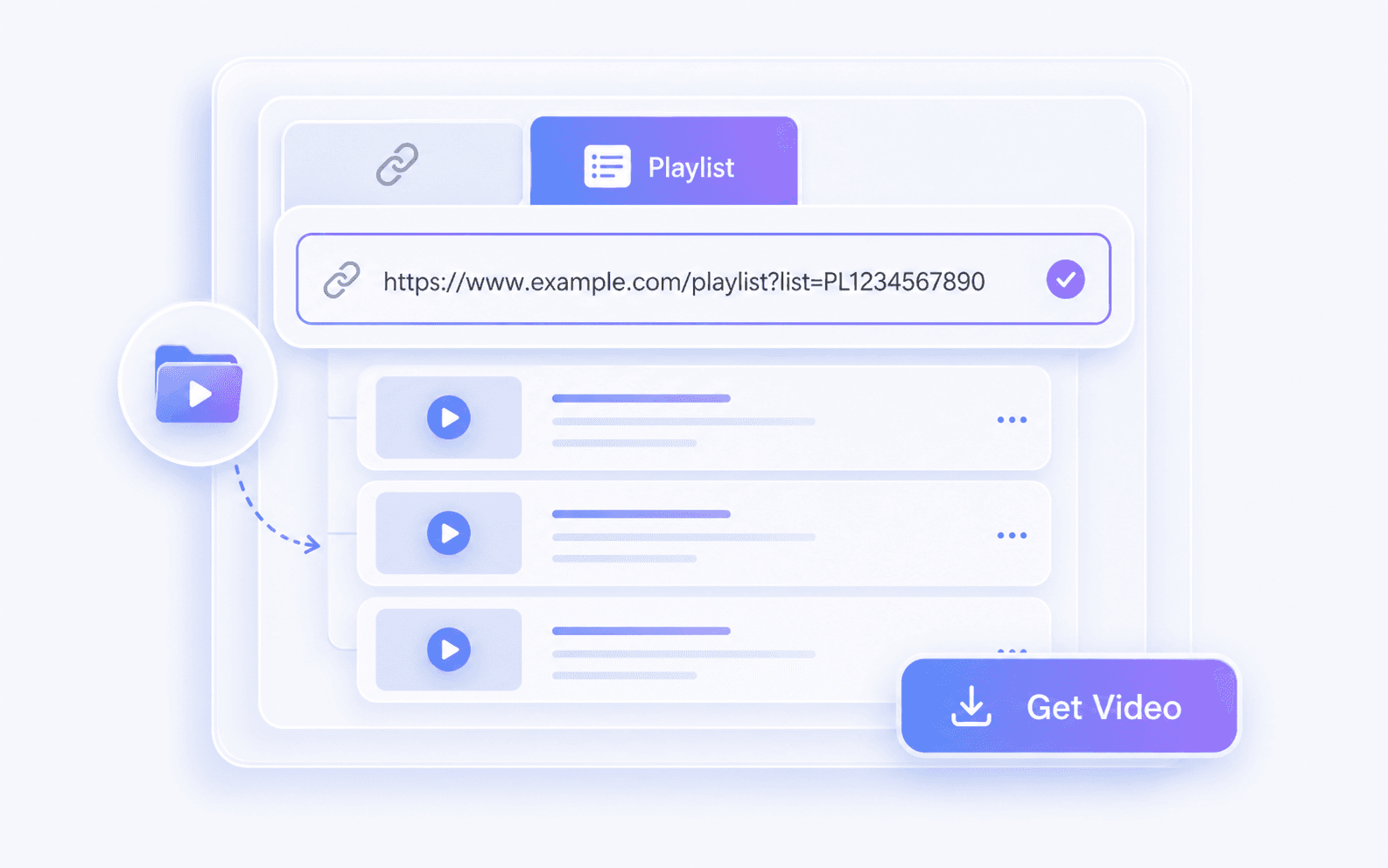
Transcribe Full YouTube Playlists
Paste a YouTube playlist URL and Lynote loads the available videos into one transcription workflow, so courses, podcast series, webinars, and channel playlists become easier to search and reuse.

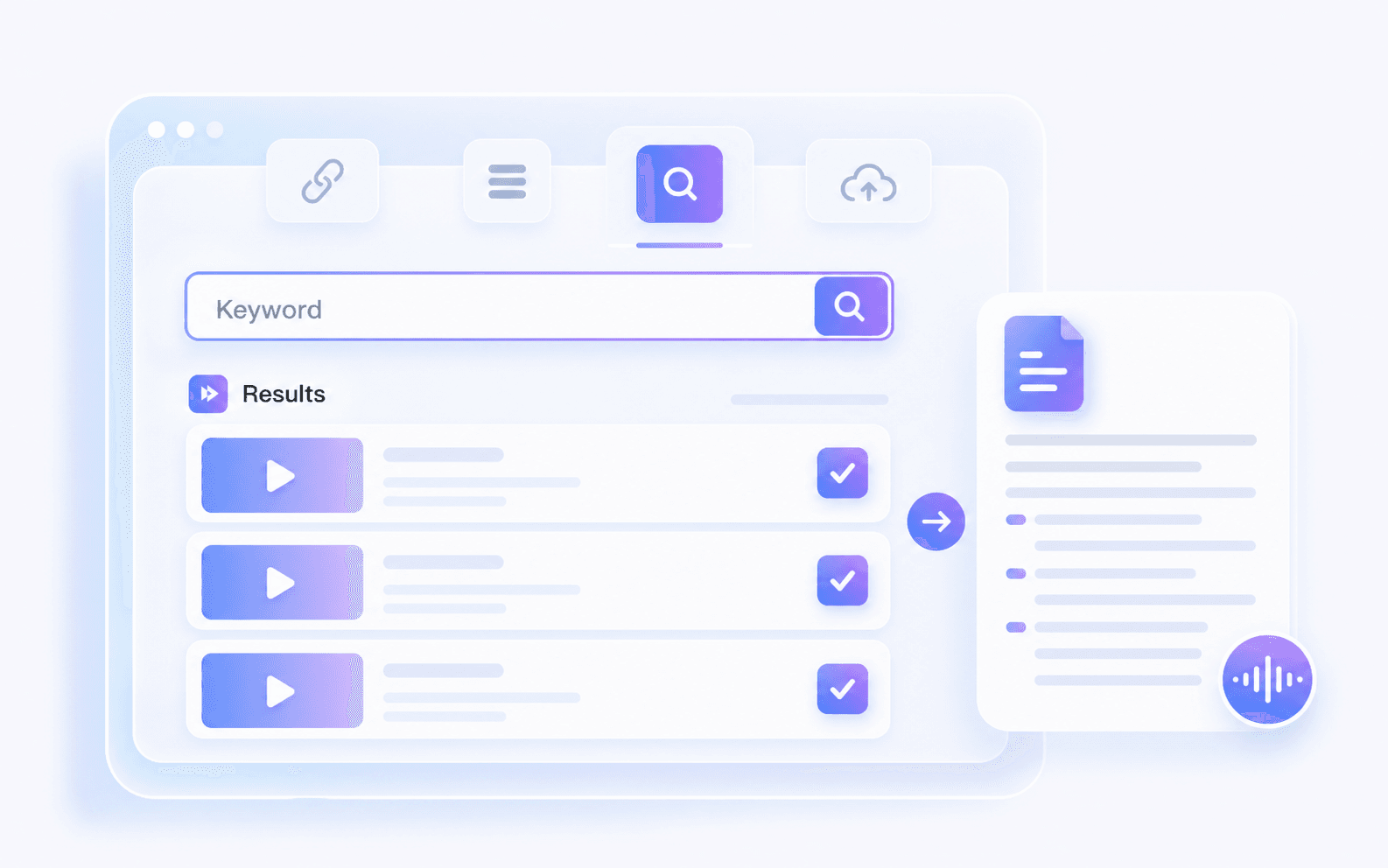
Keyword Search to Transcript
Use the YouTube KeyWord tab when you want to start from a topic instead of a saved link. Search for relevant videos, choose what matters, and turn selected results into transcript text.

Faster Content Repurposing
Convert videos, playlists, webinars, podcasts, and tutorials into raw material for blogs, newsletters, social posts, reports, training resources, and research notes.

Batch Queue and Progress Tracking
Watch videos move through the transcription queue, see what is still processing, and manage larger transcript projects without jumping between separate pages.

Timestamped Transcript Output
Use timestamps when available to jump back to key moments, verify quotes, create subtitles, or clip useful sections faster.

Export, Copy, Translate
After transcription, review the text, copy it, download it as TXT, summarize it, translate it, or keep working with it inside Lynote.
Add Multiple YouTube Links

Import a Playlist URL
Search by Keyword, Then Transcribe
Turn Transcripts into Usable Assets

How to Download YouTube Transcripts in Bulk
Step 1. Choose Link, Keyword, or Playlist
Start from the tab that matches your workflow: add YouTube links, search by keyword, or paste a YouTube playlist URL.
Step 2. Add or Select the Videos You Need
Add multiple links, review keyword results, or let Lynote load videos from a playlist. Keep the videos that matter before starting transcription.
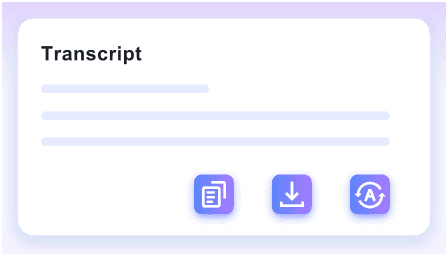
Step 3. Generate, Review, and Export Transcripts
Start the batch, monitor progress, then review the finished transcripts. Copy key sections, download TXT files, summarize, translate, or continue analyzing the content in Lynote.
Who Uses a Bulk YouTube Transcript Downloader?

Content Creators
Collect transcripts from long videos, interviews, podcasts, and playlists so you can find quotes, angles, and ideas without taking notes manually.

Digital Marketing Agencies
Analyze competitor videos, client industry channels, webinars, and campaign content at scale before turning insights into briefs or reports.

SEO Professionals
Extract searchable text from niche videos to uncover recurring topics, keyword themes, audience questions, and content gaps.

Students & Academics
Turn lecture series, interviews, conference talks, and educational playlists into searchable study or research material.

Podcast Producers
Convert podcast video playlists into transcripts, identify strong clips, and repurpose episodes into summaries, captions, and social content.

Video Editors
Use timestamped transcripts to find the exact moment a speaker says something, then build subtitles, clips, and edits with less timeline scrubbing.
What People Say About Lynote

Content Marketer

“I had to pull insights from 31 competitor videos for a content project. Normally, that would mean opening tabs all day and taking notes. I pasted the keyword, collected the YouTube transcripts, and had everything organized before lunch.”

Podcast Producer
“We publish clips from long podcast episodes every week. Before this, finding strong moments meant scrubbing through hours of footage. Now I search the transcript first and go straight to the parts worth clipping.”

Freelance Writer
“Clients often send me ten or fifteen YouTube videos and expect an article from them. I used to pause, rewind, and take notes. Now I get the transcripts first and spend my time writing.”

Social Media Manager
“I tested it with a keyword search and got transcripts from a group of related videos. Suddenly I had enough content ideas for weeks, and I realized how much time I had been losing.”

Business Consultant
“I regularly review industry webinars and conference talks. Having transcripts in one place makes it much easier to find quotes, statistics, and examples for presentations.”

Video Editor
“The timestamped transcripts are the biggest win for me. I can find the exact sentence I need without dragging through a two-hour timeline.”
Frequently Asked Questions
Common questions about bulk YouTube transcript downloads.
Yes. Use the YouTube Link tab to add multiple video URLs and generate transcripts from one batch workflow. Batch availability can depend on source access, video length, and your current workspace limits.
Yes. Paste a YouTube playlist URL, and Lynote loads the available videos into the playlist workflow. You can then generate transcripts for the playlist content without opening each video one by one.
Use the YouTube KeyWord tab to search by topic, review matching videos, choose the results relevant to your research, and generate transcripts without manually collecting each link.
A video can fail because captions are unavailable, the video is restricted, or processing is interrupted. You can review failed items and retry when the source becomes available again.
Yes, timestamps are included when available from the source or transcription workflow. They help you verify quotes, jump to important moments, create subtitles, and navigate long videos faster.
You can review, copy, and download transcripts as TXT for reading, research, and content creation. You can also summarize or translate transcripts inside Lynote when your workflow needs it.
Processing time depends on the number of videos, video length, source availability, and queue load. Lynote shows progress so you can see which videos are finished and what still needs attention.


